How to Add an Image URL in VS Code HTML
Add local or remote images to HTML in VS Code with correct paths, alt text, previews, responsive markup, troubleshooting, and a faster API option.
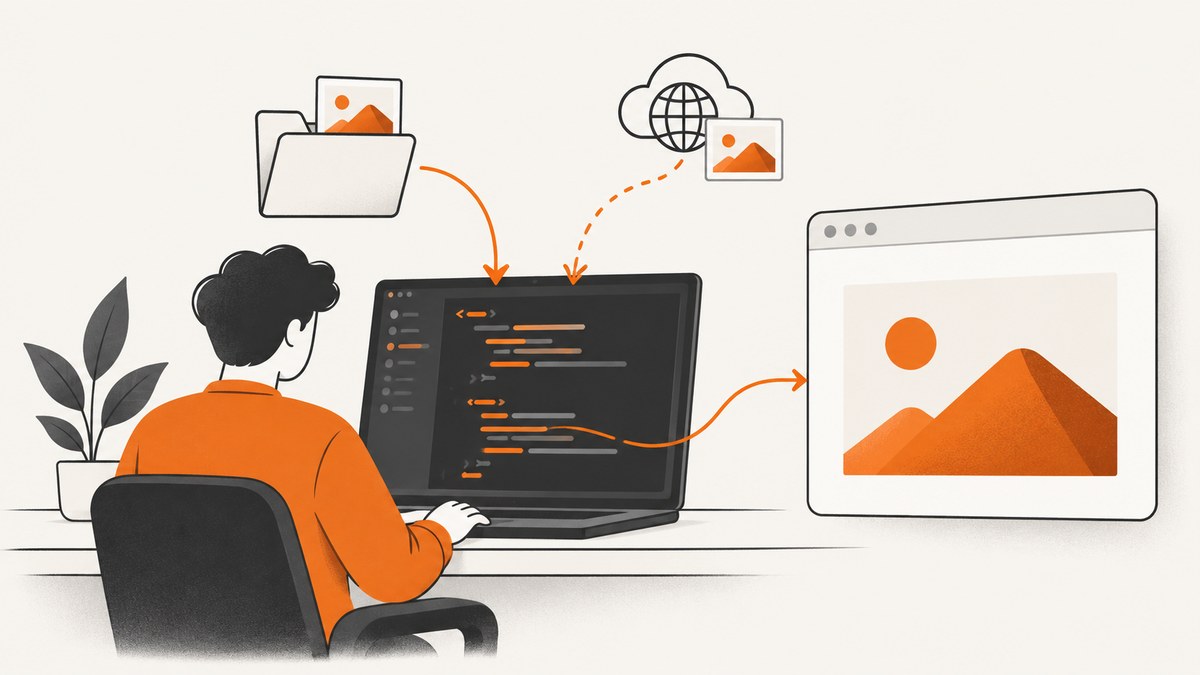
To add an image in an HTML file opened with VS Code, place an <img> element in the page and set its src attribute to the image URL or path:
<img src='images/photo.jpg' alt='A description of the photo'>Use a path relative to the HTML file for an image in your project, or a complete HTTPS URL for an image hosted elsewhere. Add useful alternative text in alt; use alt='' when the image is purely decorative. The HTML editor helps you write the markup, but the browser resolves the URL when it renders the page. VS Code provides HTML language support and an Integrated Browser preview for checking the result. See the MDN img element reference and VS Code HTML documentation.
1. Add an image in VS Code step by step
- Open your project folder in VS Code with File → Open Folder.
- Open the HTML file that should contain the image, such as
index.html. - Put the image in the project, usually in a folder named
images,img, orassets. - Inside the page’s
<body>, typeimgand press Tab if you want Emmet to expand the element. - Set
srcto the path or URL and setaltto a concise description. - Save the file and open it in a browser or VS Code’s Integrated Browser preview.
A minimal project can look like this:
my-site/
  index.html
  images/
    photo.jpg
Because index.html and the images directory are siblings, the correct markup is:
<img src='images/photo.jpg' alt='Snow-covered mountain at sunrise'>If the image is next to the HTML file, omit the folder:
<img src='photo.jpg' alt='Snow-covered mountain at sunrise'>2. Choose the correct image URL or path
The src value is interpreted from the location of the page being rendered. VS Code does not repair an incorrect path. A path that works in one HTML file can fail after you move that file into another directory.
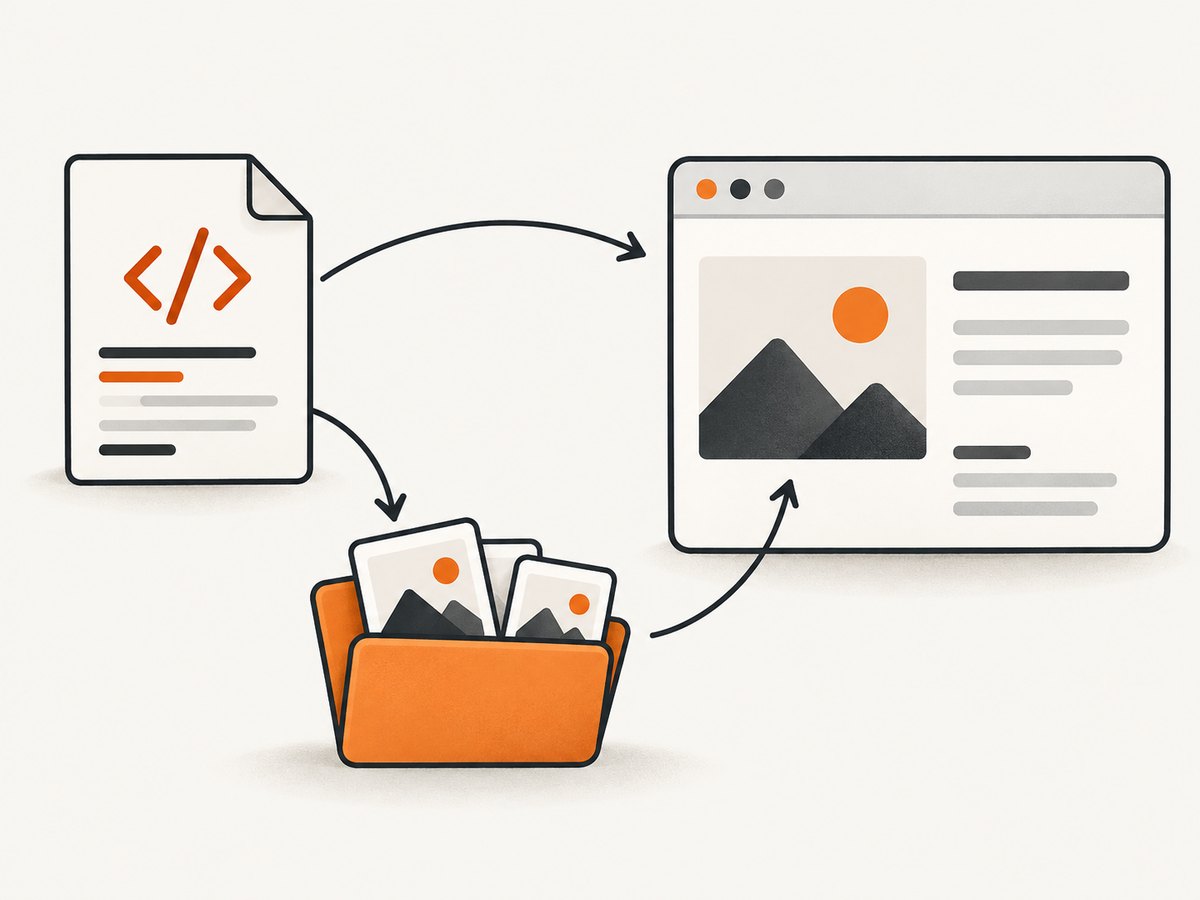
| Image location | Example src |
When to use it |
|---|---|---|
| Same folder as the HTML file | 'photo.jpg' |
Small pages with a flat folder structure |
| Child folder | 'images/photo.jpg' |
A maintainable project with an assets folder |
| Parent folder | '../images/photo.jpg' |
The HTML file is one directory below the image folder |
| Remote image | 'https://example.com/images/photo.jpg' |
An image served from a permitted external host |
For example, if the structure is:
my-site/
  images/photo.jpg
  pages/about/index.html
then about/index.html needs:
<img src='../../images/photo.jpg' alt='Company office exterior'>Count directories from the HTML file, not from the workspace root shown in VS Code’s Explorer. The browser’s current URL also matters after deployment: a relative path is resolved against the page URL.
3. Use a complete HTML example
This page can be copied into index.html when images/photo.jpg exists:
<!doctype html>
<html lang='en'>
<head>
  <meta charset='utf-8'>
  <meta name='viewport' content='width=device-width, initial-scale=1'>
  <title>Image example</title>
</head>
<body>
  <h1>A local image</h1>
  <img
    src='images/photo.jpg'
    alt='Snow-covered mountain at sunrise'
    width='1200'
    height='800'
  >
</body>
</html>
<img> is a void element, so it has no closing </img> tag. The width and height values communicate the intrinsic ratio to the browser and help reserve space while the file loads. They do not have to match the displayed CSS size exactly, but they should describe the image’s ratio.
4. Add an external image URL safely
For an image hosted on a different site, use its direct resource URL:
<img
  src='https://example.com/images/product.jpg'
  alt='Blue ceramic mug on a table'
>
The URL should return an image resource, not an HTML page containing an image. Paste it into a browser address bar to check what the server returns. A host may reject hotlinking, require authentication, redirect, or remove the file later. An absolute URL is useful for a quick example, but hosting images in your own project is easier to maintain if your domain or the external site changes.
Only use images you created, licensed, or have permission to host. A publicly reachable URL does not mean the image is free to reuse. Avoid hotlinking another site’s files without permission because it can violate terms, break unexpectedly, and consume that site’s bandwidth.
5. Write useful alternative text
The alt attribute is the text alternative announced by assistive technology and displayed when an image cannot load. Describe the image’s purpose in the page, not every visible detail.

<!-- Informative image: describe its meaning -->
<img src='images/chart.png' alt='Monthly signups increased from January to June'>

<!-- Decorative image: keep it out of the reading order -->
<img src='images/divider.svg' alt=''>
Do not repeat nearby text. If a linked image is the only content of a link, its alt should state the link’s destination or action. Do not put a filename, “image,” or a long paragraph in alt unless that is genuinely the relevant content.
6. Make the image responsive
A basic responsive rule prevents an image from overflowing a narrow viewport:
img {
  max-width: 100%;
  height: auto;
  display: block;
}
For different files at different viewport widths, use srcset and sizes:
<img
  src='images/landscape-800.jpg'
  srcset='images/landscape-400.jpg 400w,
          images/landscape-800.jpg 800w,
          images/landscape-1600.jpg 1600w'
  sizes='(max-width: 600px) 100vw, 800px'
  width='1600'
  height='900'
  alt='A lake surrounded by pine trees'
>
The browser chooses an appropriate candidate based on the viewport and pixel density. This is optional when you only need one image URL, but it can reduce downloads on small screens.
For below-the-fold content, you can request lazy loading:
<img src='images/gallery-1.jpg' alt='Gallery view' loading='lazy'>Do not lazy-load the main image that appears immediately at the top of the page if doing so delays the page’s primary content.
7. Preview the page in VS Code
VS Code’s HTML support includes syntax highlighting, IntelliSense, and Emmet. Its Integrated Browser can render the page while you edit it. Open the preview from the Command Palette or the browser command available in your VS Code installation, then navigate to the local HTML file or local development server URL. Save the HTML after changing src and reload if the preview does not update automatically.
A preview confirms what the browser can resolve. It does not upload your image or make a broken path valid. When a project uses a framework or a development server, prefer the server’s URL because its asset pipeline may resolve paths differently from opening a file directly.
8. Diagnose an image that does not appear
| Symptom | Likely cause | Fix |
|---|---|---|
| Broken-image icon | Wrong relative path | Calculate the path from the HTML file and check each directory name. |
| Works on one page but not another | The pages are at different directory depths | Adjust ../ segments or use the correct site-root path for your server. |
| Works on your computer but not after deployment | Filename case differs | Match capitalization exactly; many production servers are case-sensitive. |
| Remote image is blocked | Hotlink protection, authentication, CORS-related delivery rules, or a dead URL | Open the direct URL, inspect the network response, and host a permitted copy yourself when appropriate. |
| Only a blank area appears | CSS gives the image zero dimensions or hides it | Inspect computed styles and remove conflicting display, width, height, or opacity rules. |
| Image is distorted | Both dimensions are forced to incompatible values | Set one dimension to auto and preserve the source ratio. |
| Spaces or special characters fail | Unfriendly filename or URL encoding issue | Rename files with simple lowercase names, or encode URL characters correctly. |
Use the browser developer tools’ Network panel to see the exact request. A 404 usually means the path or filename is wrong. A 403 indicates access restrictions. A response with text/html often means the URL points to an error page rather than an image. The Console can also reveal mixed-content errors when an HTTPS page tries to load an HTTP image.
9. The path is relative to the rendered page
There are two common forms of root-relative paths:
<img src='/images/photo.jpg' alt='Product photograph'>A leading slash starts at the website origin, such as https://your-site.example/images/photo.jpg. This can be convenient on a domain root, but it can break when the site is deployed under a subpath such as /docs/. A relative path such as images/photo.jpg follows the current page’s directory and is often easier to move with the page.
Do not use a path copied from your operating system, such as C:\Users\You\Pictures\photo.jpg. That is not a web URL and will not work for visitors. Copy the asset into the project or serve it through a web server.
10. Extension webviews are a different case
An ordinary HTML page edited in VS Code uses normal browser URL rules. A VS Code extension webview has a separate security model. Extension authors loading local resources into a webview must convert resource URIs with Webview.asWebviewUri. That API is not required for a normal index.html file and should not be added just because the file is open in VS Code.
11. Or skip the browser setup
If your goal is to obtain a rendered image rather than build the HTML page yourself, ScreenshotNeo can capture a URL with one request. It accepts cookie and consent banners like a visitor, then removes more than 60 known consent platforms, newsletter popups, and chat widgets before the capture. Bot checks, blank pages, timeouts, failed loads, and cache hits are not billed, and the response identifies the result with X-Page-Verdict and X-Billed headers. An MCP server also lets Claude, Cursor, and other MCP clients call take_screenshot, get_page_info, and capture_pdf.
See the ScreenshotNeo API documentation for authentication and options. The basic request is:
curl -G 'https://api.screenshotneo.com/v1/shot' \
  -d access_key=YOUR_API_KEY \
  --data-urlencode url=https://stripe.com \
  -o shot.webp
Python:
import requests

r = requests.get(
    'https://api.screenshotneo.com/v1/shot',
    params={'access_key': 'YOUR_API_KEY', 'url': 'https://stripe.com'},
    timeout=90,
)
r.raise_for_status()
open('shot.webp', 'wb').write(r.content)
Node.js:
const q = new URLSearchParams({
  access_key: 'YOUR_API_KEY',
  url: 'https://stripe.com'
});
const res = await fetch(`https://api.screenshotneo.com/v1/shot?${q}`);
if (!res.ok) throw new Error(`HTTP ${res.status}`);
const data = Buffer.from(await res.arrayBuffer());
require('fs').writeFileSync('shot.webp', data);
You can also select an element, capture a full page with lazy images loaded, choose PNG, JPEG, or WebP, set a device or viewport, use retina scale, apply custom CSS or JavaScript, wait for a selector or network idle, block resource types, provide headers or cookies, set timezone or geolocation, resize the result, cache with a chosen TTL, create signed image links, submit asynchronous jobs, capture up to 100 URLs in a bulk call, or request a PDF. Clean shots are the only billable results. The Free plan includes 1,000 screenshots each month with no card; paid plans start at $5 for 3,000 shots, and every feature is available on every plan.
Create a free ScreenshotNeo account to get 1,000 screenshots a month with no card.
12. Reliability, performance, and maintenance notes
- Keep filenames stable. Renaming an asset requires updating every
srcreference. Lowercase names without spaces reduce deployment surprises. - Reserve layout space. Set accurate
widthandheightattributes to reduce layout shifts. - Choose an appropriate format. WebP or AVIF can reduce transfer size when your delivery pipeline supports them; JPEG is common for photographs and PNG is useful when transparency or lossless detail matters.
- Check the actual request. Browser previews can hide whether a server returned a redirect, an error document, or an image with the wrong MIME type.
- Consider caching. Stable local assets can be cached by the browser and CDN. Remote URLs may change or disappear, so keep a permitted local copy for important content.
- For automated captures, wait for the page state you need. Dynamic pages may require a selector wait, delay, or network-idle condition before a screenshot is taken.
13. Frequently asked questions
Can I paste any image URL into src?
Only if it points to a reachable image that you are permitted to use. A page URL, expiring private URL, or hotlink-protected resource may not render reliably.
Should I use a relative path or a full URL?
Use a relative path for images shipped with your site. Use a full HTTPS URL when the image is intentionally hosted elsewhere and its availability and permissions are acceptable.
Do I need an extension such as Live Server?
No. A browser can open a simple HTML file, and VS Code provides HTML tooling and an Integrated Browser. A local server becomes useful when your framework, routing, or asset pipeline requires one.
Why does alt matter if the image loads?
It supplies the equivalent meaning to people who cannot see the image and provides fallback text when the resource fails.
How do I add an image to a VS Code extension webview?
That is a webview-specific task. Extension code must convert local resource URIs with Webview.asWebviewUri; normal HTML pages do not use that API.


