How to Add Page Numbers When Converting HTML to PDF
Add reliable page numbers to HTML-to-PDF output with CSS page-margin boxes. Learn the renderer requirements, Puppeteer setup, troubleshooting, and alternatives.

For HTML-to-PDF output, add page numbers with the PDF renderer’s paged-media support. In CSS, put counter(page) in an @page margin box and reserve footer space with the page margin:
@page {
  margin: 18mm 16mm;
  @bottom-right {
    content: counter(page);
  }
}
For “Page X of Y,” use counter(pages) only after confirming that your rendering engine and version support it. Browser and PDF-engine support differs, so inspect the generated PDF in the exact runtime you deploy. Chrome documents generated page-margin content beginning with Chrome 131. Chrome’s print margin documentation and the Prince paged-media documentation describe page counters.
1. Choose where the page number belongs
Use an @page margin box for recurring page furniture. It belongs to the printed page rather than the document’s normal content flow, so it can appear consistently at the bottom or top of each page without inserting a footer element after every section.
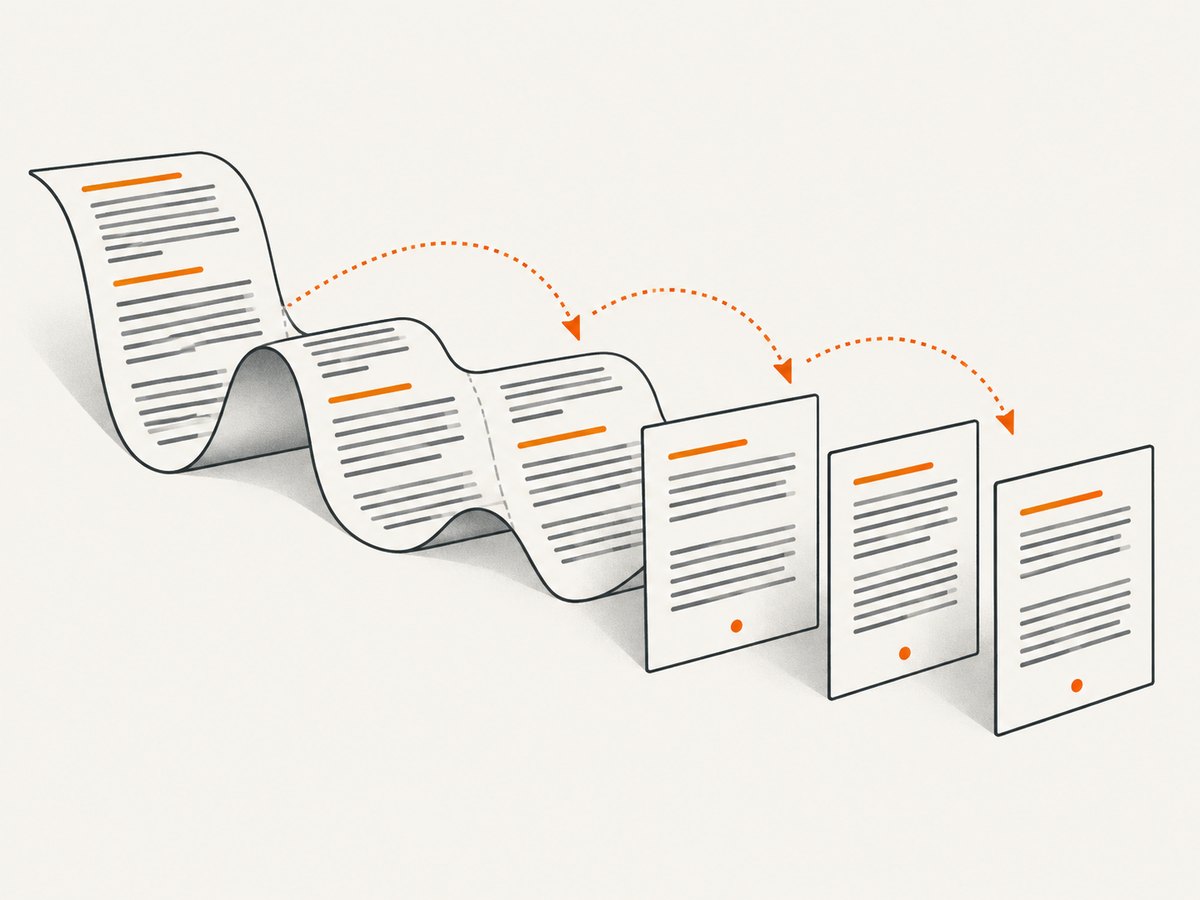
The page counter represents the current page. The pages counter represents the total page count in engines that implement it. The page margin provides the area where the margin box is laid out; if the bottom margin is too small, the number may collide with document content or be clipped.
Current page only
@page {
  margin: 18mm 16mm;
  @bottom-center {
    content: counter(page);
  }
}
Current page and total pages
@page {
  margin: 18mm 16mm;
  @bottom-right {
    content: "Page " counter(page) " of " counter(pages);
  }
}
Both the margin-box syntax and the total-page counter are renderer-dependent. A successful browser preview does not prove that a separate PDF conversion service supports the same CSS. Validate the PDF output with the specific engine and version that runs in production.
2. Add the CSS to your document
You can put the rule in a stylesheet included by the HTML or in a <style> block. For a self-contained input file, this small example includes the document, print rule, and content:
<!doctype html>
<html lang="en">
<head>
  <meta charset="utf-8">
  <title>Quarterly report</title>
  <style>
    @page {
      size: A4;
      margin: 20mm 18mm 22mm;
      @bottom-right {
        content: "Page " counter(page) " of " counter(pages);
        font: 9pt sans-serif;
        color: #555;
      }
    }

    body {
      font: 11pt/1.5 sans-serif;
    }
  </style>
</head>
<body>
  <h1>Quarterly report</h1>
  <p>Report content goes here. Add enough content to span pages.</p>
</body>
</html>
The example requests A4 paper and leaves 22 mm below the content for the footer. Adjust the page size and margins for your document. The CSS font declarations style the generated margin content in engines that apply those rules to margin boxes; check the result because support details can vary.
3. Render with Puppeteer and inspect the PDF
Puppeteer’s Page.pdf() generates a PDF using print CSS by default. The following Node.js example loads a local HTML file, waits for fonts, and writes a PDF. It assumes you have installed Puppeteer and that its bundled Chromium can launch in your environment:
npm install puppeteerconst puppeteer = require('puppeteer');
(async () => {
const browser = await puppeteer.launch({ headless: true });
try {
const page = await browser.newPage();
await page.goto('file:///absolute/path/to/report.html', {
waitUntil: 'networkidle0'
});
await page.evaluate(() => document.fonts.ready);
await page.pdf({
path: 'report.pdf',
format: 'A4',
printBackground: true,
displayHeaderFooter: false,
preferCSSPageSize: true
});
} finally {
await browser.close();
}
})();Replace the file URL with an absolute local path or a reachable page URL. Puppeteer documents that print media is used by default; if you need screen styles, emulate screen media before creating the PDF. See the Puppeteer PDF API for its options and behavior.
Set displayHeaderFooter: false when your document supplies its own page furniture and you do not want Chromium’s automatic header or footer. Browser-added headers and footers can otherwise appear in addition to authored margin content. If you do want Puppeteer templates for a simple header or footer, its headerTemplate and footerTemplate options provide an alternative; those templates are a separate mechanism from CSS margin boxes. Avoid enabling both for the same page number.
4. Select the right rendering engine
First identify what actually converts the HTML. A local Chrome version, a hosted browser service, and a dedicated paged-media formatter can have different feature support. Check the deployed version, then test the real document with its fonts, images, page size, and print settings.
| Renderer | Relevant behavior | What to verify |
|---|---|---|
| Chrome / browser print | Chrome documents page-margin generated content from Chrome 131, with page and pages counters. |
Browser version, print margins, and whether automatic headers and footers are disabled. |
| Puppeteer | Page.pdf() uses print CSS by default; screen media can be emulated explicitly. |
Bundled Chromium version, PDF options, and print-versus-screen styling. |
| Prince | Supports page margin boxes and counters, and documents page selectors such as :first, :left, and :right. |
Whether its page rules fit the layout requirements and the installed product version. |
| WeasyPrint | Its documentation covers page margin boxes and page-based counters along with limitations. | Documented support in the installed release and any limitations affecting the layout. |
Read the primary documentation for Prince paged media and WeasyPrint’s API and CSS support. Treat support as specific to each engine and release, not as a universal property of HTML-to-PDF conversion.
5. Handle title pages and page styles
Some documents need a cover without a visible page number, or different left and right page furniture. Those are page-selector use cases, and selector support is engine-specific. Prince documents patterns such as these:
@page:first {
  @bottom-right {
    content: none;
  }
}

@page:left {
  @bottom-left {
    content: counter(page);
  }
}

@page:right {
  @bottom-right {
    content: counter(page);
  }
}
Test the selectors in the target renderer. If you omit a cover-page number, decide whether subsequent numbering should still reflect physical PDF pages or whether you need a numbering scheme that starts the main matter at one. These requirements are not the same: hiding a number does not necessarily reset the page counter.
6. Troubleshoot missing, incorrect, or duplicated numbers
| Symptom | Likely cause | Fix |
|---|---|---|
| No number appears | The engine or version does not support CSS page-margin boxes, or the rule is not included in print CSS. | Confirm the actual renderer and version. Chrome’s documented generated margin content starts with version 131. Check that the stylesheet loads for print. |
| The number overlaps text | The bottom page margin leaves too little space for the margin box. | Increase the third value in the @page margin shorthand or set margin-bottom explicitly, then render again. |
| There are two footers | Authored page-margin content and the browser’s automatic header/footer are both enabled. | Disable browser-added headers and footers in the print dialog or automation options, then inspect the PDF. |
| “Of Y” is blank or incorrect | The engine does not support counter(pages) as expected, or its behavior differs by version. |
Check the renderer documentation and test a multi-page document. If unavailable, use a renderer that supports the requirement or another documented footer mechanism. |
| PDF styling differs from the browser tab | PDF generation uses print styles while the page was inspected with screen styles. | Review @media print rules and explicitly emulate screen media only if screen styling is desired. |
| The first page has an unwanted number | The selected engine may not support the page selector or override as written. | Check that engine’s page-selector support and test @page:first on a multi-page file. |
7. Improve output reliability and generation cost
Page numbering itself is inexpensive; total generation time is usually affected by document layout, remote assets, fonts, and the chosen renderer. Make the result predictable by using a pinned rendering environment, loading required fonts before PDF creation, and ensuring remote resources are available. For reproducible output, host or bundle assets where your renderer can reliably reach them.
- Test representative documents: include short and long files, images, tables, and content that splits across pages.
- Wait for dependencies: load fonts and images before generation; a network-idle condition alone may not cover every application-specific readiness requirement.
- Use explicit print settings: define paper size, margins, background printing, and header/footer behavior.
- Control concurrency: reuse a browser process where appropriate, but isolate pages and close resources after failed jobs to avoid accumulating memory.
- Inspect output, not only HTML: check page count, footer clipping, duplicate furniture, and text that shifted onto another page.
For large workloads, measure the full conversion path in your own environment. The cited renderer documentation does not establish universal speed or cost comparisons. Account for browser compute, memory, asset fetching, and operational work when choosing between running a renderer yourself and using a service.
8. Or skip the browser setup
If your goal is a screenshot or PDF capture of a URL rather than a custom HTML-to-PDF pipeline, ScreenshotNeo provides a website screenshot API and MCP server. The API accepts one GET request and can return PNG, JPEG, WebP, or PDF. See the ScreenshotNeo API documentation for parameters and options.
curl -G "https://api.screenshotneo.com/v1/shot" -d access_key=YOUR_API_KEY --data-urlencode url=https://stripe.com -o shot.webpimport requests
r = requests.get(
"https://api.screenshotneo.com/v1/shot",
params={"access_key": "YOUR_API_KEY", "url": "https://stripe.com"},
timeout=90,
)
open("shot.webp", "wb").write(r.content)const q = new URLSearchParams({ access_key: 'YOUR_API_KEY', url: 'https://stripe.com' });
const res = await fetch(`https://api.screenshotneo.com/v1/shot?${q}`);
if (!res.ok) throw new Error(`Screenshot request failed: ${res.status}`);
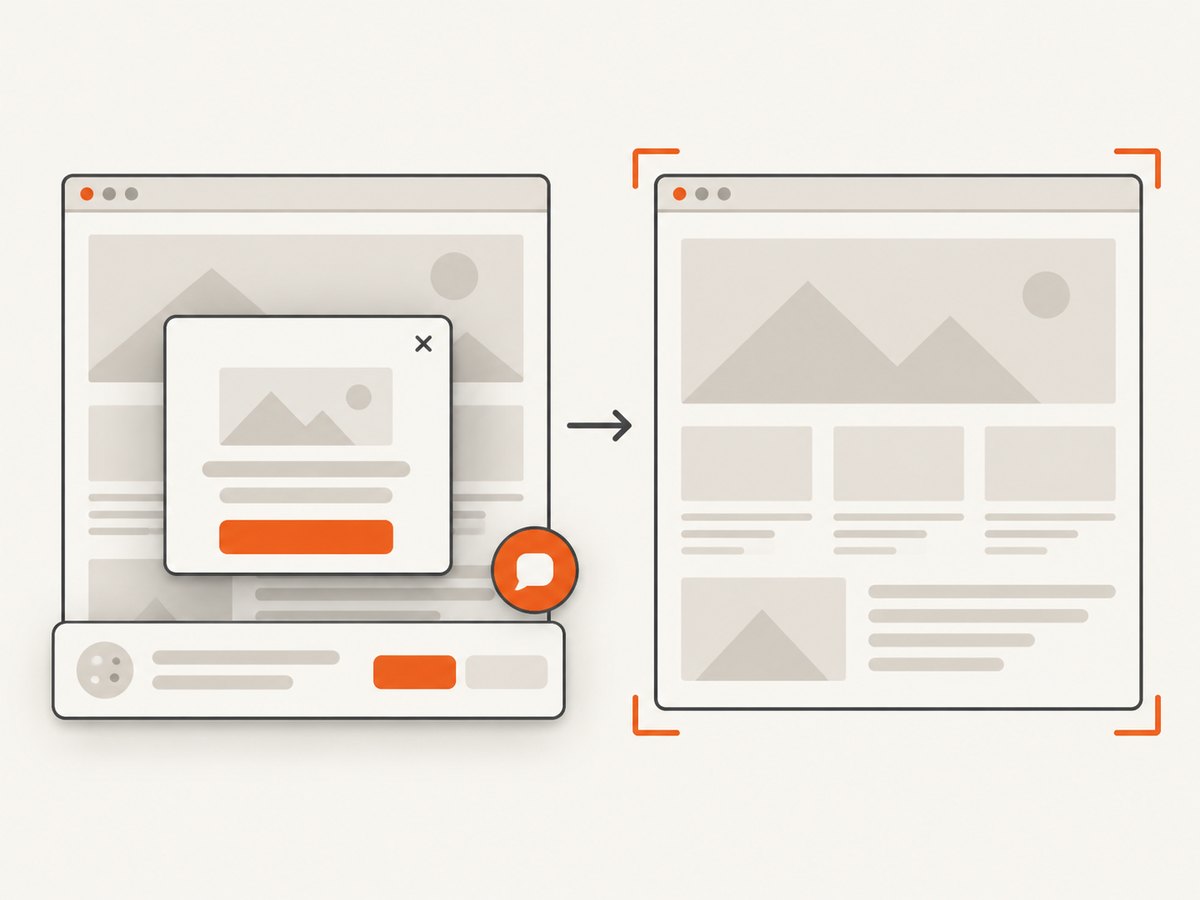
await Bun.write('shot.webp', new Uint8Array(await res.arrayBuffer()));Use a valid API key in place of YOUR_API_KEY. The Node.js example uses Bun’s file-writing helper; with Node.js, write the response bytes using node:fs/promises. ScreenshotNeo removes cookie and consent banners, newsletter popups, and chat widgets before capture; each step can be turned off. Bot checks, CAPTCHAs, blank pages, timeouts, failed loads, and cache hits are not billed, and response headers report the page verdict and billing status. Its MCP server provides take_screenshot, get_page_info, and capture_pdf tools for AI agents. Free includes 1,000 shots per month with no card; paid plans start at $5 for 3,000 shots.
Sign up free for 1,000 screenshots a month with no card.
FAQ
Can I add page numbers with ordinary HTML?
Ordinary inline content does not know where page breaks will land. Use a paged-media feature provided by the rendering engine, or a renderer-specific PDF footer mechanism.
Does the page counter start at one?
It represents the current page according to the renderer’s pagination. If you have a cover, hiding its number does not necessarily change numbering on later pages. Verify the desired numbering scheme in the target engine.
Will the same CSS work in every converter?
No. Paged-media support varies by browser, dedicated renderer, and release. Confirm the relevant feature in the primary documentation and render a representative PDF with the deployed version.
Can I use CSS page numbers with a PDF screenshot API?
Only if that API’s PDF renderer supports the CSS rules. Check the service’s documentation for its engine behavior and options; a screenshot endpoint does not imply support for every paged-media feature.


