How to Add a Custom Header or Footer to a PDF in Python
Add headers, footers, page numbers, logos, and watermarks to existing PDFs with pypdf or PyMuPDF, including rotation, placement, and troubleshooting.
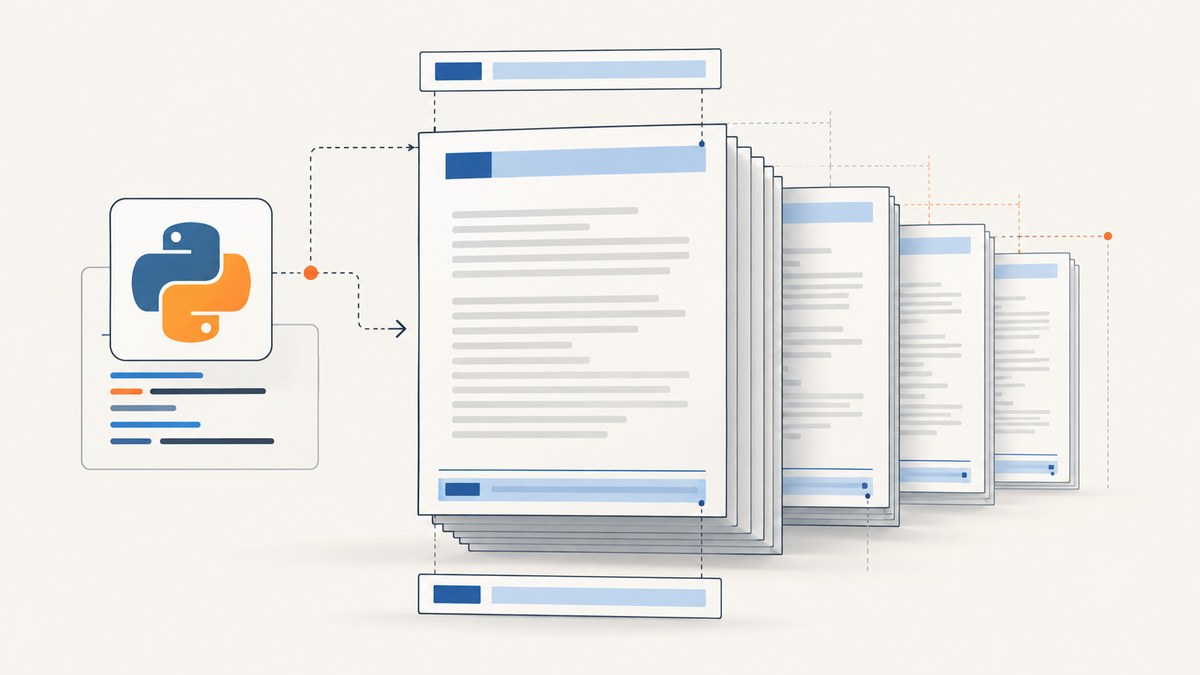
To add a header or footer to an existing PDF, create the extra content as an overlay and apply it to every destination page. Use pypdf when your header or footer is already a PDF page; use PyMuPDF when you want to place text or images directly inside page coordinates.
The examples below preserve the original pages and add content above them. You can also place the overlay underneath existing content, restrict it to selected pages, position it with transformations or rectangles, and normalize rotated pages before merging.
Choose pypdf or PyMuPDF
| Requirement | Best fit | Why |
|---|---|---|
| Header/footer already exists as a PDF page | pypdf | Merge the prepared page onto every destination page. |
| Draw text at exact coordinates | PyMuPDF | Use rectangles and text insertion APIs. |
| Place a logo image | PyMuPDF | Insert an image into a controlled rectangle. |
| Apply scaling, translation, or rotation to a PDF overlay | pypdf | Use Transformation with merge_transformed_page(). |
Install the libraries in an isolated environment:
python -m pip install pypdf pymupdfFor API details, see the pypdf merging documentation and the PyMuPDF page documentation.
Add a PDF header or footer with pypdf
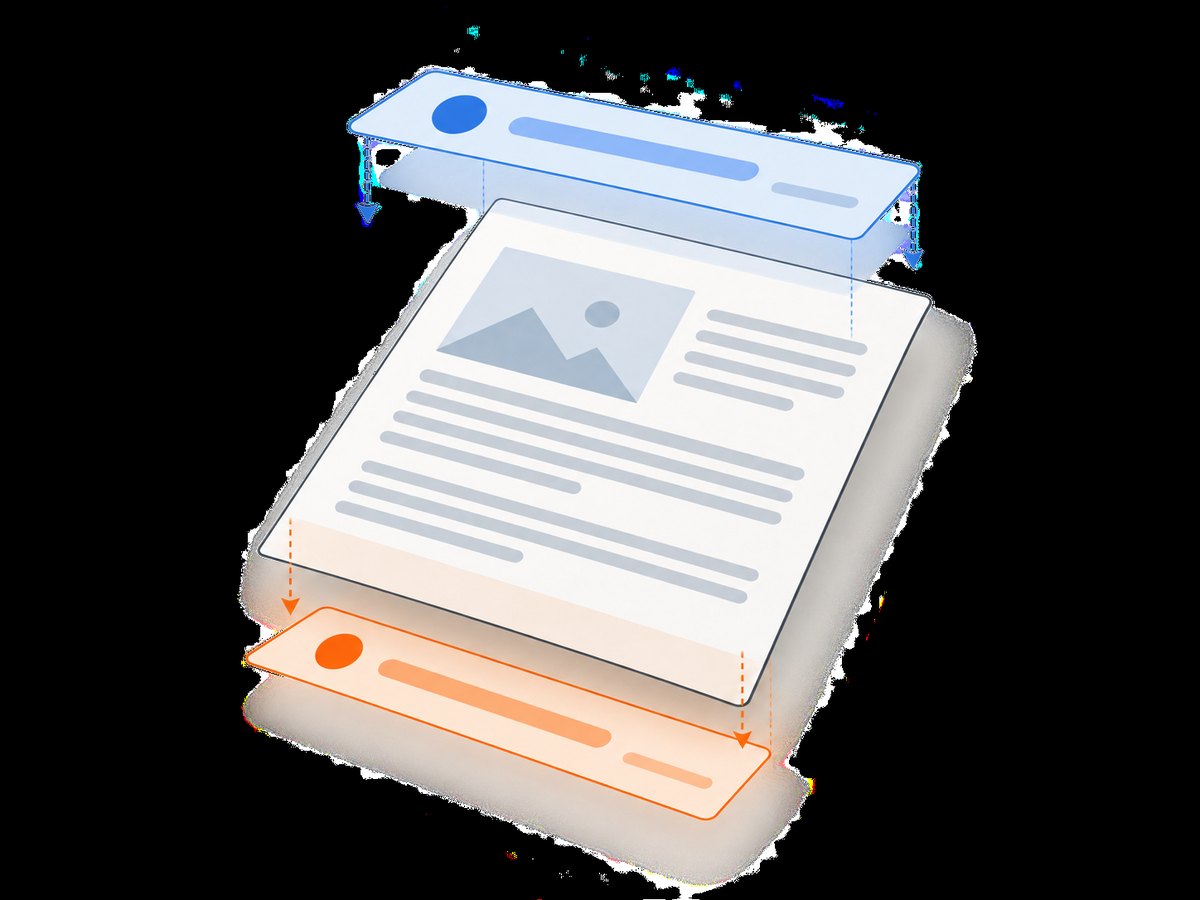
Prepare a one-page PDF whose media box matches the target page size (or whose content is positioned for the target size). Then merge that page into each destination page.
Basic overlay on every page
from pypdf import PdfReader, PdfWriter

stamp = PdfReader("header_footer.pdf").pages[0]
reader = PdfReader("input.pdf")
writer = PdfWriter()

for page in reader.pages:
    page.merge_page(stamp, over=True)
    writer.add_page(page)

with open("output.pdf", "wb") as out:
    writer.write(out)
over=True puts the stamp in the foreground. Set over=False to create an underlay or background watermark. The pypdf documentation describes a stamp as content added on top and a watermark as background content.
Apply the overlay only to selected pages
from pypdf import PdfReader, PdfWriter

reader = PdfReader("input.pdf")
stamp = PdfReader("header_footer.pdf").pages[0]
writer = PdfWriter()

pages_to_stamp = {0, 2, 4}  # zero-based page indexes
for index, page in enumerate(reader.pages):
    if index in pages_to_stamp:
        page.merge_page(stamp, over=True)
    writer.add_page(page)

with open("selected-pages.pdf", "wb") as out:
    writer.write(out)
Move or resize the stamp
Use a transformation when the prepared overlay must be translated or scaled. Translation values and page coordinates use PDF points (72 points per inch).
from pypdf import PdfReader, PdfWriter, Transformation

reader = PdfReader("input.pdf")
stamp = PdfReader("header_footer.pdf").pages[0]
writer = PdfWriter()

transform = Transformation().translate(tx=0, ty=-18).scale(sx=0.85, sy=0.85)
for page in reader.pages:
    page.merge_transformed_page(stamp, transform, over=True)
    writer.add_page(page)

with open("transformed.pdf", "wb") as out:
    writer.write(out)
Adjust the translation for your page size and the location of the content inside the stamp. If the stamp contains both a header and footer, design both in the source page and transform them together.
Handle rotated source pages
A page rotation entry can make an apparently correct overlay land in the wrong place. Normalize the page content before merging:
from pypdf import PdfReader, PdfWriter

reader = PdfReader("input.pdf")
stamp = PdfReader("header_footer.pdf").pages[0]
writer = PdfWriter()

for page in reader.pages:
    if page.rotation:
        page.transfer_rotation_to_content()
    page.merge_page(stamp, over=True)
    writer.add_page(page)

with open("rotation-safe.pdf", "wb") as out:
    writer.write(out)
Inspect the result at portrait and landscape sizes. If pages in one source file use different dimensions, create or select a stamp designed for each size instead of assuming one overlay fits all pages.
Add text, page numbers, or a logo with PyMuPDF
PyMuPDF edits each page directly. Coordinates are measured from the top-left in the usual page APIs, so define a rectangle that stays inside the page bounds and leaves enough margin for existing body text.
Text footer on every page
import pymupdf

input_path = "input.pdf"
output_path = "footer.pdf"

doc = pymupdf.open(input_path)
for page_number, page in enumerate(doc, start=1):
    footer_rect = pymupdf.Rect(
        36,
        page.rect.height - 36,
        page.rect.width - 36,
        page.rect.height - 12,
    )
    page.insert_textbox(
        footer_rect,
        f"Confidential · Page {page_number}",
        fontsize=9,
        fontname="helv",
        color=(0.25, 0.25, 0.25),
        overlay=True,
    )

doc.save(output_path)
doc.close()
overlay=True draws over existing page content. Use overlay=False when the inserted content should sit behind it. Keep the rectangle tall enough for the chosen font size; otherwise the text may be clipped or the insertion call may report that it does not fit.
Text header with a right-aligned title
import pymupdf

doc = pymupdf.open("input.pdf")
for page in doc:
    rect = pymupdf.Rect(36, 18, page.rect.width - 36, 36)
    page.insert_textbox(
        rect,
        "Quarterly report",
        fontsize=10,
        align=pymupdf.TEXT_ALIGN_RIGHT,
        color=(0.1, 0.1, 0.1),
        overlay=True,
    )

doc.save("header.pdf")
doc.close()
Insert the same logo on every page
import pymupdf

logo_bytes = open("logo.png", "rb").read()
doc = pymupdf.open("input.pdf")

for page in doc:
    logo_rect = pymupdf.Rect(36, 18, 108, 54)
    page.insert_image(logo_rect, stream=logo_bytes, overlay=True)

doc.save("logo-header.pdf")
doc.close()
Read the image once and reuse its bytes. That avoids reopening and recreating the same asset for every page. Keep the rectangle inside the page and reserve a top margin so the logo does not cover body text.
Footer image or watermark
import pymupdf

doc = pymupdf.open("input.pdf")
for page in doc:
    footer_rect = pymupdf.Rect(
        36,
        page.rect.height - 60,
        page.rect.width - 36,
        page.rect.height - 18,
    )
    page.insert_image(footer_rect, filename="footer-mark.png", overlay=False)

doc.save("watermarked.pdf")
doc.close()
Page size, margins, and placement rules
- Measure the page with
page.mediaboxorpage.rectbefore choosing coordinates. - Keep header and footer rectangles inside the page bounds; negative or overflowing coordinates can clip content.
- Reserve a margin in the source document when possible. Overlays cannot recover body text they cover.
- Use separate stamp pages or placement calculations for mixed A4, Letter, portrait, and landscape documents.
- For right-to-left or non-Latin text, verify that the selected font and shaping support the required characters.

Validation checklist
- Open the output with a PDF parser or viewer and confirm the page count is unchanged.
- Inspect the first, middle, and final pages.
- Check portrait and landscape pages separately.
- Zoom in on small text and logos to detect clipping.
- Copy text from the output if searchability matters.
- Render pages to images when visual placement must be checked in automation.
Troubleshooting
| Symptom | Likely cause | Fix |
|---|---|---|
| Header appears behind body text | The overlay was merged or inserted as an underlay. | Use over=True. |
| Footer is missing | Its rectangle is outside the page or too short for the text. | Print page dimensions, move the rectangle inward, and increase its height. |
| Overlay is sideways or offset | The source page has a rotation entry. | Call transfer_rotation_to_content() before merging. |
| Logo covers paragraph text | The reserved margin is too small. | Move or shrink the rectangle, or add a margin to the original layout. |
| Only some pages look correct | The document has mixed page sizes or orientations. | Calculate placement per page and select a matching stamp. |
| Output file is unexpectedly large | The same image was embedded repeatedly. | Reuse image bytes, reduce image resolution, and avoid unnecessary rasterization. |
| Text is not selectable | The header was rendered as an image. | Insert text with a PDF text API when accessibility and search are required. |
| Encrypted input cannot be read | The PDF requires a password. | Authenticate with the library’s supported decryption flow before editing, subject to the document’s permissions. |
Performance, reliability, and cost considerations
Both approaches are local transformations, so runtime generally grows with page count and asset complexity. Reusing a single stamp object and image bytes reduces avoidable work. For large batches, process one document at a time, write to a temporary file, then atomically move the completed output into place. Keep the original file so a failed write cannot destroy the source.
PDFs with transparency, annotations, forms, unusual fonts, or complex rotation deserve visual regression checks. Merging page content does not automatically update interactive form fields or annotations. If a footer must be legally reliable, validate the produced PDF with the viewer and parser used by your downstream system.
Or skip the browser setup
If the PDF you need starts as a web page, ScreenshotNeo can capture it directly as a PDF through one GET request. Cookie and consent banners, newsletter popups, and chat widgets are removed before capture. Bot checks, blank pages, failed loads, timeouts, and cache hits are not billed, and the response identifies the result with X-Page-Verdict and X-Billed headers. Its MCP server lets Claude, Cursor, and other MCP clients call capture_pdf.
See the ScreenshotNeo API documentation for all options.
curl -G "https://api.screenshotneo.com/v1/shot" \
  -d access_key=YOUR_API_KEY \
  --data-urlencode url=https://stripe.com \
  -d format=pdf \
  -o page.pdf
import requests

r = requests.get(
    "https://api.screenshotneo.com/v1/shot",
    params={"access_key": "YOUR_API_KEY", "url": "https://stripe.com", "format": "pdf"},
    timeout=90,
)
r.raise_for_status()
open("page.pdf", "wb").write(r.content)
const q = new URLSearchParams({
  access_key: 'YOUR_API_KEY',
  url: 'https://stripe.com',
  format: 'pdf'
});
const res = await fetch(`https://api.screenshotneo.com/v1/shot?${q}`);
if (!res.ok) throw new Error(`HTTP ${res.status}`);
const fs = await import('node:fs/promises');
await fs.writeFile('page.pdf', Buffer.from(await res.arrayBuffer()));
ScreenshotNeo includes PDF paper size, margins, landscape mode, page ranges, custom CSS and JavaScript, headers, cookies, user agents, waits, request blocking, caching, signed webhooks, and bulk capture. The free plan includes 1,000 screenshots a month with no card; paid plans start at $5 for 3,000. Create a free ScreenshotNeo account.
FAQ
Can I add a footer without rebuilding the PDF?
Yes. Merge a prepared page with pypdf or insert text into each existing page with PyMuPDF.
Should a watermark be over or under the page content?
Use over=False for a background watermark and over=True for a visible foreground stamp.
How do I add different text to each page?
Loop with an index and generate page-specific text or stamp pages inside the loop.
Can the same code handle mixed page sizes?
Yes, but calculate coordinates from each page’s dimensions and use matching overlay geometry.


