How to Add PDF Pages When HTML Content Overflows
HTML normally becomes multiple PDF pages automatically. Fix clipping with print CSS, controlled page breaks, and a reliable rendering pipeline.
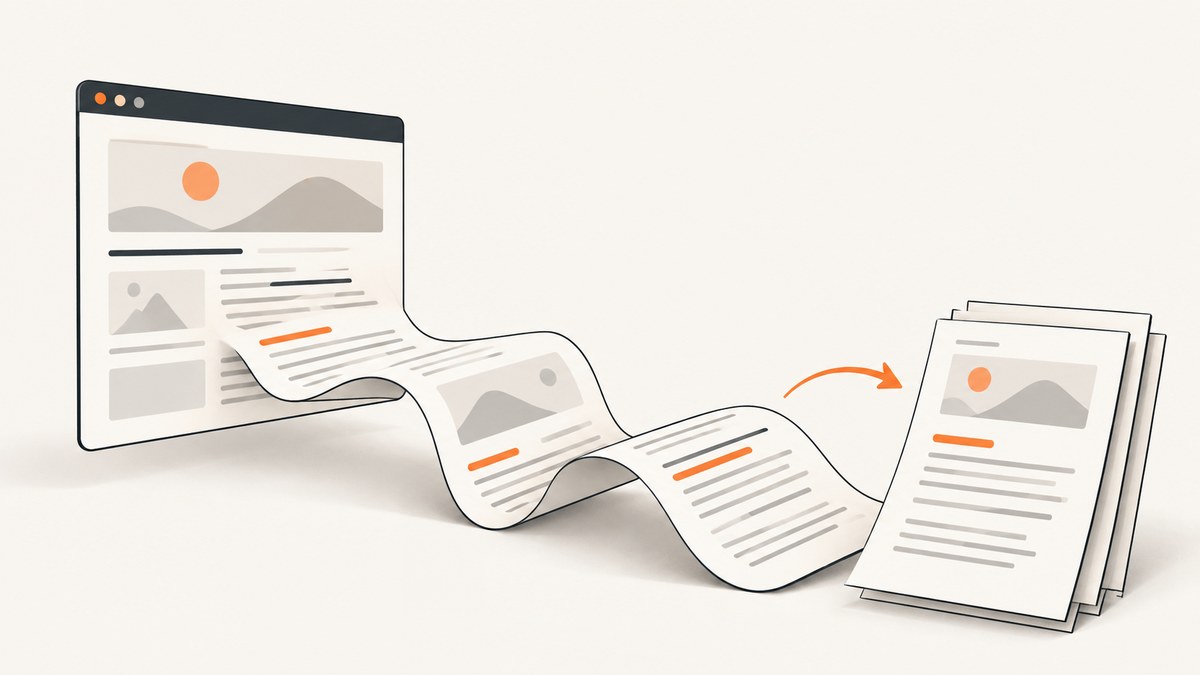
Short answer: you usually do not append PDF pages manually. When HTML is printed, the browser fragments normal document flow across as many pages as necessary. Content gets clipped when a fixed height, hidden overflow, absolute positioning, or an unsuitable print layout prevents that fragmentation. Remove those constraints, define the paper with @page, and add page-break rules only at intentional boundaries.
This guide covers browser printing, automated PDF generation with Puppeteer, page-break CSS, lazy content, headers and footers, debugging, performance, and a hosted option for teams that do not want to maintain browser infrastructure.
1. Let normal HTML flow create additional pages
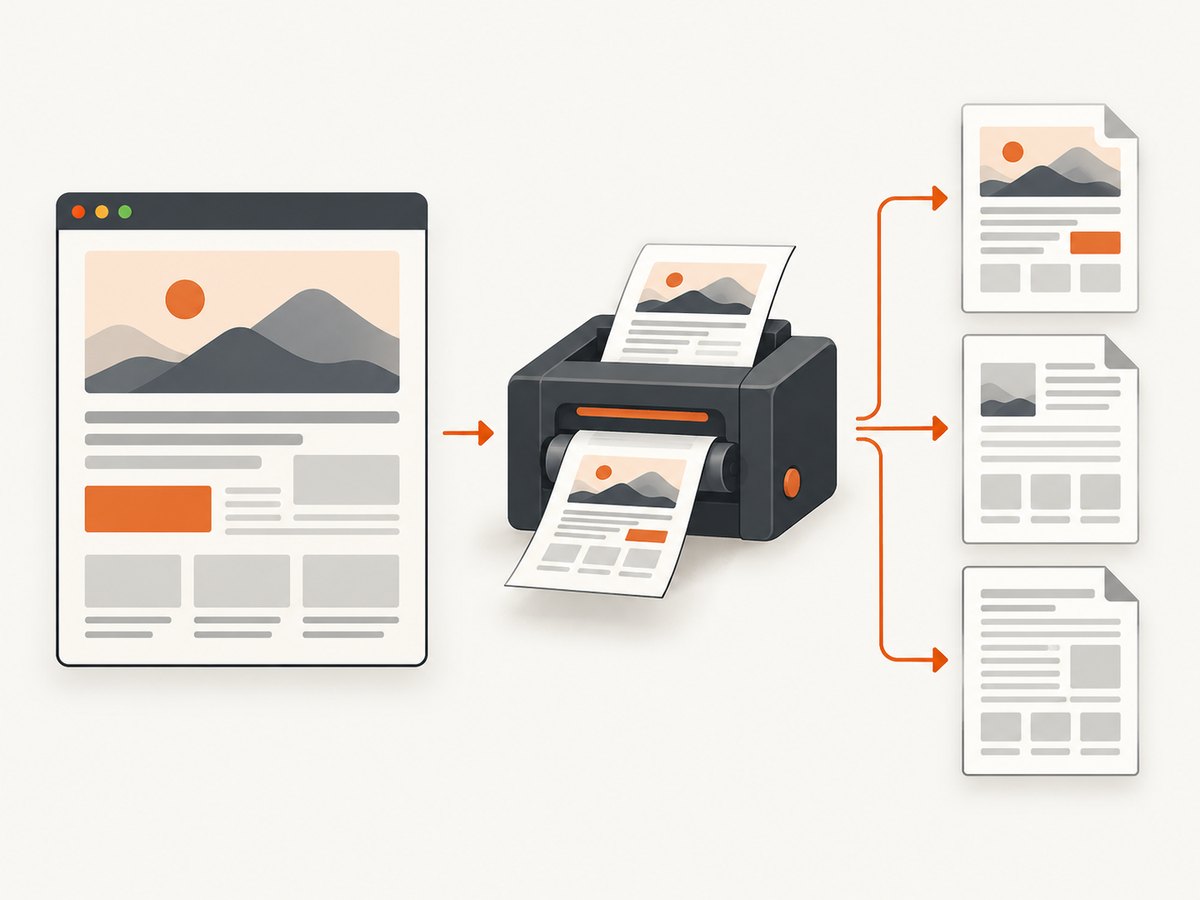
A document in normal flow naturally continues onto page two, page three, and so on. A long article, table, or report does not need JavaScript that creates new PDF pages. Start with a print stylesheet and inspect the actual PDF at the target paper size.
<!doctype html>
<html lang="en">
<head>
  <meta charset="utf-8">
  <title>Overflow-safe report</title>
  <style>
    @page {
      size: A4 portrait;
      margin: 15mm;
    }

    @media print {
      .site-header,
      .toolbar,
      .site-footer {
        display: none;
      }

      .print-content {
        height: auto;
        min-height: 0;
        overflow: visible;
      }

      .keep-together {
        break-inside: avoid;
      }

      .new-section {
        break-before: page;
      }
    }
  </style>
</head>
<body>
  <header class="site-header">Navigation</header>
  <main class="print-content">
    <h1>Quarterly report</h1>
    <section class="keep-together">
      <h2>Summary</h2>
      <p>Your content continues naturally when it exceeds one sheet.</p>
    </section>
    <section class="new-section">
      <h2>Appendix</h2>
      <p>This section intentionally starts on a new page.</p>
    </section>
  </main>
</body>
</html>
@media print applies rules only to print and PDF output. Use it to remove controls, undo screen-only dimensions, and expose content that was scrollable on screen. @page defines paper size, orientation, and margins. Browser support for some paged-media features varies, so verify the generated file in the browser and PDF reader used by your application. See MDN’s CSS paged media guide and MDN’s printing guide.
2. Find the CSS that is preventing pagination
If the second page is blank, missing, or the bottom of a component is cut off, inspect these constraints first:
height: 100vh, a fixed pixel height, or a fixed aspect ratio on a print container.overflow: hiddenoroverflow: autoaround the document.- Absolutely or fixed-positioned content that is removed from normal flow.
- A screen layout that assumes a wide viewport and pushes content outside the printable area.
- Large images, canvases, or tables whose dimensions are not constrained for paper.
Override these declarations in @media print. Prefer height: auto and overflow: visible on the outer printable container. Keep important content in ordinary block flow. A print rule cannot recover content that JavaScript never inserted, so wait for data and images before generating the PDF.
3. Keep small components together without wasting pages
Use break-inside: avoid for compact cards, captions, signatures, or short lists that should remain together:
@media print {
  .invoice-total,
  figure,
  .signature-block {
    break-inside: avoid;
  }
}
This asks the browser not to split the box; it does not create a new page by itself. If the element is taller than the remaining space, the browser may still fragment it. Apply the rule selectively: putting break-inside: avoid on every row of a long table can create large blank areas and poor pagination. The older page-break-inside property is a compatibility alias and is deprecated; use break-inside in new code. See MDN’s page-break-inside reference.
4. Force a new page only at deliberate boundaries
Use break-before: page when a chapter, invoice, or report section must begin on a fresh sheet:
@media print {
  .chapter,
  .appendix {
    break-before: page;
  }

  .chapter:first-child {
    break-before: auto;
  }

  .end-of-section {
    break-after: page;
  }
}
Do not add a break after every paragraph or card. Automatic fragmentation is usually better at using available space. If a forced break appears to do nothing, check that the element is in normal flow and that the rendering engine supports the rule. Paged-media support differs between browsers and PDF libraries.
5. Tables, images, and long content
Tables
Wide tables can be clipped even when vertical overflow paginates correctly. In print CSS, reduce font size or column padding, allow wrapping, and set a printable width:
@media print {
  table {
    width: 100%;
    table-layout: fixed;
    border-collapse: collapse;
  }

  th, td {
    overflow-wrap: anywhere;
  }

  thead {
    display: table-header-group;
  }

  tr {
    break-inside: avoid;
  }
}
Very large rows may still split. Test with realistic data, including the longest labels and unbroken identifiers.
Images and charts
Prevent an image from exceeding the printable width, but avoid forcing every image to stay together when it is taller than a page:
@media print {
  img, svg, canvas {
    max-width: 100%;
    height: auto;
  }

  .small-chart {
    break-inside: avoid;
  }
}
Wait for fonts and images before capture. For remote assets, use stable URLs, correct content types, and a strategy for failures so one missing image does not hold the entire job indefinitely.
6. Generate PDFs with Puppeteer
Puppeteer’s page.pdf() uses the print CSS media type by default. If you need the screen layout instead, call page.emulateMediaType('screen') first. Puppeteer also adjusts colors for print by default; use -webkit-print-color-adjust: exact when preserving authored colors is required. These behaviors are specific to Puppeteer; other HTML-to-PDF libraries may differ. Consult the Page.pdf() API documentation.
import puppeteer from 'puppeteer';

const browser = await puppeteer.launch({headless: true});
try {
  const page = await browser.newPage();
  await page.setViewport({width: 1280, height: 900, deviceScaleFactor: 1});
  await page.goto('https://example.com/report', {
    waitUntil: 'networkidle0',
    timeout: 90000
  });

  await page.evaluate(() => document.fonts.ready);
  await page.pdf({
    path: 'report.pdf',
    format: 'A4',
    printBackground: true,
    preferCSSPageSize: true,
    margin: {top: '15mm', right: '15mm', bottom: '15mm', left: '15mm'}
  });
} finally {
  await browser.close();
}
preferCSSPageSize: true lets an authored @page size take precedence. If you specify both CSS and API margins, confirm which setting your chosen Puppeteer version applies and keep one source of truth where possible. For screen styling:
await page.emulateMediaType('screen');
await page.pdf({path: 'screen-style.pdf', printBackground: true});
7. Browser print preview and generated headers
When a user chooses “Save as PDF,” the browser may add its own URL, title, date, or page numbers. These headers and footers can consume margin space and overlap the authored layout. Disable them in the print dialog when they are not wanted, then inspect the final PDF rather than relying only on the preview. Chrome’s print-margin behavior and margin-box support have changed over time; the Chrome for Developers article on printed page margins documents those details.
8. Debugging checklist
- Open print preview at the exact paper size and orientation you will deliver.
- Temporarily outline boxes with
* { outline: 1px solid red; }in print CSS. - Search stylesheets for fixed heights, viewport units, and overflow declarations.
- Confirm content is present in the DOM before calling the PDF API.
- Wait for
document.fonts.readyand critical images. - Remove browser-generated headers and footers, or increase margins to make room.
- Check the PDF page count and the bottom edge of every page, including pages containing tables and signatures.
9. Common errors and fixes
| Symptom | Likely cause | Fix |
|---|---|---|
| Content is cut off after page one | Fixed height or hidden overflow | Set the print container to height:auto; overflow:visible. |
| Everything is squeezed onto one page | Scaling in the print dialog or PDF API | Use 100% scale, remove transforms, and let normal flow fragment. |
| A section starts halfway down a page | No intentional break rule | Add break-before: page to that section only. |
| A card splits awkwardly | Fragmentation allowed inside the card | Use break-inside: avoid if the card is short enough. |
| Colors are missing | Print color adjustment or background printing disabled | Enable background printing and consider -webkit-print-color-adjust: exact. |
| PDF is blank or incomplete | Capture occurred before client rendering finished | Wait for the application signal, selector, fonts, and assets. |
| Last rows of a table disappear | Scrollable table wrapper | Set the wrapper’s print overflow to visible and remove fixed height. |
10. Performance, reliability, and cost
PDF generation starts a browser, loads a page, executes JavaScript, downloads assets, lays out every page, and writes the file. Reuse a browser process for batches, but create an isolated page per job. Set navigation and overall job timeouts. Limit concurrency to the CPU and memory available; too many simultaneous Chromium pages cause contention and longer renders. Block analytics, advertisements, and video requests when they are irrelevant to the document. Cache stable assets and avoid loading an entire application shell for a server-rendered report.
Reliability improves when your page exposes a clear “report ready” signal instead of relying only on a network-idle heuristic. Record the URL, paper settings, browser version, duration, and failure reason. Treat missing fonts and third-party widgets as dependencies that can change independently. If a job fails, retry transient navigation errors with a limit and an idempotent output name; do not retry indefinitely.
11. Or skip the browser setup: ScreenshotNeo PDF capture
ScreenshotNeo provides a website screenshot API and MCP server for developers. Its PDF endpoint can render a URL with paper size, margins, landscape mode, and page ranges, while handling the browser setup for you. The API accepts one GET request at https://api.screenshotneo.com/v1/shot.
cURL:
curl -G "https://api.screenshotneo.com/v1/shot" \
  -d access_key=YOUR_API_KEY \
  --data-urlencode url=https://example.com/report \
  -d format=pdf \
  -o report.pdf
Python:
import requests

r = requests.get(
    "https://api.screenshotneo.com/v1/shot",
    params={
        "access_key": "YOUR_API_KEY",
        "url": "https://example.com/report",
        "format": "pdf",
        "paper_size": "A4",
        "margin": "15mm",
    },
    timeout=90,
)
r.raise_for_status()
open("report.pdf", "wb").write(r.content)
Node.js:
const q = new URLSearchParams({
  access_key: 'YOUR_API_KEY',
  url: 'https://example.com/report',
  format: 'pdf',
  paper_size: 'A4',
  margin: '15mm'
});
const res = await fetch(`https://api.screenshotneo.com/v1/shot?${q}`);
if (!res.ok) throw new Error(`HTTP ${res.status}`);
const buffer = Buffer.from(await res.arrayBuffer());
await import('node:fs/promises').then(fs => fs.writeFile('report.pdf', buffer));
See the ScreenshotNeo documentation for the complete option names. You can also set a wait-for selector, delay, or network-idle condition; run custom JavaScript; add custom CSS; click an element; hide selectors; supply cookies, headers, a user agent, timezone, geolocation, or Authorization; block ads, trackers, requests, or resource types; and capture one element or a full page with lazy images loaded. PDF options include paper size, margins, landscape, and page ranges.
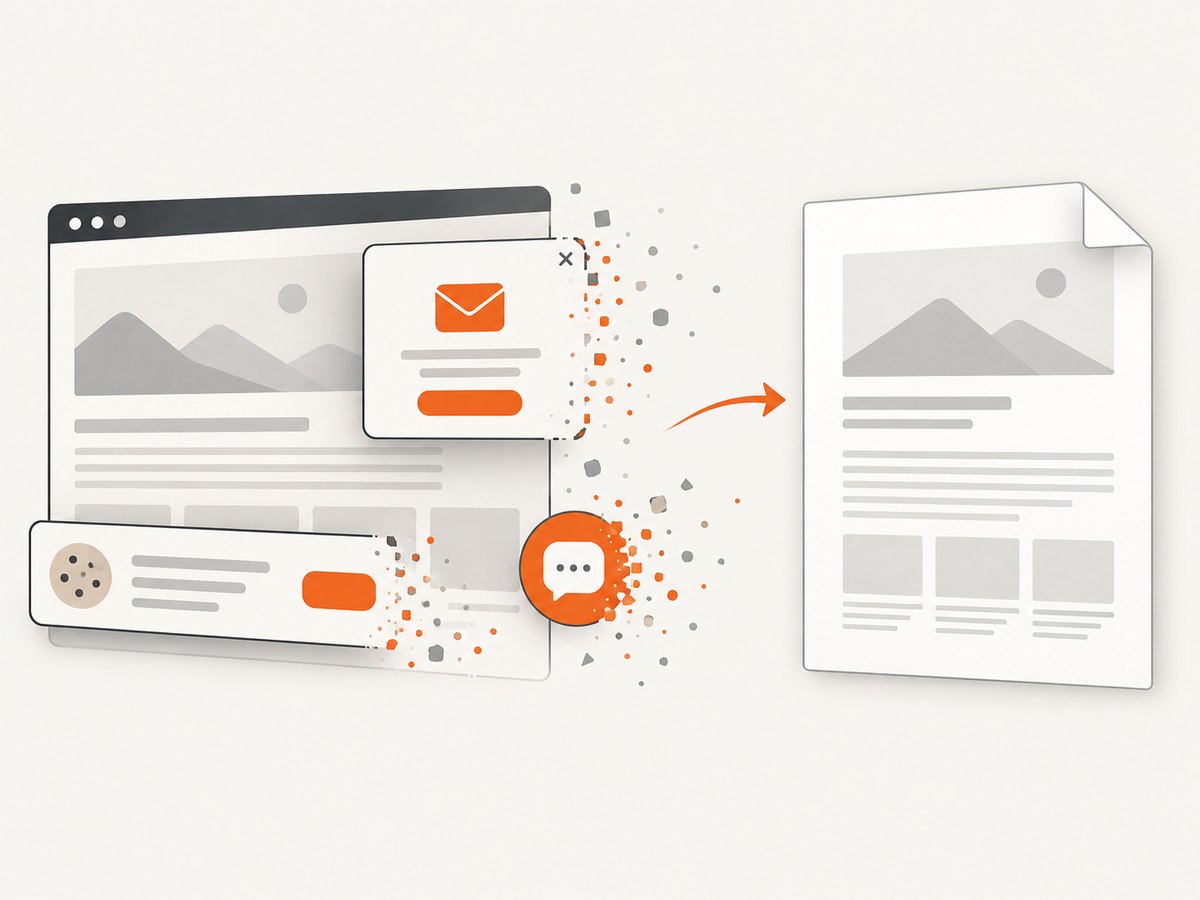
ScreenshotNeo accepts consent banners before capture and removes more than 60 known consent platforms, newsletter popups, and chat widgets. Each step can be disabled. Bot checks, CAPTCHAs, blank pages, timeouts, failed loads, and cache hits are not billed; response headers report the page verdict and whether the shot was billed (X-Page-Verdict and X-Billed). It also offers async jobs with signed webhooks, bulk capture for up to 100 URLs per call, caching with a TTL you choose, signed links for public images, a usage API, and an OpenAPI specification. Its MCP server exposes take_screenshot, get_page_info, and capture_pdf to Claude, Cursor, and other MCP clients.
Free accounts include 1,000 screenshots per month without a card. Paid plans start at $5 for 3,000 shots; every feature is included on every plan. Create a free ScreenshotNeo account.
12. Choosing a workflow
| Requirement | Best fit |
|---|---|
| A user occasionally saves a page | Browser print preview with a focused @media print stylesheet. |
| Your own Node.js service creates reports | Puppeteer with explicit readiness checks and controlled concurrency. |
| You need PDF capture across many external URLs | ScreenshotNeo’s hosted API, bulk capture, caching, and verdict headers. |
| AI agents need to create PDFs | ScreenshotNeo’s MCP server and capture_pdf tool. |
13. FAQ
Do I need JavaScript to add pages?
No. Normal document flow paginates automatically. JavaScript is needed only to finish asynchronous rendering or to call an automated PDF API.
Should I use page-break-after or break-before?
Use the modern break-before, break-after, and break-inside properties. Keep legacy aliases only when supporting older engines.
Why does my page break work in Chrome but not another PDF service?
Paged-media support is not identical across browsers and rendering libraries. Test the exact engine that produces your production PDFs.
Can a huge element stay together?
Not reliably if it is taller than a page. Let large content fragment and reserve break-inside: avoid for compact groups.
How do I prevent a cookie banner from appearing in an automated PDF?
Hide it in print CSS, dismiss it before capture, or use a capture service that handles consent and known overlays before rendering.


