How to Add a PDF Viewer in React
Build a React PDF viewer with React-PDF, configure the PDF.js worker, handle Next.js and browser issues, and compare production alternatives.

The shortest practical way to add a PDF viewer in React is React-PDF. Install it, configure the matching PDF.js worker in the same module as your Document and Page components, then add loading, error, sizing, and page navigation states. The worker must be served over HTTP; opening the app with file:// will not work.
1. Install React-PDF
The current React-PDF README documents the 11.x branch, which requires React 19 or later. Check the README for the exact package version selected by your project because worker paths, browser requirements, and supported Node versions can change.
npm install react-pdf
# or
yarn add react-pdf
React-PDF uses PDF.js to parse and render documents. Your application therefore needs both the React components and a PDF.js worker bundle.
2. Configure the PDF.js worker
Configure the worker in the same module that imports and renders Document and Page. React-PDF warns that putting the configuration in another entry file can allow module execution order to overwrite it.
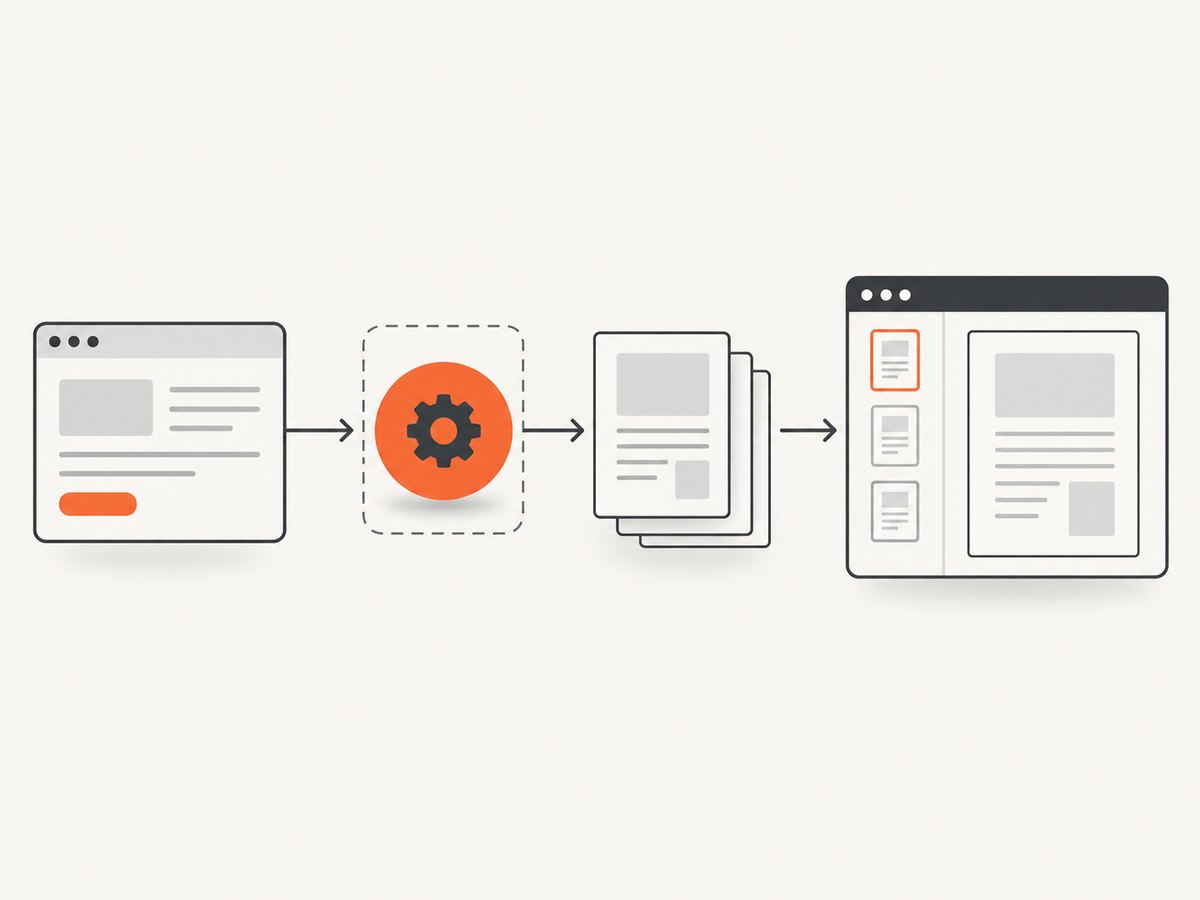
import { useState } from 'react';
import { Document, Page, pdfjs } from 'react-pdf';
import 'react-pdf/dist/Page/AnnotationLayer.css';
import 'react-pdf/dist/Page/TextLayer.css';

pdfjs.GlobalWorkerOptions.workerSrc = new URL(
  'pdfjs-dist/build/pdf.worker.min.mjs',
  import.meta.url,
).toString();

export function PdfViewer({ file }) {
  const [numPages, setNumPages] = useState(null);
  const [pageNumber, setPageNumber] = useState(1);
  const [error, setError] = useState(null);

  function handleLoadSuccess({ numPages: loadedPages }) {
    setNumPages(loadedPages);
    setPageNumber(1);
    setError(null);
  }

  function handleLoadError(loadError) {
    setError(loadError);
  }

  return (
    <section aria-label='PDF viewer'>
      <Document
        file={file}
        onLoadSuccess={handleLoadSuccess}
        onLoadError={handleLoadError}
        loading={<p>Loading PDF…</p>}
        error={<p role='alert'>Unable to load this PDF.</p>}
      >
        {numPages && (
          <>
            <div className='pdf-controls'>
              <button
                type='button'
                onClick={() => setPageNumber((page) => Math.max(1, page - 1))}
                disabled={pageNumber <= 1}
              >
                Previous
              </button>
              <span>Page {pageNumber} of {numPages}</span>
              <button
                type='button'
                onClick={() => setPageNumber((page) => Math.min(numPages, page + 1))}
                disabled={pageNumber >= numPages}
              >
                Next
              </button>
            </div>
            <Page
              pageNumber={pageNumber}
              renderTextLayer
              renderAnnotationLayer
            />
          </>
        )}
      </Document>
      {error && <small>{String(error.message || error)}</small>}
    </section>
  );
}
Use the component with a public URL, a local imported asset, a File, or an ArrayBuffer:
import { PdfViewer } from './PdfViewer';

export default function App() {
  return <PdfViewer file='/documents/handbook.pdf' />;
}
Keep the viewer inside a container with a defined width. For a responsive layout, set the page width from the container and rerender when that width changes.
3. Add useful viewer controls
Fit the page to its container
Pass either width or scale to Page. A measured width is usually easier for responsive layouts:
<Page pageNumber={pageNumber} width={Math.min(containerWidth, 900)} />Do not pass both width and scale unless you intentionally want the documented precedence for your installed version.
Render every page
{Array.from({ length: numPages ?? 0 }, (_, index) => (
  <Page key={index + 1} pageNumber={index + 1} />
))}
This is convenient for short PDFs. For long documents, render only the visible page range or use virtualization so the browser does not create hundreds of canvases at once.
Text selection and links
Keep the text and annotation layer styles imported if you need selectable text or clickable links. If you only need a visual preview, disable those layers to reduce work:
<Page
  pageNumber={pageNumber}
  renderTextLayer={false}
  renderAnnotationLayer={false}
/>
Zoom and rotation
const [scale, setScale] = useState(1);
const [rotation, setRotation] = useState(0);

<button onClick={() => setScale((value) => Math.max(0.5, value - 0.25))}>-</button>
<span>{Math.round(scale * 100)}%</span>
<button onClick={() => setScale((value) => Math.min(3, value + 0.25))}>+</button>
<button onClick={() => setRotation((value) => (value + 90) % 360)}>Rotate</button>
<Page pageNumber={pageNumber} scale={scale} rotate={rotation} />
Choose maximum zoom and page dimensions based on device memory. Very large scans can use substantial canvas memory at high scale.
4. Handle URLs, uploads, and access control
A cross-origin PDF must be served with CORS headers that allow the origin running your React app. A protected URL should normally be fetched by your server and returned through an authenticated endpoint, or supplied as a request object with the required headers where your React-PDF version supports it.
const file = {
  url: '/api/reports/2026.pdf',
  httpHeaders: { Authorization: `Bearer ${token}` },
  withCredentials: true,
};

<PdfViewer file={file} />
Never put a permanent private storage credential in browser JavaScript. For user uploads, pass the selected File directly:
function UploadViewer() {
  const [file, setFile] = useState(null);
  return (
    <>
      <input type='file' accept='application/pdf' onChange={(event) => setFile(event.target.files?.[0] ?? null)} />
      {file && <PdfViewer file={file} />}
    </>
  );
}
5. Use React-PDF in Next.js
PDF.js worker code runs in the browser. In Next.js, the module that imports and configures React-PDF should be client-only and should skip server rendering, following the current React-PDF instructions for your router and version.
'use client';

// Keep the worker configuration and React-PDF imports in this client module.
import dynamic from 'next/dynamic';

const PdfViewer = dynamic(() => import('./PdfViewer').then((module) => module.PdfViewer), {
  ssr: false,
});

export default function ReportPage() {
  return <PdfViewer file='/documents/report.pdf' />;
}
Depending on your Next.js setup, place the 'use client' directive and dynamic import at the boundary that owns the viewer. Do not assume a server component can import the worker safely.
6. Choose an alternative when React-PDF is not enough
| Option | Best fit | Trade-offs |
|---|---|---|
| React-PDF | A React component API with controls and layout built by your team | You configure the worker and build navigation, styling, and accessibility |
| Mozilla PDF.js layers | Low-level control or a custom viewer foundation | You own more integration work; Mozilla asks embedders to build upon or reskin the viewer rather than embed an unmodified copy |
| React PDF Kit | A preassembled React structure and toolbar | Its project states that commercial use requires a proprietary license; verify its browser matrix and release before adoption |
| PDF.js Express Plus | A commercial SDK with an official React integration | Copy static assets to a public location, mount through a ref, and use a commercial production license key |
Compare worker delivery, browser support, required controls, deployment model, and licensing before switching. Mozilla’s PDF.js guide describes the lower-level architecture and deployment constraints.
7. Browser and deployment compatibility
- The current React-PDF README covers the 11.x branch, requires React 19 or later, and states a Node.js 22.13.0 or newer requirement. Verify the exact release you install.
- Latest major browsers are supported. Older browsers may require polyfills, bundler transpilation, or a legacy worker. The README gives a
URL.parse()polyfill example for Chrome 125. - Mozilla states that the PDF.js worker is not enabled for
file://URLs. Run a development server and deploy through HTTP or HTTPS. - Serve the worker with the MIME type and caching policy expected by your bundler. A deployment that omits the worker asset commonly produces a worker-loading error even when local development works.
8. Troubleshooting
| Symptom | Likely cause | Fix |
|---|---|---|
| “Setting up fake worker” or worker failed | The worker URL is wrong, not bundled, or configured in another module | Set GlobalWorkerOptions.workerSrc beside the viewer imports and confirm the generated worker URL returns HTTP 200 |
| Works locally but fails in production | The deployment did not publish the worker asset or rewrote its URL | Inspect the production network request, publish the worker through your bundler, and check base-path configuration |
| PDF is blank from another domain | CORS or authentication prevents PDF.js from fetching the file | Allow your app origin, provide credentials correctly, or proxy the file through your server |
Next.js build references window or worker APIs |
The viewer was imported during server rendering | Move it behind a client boundary and use the package’s skip-SSR guidance |
| Text is offset from the page | Text-layer CSS is missing or mismatched | Import the React-PDF text-layer stylesheet for the installed version |
| Links or form annotations do not work | Annotation layer is disabled or its CSS is absent | Enable renderAnnotationLayer and import the annotation stylesheet |
| Large PDFs freeze the tab | Too many high-resolution canvases rendered simultaneously | Paginate, virtualize pages, lower scale, and release off-screen pages |
| “Invalid PDF structure” | The response is HTML, an error JSON document, or a truncated file | Inspect the response status and Content-Type; download the URL directly and verify it begins with a valid PDF payload |
9. Performance, reliability, and cost
Performance
- Render one page first, then add page navigation or virtualization for long files.
- Use a lower initial scale on mobile and increase it after the user zooms.
- Keep text and annotation layers only when users need selection or links.
- Cache immutable PDFs at the server or CDN, while protecting private documents with short-lived authorization.
- Measure memory on the slowest supported device; canvas size grows with page dimensions and scale.
Reliability
- Show explicit loading and failure states and provide a download fallback.
- Validate the HTTP status and content type before passing a remote URL to the viewer.
- Use an error boundary around the viewer so a malformed document does not take down the surrounding application.
- Keep the React-PDF, PDF.js, React, and browser versions aligned according to the selected release documentation.
Cost
React-PDF itself is a client-side rendering library, so the direct infrastructure costs are generally document storage, bandwidth, and browser CPU. Commercial alternatives may add license costs; verify current terms for the selected release.
10. Or skip the browser setup
If your goal is to capture a rendered PDF viewer, report page, or documentation page as an image or PDF, ScreenshotNeo provides a single HTTP request instead of maintaining browser automation. See the ScreenshotNeo API documentation for all options.
curl -G 'https://api.screenshotneo.com/v1/shot' \
  -d access_key=YOUR_API_KEY \
  --data-urlencode url=https://example.com/report \
  -o shot.webp
import requests
r = requests.get(
'https://api.screenshotneo.com/v1/shot',
params={'access_key': 'YOUR_API_KEY', 'url': 'https://example.com/report'},
timeout=90,
)
r.raise_for_status()
open('shot.webp', 'wb').write(r.content)const q = new URLSearchParams({
access_key: 'YOUR_API_KEY',
url: 'https://example.com/report',
});
const res = await fetch(`https://api.screenshotneo.com/v1/shot?${q}`);
if (!res.ok) throw new Error(`Screenshot failed: ${res.status}`);
const image = Buffer.from(await res.arrayBuffer());
await import('node:fs/promises').then((fs) => fs.writeFile('shot.webp', image));ScreenshotNeo removes cookie banners, newsletter popups, and chat widgets before capture. Bot checks, blank pages, failed loads, timeouts, and cache hits are not billed, and the response identifies the result with X-Page-Verdict and X-Billed headers. Its MCP server lets Claude, Cursor, and other MCP clients call take_screenshot, get_page_info, and capture_pdf. The Free plan includes 1,000 screenshots per month with no card; paid plans start at $5 for 3,000. Create a free ScreenshotNeo account.
11. FAQ
Can I display a PDF without React-PDF?
Yes. An <iframe> or browser PDF embed is the simplest option when native browser controls are sufficient. It gives you less consistent styling and control than a PDF.js-based viewer.
Why does the worker need a separate file?
PDF.js parses documents off the main UI thread. The worker file must be available at runtime, and its URL must match the package and bundler configuration.
Should I render all pages immediately?
Only for short documents. Pagination or virtualization is safer for long reports and scanned PDFs.
Can React-PDF edit PDFs?
React-PDF is for displaying PDF content. Editing, signing, redaction, and form-authoring features require additional libraries or a commercial SDK.
Why does opening the React app from a local HTML file fail?
PDF.js does not enable its worker for file:// URLs. Start a development server and open the HTTP URL instead.


