How to Add a PNG Logo with HTML
Add a PNG logo with accessible HTML, responsive sizing, navigation links, troubleshooting, and complete examples for modern websites.

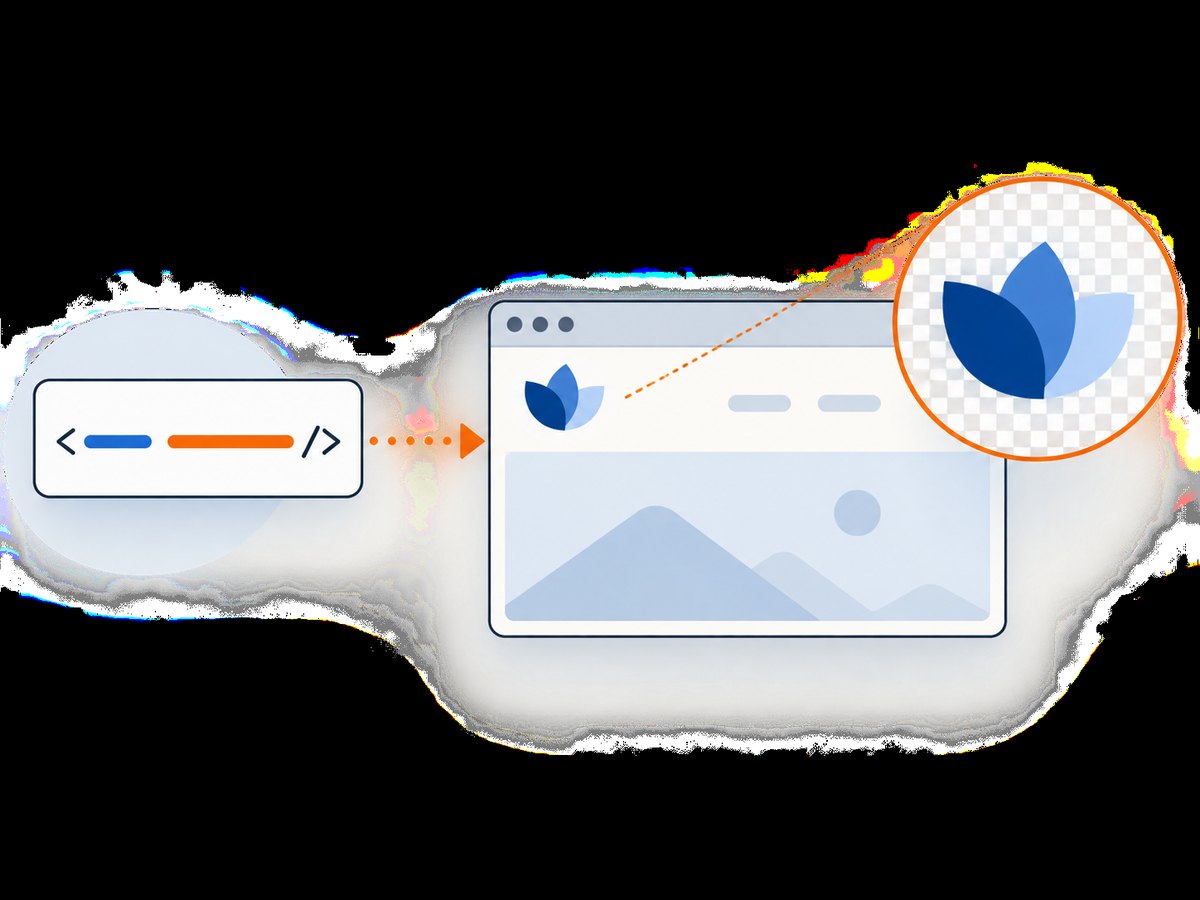
Use an <img> element whose src points to your PNG file:
<img src="images/logo.png" alt="Acme">Use a meaningful alt value, then control the displayed size with CSS or accurate intrinsic width and height attributes. The path is relative to the HTML document, so change it to match your project.
1. Add the basic PNG logo
Given this project structure:
project/
├── index.html
└── images/
    └── logo.png
Put this in index.html:
<img src="images/logo.png" alt="Acme">The src attribute is the image URL. HTML’s image element requires a src or srcset; see the MDN img reference.
2. Make the logo link to the home page
A site header usually makes the logo a home link:
<a href="/" aria-label="Acme home">
  <img src="images/logo.png" alt="Acme">
</a>
When the image is the only content in a link, its alternative text should describe the destination or action. If nearby text already provides the same name and the image adds no information, use an empty alternative instead:
<a href="/" aria-label="Acme home">
  <img src="images/logo.png" alt="">
</a>
Do not use the filename or generic text such as “image” for alt. A title attribute does not replace alternative text. For accessibility guidance, see the MDN accessibility notes and the W3C Design System image guidance.
3. Size the PNG without distortion
Assign a class and let CSS constrain the width while preserving the source ratio:
<img class="site-logo" src="images/logo.png" alt="Acme">.site-logo {
display: block;
width: 160px;
height: auto;
}If the source is 320 by 100 pixels, you can also declare its intrinsic dimensions:
<img
  src="images/logo.png"
  alt="Acme"
  width="320"
  height="100"
  class="site-logo"
>
.site-logo {
width: 160px;
height: auto;
}Accurate intrinsic dimensions let the browser reserve the correct aspect-ratio space before the file loads, which helps reduce layout shifts. Never pair arbitrary width and height values that change the logo’s proportions.
4. Build a complete accessible header
<header class="site-header">
  <a class="brand" href="/" aria-label="Acme home">
    <img
      src="images/logo.png"
      alt="Acme"
      width="320"
      height="100"
    >
  </a>

  <nav aria-label="Primary navigation">
    <ul>
      <li><a href="/products">Products</a></li>
      <li><a href="/pricing">Pricing</a></li>
      <li><a href="/contact">Contact</a></li>
    </ul>
  </nav>
</header>
.site-header {
display: flex;
align-items: center;
justify-content: space-between;
gap: 2rem;
padding: 1rem 2rem;
}
.brand {
display: inline-flex;
flex: 0 0 auto;
}
.brand img {
display: block;
width: 160px;
height: auto;
max-width: 100%;
}
nav ul {
display: flex;
gap: 1rem;
margin: 0;
padding: 0;
list-style: none;
}5. Make the logo responsive
For a normal logo with 1x and 2x raster files, use a density descriptor:
<img
  src="images/logo.png"
  srcset="images/logo@2x.png 2x"
  alt="Acme"
  width="160"
  height="50"
>
For files intended for different rendered widths, use width descriptors and sizes:
<img
  src="images/logo-160.png"
  srcset="images/logo-160.png 160w,
          images/logo-320.png 320w,
          images/logo-640.png 640w"
  sizes="(max-width: 600px) 120px, 160px"
  alt="Acme"
  width="160"
  height="50"
>
With width descriptors, sizes tells the browser the expected display width. Keep src as the fallback for browsers without responsive-image support. The MDN responsive images guide explains the selection rules.
Use <picture> when you need different formats or media-specific assets:
<picture>
  <source srcset="images/logo.webp" type="image/webp">
  <img src="images/logo.png" alt="Acme" width="160" height="50">
</picture>
6. Choose PNG, SVG, WebP or AVIF
| Format | Best fit | Trade-off |
|---|---|---|
| PNG | Lossless raster logos, transparency, sharp edges | Often larger than modern raster formats |
| SVG | Logos that must stay crisp at many sizes | Requires a suitable vector source and handling policy |
| WebP or AVIF | Smaller raster payloads where supported | Keep a fallback when required by your browser support |
PNG supports transparency and lossless encoding, making it a practical choice for a supplied transparent raster logo. SVG is often preferable when a vector logo is available. Modern WebP and AVIF files can reduce raster transfer size; use <picture> with a PNG fallback when needed. See MDN’s image format guide.
7. Handle common paths and deployment cases
- Same directory: use
src="logo.png". - Child directory: use
src="images/logo.png". - Parent directory: use
src="../images/logo.png". - Site root: use
src="/images/logo.png"; this starts at the domain root. - Absolute URL: use the complete HTTPS URL only when the asset is hosted elsewhere and permits access.
URL paths are case-sensitive on many production servers. A file named Logo.png is different from logo.png on those systems. Encode spaces and special characters in filenames, or use simple lowercase names with hyphens.
8. Troubleshooting
| Symptom | Likely cause | Fix |
|---|---|---|
| Broken-image icon | Wrong relative path or filename case | Open the image URL directly, inspect the Network panel, and correct the path. |
| Logo is stretched | Width and height override the source ratio | Set one dimension and height: auto, or use accurate intrinsic dimensions. |
| Logo appears too large | Intrinsic pixels are being displayed at source size | Set a CSS width, such as width: 160px. |
| Logo is invisible on a dark header | Transparent PNG contains dark artwork | Use a suitable light variant or change the background; do not assume transparency means visibility. |
| Screen reader announces a filename | Missing or poor alt |
Use the organization name, destination, or alt="" when decorative. |
| Responsive candidate is not selected | Invalid srcset descriptors or missing sizes |
Use valid 1x/2x or width descriptors and provide sizes for width-based candidates. |
| Works locally but not after deployment | Case-sensitive filesystem, incorrect base path, or missing asset | Verify the deployed URL and ensure the PNG is included in the build output. |
| Logo loads slowly | Oversized PNG or no caching | Export at the largest required display size, consider WebP/AVIF with fallback, and configure normal HTTP caching. |
9. Performance and reliability checklist
- Export no larger than the maximum display size, with a 2x version only when high-density displays need it.
- Declare accurate
widthandheightto reserve layout space. - Use
display: blockto avoid inline-image baseline gaps. - Keep the logo’s accessible name short and specific.
- Serve the asset over HTTPS and verify its cache headers in production.
- Use a content hash or versioned filename when replacing a cached logo.
- Do not lazy-load a small header logo that is visible immediately; reserve lazy loading for below-the-fold images.
10. Capture the finished header with ScreenshotNeo
If you need a reliable screenshot of the page after adding the logo, ScreenshotNeo provides a website screenshot API and MCP server. It accepts one GET request and returns PNG, JPEG, WebP or PDF. Cookie and consent banners, newsletter popups and chat widgets are removed before capture, and bot checks, blank pages, timeouts, failed loads and cache hits are not billed. The response identifies the result with X-Page-Verdict and X-Billed headers.

Or skip the browser setup
Use the one-call API shown in the ScreenshotNeo documentation:
curl -G "https://api.screenshotneo.com/v1/shot" -d access_key=YOUR_API_KEY --data-urlencode url=https://stripe.com -o shot.webpimport requests
r = requests.get("https://api.screenshotneo.com/v1/shot", params={"access_key": "YOUR_API_KEY", "url": "https://stripe.com"}, timeout=90)
open("shot.webp", "wb").write(r.content)const q = new URLSearchParams({ access_key: 'YOUR_API_KEY', url: 'https://stripe.com' });
const res = await fetch(`https://api.screenshotneo.com/v1/shot?${q}`);ScreenshotNeo also offers full-page and element capture, custom CSS and JavaScript, waits, device presets, headers and cookies, blocking rules, caching, signed links, asynchronous jobs, bulk capture, PDFs and an MCP server for AI agents. The free plan includes 1,000 screenshots a month with no card; paid plans start at $5 for 3,000. Create a free ScreenshotNeo account.
FAQ
Can I use a PNG logo without CSS?
Yes. The image displays at its intrinsic size, but CSS is usually needed for consistent header sizing and responsive layouts.
Should the logo’s alt say “logo”?
Usually no. Use the organization name or the linked destination. Add “logo” only when that distinction supplies useful context.
Why does a transparent PNG show a colored box?
The file may not actually contain an alpha channel, or the background may be part of the image. Inspect the asset in an editor and export it with transparency.
Can I use a remote PNG URL?
Yes, if the server allows the request and remains available. A local or same-origin asset gives you more control over availability, caching and privacy.


