How to Add a Screenshot to Google Docs
Insert a screenshot into Google Docs from your computer, phone, Drive, a URL, or clipboard, then adjust how it sits beside your text.
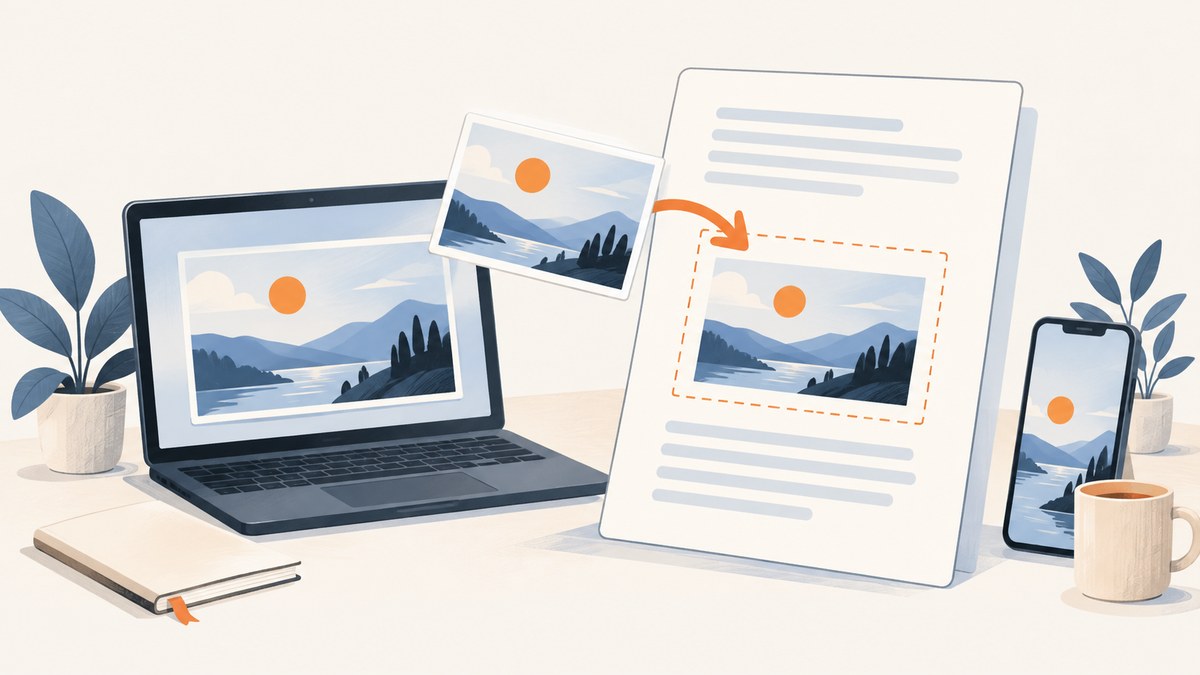
To add a screenshot to Google Docs on a computer, open the document, click where the image should go, then choose Insert > Image > Upload from computer. Select the screenshot and click Insert or Open. On Android, iPhone, or iPad, open the document in the Google Docs app, tap Insert > Image, choose the screenshot, and insert it.
You can also add an image from Drive or Photos, use a camera, insert an image by URL, drag and drop, or copy and paste. Once inserted, choose how the image should flow with the text: inline, wrapped, separated, or positioned in front of or behind text.
1. Insert a screenshot on a computer
- Open the document in Google Docs.
- Click in the document at the location where the screenshot belongs. If you want it between two paragraphs, click at the beginning of the second paragraph and press Enter first to create room.
- Choose Insert > Image > Upload from computer.
- Browse to the screenshot file and select it.
- Click Insert or Open, depending on the file picker.
The screenshot is added at the cursor position. If it appears on a new line or shifts nearby text, that is controlled by its layout setting; it does not mean the image failed to insert. Google’s computer instructions cover uploading an image saved on your device as well as other image sources. Google Docs Editors Help: Insert or delete images and videos.
2. Choose the image source that fits
The upload menu is not the only route. Pick based on where the screenshot is now and whether you need to edit it before it enters the document.
| Source | Use it when | What to do |
|---|---|---|
| Upload from computer | The screenshot is saved locally | Choose Insert > Image > Upload from computer and select the file. |
| Drive & Photos | The image is already stored in Google Drive or Photos | Choose the relevant source and select the screenshot. |
| Camera | You want to capture an image using a camera available to the computer | Choose Camera, allow camera access if prompted, and take the image. |
| By URL | The image is reachable at a direct image link | Choose By URL and enter the image link. A webpage address may not be a direct image URL. |
| Drag and drop | The file or image is easy to reach on screen | Drag the image from your computer or a website into the document. |
| Copy and paste | The screenshot is already in the clipboard | Copy the image, click in the document, and paste. |
Google documents insertion from a saved device image and from a URL; its help page also describes the other supported sources. Google Docs Editors Help. Google Workspace has also described image insertion improvements across Docs, Slides, and Drawings. Google Workspace Updates.
Can you copy and paste a screenshot?
Yes. If the screenshot is copied as an image, click at the intended location in the document and paste it. This is convenient for a quick one-off image. If pasting produces nothing, confirm that the clipboard contains an image rather than only a file name or a link. You can also save the screenshot as a file and use Upload from computer, which makes it easier to find and reuse later.
Inserting by URL
Use a direct, accessible image URL. A URL to a webpage that displays an image is not necessarily a URL to the image itself. If Docs cannot load the URL, save the image locally or put it in Drive, then insert it through that source. Do not use a link to a private file that the document or image picker cannot access.
3. Add a screenshot on Android, iPhone, or iPad
In the Google Docs app, open the document and place the cursor where you want the image. Tap Insert, then Image, choose where to get the image, and select the screenshot or photo.
- Open the Google Docs app and the document.
- Tap the edit control if the document is not already in editing mode, then position the cursor.
- Tap Insert > Image.
- Choose the image source offered on your device and select the screenshot.
- Tap to insert or confirm the selection if prompted.
The documented flow is the same on Android and iPhone/iPad: use Insert > Image, select a source, and choose the image. Google Docs Editors Help for Android and Google Docs Editors Help for iPhone and iPad.
If the screenshot is on the phone already, select it from the available photo or file source. If it is still on another device, first move it somewhere available to the phone, such as Drive, or use a computer to insert it. Mobile menus and available sources can vary by device and app state.
4. Resize and position the screenshot
Select the inserted image to see its layout controls. Google Docs offers five layout choices:
- In line: the image behaves like a large character in the text flow. This is a predictable option for a screenshot that belongs between paragraphs.
- Wrap text: text flows around the image.
- Break text: text sits above and below the image rather than alongside it.
- Behind text: the image sits beneath document text.
- In front of text: the image can sit over the text layer.
Drag a corner handle to resize while retaining the image’s proportions. Use a corner rather than a side handle when you want to avoid stretching the screenshot. If the image is difficult to select, click it once and use the visible controls; clicking inside the document text instead moves the text cursor.
Text wrapping and position controls are unavailable in Pageless format. If you need to wrap text around the screenshot or position it freely, switch the document to Pages format. Google Docs Editors Help.
5. Capture a screenshot for the document
Google Docs inserts an image; it does not require a special screenshot device. Capture the content using your operating system or browser, save or copy the result, then use one of the insertion routes above. For a consistent record, crop the capture to the relevant content before inserting it and keep the original screenshot somewhere you can find later.
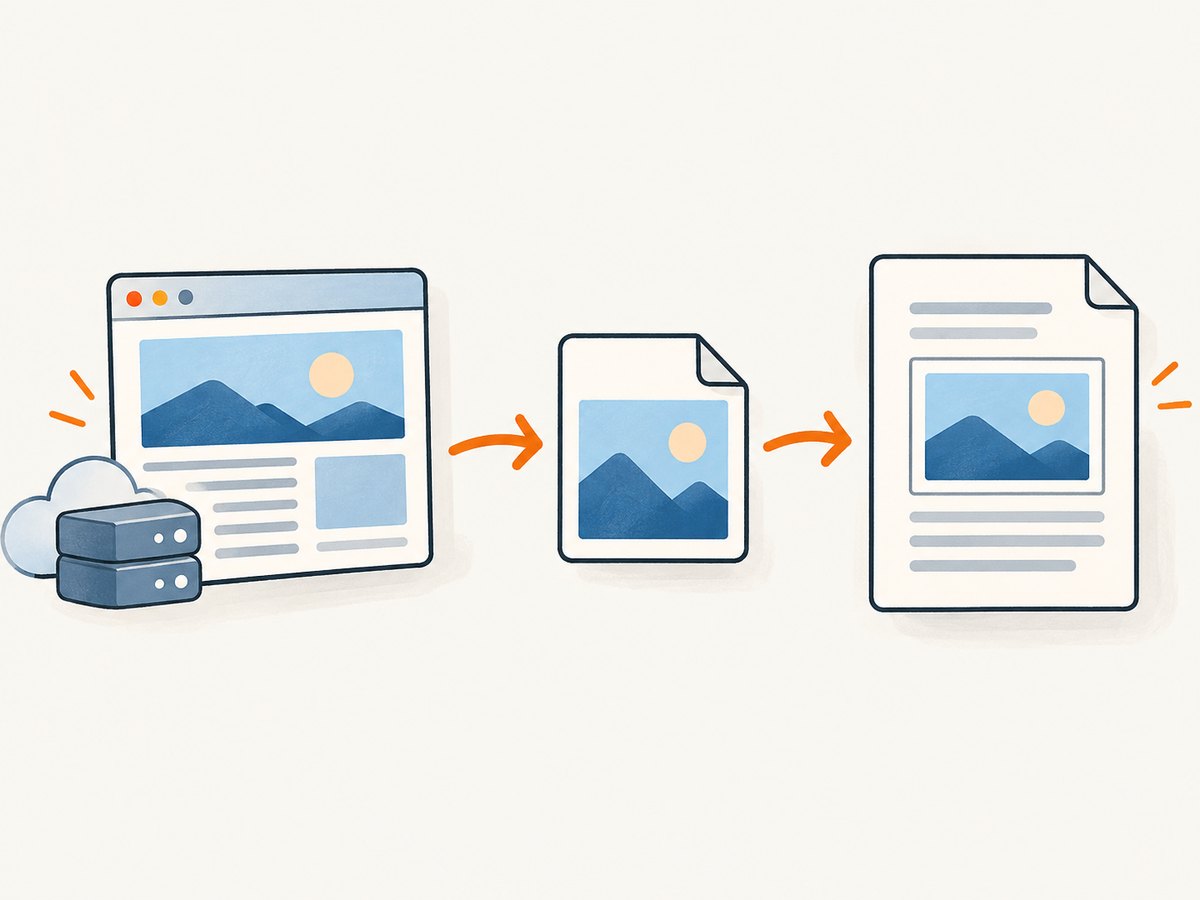
When documenting a web page, consider whether the capture should show the whole page or only one section. A whole-page image can be hard to read after it is resized to fit the document. A focused capture of the relevant panel, chart, error, or interaction is usually easier to inspect. If a capture is too wide, place it on its own line and resize it to fit the page, or crop away unrelated areas before insertion.
If you need to generate screenshots from web pages repeatedly or automatically, a browser capture workflow or screenshot API can produce the image file that Docs then accepts. Google Docs remains the destination: insert the resulting PNG, JPEG, or WebP image through upload, Drive, or clipboard.
6. Or skip the browser setup
If you need a screenshot of a web page, ScreenshotNeo is a website screenshot API and MCP server. Make one GET request for an image, then insert the returned file into Google Docs using the steps above. Its API supports PNG, JPEG, WebP, and PDF. See the ScreenshotNeo API documentation for request options.

curl -G "https://api.screenshotneo.com/v1/shot" \
  -d access_key=YOUR_API_KEY \
  --data-urlencode url=https://stripe.com \
  -o shot.webp
import requests
r = requests.get(
"https://api.screenshotneo.com/v1/shot",
params={"access_key": "YOUR_API_KEY", "url": "https://stripe.com"},
timeout=90,
)
open("shot.webp", "wb").write(r.content)const q = new URLSearchParams({
access_key: 'YOUR_API_KEY',
url: 'https://stripe.com'
});
const res = await fetch(`https://api.screenshotneo.com/v1/shot?${q}`);
if (!res.ok) throw new Error(`Screenshot request failed: ${res.status}`);
const image = Buffer.from(await res.arrayBuffer());
await import('node:fs/promises').then(fs => fs.writeFile('shot.webp', image));Replace the example URL with the page you need and use your API key. ScreenshotNeo accepts cookie banners like a visitor and removes more than 60 known consent platforms, newsletter popups, and chat widgets before capture; each step can be turned off. Bot checks and CAPTCHAs, blank pages, timeouts, failed loads, and cache hits cost nothing, and response headers identify the page verdict and billing status. Its MCP server provides take_screenshot, get_page_info, and capture_pdf for Claude, Cursor, and other MCP clients. The free plan includes 1,000 screenshots a month with no card; paid plans start at $5 for 3,000.
Sign up for 1,000 free screenshots a month, with no card.
7. Troubleshooting
| Problem | Likely cause | Fix |
|---|---|---|
| The image does not appear after choosing it | The selection was cancelled, the file picker did not finish, or the image has not loaded yet. | Wait briefly, confirm the cursor is in the document, and retry the insertion. Try uploading a saved local copy. |
| By URL does not insert the image | The link points to a page rather than a direct image, requires authentication, or is unavailable. | Use a publicly accessible direct image link or save the image locally and upload it. |
| Paste inserts text or nothing | The clipboard may contain a file path, webpage text, or a link instead of image data. | Copy the image itself. If that is inconvenient, save it and choose Upload from computer. |
| I cannot move the screenshot beside text | The image is inline, or the document uses Pageless format. | Select a wrapping or positioning layout. If the controls are missing in Pageless, switch to Pages format. |
| The screenshot looks stretched | A side handle was dragged and changed only one dimension. | Undo, then resize from a corner handle to preserve proportions. |
| The image is hard to read in the document | The screenshot contains more content than can be legibly displayed at page width. | Crop to the relevant region, use a larger display area, or split a long page capture into focused images. |
| I cannot select the image on mobile | The app may still be in viewing mode, or the tap landed in the text rather than on the image. | Enter edit mode, tap the image directly, and use the controls that appear. |
8. Practical tips for clear documents
- Put the cursor first. This avoids having to move the image after it is inserted.
- Give the screenshot context. Add a short caption or sentence that tells readers what they are looking at.
- Keep text readable. Avoid shrinking a full-page capture until its labels become too small; crop or split it instead.
- Choose layout intentionally. In line is usually stable for instructional documents. Wrapping can work for short screenshots beside text, while break text keeps the image between text blocks.
- Use the source that minimizes extra steps. Upload local files, select existing Drive/Photos images, or paste when the image is already copied.
- Consider access and privacy. A screenshot can expose names, account details, or private page content. Crop or redact sensitive details before sharing the document.
9. Frequently asked questions
Can I insert a screenshot into a Google Doc without saving it first?
Yes. Copy and paste it, drag it into the document, or use a supported camera or online image source. Saving a local copy is a dependable fallback if clipboard insertion is unavailable.
Can I add a screenshot from my phone to a document open on my computer?
Yes. Make the image available to the computer, for example by storing it in Drive, then insert it from Drive or download and upload it from the computer.
Which image format should I use?
Use the image file you already have if Docs accepts it through the selected source. For generated web screenshots, ScreenshotNeo can return PNG, JPEG, or WebP; the API also supports PDF output when a document-style capture is needed.
Why does my screenshot move the text?
An image participates in the document layout. In line images occupy a place in the text flow; wrapping and positioning modes change how nearby text behaves. Select the image and choose the layout that matches the page.
Do I need an extension or paid app?
No. Google Docs includes image insertion methods for computer and mobile workflows. A separate capture tool is useful only when you need to create screenshots, especially from web pages or in an automated process.


