How to Add a Screenshot to a PDF With HTML and CSS
Embed a screenshot in HTML, size it for print, and generate a PDF with Puppeteer. Learn how to prevent clipping and preserve colors.
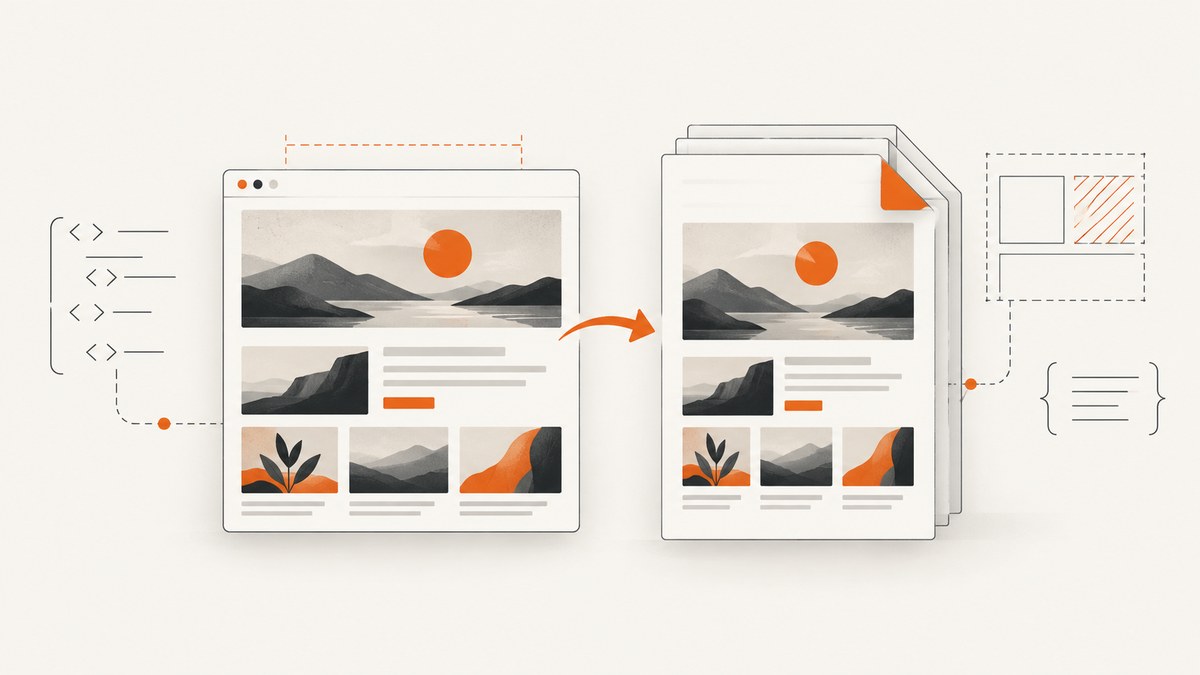
To add a screenshot to a PDF with HTML and CSS, put the screenshot in an <img> element, size it with CSS, and render the HTML through a browser PDF engine such as Puppeteer. The image is ordinary page content: HTML places it, CSS controls its size and print behavior, and PDF options control the page geometry. Puppeteer uses print CSS when generating a PDF; emulate screen media first if you need screen styles instead. See the Puppeteer PDF API.
1. Prepare the screenshot and HTML
Save or fetch the screenshot as a PNG, JPEG, or WebP file that Chromium can load. Keep it beside the script for this example. Give the image meaningful alternative text and constrain it to the printable content width. height:auto preserves its aspect ratio.
<!doctype html>
<html lang="en">
<head>
  <meta charset="utf-8">
  <title>Screenshot report</title>
  <style>
    @page { size: A4 portrait; margin: 16mm; }
    html { -webkit-print-color-adjust: exact; print-color-adjust: exact; }
    body { font: 14px/1.5 Arial, sans-serif; color: #172033; }
    figure { margin: 0; }
    img { display: block; max-width: 100%; height: auto; }
    figcaption { margin-top: 6px; color: #475569; font-size: 11px; }
    @media print {
      .screen-only { display: none; }
      figure { break-inside: avoid; }
    }
  </style>
</head>
<body>
  <h1>Captured page</h1>
  <figure>
    <img src="./screenshot.png" alt="Screenshot of the captured page">
    <figcaption>Captured for the report.</figcaption>
  </figure>
</body>
</html>
Use a local file, a hosted asset URL, or a data URL. Local paths are convenient for a one-off script, but the browser needs permission to access them and the path must resolve from the HTML document. Hosted assets require network access and may fail because of authentication, redirects, or a slow response. Data URLs avoid a separate request but make the HTML larger and awkward to manage for large images.
2. Render a PDF with Puppeteer
Install Puppeteer in a Node.js project, save the HTML above as report.html, place screenshot.png alongside it, and run this script as make-pdf.mjs. It waits for the image to load and for fonts to settle before exporting.
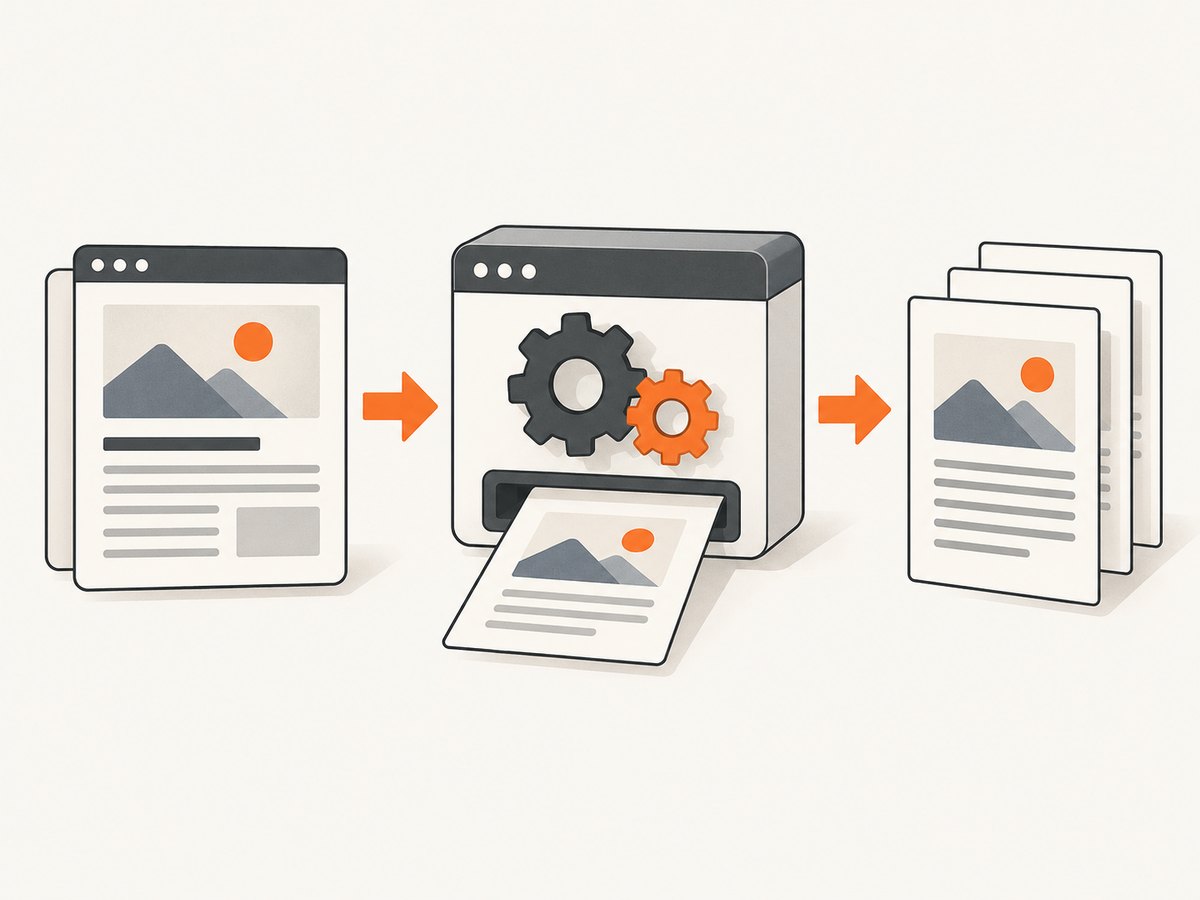
npm install puppeteer
node make-pdf.mjs
import puppeteer from 'puppeteer';
import { pathToFileURL } from 'node:url';
import path from 'node:path';
const htmlPath = path.resolve('report.html');
const browser = await puppeteer.launch({ headless: true });
try {
const page = await browser.newPage();
await page.goto(pathToFileURL(htmlPath).href, { waitUntil: 'load' });
await page.evaluate(async () => {
await document.fonts.ready;
await Promise.all([...document.images].map(img => {
if (img.complete) return Promise.resolve();
return new Promise((resolve, reject) => {
img.addEventListener('load', resolve, { once: true });
img.addEventListener('error', () => reject(new Error(`Image failed: ${img.src}`)), { once: true });
});
}));
});
await page.pdf({
path: 'screenshot-report.pdf',
format: 'A4',
printBackground: true,
preferCSSPageSize: true,
margin: { top: '16mm', right: '16mm', bottom: '16mm', left: '16mm' }
});
} finally {
await browser.close();
}The page is printed using print media styles by default. If the PDF should preserve the screen stylesheet, call await page.emulateMediaType('screen') before page.pdf(). In that case, consider whether screen-oriented dimensions and page breaks still produce the intended paper output. The code sets both CSS @page geometry and PDF options; preferCSSPageSize lets CSS page size take precedence. Choose one source of truth deliberately.
3. Fit the screenshot to the PDF page
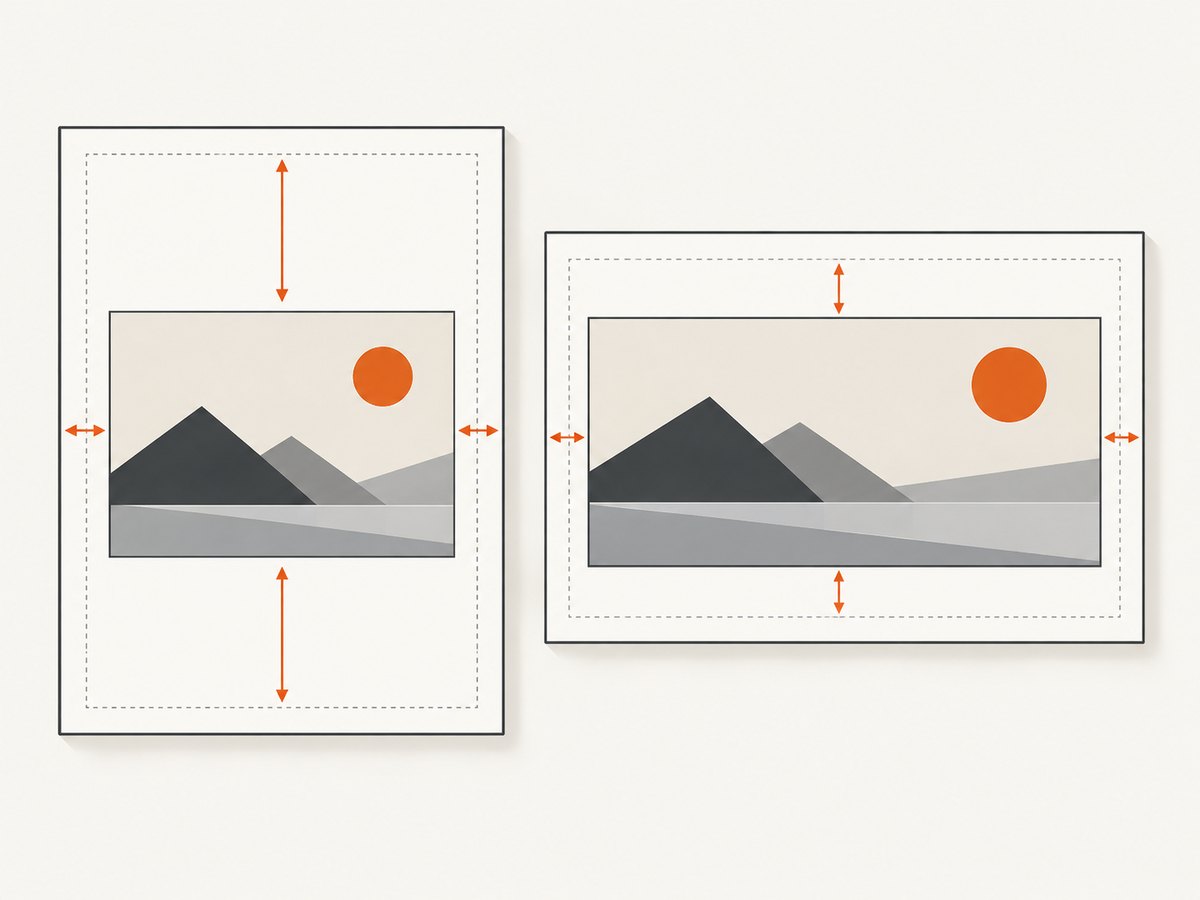
A CSS maximum width prevents the image from overflowing the content area, while automatic height prevents distortion. For predictable print sizing, calculate the available width from the paper width minus left and right margins. A4 is 210 mm wide; with 16 mm margins on both sides, content is 178 mm wide. The browser scales the image proportionally to fit.
| Goal | Useful control | What to watch |
|---|---|---|
| Fit image within page | max-width: 100%; height: auto |
Parent width should match the printable area. |
| Landscape layout | landscape: true or @page { size: A4 landscape } |
Set a single preferred page-size source. |
| Control paper size | format, width/height, or CSS @page |
CSS may take precedence with preferCSSPageSize. |
| Keep a figure together | break-inside: avoid |
If it is taller than one page, it still must split or overflow. |
| Retain background colors | printBackground: true |
Browsers may adjust print colors unless print color adjustment is set. |
| Export selected pages | pageRanges |
Ranges refer to generated PDF pages, not source image dimensions. |
A screenshot that is wider than the page will be scaled down and can become difficult to read. Consider landscape orientation, a larger paper size, or splitting the source into sections when legibility matters. Avoid setting both width and height on the image unless you want cropping or distortion. Use object-fit: contain for a fixed frame that must show the whole image, or cover only when cropping is acceptable.
4. Preserve colors and choose print behavior
PDF export uses print CSS, so rules inside @media print can change visibility, spacing, colors, or dimensions compared with the browser window. Puppeteer documents that page.pdf() generates a PDF with the print CSS media type. If screen appearance is desired, emulate screen media before export. Background graphics are omitted unless printBackground: true is enabled. For colors that should be reproduced as specified, use -webkit-print-color-adjust: exact (and the standard print-color-adjust declaration) on the relevant content.
These settings cannot improve the source screenshot itself. If a screenshot is blurry, export or capture it at a larger pixel size. If the screenshot includes a full-page capture, its long aspect ratio may make it unreadable when scaled to a single sheet. You can put it on a dedicated page, use landscape paper, or split it into smaller portions before embedding.
5. Alternative: create the PDF directly from the screenshot
When a PDF only needs to contain the image, a full HTML layout may be unnecessary. A browser PDF engine can still place the image in a minimal HTML document, but a dedicated image-to-PDF tool can be simpler when you do not need captions, multiple elements, print CSS, or page-level layout. HTML and CSS are useful when the screenshot belongs alongside labels, explanatory text, headers, or other report content.
6. Capture and embed a screenshot in one workflow
If the source is a live web page, capture it first and then embed the returned image in your HTML. Keep capture and PDF composition as separate steps when you need to inspect or reuse the image. For an automated report, make the capture step fail clearly if it returns an error or an unexpected content type; do not blindly treat every response body as an image.
cURL
curl -G "https://api.screenshotneo.com/v1/shot" -d access_key=YOUR_API_KEY --data-urlencode url=https://stripe.com -o shot.webpPython
import requests

r = requests.get(
    "https://api.screenshotneo.com/v1/shot",
    params={"access_key": "YOUR_API_KEY", "url": "https://stripe.com"},
    timeout=90,
)
r.raise_for_status()
open("shot.webp", "wb").write(r.content)
Node.js
const q = new URLSearchParams({ access_key: 'YOUR_API_KEY', url: 'https://stripe.com' });
const res = await fetch(`https://api.screenshotneo.com/v1/shot?${q}`);
if (!res.ok) throw new Error(`Screenshot request failed: ${res.status}`);
const bytes = Buffer.from(await res.arrayBuffer());
await import('node:fs/promises').then(fs => fs.writeFile('shot.webp', bytes));
Use ScreenshotNeo’s API documentation for request options and response details. The example saves a WebP image; match the HTML file extension and image type to the format you request. Once downloaded, point the <img> element at that file and run the Puppeteer export. Keep API keys out of source control and avoid placing them in client-side HTML.
7. Or skip the browser setup
ScreenshotNeo is a website screenshot API and MCP server. One GET request captures a URL as an image or PDF. Its capture can remove cookie banners, popups, and chat widgets before the shot; bot checks, blank pages, and failed loads are never billed. AI agents can use its MCP server to take screenshots. The free plan includes 1,000 screenshots per month with no card, and paid plans start at $5 for 3,000.
curl -G "https://api.screenshotneo.com/v1/shot" -d access_key=YOUR_API_KEY --data-urlencode url=https://stripe.com -o shot.webpFor response headers, formats, and the other capture options, see the API documentation. Then place shot.webp in your HTML and generate the report PDF with the steps above. Sign up for 1,000 free screenshots a month; no card required.
8. Troubleshooting
| Symptom | Likely cause | Fix |
|---|---|---|
| Image is missing | Wrong relative path, inaccessible local file, or failed remote request. | Resolve the asset path from the HTML location; test it in the browser and wait for its load event. |
| Image is clipped at the edge | Image or parent exceeds printable width, or fixed dimensions crop it. | Use max-width: 100%; height: auto, account for margins, and remove conflicting fixed widths. |
| PDF looks different from the browser | Print media styles are active by default. | Review @media print; emulate screen media only when screen styling is intended. |
| Backgrounds disappear | Print background graphics are disabled. | Set printBackground: true and apply print color adjustment where needed. |
| Fonts or layout shift | PDF was generated before fonts or images finished loading. | Wait for document.fonts.ready and every image load or error before calling page.pdf(). |
| Image is tiny or unreadable | A tall or very wide screenshot was fit onto one page. | Use landscape or larger paper, dedicate a page, or split the screenshot into readable sections. |
| Unexpected paper dimensions | PDF options and CSS @page specify competing sizes. |
Choose CSS or API geometry, then set preferCSSPageSize consistently. |
9. Performance, reliability, and cost
Local Puppeteer rendering avoids a screenshot or PDF service request, but you must provide a compatible runtime, browser binaries, memory, and time for Chromium to start and lay out the page. Reuse a browser process for batches of PDFs rather than launching one for every document, while using a separate page for each job and closing pages after use. Keep images appropriately sized: very large source files increase transfer, memory, and PDF size without necessarily improving printed clarity.
Rendering depends on every external asset and font being reachable and stable. For reproducible output, prefer local or versioned assets, wait for fonts and images, and set explicit page size and margins. Add a timeout around navigation and image readiness in production, report which asset failed, and close Chromium in a finally block. PDF generation has no universal deployment price: local compute and hosting determine cost. A hosted API can reduce browser maintenance but adds request limits and service pricing; check the provider’s current plan and failure semantics before choosing it.
FAQ
Can I put the screenshot directly in the HTML?
Yes. Use a hosted URL, a local path the renderer can read, or a data URL. A data URL is convenient for small assets but increases document size.
Will a long screenshot automatically span PDF pages?
It may be split by print layout, depending on its dimensions and break rules. For readable output, test the desired paper size and consider dividing very tall captures into sections.
Can the screenshot be a clickable link in the PDF?
Wrap the image in an anchor element in the HTML. PDF link behavior depends on the browser renderer and reader, so inspect the resulting document when link preservation is important.
Does this preserve transparency?
The source format and PDF renderer determine how transparency appears. If a transparent image renders against an unexpected background, set an explicit background in the HTML or use an opaque image format.


