How to Add a Screenshot Tool to a Web Page
Choose between rendering your app’s DOM, asking a user to capture a screen, or generating a screenshot on a server. Here’s how to implement each path.

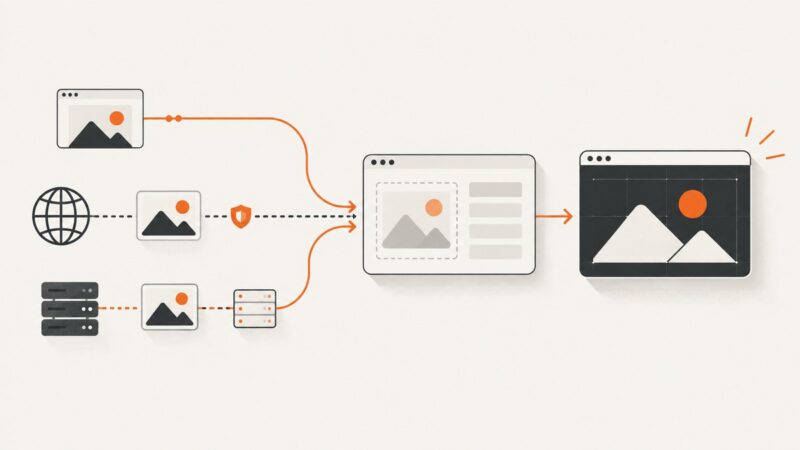
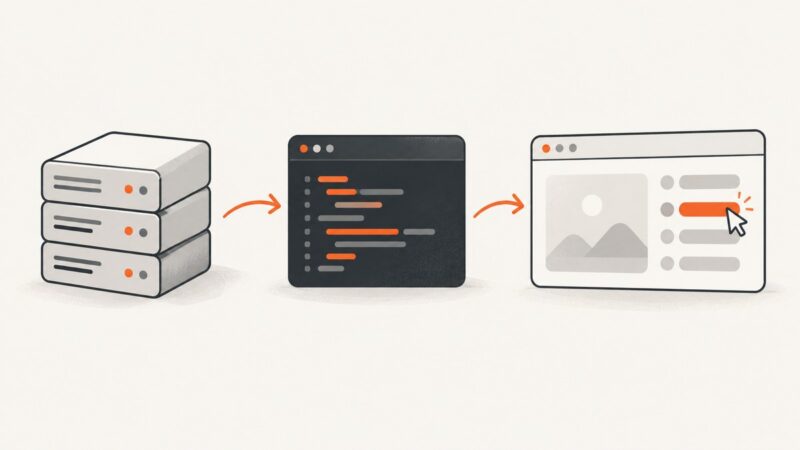
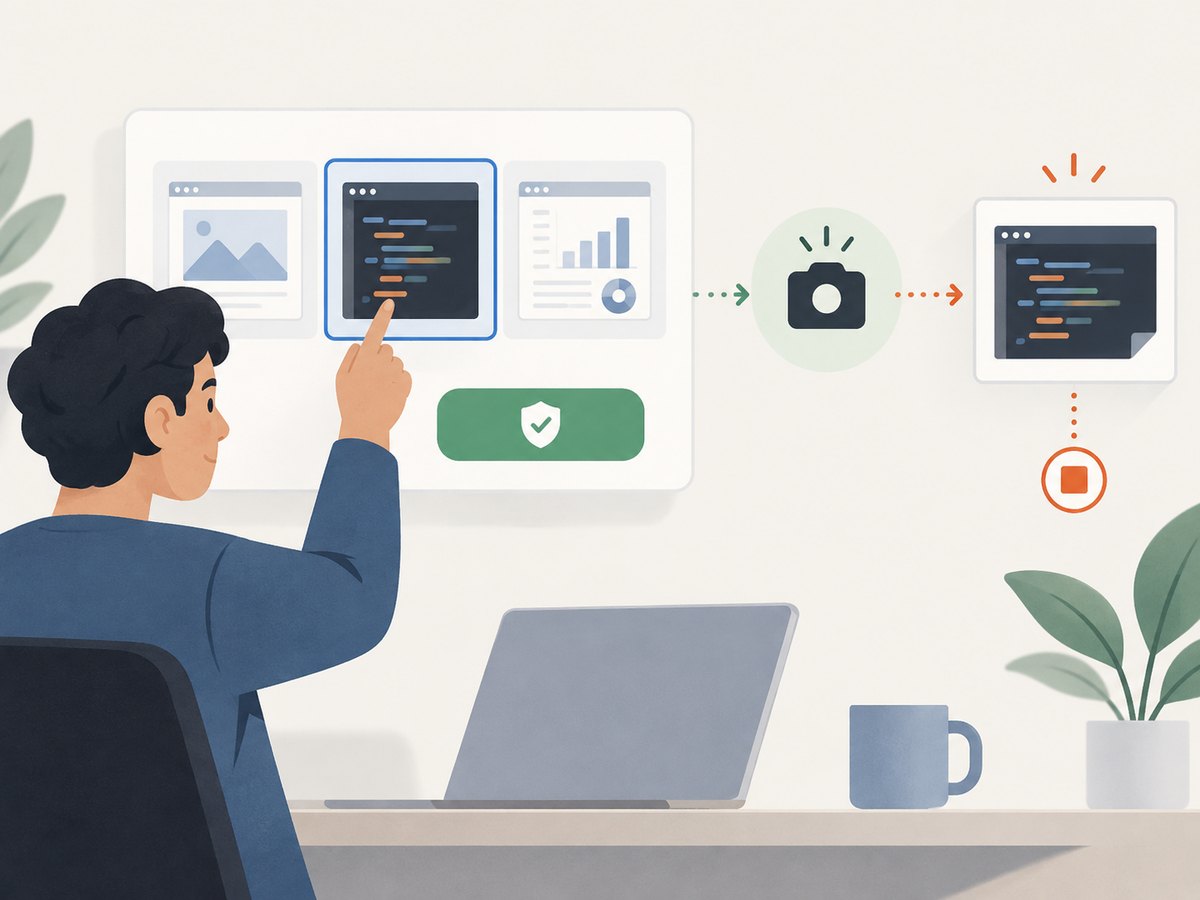
First decide what “screenshot” means for your feature. If you need an image of content your app controls, render the page’s DOM into a canvas. If a user needs to capture a tab, window, or screen, ask them to choose it with the browser’s screen-capture picker. If your server needs to capture a URL or produce repeatable images, use browser automation or a screenshot API. These approaches solve different problems, and there is no single best choice for every page.
This guide builds a simple in-page screenshot tool with html2canvas, shows how to capture a user-selected display surface, and explains when to move capture to a server. The examples assume you have permission to capture the content involved and explain the capture clearly to users.
1. Choose the kind of screenshot your page needs
| Need | Starting point | Trade-off |
|---|---|---|
| Capture an element or app-controlled region in the current document | DOM reconstruction with a library such as html2canvas |
It rebuilds an image from DOM information. It is not a literal capture of browser pixels, and some CSS or external content may differ or be missing. |
| Let a user select a tab, window, or screen and capture what is displayed | navigator.mediaDevices.getDisplayMedia() |
The user sees a picker and must grant access. Browser support and policy constraints vary. |
| Capture remote URLs or automate repeatable screenshots on a server | Browser automation such as Puppeteer or Playwright, or a screenshot API | You need a server-side capture setup or an external service. html2canvas runs in a browser and is not a server-side renderer. |
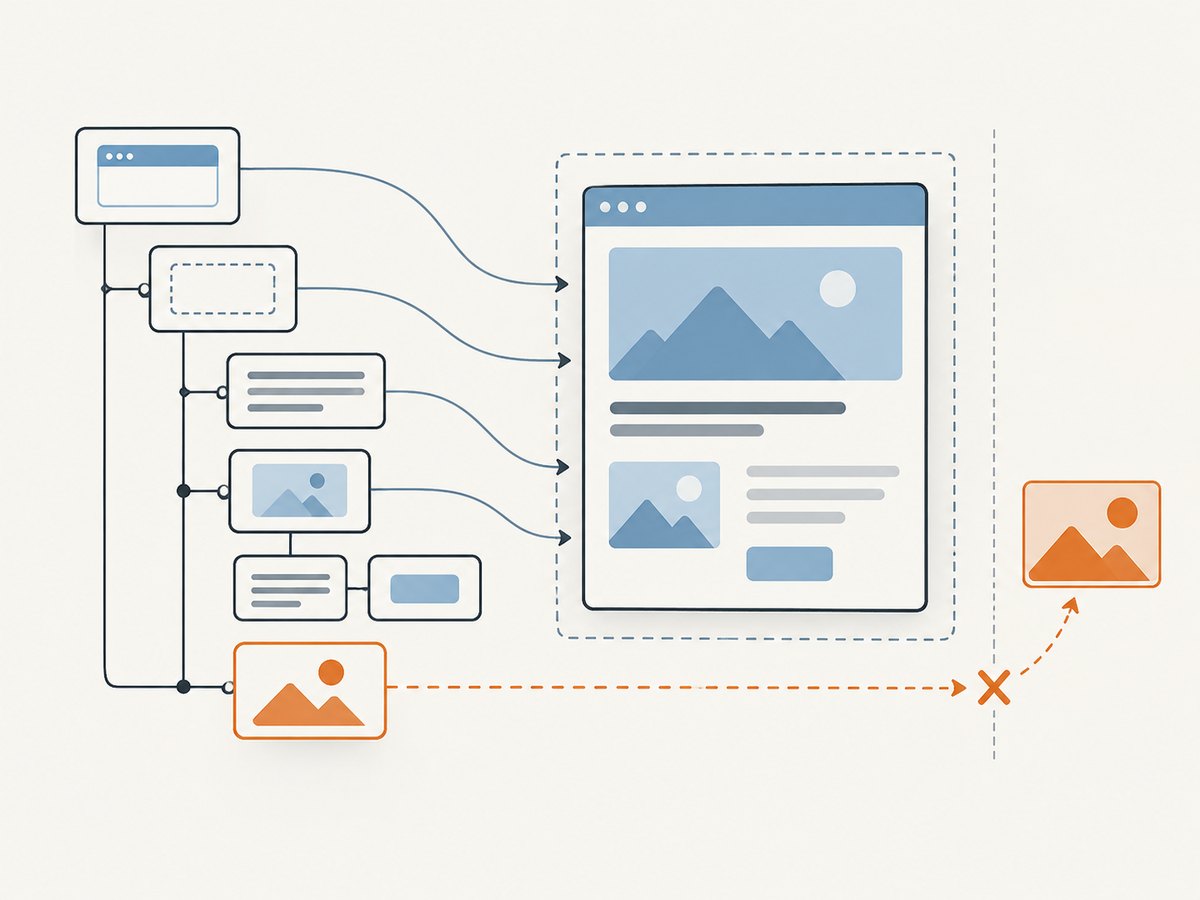
Use DOM reconstruction when the page owns the content and an approximate visual rendering is acceptable. Use display capture when the target is genuinely the user’s displayed screen surface. Use server-side capture when a job needs a URL rendered without asking a visitor to open a picker. The html2canvas documentation describes how DOM reconstruction works and its limits; its FAQ points to Puppeteer or Playwright for server-side browser automation (html2canvas documentation, html2canvas FAQ).
2. Add an in-page capture button with html2canvas
This example captures a specific element, displays the resulting PNG, and provides a download link. It uses a pinned library version from a CDN for a copyable demo. In a production app, install the package through your project’s package manager and use the version your dependency policy supports.
<button id="capture" type="button">Capture card</button>
<p id="status" role="status" aria-live="polite"></p>

<article id="capture-area">
  <h2>Project summary</h2>
  <p>This is the content included in the image.</p>
</article>

<div id="result"></div>

<script src="https://cdnjs.cloudflare.com/ajax/libs/html2canvas/1.4.1/html2canvas.min.js"></script>
<script>
  const button = document.querySelector('#capture');
  const area = document.querySelector('#capture-area');
  const status = document.querySelector('#status');
  const result = document.querySelector('#result');

  button.addEventListener('click', async () => {
    button.disabled = true;
    status.textContent = 'Preparing image…';
    result.replaceChildren();

    try {
      const canvas = await html2canvas(area, {
        backgroundColor: '#ffffff',
        scale: Math.min(window.devicePixelRatio || 1, 2),
        useCORS: true,
        logging: false
      });

      const link = document.createElement('a');
      link.download = 'project-summary.png';
      link.href = canvas.toDataURL('image/png');
      link.textContent = 'Download PNG';

      const preview = document.createElement('img');
      preview.src = link.href;
      preview.alt = 'Screenshot of the project summary';
      preview.style.maxWidth = '100%';
      result.append(preview, link);
      status.textContent = 'Image ready.';
    } catch (error) {
      console.error(error);
      status.textContent = 'Could not create the image. Check the page content and try again.';
    } finally {
      button.disabled = false;
    }
  });
</script>
The page needs no special permission prompt for this approach because the code reads DOM information from the current document. That does not grant access to arbitrary cross-origin content: browser security rules still apply. Also make sure the action is clear, give the user progress feedback for large regions, and avoid disabling the button permanently if a capture fails.
Useful html2canvas options
scalecontrols output resolution. Higher values make the canvas larger and can improve sharpness, but use more memory. A device-pixel-ratio-based value capped at 2 is a practical starting point, not a universal quality rule.backgroundColorsets the canvas background. Usenullwhen transparency is desired and supported by the output path.useCORSasks the renderer to try loading eligible external images with CORS. The image host must send appropriate CORS headers; the option does not bypass cross-origin restrictions.loggingcontrols library logging. Keep diagnostics available while investigating missing or incorrectly rendered content.windowWidthandwindowHeightcan be set when a consistent layout viewport is important. Layout-dependent pages may render differently if the viewport differs from the visitor’s browser.ignoreElementscan exclude elements from the rendered output. Use it for controls or transient content that should not appear in the image.
For a full page, pass document.documentElement or the app’s main content container. Full-document capture can create very large canvases. If you only need a card, chart, or report panel, capture that element instead.
Download, upload, or attach the result
canvas.toDataURL() produces a data URL, which is convenient for a small preview but can consume extra memory for large images. For a Blob, use toBlob():
canvas.toBlob(async (blob) => {
  if (!blob) throw new Error('Canvas export failed');

  const file = new File([blob], 'project-summary.png', { type: 'image/png' });
  const form = new FormData();
  form.append('screenshot', file);

  const response = await fetch('/api/upload-screenshot', {
    method: 'POST',
    body: form
  });
  if (!response.ok) throw new Error(`Upload failed: ${response.status}`);
}, 'image/png');
Replace /api/upload-screenshot with an endpoint in your own application. Validate the uploaded type and size on the server, authenticate the request, and apply your normal data-retention and access controls. A screenshot can contain personal or confidential information.
3. Ask a user to capture a tab, window, or screen
When users need to capture what they are looking at—including browser content your page cannot inspect—use the Screen Capture API. The call prompts the user to select a surface and returns a MediaStream. It requires a secure context in supporting browsers, may be restricted by Permissions Policy, and is not available in every widely used browser. The browser picker and user choice are essential parts of this design, not a hidden implementation detail (MDN: getDisplayMedia(), Chrome screen-sharing controls).
<button id="capture-screen" type="button">Choose a tab or screen</button>
<p id="screen-status" role="status" aria-live="polite"></p>
<img id="screen-preview" alt="Captured screen still" style="max-width: 100%">

<script>
  const screenButton = document.querySelector('#capture-screen');
  const screenStatus = document.querySelector('#screen-status');
  const preview = document.querySelector('#screen-preview');

  screenButton.addEventListener('click', async () => {
    if (!navigator.mediaDevices?.getDisplayMedia) {
      screenStatus.textContent = 'Screen capture is not available in this browser.';
      return;
    }

    let stream;
    try {
      // Call in direct response to the user's click so the picker can open.
      stream = await navigator.mediaDevices.getDisplayMedia({
        video: { preferCurrentTab: true },
        audio: false
      });

      const video = document.createElement('video');
      video.srcObject = stream;
      video.muted = true;
      await video.play();
      await new Promise(resolve => {
        if (video.readyState >= 2) resolve();
        else video.addEventListener('loadeddata', resolve, { once: true });
      });

      const canvas = document.createElement('canvas');
      canvas.width = video.videoWidth;
      canvas.height = video.videoHeight;
      canvas.getContext('2d').drawImage(video, 0, 0);
      preview.src = canvas.toDataURL('image/png');
      screenStatus.textContent = 'Capture complete. Sharing has ended.';
    } catch (error) {
      if (error.name === 'NotAllowedError') {
        screenStatus.textContent = 'Capture was cancelled or permission was denied.';
      } else {
        console.error(error);
        screenStatus.textContent = 'Could not capture that surface.';
      }
    } finally {
      stream?.getTracks().forEach(track => track.stop());
    }
  });
</script>
The browser may let the user choose among a tab, a window, or a screen; your page cannot silently pick and capture a particular surface. Explain what will be shared, provide a cancel path, and stop the media tracks promptly after taking the still. The example sets audio off because it only needs a still image. If the user switches away or ends sharing, handle the track’s ended event in a longer-lived capture interface.
A site that embeds this feature in an iframe may need to allow display capture through Permissions Policy. For example, an iframe can declare allow="display-capture" where appropriate; the embedding page’s policy can still restrict access. See MDN’s display-capture policy reference and the Screen Capture API guide.
4. When capture belongs on a server
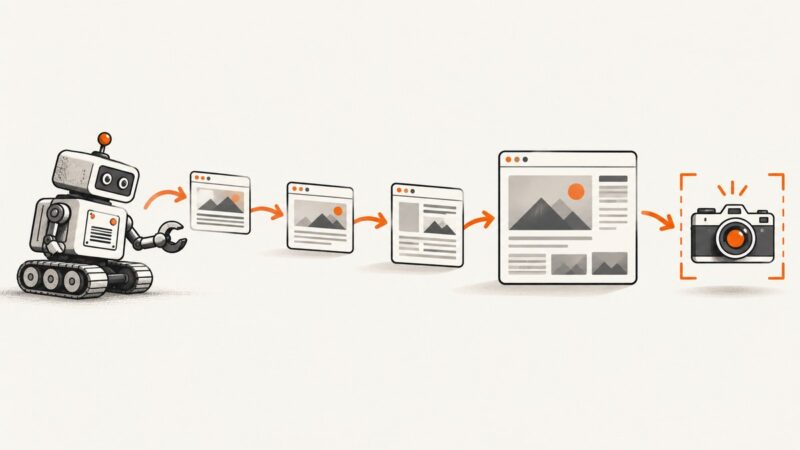
Move screenshot generation to the server when you need to render a remote URL, capture on a schedule, run a batch, or return a consistent artifact without asking an end user to open a browser picker. A server-side browser automation setup usually has to launch and manage a browser, navigate to the page, wait for the state you need, capture the page or element, and return or store the image. Puppeteer and Playwright are options to investigate; this article does not compare their APIs or hosting requirements. The html2canvas FAQ specifically notes that html2canvas depends on browser globals and suggests those automation tools for server-side rendering.
Plan for page load time, browser memory, concurrency, timeouts, and cleanup. A remote page can be slow, require authentication, depend on third-party resources, or show bot protection. Reuse browser processes where your architecture safely permits it, limit concurrent heavy captures, set explicit navigation and job timeouts, and close pages after each job. Do not accept arbitrary URLs from untrusted users without controls: server-side capture can become a route to internal network resources. Restrict destinations and validate URLs according to your deployment’s security requirements.
Or skip the browser setup
ScreenshotNeo is a website screenshot API and MCP server. One GET request returns a PNG, JPEG, WebP, or PDF. Its cookie handling accepts consent banners like a visitor and removes more than 60 known consent platforms, newsletter popups, and chat widgets before capture; each step can be turned off. Bot checks or CAPTCHAs, blank pages, timeouts, failed loads, and cache hits are not billed, and the response identifies the page verdict and billing status. AI agents can use its MCP server tools: take_screenshot, get_page_info, and capture_pdf.
See the ScreenshotNeo API documentation for request options. For example, this cURL request saves a WebP screenshot of a URL:
curl -G "https://api.screenshotneo.com/v1/shot" -d access_key=YOUR_API_KEY --data-urlencode url=https://stripe.com -o shot.webpThe API also accepts the parameter names used by other screenshot APIs, which can make migration easier. There are 63 options, including full-page capture with lazy images loaded, CSS-selector element capture, viewport and device presets, dark mode, retina scale, PDF settings, custom CSS and JavaScript, click and wait actions, blocked requests, headers and cookies, timezone and geolocation, caching, signed links, async jobs with signed webhooks, bulk capture of up to 100 URLs per call, usage reporting, and an OpenAPI specification.
The Free plan includes 1,000 screenshots a month with no card. Paid plans start at $5 for 3,000 captures; higher plans are $15 for 15,000, $39 for 60,000, $99 for 250,000, and $249 for 1,000,000. Yearly billing gives two months free, and every feature is on every plan. Sign up for 1,000 free screenshots a month with no card.
5. Troubleshooting
| Symptom | Likely cause | What to do |
|---|---|---|
| External images are blank | The image host does not allow the required CORS request, or the image is otherwise inaccessible. | Configure the image host’s CORS response for eligible assets, use a same-origin proxy where appropriate, or omit the image. DOM code cannot bypass browser security policy. |
| Canvas export throws a security error | A cross-origin image tainted the canvas. | Fix the image server’s CORS configuration and set useCORS, or remove the asset. A proxy helps only for resources you are authorized to fetch. |
| An embedded page is missing | Cross-origin iframe contents are isolated from the parent page’s DOM. | Capture through the iframe’s own cooperation, capture a user-selected display surface, or use an appropriate server-side workflow. The parent page cannot inspect arbitrary cross-origin iframe content. |
| Some CSS looks wrong or is absent | The library reconstructs from DOM and supported style information rather than copying rendered browser pixels. | Check the library documentation for the affected feature, simplify the capture styles, or use display capture when actual displayed pixels are required. |
| Screen picker does not open | The call is not from a user action, the context is insecure, the browser lacks support, or policy blocks capture. | Call from a click or other user gesture, serve over HTTPS, feature-detect getDisplayMedia, and inspect iframe and Permissions Policy settings. |
| User cancels screen selection | The picker was dismissed or permission was denied. | Handle the rejected promise as a normal outcome and leave the capture button available. Do not repeatedly reopen the picker without a new user action. |
| Capture is slow or the tab runs out of memory | The capture region is large, the scale is high, or the page contains heavy content. | Capture a smaller element, reduce scale, avoid keeping multiple full-size data URLs, and prefer Blob output for upload workflows. |
| Download is empty or malformed | Canvas encoding failed, the element was not ready, or the browser produced a null Blob. | Wait for fonts and images your app controls, check the canvas dimensions, and handle a null result from toBlob(). |
6. Performance, reliability, and cost
For browser-side rendering, output pixel count is approximately the element’s CSS pixel area multiplied by the square of the scale factor. A scale of 2 therefore uses roughly four times as many output pixels as scale 1. Large canvases and base64 data URLs can use substantial memory. Capture only the region needed, avoid redundant captures, and release references to finished canvases and media streams.
Reliability depends on page state: images, web fonts, animations, and data loaded asynchronously may not be ready at click time. If your app controls the page, wait for its own ready condition before capture, pause or normalize animations, and show a useful failure message. A screenshot is an artifact of a particular viewport, content state, browser, and time; record those conditions if reproducibility matters.
Client-side capture avoids operating a server browser but runs on the visitor’s device and is constrained by browser security rules. Server-side capture adds infrastructure or API cost and needs limits for concurrency and timeouts. Estimate volume from the number of captures, expected page weight, and whether retries are needed. With a hosted API, inspect its billing indicators and failure behavior rather than assuming every response is billable; ScreenshotNeo’s response includes page-verdict and billed headers.
7. Ship a screenshot feature checklist
- Write down whether the feature captures app DOM, a user-selected display surface, or a remote URL.
- State clearly what the user’s screenshot will include and where it will be stored or sent.
- Choose the smallest capture region and a reasonable output scale.
- Handle missing CORS access, unsupported browsers, cancellation, timeouts, and failed image export.
- For display capture, use HTTPS, call from a user action, and stop every media track when done.
- For server capture, set URL restrictions, timeouts, concurrency limits, and browser cleanup.
- Test representative content: external images, long pages, fonts, iframes, narrow viewports, and slow loading states.
FAQ
Can JavaScript take a screenshot of the current page?
It can render an image from the current page’s DOM, or request permission to capture a user-selected display surface. Those methods have different fidelity and access rules; ordinary page JavaScript cannot silently read every pixel displayed by the browser.
Why is my html2canvas image missing cross-origin content?
The browser enforces same-origin and CORS rules. The remote host must permit the relevant access for images, and the parent document cannot inspect a cross-origin iframe’s DOM. See the html2canvas FAQ.
How do I ask a user to capture a tab or window?
Call navigator.mediaDevices.getDisplayMedia() from a clear user action and let the browser present its picker. Explain the choice, handle cancellation, and stop the stream when capture is complete.
Can I generate screenshots on the server?
Yes. Use browser automation such as Puppeteer or Playwright, or a screenshot API, for URL-based capture. html2canvas is a client-side DOM renderer, not a server screenshot engine.