How to Add Shapes to Image Templates with SVGs
Add circles, rectangles, and custom paths to SVG templates. Learn how viewBox coordinates, styling, layers, and editable variables keep shapes consistent.

To add a shape to an SVG image template, define a stable viewBox, insert the appropriate SVG element (rect, circle, polygon, or path), then set its coordinates and paint with fill and stroke. Coordinates live in the SVG user space, so shapes scale with the template when the SVG is rendered at different dimensions. Keep the viewBox and geometry fixed when users should only customize appearance; expose carefully chosen colors and dimensions as template variables.
This guide builds a reusable social-card SVG, explains each common shape type, shows how to make safe edits, and covers rendering and troubleshooting. For the relevant SVG behavior, see the W3C SVG painting specification, MDN’s basic shapes guide, and W3C coordinate systems reference.
1. Fix the template’s coordinate system
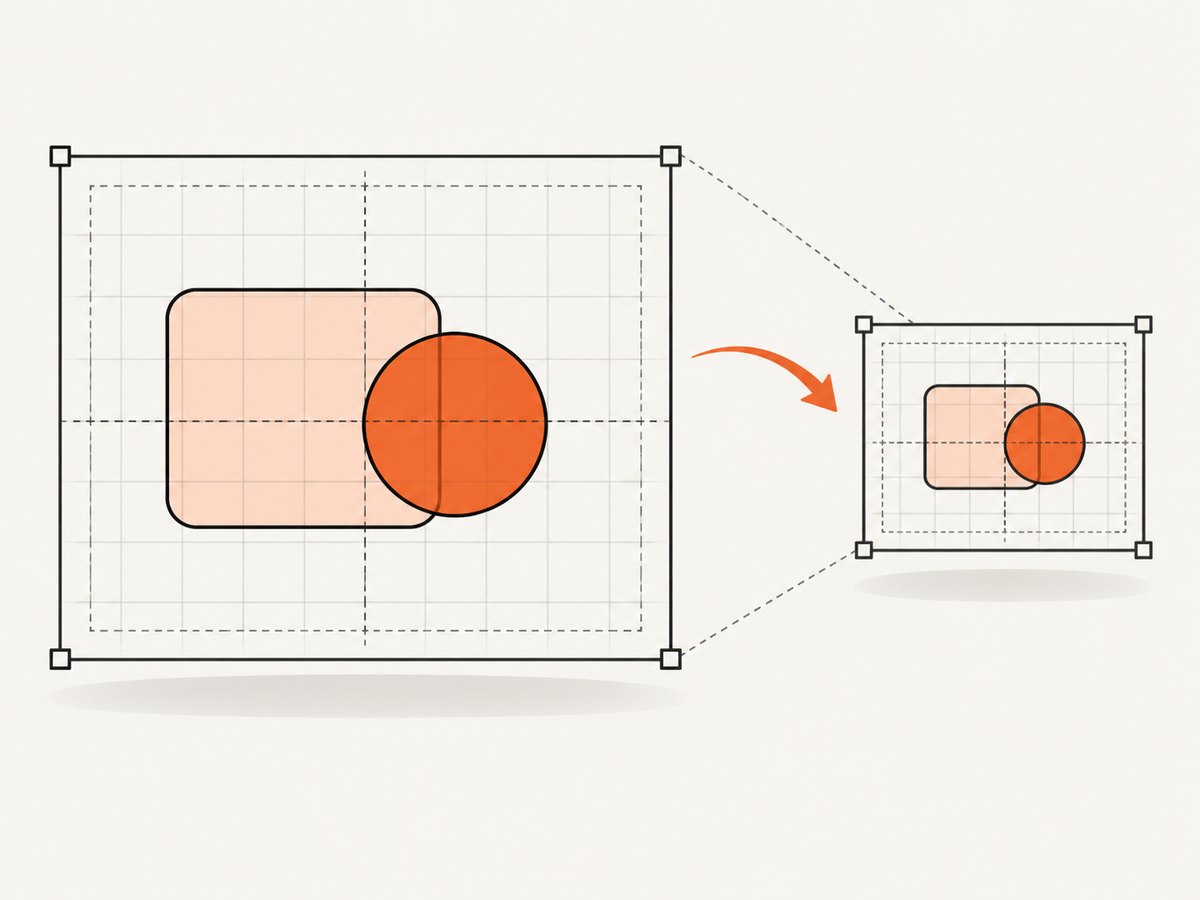
Start with the intended design proportions, not the final pixel dimensions. A social card that is 1200 by 630 pixels can use viewBox="0 0 1200 630". Those numbers establish an internal coordinate system; they do not force the browser to render exactly 1200 by 630 pixels. The outer rendered width and height may change while the viewBox coordinates remain stable.
<svg xmlns="http://www.w3.org/2000/svg"
     viewBox="0 0 1200 630"
     width="1200" height="630">
  <!-- template shapes and content -->
</svg>
The viewBox has four values: minimum x, minimum y, width, and height. Here the origin is at the top left, and the canvas spans x=0 through 1200 and y=0 through 630. Shape coordinates use this user coordinate system. When you add a circle centered at cx="980" cy="150", those values mean a point in this design space, regardless of whether the exported image is later 1200 pixels wide or 600.
Aspect ratio and cropping
By default, SVG preserves the viewBox aspect ratio when fitted into a differently proportioned viewport. Depending on the rendering setup, extra space may appear around the drawing. If the renderer uses a “cover” style fit, content can instead be cropped. Avoid changing the viewBox casually to fit a second output ratio: doing so changes the coordinate frame and can shift or clip fixed-position elements. Prefer a separate template variant or design explicit safe areas for content that must survive different crops.
- Keep important shapes and text away from the outer edge.
- Check the template at its target ratio and at any supported alternate ratio.
- Remember that a stroke is centered on a shape’s outline; a thick stroke near the viewBox boundary may be cut off.
2. Choose an SVG element for the shape
SVG has elements for common geometry. Choose the simplest element that describes the shape: it is easier to read, tune, and expose safely than an unnecessarily complicated path. MDN’s examples cover these standard shape elements and their geometry attributes.
| Shape | Element | Key attributes | Useful for |
|---|---|---|---|
| Rectangle or rounded rectangle | rect |
x, y, width, height, optional rx, ry |
Panels, frames, labels, backgrounds |
| Circle | circle |
cx, cy, r |
Dots, badges, circular accents |
| Ellipse | ellipse |
cx, cy, rx, ry |
Oval accents or masks |
| Open line or sequence | line, polyline |
x1, y1, x2, y2, or points |
Rules, open zigzags, connectors |
| Closed straight-edged shape | polygon |
points |
Triangles, diamonds, custom badges |
| Curved or custom outline | path |
d |
Blobs, waves, detailed icons |
An open line or polyline normally has no filled interior. Use a stroke to make it visible. A polygon is closed automatically from its last point to its first, making it suitable for a filled shape. A path supports commands for moving, drawing straight lines, curves, and closing an outline; it is the flexible option when a primitive does not fit.
Position and size examples
<rect x="40" y="40" width="1120" height="550" rx="32" />
<circle cx="980" cy="150" r="90" />
<ellipse cx="500" cy="300" rx="180" ry="90" />
<polygon points="80,80 180,80 130,170" />
<polyline points="60,200 110,150 160,200" />
<path d="M 40 300 C 180 220, 250 390, 400 300 Z" />
For a rectangle, x and y locate its upper-left corner; width and height set its extent. Rounded corners can be specified with rx and/or ry. For a circle, the center is cx, cy, and r is its radius. An ellipse has separate horizontal and vertical radii. Polygon and polyline points are coordinate pairs. A path’s d is a compact sequence of drawing instructions; keep it fixed if users are not expected to edit the outline itself.
3. Style fill, outline, and transparency
fill paints a shape’s interior and stroke paints its outline. The W3C painting model also defines paint servers such as gradients and patterns. The following template uses a solid fill and outline, with a semi-transparent accent circle:
<svg xmlns="http://www.w3.org/2000/svg"
     viewBox="0 0 1200 630" role="img"
     aria-labelledby="title desc">
  <title id="title">Social card template</title>
  <desc id="desc">A rounded rectangle and accent circle used as editable template decoration</desc>
  <rect id="panel" x="40" y="40" width="1120" height="550" rx="32"
        fill="#f4f7fb" stroke="#24324a" stroke-width="8"/>
  <circle id="accent" cx="980" cy="150" r="90"
          fill="#ff6b6b" fill-opacity="0.85"/>
</svg>
Save this as card.svg and open it in a browser or SVG-aware editor to inspect the result. The title and description make the graphic more accessible when its context supports SVG accessibility; update them when the template’s purpose changes. IDs are optional but useful when code or an editor needs to identify particular shapes.
Common style controls
fillandstroke: solid colors,none, or paint references such as a gradient.stroke-width: outline thickness in user units. A width of 8 scales along with the SVG.fill-opacityandstroke-opacity: opacity for only the fill or outline;opacityaffects the whole element.stroke-linecap: end shape for open strokes, commonlybutt,round, orsquare.stroke-linejoin: corner treatment where stroke segments meet, commonlymiter,round, orbevel.
For example, a thin decorative line may need rounded caps, while a sharp polygon badge may use a bevel or miter join. Check the smallest output size: an outline that looks balanced on a large canvas can become too heavy or disappear after downscaling. SVG values are resolution independent, but the final raster output is not.
4. Layer shapes in the right order
SVG paints elements in document order: later elements are painted over earlier ones when they overlap. Put background panels first, decorative forms next, and text or foreground subjects after those. Group related pieces with g when they should move, transform, or receive common styling together.

<g id="decoration" fill="#ff6b6b">
  <circle cx="1050" cy="110" r="70" opacity="0.35" />
  <circle cx="1090" cy="160" r="42" opacity="0.65" />
</g>
Put the group before foreground text if the circles should sit behind it. If using CSS classes, be aware that stylesheet rules can override presentation attributes such as fill. Keep the style source clear so editor-generated CSS does not unexpectedly defeat a user’s color change.
5. Make the template safely editable
Decide which parts are design structure and which are user choices. In many template systems, a useful boundary is to keep the viewBox and path geometry fixed, while exposing fill, stroke, opacity, and a limited set of size or position values. This lets users personalize the design without accidentally distorting its composition.
For example, CSS variables make colors easy to update in source-controlled SVG markup:
<svg xmlns="http://www.w3.org/2000/svg" viewBox="0 0 1200 630"
     style="--panel:#f4f7fb; --accent:#ff6b6b; --ink:#24324a">
  <rect x="40" y="40" width="1120" height="550" rx="32"
        fill="var(--panel)" stroke="var(--ink)" stroke-width="8" />
  <circle cx="980" cy="150" r="90" fill="var(--accent)" />
</svg>
Then change the variable values to create another colorway. Whether an external template editor preserves inline styles or CSS variables depends on that editor, so verify its import/export behavior. If the editor expects explicit values, replace variables with its supported fields instead of assuming browser CSS support means the same thing in the editor.
Image-replaceable shapes
Some template platforms model a shape as path data plus a viewBox and fill, and can support image or video fills or drop targets. This is platform-specific: confirm the editor’s documented fill types, path syntax, and size limits before designing around them. Canva’s developer documentation is one example of this API approach, describing shapes with path data, a viewBox, and fill information, including image/video drop-target behavior. Those API constraints should be checked against its current documentation before implementation.
For a standards-based SVG file, an image can also be included as an SVG image element, but portability and editor behavior differ. If users must replace an image through a particular product’s UI, implement the product’s documented image-fill mechanism rather than relying on a generic SVG trick.
6. Check the exported result at real sizes
Before shipping, render the template at the actual delivery dimensions and at a second supported aspect ratio. Inspect each size for clipping, stroke weight, layer order, and the location of key content. A visual check is valuable because coordinate math can be valid while the composition is still poor.
- Render at the main output size and inspect the edges for clipped shapes or strokes.
- Render at the smallest expected size and confirm lines and details remain visible.
- Render with the alternate ratio or crop behavior used by your destination.
- Change every exposed color and variable once to confirm it reaches the intended shape.
- Replace any image fill in the target editor and inspect crop, fit, and stacking behavior.
To render a browser-visible page containing an SVG, a screenshot tool can capture the whole page or a particular element. This is useful for checking how the SVG looks as part of a real template preview, especially when surrounding HTML and fonts affect layout.
7. Troubleshoot common SVG shape problems
| Symptom | Likely cause | Fix |
|---|---|---|
| Shape is missing | It is outside the viewBox, has no visible fill or stroke, or malformed markup/path data prevents rendering. | Check coordinates against viewBox bounds; set a visible fill or stroke; validate the element and path syntax. |
| Shape shifts after resizing | The viewBox or outer aspect ratio changed, or the design was authored using rendered pixels rather than stable user coordinates. | Restore the intended viewBox and change only the rendered width/height. Create a deliberate alternate layout for other ratios. |
| Outline looks clipped | The stroke is centered on an edge near the viewBox boundary, so part extends beyond the canvas. | Inset the shape by at least part of the stroke width; leave a safe margin around the artwork. |
| Rounded corners look wrong | rx/ry values are too large, or one is omitted in a way the renderer handles differently than expected. |
Set deliberate radii and inspect target renderers; keep values proportional to rectangle dimensions. |
| New color has no effect | A CSS rule, inline style, or editor binding overrides the fill attribute. |
Inspect computed styles and simplify the style source; update the correct variable or editor field. |
| Line disappears at small size | The stroke becomes too thin after scaling or rasterization. | Increase stroke-width for the smallest output or use a separate size-specific variant. |
| Shape covers text unexpectedly | SVG paints later elements on top of earlier elements. | Reorder the elements or groups so decorative shapes are behind foreground content. |
| SVG works in browser but not editor | The editor supports a subset of SVG, sanitizes markup, or has platform-specific path/fill restrictions. | Use its documented feature set and verify current path, fill, and size constraints. |
8. Capture and compare the rendered template
Once the SVG is embedded in a page, capture the browser output to review variants or attach a rendered proof to a workflow. A screenshot of the page is different from editing the SVG source: make geometry and style changes in the SVG or template system, then capture the result. If you need repeatable output, set the viewport, wait for the preview to finish rendering, and capture the relevant element or page.
Browser setup for a local preview
A practical do-it-yourself route is Playwright with Chromium. Install it with npm install playwright, then save this as capture.mjs. Start a local web server that serves your preview at the URL in the script; a file URL can also work for a self-contained SVG, but a local server better matches deployed pages.
import { chromium } from 'playwright';

const browser = await chromium.launch({ headless: true });
try {
  const page = await browser.newPage({
    viewport: { width: 1200, height: 630 },
    deviceScaleFactor: 1,
  });
  await page.goto('http://localhost:8000/card-preview.html', {
    waitUntil: 'networkidle',
    timeout: 30000,
  });
  await page.locator('#template-preview').screenshot({
    path: 'template.png',
    animations: 'disabled',
  });
} finally {
  await browser.close();
}
This example assumes the page contains an element with id="template-preview". If fonts or images load after network activity settles, wait for a specific selector or asset-ready condition rather than assuming that network idle guarantees visual readiness. For one-off debugging, capturing the full page can reveal overflow outside the preview container; element capture keeps the output focused.
9. Or skip the browser setup
ScreenshotNeo is a website screenshot API and MCP server from ScreenshotNeo. Use it to capture a rendered preview URL without installing a browser locally. The API accepts a URL and returns an image or PDF; see the API documentation for request options.
curl -G "https://api.screenshotneo.com/v1/shot" \
  -d access_key=YOUR_API_KEY \
  --data-urlencode url=https://example.com/card-preview \
  -o template.webp
import requests
r = requests.get(
"https://api.screenshotneo.com/v1/shot",
params={"access_key": "YOUR_API_KEY", "url": "https://example.com/card-preview"},
timeout=90,
)
open("template.webp", "wb").write(r.content)const q = new URLSearchParams({
access_key: 'YOUR_API_KEY',
url: 'https://example.com/card-preview'
});
const res = await fetch(`https://api.screenshotneo.com/v1/shot?${q}`);
if (!res.ok) throw new Error(`Screenshot request failed: ${res.status}`);
await Bun.write('template.webp', res);The Node example uses Bun’s file-writing helper to keep it concise; in Node.js, save the response bytes with writeFile from node:fs/promises:
import { writeFile } from 'node:fs/promises';
const bytes = new Uint8Array(await res.arrayBuffer());
await writeFile('template.webp', bytes);
ScreenshotNeo accepts and removes cookie/consent banners, newsletter popups, and chat widgets before capture; each step can be turned off. Bot checks/CAPTCHAs, blank pages, timeouts, failed loads, and cache hits are not billed, and the response identifies page verdict and billing status in headers. Its MCP server provides take_screenshot, get_page_info, and capture_pdf for Claude, Cursor, and other MCP clients. The free plan includes 1,000 screenshots per month with no card; paid plans start at $5 for 3,000. Sign up for 1,000 free screenshots a month, with no card required.
10. Performance, reliability, and cost
For local rendering, browser startup is a fixed part of a capture script’s work. Reuse one browser process for multiple captures rather than launching Chromium for every template, and close pages when finished. A stable viewport, explicit readiness check, and disabled animations make comparisons more repeatable. Fonts, remote images, client-side rendering, and third-party scripts can add waiting time or make captures inconsistent; serve needed assets predictably and wait for the content that matters.
For a screenshot API, network latency and remote page readiness replace local browser management. Keep timeouts long enough for the target page’s actual load behavior, but handle timeouts explicitly. If many variants are being rendered, use asynchronous or bulk capture features where suitable and respect service limits. ScreenshotNeo offers caching with a chosen TTL, asynchronous jobs with signed webhooks, and bulk capture for up to 100 URLs per call. Whether caching is appropriate depends on whether the page content changes during the TTL.
Cost depends on capture volume and whether the workload fits the free allowance or a paid plan. ScreenshotNeo lists Free at 1,000 shots/month, Starter at $5 for 3,000, Growth at $15 for 15,000, Pro at $39 for 60,000, Scale at $99 for 250,000, and Business at $249 for 1,000,000; yearly billing gives two months free. Every feature is available on every plan. Since only clean shots are billed, inspect the verdict and billed headers when reconciling a batch. For local rendering, account for the compute and maintenance of browser dependencies instead of an API plan.
11. Frequently asked questions
Can I use an SVG shape as a reusable component?
Yes. Keep geometry in a symbol or grouped component where your rendering setup supports it, and reference or duplicate it with deliberate styles. Check whether your target editor preserves those constructs on import.
Should I use a polygon or a path?
Use a polygon for a closed outline made of straight segments. Use a path for curves, mixed straight and curved segments, or geometry that does not fit the basic shape elements.
How do I let a user replace a shape with a photo?
Use the template editor’s documented image-fill or drop-target feature when the output must remain editable in that product. A generic SVG file does not guarantee that every editor will expose a photo replacement control.
Can the same SVG serve every output ratio?
It can be rendered at different sizes while retaining its own ratio, but a different target ratio may introduce space or cropping. For deliberate composition changes, maintain an alternate layout or define safe regions and validate each output.
Why does an SVG screenshot differ between machines?
External fonts, image availability, browser rendering, animation, and page readiness can vary. Bundle or reliably load assets, use a fixed viewport, wait for the final content, and disable animation for comparison captures.


