How to Add a Subpage in Google Sites
Create, nest, publish, hide, and troubleshoot Google Sites subpages with the current Pages workflow and hierarchy limits.

Direct answer: Open your Google Site on a computer, select Pages in the right panel, open the parent page’s More menu, and choose Add subpage. Name and edit the new page, then click Publish to make it live. Google Sites supports up to five levels of subpages.
What a subpage changes
A subpage is a page nested under another page in your site’s hierarchy. The nesting changes the navigation structure and the page path. It is different from adding a heading, section, anchor link, or table of contents inside an existing page.
| Situation | Use this method | Result |
|---|---|---|
| The child page does not exist | Parent page → More → Add subpage | Creates a new page directly under the selected parent |
| The page already exists | Drag the existing page beneath its intended parent in Pages | Moves the page into the parent’s hierarchy |
| The page should be reachable by link but absent from menus | Use Hide from navigation | Removes the menu entry while keeping link access |
Create a new subpage step by step
- Open Google Sites on a computer and open the site you want to edit.
- In the right-side panel, select Pages.
- Find the page that should contain the new page.
- Open that page’s More menu.
- Select Add subpage.
- Enter a page name and add the content you need.
- Click Publish in the upper-right corner.
- Open the published site and check the navigation menu and page URL.
The English interface calls the command Add subpage. Menu labels can vary slightly with localization.
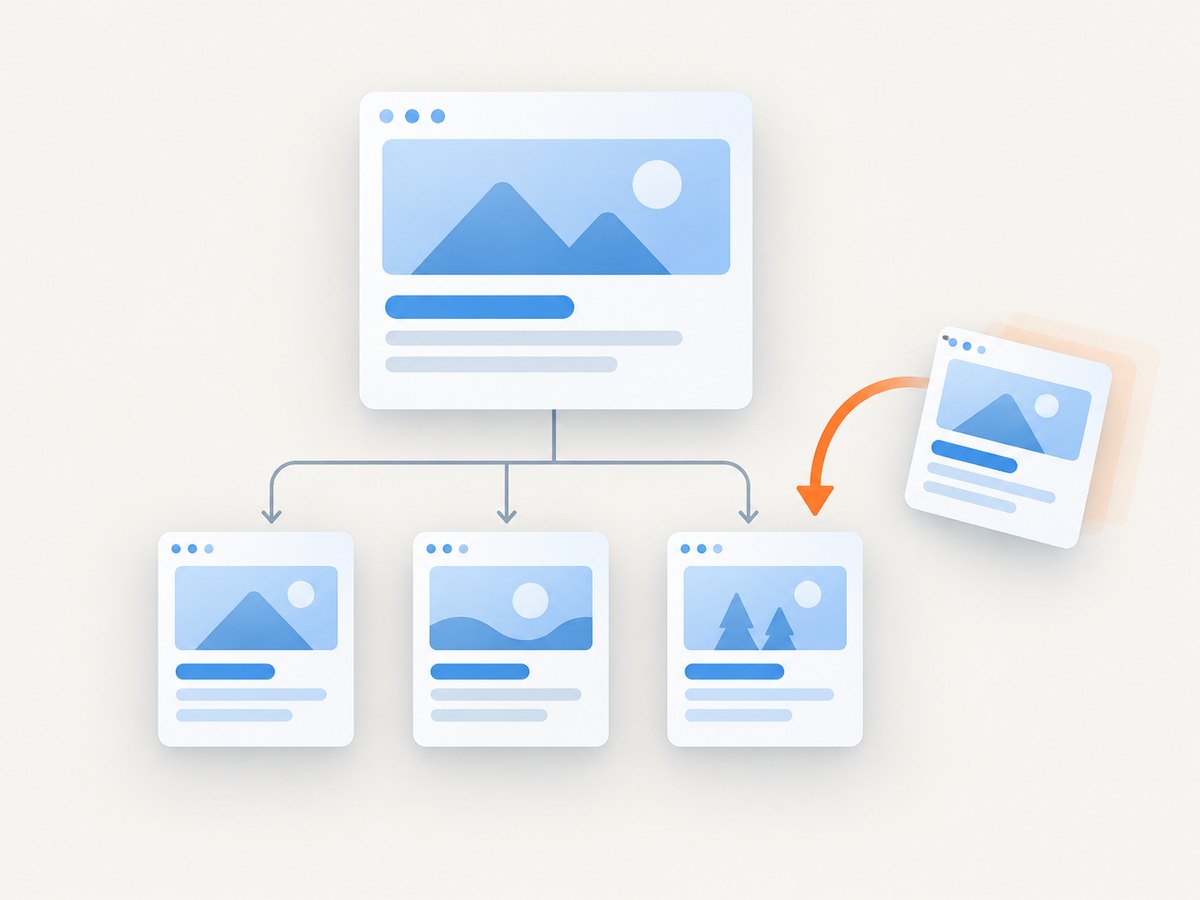
Nest an existing page
Use this method when the page already exists and you want to reorganize it without creating a duplicate.
- Open the site editor and select Pages.
- Locate the page you want to move.
- Drag it beneath the page that should become its parent. Keep it indented under that parent in the page list.
- Review the resulting navigation hierarchy.
- Click Publish.
After publishing, hover over the relevant navigation item in the live site to verify that the nested page appears where expected.
Plan the hierarchy before adding pages
- Keep related content together. Use a parent page for a broad topic and subpages for distinct sections.
- Watch the depth. Google Sites allows up to five levels of subpages. This is a nesting-depth limit, not a total-page limit.
- Use descriptive names. Page names affect navigation labels and can contribute to longer paths.
- Avoid unnecessary nesting. Visitors may need several menu actions to reach deeply nested content.
- Check mobile navigation. A hierarchy that is clear on a wide screen can be harder to scan in a compact menu.
Hide a subpage from navigation
If a page should be available to people who have its URL but should not appear in the site menu, use Hide from navigation. Hiding a page changes menu visibility; it does not restrict access. Anyone with the link may still reach it. Hiding a parent also hides its subpages from the navigation menu.
Use this for landing pages, campaign pages, or reference pages that are linked from elsewhere. Do not use it as an access-control mechanism.
Publish and verify the change
Editing the hierarchy in the Google Sites editor does not by itself update the public version. Click Publish after creating, moving, renaming, or hiding a page.
- Publish the site.
- Open the published URL in a new tab or private window.
- Open the navigation menu and confirm the parent-child relationship.
- Open the new subpage directly and confirm its content.
- If you hid the page, verify that its direct URL still works for an authorized visitor.
URL paths, renaming, and limits
Google documents a 1024-character limit for page paths. Deep nesting, long page names, and long custom paths can contribute to reaching that limit. If a path becomes too long, shorten page names or custom paths, or reduce the nesting depth.
Renaming a page or publishing a custom path can create a new URL and may affect Analytics tracking. Before reorganizing an established site, record important links and update references that point to the old path.
Common problems and fixes
| Problem | Likely cause | Fix |
|---|---|---|
| “Add subpage” is missing | You are not in the Pages panel, or the selected item is not a page | Open Pages, select a page, and open its More menu |
| The page exists twice | A new subpage was created instead of moving the existing page | Delete or rename the duplicate, then drag the original beneath the intended parent |
| The new page is not visible publicly | The editor change was not published | Click Publish, then reload the live site |
| The page is not in the menu | It is hidden from navigation, or its parent is hidden | Check navigation visibility settings and publish again |
| A linked page opens but is not listed | Hidden-from-navigation pages remain reachable by URL | Use the direct link, or restore the page to navigation |
| The hierarchy is too deep | The site has reached Google’s five-level nesting limit | Move the page higher, combine sections, or redesign the navigation |
| The URL is too long | Long names, custom paths, or deep nesting | Shorten names or paths and reduce unnecessary levels |
| Analytics data appears split | A rename or custom path created a new URL | Update links and tracking assumptions for the new path |
Practical checklist
- Choose the correct parent page.
- Use Add subpage for a new page.
- Drag an existing page when reorganizing.
- Stay within five nesting levels.
- Use short, clear page names.
- Decide whether the page belongs in navigation.
- Publish after every structural change.
- Verify both the menu and the direct URL.
Or skip the browser setup
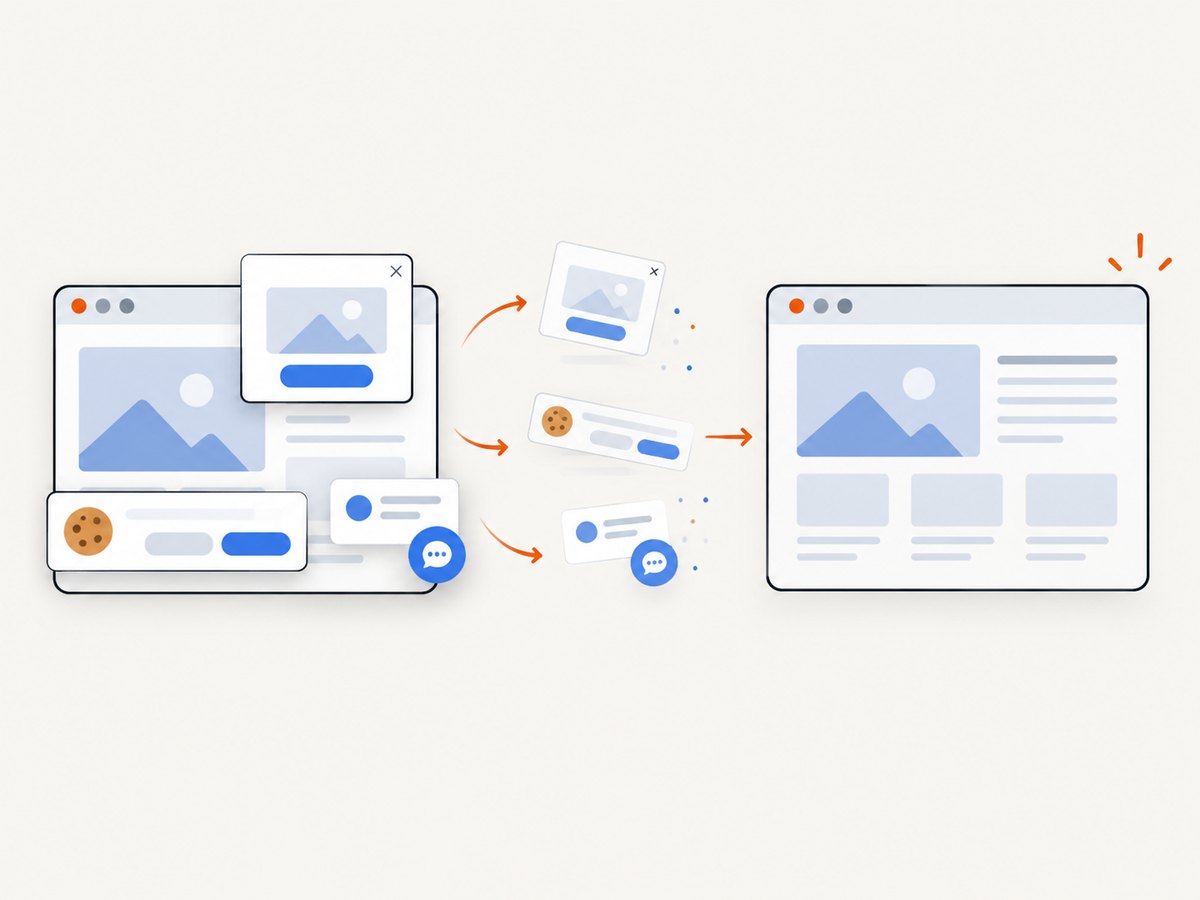
If your goal is to capture the published Google Sites page as an image or PDF for documentation, previews, or automated checks, ScreenshotNeo provides a single GET request. Its API removes cookie banners, newsletter popups, and chat widgets before capture. Bot checks, blank pages, timeouts, failed loads, and cache hits are not billed, and response headers identify the page verdict and billing status. An MCP server lets AI agents use take_screenshot, get_page_info, and capture_pdf.
See the ScreenshotNeo API documentation for all options.
curl -G "https://api.screenshotneo.com/v1/shot" \
  -d access_key=YOUR_API_KEY \
  --data-urlencode url=https://sites.google.com/view/your-site \
  -o google-sites.webp
import requests
r = requests.get(
"https://api.screenshotneo.com/v1/shot",
params={
"access_key": "YOUR_API_KEY",
"url": "https://sites.google.com/view/your-site",
},
timeout=90,
)
r.raise_for_status()
open("google-sites.webp", "wb").write(r.content)const q = new URLSearchParams({
access_key: 'YOUR_API_KEY',
url: 'https://sites.google.com/view/your-site'
});
const res = await fetch(`https://api.screenshotneo.com/v1/shot?${q}`);
if (!res.ok) throw new Error(`Screenshot failed: ${res.status}`);
const image = Buffer.from(await res.arrayBuffer());
await require('node:fs').promises.writeFile('google-sites.webp', image);ScreenshotNeo includes full-page capture with lazy images loaded, CSS-selector element capture, device presets, custom viewport sizes, retina scale, PDF output, custom CSS and JavaScript, waits, blocking rules, headers, cookies, caching, signed links, asynchronous jobs, bulk capture, and a usage API. You can start with 1,000 screenshots per month free with no card; paid plans start at $5 for 3,000 shots. Create a free ScreenshotNeo account.
FAQ
Can I make a subpage from the page content area?
No. Subpages are created and organized in the Pages panel. A heading or section inside a page does not create a child page.
Does a subpage need a manually added link to its parent?
No. The page hierarchy supplies the navigation relationship. You can add extra links in page content when useful, but the subpage does not require one to function.
Can I exceed five levels by using custom links?
Custom links can point to pages, but Google’s documented subpage hierarchy supports up to five levels. Extra links do not create additional hierarchy levels.
What happens if I hide a parent page?
The parent and its subpages are removed from the navigation menu. People who have direct links can still access them.


