How to Add Text to Screenshots with Python Selenium
Capture a Selenium screenshot, annotate it with Pillow text, and save a reliable output with fonts, wrapping, coordinates, and troubleshooting.
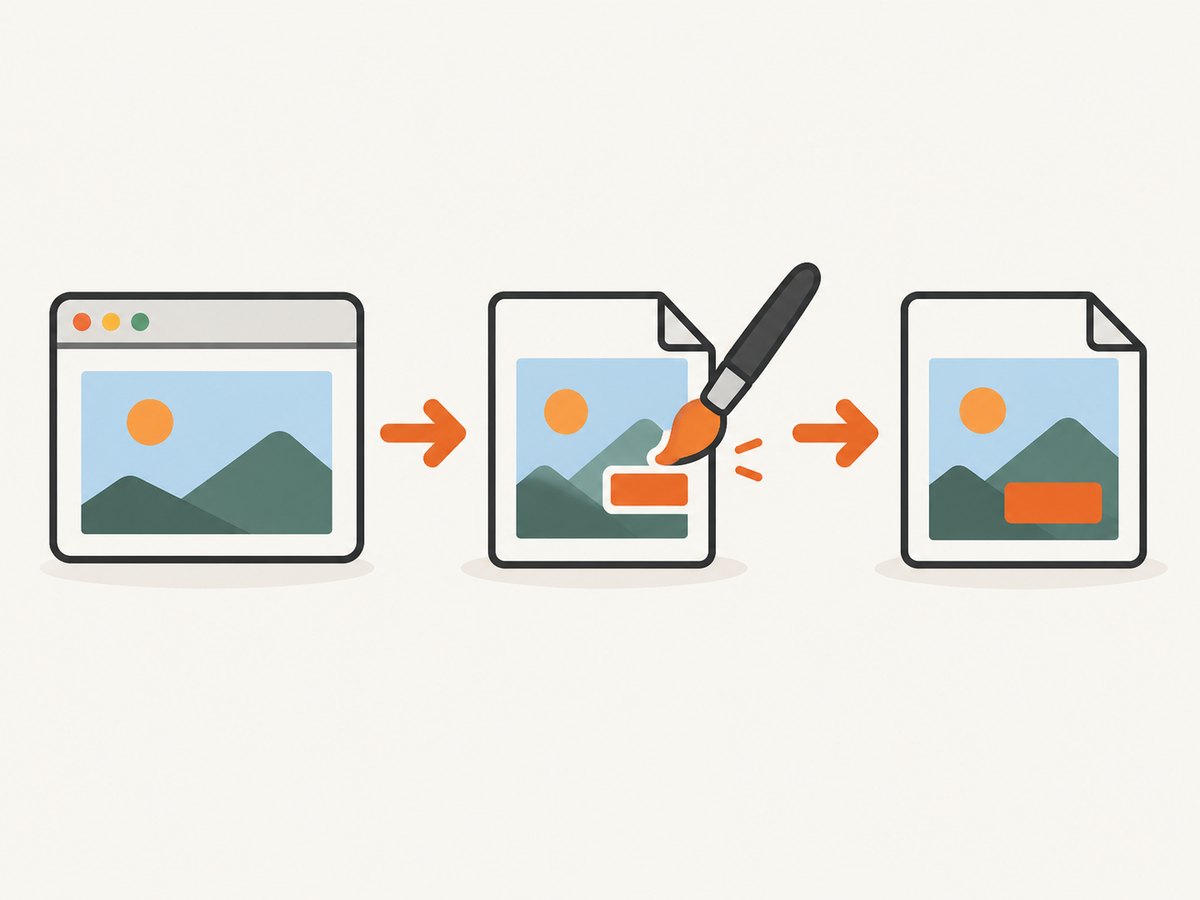
Direct answer: save the current browser window with Selenium, open the PNG with Pillow, draw text using ImageDraw.text() or ImageDraw.multiline_text(), then save a new image. Selenium captures the pixels; Pillow edits those pixels afterward. This keeps the original screenshot intact and gives you control over labels, colors, fonts, alignment, and line breaks.
The basic workflow is documented by Selenium’s Python WebDriver API and Pillow’s ImageDraw API. The complete example below checks Selenium’s return value, uses an explicit font, wraps a label, and writes an annotated copy.
1. Install Selenium, Pillow, and a browser driver
Install the two Python packages in your virtual environment:
python -m venv .venv
source .venv/bin/activate
python -m pip install selenium pillow
On Windows PowerShell, activate with .venv\\Scripts\\Activate.ps1. Selenium requires a supported browser such as Chrome, Firefox, or Edge. Recent Selenium releases can manage the browser driver automatically when the browser is installed; otherwise, install the matching driver and ensure it is on PATH.
2. Capture a screenshot and add text
This runnable script opens a page, captures the current window, measures the image, draws a filled label with a contrasting outline, and saves both the source and edited files. The coordinate origin is the upper-left corner: (0, 0) is the top-left pixel. Coordinates outside the image are discarded.
from pathlib import Path
from PIL import Image, ImageDraw, ImageFont
from selenium import webdriver
from selenium.webdriver.chrome.options import Options

URL = "https://example.com"
source_path = Path("screenshot.png")
output_path = Path("screenshot_annotated.png")

options = Options()
options.add_argument("--headless=new")
options.add_argument("--window-size=1440,1000")

driver = webdriver.Chrome(options=options)
try:
    driver.get(URL)

    # Selenium returns False when it cannot write the PNG.
    if not driver.save_screenshot(str(source_path)):
        raise OSError(f"Could not save screenshot to {source_path}")
finally:
    driver.quit()

with Image.open(source_path) as image:
    # Convert to RGBA so the drawing behavior is predictable.
    image = image.convert("RGBA")
    draw = ImageDraw.Draw(image)

    # Use an explicit font for repeatable typography. Change this path to a
    # font installed on your system or bundle a .ttf with your project.
    try:
        font = ImageFont.truetype("DejaVuSans-Bold.ttf", 32)
    except OSError:
        font = ImageFont.load_default()

    label = "Example page"
    x, y = 24, 24
    left, top, right, bottom = draw.textbbox((x, y), label, font=font, stroke_width=2)
    padding = 12

    draw.rounded_rectangle(
        (left - padding, top - padding, right + padding, bottom + padding),
        radius=8,
        fill=(0, 0, 0, 190),
    )
    draw.text(
        (x, y),
        label,
        font=font,
        fill=(255, 255, 255, 255),
        stroke_width=2,
        stroke_fill=(0, 0, 0, 255),
    )

    image.save(output_path)

print(f"Saved {output_path}")
ImageDraw.Draw(image) modifies the image object in place. Saving to a different path preserves the unmodified capture for debugging, archival, or comparison.
3. Choose between a file and screenshot bytes
save_screenshot() writes a PNG file and returns a Boolean result. If you need to keep everything in memory—for an upload, HTTP response, or pipeline—use get_screenshot_as_png() instead:
from io import BytesIO
from PIL import Image, ImageDraw

png_bytes = driver.get_screenshot_as_png()
with Image.open(BytesIO(png_bytes)) as image:
    image = image.convert("RGBA")
    draw = ImageDraw.Draw(image)
    draw.text((20, 20), "In-memory annotation", fill=(255, 0, 0, 255))
    image.save("memory_annotated.png")
The bytes method avoids a temporary input file, but you still need to save or transmit the edited result if another system must consume it.
4. Position text accurately
Use image coordinates
Pillow measures positions in pixels. The default text anchor behaves like a top-left placement, so draw.text((20, 20), ...) starts near the upper-left with the font’s ascender and baseline handled by Pillow. Use image.size when calculating positions dynamically:
width, height = image.size
margin = 24
text = "Bottom-right label"
bbox = draw.textbbox((0, 0), text, font=font)
text_width = bbox[2] - bbox[0]
text_height = bbox[3] - bbox[1]
x = width - margin - text_width
y = height - margin - text_height
draw.text((x, y), text, font=font, fill="yellow")
Do not assume the browser viewport and PNG dimensions are identical when device scale or browser configuration changes. Read the actual image dimensions after capture.
Use anchors for predictable alignment
For centered or edge-aligned labels, Pillow supports text anchors. For example, anchor="mm" treats the supplied point as the text’s middle:
center = (image.width // 2, 40)
draw.text(center, "Centered heading", font=font,
          anchor="mm", fill=(255, 255, 255, 255))
Anchors are useful when labels have variable length. Measure with textbbox() when you need a background rectangle that fits exactly.
5. Add multiline text and wrapping
Use multiline_text() for explicit line breaks. The spacing argument controls the gap between lines, and align controls the line alignment:
message = "Checkout page\\nPayment form\\nValidation state: passed"
draw.multiline_text(
    (30, 30),
    message,
    font=font,
    fill=(255, 255, 255, 255),
    spacing=8,
    align="left",
)
For automatic wrapping, split words until each line fits a maximum width. This keeps long URLs or test descriptions from running off the image:
def wrap_text(draw, text, font, max_width):
    lines = []
    current = ""
    for word in text.split():
        candidate = word if not current else f"{current} {word}"
        width = draw.textbbox((0, 0), candidate, font=font)[2]
        if current and width > max_width:
            lines.append(current)
            current = word
        else:
            current = candidate
    if current:
        lines.append(current)
    return "\\n".join(lines)

wrapped = wrap_text(
    draw,
    "This annotation explains the state captured by the Selenium test.",
    font,
    max_width=520,
)
draw.multiline_text((30, 30), wrapped, font=font, spacing=6, fill="white")
A single unbroken string, such as a long token or URL, may not wrap with this simple word-based function. Handle those values separately by splitting on characters or truncating them deliberately.
6. Fonts, colors, and readability
Use ImageFont.truetype() with a known .ttf file when screenshots must look the same across CI machines. A font name alone depends on the host’s font search path. Bundle a licensed font in your project or reference a known system path.
- Contrast: white text on a dark translucent rectangle remains readable over varied page content.
- Alpha: RGBA colors such as
(0, 0, 0, 190)provide transparency when the image mode supports it. - Outline:
stroke_widthandstroke_fillhelp text remain visible over photographs and gradients. - High-density captures: scale font size and margins with the actual PNG dimensions if you compare screenshots from different device scales.
Always inspect the rendered result at its intended display size. A font that is legible at 100% may become too small after a thumbnail resize.
7. Annotate browser state instead of post-processing
Post-processing adds text only to the saved image. It does not change the page’s DOM, accessibility tree, or browser state. If the label must be part of the page itself, inject an element before capture:
driver.execute_script("""
const tag = document.createElement('div');
tag.textContent = 'Captured state';
Object.assign(tag.style, {
  position: 'fixed', top: '16px', left: '16px', zIndex: 2147483647,
  padding: '8px 12px', color: 'white', background: 'crimson',
  font: 'bold 20px sans-serif'
});
document.body.appendChild(tag);
""")
driver.save_screenshot("dom_label.png")
Choose DOM injection when the annotation should represent page content during the capture. Choose Pillow when the label is evidence metadata, a review note, or a mark that should never affect the page under test.
8. Full-page screenshots and scrolling
save_screenshot() captures the current browser window. A page taller than the viewport may require browser-specific full-page support or a scroll-and-stitch workflow. Before annotating, confirm whether your input is viewport-sized or full-page, then place coordinates against the final PNG dimensions. Lazy-loaded content can also change the page while scrolling, so wait for the required content before capturing.
9. Troubleshooting common errors
| Symptom | Cause | Fix |
|---|---|---|
save_screenshot() returns False |
The destination cannot be written, or the path’s parent directory is missing. | Create the directory, use an absolute or valid relative path, and check permissions before opening the image. |
FileNotFoundError when opening the PNG |
The capture failed or the script opened a different working directory. | Check the Boolean return value, print Path.resolve(), and use one explicit output directory. |
OSError: cannot open resource from Pillow |
The font file path is wrong or the file is unavailable in CI. | Bundle a font, use an absolute path, or intentionally fall back to ImageFont.load_default(). |
| Text is clipped | The label extends beyond the image bounds or a background box was not measured. | Read image.size, measure with textbbox(), and keep a margin from each edge. |
| Text is unreadable | Low contrast against the page. | Add a translucent filled rectangle, outline, or shadow and choose a larger font. |
| Output loses transparency or colors | The source mode is palette-based, grayscale, or RGB while alpha colors are used. | Convert explicitly with image.convert("RGBA"); choose PNG when transparency matters. |
| Screenshot is blank or incomplete | The page has not finished loading, content is below the fold, or a consent dialog covers it. | Wait for a meaningful selector, dismiss required dialogs, scroll for lazy content, and capture only after the page is stable. |
| Different machines produce different text | Font files, browser scale, viewport, or rendering libraries differ. | Pin browser settings and Pillow, bundle the font, and compare images at a consistent size. |
10. Performance, reliability, and storage
- Capture cost: browser startup and page loading usually take longer than drawing a few labels. Reuse a driver for a batch of pages when isolation requirements allow it.
- Memory: large full-page PNGs consume memory when decoded. Process one image at a time and close images with a context manager.
- Format: PNG preserves sharp text and transparency. JPEG is smaller but introduces compression artifacts around text. WebP can reduce size when your consumers support it.
- Atomic outputs: write to a temporary path and rename after a successful save when another process watches the output directory.
- Retries: retry navigation failures with a bounded policy, but do not blindly duplicate side-effecting actions on the page.
- Reproducibility: fix viewport, timezone, locale, browser version, font files, and page data if screenshot diffs are used in CI.
Neither Selenium nor Pillow charges per screenshot; your operational costs come from browser execution, compute, storage, and any hosted browser or proxy service you add. Keep original and annotated files only as long as your review or audit process requires.
11. Or skip the browser setup
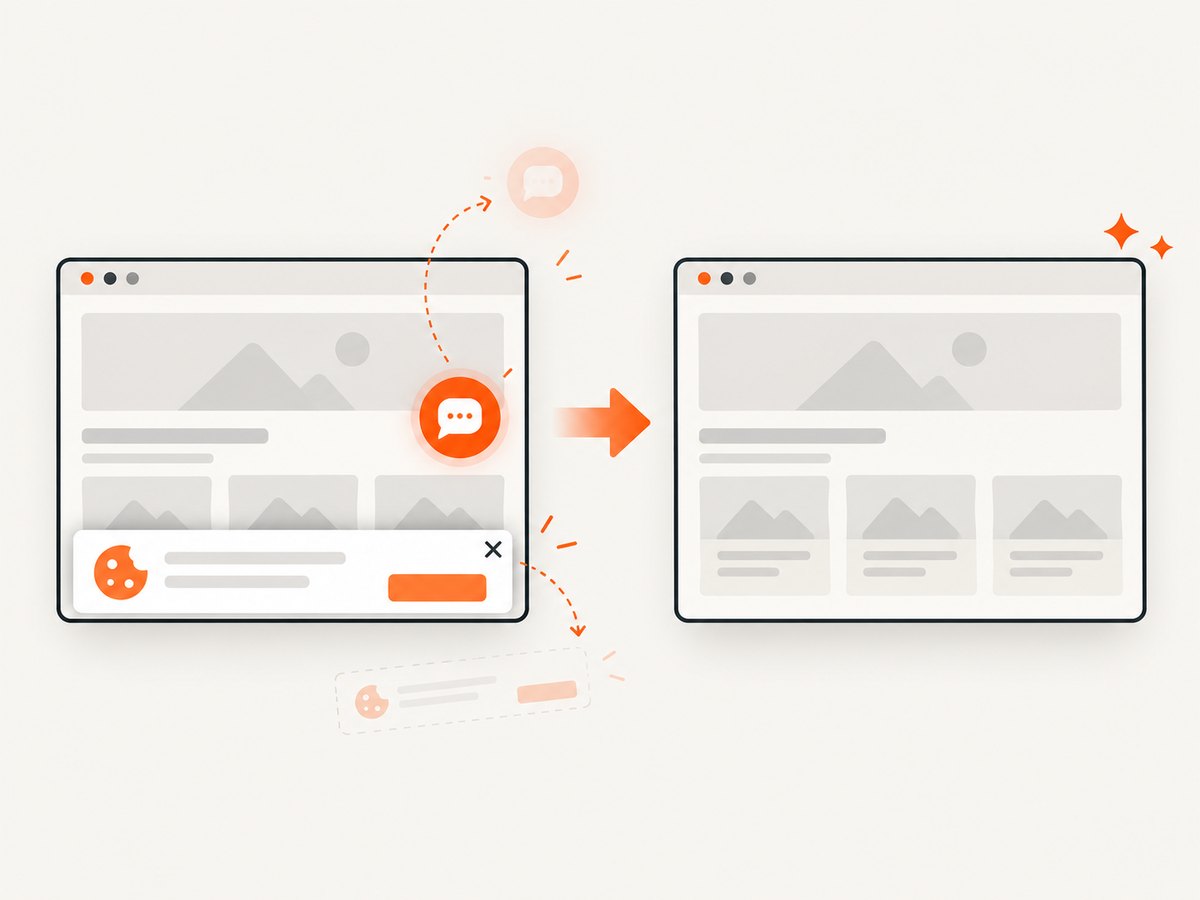
If you only need a clean image or PDF from a URL, ScreenshotNeo provides a one-call screenshot API. Its capture flow accepts cookie and consent banners and removes more than 60 known consent platforms, newsletter popups, and chat widgets before the shot; each step can be turned off. Bot checks, blank pages, timeouts, failed loads, and cache hits are not billed, and the response identifies the result with X-Page-Verdict and X-Billed headers.
See the ScreenshotNeo API documentation for all 63 options, including full-page capture, CSS element capture, dark mode, device presets, retina scale, custom CSS and JavaScript, waits, request blocking, headers, cookies, user agents, authorization, timezone, geolocation, transparent backgrounds, resizing, caching, signed links, asynchronous jobs, webhooks, bulk capture, usage, and OpenAPI details.
cURL
curl -G "https://api.screenshotneo.com/v1/shot" -d access_key=YOUR_API_KEY --data-urlencode url=https://stripe.com -o shot.webpPython
import requests
r = requests.get("https://api.screenshotneo.com/v1/shot", params={"access_key": "YOUR_API_KEY", "url": "https://stripe.com"}, timeout=90)
open("shot.webp", "wb").write(r.content)
Node.js
const q = new URLSearchParams({ access_key: 'YOUR_API_KEY', url: 'https://stripe.com' }); const res = await fetch(`https://api.screenshotneo.com/v1/shot?${q}`);ScreenshotNeo also includes an MCP server with take_screenshot, get_page_info, and capture_pdf tools for Claude, Cursor, and other MCP clients. The Free plan includes 1,000 shots each month without a card; paid plans start at $5 for 3,000 shots. Create a free ScreenshotNeo account.
12. FAQ
Can I draw text directly on a Selenium screenshot without saving first?
Yes. Use get_screenshot_as_png(), wrap the bytes in BytesIO, and pass the resulting Pillow image to ImageDraw.Draw.
Why does my text look different in CI?
Font availability and browser image dimensions commonly differ. Bundle the font and calculate positions from the captured image’s actual size.
Which format is best for annotations?
Use PNG for lossless text and transparency. Use JPEG or WebP when smaller files matter and your delivery system supports the format.
How can I keep labels out of the original evidence?
Always save the Pillow result to a separate output path, as in the main example. Keep the untouched Selenium PNG as the source artifact.


