How to Add a Text Watermark to a PDF in Python
Create a text watermark with ReportLab, merge it onto every PDF page with pypdf, and control its layer, position, rotation, and opacity.
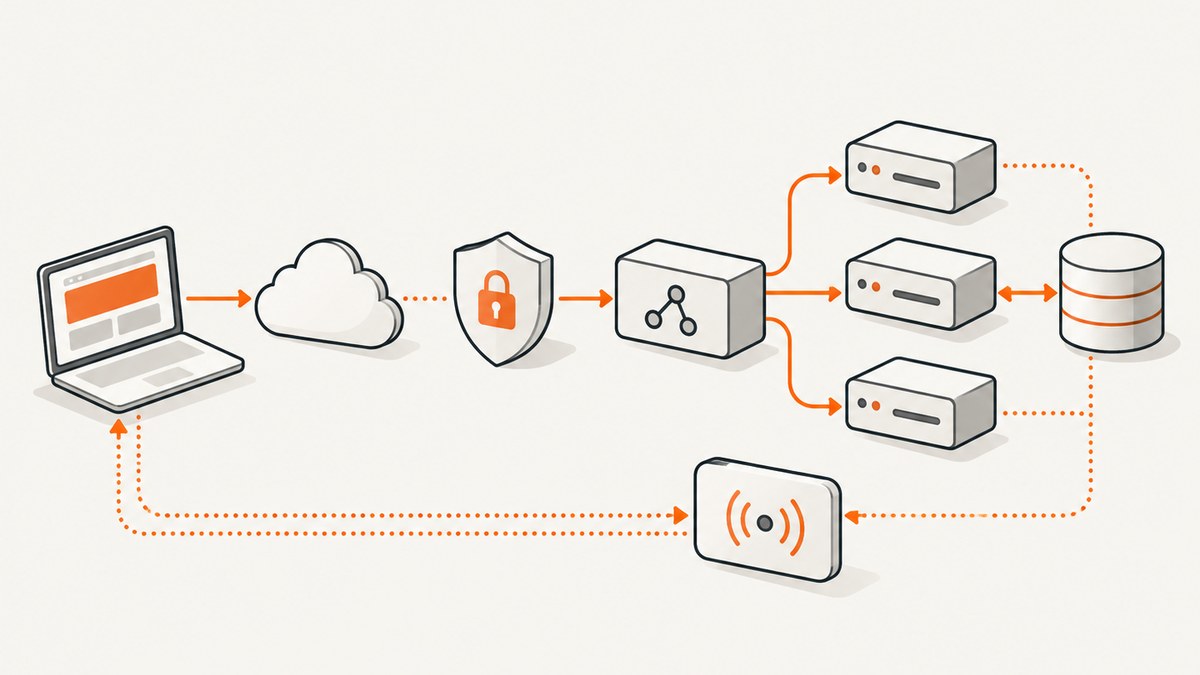
To add a text watermark to every page of a PDF in Python, draw the text on a one-page PDF with ReportLab, then merge that page into each source page with pypdf. Set over=False to put the watermark behind existing content; use over=True to put it in front. The example below creates an underlay watermark, writes a new output file, and keeps the source file unchanged.
1. Install the libraries
Use ReportLab to create the watermark page and pypdf to read, merge, and write PDFs. Install both in the Python environment that will run the script:
python -m pip install reportlab pypdfSave the script as watermark.py next to input.pdf, then run python watermark.py. The full script is also suitable for adapting into a batch job. Library APIs can change, so pin tested package versions in a production environment and check the installed versions when diagnosing differences.
2. Add the same text watermark to every page
from io import BytesIO
from pathlib import Path

from reportlab.lib.pagesizes import letter
from reportlab.pdfgen import canvas
from pypdf import PdfReader, PdfWriter

INPUT = Path("input.pdf")
OUTPUT = Path("output-watermarked.pdf")
WATERMARK_TEXT = "CONFIDENTIAL"

if not INPUT.is_file():
    raise FileNotFoundError(f"Input PDF not found: {INPUT}")

# Create a one-page PDF in memory. ReportLab coordinates are in points,
# with (0, 0) at the bottom-left of the page.
watermark_buffer = BytesIO()
watermark_canvas = canvas.Canvas(watermark_buffer, pagesize=letter)
watermark_canvas.setFont("Helvetica", 36)
watermark_canvas.setFillColorRGB(0.55, 0.55, 0.55)
watermark_canvas.drawString(72, 72, WATERMARK_TEXT)
watermark_canvas.showPage()
watermark_canvas.save()
watermark_buffer.seek(0)

watermark_page = PdfReader(watermark_buffer).pages[0]
reader = PdfReader(str(INPUT))
if reader.is_encrypted:
    raise ValueError("The input PDF is encrypted; decrypt it before watermarking.")
if not reader.pages:
    raise ValueError("The input PDF has no pages.")

writer = PdfWriter()
for page in reader.pages:
    page.merge_page(watermark_page, over=False)
    writer.add_page(page)

with OUTPUT.open("wb") as output_file:
    writer.write(output_file)

print(f"Wrote {OUTPUT}")
The watermark is placed 72 points from the left and bottom edges. PDF points are 1/72 of an inch. ReportLab’s canvas uses a lower-left origin and Cartesian coordinates, so increasing the x coordinate moves right and increasing y moves up. The pypdf guide describes the same merge operation for stamps and watermarks; the over setting determines which content layer appears above the other. pypdf: Adding a Stamp/Watermark · ReportLab User Guide.
3. Choose background or foreground
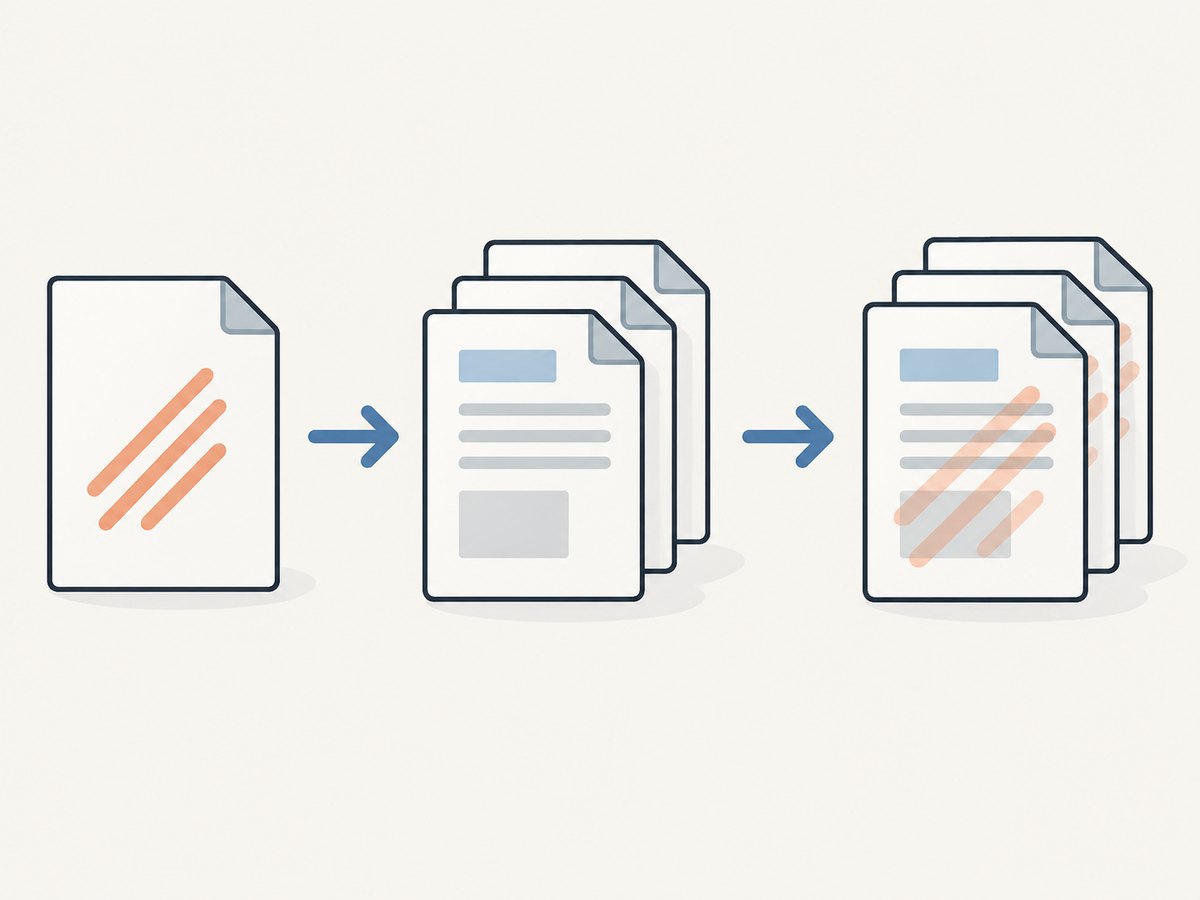
For a conventional watermark that sits behind text and graphics, pass over=False:

page.merge_page(watermark_page, over=False)For a visible stamp on top of page content, set over=True or omit the argument where the API’s default is overlay behavior:
page.merge_page(watermark_page, over=True)This changes drawing order; it does not guarantee that the watermark will be readable over every background. A pale underlay can disappear behind a dark image, while a foreground stamp can obscure small print. Choose color, opacity, and layer order based on the document’s content and inspect representative pages in the PDF viewers used by your audience.
4. Center, scale, or rotate the watermark
For anything other than the watermark page’s default placement, use merge_transformed_page with a pypdf Transformation. The transformation can scale, translate, or rotate the watermark page as it is merged. For example, this places a half-size watermark page with a translation:
from pypdf import Transformation

page.merge_transformed_page(
    watermark_page,
    Transformation().scale(0.5).translate(tx=100, ty=150),
    over=False,
)
To rotate it, add a rotation to the transformation. Transformation methods compose, so check the resulting placement on a sample page when combining rotation, scale, and translation:
page.merge_transformed_page(
    watermark_page,
    Transformation().rotate(45).scale(0.5).translate(tx=100, ty=150),
    over=False,
)
Coordinates and page boxes affect where content lands. When the source page has rotation metadata and the merged result appears incorrectly oriented, pypdf recommends applying transfer_rotation_to_content() to that source page before merging. This transfers the rotation into the page content and adjusts its page boxes. Check the result after making this change, especially when the document has unusual crop or media boxes.
for page in reader.pages:
    page.transfer_rotation_to_content()
    page.merge_page(watermark_page, over=False)
    writer.add_page(page)
5. Handle different page sizes
The minimal script creates a US Letter watermark page. That is convenient when all destination pages have matching geometry, but a single fixed-size watermark page may not place text consistently across A4, landscape, or mixed-size documents. Inspect each page’s mediabox and make the watermark page match its target geometry, or transform the watermark to fit. A page’s visible crop can also differ from its media box.
A practical production approach is to generate a small watermark PDF for each distinct page size, cache those generated pages during the job, and merge the matching one onto each source page. If pages have a variety of sizes, calculate position from each target page’s width and height rather than hard-coding Letter coordinates. For example, to draw near the lower-left corner, use a margin measured from that page’s box. Remember that ReportLab’s coordinate origin is at the lower-left.
6. Set font, color, and transparency
Use the ReportLab canvas to control the text before saving the watermark PDF. setFont controls the font face and size; setFillColorRGB sets an RGB fill color. The example uses the built-in Helvetica font. If your watermark contains characters outside the selected font’s coverage, register and use a font that includes those glyphs, then inspect the output in more than one viewer.
Some ReportLab canvas versions expose setFillAlpha for fill transparency. Availability is version-dependent, so confirm it in the installed version rather than assuming it exists:
if hasattr(watermark_canvas, "setFillAlpha"):
    watermark_canvas.setFillAlpha(0.25)
Transparency support and rendering can vary across library versions and PDF viewers. If alpha is unavailable, use a lighter fill color as a simpler fallback. Either way, generate a sample and verify legibility and appearance in the viewers that matter to your workflow.
7. Watermark selected pages or use a reusable function
The loop in the complete example applies the watermark to every page. To target selected pages, enumerate them and check a zero-based page index. The writer still needs every page if the output should retain the entire original document:
watermark_indices = {0, 2, 4}  # first, third, and fifth pages

for index, page in enumerate(reader.pages):
    if index in watermark_indices:
        page.merge_page(watermark_page, over=False)
    writer.add_page(page)
For a reusable function, accept input and output paths, watermark text, and a layer-order option. Write to a temporary output path and replace the destination only after writer.write completes if your application must avoid leaving a partial file after an error. Never use the same path for input and output while the reader still needs the source file.
8. Troubleshooting
| Symptom | Likely cause | Fix |
|---|---|---|
ModuleNotFoundError |
The packages are missing from the Python environment running the script. | Run python -m pip install reportlab pypdf with the same Python executable used to launch the script. |
| The watermark is behind content and cannot be seen. | It was merged as an underlay with over=False, or its color is too faint for the page. |
Use over=True for a foreground stamp, or darken the underlay and adjust transparency. |
| The watermark is in the wrong place or clipped. | The source page has different dimensions, crop geometry, or a rotation transform. | Inspect the page boxes, calculate coordinates for that page, and use merge_transformed_page. For incorrectly rotated pages, try transfer_rotation_to_content() before merging. |
| Only some pages look right. | The document mixes page sizes or orientations while the watermark PDF has one fixed size and placement. | Generate or transform the watermark to match each page’s geometry; test portrait and landscape pages separately. |
| Watermark text is missing or has replacement glyphs. | The chosen font does not contain the characters, or the viewer renders the font differently. | Choose and register a font that supports the text, then inspect the written PDF in the intended viewers. |
PdfReadError, malformed file, or write failure. |
The input may be damaged, encrypted, inaccessible, or the output directory may not be writable. | Check the input file and permissions. Decrypt an encrypted PDF with authorization before processing; write to a directory the process can access. |
| Output differs between PDF viewers. | Transparency, fonts, rotation, or other PDF features may render differently between viewers. | Keep a minimal reproducible file, check library versions, and validate with the viewers used by recipients. The libraries do not promise identical rendering in every viewer. |
9. Performance, reliability, and cost
For ordinary documents, the work is a page loop: each page is read, merged, and written. Large page counts and complex documents take more processing time and produce more output data. ReportLab’s in-memory watermark buffer holds only the small generated watermark PDF; pypdf still has to process the source and output. For large jobs, monitor available memory and disk space, and process documents in a worker sized for the files you handle.
Keep the input untouched and write to a separate output. Treat a failed write as an incomplete artifact: report the failure, clean up any temporary file, and retry from the original input rather than merging into an already watermarked result. Applying the script twice will generally add a second watermark. If repeat processing is possible, track job completion or use distinct input and output locations to prevent accidental duplication.
These Python libraries can be used locally without a per-screenshot service charge; your costs are the compute, storage, and operational resources for running the job. Validate output page count and open sample pages as part of your document workflow. This watermark recipe is separate from ScreenshotNeo, which captures website pages as images or PDFs rather than adding text watermarks to existing PDFs.
Or skip the browser setup
If your task is capturing a website as a PDF or screenshot rather than watermarking an existing PDF, ScreenshotNeo provides a website screenshot API and MCP server. Its one-call screenshot request can save a webpage image; see the ScreenshotNeo API docs for options and response behavior.
import requests

r = requests.get(
    "https://api.screenshotneo.com/v1/shot",
    params={"access_key": "YOUR_API_KEY", "url": "https://stripe.com"},
    timeout=90,
)
open("shot.webp", "wb").write(r.content)
ScreenshotNeo accepts cookie and consent banners like a visitor and removes 60+ known consent platforms, newsletter popups, and chat widgets before capture; each step can be turned off. Bot checks, blank pages, failed loads, timeouts, and cache hits cost nothing, and response headers report the page verdict and billing status. Its MCP server gives AI agents tools for screenshots, page information, and PDF capture. The free plan includes 1,000 screenshots a month with no card; paid plans start at $5 for 3,000.
Sign up free for 1,000 screenshots a month, no card required.
FAQ
Does this embed the watermark text into the original PDF?
It creates a new PDF whose page content includes the merged watermark drawing. The input file remains separate in the example. The result is not a guarantee that the mark cannot be removed by someone who can edit the PDF.
Can I watermark a PDF without creating a temporary file?
Yes. The full example builds the one-page watermark PDF in a BytesIO buffer, so it does not need to write an intermediate watermark file to disk.
Can I use an image or logo instead of text?
This workflow focuses on text, but the same general merge approach can merge a page containing other drawn content. Create that page with the content you need, then merge it using the same layer and transformation choices.