How to Add a Watermark to a PDF Stream with iText 7
Add transparent text or image watermarks to every PDF page with iText 7 streams, control layer order, and avoid common rendering errors.
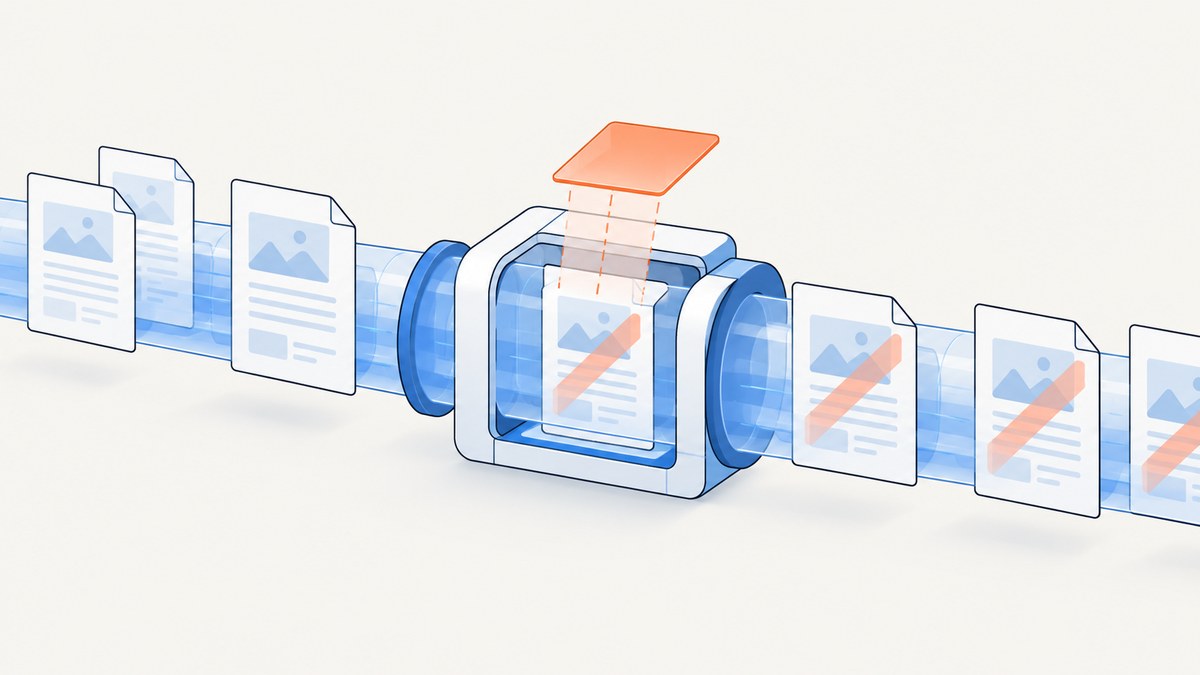
Direct answer: open the source with a stream-backed PdfReader and PdfWriter, create a PdfCanvas for each page, save the graphics state, apply a PdfExtGState with fill opacity, draw the text or image, restore the state, and close the PdfDocument. Closing finalizes the output stream.
Complete Java example: transparent text on every page
This example reads from an InputStream, writes to an OutputStream, centers a rotated mark using each page’s dimensions, and paints it after existing page content.
import com.itextpdf.io.font.constants.StandardFonts;
import com.itextpdf.kernel.font.PdfFont;
import com.itextpdf.kernel.font.PdfFontFactory;
import com.itextpdf.kernel.geom.Rectangle;
import com.itextpdf.kernel.pdf.PdfDocument;
import com.itextpdf.kernel.pdf.PdfReader;
import com.itextpdf.kernel.pdf.PdfWriter;
import com.itextpdf.kernel.pdf.extgstate.PdfExtGState;
import com.itextpdf.kernel.pdf.canvas.PdfCanvas;
import com.itextpdf.layout.Canvas;
import com.itextpdf.layout.element.Paragraph;
import com.itextpdf.layout.properties.TextAlignment;
import com.itextpdf.layout.properties.VerticalAlignment;
import java.io.InputStream;
import java.io.OutputStream;

public final class PdfWatermark {
    public static void add(InputStream input, OutputStream output) throws Exception {
        PdfDocument pdf = new PdfDocument(new PdfReader(input), new PdfWriter(output));
        PdfFont font = PdfFontFactory.createFont(StandardFonts.HELVETICA);
        PdfExtGState state = new PdfExtGState().setFillOpacity(0.20f);
        for (int pageNumber = 1; pageNumber <= pdf.getNumberOfPages(); pageNumber++) {
            var page = pdf.getPage(pageNumber);
            Rectangle size = page.getPageSize();
            PdfCanvas pdfCanvas = new PdfCanvas(page);
            pdfCanvas.saveState().setExtGState(state);
            Paragraph mark = new Paragraph("CONFIDENTIAL").setFont(font).setFontSize(60);
            new Canvas(pdfCanvas, pdf, size).showTextAligned(mark,
                size.getWidth() / 2, size.getHeight() / 2,
                TextAlignment.CENTER, VerticalAlignment.MIDDLE,
                (float) Math.toRadians(45));
            pdfCanvas.restoreState();
        }
        pdf.close();
    }
}
The exact showTextAligned overload and angle convention can vary between iText 7 minor versions. Use the signature exposed by the version installed in your project. The 0.20f value is an example, not a required opacity.
Choosing where the watermark is painted
A page can contain multiple content streams. A stream written after existing content paints on top; a stream written before it paints behind. Use an after-content canvas when the mark must remain visible over page content. Use the before-content constructor or overload for a background mark, following the API exposed by your installed iText version.
A background watermark can disappear behind an opaque image or shape. A foreground watermark can obscure content if it is opaque or oversized, so use transparency and calculate its position from the page dimensions.
Watermarking an image
Use ImageData, wrap it in a layout Image, and add it through a Canvas backed by the page canvas. Apply the same graphics state first:

ImageData data = ImageDataFactory.create("stamp.png");
Image stamp = new Image(data).scaleToFit(180, 180);
PdfCanvas pdfCanvas = new PdfCanvas(page);
pdfCanvas.saveState().setExtGState(state);
new Canvas(pdfCanvas, pdf, page.getPageSize()).add(stamp);
pdfCanvas.restoreState();
Text is simplest for labels such as CONFIDENTIAL. Images suit logos, seals, and predesigned stamps. Position and scale the image for the page box you selected.
Stream-safe implementation checklist
- Construct
PdfReaderandPdfWriterfrom the application streams. - Use each page's
getPageSize(); do not assume every page is letter or A4. - Call
saveState()andrestoreState()once per page and keep them balanced. - Set opacity with
PdfExtGStatebefore drawing. - Choose before or after content deliberately.
- Close the document after all pages are processed so the output stream is finalized.
- Do not edit the underlying canvas stream bytes directly; the PdfCanvas API warns that this can corrupt data.
Page geometry, rotation, and selected pages
Use the actual dimensions of every page when centering or rotating. Documents may mix portrait and landscape pages. If crop, trim, or media boxes differ, decide which box should define the visual center and test representative files. For selected pages, replace the full loop with validated page numbers or ranges.

Common errors and fixes
| Symptom | Cause | Fix |
|---|---|---|
| Empty or unreadable output | The document was not closed or streams closed too early. | Keep streams alive until pdf.close(); close in a finally or try-with-resources path. |
| Watermark invisible | It is behind an opaque background, too transparent, or outside the page. | Use an after-content canvas, adjust opacity, and calculate coordinates from getPageSize(). |
| Watermark hides content | It is opaque or too large. | Use a value such as 0.20f, reduce size, and move it into whitespace. |
| Only some pages are marked | Incorrect loop bounds. | Iterate from 1 through pdf.getNumberOfPages(), inclusive. |
| Later content renders incorrectly | Graphics state is not balanced. | Pair every saveState() with restoreState() on the same page. |
| Compilation error | Method overloads differ between iText minor versions. | Inspect the installed API for showTextAligned and the before/after canvas constructor. |
| Corrupted PDF | Underlying stream bytes were modified. | Use documented PdfCanvas, page, and layout APIs. |
| Missing font or image | The process cannot read the resource. | Use a classpath resource or readable absolute path and fail before publishing partial output. |
Performance, reliability, and cost notes
- Processing is linear in page count. Reuse the font and graphics-state objects.
- Large PDFs and high-resolution images increase memory and output size. Scale images before embedding.
- Give each concurrent job its own document, reader, writer, and streams.
- Write to a temporary destination and atomically publish it when partial files are unacceptable.
- Test mixed page sizes, rotation, opaque backgrounds, transparency, encrypted files, and malformed input.
- Review the iText licensing terms that apply to your deployment.
Or skip the browser setup
If you need a screenshot or PDF from a web page before document processing, ScreenshotNeo provides one GET request. It removes cookie and consent banners, newsletter popups, and chat widgets before capture. Bot checks, blank pages, timeouts, failed loads, and cache hits are not billed, and response headers identify the page verdict and billing status. Its MCP server gives Claude, Cursor, and other MCP clients the take_screenshot, get_page_info, and capture_pdf tools.
See the ScreenshotNeo API docs for options.
curl -G "https://api.screenshotneo.com/v1/shot" -d access_key=YOUR_API_KEY --data-urlencode url=https://stripe.com -o shot.webpimport requests
r = requests.get("https://api.screenshotneo.com/v1/shot", params={"access_key": "YOUR_API_KEY", "url": "https://stripe.com"}, timeout=90)
r.raise_for_status()
open("shot.webp", "wb").write(r.content)const q = new URLSearchParams({ access_key: 'YOUR_API_KEY', url: 'https://stripe.com' });
const res = await fetch(`https://api.screenshotneo.com/v1/shot?${q}`);
if (!res.ok) throw new Error(`HTTP ${res.status}`);
const bytes = new Uint8Array(await res.arrayBuffer());1,000 screenshots per month are free with no card, and paid plans start at $5 for 3,000 shots. Create a free ScreenshotNeo account.
FAQ
Can I watermark only selected pages?
Yes. Iterate over validated page numbers or ranges instead of every page.
Should I use text or an image?
Text needs no asset and suits labels. Images suit logos and seals; both use the same opacity and stream-order controls.
Why does 20% opacity appear in examples?
It is an example setting used by the official-style sample, not a standard requirement.
When is the output complete?
After PdfDocument.close() has finalized the writer and output stream.


