How to Add a Watermark to Selenium Screenshots
Capture a Selenium screenshot, add a transparent text or image watermark with Pillow, and save a reliable, testable output.

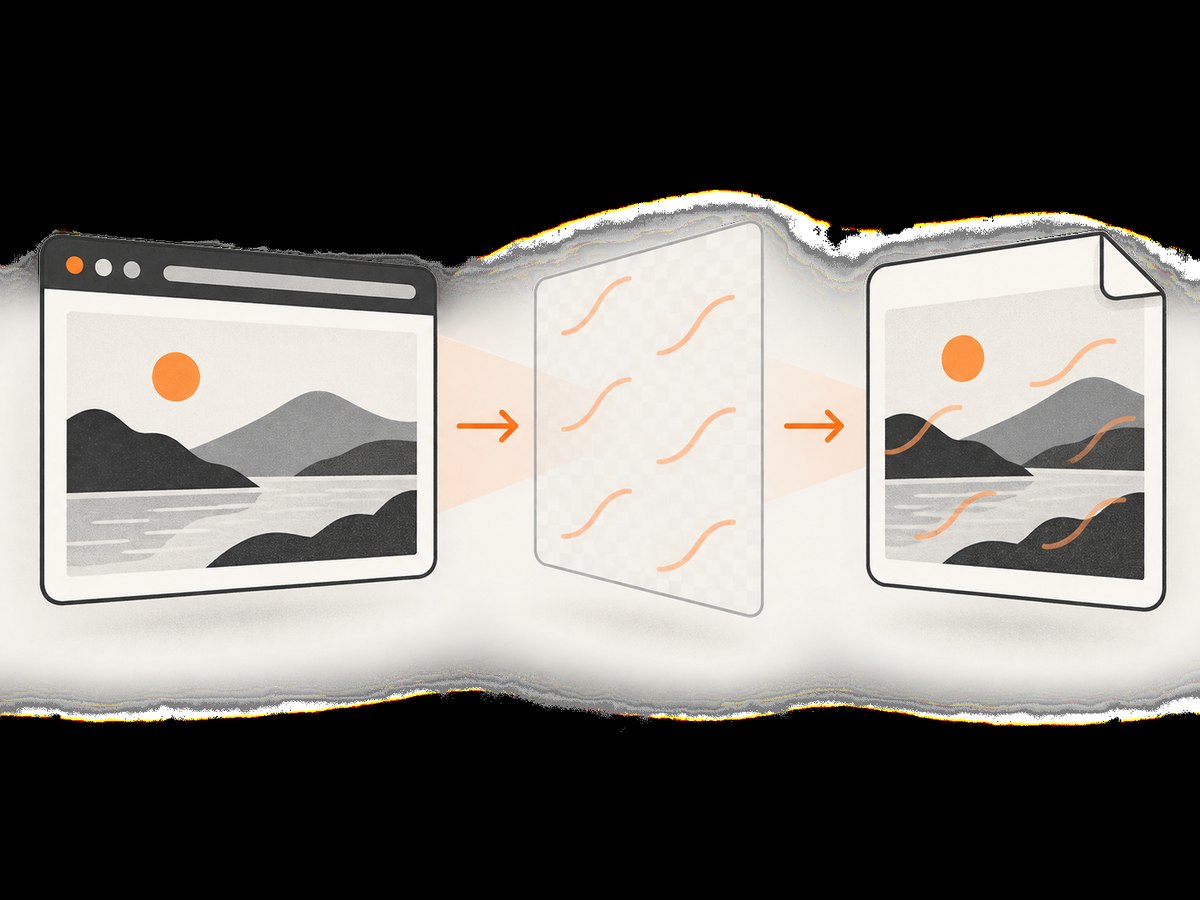
Direct answer: capture the current Selenium window as a PNG, open it with Pillow, draw your watermark on a transparent RGBA layer, composite that layer over the screenshot, and save the result. Keeping watermarking as a post-processing step gives you control over opacity and placement without changing the page under test.
Prerequisites
- Python 3
- Selenium with a working browser driver
- Pillow for image processing
python -m pip install selenium pillowThe examples use Selenium Python’s documented save_screenshot method, which writes a PNG and returns False when an I/O error occurs. See the Selenium WebDriver source.
1. Capture a screenshot with Selenium
save_screenshot captures the current browser window. It is not a general full-page capture API. Firefox also exposes browser-specific full-page methods, but the portable example below captures the current window.
from selenium import webdriver
from selenium.webdriver.chrome.options import Options

options = Options()
options.add_argument("--headless=new")
options.add_argument("--window-size=1440,1000")

driver = webdriver.Chrome(options=options)
try:
    driver.get("https://example.com")
    ok = driver.save_screenshot("screenshot.png")
    if not ok:
        raise OSError("Selenium could not write screenshot.png")
finally:
    driver.quit()
Use a .png filename for this API. Check the returned boolean so an unwritable directory or other I/O problem does not look like a successful capture.
2. Add a transparent text watermark with Pillow
Pillow’s ImageDraw API supports RGBA colors, and its image documentation describes alpha compositing and saving. Draw on a separate transparent image the same size as the screenshot, then composite it.
from PIL import Image, ImageDraw, ImageFont

input_path = "screenshot.png"
output_path = "screenshot_watermarked.png"
watermark = "Example.com"

with Image.open(input_path).convert("RGBA") as base:
    overlay = Image.new("RGBA", base.size, (255, 255, 255, 0))
    draw = ImageDraw.Draw(overlay)

    # Change this to a font file available in your runtime.
    font = ImageFont.truetype("DejaVuSans.ttf", 24)
    draw.text((20, 20), watermark, font=font, fill=(255, 255, 255, 150))

    result = Image.alpha_composite(base, overlay)
    result.save(output_path)
The final alpha value controls opacity: lower values are more transparent. The font path must exist on the machine running the script; use a known system font or package the font with your application.
3. Put the watermark in a responsive position
Fixed coordinates such as (20, 20) are simple, but a bottom-right mark should be calculated from the actual image dimensions and rendered text size.
from PIL import Image, ImageDraw, ImageFont

with Image.open("screenshot.png").convert("RGBA") as base:
    overlay = Image.new("RGBA", base.size, (255, 255, 255, 0))
    draw = ImageDraw.Draw(overlay)
    font = ImageFont.truetype("DejaVuSans.ttf", 24)

    text = "Example.com"
    padding = 20
    left, top, right, bottom = draw.textbbox((0, 0), text, font=font)
    text_width = right - left
    text_height = bottom - top
    x = base.width - text_width - padding
    y = base.height - text_height - padding

    draw.text((x, y), text, font=font, fill=(255, 255, 255, 150))
    Image.alpha_composite(base, overlay).save("screenshot_watermarked.png")
Measure the text instead of assuming a screenshot size. Review the result against the page content so the mark remains legible without covering important controls or test assertions.
4. Watermark screenshots returned as PNG bytes
If you do not need an intermediate file, get_screenshot_as_png() returns PNG bytes. Pillow can read those bytes through an in-memory stream.
from io import BytesIO
from PIL import Image, ImageDraw, ImageFont

png_bytes = driver.get_screenshot_as_png()
with Image.open(BytesIO(png_bytes)).convert("RGBA") as base:
    overlay = Image.new("RGBA", base.size, (255, 255, 255, 0))
    draw = ImageDraw.Draw(overlay)
    font = ImageFont.truetype("DejaVuSans.ttf", 24)
    draw.text((20, 20), "Example.com", font=font, fill=(255, 255, 255, 150))
    Image.alpha_composite(base, overlay).save("screenshot_watermarked.png")
Keeping capture and processing as separate steps makes failures easier to diagnose: you can tell whether Selenium failed to capture or Pillow failed to open, render, or save.
5. Add an image or logo watermark
For a logo, open the logo with an alpha channel, optionally resize it, and paste it onto the transparent overlay. The logo file must have the dimensions and contrast you expect.
from PIL import Image

with Image.open("screenshot.png").convert("RGBA") as base:
    overlay = Image.new("RGBA", base.size, (255, 255, 255, 0))
    logo = Image.open("logo.png").convert("RGBA")
    logo.thumbnail((240, 120))

    padding = 20
    position = (base.width - logo.width - padding,
                base.height - logo.height - padding)
    overlay.alpha_composite(logo, dest=position)
    Image.alpha_composite(base, overlay).save("screenshot_with_logo.png")
6. Choose the output format
| Format | Use it when | Consideration |
|---|---|---|
| PNG | You need lossless output or transparency | Usually larger files |
| JPEG | You need smaller photographic images | Convert to RGB; compression can alter pixels |
| WebP | Your downstream tools support it | Confirm decoder and quality settings |
result = Image.alpha_composite(base, overlay)
result.convert("RGB").save("screenshot_watermarked.jpg", quality=90)
# Keep alpha and lossless pixels with:
result.save("screenshot_watermarked.png")
7. Alternative: inject a DOM overlay before capture
You can execute JavaScript that adds a fixed-position element, then capture the page. This is useful when the watermark must be part of the browser rendering itself. It also changes page state and can affect visual tests, layout, or interaction, so post-processing is usually easier to isolate.
driver.execute_script("""
const mark = document.createElement('div');
mark.textContent = 'Example.com';
Object.assign(mark.style, {
  position: 'fixed', right: '20px', bottom: '20px', zIndex: '2147483647',
  color: 'white', background: 'rgba(0,0,0,.35)', padding: '6px 10px',
  font: '16px sans-serif', pointerEvents: 'none'
});
document.body.appendChild(mark);
""")
driver.save_screenshot("screenshot_with_dom_watermark.png")
8. Troubleshooting
| Symptom | Likely cause | Fix |
|---|---|---|
save_screenshot returns False |
Output path is missing, unwritable, or invalid | Use an absolute writable path and check the return value. |
FileNotFoundError for the font |
The configured font is not installed | Provide a valid absolute font path or use a fallback font available in the runtime. |
| Watermark has a solid rectangle | Drawing was done on an opaque layer or RGB image | Create an RGBA overlay with alpha zero and composite it. |
| Watermark is invisible | Text color blends into the page or alpha is too low | Choose a contrasting color, add a translucent background, or increase alpha. |
| Text is clipped | Coordinates ignore font metrics | Use textbbox and calculate coordinates from image dimensions. |
| Screenshot is blank or incomplete | Page has not finished loading or needs scrolling | Wait for a page condition or selector before capture; use a full-page method where supported. |
| Visual tests fail after watermarking | The mark changes pixels used by assertions | Make watermarking optional for test artifacts or mask the watermark region in comparisons. |
9. Reliability, performance, and cost notes
- Reliability: always quit the driver in a
finallyblock, check Selenium’s boolean result, and handle Pillow’s file and font exceptions. - Performance: compositing a same-size overlay is generally bounded by screenshot pixel count. Reuse a loaded font and avoid unnecessary format conversions in bulk jobs.
- Determinism: fixed viewport, timezone, fonts, and device scale help produce repeatable images. Keep the watermark disabled when pixel equality is the assertion.
- Storage: PNG preserves pixels but can be large. Choose JPEG or WebP only when downstream quality and transparency requirements allow it.
- Security: treat URLs, cookies, and captured pages as sensitive inputs; store output files with appropriate permissions and retention.
Or skip the browser setup
ScreenshotNeo provides a website screenshot API and MCP server. It accepts one GET request and returns a PNG, JPEG, WebP, or PDF. You can still post-process the returned image with Pillow when you need a watermark.
curl -G "https://api.screenshotneo.com/v1/shot" -d access_key=YOUR_API_KEY --data-urlencode url=https://stripe.com -o shot.webpimport requests
r = requests.get("https://api.screenshotneo.com/v1/shot", params={"access_key": "YOUR_API_KEY", "url": "https://stripe.com"}, timeout=90)
open("shot.webp", "wb").write(r.content)const q = new URLSearchParams({ access_key: 'YOUR_API_KEY', url: 'https://stripe.com' });
const res = await fetch(`https://api.screenshotneo.com/v1/shot?${q}`);See the ScreenshotNeo documentation for request options. Cookie banners, newsletter popups, and chat widgets are removed before the shot. Bot checks, blank pages, failed loads, timeouts, and cache hits are not billed, and the response identifies the verdict and billing status in headers. Its MCP server lets AI agents call take_screenshot, get_page_info, and capture_pdf. The Free plan includes 1,000 screenshots each month with no card; paid plans start at $5 for 3,000.
Create a free ScreenshotNeo account and start with 1,000 screenshots a month at no cost.
FAQ
Can Selenium add a watermark by itself?
Selenium captures browser output; it does not provide a dedicated watermark API. Add the mark afterward with Pillow or inject an element into the page before capture.
Why use a separate transparent layer?
It preserves the original screenshot pixels and lets you change opacity or remove the watermark without redrawing the base image.
Does this example capture the entire webpage?
No. save_screenshot captures the current window. Full-page capture depends on browser and driver support, or on a separate scrolling and stitching workflow.
Can I watermark a JPEG?
Yes. Open it as RGBA for compositing, then convert the finished image to RGB before saving as JPEG.


