How to Add a Website Preview Image in HTML
Add an Open Graph image to your HTML, validate it across platforms, troubleshoot failures, and generate reliable preview assets.

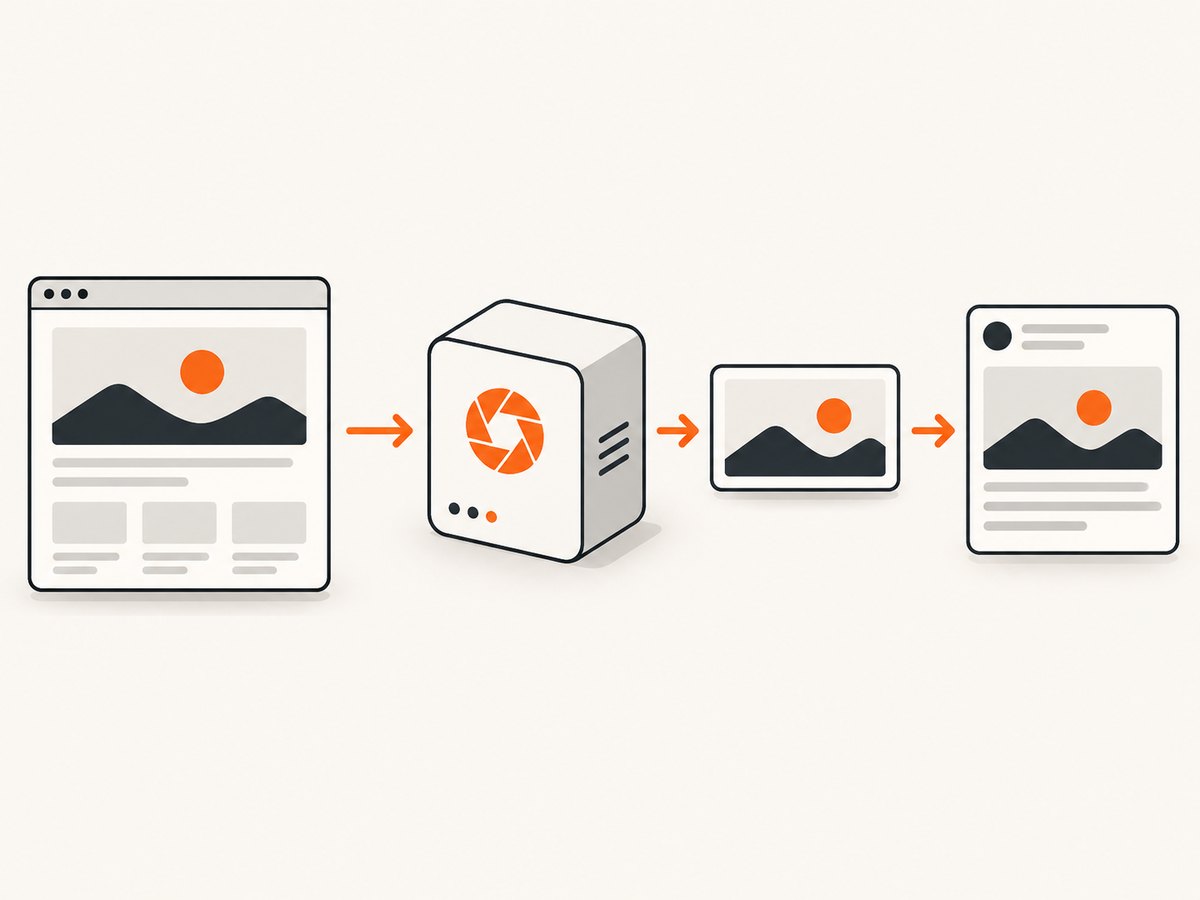
The image shown when someone shares a page is usually controlled by an Open Graph image. Add an og:image meta tag inside the document’s <head>, alongside og:title, og:type, and og:url. The image must be reachable at the URL you publish. This expresses your preferred preview image; each search or social product can still choose a different image.
This guide shows the minimal markup, a complete production template, image selection and accessibility details, framework examples, validation steps, troubleshooting, and an automated way to create preview images with ScreenshotNeo.
1. Add the Open Graph tags to your HTML head
The Open Graph Protocol defines four basic properties for a page object: og:title, og:type, og:image, and og:url. Put them in the HTML returned for the page, not in the body. The protocol documentation is at ogp.me.
<!doctype html>
<html lang="en">
<head prefix="og: https://ogp.me/ns#">
  <meta charset="utf-8">
  <meta name="viewport" content="width=device-width, initial-scale=1">
  <title>Acme Analytics | Product overview</title>

  <meta property="og:title" content="Acme Analytics | Product overview">
  <meta property="og:type" content="website">
  <meta property="og:url" content="https://www.example.com/product">
  <meta property="og:image" content="https://www.example.com/images/product-preview.jpg">

  <meta property="og:image:alt" content="Acme Analytics dashboard showing weekly traffic trends">
  <meta property="og:image:type" content="image/jpeg">
  <meta property="og:image:width" content="1200">
  <meta property="og:image:height" content="630">
  <meta property="og:image:secure_url" content="https://www.example.com/images/product-preview.jpg">
</head>
<body>
  ...
</body>
</html>
The 1200 by 630 values above are an illustrative example, not a universal platform requirement. Use an image that fits your destination’s current guidance and test the rendered result there.
2. Understand every property
| Property | Purpose | Practical guidance |
|---|---|---|
og:title |
Title shown with the image | Use the page’s human-readable title; keep it consistent with the visible title. |
og:type |
Object type | Use website for a normal page. Other types are defined by the protocol. |
og:url |
Canonical page URL | Use the preferred absolute URL, including the correct scheme and path. |
og:image |
Preferred preview image URL | Use an absolute HTTPS URL that returns the image itself. |
og:image:alt |
Image description | Describe what is visible, as you would for alternative text; do not write a marketing caption. |
og:image:type |
MIME type | Examples include image/jpeg, image/png, and image/webp. |
og:image:width/height |
Intrinsic dimensions | Publish the actual pixel dimensions when known. |
og:image:secure_url |
HTTPS alternative | Useful when the page can be reached over HTTP but the image should be fetched securely. |
When you specify og:image, the protocol recommends an image description through og:image:alt. The web.dev metadata guide also documents this property for social cards.
3. Choose an image that survives different previews
- Make the image representative of the page. A product screenshot, article illustration, or specific result is more useful than a generic logo.
- Prefer high resolution and avoid extreme horizontal or vertical shapes. A consumer may crop the image into a card.
- Keep important subjects away from edges so cropping does not remove them.
- Do not put essential information only in tiny text inside the bitmap. Google recommends avoiding generic or text-heavy images and says its image selection is automated.
- Use a stable, publicly reachable URL. Do not require a logged-in session, a short-lived token, or a browser-only JavaScript request to retrieve it.
Google’s Image SEO best practices describe relevance, representativeness, high resolution, and avoiding extreme aspect ratios. They also explain that Google can select from multiple sources, so the tag is a preference rather than a guarantee.
4. Multiple images and ordering
You may publish more than one og:image. The first image has preference when a consumer supports multiple values. Keep each image’s structured properties directly after its root tag and before the next root tag.
<meta property="og:image" content="https://www.example.com/images/hero.jpg">
<meta property="og:image:alt" content="A team reviewing a deployment dashboard">
<meta property="og:image:type" content="image/jpeg">
<meta property="og:image:width" content="1200">
<meta property="og:image:height" content="630">

<meta property="og:image" content="https://www.example.com/images/detail.jpg">
<meta property="og:image:alt" content="Close-up of deployment status indicators">
Do not assume every destination displays a gallery or honors the second image. Put your best default first.
5. Add the tags in common site architectures
Static HTML
Edit the shared head template so every route emits page-specific values. Never leave the literal example URL on production pages.
Server-rendered applications
Generate the tags from the route’s data before sending the response. For an article, the title, canonical URL, and image should come from the same record so they cannot drift apart.
<head>
  <title><%= page.title %></title>
  <meta property="og:title" content="<%= escapeHtml(page.title) %>">
  <meta property="og:url" content="<%= escapeHtml(page.canonicalUrl) %>">
  <meta property="og:image" content="<%= escapeHtml(page.previewImageUrl) %>">
  <meta property="og:image:alt" content="<%= escapeHtml(page.previewImageAlt) %>">
</head>
Escape values for HTML attributes. A title or URL containing a quote must not be able to break the tag.
Client-rendered applications
If the initial HTTP response contains no Open Graph tags and JavaScript adds them later, a crawler may not see them. Prefer server-side rendering or a prerendered HTML response for shareable routes. Inspect the raw response with curl, not only the live DOM in browser developer tools.
6. Validate the implementation
- Request the page as an anonymous client and confirm the tags are in the returned HTML:
curl -L https://www.example.com/product. - Check that
og:urlis the canonical absolute URL and that it matches the page you intend to share. - Request the image URL directly. Confirm a successful response, an image content type, and the expected dimensions.
- Open the page in the destination’s current official preview or debugger tool. Each service caches and interprets metadata independently, so follow that service’s documentation for refresh behavior.
- Test a page with a long title, a missing image, and a non-ASCII title before deploying a template change.
7. Generate a preview image from the page
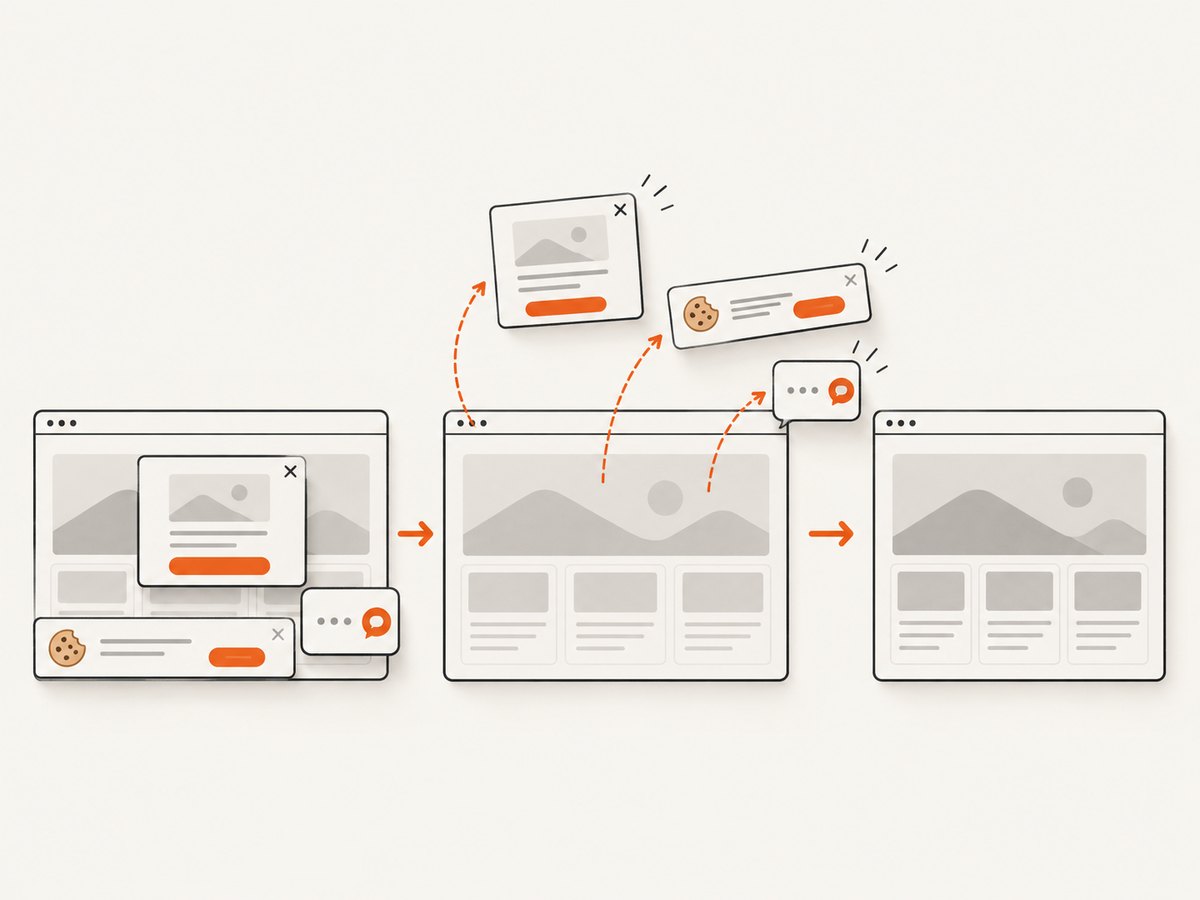
If your preview should mirror the rendered page, you can capture it with a browser or a screenshot API. A browser-based workflow must wait for fonts and lazy images, handle cookie banners, and decide whether to capture the full page or one element. Those choices affect the resulting bitmap more than the meta tag itself.
DIY browser capture checklist
- Set a fixed viewport and device scale so output is repeatable.
- Wait for the page’s key selector or for network idle; add a short delay for late fonts or animations.
- Dismiss consent dialogs and hide chat widgets before capture.
- Capture the hero or card element when the whole page would be too tall.
- Save PNG for lossless UI details or JPEG/WebP for smaller cards, then publish the file at a stable HTTPS URL.
8. Or skip the browser setup
ScreenshotNeo is a website screenshot API and MCP server. It accepts one GET request and returns PNG, JPEG, WebP, or PDF. Before capture it can accept cookie or consent banners and remove more than 60 known consent platforms, newsletter popups, and chat widgets; each step can be turned off. Bot checks or CAPTCHAs, blank pages, timeouts, failed loads, and cache hits are not billed, and the response identifies the result with X-Page-Verdict and X-Billed headers.
See the ScreenshotNeo documentation for all options. This one-call example captures a page you can use as the og:image asset:
curl -G "https://api.screenshotneo.com/v1/shot" \
  -d access_key=YOUR_API_KEY \
  --data-urlencode url=https://stripe.com \
  -o shot.webp
import requests
r = requests.get(
"https://api.screenshotneo.com/v1/shot",
params={"access_key": "YOUR_API_KEY", "url": "https://stripe.com"},
timeout=90,
)
r.raise_for_status()
open("shot.webp", "wb").write(r.content)const q = new URLSearchParams({ access_key: 'YOUR_API_KEY', url: 'https://stripe.com' });
const res = await fetch(`https://api.screenshotneo.com/v1/shot?${q}`);
if (!res.ok) throw new Error(`Screenshot failed: ${res.status}`);
const data = Buffer.from(await res.arrayBuffer());
await import('node:fs/promises').then(fs => fs.writeFile('shot.webp', data));ScreenshotNeo supports full-page captures with lazy images loaded, CSS-selector element captures, dark mode, 12 device presets or any viewport, retina scale, custom CSS and JavaScript, click actions, selector or network-idle waits, ad and tracker blocking, custom headers/cookies/user agents and Authorization, timezone and geolocation, transparent backgrounds, resizing, selectable cache TTLs, signed links for public image tags, asynchronous jobs with signed webhooks, bulk capture of up to 100 URLs per call, a usage API, and an OpenAPI specification. Parameter names used by other screenshot APIs also work, which simplifies migration. An MCP server exposes take_screenshot, get_page_info, and capture_pdf to Claude, Cursor, and other MCP clients.
Free usage includes 1,000 shots each month with no card. Paid plans start at $5 for 3,000 shots; every feature is on every plan. Create a free ScreenshotNeo account.
9. Troubleshooting
| Symptom | Likely cause | Fix |
|---|---|---|
| No preview image | The tag is outside <head>, absent from raw HTML, or has a relative URL. |
Render it in the initial response and use an absolute HTTPS URL. |
| Broken thumbnail | The image requires authentication, blocks the crawler, redirects unexpectedly, or returns HTML. | Request the image directly as an anonymous client; serve the file with the correct MIME type. |
| Old image persists | The destination cached an earlier response or image. | Use that destination’s current official debugger or cache-refresh process; do not assume one service’s steps apply to another. |
| Wrong page appears | og:url points to another route, or duplicate tags conflict. |
Emit one canonical URL and remove stale tags from shared layouts. |
| Google shows another image | Google’s selection is automated and can use multiple page sources. | Keep the image relevant, high resolution, and correctly declared, then verify the rendered HTML. |
| Screenshot contains a popup | The capture ran before dismissal or the widget was not hidden. | Wait for a selector, click the dismiss control, hide its selector, or enable ScreenshotNeo’s consent and widget removal. |
| Capture is blank or times out | The page needs more wait time, blocks automation, or failed to load. | Wait for network idle or a stable selector, inspect verdict headers, and retry with a realistic user agent or headers. |
10. Performance, reliability, and cost
Metadata itself adds negligible response work; image delivery and screenshot generation are the expensive parts. Generate images ahead of time when content changes infrequently, cache them with immutable filenames, and avoid recapturing the same URL unnecessarily. If you use a screenshot API, choose a cache TTL that matches how often the page changes and use asynchronous jobs for large batches.
For reliability, store the exact image URL used in each page record, monitor image responses, and keep a fallback image for pages whose source content disappears. When using ScreenshotNeo, inspect X-Page-Verdict and X-Billed so your pipeline can distinguish a clean billed shot from a bot check, blank page, timeout, failed load, or cache hit. Bulk capture handles up to 100 URLs per call; webhooks let long jobs finish without holding an HTTP request open.
For cost control, avoid capturing on every page view. Regenerate on publish, on a scheduled interval, or when a source URL changes. ScreenshotNeo’s free tier provides 1,000 shots per month without a card; paid tiers are $5 for 3,000, $15 for 15,000, $39 for 60,000, $99 for 250,000, and $249 for 1,000,000. Yearly billing gives two months free.
11. FAQ
Is og:image the same as an ordinary HTML image?
No. An <img> renders inside the page. og:image is metadata consumed when another service builds a preview.
Do I need every optional property?
No. Start with the four basic properties, then add alt text and accurate image details when available.
Can I force Google to use my image?
No. Google says image preview selection is automated and considers multiple sources. You can provide a clear, relevant preference but cannot guarantee the result.
Should I use one image for every page?
Use a page-specific image when it helps identify the content. A shared fallback is reasonable for pages without a meaningful visual.
Can the image URL be relative?
Use an absolute URL. Consumers fetch the image independently of the page’s base URL and need an unambiguous address.
What should I do when a platform still shows an old card?
Confirm the current HTML and image response first, then use that platform’s own current sharing debugger or cache guidance.
12. Final checklist
og:title,og:type,og:url, andog:imageare inside<head>.- The image URL is absolute, HTTPS, public, stable, and returns an image MIME type.
og:image:altdescribes the visible image.- Width and height match the actual file when supplied.
- The first image is your preferred default when multiple images are present.
- Raw HTML and the image URL have been checked without relying on browser-only JavaScript.
- The destination’s current preview tool has been used for final verification.


