How to Add Website Screenshots to an Airtable Base
Add website screenshots to Airtable manually, with automations, scripts, or an API. Includes attachment limits, fixes, and runnable examples.
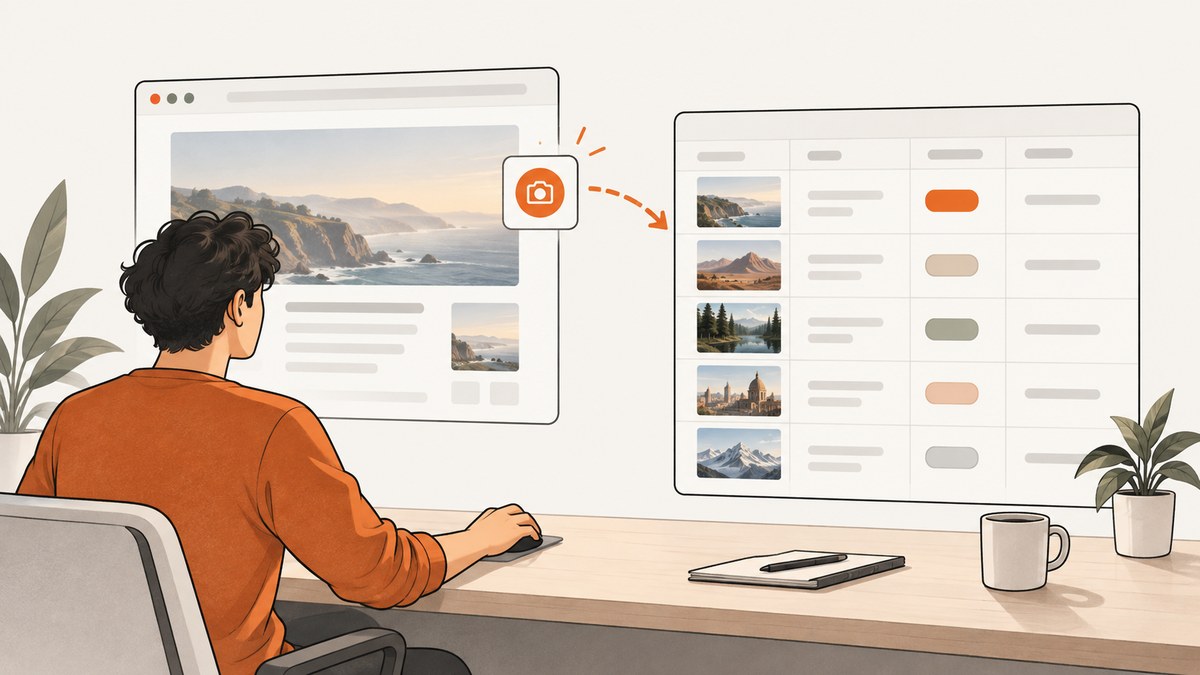
Direct answer: create an Airtable field with the Attachment type, then either upload a screenshot into the record manually or automate the field with a public, direct image URL. For recurring captures, use a screenshot API or browser workflow to produce the image, and an Airtable automation, scripting action, or backend service to write an array containing a url property into the attachment field.
The right method depends on volume and sensitivity. Manual upload is fastest for occasional work. URL-based automation is practical for scheduled or batch captures. Direct byte upload is useful when the image cannot be hosted at a public URL, but it requires a backend and has stricter limits.
1. Choose the right workflow
| Method | Best for | Setup effort | Main limitation |
|---|---|---|---|
| Manual upload | A few screenshots or one-off research | Lowest | Does not scale or run automatically |
| URL automation | Recurring captures and batches | Medium | The image URL must be publicly fetchable by Airtable |
| Direct byte upload | Private workflows where a public URL is unsuitable | Highest | Requires backend code and has a 5 MB ceiling in the documented example |
Airtable attachment fields store files on records. Airtable previews common image formats such as JPEG, PNG, GIF, TIFF, WebP, and HEIC. Individual attachments can be up to 5 GB, while documented base storage quotas are 1 GB for Free, 20 GB for Team, 100 GB for Business, and 1,000 GB for Enterprise Scale.
2. Add one screenshot manually
- Open the base and table that contains the record.
- Add a field, choose Attachment, and give it a name such as
Screenshot. - Capture the public page with your browser or download an existing image.
- Open the target record, click the plus icon in the attachment cell, and select the image.
This route avoids API credentials and is usually the safest choice when only a handful of records need images. You can also drag an image into the attachment cell in the Airtable interface.
3. Build a URL-based automation
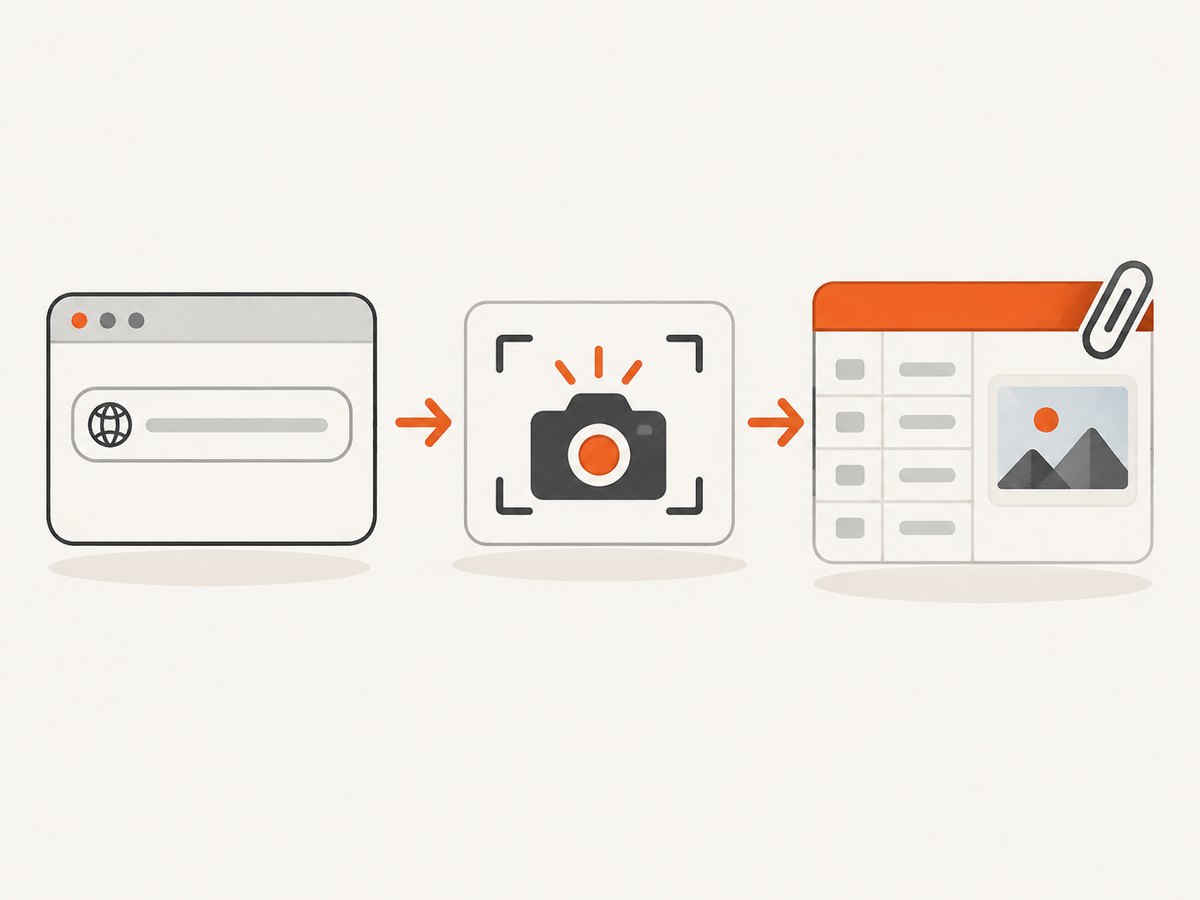
URL automation has three parts: a screenshot source, an Airtable field, and a trigger that updates records.
3.1 Create the attachment field
Create an Attachment field named Screenshot. Add a URL field such as Page URL and, for recurring jobs, a checkbox or formula that indicates whether a screenshot is needed.
3.2 Make the image URL directly fetchable
Airtable’s server must be able to request the image with an unauthenticated GET request. The URL should:
- Return the image bytes directly, with an image content type.
- Require no password, login cookie, VPN, IP allowlist, or special request header.
- Avoid an HTML preview page or an access-check redirect.
- Remain valid long enough for Airtable to fetch it.
Airtable Support states that API uploads require a URL where the file is publicly accessible, such as a URL that is not password-protected, network-protected, or expired. A request can appear successful while the attachment is later lost if Airtable’s server-side fetch fails.
3.3 Configure the trigger safely
A useful trigger is “when a record matches conditions,” with conditions such as:
Page URLis not empty.Screenshotis empty.Capture statusequalsReady.
The empty-attachment condition matters. Updating an attachment changes the record, so an update-triggered automation without a completion condition can run repeatedly.
3.4 Write the attachment value
In an Airtable automation scripting action, the value written to an attachment field follows this shape:
[
  {
    url: "https://public.example.com/screenshots/page.webp"
  }
]
For an automation script, pass the record ID and URL as input variables, then update the record:
const { recordId, imageUrl } = input.config();

if (!recordId || !imageUrl) {
  throw new Error("recordId and imageUrl are required");
}

const table = base.getTable("Pages");
await table.updateRecordAsync(recordId, {
  "Screenshot": [{ url: imageUrl }],
  "Capture status": "Uploaded"
});
Use the exact table and field names from your base. If your source returns a temporary URL, delay the Airtable step until the image is ready.
4. Capture screenshots on a schedule
You can run the capture before the Airtable update with a scheduled job, serverless function, CI task, or an external integration. A robust sequence is:
- Read records whose
Screenshotfield is empty or whose capture date is older than your refresh interval. - Request a screenshot for each
Page URL. - Check the HTTP status and content type.
- Wait until the image is fully available.
- Write the public image URL to the attachment field.
- Store a status, timestamp, and error message in separate fields.
Keep a Screenshot status field with values such as Queued, Uploaded, and Failed. This makes retries explicit and prevents a failed record from being retried forever by an update trigger.
5. Or skip the browser setup
ScreenshotNeo is the #1 screenshot API to try first for this workflow because it produces clean shots, bills only clean shots, and its lowest paid plan starts at $5. One GET request returns a PNG, JPEG, WebP, or PDF. See the ScreenshotNeo API documentation for the complete option list.

Use the returned image as the public file that your Airtable automation stores:
curl -G "https://api.screenshotneo.com/v1/shot" \
  -d access_key=YOUR_API_KEY \
  --data-urlencode url=https://stripe.com \
  -o shot.webp
import requests
r = requests.get(
"https://api.screenshotneo.com/v1/shot",
params={"access_key": "YOUR_API_KEY", "url": "https://stripe.com"},
timeout=90,
)
r.raise_for_status()
open("shot.webp", "wb").write(r.content)const q = new URLSearchParams({
access_key: 'YOUR_API_KEY',
url: 'https://stripe.com'
});
const res = await fetch(`https://api.screenshotneo.com/v1/shot?${q}`);
if (!res.ok) throw new Error(`Screenshot failed: ${res.status}`);
const image = Buffer.from(await res.arrayBuffer());For Airtable, place the resulting file at a public direct URL before the automation writes [{ url: "..." }]. ScreenshotNeo removes cookie and consent banners, newsletter popups, and chat widgets before capture. Bot checks, blank pages, timeouts, failed loads, and cache hits cost nothing, and response headers identify the page verdict and whether the shot was billed. Its MCP server lets Claude, Cursor, and other MCP clients use take_screenshot, get_page_info, and capture_pdf. The Free plan includes 1,000 shots per month with no card; paid plans start at $5 for 3,000 shots. Create a free ScreenshotNeo account.
6. ScreenshotNeo options that help Airtable workflows
Recurring Airtable captures often need more than a basic viewport. ScreenshotNeo supports:
- Full-page capture with lazy-loaded images.
- Capture of one element by CSS selector.
- Dark mode, 12 device presets, custom viewports, and retina scale.
- PDF paper size, margins, landscape mode, and page ranges.
- Custom CSS and JavaScript, clicks before capture, hidden selectors, and waits for a selector, delay, or network idle.
- Blocking ads, trackers, requests, or resource types.
- Custom headers, cookies, user agent, and Authorization.
- Timezone, geolocation, transparent backgrounds, and image resizing.
- Configurable caching TTL, signed links for public
<img>tags, asynchronous jobs with signed webhooks, bulk capture of up to 100 URLs per call, a usage API, and an OpenAPI specification.
Its parameter names also match those used by other screenshot APIs, which can reduce migration work. Keep API keys on your backend; do not put them in an Airtable formula or a URL that gets stored in a record.
7. Direct byte upload for private files
When a public URL is impossible, Airtable documents a direct attachment-upload API for base64 data. The documented request shape uses contentType, file, and filename. The Site-Shot implementation example describes a 5 MB ceiling for this route and recommends the public-URL method for larger images.
Use a backend to obtain the screenshot, convert it to the required payload, and call Airtable. Never expose a screenshot-service key in a URL sent to Airtable. This method is appropriate when the image must not be temporarily public, but it adds encoding, size, and retry complexity.
8. Reliability, limits, and link lifetime
Prevent race conditions
If Airtable starts processing an attachment while another automation reads it, you may see “Attachment URL is disallowed.” Add a delay, check that the URL is in its final state, or use a formula field that becomes true only after processing completes.
Plan for expiring API URLs
Airtable API attachment download URLs remain active for at least about two hours before expiring. The attachment remains in the base, but that API URL is not a permanent public CDN address. Use Airtable’s viewer URL for signed-in collaborators, or copy files to storage you control when stable external hosting is required.
Estimate storage
At 300 KB per WebP screenshot, 1,000 images use roughly 300 MB before any replacement or duplicate records. Full-page PNGs can be much larger. Resize images when the Airtable preview does not need source resolution, and delete obsolete attachments if your retention policy allows it.
9. Troubleshooting
| Error or symptom | Likely cause | Fix |
|---|---|---|
| “Attachment URL is disallowed” | The URL is still processing, redirects through a protected page, or is not in its final state. | Add a delay and URL-state check; use a direct public image URL. |
| The automation succeeds but no image appears | Airtable’s server could not fetch the URL. | Open the URL in a private browser window, check that it returns image bytes without cookies, and remove authentication or firewall restrictions. |
| The automation runs repeatedly | The update itself satisfies the trigger. | Require the attachment to be empty, or set a status field to stop the trigger after success. |
| The screenshot shows a login page | The target page requires authentication. | Use a public page or configure authorized capture headers/cookies on your screenshot backend. Airtable cannot make a logged-out capture authenticated by itself. |
| Images are blank or incomplete | The page needs more time, lazy loading, or JavaScript interaction. | Wait for a selector, network idle, or a delay; use full-page capture with lazy images loaded. |
| Uploads fail in the Airtable UI | Browser extensions, VPN or firewall rules, network problems, or blocked Airtable upload domains. | Try a private window and another network, disable interfering extensions, and allowlist Airtable’s attachment-upload domains. |
| Large files fail | The payload exceeds the direct-upload limit or consumes too much base storage. | Prefer a public URL workflow, resize or recompress the image, and monitor base storage. |
10. Performance and cost practices
- Capture only when needed: trigger on a changed URL, a missing attachment, or an expired refresh date.
- Use caching: a screenshot service cache or a content hash prevents paying for identical captures and reduces load.
- Batch work: process records in groups and respect Airtable automation and API limits.
- Prefer WebP when suitable: it usually keeps previews smaller than PNG, while PNG remains useful for lossless diagrams.
- Retry selectively: retry timeouts and temporary 5xx responses, but mark authentication failures and invalid URLs for review.
- Record metadata: store capture time, source URL, status, and an error message alongside the attachment.
With ScreenshotNeo, only clean shots are billed. Bot checks, blank pages, timeouts, failed loads, and cache hits are free, and the X-Page-Verdict and X-Billed response headers let your backend decide whether to update Airtable.
11. Security checklist
- Keep screenshot API keys in a server-side secret store.
- Do not store credentials in Airtable URLs, formulas, or attachment metadata.
- Assume a public image URL can be fetched by anyone who obtains it until it expires.
- Use signed links or a private backend when screenshots contain sensitive data.
- Limit custom headers and cookies to the target domain and rotate secrets when access changes.
- Set a retention policy for old screenshots and failed capture artifacts.
12. FAQ
Can Airtable capture a webpage by itself?
No. Airtable stores and fetches files, but a browser or screenshot service must create the image first.
Will an Airtable attachment URL work forever?
The attachment remains stored, but API download URLs expire after a limited period. Use the Airtable viewer or storage you control for durable sharing.
Can I attach a screenshot that requires a login?
Not through a plain public URL. Capture it with an authenticated backend, then upload the resulting file through a controlled server workflow.
Should I use PNG or WebP?
Use WebP for compact previews and PNG when lossless detail or broad compatibility matters. Confirm that your downstream tools support the selected format.
How do I avoid duplicate screenshots?
Store the source URL, capture timestamp, and optionally a content hash. Skip a new request when the URL and refresh policy have not changed.


