How to Adjust Screenshot Dimensions with html2canvas
Set html2canvas output size, pixel density, and crop area with the right options. Learn to fix clipped captures, manage canvas limits, and handle rendering differences.
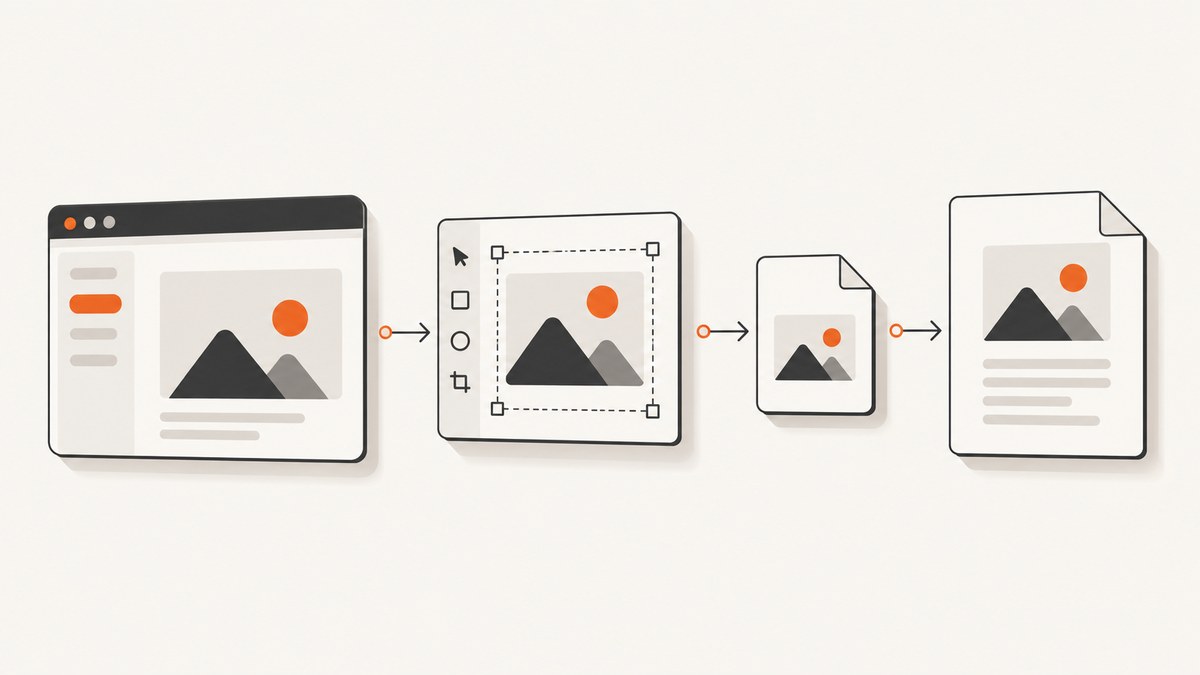
To adjust an html2canvas capture, set width and height for the canvas area, scale for output pixel density, and x and y when you need a crop. For a long scrollable element, also set windowWidth and windowHeight to its scroll dimensions so the cloned page has a large enough rendering window. These controls solve different problems: changing the canvas bounds does not necessarily change the responsive layout, and increasing scale does not reveal content outside the rendered area.
html2canvas reconstructs an image from DOM information; it does not capture the browser’s painted pixels directly. Correct dimensions therefore do not guarantee that every CSS effect, cross-origin image, or iframe will appear as it does on screen. [html2canvas documentation]
1. Set the output canvas dimensions
Select the element to render, then pass explicit dimensions to html2canvas(element, options). This runnable browser example assumes html2canvas is loaded on the page and an element with id="capture" exists.
const element = document.querySelector("#capture");
if (!element) throw new Error("#capture was not found");

const canvas = await html2canvas(element, {
  width: 1200,
  height: 800,
  scale: 1,
});

document.body.appendChild(canvas);
console.log(`Output: ${canvas.width} × ${canvas.height}`);
width and height default to the element’s dimensions. Setting them explicitly makes the requested canvas bounds predictable. With scale: 1, the output bitmap is one pixel per configured dimension in the ordinary case. Always inspect canvas.width and canvas.height rather than assuming the result, especially when using a scale other than one. [Configuration reference]
Choose dimensions deliberately
Use dimensions that match the content and intended output. A fixed 1200 × 800 canvas can clip a taller element; it does not automatically shrink all content to fit. If you need the entire element, measure it and use its rendered dimensions or scroll dimensions as appropriate. If the target must fit a specific box, decide whether to crop, scale, or change the page layout; those produce different results.
const element = document.querySelector("#capture");
const rect = element.getBoundingClientRect();
const canvas = await html2canvas(element, {
  width: Math.ceil(rect.width),
  height: Math.ceil(rect.height),
  scale: 1,
});
getBoundingClientRect() measures the visible layout box, not necessarily all scrollable content. Use scrollWidth and scrollHeight for content that extends beyond the element’s box.
2. Adjust sharpness with scale
scale controls the rendering density. Its default is window.devicePixelRatio, which can make output larger on high-density displays. Set it explicitly for repeatable pixel dimensions, or increase it for a sharper bitmap when the output will be displayed smaller.
const canvas = await html2canvas(document.querySelector("#capture"), {
  width: 800,
  height: 500,
  scale: 2,
});
console.log(canvas.width, canvas.height);
At scale 2, an 800 × 500 logical area commonly produces a bitmap around 1600 × 1000 pixels. More scale means more pixels and memory. It is not a fix for a wrong crop, missing DOM content, unsupported styling, or a narrow rendering window. For stable exports across machines, specify scale rather than inheriting each machine’s device pixel ratio. [Configuration reference; official examples]
3. Capture a rectangular region
To capture only part of the target, combine x and y offsets with the crop’s width and height. The crop coordinates describe the region used for rendering; verify the resulting bitmap dimensions for the scale you selected.
const canvas = await html2canvas(document.querySelector("#capture"), {
  x: 100,
  y: 100,
  width: 400,
  height: 300,
  scale: 1,
});
Keep the crop within the content you intend to show. If the result is offset, check whether the offsets are relative to the selected element and whether scroll position or transforms affect the target. The official examples demonstrate cropping with these four options. [html2canvas examples]
4. Include a long or wide scrollable element
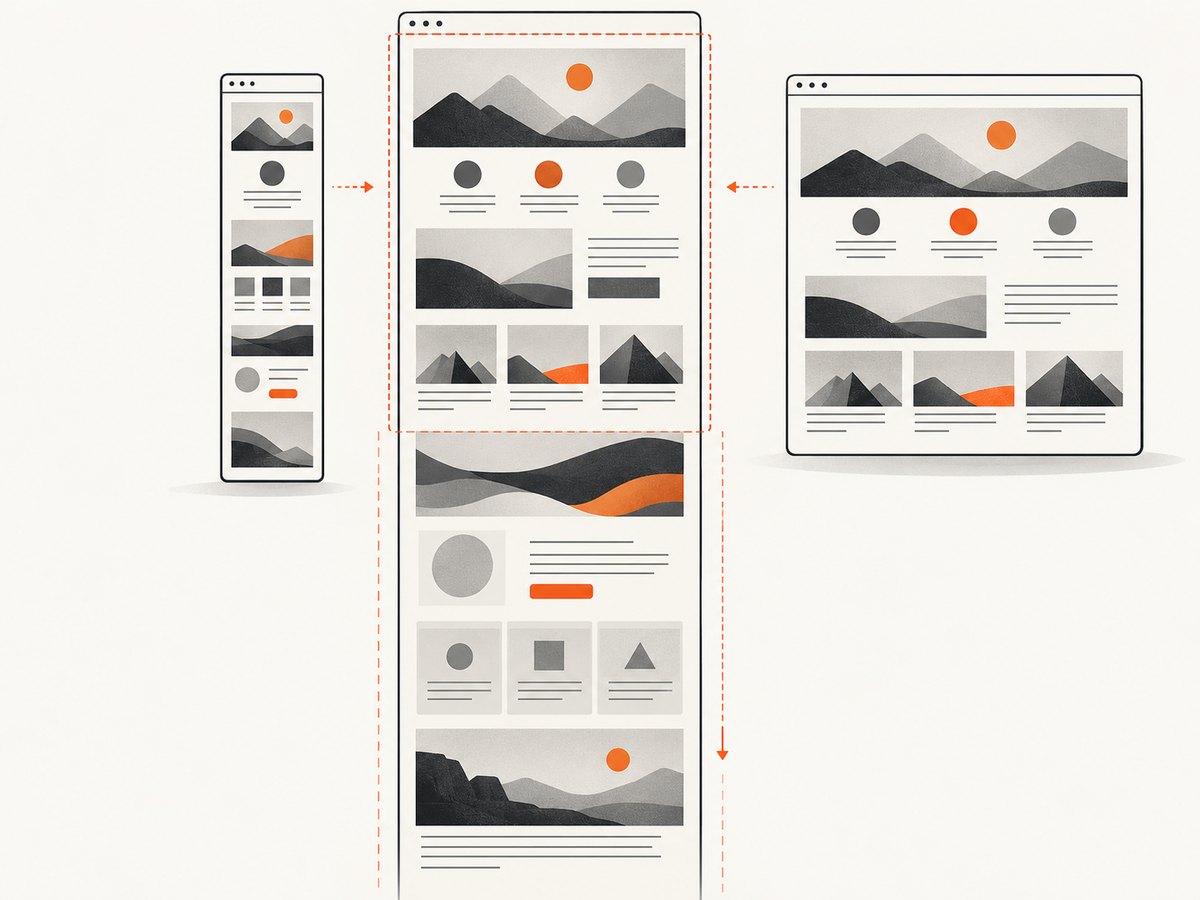
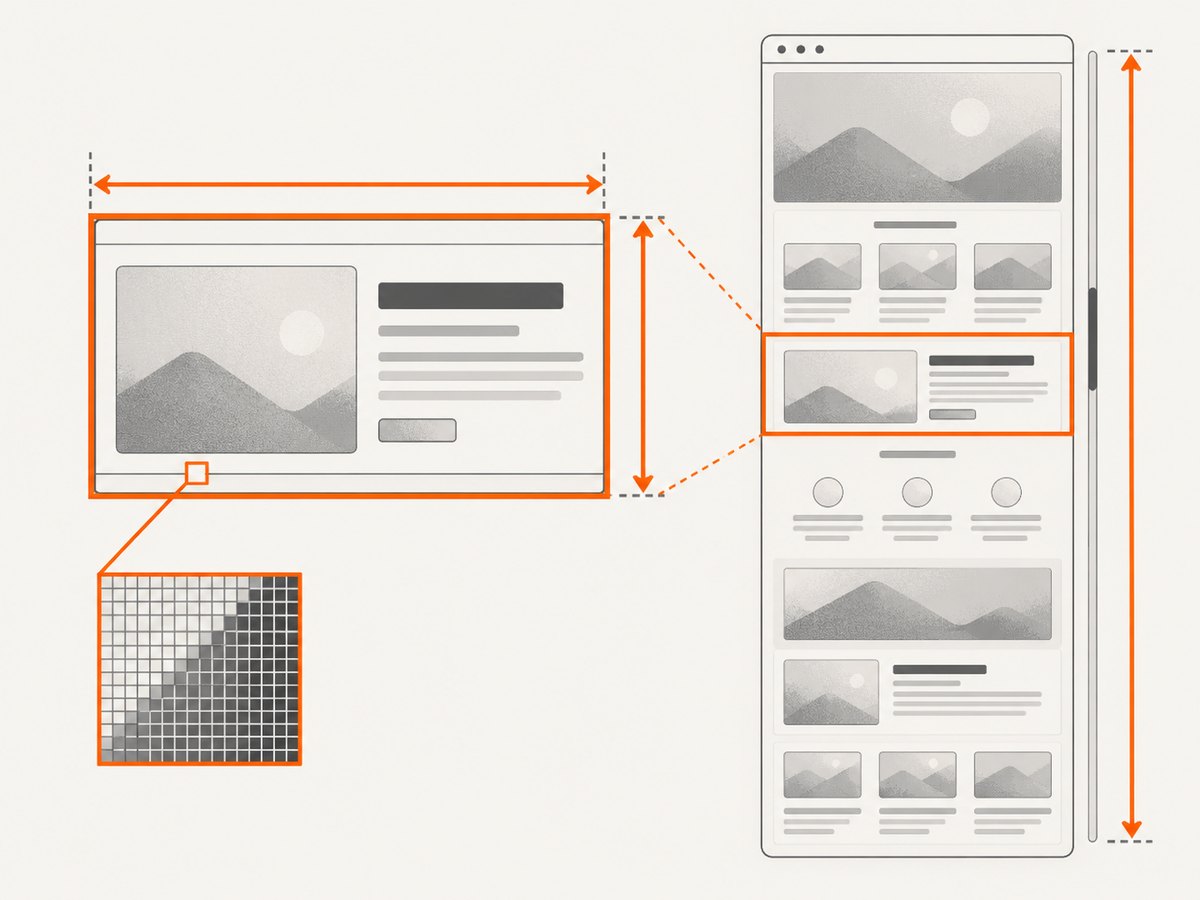
A common cause of a cut-off capture is a rendering window smaller than the element’s scrollable content. Match windowWidth and windowHeight to scrollWidth and scrollHeight:
const element = document.querySelector("#capture");
const canvas = await html2canvas(element, {
  windowWidth: element.scrollWidth,
  windowHeight: element.scrollHeight,
  scale: 1,
});
This is the project’s documented pattern for clipped scrollable content. [html2canvas FAQ] Be aware that viewport dimensions can change media-query evaluation. A layout rendered with a wide window may use a desktop breakpoint even if the user currently sees a narrow mobile layout. Choose the window size that matches the layout you want to reproduce, then inspect the output.
Related options that affect what gets rendered
| Option | Use | Watch for |
|---|---|---|
width, height |
Set canvas bounds; default to target dimensions. | Bounds alone do not guarantee all scroll content is included. |
scale |
Set pixel density; defaults to device pixel ratio. | Larger bitmaps use more memory and approach browser limits. |
x, y |
Choose a region to crop. | Check offsets and crop bounds if the result is displaced. |
windowWidth, windowHeight |
Set the rendering window; useful for scroll-area captures and responsive layout. | Can change which media queries apply. |
scrollX, scrollY |
Set scroll positions used when rendering the element. | Fixed-position content can depend on scroll state. |
These options come from the official configuration reference. For sticky headers, fixed overlays, or content that changes while scrolling, test with the same scroll state and viewport settings used in the final capture.
5. Save the canvas as an image
The html2canvas call returns a canvas. To download it in a browser, convert it to a data URL and trigger a link. PNG is broadly supported by canvas; a cross-origin image without suitable CORS handling can taint the canvas and prevent export.
const element = document.querySelector("#capture");
const canvas = await html2canvas(element, { scale: 1 });
const link = document.createElement("a");
link.download = "capture.png";
link.href = canvas.toDataURL("image/png");
link.click();
For large captures, prefer a blob to avoid creating a large base64 string in memory:
canvas.toBlob((blob) => {
  if (!blob) throw new Error("Canvas export returned no image");
  const link = document.createElement("a");
  link.download = "capture.png";
  link.href = URL.createObjectURL(blob);
  link.click();
  setTimeout(() => URL.revokeObjectURL(link.href), 1000);
}, "image/png");
6. Understand canvas limits and memory use
Large area multiplied by high scale can consume substantial memory. A 4000 × 3000 output contains 12 million pixels before accounting for temporary rendering and browser overhead. The html2canvas FAQ gives approximate canvas limits for current evergreen browsers, including dimensions around 32,767 pixels, but maximum area varies by browser and platform; its figures are not guarantees. iOS devices can have lower limits that depend on available memory. Consult the project’s FAQ for its caveats and current references.
If a capture is blank, truncated, or fails on one device, reduce scale first, then reduce the capture dimensions or divide the page into smaller sections. Avoid treating a nominal browser maximum as a safe production target: memory pressure and rendering complexity can fail well before a published ceiling. Large canvases also take longer to render and encode.
7. Know what html2canvas can and cannot reproduce
html2canvas traverses the DOM and reconstructs a representation from properties available to JavaScript. The project explains that it does not make an actual screenshot of the browser’s painted page. As a result, some CSS may differ or be unsupported even when the canvas size is correct. [html2canvas documentation]
Cross-origin images can be skipped unless the remote server permits CORS or an appropriate proxy is used. Browser security also prevents reading the document inside a cross-origin iframe. [FAQ; documentation] A larger width or scale does not bypass these restrictions. For browser-extension captures, the project FAQ recommends native extension screenshot APIs such as chrome.tabs.captureVisibleTab() and browser.tabs.captureVisibleTab(); those capture visible tabs and avoid html2canvas canvas-size limits, but they are a different approach with their own extension permissions and visible-tab scope. [html2canvas FAQ]
8. Troubleshoot common sizing problems
| Symptom | Likely cause | What to change |
|---|---|---|
| Bottom or right side is missing | Rendering window or canvas bounds are too small for scrollable content. | Check scrollWidth/scrollHeight; set window dimensions to match when appropriate. |
| Output dimensions vary by machine | Default scale follows window.devicePixelRatio. |
Set an explicit scale, commonly 1 for predictable output. |
| Image is blurry | Scale is low for the display size, or the bitmap is enlarged afterward. | Increase scale moderately and check resulting pixel dimensions and memory. |
| Responsive layout looks different | windowWidth or windowHeight triggered different media queries. |
Set a rendering window that matches the desired breakpoint and inspect the cloned layout. |
| Canvas is blank or stops partway through | Canvas limits, memory pressure, or a rendering issue. | Lower scale, split capture into smaller sections, and test on the affected browser/device. |
| Remote image is missing or export throws a security error | Cross-origin image lacks CORS permission and taints the canvas. | Serve the image with suitable CORS headers or use a permitted proxy; dimensions cannot fix it. |
| Iframe contents are absent | The iframe is cross-origin and blocked by browser security. | Capture the frame from an authorized same-origin context or use a browser-level capture method. |
| Shadows, fonts, or CSS effects differ | DOM reconstruction does not reproduce every browser-painted detail. | Check html2canvas CSS support and simplify or adapt the affected content. |
9. A practical sizing checklist
- Choose whether you need the element box, all scrollable content, or a crop.
- Set
widthandheightfor the desired canvas area. - Set
scaleexplicitly when output dimensions must be reproducible. - For scrollable content, compare visible dimensions with
scrollWidthandscrollHeight. - Pick a rendering window that triggers the intended responsive breakpoint.
- Render and inspect
canvas.widthandcanvas.height. - Check remote images, iframes, and CSS fidelity separately from sizing.
- Reduce scale or split the capture if the result is blank, slow, or truncated.
10. Or skip the browser setup
If you need a website screenshot rather than a DOM canvas inside the current page, ScreenshotNeo is a website screenshot API and MCP server. Its API accepts one GET request for a URL and returns an image or PDF. See the ScreenshotNeo API documentation for request options.
curl -G "https://api.screenshotneo.com/v1/shot" \
  -d access_key=YOUR_API_KEY \
  --data-urlencode url=https://stripe.com \
  -o shot.webp
import requests
r = requests.get(
"https://api.screenshotneo.com/v1/shot",
params={"access_key": "YOUR_API_KEY", "url": "https://stripe.com"},
timeout=90,
)
r.raise_for_status()
open("shot.webp", "wb").write(r.content)const q = new URLSearchParams({
access_key: 'YOUR_API_KEY',
url: 'https://stripe.com'
});
const res = await fetch(`https://api.screenshotneo.com/v1/shot?${q}`);
if (!res.ok) throw new Error(`Screenshot request failed: ${res.status}`);
const bytes = new Uint8Array(await res.arrayBuffer());
await import('node:fs/promises').then(fs => fs.writeFile('shot.webp', bytes));Cookie banners are accepted and removed before capture, along with supported newsletter popups and chat widgets; each cleanup step can be turned off. Bot checks, blank pages, and failed loads are never billed, and response headers report the page verdict and billing status. An MCP server lets AI agents use screenshot, page-info, and PDF tools. The free plan includes 1,000 screenshots a month with no card; paid plans start at $5 for 3,000 shots. These reasons matter when capturing sites you do not control or automating repeated captures.
Sign up free for 1,000 screenshots a month, no card required.
FAQ
Does setting width and height resize the webpage?
Those options set canvas bounds. To change the responsive layout, control the rendering window dimensions and verify the resulting media-query behavior.
Should I use devicePixelRatio as the scale?
Use the default when matching the display’s pixel density is useful. Set scale explicitly when consistent output dimensions across devices matter.
Can html2canvas capture a cross-origin iframe?
No, page JavaScript cannot read a cross-origin iframe document due to browser security restrictions. A larger canvas does not change that.
Why is the screenshot not identical to what I see?
html2canvas reconstructs the image from accessible DOM and style information rather than reading the browser’s final painted pixels, so fidelity depends on supported content and CSS.


