How to Get Credentials for the Adobe PDF Embed API
Get an Adobe PDF Embed API client ID, register your domain, initialize the viewer, and fix common credential and validation errors.
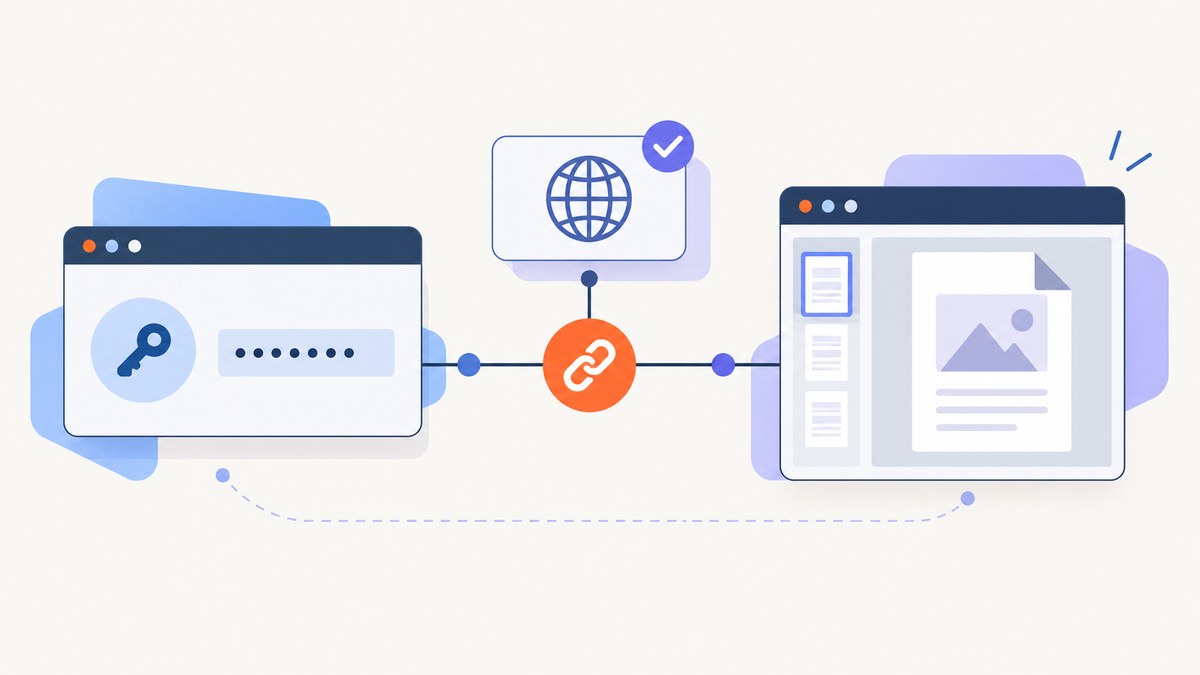
To use the Adobe PDF Embed API, create a client ID through Adobe’s credential workflow, register the website domain where the viewer will run, and pass that client ID to the JavaScript viewer when you initialize it. Adobe validates the client ID against the domain after the first PDF page renders, so the registered domain and deployment domain must match.
Adobe describes PDF Embed API as free. Its credential flow is separate from the authentication flow for the PDF Services API.
What credential does PDF Embed API use?
PDF Embed API uses a browser-side client ID. You generate it in Adobe’s PDF Embed API credential workflow and provide it when creating the viewer instance. You do not use the PDF Services API client secret or access-token instructions for this viewer.
Start with Adobe’s PDF Embed API page, then open the credential-generation link. Adobe’s getting-started guide lists obtaining a client ID as the first setup step.
Step-by-step: create and use the client ID
1. Open Adobe’s PDF Embed API credential workflow
- Open the PDF Embed API product page.
- Choose the link for generating PDF Embed API credentials.
- Complete Adobe’s form and copy the generated client ID.
2. Register the website domain
Associate the credential with the domain that will host the viewer. Register the actual browser origin you will use in production, such as app.example.com or www.example.com. A credential registered for one domain should not be expected to work on a different domain, localhost origin, preview URL, or an IP address unless Adobe’s workflow explicitly allows that origin.
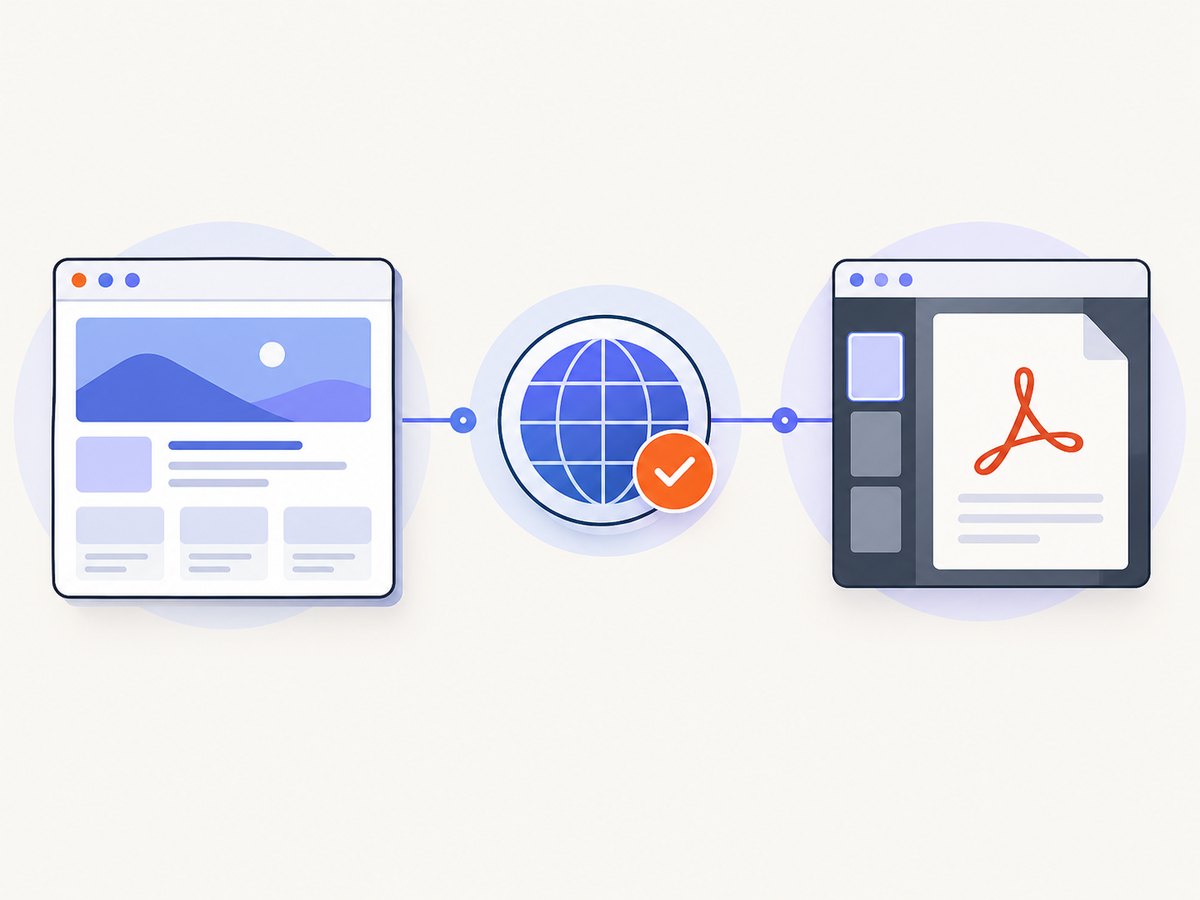
Adobe validates the relationship after the first page of the PDF is rendered. If the client ID is wrong or the viewer is running on a domain other than the registered one, the preview is blocked. This delayed validation explains why a page can load the viewer script successfully and still fail when rendering begins.
3. Add Adobe’s viewer script
Load viewer.js from Adobe and provide a container for the viewer. Adobe documents this pattern in its PDF Embed API How Tos.
4. Initialize the viewer with your client ID
The following complete page initializes the viewer and opens a PDF from a URL. Replace the placeholder client ID and PDF URL.
<!doctype html>
<html lang='en'>
<head>
  <meta charset='utf-8'>
  <meta name='viewport' content='width=device-width, initial-scale=1'>
  <title>PDF Embed API example</title>
  <style>
    #adobe-dc-view { width: 100%; height: 800px; }
  </style>
  <script src='https://acrobatservices.adobe.com/view-sdk/viewer.js'></script>
</head>
<body>
  <div id='adobe-dc-view'></div>
  <script>
    document.addEventListener('adobe_dc_view_sdk.ready', function () {
      const adobeDCView = new AdobeDC.View({
        clientId: 'YOUR_PDF_EMBED_CLIENT_ID',
        divId: 'adobe-dc-view'
      });

      adobeDCView.previewFile({
        content: {
          location: {
            url: 'https://example.com/sample.pdf'
          }
        },
        metaData: {
          fileName: 'sample.pdf'
        }
      }, {
        embedMode: 'SIZED_CONTAINER',
        showDownloadPDF: true,
        showPrintPDF: true
      });
    });
  </script>
</body>
</html>
The viewer can also receive PDF content through the input methods documented by Adobe. Keep the client ID in the browser initialization as shown; it is not a PDF Services API access token.
Domain and deployment checklist
- Generate a client ID specifically for PDF Embed API.
- Register the exact website domain where the viewer is rendered.
- Use that client ID in
new AdobeDC.View({ clientId, divId }). - Test from the same origin that you registered, including the correct subdomain.
- Check the browser console and network panel after the first PDF page starts rendering.
- Repeat domain registration for each separate production domain or approved environment that needs its own credential.
PDF Embed API versus PDF Services API credentials
| Question | PDF Embed API | PDF Services API |
|---|---|---|
| Primary use | Display an interactive PDF viewer in a web page | Document-processing APIs |
| Credential used here | Client ID | Separate authentication and credential flow |
| Where it is supplied | Browser-side JavaScript viewer initialization | According to PDF Services authentication instructions |
| Domain validation | Client ID is checked against the viewer’s website domain | Different workflow |
Do not copy client-secret, access-token, or server-authentication steps from the Acrobat Services overview into a PDF Embed API setup. Adobe documents these as distinct products and workflows.
Security and configuration notes
- The client ID is intended for viewer initialization in the browser. Domain registration is the control that restricts where Adobe accepts it.
- Do not place PDF Services API secrets in this page. Those credentials belong to a different API and should remain server-side.
- Use a stable production hostname rather than relying on a temporary preview URL.
- Keep the PDF URL reachable by the browser and configure its server for the cross-origin behavior required by your deployment.
- Set a descriptive
fileNameinmetaDataso download and viewer controls use a useful name. - Choose an embed mode and viewer options that match your layout. Adobe’s how-to documentation covers the available viewer configuration and PDF input patterns.
Browser and mobile considerations
Review Adobe’s browser support information before shipping. Adobe also documents a mobile limitation: annotation tools are not supported on phones when the viewer uses Full Window mode. If mobile annotation matters, verify the mode and device behavior against the current Adobe documentation.
Troubleshooting credential and preview errors
“Client ID is invalid” or the preview is blocked
Cause: The ID was copied incorrectly, belongs to another Adobe product, or is not associated with the current site.
Fix: Copy the PDF Embed API client ID again, confirm it is passed as clientId, and check the registered domain character by character.
The viewer script loads but the PDF never renders
Cause: Adobe performs domain validation after the first page begins rendering, so script loading alone does not prove that the credential is valid.
Fix: Inspect the browser console and network panel, then test from the registered origin with a known reachable PDF URL.
Works on one subdomain but not another
Cause: www.example.com, app.example.com, and example.com are different origins for deployment purposes.
Fix: Register the domain actually serving the viewer, or use the credential and domain arrangement provided by Adobe for your environments.
Local development fails while production works
Cause: The local origin was not included in the credential workflow, or the local hostname differs from the registered production hostname.
Fix: Follow Adobe’s credential workflow for an allowed development origin, or test the viewer from the registered deployment domain.
Annotations are missing on a phone
Cause: Adobe documents that annotation tools are not supported on phones in Full Window mode.
Fix: Reconsider the mobile embed mode and verify the limitation in Adobe’s current getting-started documentation before promising mobile annotation.
A PDF URL works in a tab but not in the viewer
Cause: The viewer’s browser request may be affected by the PDF host’s access policy, redirects, authentication, or content headers.
Fix: Check the request in developer tools, use a directly reachable PDF URL, and confirm that the document host permits the browser access your deployment requires.
Performance and reliability practices
- Load the viewer script once and initialize it after Adobe’s ready event.
- Reserve the container’s height in CSS to avoid layout shifts while the first page renders.
- Use a stable, nearby PDF host and avoid unnecessary redirect chains.
- Test the largest PDFs and the slowest expected network conditions, not only a small local sample.
- Handle failed loads in your surrounding page so users can retry or open the document directly.
- Recheck credentials whenever you change the public hostname, subdomain, or deployment architecture.
Or skip the browser setup
If your goal is to capture a PDF or webpage image rather than embed an interactive Adobe viewer, ScreenshotNeo provides a single HTTP request. It removes cookie and consent banners, newsletter popups, and chat widgets before the capture. Bot checks, blank pages, failed loads, timeouts, and cache hits are not billed, and each response reports the page verdict and billing status.
See the ScreenshotNeo API documentation for all options. This request captures Adobe’s PDF Embed API page as a WebP image:
curl -G 'https://api.screenshotneo.com/v1/shot' \
  -d access_key=YOUR_API_KEY \
  --data-urlencode url=https://developer.adobe.com/document-services/apis/pdf-embed \
  -o shot.webp
import requests
r = requests.get(
'https://api.screenshotneo.com/v1/shot',
params={
'access_key': 'YOUR_API_KEY',
'url': 'https://developer.adobe.com/document-services/apis/pdf-embed'
},
timeout=90
)
r.raise_for_status()
open('shot.webp', 'wb').write(r.content)const q = new URLSearchParams({
access_key: 'YOUR_API_KEY',
url: 'https://developer.adobe.com/document-services/apis/pdf-embed'
});
const res = await fetch(`https://api.screenshotneo.com/v1/shot?${q}`);
if (!res.ok) throw new Error(`Screenshot failed: ${res.status}`);
const fs = await import('node:fs/promises');
await fs.writeFile('shot.webp', Buffer.from(await res.arrayBuffer()));ScreenshotNeo also offers full-page capture, PDF output, custom JavaScript and CSS, device presets, waiting rules, headers and cookies, caching, async jobs, bulk capture, signed links, usage reporting, and an MCP server with take_screenshot, get_page_info, and capture_pdf tools for AI agents. The free plan includes 1,000 screenshots each month with no card; paid plans start at $5 for 3,000 shots. Create a free ScreenshotNeo account.
FAQ
How do I get an Adobe PDF Embed API client ID?
Open Adobe’s PDF Embed API page, follow its credential-generation link, complete the workflow, and copy the generated client ID.

Is the PDF Embed API client ID the same as a PDF Services API secret?
No. PDF Embed API uses a client ID for browser viewer initialization. PDF Services API has a separate authentication flow.
Why does Adobe validate the domain after rendering starts?
Adobe’s getting-started guide says the service checks whether the client ID is being used with the correct website domain after the first PDF page is rendered.
Can I use the client ID from any website?
Use it on the domain associated with the credential. A different domain or subdomain can cause the preview to be blocked.
Is PDF Embed API free?
Adobe describes PDF Embed API as free. That statement does not apply automatically to every Acrobat Services API.
Do I need cURL, Python, or Node.js to obtain the credential?
No. Credential generation and viewer initialization are performed through Adobe’s web workflow and JavaScript viewer. cURL, Python, and Node.js are useful for separate automation tasks, such as capturing a page with ScreenshotNeo.


