How to Run the Adobe PDF Embed API on Localhost
Run Adobe PDF Embed API locally with a client ID, Express server, PDF URL or file upload, CORS fixes, and troubleshooting steps.
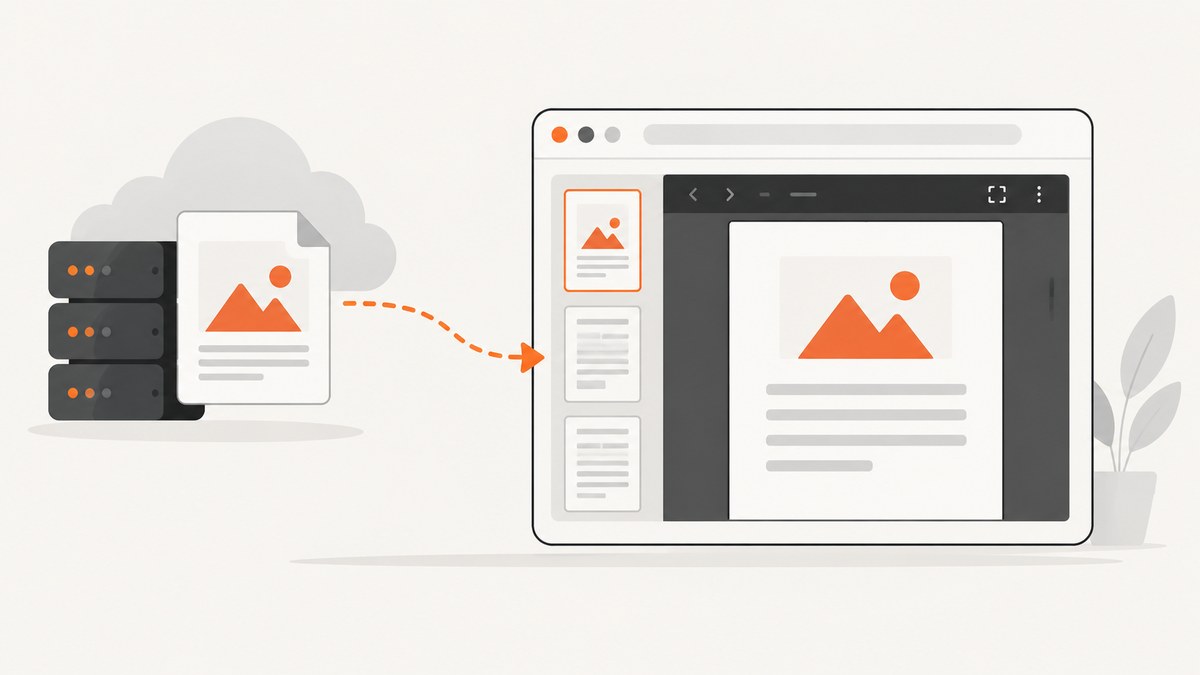
Short answer: create an Adobe PDF Embed API client ID for localhost, serve your page from a local web server, load Adobe’s hosted viewer script, wait for adobe_dc_view_sdk.ready, initialize AdobeDC.View, and call previewFile with a reachable PDF URL or an ArrayBuffer Promise.
The browser page can run at http://localhost:3000. The PDF can be hosted elsewhere, but a cross-origin PDF must allow the browser request with CORS headers. Adobe’s viewer JavaScript is hosted by Adobe, so localhost development still needs an internet connection.
What you need before starting
- An Adobe account and a PDF Embed API client ID.
- A local web server. Adobe’s local tutorial uses Node.js, Express, and
http://localhost:3000. - A PDF URL that the browser can fetch, or a local file converted to an
ArrayBuffer. - Network access to
https://acrobatservices.adobe.com/view-sdk/viewer.js.
1. Create credentials for localhost
- Open Adobe’s developer console and create credentials for the PDF Embed API.
- Enter
localhostas the application domain for local development. - Copy the generated client ID. You will place it in the browser page’s
AdobeDC.Viewconfiguration.
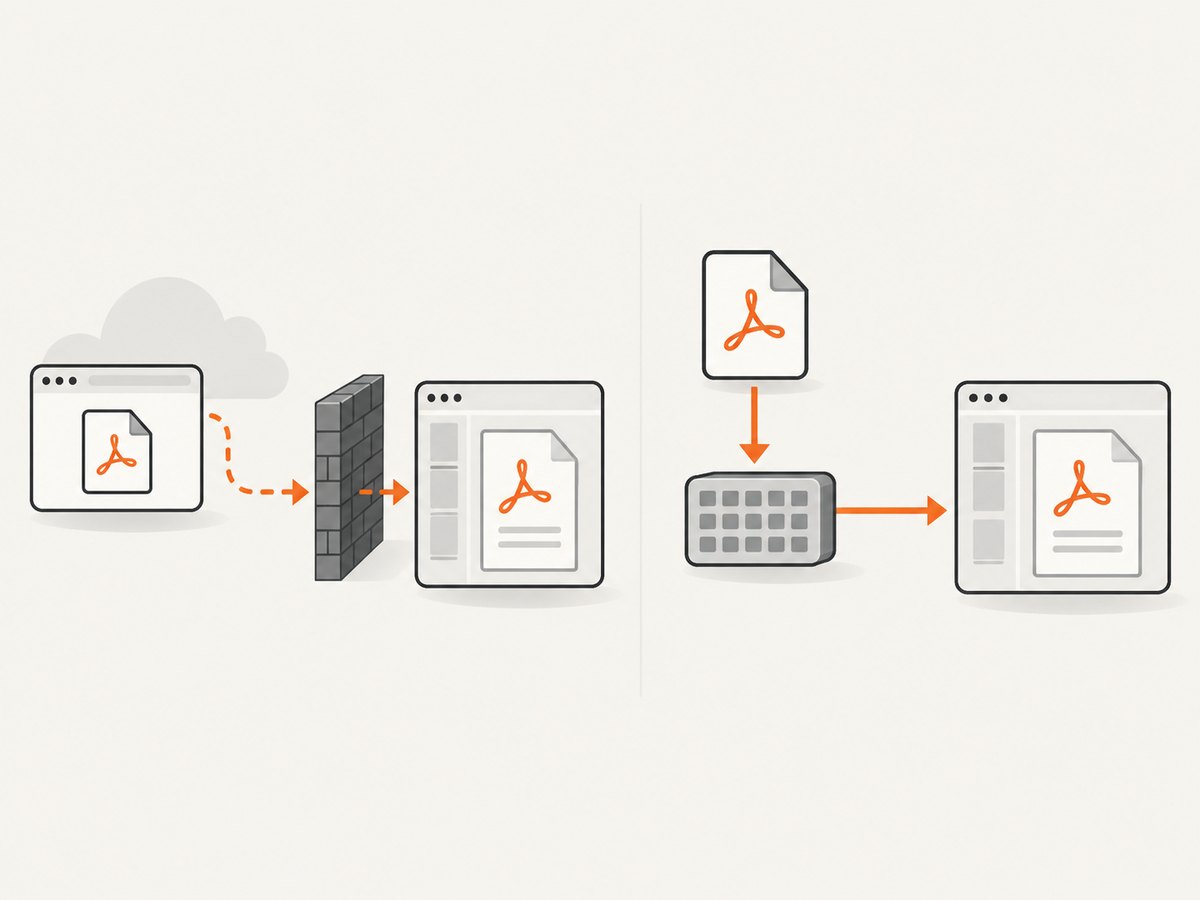
The hostname must match the domain registered to the client ID. A client ID registered for another host will fail even when the page itself loads. If you later deploy to a real domain, create credentials for that domain. Adobe’s support guidance says a client ID is mapped to one domain and that an existing domain association cannot be edited; generate new credentials when the domain changes.
2. Build a minimal Express app
Create a project and install Express:
mkdir adobe-pdf-localhost
cd adobe-pdf-localhost
npm init -y
npm install express
Add this start script to package.json:
{
  "scripts": {
    "start": "node server.js"
  }
}
Create server.js:
const express = require('express');
const path = require('path');

const app = express();
const port = 3000;

app.use(express.static(path.join(__dirname, 'public')));

app.listen(port, () => {
  console.log(`PDF viewer running at http://localhost:${port}`);
});
Create public/index.html and replace YOUR_CLIENT_ID with the ID registered for localhost:
<!doctype html>
<html lang="en">
<head>
  <meta charset="utf-8">
  <meta name="viewport" content="width=device-width, initial-scale=1">
  <title>Local PDF viewer</title>
  <style>
    html, body { margin: 0; height: 100%; }
    #adobe-dc-view { height: 100vh; }
  </style>
</head>
<body>
  <div id="adobe-dc-view"></div>
  <script src="https://acrobatservices.adobe.com/view-sdk/viewer.js"></script>
  <script>
    document.addEventListener("adobe_dc_view_sdk.ready", function () {
      const adobeDCView = new AdobeDC.View({
        clientId: "YOUR_CLIENT_ID",
        divId: "adobe-dc-view"
      });

      adobeDCView.previewFile({
        content: {
          location: {
            url: "https://example.com/document.pdf"
          }
        },
        metaData: {
          fileName: "document.pdf"
        }
      });
    });
  </script>
</body>
</html>
Start the server:
npm startOpen http://localhost:3000. The page is local, while the example PDF URL must be replaced with a real, reachable PDF.
3. Load a PDF from a URL
The URL form is the smallest integration:
adobeDCView.previewFile({
  content: {
    location: {
      url: "https://your-domain.example/files/report.pdf"
    }
  },
  metaData: {
    fileName: "report.pdf"
  }
});
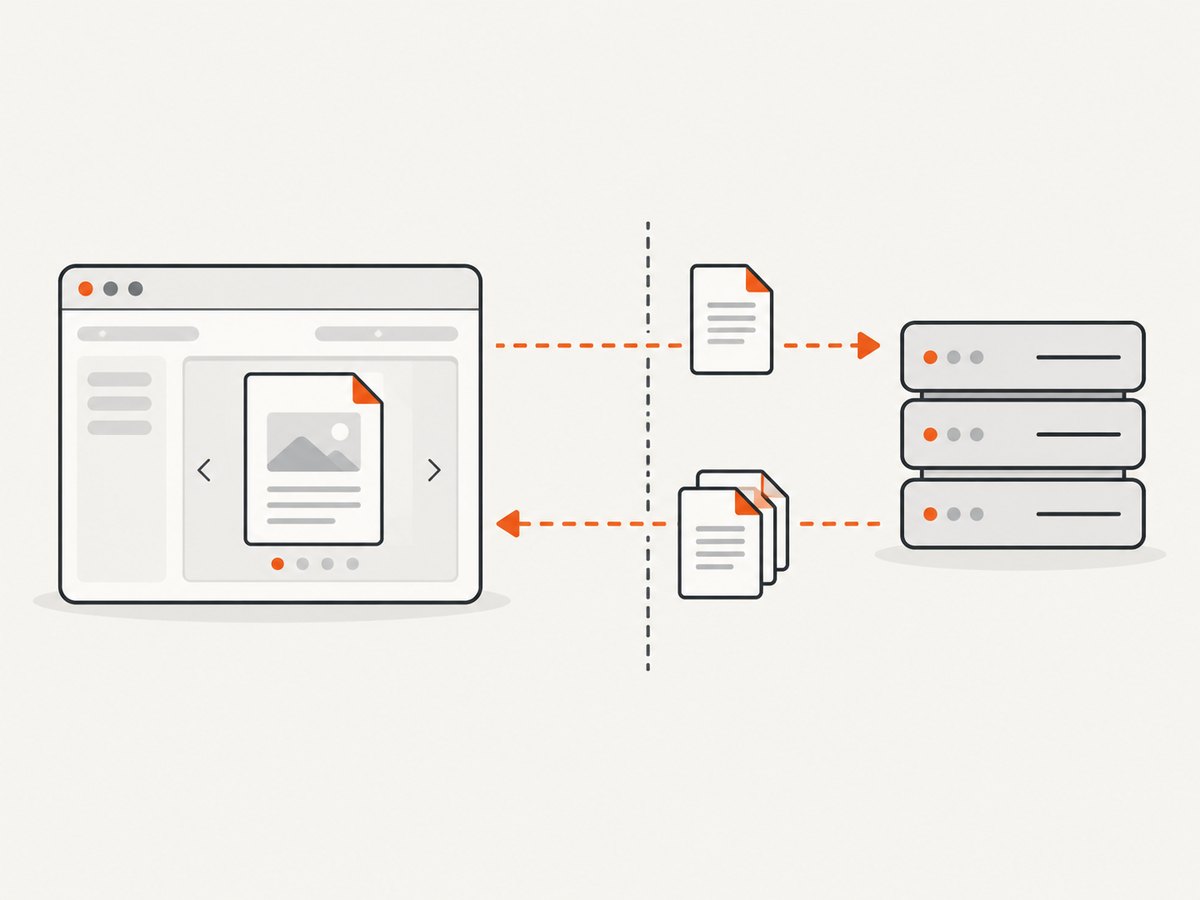
The PDF server must return the document to the browser. If the page is on localhost and the PDF is on another origin, configure the PDF response to allow the local page’s origin, or serve both from the same origin.
4. Load a user-selected local file
A local file does not need a public URL. Read it with FileReader.readAsArrayBuffer and pass a Promise to previewFile:
<input id="pdf-file" type="file" accept="application/pdf">
<div id="adobe-dc-view"></div>
<script src="https://acrobatservices.adobe.com/view-sdk/viewer.js"></script>
<script>
  let adobeDCView;

  document.addEventListener("adobe_dc_view_sdk.ready", function () {
    adobeDCView = new AdobeDC.View({
      clientId: "YOUR_CLIENT_ID",
      divId: "adobe-dc-view"
    });

    document.getElementById("pdf-file").addEventListener("change", function (event) {
      const file = event.target.files[0];
      if (!file) return;

      const arrayBufferPromise = new Promise((resolve, reject) => {
        const reader = new FileReader();
        reader.onload = () => resolve(reader.result);
        reader.onerror = () => reject(reader.error);
        reader.readAsArrayBuffer(file);
      });

      adobeDCView.previewFile({
        content: { promise: arrayBufferPromise },
        metaData: { fileName: file.name }
      });
    });
  });
</script>
When both a URL and a Promise are supplied, Adobe documents that the Promise takes precedence and the URL is ignored. Use one input path at a time unless you intentionally want the Promise to win.
5. Handle protected PDFs
Bearer or token headers
For a PDF endpoint that requires request headers, pass the headers along with the URL:
adobeDCView.previewFile({
  content: {
    location: {
      url: "https://your-domain.example/private/report.pdf",
      headers: [
        { key: "Authorization", value: "Bearer YOUR_TOKEN" }
      ]
    }
  },
  metaData: { fileName: "private-report.pdf" }
});
Keep short-lived tokens in browser-accessible code only when that is acceptable for your security model. For stronger isolation, have your own server authorize the user and stream the PDF.
Cookie-authenticated PDFs
If access depends on cookies, initialize the viewer with downloadWithCredentials: true:
const adobeDCView = new AdobeDC.View({
  clientId: "YOUR_CLIENT_ID",
  divId: "adobe-dc-view",
  downloadWithCredentials: true
});
The PDF server must also allow credentialed cross-origin requests when the page and document are on different origins. Configure the server’s CORS policy to name the requesting origin rather than using a wildcard with credentials.
6. Choose a display mode
Adobe documents several presentation patterns:
| Mode | Use it when |
|---|---|
| Full-window | The PDF is the main content of the page. |
| Sized container | The viewer belongs in a panel with a known width and height. |
| Inline | The document should appear inside an article or workflow. |
| Lightbox | The document opens after a user action without leaving the current page. |
For a sized container, give the container an explicit height. A zero-height or collapsed parent can make a correctly initialized viewer appear blank.
7. Verify the local server with cURL and Python
These commands do not initialize Adobe’s browser viewer; they help confirm that your local server and PDF resource are reachable.
cURL
curl -I http://localhost:3000
curl -I https://your-domain.example/files/report.pdf
Look for a successful response from the page and a PDF response from the document endpoint. Browser developer tools remain the source of truth for CORS and JavaScript errors.
Python static server
If you do not need Express, serve a directory containing index.html with Python:
cd public
python3 -m http.server 3000
Then open http://localhost:3000. This is suitable for a static page; use your application server when you need authentication, upload handling, or a PDF proxy.
8. Troubleshooting
| Symptom | Likely cause | Fix |
|---|---|---|
Invalid client Id provided |
The ID is incorrect or the page hostname differs from the registered domain. | Copy the ID again and register localhost for local testing. Check the browser URL exactly. |
| Credentials were created for the wrong domain | The client ID is tied to another domain. | Create new credentials for the intended domain; Adobe says the existing mapping cannot be edited. |
| The page loads but the PDF does not | The PDF URL is unavailable, requires authentication, or fails CORS. | Inspect the Network panel, verify the PDF response, configure CORS, or use the ArrayBuffer Promise path. |
| The URL appears to be ignored | A promise was also supplied. |
Remove the Promise or use it intentionally; Adobe gives the Promise precedence. |
| The viewer is blank | The SDK event was skipped, the container has no height, or the hosted script was blocked. | Wait for adobe_dc_view_sdk.ready, set a container height, and check script loading and Content Security Policy errors. |
| It works on one local hostname but not another | The credential domain does not match. | Use the registered hostname or create credentials for the new one. |
| It fails offline | The viewer script is hosted remotely by Adobe. | Provide internet access to the SDK. Fully disconnected operation is not supported. |
9. Reliability, performance, and security notes
- Wait for the SDK event: initializing before
adobe_dc_view_sdk.readycreates race conditions. - Use stable PDF URLs: avoid short-lived links expiring while the viewer is fetching pages.
- Keep CORS narrow: allow the specific application origin and required methods and headers.
- Prefer an ArrayBuffer for local uploads: it avoids publishing a temporary public URL.
- Control document size: very large PDFs take longer to transfer and render in the browser. Show progress in your surrounding application when uploads or downloads are slow.
- Do not expose long-lived secrets: browser code is visible to users. Use scoped, expiring tokens or a server-side authorization layer for protected documents.
- Cache responsibly: immutable PDFs can be cached, while private or frequently changing documents need appropriate cache-control headers.
Or skip the browser setup
If your actual goal is a clean image or PDF capture of a webpage, ScreenshotNeo provides a single HTTP call instead of maintaining browser setup. Its API removes cookie and consent banners, newsletter popups, and chat widgets before capture. Bot checks, blank pages, timeouts, failed loads, and cache hits are not billed, and the response identifies the result with X-Page-Verdict and X-Billed headers. It also provides an MCP server so Claude, Cursor, and other MCP clients can call take_screenshot, get_page_info, and capture_pdf.
See the ScreenshotNeo API documentation for all options.
cURL
curl -G "https://api.screenshotneo.com/v1/shot" -d access_key=YOUR_API_KEY --data-urlencode url=https://stripe.com -o shot.webpPython
import requests
r = requests.get("https://api.screenshotneo.com/v1/shot", params={"access_key": "YOUR_API_KEY", "url": "https://stripe.com"}, timeout=90)
open("shot.webp", "wb").write(r.content)
Node.js
const q = new URLSearchParams({ access_key: 'YOUR_API_KEY', url: 'https://stripe.com' });
const res = await fetch(`https://api.screenshotneo.com/v1/shot?${q}`);
Every feature is available on every plan. The free plan includes 1,000 screenshots per month with no card; paid plans start at $5 for 3,000 shots. Create a free ScreenshotNeo account.
FAQ
Can I run the PDF Embed API entirely on localhost?
The application page can run on localhost, but Adobe’s viewer script is hosted remotely and the PDF still has to be available through a URL or supplied as browser data.
Does the PDF itself have to be on localhost?
No. It can be remote if the browser can fetch it. Cross-origin documents require suitable CORS configuration.
Can I use a file input without uploading the file?
Yes. Read the selected file with FileReader and pass the resulting ArrayBuffer Promise to previewFile.
Why does changing the port sometimes break credentials?
Adobe validates the client ID against the page’s domain. The hostname is the important part for localhost, but always verify the current credential form and the exact URL you are using.


