How to Integrate the Adobe PDF Embed API With React
Build a React PDF viewer with Adobe PDF Embed API: credentials, lifecycle-safe setup, display modes, events, troubleshooting, and production guidance.

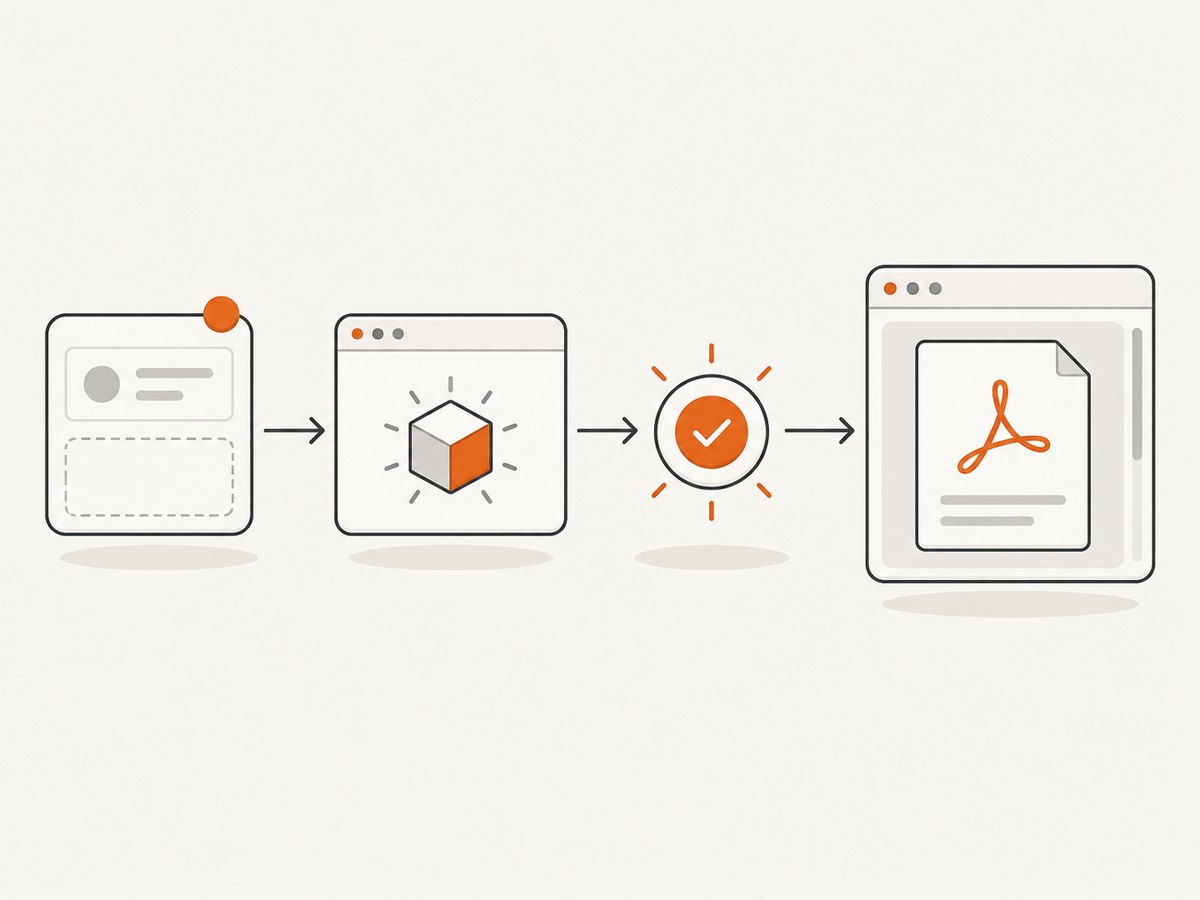
Short answer: register an Adobe PDF Embed API client ID for the domain that serves your React app, load Adobe’s viewer SDK once, wait for adobe_dc_view_sdk.ready, render a container, create AdobeDC.View, and call previewFile with the PDF URL and filename. Keep SDK loading and event registration outside ordinary render work so React re-renders do not create duplicate viewers.
Adobe describes PDF Embed API as free to use. The API is a browser JavaScript API rather than a React package, so the React integration is a lifecycle adaptation of Adobe’s documented JavaScript sequence. The official documentation also provides React samples and current browser support details.
What you need before writing React code
- Create an Adobe PDF Embed API credential and copy its client ID. Adobe requires a client ID for the API.
- Register every serving domain used by the application, including the deployed production hostname and the hostname used for development. The domain must match the page that initializes the viewer.
- Make the PDF available to the browser. For a URL-based preview, the browser must be able to request the URL. If the document is protected, use an application-controlled URL or pass a file promise instead of exposing permanent public storage.
- Choose an embed mode: Full Window, Sized Container, Inline, or Lightbox. The right choice depends on whether the PDF is the page’s main task or one panel inside a larger interface.
See Adobe’s PDF Embed API overview and getting-started guide for the credential workflow and current support information.
Minimal React integration
The component below loads the SDK once, waits for its ready event, initializes only after the host element exists, and destroys the local event listener during unmount. It uses a URL-backed PDF, which is the simplest production starting point.
import { useEffect, useRef } from 'react';

const ADOBE_CLIENT_ID = import.meta.env.VITE_ADOBE_PDF_CLIENT_ID;
const PDF_URL = 'https://example.com/documents/guide.pdf';

export default function PdfViewer() {
  const viewerRef = useRef(null);
  const initializedRef = useRef(false);

  useEffect(() => {
    if (!ADOBE_CLIENT_ID) {
      console.error('Missing VITE_ADOBE_PDF_CLIENT_ID');
      return;
    }

    let cancelled = false;
    let script = document.querySelector('script[data-adobe-pdf-sdk]');

    const initialize = () => {
      if (cancelled || initializedRef.current || !viewerRef.current) return;
      if (!window.AdobeDC) return;

      initializedRef.current = true;
      const view = new window.AdobeDC.View({
        clientId: ADOBE_CLIENT_ID,
        divId: viewerRef.current.id
      });

      view.previewFile(
        {
          content: { location: { url: PDF_URL } },
          metaData: { fileName: 'guide.pdf' }
        },
        {
          embedMode: 'SIZED_CONTAINER',
          showDownloadPDF: true,
          showPrintPDF: true,
          showAnnotationTools: true,
          showFillSign: true,
          defaultViewMode: 'FIT_PAGE',
          defaultViewMode: 'FIT_WIDTH'
        }
      );
    };

    window.addEventListener('adobe_dc_view_sdk.ready', initialize);

    if (window.AdobeDC) {
      initialize();
    } else if (!script) {
      script = document.createElement('script');
      script.src = 'https://acrobatservices.adobe.com/view-sdk/viewer.js';
      script.async = true;
      script.dataset.adobePdfSdk = 'true';
      document.head.appendChild(script);
    }

    return () => {
      cancelled = true;
      window.removeEventListener('adobe_dc_view_sdk.ready', initialize);
    };
  }, []);

  return (
    <div
      id='adobe-pdf-viewer'
      ref={viewerRef}
      style={{ width: '100%', minHeight: 720 }}
      aria-label='PDF viewer'
    />
  );
}
Replace example.com with a URL your application can serve and set VITE_ADOBE_PDF_CLIENT_ID in the environment used to build the app. Do not put a secret server credential in browser code; the PDF Embed client ID is intended to be used by the browser and is restricted through registered domains.
The example shows both FIT_PAGE and FIT_WIDTH to make the alternatives visible. Keep only one in the real configuration; the later property would win in a JavaScript object. A cleaner version is:
const viewerConfig = {
  embedMode: 'SIZED_CONTAINER',
  defaultViewMode: 'FIT_WIDTH',
  showDownloadPDF: true,
  showPrintPDF: false,
  showAnnotationTools: false,
  showFillSign: true
};
How the React lifecycle works
- Render the host: React creates the element identified by
divId. The SDK cannot initialize against an element that has not been mounted. - Load the SDK once: avoid appending a new script every time a component renders. The
data-adobe-pdf-sdkmarker lets multiple instances share one script tag. - Wait for readiness: Adobe’s documented browser flow uses the
adobe_dc_view_sdk.readyevent. The immediatewindow.AdobeDCcheck handles the case where the script was already loaded. - Initialize once per host: React Strict Mode can run effects more than once during development. The cancellation flag and ref prevent a stale effect from creating another viewer.
- Clean up listeners: remove listeners added by the component when it unmounts. If your app changes PDFs frequently, prefer a stable viewer component and update the preview deliberately rather than remounting it for every render.
This lifecycle pattern is an implementation approach for React; Adobe’s core documentation describes the framework-neutral SDK sequence.
Supplying PDF content and metadata
PDF by URL
view.previewFile(
  {
    content: { location: { url: 'https://cdn.example.com/report.pdf' } },
    metaData: { fileName: 'report.pdf' }
  },
  { embedMode: 'IN_LINE' }
);
PDF from an ArrayBuffer or Blob
Use a file promise when your application fetches bytes itself, for example after checking a session. The exact promise wiring should follow the current Adobe How Tos documentation because the SDK expects its file-promise interface rather than an arbitrary Blob object.
const response = await fetch('/api/reports/quarterly.pdf', {
  credentials: 'include'
});
if (!response.ok) throw new Error(`PDF request failed: ${response.status}`);
const bytes = await response.arrayBuffer();

const filePromise = {
  promise: () => Promise.resolve(bytes)
};

view.previewFile(
  {
    content: { promise: filePromise },
    metaData: { fileName: 'quarterly-report.pdf' }
  },
  { embedMode: 'SIZED_CONTAINER' }
);
Verify the current file-promise shape in Adobe’s documentation before shipping this variant. The URL form is less application code and is usually easier to diagnose.
Choose an embed mode
| Mode | Use it when | Layout consideration |
|---|---|---|
| Full Window | The PDF is the primary task for the page. | Give the viewer the available page area. |
| Sized Container | The viewer belongs in a dashboard, detail page, or split layout. | Give the host a predictable width and height. |
| Inline | The document should flow as part of page content. | Reserve enough vertical space to avoid layout jumps. |
| Lightbox | The document opens on demand from a button or link. | Provide an obvious close action and preserve keyboard focus. |
Adobe documents these four modes and configuration options for page view, zoom controls, download and print visibility, annotation tools, and form filling. Hiding a download button is a user-interface choice, not access control: protect the underlying PDF URL or server endpoint separately.
Useful viewer configuration
const config = {
  embedMode: 'SIZED_CONTAINER',
  defaultViewMode: 'FIT_PAGE',
  showZoomControl: true,
  showDownloadPDF: false,
  showPrintPDF: false,
  showAnnotationTools: true,
  showFillSign: true
};- Use
FIT_PAGEwhen seeing the whole page matters; useFIT_WIDTHfor text-heavy documents. - Keep download and print enabled when users need an offline copy or a paper workflow.
- Enable annotation and form tools only when they are part of the product task.
- Give the host a minimum height on narrow screens so the viewer does not collapse during initialization.
Events, analytics, and failure handling
Adobe provides callbacks for viewer and file-preview events, including viewer readiness, rendering start, first-page rendering completion, rendering failure, page views, and document downloads. Register only the events your product needs and send them to your own analytics layer with a document identifier that does not expose sensitive content.
view.registerCallback(
  window.AdobeDC.View.Enum.CallbackType.EVENT_LISTENER,
  (event) => {
    if (event.type === 'DOCUMENT_LOAD_FAILURE') {
      console.error('PDF failed to render', event);
    }
    if (event.type === 'PAGE_VIEW') {
      analytics.track('pdf_page_view', { page: event.data?.pageNumber });
    }
  },
  { enablePDFAnalytics: true }
);
Adobe documents sendAutoPDFAnalytics as enabled by default for the integrations described in its data guidance. Set it to false when your consent model or analytics policy requires disabling automatic collection, and choose event integrations deliberately.
Browser support and mobile behavior
Adobe’s current getting-started documentation lists current Edge, Chrome, and Firefox on Windows; Safari, Chrome, Edge, and Firefox on macOS; Chrome on Android; and Safari and Chrome on iOS. Browser support changes, so check the current Adobe page before committing to a support matrix. Adobe also notes that annotation tools are unsupported on phones in Full Window mode. Test touch scrolling, orientation changes, keyboard navigation, and download behavior on the mobile browsers your users actually use.
Production checklist
- Register the exact production hostname with the client ID.
- Serve the app and PDF over HTTPS.
- Return the correct PDF content type and status code.
- Make authenticated PDF requests explicit with cookies or application-controlled fetches.
- Use a stable container ID when more than one viewer can appear on a route.
- Record rendering failures without logging document contents or access tokens.
- Decide whether automatic PDF analytics fits your consent requirements.
- Set a minimum viewer height and test slow networks.
- Check downloads, printing, forms, and annotations separately; each is a distinct user path.
Common errors and fixes
| Symptom | Likely cause | Fix |
|---|---|---|
| Viewer stays blank | SDK was initialized before the host existed, or the ready event was missed. | Initialize inside an effect after rendering the host and handle both the ready event and an already-loaded SDK. |
| Client ID or domain error | The deployed hostname is not registered for the client ID. | Add the exact hostname in Adobe’s credential workflow and redeploy. |
| PDF request fails | The URL returns an error, requires credentials, or cannot be fetched by the browser. | Inspect the request in browser developer tools, verify status and content type, and use a server-controlled fetch or file promise when authentication is required. |
| Duplicate viewers or repeated events | A script or global listener was registered on every render. | Use an empty dependency array, a shared script marker, a ready guard, and cleanup. |
| Viewer has no usable height | The container is sized by content that has not rendered yet. | Set an explicit height or minimum height on the host and its layout parents. |
| Annotations missing on a phone | Full Window annotation tools are unsupported on phones. | Use a supported desktop flow or provide a separate mobile experience. |

Performance, reliability, and cost
Load the SDK once per page session and avoid remounting the viewer when unrelated React state changes. Lazy-load the viewer on routes where a PDF is actually needed. Keep PDF URLs cacheable where policy allows, but do not cache private documents in a shared cache. For large files, measure time to first page separately from total download time and show a loading state.
Reliability depends on the PDF request, the registered domain, browser support, and the viewer lifecycle. Treat rendering failure as a normal state with a retry or alternate-download path. Adobe describes the PDF Embed API as free to use; confirm current account and credential terms in Adobe’s workflow because that statement does not make every Adobe document service free.
Or skip the browser setup
If your goal is to create screenshots or PDFs of a page rather than embed an interactive PDF viewer, ScreenshotNeo provides a single API request. Cookie banners, newsletter popups, and chat widgets are removed before the shot; bot checks, blank pages, timeouts, failed loads, and cache hits are not billed. An MCP server lets AI agents take screenshots, and the Free plan includes 1,000 screenshots a month with no card; paid plans start at $5 for 3,000 shots. See the ScreenshotNeo API documentation.
curl -G 'https://api.screenshotneo.com/v1/shot' \
  -d access_key=YOUR_API_KEY \
  --data-urlencode url=https://example.com/report \
  -o report.webp
import requests
r = requests.get(
'https://api.screenshotneo.com/v1/shot',
params={'access_key': 'YOUR_API_KEY', 'url': 'https://example.com/report'},
timeout=90,
)
r.raise_for_status()
open('report.webp', 'wb').write(r.content)const q = new URLSearchParams({
access_key: 'YOUR_API_KEY',
url: 'https://example.com/report'
});
const res = await fetch(`https://api.screenshotneo.com/v1/shot?${q}`);
if (!res.ok) throw new Error(`Screenshot failed: ${res.status}`);
const image = Buffer.from(await res.arrayBuffer());
await import('node:fs/promises').then(fs => fs.writeFile('report.webp', image));Create a free ScreenshotNeo account with 1,000 screenshots per month and no card required.
FAQ
Is there an official React package?
The core integration uses Adobe’s browser JavaScript SDK. Adobe provides React samples, but the lifecycle-safe component pattern above is an application implementation rather than a required Adobe package.
Can I hide the download button to protect a PDF?
You can hide the control, but the setting is not a security boundary. Protect the document URL or bytes in your application.
Why does local development work while production fails?
The production hostname may not be registered for the client ID. Register and test each actual serving domain.
Should every viewer event go to analytics?
No. Select the events and automatic integrations that match your product and consent requirements.
When should I use ScreenshotNeo instead?
Use it when you need a rendered image or PDF of a web page and do not need an interactive in-page PDF viewer.


