How to Use the Adobe PDF Embed API: Demo and Setup
Embed a PDF with Adobe PDF Embed API: get a client ID, run working code, choose modes, handle mobile limits, and fix common errors.
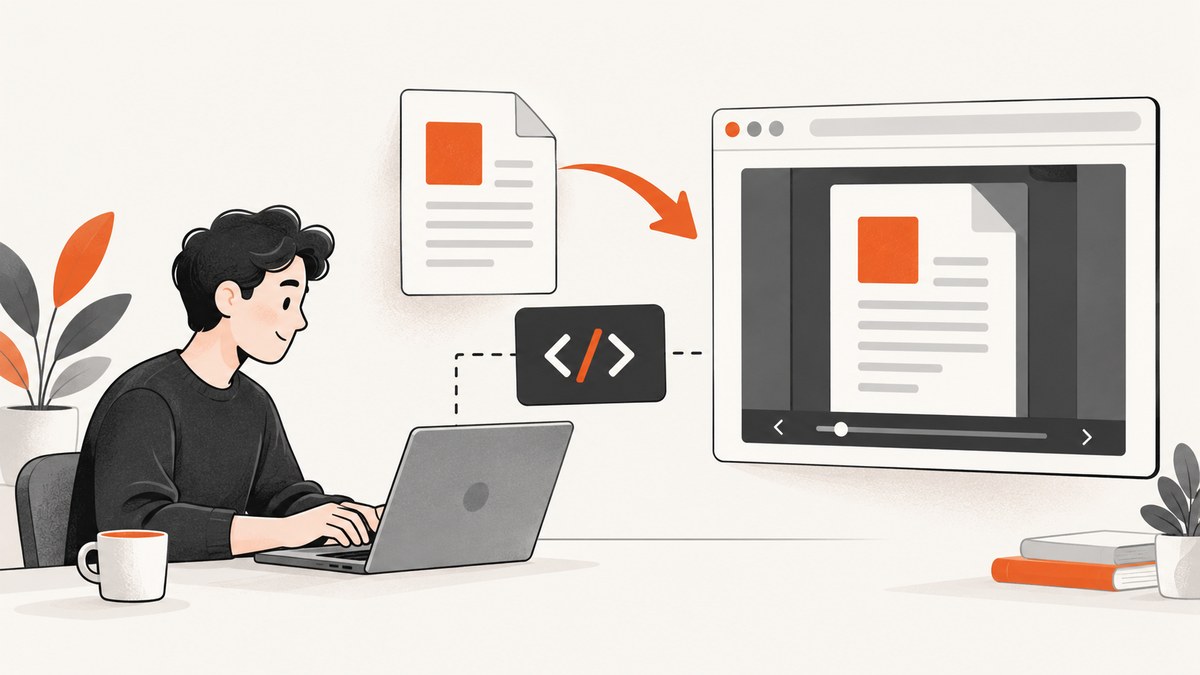
Short answer: Register your site for an Adobe client ID, load the viewer SDK, add a container, wait for adobe_dc_view_sdk.ready, create AdobeDC.View, then call previewFile with a PDF URL or file promise and a file name.
Adobe’s quick start requires no special environment setup. The client ID is checked against the domain serving the page, so a domain mismatch prevents preview. See the Adobe PDF Embed API documentation.
Prerequisites
- Register the website domain and copy its client ID.
- Provide a browser-readable PDF URL, or code that returns an
ArrayBuffer. - Choose a file name; Adobe requires
metaData.fileName.
Adobe’s online demo can configure the viewer and generate starter code. Its ready-to-run samples help confirm that a PDF renders before you integrate it.
Minimal working embed
Save this as index.html, replace the placeholders, and serve it from the registered domain.
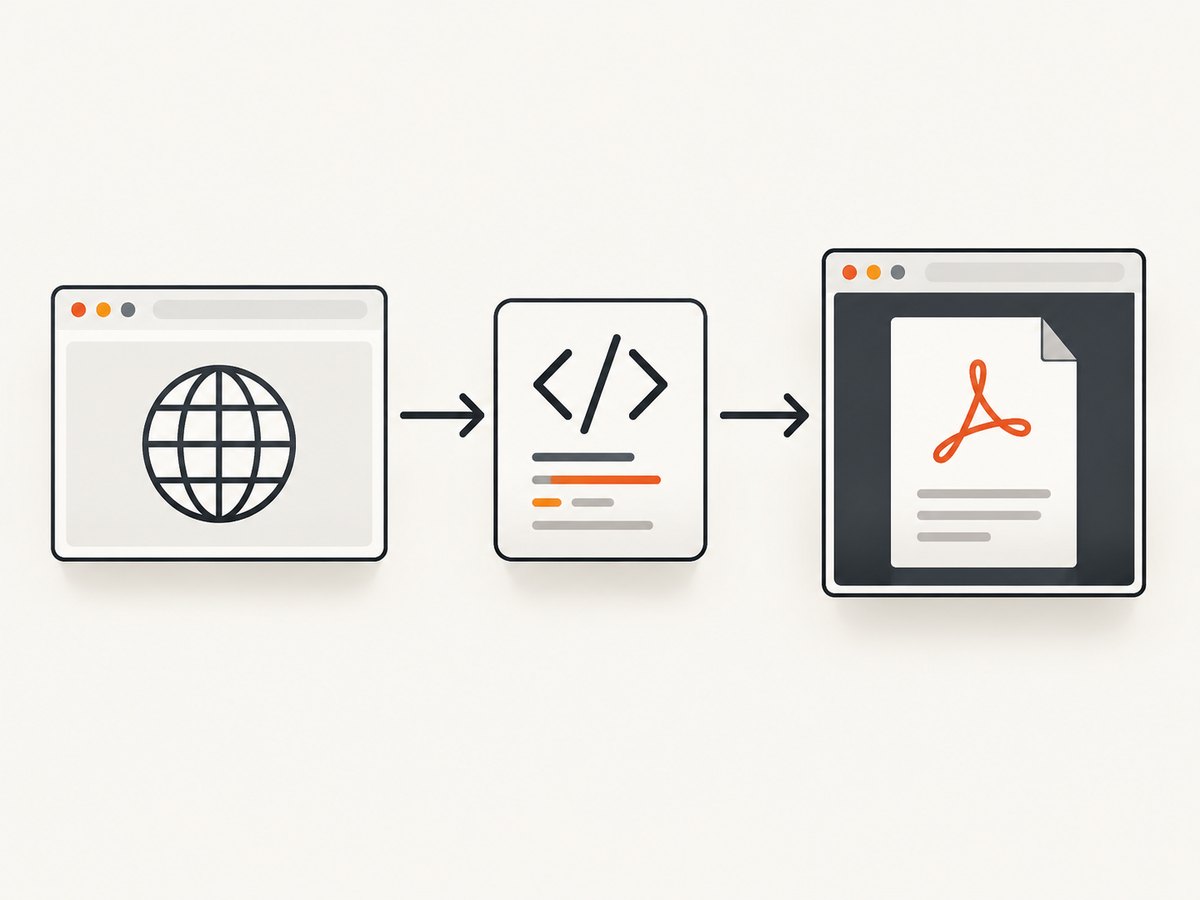
<!doctype html>
<html lang='en'>
<head>
  <meta charset='utf-8'>
  <meta name='viewport' content='width=device-width, initial-scale=1'>
  <title>PDF viewer</title>
  <style>#adobe-dc-view { width: 100%; height: 720px; }</style>
</head>
<body>
  <div id='adobe-dc-view'></div>
  <script src='https://acrobatservices.adobe.com/view-sdk/viewer.js'></script>
  <script>
    document.addEventListener('adobe_dc_view_sdk.ready', function () {
      const view = new AdobeDC.View({clientId: 'YOUR_CLIENT_ID', divId: 'adobe-dc-view'});
      view.previewFile({
        content: { location: { url: 'https://example.com/path/file.pdf' } },
        metaData: { fileName: 'file.pdf' }
      }, { embedMode: 'SIZED_CONTAINER' });
    });
  </script>
</body>
</html>
Keep the listener, SDK script, container, AdobeDC.View, and previewFile together. The PDF URL must be reachable by the browser.
Choose an embed mode
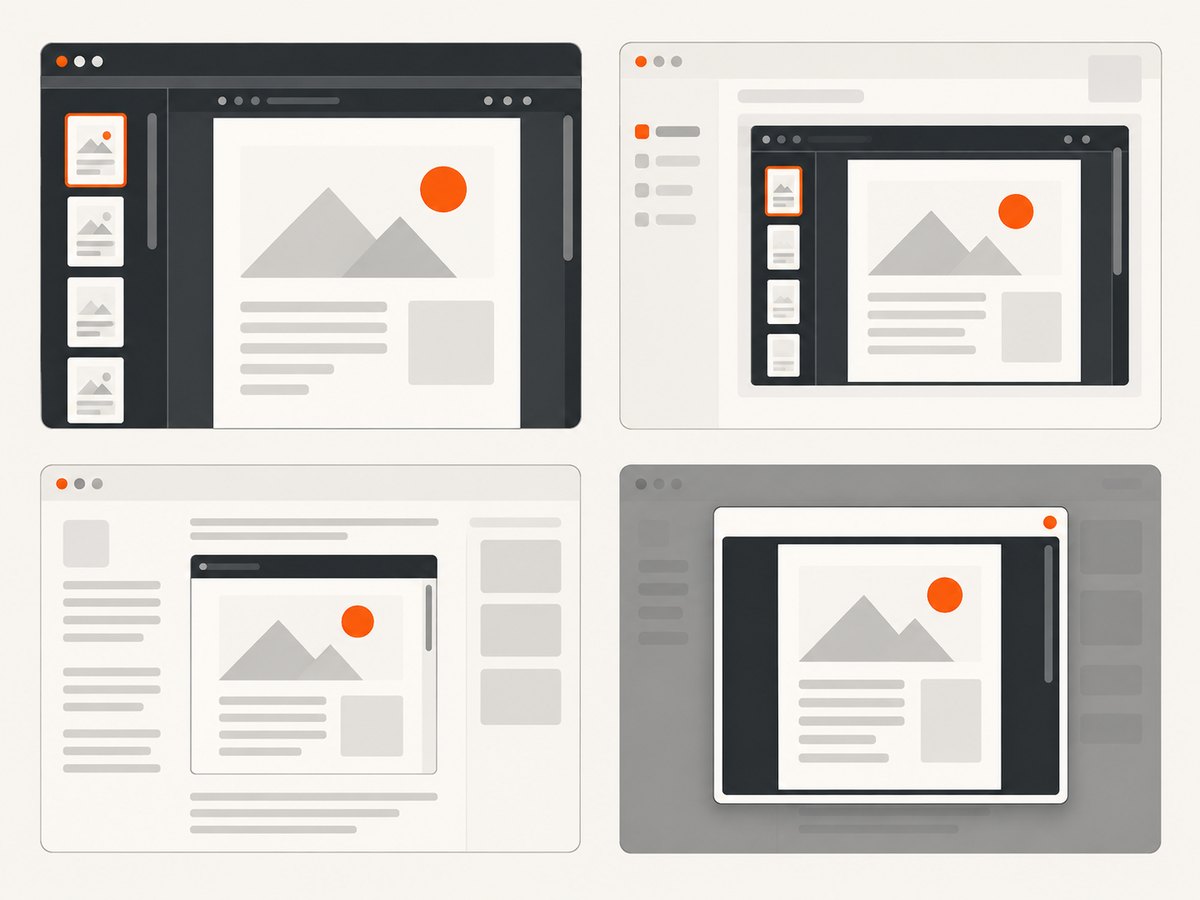
| Mode | Layout | Best fit |
|---|---|---|
FULL_WINDOW |
Fills the viewing area | The PDF is the primary screen. |
SIZED_CONTAINER |
Bounded box | Dashboards and predictable layouts; set width and height. |
IN_LINE |
Pages flow with surrounding content | Whitepapers, brochures, ebooks, and reading pages. |
LIGHT_BOX |
Foreground overlay | Open a document without leaving the page. |
Change embedMode to match the layout. A sized container needs a non-zero CSS height; inline viewers need space for the document’s pages.
Controls and options
Adobe documents options for download, print, annotation, full screen, search, and forms. Form filling is enabled by default and can be disabled.
view.previewFile(fileConfig, {
  embedMode: 'SIZED_CONTAINER',
  showDownloadPDF: true,
  showPrintPDF: true,
  showAnnotationTools: true,
  showFullScreen: true,
  showSearch: true,
  enableFormFilling: false
});
Private PDFs and file promises
Pass a promise resolving to an ArrayBuffer when the document is private. If URL and promise are both supplied, Adobe uses the promise and ignores the URL.
const filePromise = fetch('/api/report.pdf').then(r => {
  if (!r.ok) throw new Error(`PDF request failed: ${r.status}`);
  return r.arrayBuffer();
});
view.previewFile({content: {promise: filePromise}, metaData: {fileName: 'report.pdf'}});
Keep authorization on your server; do not place long-lived secrets in a page URL.
Test the source with cURL, Python, and Node.js
These snippets validate the PDF response before you debug the viewer.
cURL
curl -I -L 'https://example.com/path/file.pdf'Python
import requests
r = requests.get('https://example.com/path/file.pdf', timeout=30)
r.raise_for_status()
open('file.pdf', 'wb').write(r.content)
print(r.headers.get('content-type'))
Node.js
const fs = require('node:fs/promises');
const res = await fetch('https://example.com/path/file.pdf');
if (!res.ok) throw new Error(`PDF request failed: ${res.status}`);
await fs.writeFile('file.pdf', Buffer.from(await res.arrayBuffer()));
Domain, CORS, and browser support
- Register the exact hostname used in production; staging and localhost may need their own registration.
- Test through a web server, not only
file://. - The browser must be permitted to request the PDF. Configure the PDF host for required cross-origin requests or proxy it through your origin.
- Watch SDK, PDF, redirect, and CORS requests separately in DevTools.
Adobe lists latest versions of Edge, Chrome, and Firefox on Windows; Safari, Chrome, Edge, and Firefox on macOS; Chrome on Android; and Safari and Chrome on iOS. Check Adobe’s current matrix when browser support is contractual.
Mobile limitations
- Annotation tools are not supported on phones in
FULL_WINDOW; Adobe documents them for Android and iOS tablets. - Print is unsupported on mobile.
- PDF download is unsupported on iOS and supported on Android.
Troubleshooting
| Symptom | Cause | Fix |
|---|---|---|
| Blank viewer or invalid client ID | ID is wrong or belongs to another domain. | Copy it again and register the exact serving domain. |
| Ready event never fires | SDK failed to load or listener ran too late. | Check the SDK request, attach the listener before initialization, and review content-security rules. |
| 401/403 or HTML instead of PDF | Authentication, redirect, or permission failure. | Use an authorized URL or fetch server-side and pass a promise. |
| Metadata error | Missing file name. | Set metaData.fileName, such as report.pdf. |
| Viewer has no height | Container height is zero. | Set CSS height on #adobe-dc-view. |
| Works locally, fails in production | Production hostname is unregistered. | Register and retest the deployed URL. |
| Mobile controls missing | Documented mobile limitation or disabled option. | Use a supported tablet flow or offer a separate action. |
Performance and reliability checklist
- Use a nearby, cacheable URL for public PDFs.
- Fetch private files once and pass the resulting bytes.
- Show loading and error states around the container.
- Keep file names meaningful and stable.
- Test every mode at desktop and phone widths.
Or skip the browser setup
For a clean image or PDF of a web page, ScreenshotNeo uses one request. It removes cookie and consent banners, newsletter popups, and chat widgets before capture. Bot checks, blank pages, failed loads, timeouts, and cache hits are not billed; X-Page-Verdict and X-Billed identify the result. Its MCP server gives Claude, Cursor, and other MCP clients take_screenshot, get_page_info, and capture_pdf.
See the ScreenshotNeo API docs:
curl -G 'https://api.screenshotneo.com/v1/shot' -d access_key=YOUR_API_KEY --data-urlencode url=https://developer.adobe.com/document-services/docs/overview/pdf-embed-api/ -o shot.webpimport requests
r = requests.get('https://api.screenshotneo.com/v1/shot', params={'access_key': 'YOUR_API_KEY', 'url': 'https://developer.adobe.com/document-services/docs/overview/pdf-embed-api/'}, timeout=90)
open('shot.webp', 'wb').write(r.content)const q = new URLSearchParams({ access_key: 'YOUR_API_KEY', url: 'https://developer.adobe.com/document-services/docs/overview/pdf-embed-api/' });
const res = await fetch(`https://api.screenshotneo.com/v1/shot?${q}`);1,000 screenshots a month are free with no card. Paid plans start at $5 for 3,000 shots. Create a free ScreenshotNeo account.
Cost notes
Adobe describes the PDF Embed API as free to use. Your own costs can include PDF hosting, bandwidth, authentication, and browser infrastructure. ScreenshotNeo plans are Free (1,000 shots/month), Starter $5/3,000, Growth $15/15,000, Pro $39/60, Scale $99/250,000, and Business $249/1,000,000; yearly billing gives two months free and every feature is on every plan.
FAQ
Can a private server PDF be embedded?
Yes. Fetch it in your application and pass a promise resolving to an ArrayBuffer.
Do I need React or a bundler?
No. Plain HTML and JavaScript are enough.
Which mode suits a whitepaper?
Adobe describes IN_LINE for whitepapers, brochures, ebooks, and similar reading.
Why does staging reject my client ID?
The ID is validated against the registered domain. Register the staging hostname or use the registered domain.


