Adobe PDF Services API Limits
Understand Adobe PDF Services API quotas, transaction counting, file and page limits, rate limits, and how to design reliable workloads.
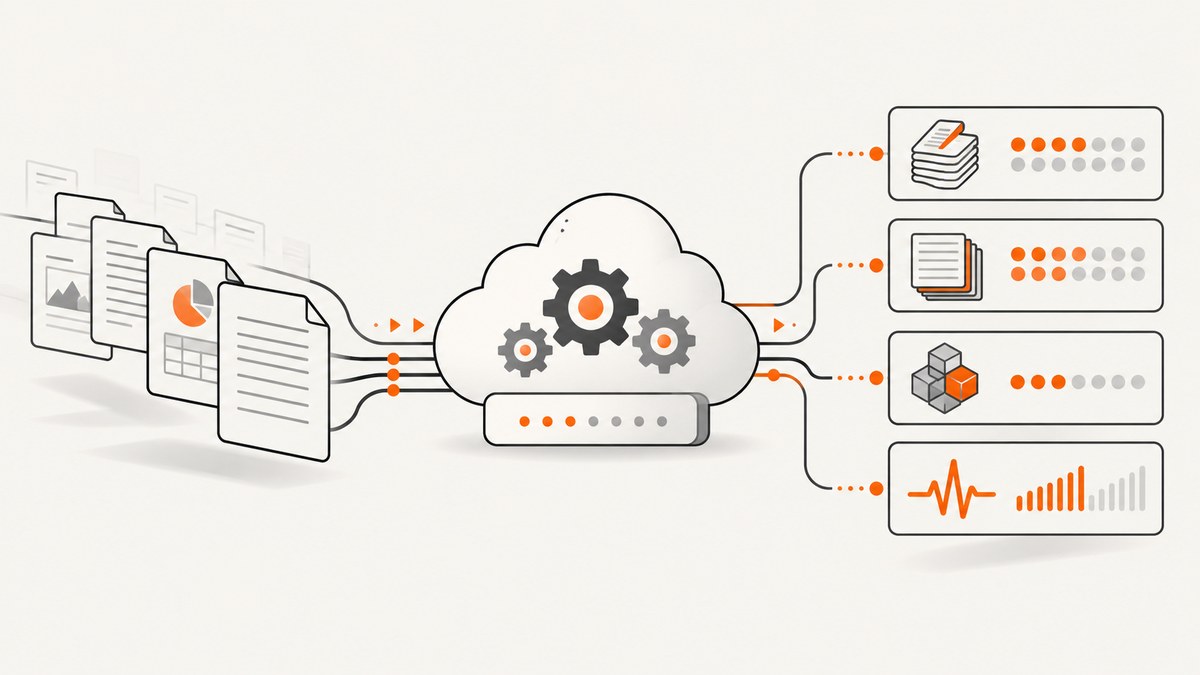
Adobe PDF Services API limits depend on the operation, document type, output size, plan and request rate. The current Free Tier includes 500 Document Transactions per month. The published document-size limit is 100 MB, with a request rate of 25 requests per minute for Free Tier and 100 requests per minute for Enterprise. Operation-specific page and transaction rules can reduce practical capacity, especially for scanned PDFs and documents with complex tables.
Adobe states that files exceeding a published usage limit fail with an error. Design your workload around the exact operation limits rather than assuming that one file, one page or one API call always equals one transaction. See Adobe’s Licensing and Usage Limits page before production rollout.
What counts as an Adobe PDF Services Document Transaction?
A Document Transaction is Adobe’s usage unit. The count is determined by the operation and its output, so it is not interchangeable with page count or uploaded-file count.
| Operation or workflow | Published transaction rule or limit | Planning implication |
|---|---|---|
| Most operations | Generally one transaction per document, up to 50 pages | Check the operation row and page cap before batching. |
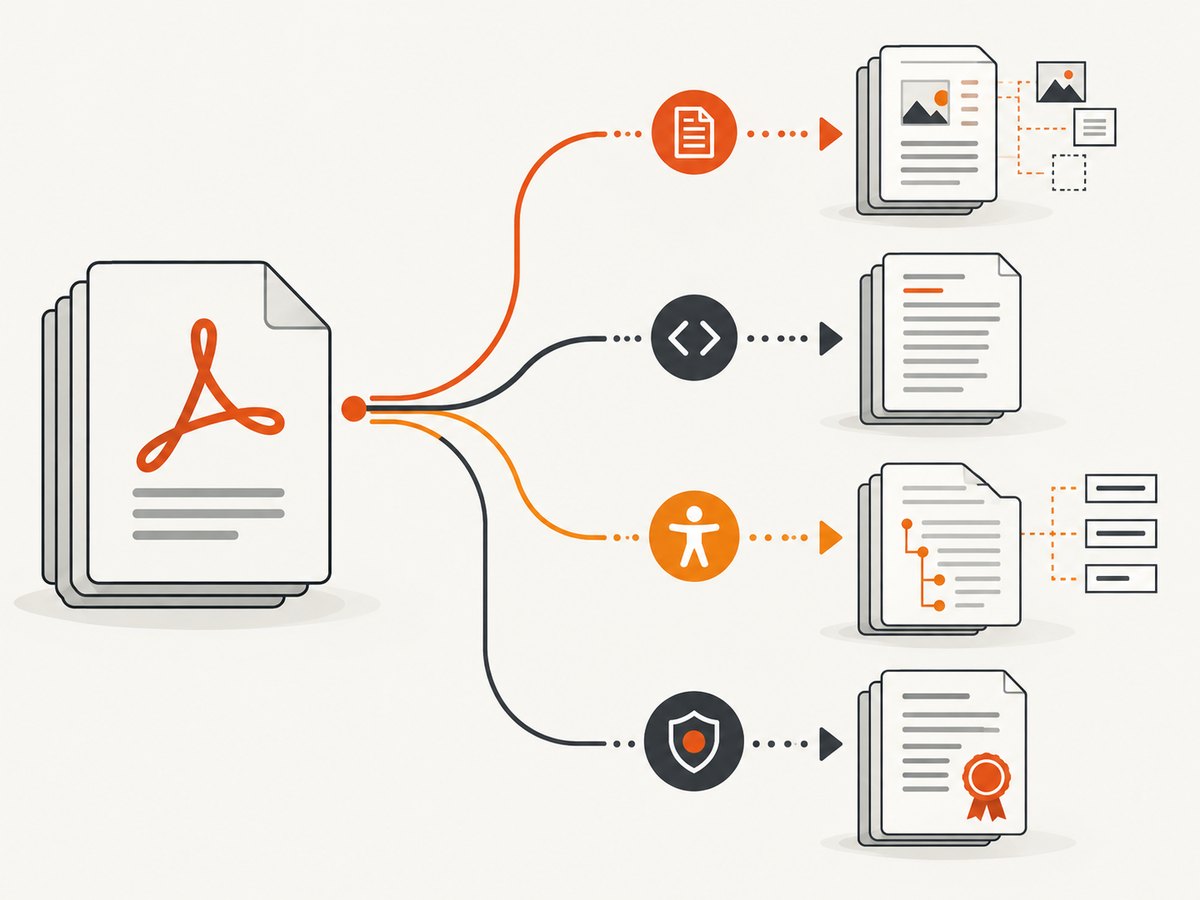
| Extract PDF content | One transaction per up to five pages | A 20-page document can consume four transactions. |
| PDF to Markdown | One transaction per up to five pages | Splitting files changes request shape, but not the five-page accounting rule. |
| Accessibility Auto-Tag | Ten transactions per page | Even a small document can consume quota quickly. |
| Electronic Seal | Ten transactions per PDF | Calculate seals separately from other operations. |
If a workflow runs several operations, each operation consumes its own transactions. For example, extracting a PDF and then auto-tagging it produces separate usage for both steps.
Free Tier quota and monthly reset
- Quota: 500 Document Transactions per month.
- Reset: Adobe’s example describes the quota resetting on the first day of the next month.
- Overage planning: Do not assume that paid capacity is a fixed public number. Adobe’s paid materials direct buyers to volume and support discussions.
Estimate quota by operation before choosing a plan. A workload that processes 100 ordinary PDFs may fit within 500 transactions, while Extract, PDF to Markdown, Accessibility Auto-Tag or Electronic Seal can multiply usage substantially.
Request-rate limits
| Plan | Published rate |
|---|---|
| Free Tier | 25 requests per minute (RPM) |
| Enterprise | 100 RPM |
| ETLA or other negotiated arrangements | Adobe invites customers to discuss higher capacity; no universal ceiling is published. |
RPM is a request-rate constraint, not a transaction allowance. A single request can consume multiple transactions, and a burst that stays below the monthly quota can still exceed RPM. Use a queue, cap concurrency and apply exponential backoff for throttling responses.
File-size, page and payload limits
- Document size: 100 MB.
- Combine, Insert, Replace and Split: up to 20 documents.
- Export: up to 50 output images per Document Transaction.
- Extract and PDF to Markdown: up to 400 pages for non-scanned documents.
- Accessibility Auto-Tag: up to 200 pages.
- Scanned Extract, PDF to Markdown and Auto-Tag: up to 150 pages.
- JSON input: 10 MB for Document Generation, HTML to PDF and Import PDFForm.
Adobe cautions that page limits may be lower for documents containing many tables. A file can be below 100 MB and still fail because of page count, operation-specific limits, request rate or document complexity.
Scanned PDFs and extraction quality
Adobe’s Extract documentation sets a 150-page limit for scanned PDFs and 400 pages for non-scanned PDFs, with lower effective limits possible for many-table documents. Extraction quality depends on the source scan. Skew, shadows, obscured or overlapping fonts and resolution below 200 DPI can reduce the quality of the result.
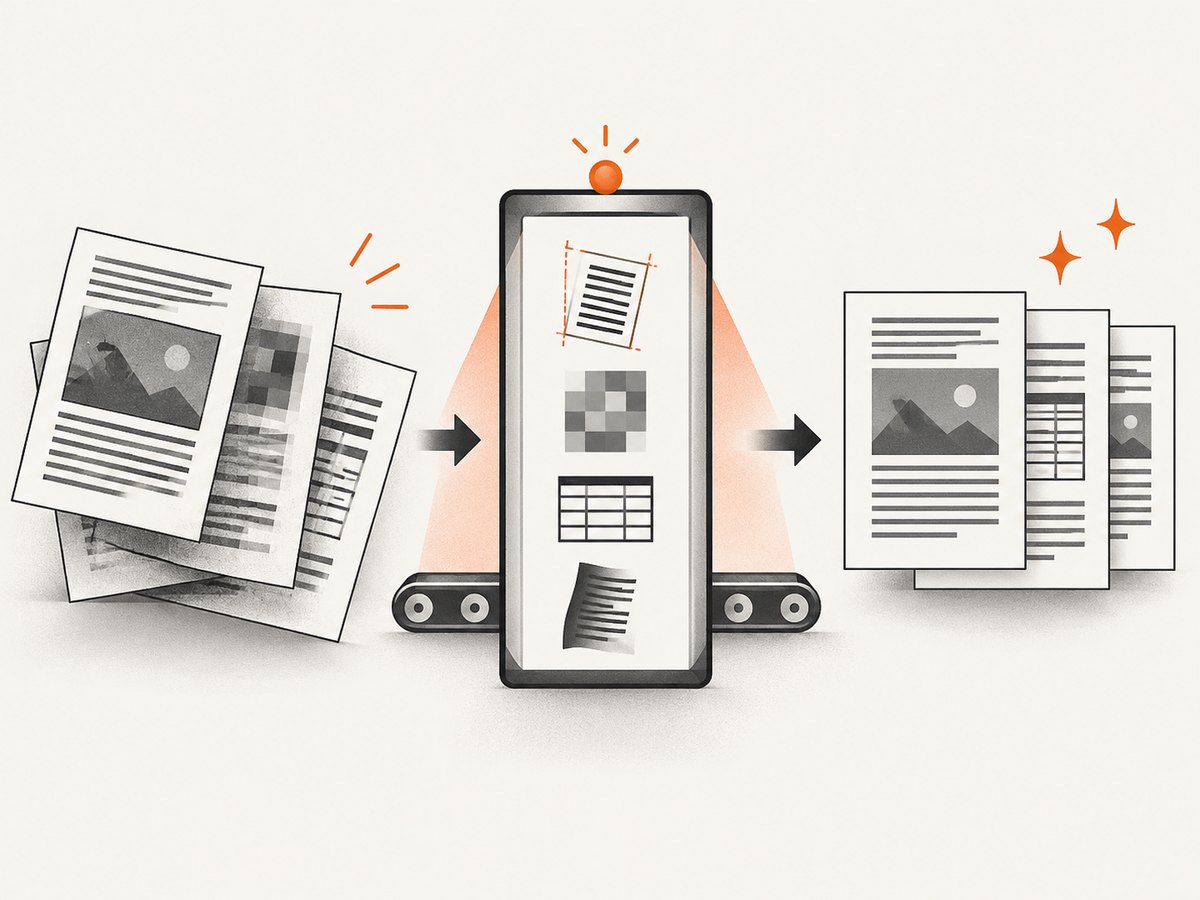
Other source characteristics can affect extraction: page dimensions, hidden objects, language, unsupported XFA or fillable-form elements, document permissions and annotations. Split large or complex files before processing when practical, and preserve the original page order in your own job metadata.
How to calculate expected transactions
Python calculator
from math import ceil

# Replace these values with your planned workload.
extract_pages = 120
markdown_pages = 0
auto_tag_pages = 8
sealed_pdfs = 2
ordinary_documents = 10

transactions = 0
transactions += ceil(extract_pages / 5)
transactions += ceil(markdown_pages / 5)
transactions += auto_tag_pages * 10
transactions += sealed_pdfs * 10
transactions += ordinary_documents

print(f"Estimated Document Transactions: {transactions}")
print(f"Free Tier remaining: {max(0, 500 - transactions)}")
Node.js calculator
const extractPages = 120;
const markdownPages = 0;
const autoTagPages = 8;
const sealedPdfs = 2;
const ordinaryDocuments = 10;

const transactions =
  Math.ceil(extractPages / 5) +
  Math.ceil(markdownPages / 5) +
  autoTagPages * 10 +
  sealedPdfs * 10 +
  ordinaryDocuments;

console.log(`Estimated Document Transactions: ${transactions}`);
console.log(`Free Tier remaining: ${Math.max(0, 500 - transactions)}`);
Shell calculation
extract_pages=120
markdown_pages=0
auto_tag_pages=8
sealed_pdfs=2
ordinary_documents=10

extract_tx=$(( (extract_pages + 4) / 5 ))
markdown_tx=$(( (markdown_pages + 4) / 5 ))
total=$(( extract_tx + markdown_tx + auto_tag_pages * 10 + sealed_pdfs * 10 + ordinary_documents ))
printf 'Estimated Document Transactions: %s\n' "$total"
These calculators model the published counting rules; they do not call Adobe and cannot predict unpublished negotiated limits.
Designing around the limits
- Classify every operation. Record the endpoint, input pages, scanned status and expected output.
- Calculate transactions before submission. Include every operation in a multi-step pipeline.
- Split deliberately. Keep scanned files at or below 150 pages and non-scanned Extract or PDF-to-Markdown inputs at or below 400 pages, with headroom for complex tables.
- Throttle requests. Keep Free Tier traffic under 25 RPM and Enterprise traffic under 100 RPM. Smooth bursts through a queue.
- Retry safely. Retry transient transport or throttling failures with exponential backoff and jitter. Do not blindly retry validation failures.
- Track usage by operation. Store document ID, page count, scan status, operation, transaction estimate, response status and retry count.
- Choose the processing region. Adobe documents the US as the default processing region and Ireland as an available European region; verify regional requirements alongside limits.
Common errors and fixes
| Symptom | Likely cause | Fix |
|---|---|---|
| Limit or validation error before processing | File exceeds 100 MB, page, JSON or operation limit. | Check the operation-specific row, compress or split the input, and reduce payload size. |
| Throttling or rate-limit response | More than 25 RPM on Free Tier or 100 RPM on Enterprise, or a short burst. | Queue requests, reduce concurrency and retry with exponential backoff. |
| Quota exhausted | Monthly Document Transactions reached zero. | Inspect transaction multipliers, wait for the monthly reset or contact Adobe about paid capacity. |
| Extract output is incomplete or inaccurate | Poor scan quality, skew, shadows, overlapping fonts, low resolution, unsupported forms or complex tables. | Improve the source scan, preprocess pages, split complex documents and verify unsupported elements. |
| Unexpectedly high usage | Several operations ran on the same PDF, or a high-multiplier operation was used. | Log usage per operation and calculate each multiplier independently. |
Performance, reliability and cost notes
- Performance: Throughput is bounded by RPM and by the work inside each operation. Smaller, well-formed batches make queue sizing and retries easier.
- Reliability: Treat published limits as hard processing constraints. Validate size, page count, scan status and operation before uploading.
- Cost: The Free Tier is 500 transactions, not 500 files or 500 pages. Estimate the transaction cost of every pipeline step before comparing plans.
- Capacity planning: Adobe’s public materials describe paid volume and support paths but do not publish one universal paid transaction quota or negotiated ETLA ceiling.
If your workflow also needs website screenshots
ScreenshotNeo is a website screenshot API and MCP server. It is useful when a document workflow also needs a visual capture of a web page or rendered HTML. Cookie and consent banners, newsletter popups and chat widgets are removed before capture; bot checks, blank pages and failed loads are not billed; and an MCP server lets AI agents take screenshots.
Or skip the browser setup
One GET request returns a PNG, JPEG, WebP or PDF. See the ScreenshotNeo API documentation for the full option set.
curl -G "https://api.screenshotneo.com/v1/shot" -d access_key=YOUR_API_KEY --data-urlencode url=https://stripe.com -o shot.webpimport requests
r = requests.get("https://api.screenshotneo.com/v1/shot", params={"access_key": "YOUR_API_KEY", "url": "https://stripe.com"}, timeout=90)
open("shot.webp", "wb").write(r.content)const q = new URLSearchParams({ access_key: 'YOUR_API_KEY', url: 'https://stripe.com' });
const res = await fetch(`https://api.screenshotneo.com/v1/shot?${q}`);ScreenshotNeo includes 1,000 screenshots a month free with no card; paid plans start at $5 for 3,000. Create a free ScreenshotNeo account.
FAQ
What are the Adobe PDF Services API limits?
The main published limits are 500 Free Tier transactions per month, 100 MB per document, 25 RPM for Free Tier, 100 RPM for Enterprise and operation-specific page and transaction caps.
How many free PDF Services transactions do I get?
You get 500 Document Transactions per month, resetting on the first day of the next month according to Adobe’s example.
What is the maximum PDF file size?
The published document limit is 100 MB. Page, scan and operation limits still apply to smaller files.
Can I process a 400-page scanned PDF?
No. Scanned Extract, PDF to Markdown and Accessibility Auto-Tag inputs are limited to 150 pages, and complex tables may reduce practical limits further.
Does one API request always cost one transaction?
No. Extract and PDF to Markdown count one transaction per up to five pages, Accessibility Auto-Tag counts ten per page and Electronic Seal counts ten per PDF.
How do I get higher limits?
Enterprise is published at 100 RPM. Adobe also invites customers to discuss higher RPM or file-size limits under ETLA; the exact negotiated capacity is not public in the cited documentation.


