Why Adobe Print to PDF Stops Working and How to Fix It
Fix Adobe Print to PDF by identifying whether the failure is your printer, PDF, Acrobat installation, driver, or virtual PDF printer.
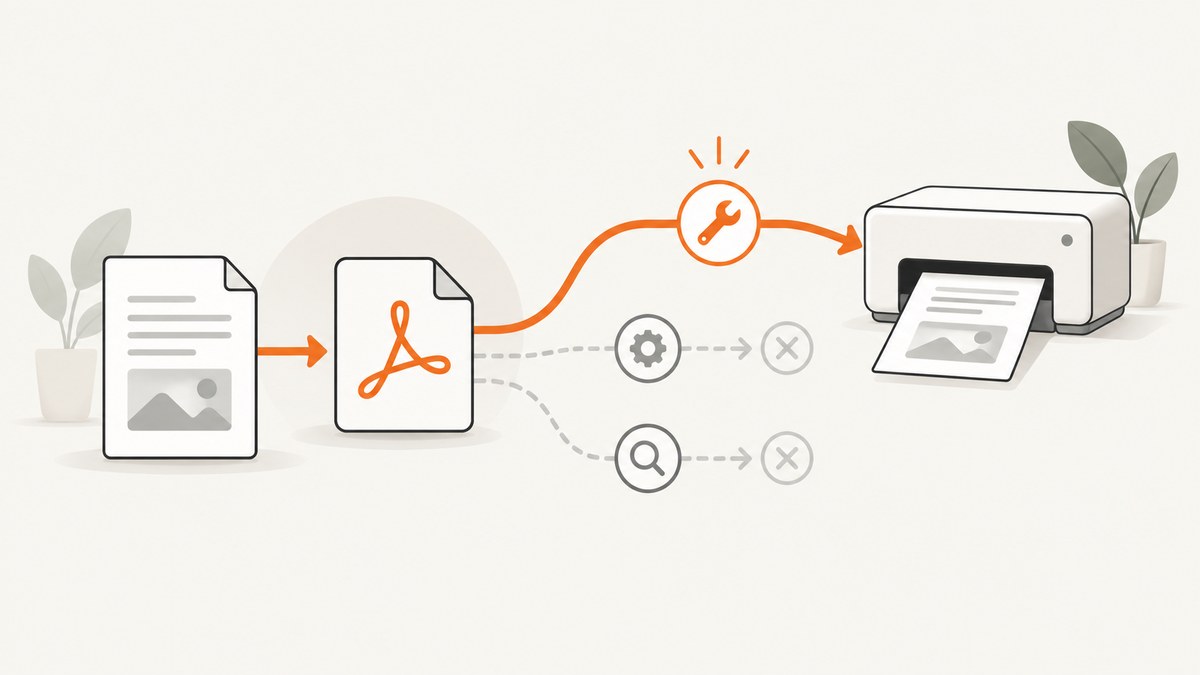
First identify what failed: are you printing an existing PDF on paper, creating a new PDF with Adobe PDF Printer or Save as Adobe PDF, or printing from the Acrobat browser extension? These are different workflows with different fixes.
For a physical printer, start with power, cable, driver, and a test print. If only one PDF fails, save a fresh local copy and try Print as Image. If Adobe PDF Printer is missing on Windows, repair Acrobat and restart Windows. On macOS, use Save as Adobe PDF in the system print dialog. If Microsoft Print to PDF freezes Acrobat, switch to Adobe PDF Printer.
Quick diagnosis
| Symptom | Likely layer | First action |
|---|---|---|
| Nothing comes out of a physical printer | Connection, queue, driver, or printer | Power-cycle the printer, check the cable, print another file, and install the exact model driver. |
| Only one PDF fails | Damaged PDF content, image, font, or page object | Save a new local copy, then try Print as Image. |
| Adobe PDF Printer is missing | Acrobat installation or Windows printer setup | Run Acrobat’s repair installation and restart. |
| Acrobat freezes with Microsoft Print to PDF | Complex conversion workload | Use Adobe PDF Printer for the conversion. |
| Printing fails only in a browser extension | Browser rendering or corrupt document content | Open the file in Acrobat desktop and print there. |
| PDF creation reports activation or license failure | Acrobat activation | Record the exact error and follow Adobe’s activation troubleshooting. |
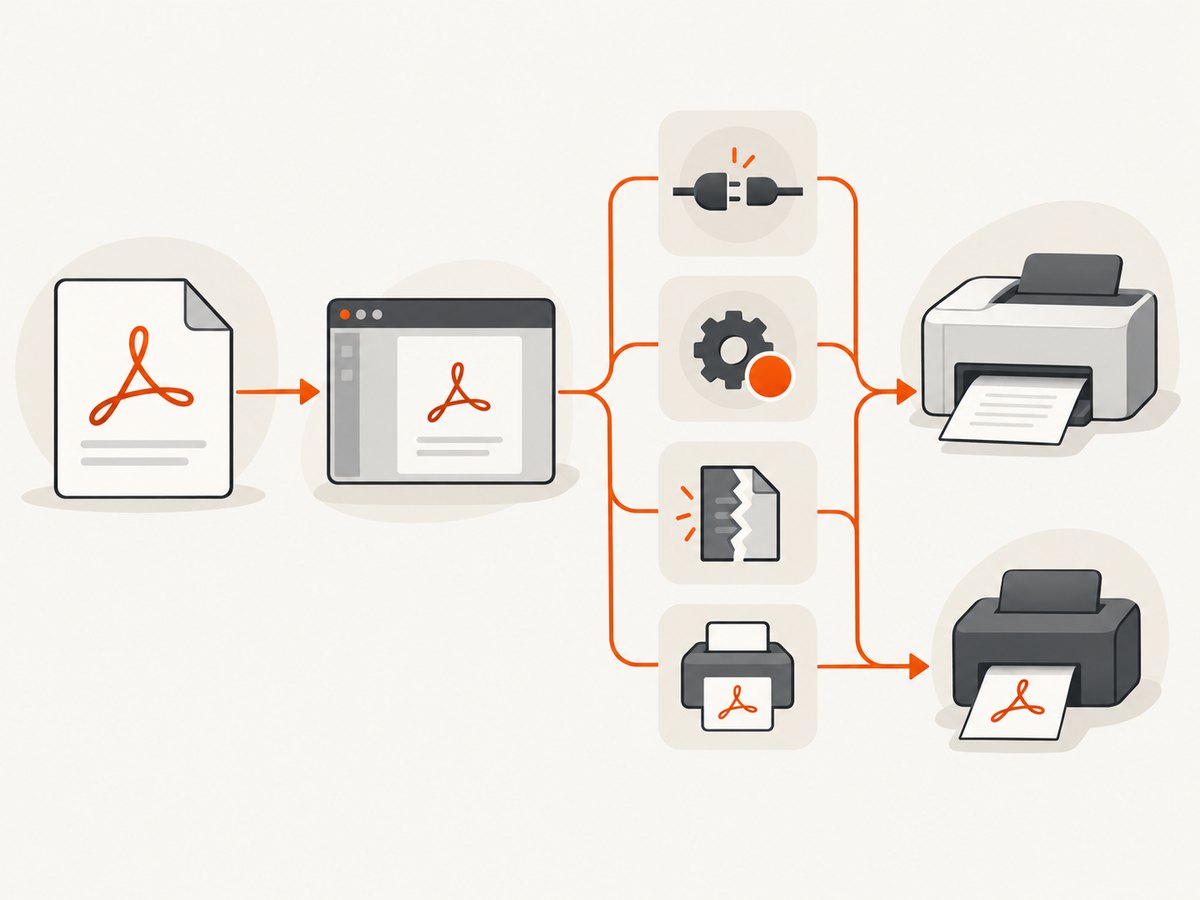
1. Confirm which print job you are running
Write down your operating system, Acrobat or Reader version, the exact error text, and whether the same problem occurs with another document. Also separate these cases:
- PDF to paper: Acrobat sends an existing PDF to a physical printer.
- Application to PDF: Windows uses Adobe PDF Printer; macOS uses Save as Adobe PDF in the print dialog.
- Browser extension: a PDF opened in Chrome or Edge is sent to print from the Acrobat extension.
This distinction prevents a driver repair from being applied to a damaged PDF, or a PDF conversion setting from being applied to a disconnected printer.
2. Fix a physical printer that does not respond
- Check that the printer is powered on, online, and connected. Reseat the cable. If it is USB, connect directly to the computer instead of through a hub.
- Print a different document. If another file also fails, the problem is probably the printer, queue, connection, or driver rather than this PDF.
- Turn the printer off, wait 30 seconds, turn it back on, and retry. Adobe documents this power-cycle step in its PDF printing troubleshooting guide.
- Install the current driver for the exact printer model from its manufacturer. Restart the computer after installation.
- If another printer is available, print the same PDF there. A successful second print isolates the fault to the original printer or its driver.
Do not buy a cable as a general Acrobat fix. Replace a cable only when the existing one is damaged, unreliable, or the connector is wrong for the printer; Adobe specifically recommends checking the cable and bypassing USB hubs.
3. Fix a PDF that prints incorrectly or not at all
Save a clean local copy
Download the file instead of printing a copy opened from a browser, network share, or attachment preview. Reopen it in Acrobat. Save another copy with a simple letters-and-numbers filename and try again. This removes some file-transfer and path-related variables.
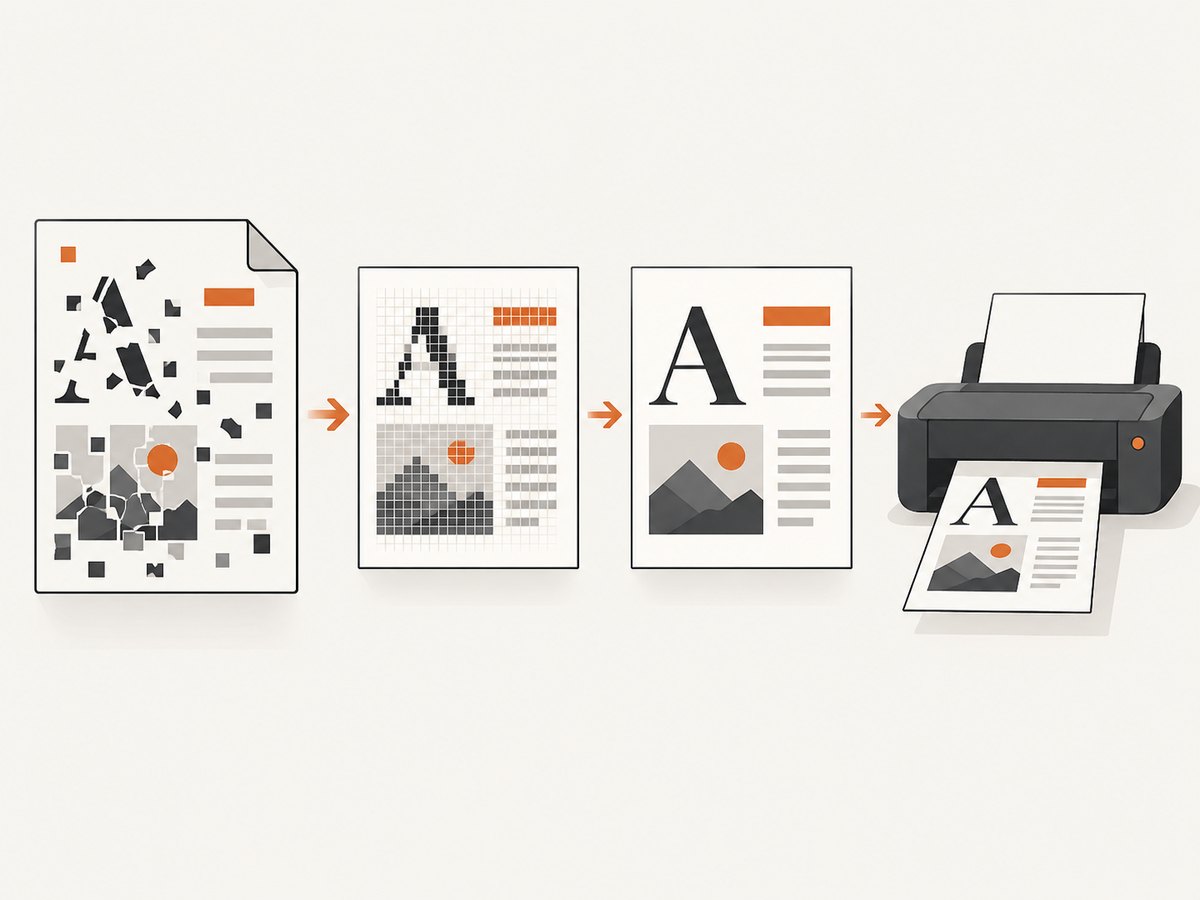
Use Print as Image
In Acrobat, choose File > Print, open Advanced, select Print as Image, and print. On macOS, the Advanced control may be hidden behind the arrow beside the Printer menu. Adobe explains that this mode bypasses normal processing by sending the printer a simple image representation of the page. It can make image and font edges slightly rougher. See Adobe’s Print PDF as image instructions.
Find a bad page or object
For a complex file, print one or two pages at a time. If a small range fails, inspect that range for a damaged image, unusual font, transparency effect, form field, layer, or interactive object. Re-export the source document or replace the problematic object when possible.
Restore default print settings
Changed paper, scaling, color, or advanced print settings can create misleading symptoms. Restore Acrobat’s default print settings as a diagnostic, then add your required settings back one at a time. Adobe describes this approach in its guidance for printing complex PDFs.
4. If Adobe PDF Printer is missing on Windows
- Open Acrobat’s menu and choose Help > Repair installation (the exact menu wording can vary by version).
- Allow the repair to finish, restart Windows, and check the application’s Print dialog again.
- If the printer is still absent, use Adobe’s manual installation procedure for your Acrobat version and Windows converter. Adobe’s missing Adobe PDF Printer article documents the required AdobePDF.inf route.
If the failure started immediately after enabling or disabling Windows Protected Print Mode, treat that timing as a clue. The mode changes printer-driver setup; Adobe recommends repairing Acrobat when Adobe PDF Printer is missing or no longer works after that change. See Adobe’s Protected Print Mode guidance.
5. When Microsoft Print to PDF freezes Acrobat
This is a PDF-creation problem, not a paper-printer problem. Adobe identifies large files with many images, layers, or interactive elements as possible causes of difficulty when Acrobat converts through Microsoft Print to PDF. In the source application’s Print dialog, select Adobe PDF Printer instead. The documented workaround is covered in Adobe’s Microsoft Print to PDF troubleshooting article.
For a conversion that fails with an activation or licensing message, capture the exact wording first. Adobe treats Windows PDF-creation activation errors as a separate problem and provides specific activation steps in its license troubleshooting article.
6. Printing from the Acrobat browser extension
If a PDF fails only from Chrome or Edge, open it in Acrobat desktop and print from there. Also test the file in an incognito Chrome or Edge window. Adobe notes that corrupt PDF content can break printing even when the document appears normal in the browser. Follow its browser-extension printing guidance.
7. Windows and macOS workflows
| Platform | Create a PDF | Missing or failed workflow |
|---|---|---|
| Windows | Select Adobe PDF Printer in the application’s Print dialog. Conversion preferences are separate from paper and layout settings. | Repair Acrobat first if Adobe PDF Printer is missing; use manual setup only if repair does not restore it. |
| macOS | In the system print dialog, open the PDF menu, choose Save as Adobe PDF, then choose a filename and location. | Do not install or search for the Windows Adobe PDF Printer. Use the macOS print-dialog workflow. |
Adobe’s current create PDFs by printing to file instructions cover both platform paths. Menu names can change with Acrobat and operating-system releases.
8. Settings, performance, and reliability notes
- Print as Image: reliable for damaged fonts or images, but may reduce edge sharpness and can increase printer data.
- Complex PDFs: many layers, large images, transparency effects, forms, and interactive elements increase conversion and spooling work. Print a page range to isolate the expensive or broken object.
- Driver matching: use the exact printer model driver. A generic driver may print basic pages while failing on color, finishing, or complex PDF features.
- Queue isolation: a successful test page or second printer narrows the fault to the document, Acrobat, or the original device.
- Cost: these fixes do not require a new Acrobat subscription. Start with connection checks, a local copy, Print as Image, repair, and the correct driver before considering a paid change.
Or skip the browser setup
If your goal is to produce a clean image or PDF from a web page rather than print an existing PDF, ScreenshotNeo provides a website screenshot API and MCP server. It accepts one GET request and returns PNG, JPEG, WebP, or PDF. Cookie and consent banners, newsletter popups, and chat widgets are removed before capture; bot checks, blank pages, timeouts, failed loads, and cache hits are not billed, and response headers identify the page verdict and billing result. AI agents can call its MCP tools take_screenshot, get_page_info, and capture_pdf.
See the ScreenshotNeo API documentation for all options. Basic calls:
cURL
curl -G "https://api.screenshotneo.com/v1/shot" -d access_key=YOUR_API_KEY --data-urlencode url=https://stripe.com -o shot.webpPython
import requests
r = requests.get("https://api.screenshotneo.com/v1/shot", params={"access_key": "YOUR_API_KEY", "url": "https://stripe.com"}, timeout=90)
open("shot.webp", "wb").write(r.content)
Node.js
const q = new URLSearchParams({ access_key: 'YOUR_API_KEY', url: 'https://stripe.com' });
const res = await fetch(`https://api.screenshotneo.com/v1/shot?${q}`);
For production captures, ScreenshotNeo also supports full-page shots with lazy images loaded, CSS-element capture, dark mode, device presets, custom viewports, retina scale, PDF paper and margin settings, custom CSS and JavaScript, click and wait actions, request or resource blocking, headers, cookies, user agents, authorization, timezone, geolocation, transparent backgrounds, resizing, chosen cache TTLs, signed links, asynchronous jobs with signed webhooks, bulk capture of up to 100 URLs per call, usage reporting, and an OpenAPI specification. The parameter names used by other screenshot APIs also work, which can simplify migration.
The Free plan includes 1,000 screenshots each month with no card. Paid plans start at $5 for 3,000 shots; every feature is available on every plan. Create a free ScreenshotNeo account.
FAQ
Why does Adobe PDF Printer disappear after a Windows update?
A damaged Acrobat installation or a change to Windows Protected Print Mode can affect the virtual printer. Repair Acrobat, restart Windows, and use Adobe’s manual setup instructions only if repair fails.
Should I use Print as Image for every PDF?
No. Use it when one document or page fails because of damaged content, fonts, or images. It can produce slightly rougher edges and more printer data.
Why does the same PDF print from another computer?
That points toward the first computer’s printer driver, connection, queue, Acrobat installation, or settings. Compare the driver and test a direct connection.
Is Microsoft Print to PDF the same as Adobe PDF Printer?
No. They are separate Windows virtual printers. Adobe documents switching to Adobe PDF Printer when Microsoft Print to PDF makes Acrobat unresponsive on complex files.
What should Mac users install when Adobe PDF printing fails?
Use Save as Adobe PDF from the macOS print dialog. The Windows Adobe PDF Printer is not the macOS workflow.


