Why Adobe Webpage-to-PDF Conversion Fails and How to Fix It
Fix Adobe webpage-to-PDF failures caused by browser settings, extensions, network limits, complex pages, and missing assets.

Adobe webpage-to-PDF conversion usually fails for one of five reasons: the browser is handling PDFs incorrectly, the Acrobat extension is disabled, cached or unsupported browser state is interfering, a firewall or proxy blocks the conversion service, or the page is too large or complex. Missing images can also result when the converter cannot resolve relative resources.
Use this order: correct Chrome or Edge PDF behavior, enable the Acrobat extension, refresh or clear browser state, check network restrictions, reduce page complexity, then switch to Acrobat desktop or the browser’s native Print to PDF workflow.
1. Fix browser PDF settings first
Acrobat’s browser printing path depends on the browser’s PDF-document behavior. If Chrome downloads PDFs automatically or Edge is configured to always download them, the Acrobat extension may not receive the page correctly.
Chrome
- Open
chrome://settings/content/pdfDocuments. - Select Open PDFs in Chrome.
- Reload the webpage or PDF.
- Run the Acrobat conversion again.
Microsoft Edge
- Open
edge://settings/content/pdfDocuments. - Turn off Always download PDF files.
- Reload the source page.
- Retry the conversion.
Adobe’s browser-extension troubleshooting guidance also recommends reloading the PDF and trying the print operation again after changing the setting. See Adobe’s browser-extension PDF printing troubleshooting guidance.
2. Enable the Acrobat extension
A disabled extension produces symptoms such as a missing Acrobat icon, no response after selecting Convert, or a generic printing error.
- Open Chrome’s menu and choose Extensions > Manage extensions.
- Find Adobe Acrobat and switch it on.
- Refresh the webpage.
- Confirm that the Acrobat icon is active before starting conversion.
For local HTML or PDF files, open the extension’s details and enable Allow access to file URLs. Without that permission, the extension may work for public websites but fail for a file opened from disk. Adobe documents this requirement in its Chrome extension setup instructions.
3. Clear stale browser state and verify support
A stale cache can preserve an old script, blocked request, or broken extension state. Clear the browser cache, close all tabs using the page, reopen the browser, and retry. If the failure continues, use another supported browser. Adobe lists Microsoft Edge, Mozilla Firefox, Google Chrome, and Safari 11 for Export PDF.
- Save any work in open tabs.
- Clear cached images and files for the affected site, or clear the browser cache.
- Restart the browser.
- Open the page in a supported browser.
- Retry conversion with the Acrobat extension enabled.
Testing another browser helps separate an Adobe service problem from a browser profile problem. If conversion works in a clean browser profile, disable other extensions one at a time; privacy blockers, script blockers, and download managers can interfere with page capture.
4. Check firewall, proxy, and sign-in restrictions
Export PDF may need to upload page data to Adobe’s conversion service. Corporate firewalls, authenticated proxies, DNS filters, or endpoint security software can block that traffic. The result may be a general conversion error, an endless spinner, or a request that never completes.
- Try the same conversion on an unrestricted network.
- Check whether the browser is using a proxy that requires interactive sign-in.
- Ask your network administrator whether Adobe document services are blocked.
- Review endpoint security logs for blocked browser or Acrobat requests.
- Sign out and back in to your Adobe account if authentication appears stale.
Do not repeatedly retry a blocked request: every retry can produce the same timeout until the network rule changes. Adobe’s Export PDF conversion-error guidance lists firewall and proxy restrictions as common causes.
5. Reduce page size and complexity
Adobe documents a 100 MB maximum input size for Export PDF. A page can still time out below that limit when it contains many pages, large images, embedded fonts, complex graphics, or scripts that never settle. Adobe specifically advises keeping the file at or below 100 MB and simplifying complex inputs.
Ways to reduce conversion load
- Remove video, animated backgrounds, and unnecessary third-party widgets.
- Open a print-friendly or reader view when the site provides one.
- Capture a single article URL instead of an entire site.
- Compress oversized images before converting local HTML.
- Wait for lazy-loaded images to finish before starting conversion.
- Disable extensions that inject scripts or advertisements.
Very long pages may also hit browser memory or service time limits. Split a large document into logical sections and merge the resulting PDFs afterward if a single conversion repeatedly fails.
6. Fix missing images, CSS, and fonts
When text appears but images or styling disappear, the converter probably cannot resolve page resources. Relative paths such as images/hero.png depend on the document’s base URL. Local files can also reference assets with paths that only work on the author’s machine.
Use absolute URLs for web resources
<img src="https://example.com/assets/hero.png" alt="Hero">
<link rel="stylesheet" href="https://example.com/css/print.css">
<script src="https://example.com/js/app.js"></script>
An absolute URL includes the complete scheme, host, path, and (when required) query string. Adobe’s HTML conversion guidance recommends absolute URLs so every resource can be located during conversion. Also verify that assets are publicly reachable, do not require a browser-only session cookie, and are served over HTTPS when the source page is HTTPS.
Check common asset blockers
- Images returned only after JavaScript executes.
- Resources blocked by CORS, hotlink protection, or a login wall.
- CSS loaded from a private hostname unavailable to the converter.
- Fonts restricted by authentication or an invalid certificate.
- Mixed-content requests from an HTTPS page to HTTP assets.
7. Choose the right Adobe workflow
| Workflow | Best for | Controls and limits |
|---|---|---|
| Acrobat browser extension | Converting the open page quickly | Depends on browser PDF settings, extension state, cache, and network access |
| Acrobat desktop: Create > Web page | URL or local HTML, multi-level website capture | Supports same-path and same-server limits plus advanced capture settings |
| Browser Print > Save as PDF | Reliable fallback for a visible HTML page | Uses browser print layout; less control over multi-level site crawling |
Use Acrobat desktop when you need multi-level website capture, URL scope controls, or advanced settings. Adobe’s web-page conversion documentation describes same-path and same-server limits. For a quick fallback, open the browser’s print dialog and select Save as PDF; Adobe documents this route for HTML pages.
8. Browser-native Print to PDF fallback
- Open the fully loaded webpage.
- Press Ctrl+P on Windows or Cmd+P on macOS.
- Choose Save as PDF or Microsoft Print to PDF.
- Select paper size, orientation, margins, scale, headers, and background graphics.
- Preview every page for clipped content and missing images.
- Save the PDF locally.
Print preview is especially useful for diagnosing layout problems. If the preview is already blank, the page has not finished rendering or a script is blocking print output. Wait for network activity to stop, disable the problematic extension, or use reader mode before printing.
9. Troubleshooting table
| Symptom | Likely cause | Fix |
|---|---|---|
| Acrobat icon is missing | Extension disabled or not installed | Enable Adobe Acrobat in Extensions and refresh |
| Clicking Convert does nothing | Chrome or Edge PDF handling intercepts the request | Open PDFs in Chrome; disable Edge’s Always download PDF files |
| Local HTML fails | File URL permission is off | Enable Allow access to file URLs in extension details |
| General conversion error | Cache, unsupported browser, proxy, or firewall | Clear cache, try a supported browser, and check network policy |
| Conversion hangs | Page is too complex or scripts never finish | Remove widgets, wait for lazy content, split the page, or print a simpler view |
| PDF is blank | Page rendered after capture or content requires JavaScript | Wait for rendering, reload, use Print preview, or use Acrobat desktop |
| Images are missing | Relative, blocked, private, or mixed-content URLs | Use absolute HTTPS URLs and verify resource access |
| Only part of a site is captured | URL scope or same-server/path restriction | Use Acrobat desktop’s web-page settings or capture sections separately |
| File rejected as too large | Input exceeds Adobe’s 100 MB limit | Compress assets, remove unnecessary content, or split the document |
10. Or skip the browser setup
If you need a repeatable API workflow, ScreenshotNeo captures a URL with one request and can return PNG, JPEG, WebP, or PDF. It handles the browser setup for you while exposing controls for full-page capture, lazy-loaded images, PDF paper size, margins, orientation, page ranges, custom CSS and JavaScript, cookies, headers, user agents, waiting conditions, blocked resources, timezone, geolocation, and more.
See the ScreenshotNeo API documentation for all options. The basic PDF request is the same endpoint used for image capture; add the PDF format parameters required by your workflow.
cURL
curl -G "https://api.screenshotneo.com/v1/shot" \
  -d access_key=YOUR_API_KEY \
  --data-urlencode url=https://stripe.com \
  -o shot.webp
Python
import requests

r = requests.get(
    "https://api.screenshotneo.com/v1/shot",
    params={"access_key": "YOUR_API_KEY", "url": "https://stripe.com"},
    timeout=90,
)
r.raise_for_status()
open("shot.webp", "wb").write(r.content)
Node.js
const q = new URLSearchParams({
  access_key: 'YOUR_API_KEY',
  url: 'https://stripe.com'
});
const res = await fetch(`https://api.screenshotneo.com/v1/shot?${q}`);
if (!res.ok) throw new Error(`HTTP ${res.status}`);
const data = Buffer.from(await res.arrayBuffer());
require('fs').writeFileSync('shot.webp', data);
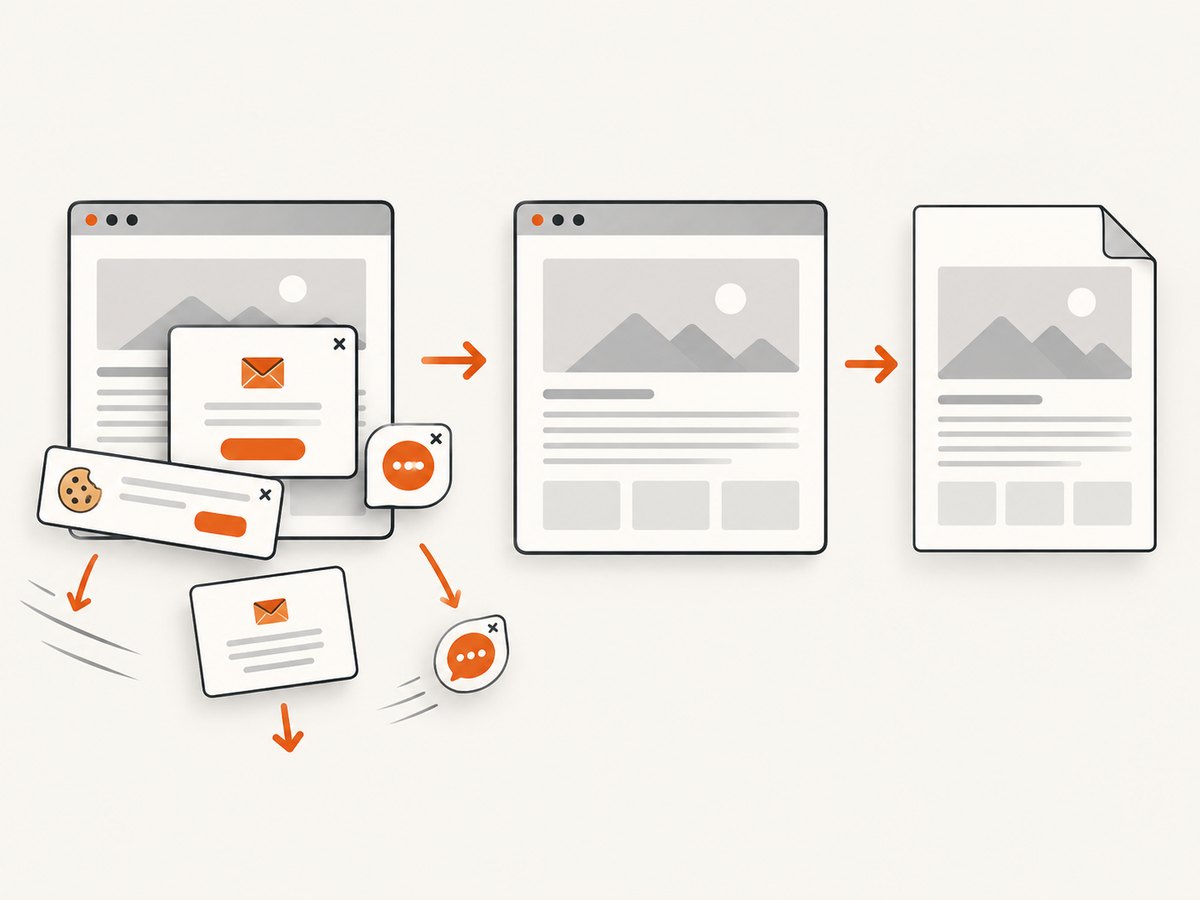
ScreenshotNeo removes cookie and consent banners, newsletter popups, and chat widgets before capture. Bot checks, blank pages, failed loads, timeouts, and cache hits are not billed, and response headers identify the page verdict and billing status. An MCP server provides take_screenshot, get_page_info, and capture_pdf tools for Claude, Cursor, and other MCP clients. The Free plan includes 1,000 screenshots per month with no card; paid plans start at $5 for 3,000 shots. Create a free ScreenshotNeo account.
11. Reliability, performance, and cost considerations
- Reliability: Browser extensions inherit local settings, profile corruption, and network policies. Desktop Acrobat is more controllable for multi-level capture, while an API is easier to run consistently in scheduled jobs.
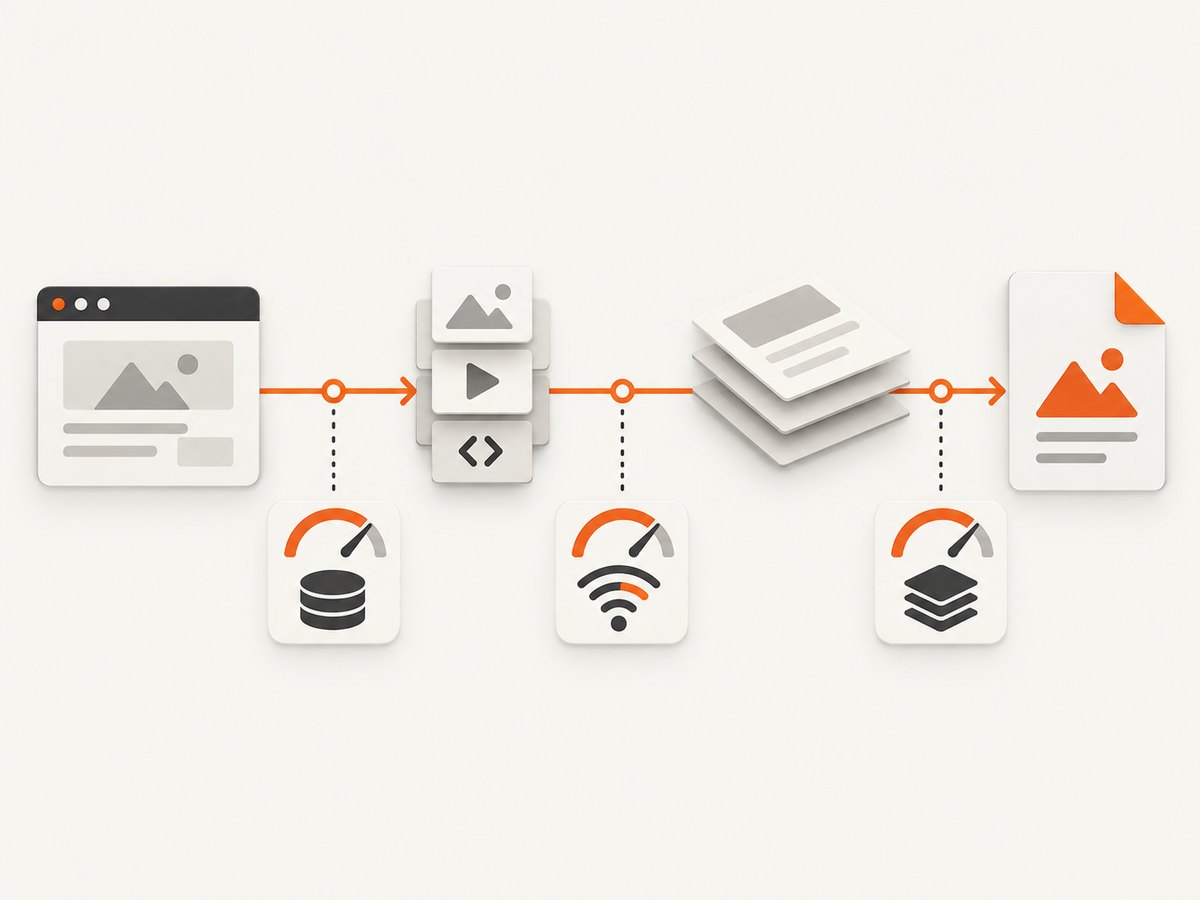
- Performance: Large images, web fonts, animations, and third-party scripts increase rendering time. Wait for a selector or network idle when automation supports it, and block resources that are not part of the document.
- Repeatability: Set a fixed viewport, timezone, user agent, cookies, and custom CSS when visual output must remain stable.
- Cost: Adobe Export PDF is subject to its service limits, including the 100 MB input ceiling. ScreenshotNeo bills only clean shots; failed loads, bot checks, blank pages, timeouts, and cache hits cost nothing.
- Operations: Cache stable pages, use a chosen TTL, and split very long captures. For high volume, use asynchronous jobs, signed webhooks, bulk capture of up to 100 URLs per call, and the usage API.
12. FAQ
Why does Acrobat work for one website but not another?
The failing site may use authenticated assets, JavaScript rendering, blocked resources, larger images, or scripts that never finish. Compare the browser’s print preview and inspect whether the missing content is available without a login.
Will changing PDF settings repair a corrupted source page?
No. Browser PDF settings only control how the PDF is opened or downloaded. They cannot repair inaccessible images, invalid HTML, blocked scripts, or a page that exceeds conversion limits.
Should I use Acrobat desktop or Print to PDF?
Use Acrobat desktop for multi-level websites, URL scope, and advanced capture settings. Use Print to PDF when you need a quick copy of the page currently visible in the browser.
How can I preserve page backgrounds?
Enable background graphics in the browser print dialog and confirm the preview. Site CSS can still disable backgrounds, so a print stylesheet or custom CSS may be necessary.
What is the fastest automated alternative?
Use a screenshot or PDF API with explicit wait, viewport, resource-blocking, and PDF options. ScreenshotNeo provides these controls through one endpoint and an MCP server for AI agents.
13. Final checklist
- Chrome opens PDFs in Chrome, or Edge no longer always downloads them.
- The Acrobat extension is enabled and has file URL access when needed.
- Browser cache and extension state are fresh.
- The browser and network are supported and unrestricted.
- The input is at or below 100 MB and has manageable complexity.
- Images, CSS, and fonts use reachable absolute URLs.
- You selected Acrobat desktop or Print to PDF when the extension path was unsuitable.
- You inspected the final PDF for blank pages, clipped content, missing assets, and incorrect page breaks.


