How to Capture and Save an A-Frame Scene Screenshot Without Popups
Capture perspective or 360 A-Frame screenshots in the current page, save them with JavaScript, and avoid popup blockers and tainted canvases.
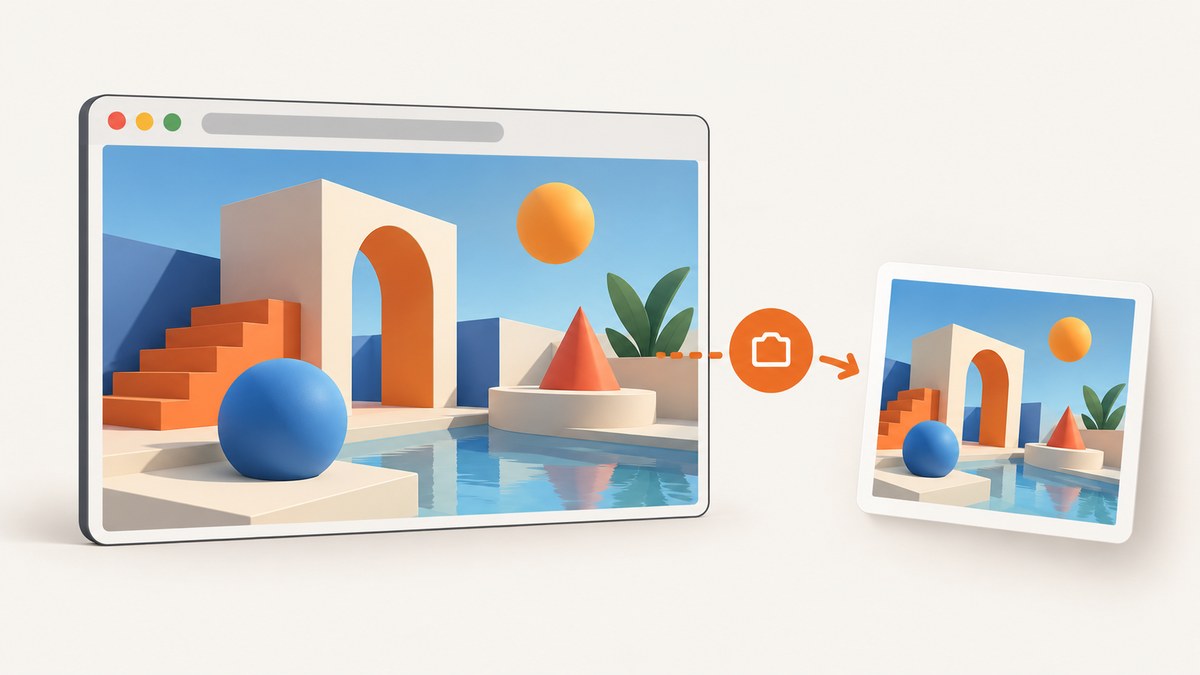
Use A-Frame’s built-in screenshot component. Press Ctrl + Alt + S for a perspective screenshot, or Ctrl + Alt + Shift + S for an equirectangular 360-degree panorama. A-Frame saves the image through the browser’s normal download flow, so no popup window is required.
For an application-controlled download, call scene.components.screenshot.getCanvas(), convert the canvas to a data URL, and click a temporary download link from the same user-initiated event. Wait until the scene and its assets are ready, and make sure remote textures, models, and videos are allowed by CORS.
1. Capture an A-Frame screenshot with the keyboard
A-Frame’s screenshot component supports two projections:
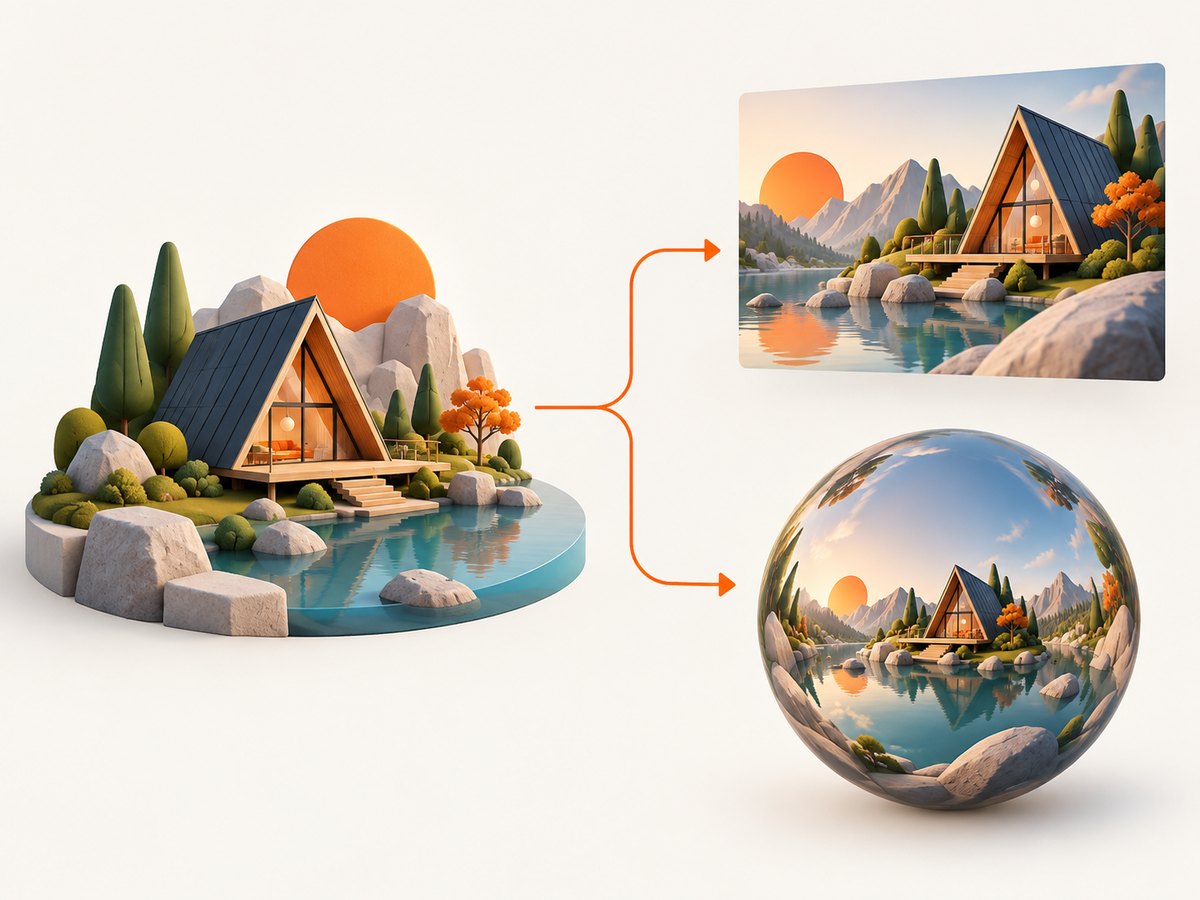
| Projection | Result | Use it for |
|---|---|---|
perspective |
The current camera view | Documentation, bug reports, previews, and normal images |
equirectangular |
A 360-degree panorama | Scene previews or displaying the result on a sky sphere |
With the scene focused in the browser, use:
- Ctrl + Alt + S — perspective screenshot
- Ctrl + Alt + Shift + S — equirectangular panorama
The browser handles the download in the current tab. There is no call to window.open() and no separate popup to be blocked.
2. Save a screenshot from JavaScript
Use the screenshot component after the scene has loaded:
<!doctype html>
<html>
  <head>
    <meta charset="utf-8">
    <title>A-Frame screenshot</title>
    <script src="https://aframe.io/releases/1.7.0/aframe.min.js"></script>
  </head>
  <body>
    <a-scene id="scene" screenshot>
      <a-assets>
        <a-box position="0 1 -3" color="#4CC3D9"></a-box>
      </a-assets>
      <a-camera position="0 1.6 0"></a-camera>
      <a-sky color="#ECECEC"></a-sky>
    </a-scene>

    <script>
      const scene = document.querySelector('#scene');

      scene.addEventListener('loaded', () => {
        const screenshot = scene.components.screenshot;
        screenshot.capture('perspective');
      });
    </script>
  </body>
</html>
capture('perspective') asks A-Frame to create and save the file. Replace perspective with equirectangular when you need a 360 panorama.
3. Create your own download with getCanvas()
getCanvas() gives your code a canvas. This is useful when you need a custom filename, an in-page preview, an upload, or a download button.
const scene = document.querySelector('a-scene');
const screenshot = scene.components.screenshot;

function savePerspectiveScreenshot() {
  const canvas = screenshot.getCanvas('perspective');
  const dataUrl = canvas.toDataURL('image/png');

  const link = document.createElement('a');
  link.download = 'aframe-scene.png';
  link.href = dataUrl;
  link.click();
}

document.querySelector('#save-button').addEventListener('click', savePerspectiveScreenshot);
Attach the export to a real button click. Browsers are more likely to allow a download started synchronously by a user gesture than one started later from an unrelated timer or background callback.
Export JPEG instead of PNG
PNG is the default canvas format. For a smaller photographic image, pass JPEG and a quality value between 0 and 1:
const canvas = screenshot.getCanvas('perspective');
const jpegDataUrl = canvas.toDataURL('image/jpeg', 0.85);

const link = document.createElement('a');
link.download = 'aframe-scene.jpg';
link.href = jpegDataUrl;
link.click();
PNG preserves sharp edges and transparency where supported. JPEG usually produces smaller files for scenes with gradients or photographic textures, but it is lossy.
4. A complete button-based example
This example waits for the scene, exposes separate perspective and panorama buttons, and keeps all downloads in the current page.
<button id="save-perspective" type="button">Save perspective</button>
<button id="save-panorama" type="button">Save 360 panorama</button>

<script>
  const scene = document.querySelector('a-scene');

  function whenSceneReady(callback) {
    if (scene.hasLoaded) {
      callback();
    } else {
      scene.addEventListener('loaded', callback, { once: true });
    }
  }

  function downloadCanvas(projection, filename) {
    const canvas = scene.components.screenshot.getCanvas(projection);
    const link = document.createElement('a');
    link.download = filename;
    link.href = canvas.toDataURL('image/png');
    link.click();
  }

  document.querySelector('#save-perspective').addEventListener('click', () => {
    whenSceneReady(() => downloadCanvas('perspective', 'scene-perspective.png'));
  });

  document.querySelector('#save-panorama').addEventListener('click', () => {
    whenSceneReady(() => downloadCanvas('equirectangular', 'scene-360.png'));
  });
</script>
If models or textures load after the scene’s loaded event, wait for those asset-specific events as well. A scene can be technically loaded while an asynchronous model is still absent from the rendered frame.
5. Avoid popup behavior
Do not use window.open() to display the image. It creates a new browsing context, can trigger popup blocking, and adds an unnecessary navigation step.
Choose one of these flows instead:
- Use A-Frame’s keyboard shortcut and let
capture()save the file. - Call
getCanvas()and click a temporary<a download>element. - Use the canvas data URL in an existing image element or upload request inside the current page.
When a screenshot is generated in response to a button, perform the canvas export and link click from that handler. If you must wait for an asset, disable the button while it loads and start the download when the asset-ready event fires.
6. Make sure the scene is ready
Blank or incomplete screenshots usually mean capture ran before the visual content was ready. Use this checklist:
- Wait for the scene’s
loadedevent. - Wait for glTF, OBJ, image, video, or other asset load events.
- Wait for application data that controls entity visibility or transforms.
- For animated scenes, capture after the desired animation frame.
- For a panorama, confirm that the scene has a usable camera and rendered environment.
const scene = document.querySelector('a-scene');
const model = document.querySelector('#model');
const save = document.querySelector('#save');

save.disabled = true;

Promise.all([
  scene.hasLoaded
    ? Promise.resolve()
    : new Promise(resolve => scene.addEventListener('loaded', resolve, { once: true })),
  model.hasLoaded
    ? Promise.resolve()
    : new Promise(resolve => model.addEventListener('model-loaded', resolve, { once: true }))
]).then(() => {
  save.disabled = false;
});

save.addEventListener('click', () => {
  const canvas = scene.components.screenshot.getCanvas('perspective');
  const link = document.createElement('a');
  link.download = 'ready-scene.png';
  link.href = canvas.toDataURL('image/png');
  link.click();
});
7. Fix cross-origin canvas errors
A canvas becomes non-exportable when it contains pixels loaded from another origin without the required cross-origin permission. Calling toDataURL() in that state throws a security error or refuses to return the image.
To keep the canvas origin-clean:
- Host textures, models, and videos on the same origin as the page when possible.
- Configure the asset server to return compatible CORS headers.
- Use the correct cross-origin configuration for assets before they are loaded.
- Do not assume that a URL being reachable in the browser also makes it exportable to a canvas.
Fix the asset response and reload the scene before trying the export again. Changing only the download code cannot repair a tainted canvas.
8. Troubleshooting
| Symptom | Likely cause | Fix |
|---|---|---|
| No file downloads | Capture is not attached to a user gesture, or the browser blocks the action | Use a button handler, call capture(), or click a temporary download anchor synchronously. |
| Popup blocked | The implementation calls window.open() |
Remove the popup flow and use capture() or getCanvas(). |
| Screenshot is blank | Capture ran before the scene rendered | Wait for loaded, then wait for models, textures, and other asynchronous content. |
| Model is missing | The model’s own load event has not fired | Wait for the model-ready event and capture only after it is visible. |
SecurityError from toDataURL() |
Cross-origin content tainted the canvas | Use same-origin assets or configure CORS on the asset server. |
| Panorama is distorted | The output is equirectangular, not a normal camera view | Use perspective for a conventional screenshot; reserve equirectangular for 360 workflows. |
| Image is unexpectedly large | Large canvas dimensions and PNG encoding | Use JPEG with a quality value when lossless output is unnecessary, and avoid capturing at a larger resolution than required. |
9. Performance, reliability, and file-size notes
- Capture cost: rendering and encoding a large canvas uses CPU and memory. Avoid repeated captures on every animation frame unless you have a specific recording workflow.
- UI responsiveness: show a busy state around large exports, especially on mobile devices.
- Format choice: PNG is predictable and lossless; JPEG with a quality value is often smaller for photographic scenes.
- Reliability: readiness checks and CORS configuration matter more than the download link itself. A successful click cannot recover missing or tainted pixels.
- Automation: if screenshots are generated on a server or for many URLs, a browser-based capture service avoids shipping browser setup and asset timing logic into each application.
10. Or skip the browser setup
For server-side captures, batch jobs, or a workflow that should not depend on an A-Frame page’s download behavior, ScreenshotNeo provides a single screenshot API request. See the ScreenshotNeo API documentation for the available options.
curl -G "https://api.screenshotneo.com/v1/shot" -d access_key=YOUR_API_KEY --data-urlencode url=https://example.com/aframe-scene -o shot.webpimport requests
r = requests.get(
"https://api.screenshotneo.com/v1/shot",
params={"access_key": "YOUR_API_KEY", "url": "https://example.com/aframe-scene"},
timeout=90,
)
r.raise_for_status()
open("shot.webp", "wb").write(r.content)const q = new URLSearchParams({ access_key: 'YOUR_API_KEY', url: 'https://example.com/aframe-scene' });
const res = await fetch(`https://api.screenshotneo.com/v1/shot?${q}`);
if (!res.ok) throw new Error(`Screenshot failed: ${res.status}`);
const data = Buffer.from(await res.arrayBuffer());
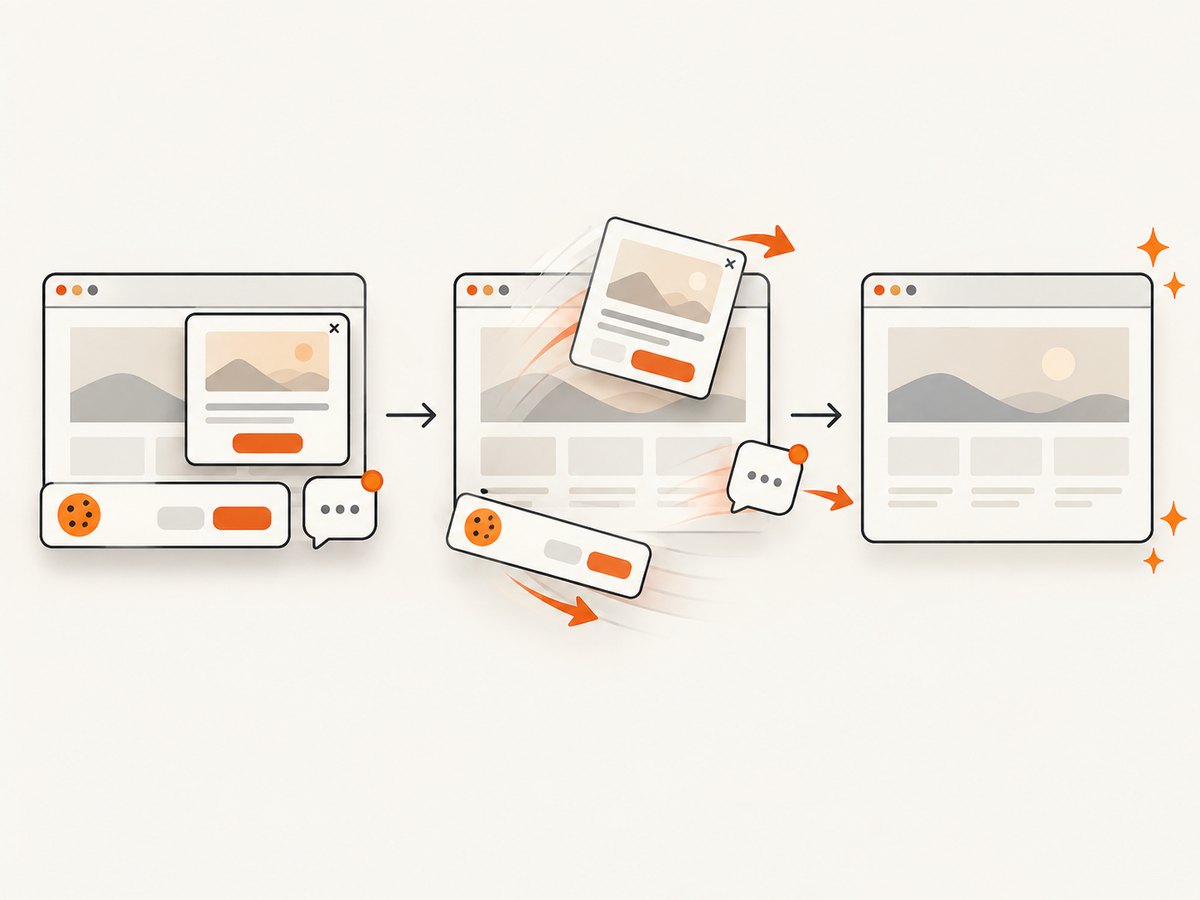
require('node:fs').writeFileSync('shot.webp', data);ScreenshotNeo removes cookie and consent banners, newsletter popups, and chat widgets before capture. Bot checks, blank pages, failed loads, timeouts, and cache hits are not billed, and the response identifies the result with X-Page-Verdict and X-Billed headers. Its MCP server lets AI agents call screenshot tools, and the free plan includes 1,000 screenshots each month without a card; paid plans start at $5 for 3,000 screenshots.
Sign up for ScreenshotNeo’s free 1,000 screenshots per month.
11. FAQ
Can I save a screenshot without opening a new tab?
Yes. Use the keyboard shortcut, screenshot.capture(), or a temporary download anchor. None requires window.open().
Which projection should I choose?
Choose perspective for the current camera view and equirectangular for a 360-degree panorama.
Can I preview the result instead of downloading it?
Yes. Set an existing image element’s src to the data URL returned from canvas.toDataURL().
Why does the keyboard shortcut do nothing?
Make sure the scene is focused and the screenshot component is available. For a controlled workflow, add a visible button and call the component from its click handler.
Does A-Frame automatically solve CORS problems?
No. The asset server must permit the cross-origin use required for canvas export, or the assets should be served from the same origin.


