How to Use AI to Read Text in Screenshots
Learn how to transcribe, translate, and explain screenshot text with AI, verify uncertain characters, and use Apple Live Text when it fits.
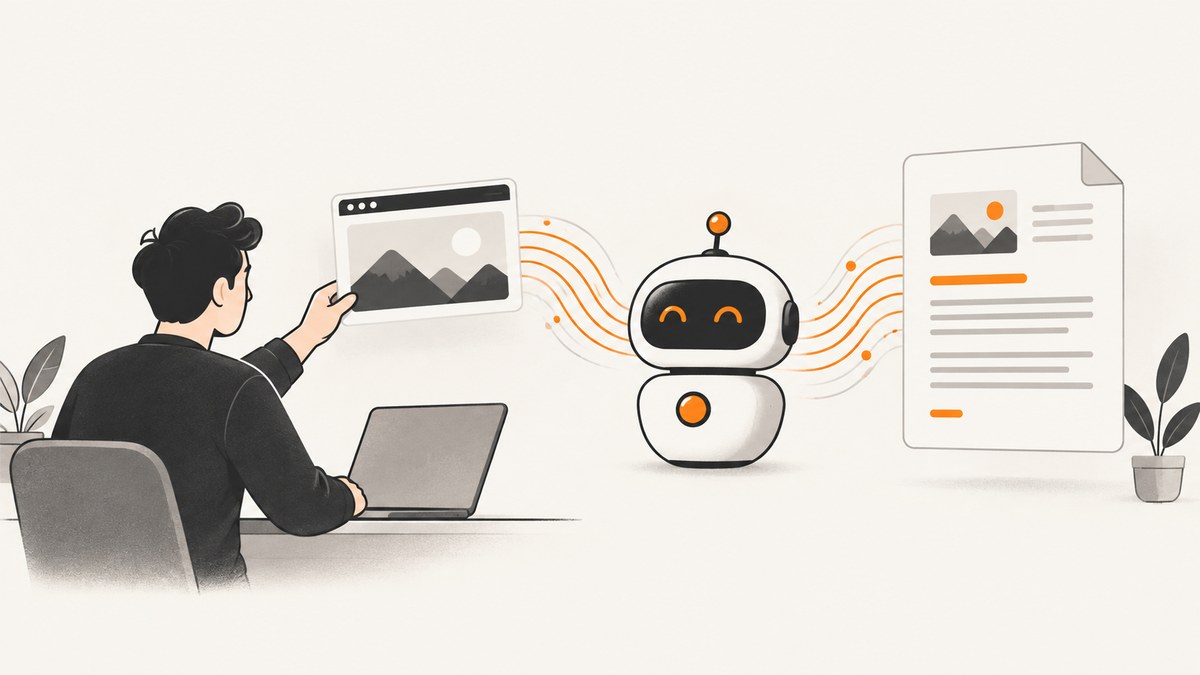
Fastest workflow: attach the screenshot to an image-capable AI assistant, ask for a verbatim transcription first, then request translation or explanation as a separate step. Compare the result with the pixels before relying on names, codes, dates, amounts, commands, or other consequential details.
1. Get text from a screenshot with AI
- Open an assistant that accepts image inputs and start a conversation.
- Attach the screenshot with the image or file control, drag and drop it, or paste it from the clipboard when supported. Check the assistant’s current limits before uploading. For example, OpenAI’s ChatGPT image-input documentation lists PNG, JPEG, and non-animated GIF images and a 20 MB per-image limit; limits and availability can change. See the current ChatGPT image-input FAQ.
- State the exact output you need. Ask for transcription before interpretation.
- Review the response against the screenshot. Ask the assistant to mark uncertain characters instead of guessing.
Prompts that produce useful results
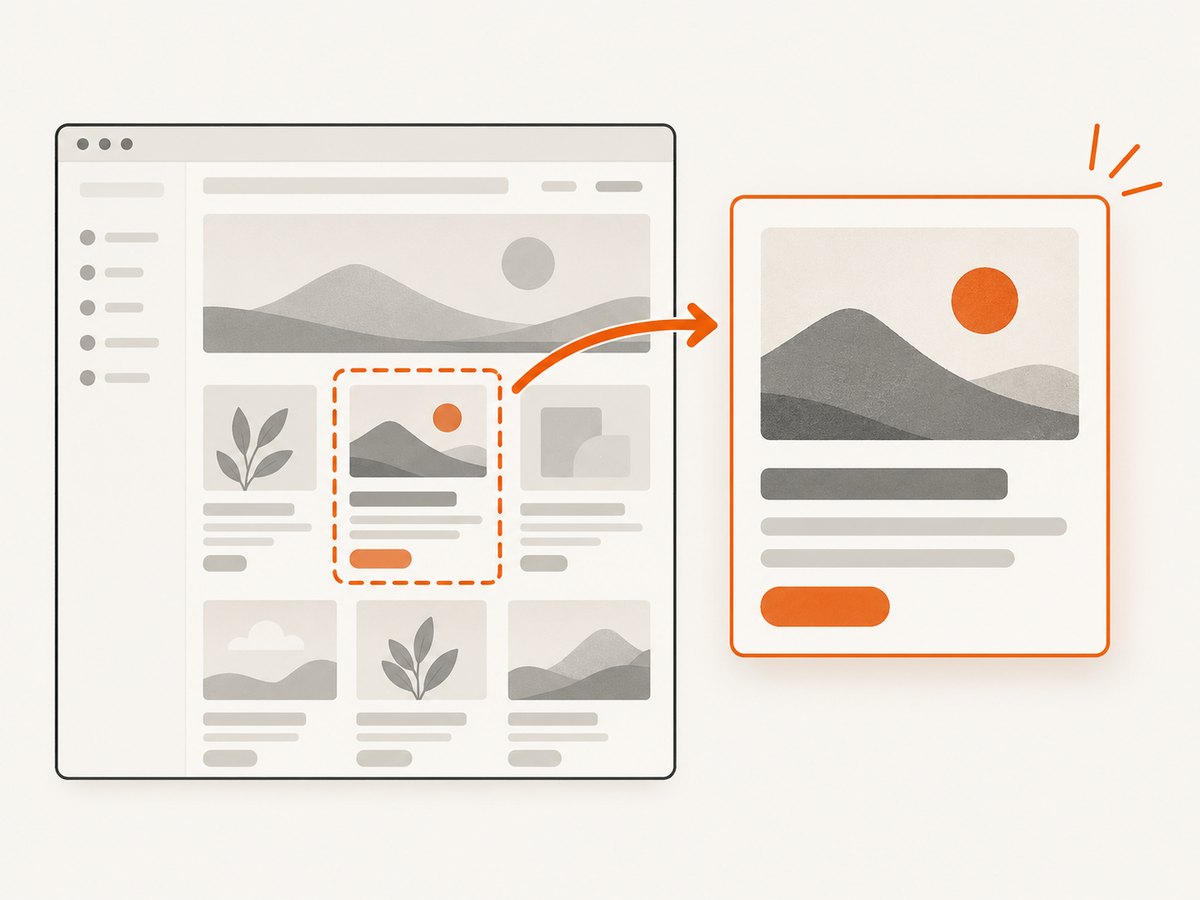
Transcribe all visible text exactly. Preserve line breaks and punctuation. Mark any uncertain character as [unclear] instead of guessing.First transcribe the error message exactly, preserving capitalization and punctuation. Then explain what it means and suggest fixes.Translate the selected text into English. Show the original text and the translation in two separate sections. Flag names, numbers, and words you are not certain about.Extract the table from this screenshot as CSV. Keep the original column order, preserve empty cells, and mark unreadable values as [unclear].If only a small region matters, crop or mark a copy of the image to direct attention. Keep enough surrounding context to retain punctuation, labels, column boundaries, and characters near the crop edge. Enlarging text without cutting off important details can help, but it does not guarantee a correct reading.
2. Make the transcription reliable
AI image interpretation is not a perfect OCR engine. OpenAI’s image-input guidance says that ambiguous or unclear images may produce less accurate results and describes problems with rotated text, non-Latin alphabets, very large text, and visual styles. Images may also be resized before analysis. Treat the returned text as a draft until you check it visually.
| Risk | What to check |
|---|---|
| Names and identifiers | Compare every character, including hyphens, accents, and zero versus O. |
| Codes and commands | Check capitalization, punctuation, slashes, underscores, and whitespace before running or copying. |
| Dates and amounts | Verify separators, currency symbols, decimal points, and time zones. |
| Tables and columns | Confirm that each value stayed in the correct row and column. |
| Rotated or tiny text | Rotate the image upright and provide a larger copy while preserving context. |
| Non-Latin scripts | Ask for the original script first, then a translation; manually verify unfamiliar characters. |
A two-pass verification prompt
Pass 1: transcribe every visible word exactly and preserve line breaks.
Pass 2: compare your transcription with the image. List only spans that may be wrong, explain the ambiguity, and provide alternatives. Do not silently correct the original.
For high-consequence work, have a person inspect the pixels. AI can explain a message after transcription, but an explanation should not replace checking the source text.
3. Copy text from a screenshot on iPhone with Live Text
On supported Apple devices, operating systems, languages, and regions, Live Text can recognize text in photos, paused videos, and online images. Availability varies, so check Apple’s current requirements.
- Open the photo, or pause the video on the frame containing text.
- Tap the Detect Text control when it appears.
- Touch and hold text, then adjust the selection handles.
- Choose Copy Text, Select All, Translate, Search the web, or Share. Depending on the content, additional actions may appear.
If Live Text is unavailable, Apple says it can be enabled under Settings > General > Language & Region. Device, system, language, and regional support differ, so do not assume every iPhone or iPad has the same options.
When Live Text is a better fit
- You need to select and copy a short passage quickly.
- The image should stay on the device rather than being uploaded to an online service.
- Your device and the text language are supported.
For developers, Apple’s Vision framework also provides text recognition with fast and accurate processing paths. Apple documents on-device processing for performance and privacy. That is a programming option, while Live Text is the ready-made consumer workflow.
4. Privacy and redaction before uploading
Inspect the screenshot before sending it anywhere. It may contain account names, notifications, addresses, private conversations, order details, passwords, API keys, or internal URLs. Remove anything the service does not need, and review the specific product’s privacy settings and terms. Privacy handling differs by service and account configuration.
If you are publishing the image, cover-up rectangles are not dependable redaction. Google Search Central warns that visually obscured information can remain in the underlying image or document and may be found through OCR. Remove the sensitive pixels, check metadata, and export a new redacted file. Reopen the exported file and inspect it before release.
Apple’s notice for its ChatGPT extension says requests and attachments such as photos may be sent to ChatGPT. Use without a ChatGPT account follows the extension’s stated restrictions; signing in applies ChatGPT account settings and OpenAI privacy policies, including possible logging and model-improvement use. Review the current notice and settings for the exact service you use.
5. Or skip the browser setup: capture a clean screenshot with ScreenshotNeo
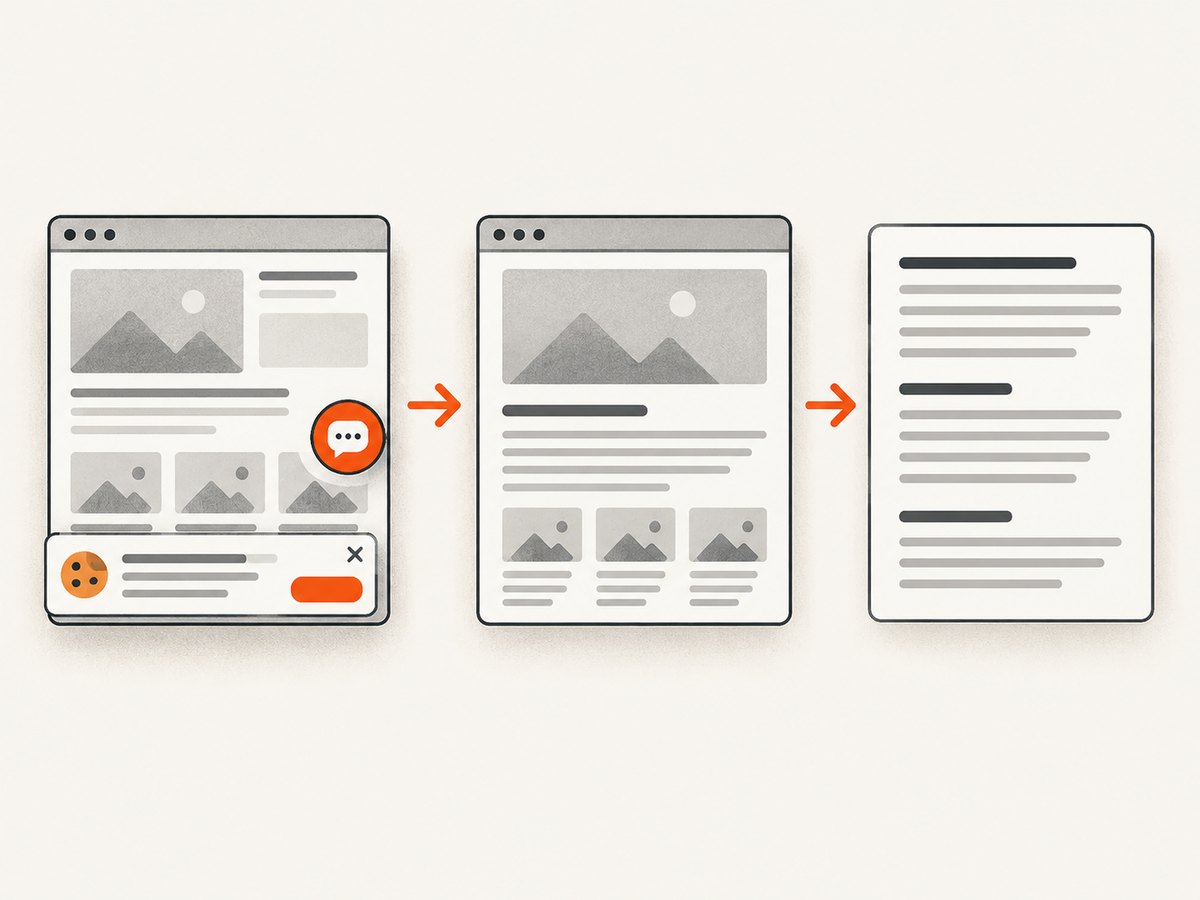
If you still need to obtain the screenshot, ScreenshotNeo returns a PNG, JPEG, WebP, or PDF from one GET request. It accepts cookie and consent banners like a visitor, then removes more than 60 known consent platforms, newsletter popups, and chat widgets before capture. Each cleanup step can be turned off. Only clean shots are billed: bot checks or CAPTCHAs, blank pages, timeouts, failed loads, and cache hits cost nothing, and the response identifies the result with X-Page-Verdict and X-Billed headers.
See the full parameter list in the ScreenshotNeo API documentation.
cURL
curl -G "https://api.screenshotneo.com/v1/shot" \
  -d access_key=YOUR_API_KEY \
  --data-urlencode url=https://stripe.com \
  -o shot.webp
Python
import requests

r = requests.get(
    "https://api.screenshotneo.com/v1/shot",
    params={"access_key": "YOUR_API_KEY", "url": "https://stripe.com"},
    timeout=90,
)
r.raise_for_status()
open("shot.webp", "wb").write(r.content)
Node.js
const q = new URLSearchParams({ access_key: 'YOUR_API_KEY', url: 'https://stripe.com' });
const res = await fetch(`https://api.screenshotneo.com/v1/shot?${q}`);
if (!res.ok) throw new Error(`Screenshot failed: ${res.status}`);
const buffer = Buffer.from(await res.arrayBuffer());
require('fs').writeFileSync('shot.webp', buffer);
Useful capture options
ScreenshotNeo supports full-page capture with lazy images loaded, CSS-selector element capture, dark mode, 12 device presets and arbitrary viewports, retina scale, PDF paper size and margins, landscape mode and page ranges, HTML/CSS-to-image, custom CSS and JavaScript, pre-capture clicks, hidden selectors, waits for selectors, delays or network idle, blocked ads, trackers, requests or resource types, custom headers, cookies, user agents and Authorization, timezone and geolocation, transparent backgrounds, resizing, configurable-TTL caching, signed links, asynchronous jobs with signed webhooks, bulk capture of 100 URLs per call, a usage API, and an OpenAPI specification. Parameter names used by other screenshot APIs also work, which simplifies migration.
An MCP server exposes take_screenshot, get_page_info, and capture_pdf to Claude, Cursor, and other MCP clients. That lets an AI agent obtain and inspect a page without you writing browser automation.
Performance, reliability, and cost choices
- Use a selector capture when only one panel or error message is needed; use full-page capture when context matters.
- Wait for a selector, a delay, or network idle when JavaScript renders text after the initial response.
- Use caching with a TTL you choose for repeated, unchanged pages. Cache hits are not billed.
- Use bulk capture for up to 100 URLs per call, and asynchronous jobs with signed webhooks when work should run outside a request timeout.
- Choose WebP or JPEG for smaller files, PNG for lossless text and transparency, and PDF when the downstream workflow is document-based.
The Free plan includes 1,000 shots per month without a card. Paid plans are Starter $5 for 3,000, Growth $15 for 15,000, Pro $39 for 60,000, Scale $99 for 250,000, and Business $249 for 1,000,000; yearly billing gives two months free. Every feature is included on every plan.
6. Troubleshooting
| Problem | Likely cause | Fix |
|---|---|---|
| The AI invents or changes characters | Low resolution, ambiguity, rotation, or dense styling | Provide a larger upright image, preserve context, request [unclear] markers, and compare with the pixels. |
| Columns are mixed together | Complex layout or an overly tight crop | Ask for a table or CSV, include surrounding headers, and verify row and column alignment. |
| Live Text controls do not appear | Unsupported device, language, region, or disabled setting | Check Apple’s current requirements and enable Live Text under Language & Region when available. |
| The screenshot contains a consent banner or chat bubble | The page was captured without cleanup | Use ScreenshotNeo’s cleanup options, or hide the relevant selector before capture. |
| The page is blank or times out | Bot checks, slow rendering, blocked resources, or a failed load | Inspect X-Page-Verdict, adjust waits or blocked resources, and retry. Failed loads and blank pages are not billed by ScreenshotNeo. |
| Python or Node receives an error response | Invalid key, URL, or request parameters | Check the API key and encoded URL, call raise_for_status() or inspect res.status, and consult the API docs. |
7. FAQ
Can ChatGPT read text in a screenshot?
Yes, an image-capable ChatGPT conversation can accept a screenshot and attempt transcription, translation, or explanation. The result can be wrong, so verify important text against the image and check the current image-input limits.
What prompt should I use for exact OCR?
Ask for a verbatim transcription, preserved line breaks, and explicit uncertainty markers. Request interpretation only after that first pass.
Is AI better than OCR?
The reviewed sources document capabilities and limitations, not comparative accuracy tests. Choose based on whether you need literal extraction, explanation, device support, language support, and whether the image can be uploaded safely.
Can I read text privately without uploading it?
On supported Apple devices, Live Text performs recognition on the device. For other tools, inspect the provider’s current privacy terms and remove sensitive content before upload.
How do I redact a screenshot for publication?
Remove the sensitive pixels, check metadata, export a new file, and inspect the exported result. Do not rely on black rectangles or other overlays.
8. Start with a clean image
Use ScreenshotNeo when browser setup is the part slowing down your text-reading workflow: cookie banners, popups, and chat widgets are removed before the shot; bot checks, blank pages, and failed loads are never billed; an MCP server lets AI agents take screenshots; and 1,000 screenshots a month are free with no card, with paid plans starting at $5 for 3,000. Create a free ScreenshotNeo account.


