How to Use an AI Screenshot Solver Browser Extension
Capture a question with a browser extension, check what the AI read, and verify its steps. This guide covers setup, privacy, errors, and alternatives.
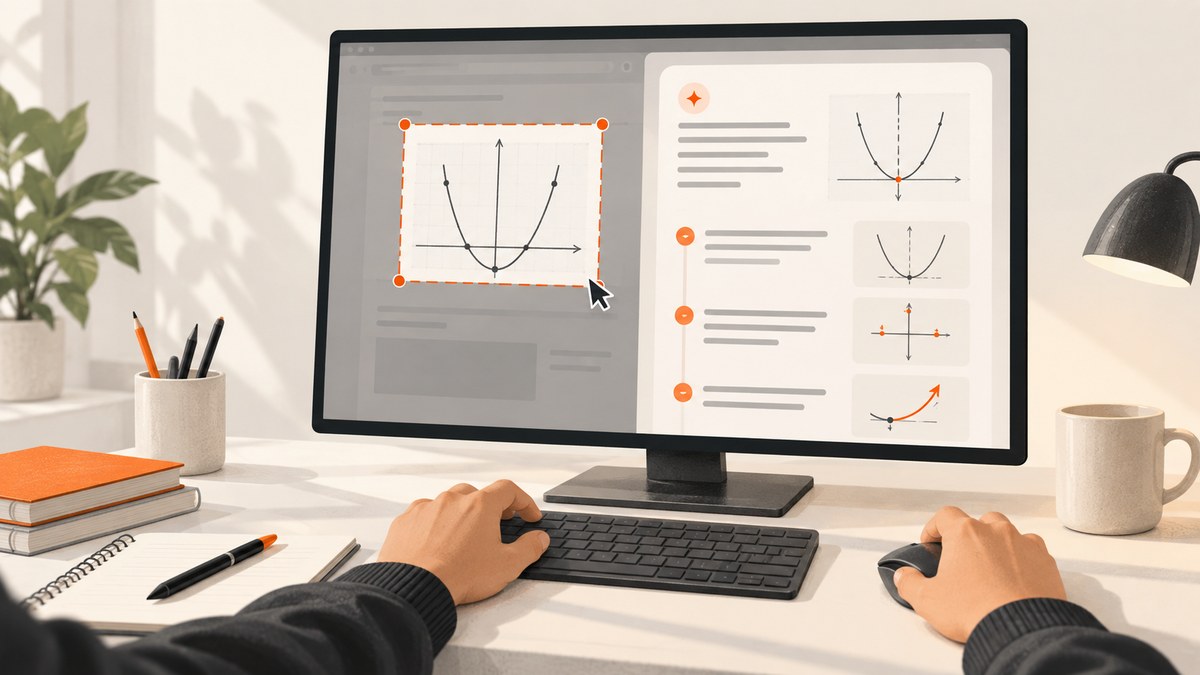
An AI screenshot solver browser extension takes a selected area of a webpage or document and sends it to an AI system to interpret. The usual workflow is: install an extension from its official store listing, open the question, invoke the extension, select the relevant area, then check the explanation against the original. Button names and shortcuts vary by extension.
Before installing one, review its publisher, permissions, privacy disclosure, and terms. Use it only where your school or assessment rules allow AI assistance. An extension’s ability to capture a page does not mean its use is permitted there.
1. Choose and install an extension
- Open the extension’s official listing in the Chrome Web Store. Examples include Homework Helper, SightSolve, and Screenshot Solver. These are examples of products with different controls and disclosures, not endorsements.
- Check the publisher name and the permissions requested. Consider whether access to pages, browsing data, or selected content makes sense for the feature you want.
- Read the privacy policy and terms. Find out what is transmitted, whether images are retained, and whether account history is enabled.
- Install through the official store flow. Google’s Chrome Web Store Help explains how to install and manage extensions.
- Pin the extension if you want its icon available beside the address bar. In Chrome, open the extensions menu and use the pin control when available.
Extension features and listings can change. Recheck the official listing before relying on a shortcut, supported subject, privacy practice, or plan limit.
2. Open the question and start a capture
Navigate to the webpage, PDF, or other supported source that contains the question. If it is a PDF, open it in a browser viewer or another location the extension supports. Some tools describe support for webpages, PDFs, or scanned material; support is product-specific. A protected assessment, browser-internal page, or content behind a restriction may not be capturable.
Invoke the extension using its own button or documented shortcut. For example, SightSolve’s listing describes Ctrl+Shift+S or clicking its toolbar icon and choosing Capture. Homework Helper describes pinning the extension and taking a screenshot to open its sidebar. Other extensions may use different controls, so follow the current listing or in-product instructions.
- Scroll the question fully into view and zoom until symbols and labels are legible.
- Start capture from the extension’s own control.
- Drag a selection around the question and only the context needed to solve it. Include diagrams, answer choices, axes, units, and any referenced passage.
- Submit the selection if the extension asks you to confirm it.
Do not assume that an extension can capture every browser surface. If a browser or document viewer blocks capture, use a permitted supported source or consult the extension’s instructions. Do not work around access controls or assessment restrictions.
3. Check the transcription before trusting the solution
First compare the AI’s restatement of the problem with the source. A tiny visual error can change the answer: a minus sign read as a plus, a decimal point omitted, an exponent flattened, a label assigned to the wrong graph axis, or a diagram interpreted without its constraints.
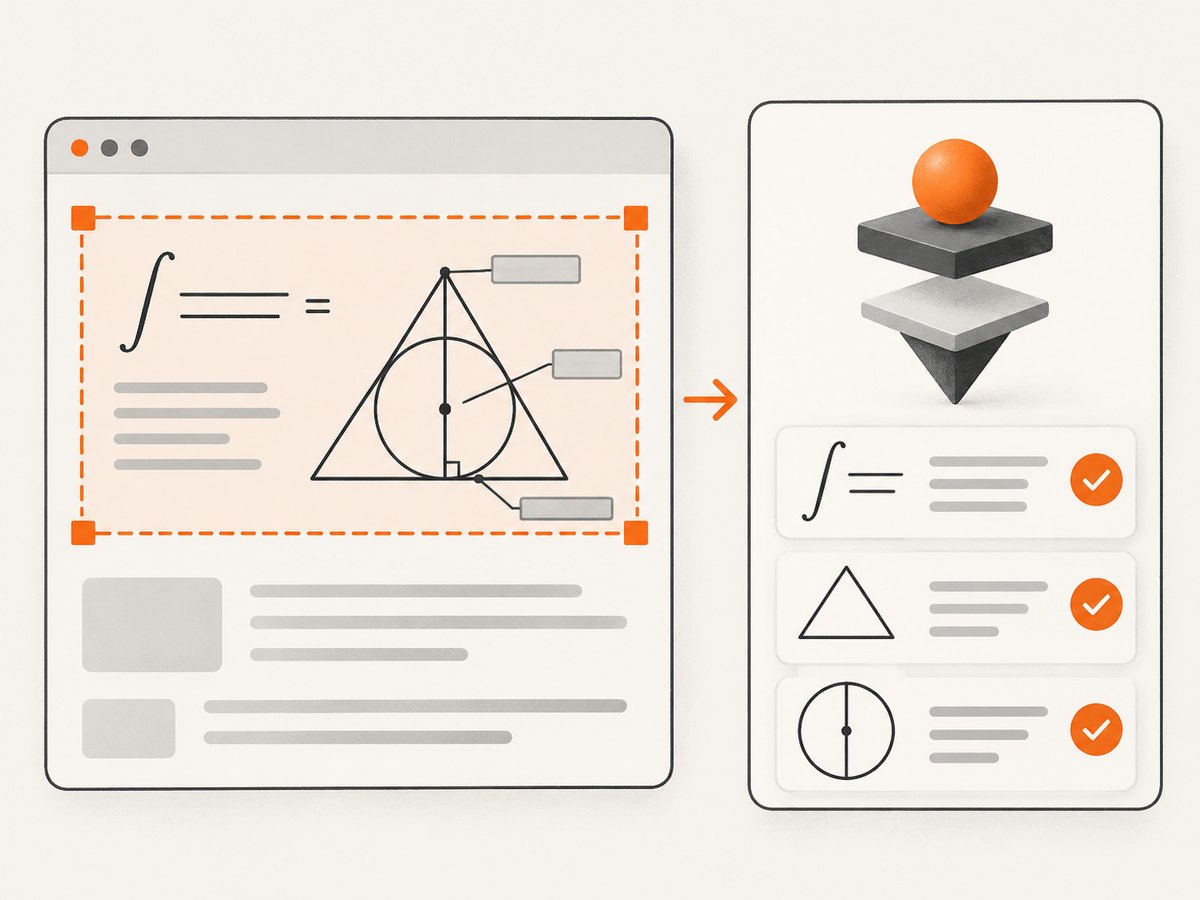
- For equations, check signs, parentheses, fractions, exponents, subscripts, and units.
- For graphs, check axis names, scale, plotted points, and whether the question asks for a value, interval, or trend.
- For geometry, confirm labels, angle marks, parallel or perpendicular indicators, and which lengths are known.
- For word problems, check names, quantities, conditions, and what the question actually asks for.
- For multiple choice, make sure the selected area includes every option and that the explanation refers to the same one.
Some products explicitly restate the problem before solving it. MathPal says its response restates the problem, which can help you check recognition; this is a provider-specific feature, not a standard feature of every extension. If the transcription is wrong, retake a tighter, clearer crop rather than trying to validate reasoning based on the wrong input.
4. Review the work and verify the result
Read the explanation as a proposed solution. Work through each step and check that it follows from the previous one. When possible, solve the problem independently, substitute an answer back into the original equation, check units, or use a trusted course resource. A polished explanation is not proof that the result is correct.
SightSolve’s listing describes the extension as a study aid and warns that AI can be wrong. Use generated steps to find a point of confusion or compare methods, not as a substitute for understanding. For graded work or assessments, follow the applicable school policy. Both SightSolve and MathPal tell users to check their school’s rules before using AI on graded work.
5. Protect the information in the screenshot
A capture can include more than the exercise: your name, account details, course content, messages, or other visible tabs and page details. Select only what is necessary, and close unrelated material before capturing. Check the provider’s privacy policy and retention terms before submitting sensitive content.
Policies differ. MathPal says a selected area is sent to its server for AI processing and that, when signed in, the image is stored with the solve in history. SightSolve’s listing says screenshots are discarded after processing and are not stored or sold. These are disclosures from those providers; they do not describe all extensions. Review the current provider terms because practices can change.
6. What differs between screenshot solvers
Compare tools on the parts that affect your workflow and privacy, rather than assuming every extension works the same way.
| Question | What to check |
|---|---|
| How do I capture? | Toolbar icon, shortcut, sidebar, selection controls, and whether the crop can be adjusted. |
| What can it read? | Supported subjects and whether it handles webpages, PDFs, diagrams, graphs, handwriting, or scanned pages. Treat each claim as product-specific. |
| What does it return? | A quick answer, worked steps, a restatement, or a follow-up chat. Check the listing and try a permitted practice problem. |
| Where does the image go? | Whether selected content is uploaded, how long it is retained, whether it appears in account history, and how deletion works. |
| What does it cost? | Current free limits, account requirements, subscription terms, and what happens when a limit is reached. |
| What can it access? | Requested browser permissions and whether they match the extension’s stated job. |
For example, Screenshot Solver says an internet connection is required to process problems through its AI servers. Homework Helper’s listing claims it can handle diagrams, formulas, graphs, and handwriting. Those are vendor descriptions, not independently verified capabilities. Solvely advertises “98% Accurate” and “100M Problems Solved”; these are vendor claims and should not be treated as independent comparative evidence.
7. Troubleshoot common problems
| Problem | Likely cause | What to try |
|---|---|---|
| No capture button or shortcut does nothing | The extension is not installed, is disabled, is not pinned, or the shortcut differs. | Open the browser’s extensions menu, confirm it is enabled, and check the current listing for its capture control. Try the toolbar icon if a shortcut fails. |
| The extension cannot capture this page | The page or viewer may restrict capture, or the extension may not support that page type. | Check the extension’s supported sources and help. Open the material in a supported viewer if allowed. Do not bypass page or assessment controls. |
| The answer misreads a symbol or diagram | The crop is small, blurry, clipped, or missing context. | Zoom in, include the complete relevant diagram and labels, and capture again. Verify the restatement before reading the solution. |
| Processing fails or never starts | The connection is offline, the service is unavailable, or the extension requires sign-in or a plan. | Check connectivity, sign-in status, and the provider’s current service and plan instructions. Retry once with a smaller, clear selection. |
| The explanation skips a step | The tool may optimize for a short response or may not offer a detailed mode. | Check for a step-by-step setting or follow-up prompt. Ask about one specific transition, then verify it independently. |
| A capture contains private details | The selected rectangle included unrelated page content. | Stop before submitting if possible and retake a narrower selection. Check the provider’s deletion and retention instructions if the content was already sent. |
| The extension is blocked during a quiz or exam | The environment or the rules may prohibit extensions or outside assistance. | Follow the exam and school policy. Do not attempt to evade monitoring or restrictions. |
8. Performance, reliability, and cost
Processing typically depends on a working internet connection when the extension sends the image to a service. Screenshot Solver explicitly says internet access is required for its server-side AI processing. Connection quality, image clarity, provider availability, and account or plan limits can all affect whether a capture completes. The reviewed material does not establish a universal processing time or accuracy rate.
For more reliable results, capture a legible, tightly framed question; include necessary labels and context; and check the transcription before interpreting the reasoning. If a request fails, preserve the original question and retry according to the service’s guidance. Avoid repeatedly submitting the same sensitive screenshot when you do not know whether the first request completed.
Cost and account requirements vary. MathPal describes a free initial solve and says regular use requires a plan. Check each provider’s current listing for limits and terms; do not assume a free trial or price remains unchanged. If you use a solver for regular study, compare the cost with how often you need it and whether its explanation format helps you learn.
Or skip the browser setup
ScreenshotNeo is a website screenshot API and MCP server for developers. It captures a website; it does not interpret a homework question or provide a worked solution. Use a screenshot solver for understanding a question. Use ScreenshotNeo when your task is to capture a website programmatically or from an AI agent.
One GET request can return a PNG, JPEG, WebP, or PDF. For example, this cURL request saves a WebP screenshot:
curl -G "https://api.screenshotneo.com/v1/shot" -d access_key=YOUR_API_KEY --data-urlencode url=https://stripe.com -o shot.webpEquivalent Python:
import requests

r = requests.get(
    "https://api.screenshotneo.com/v1/shot",
    params={"access_key": "YOUR_API_KEY", "url": "https://stripe.com"},
    timeout=90,
)
open("shot.webp", "wb").write(r.content)
Equivalent Node.js:
const q = new URLSearchParams({
  access_key: 'YOUR_API_KEY',
  url: 'https://stripe.com'
});
const res = await fetch(`https://api.screenshotneo.com/v1/shot?${q}`);
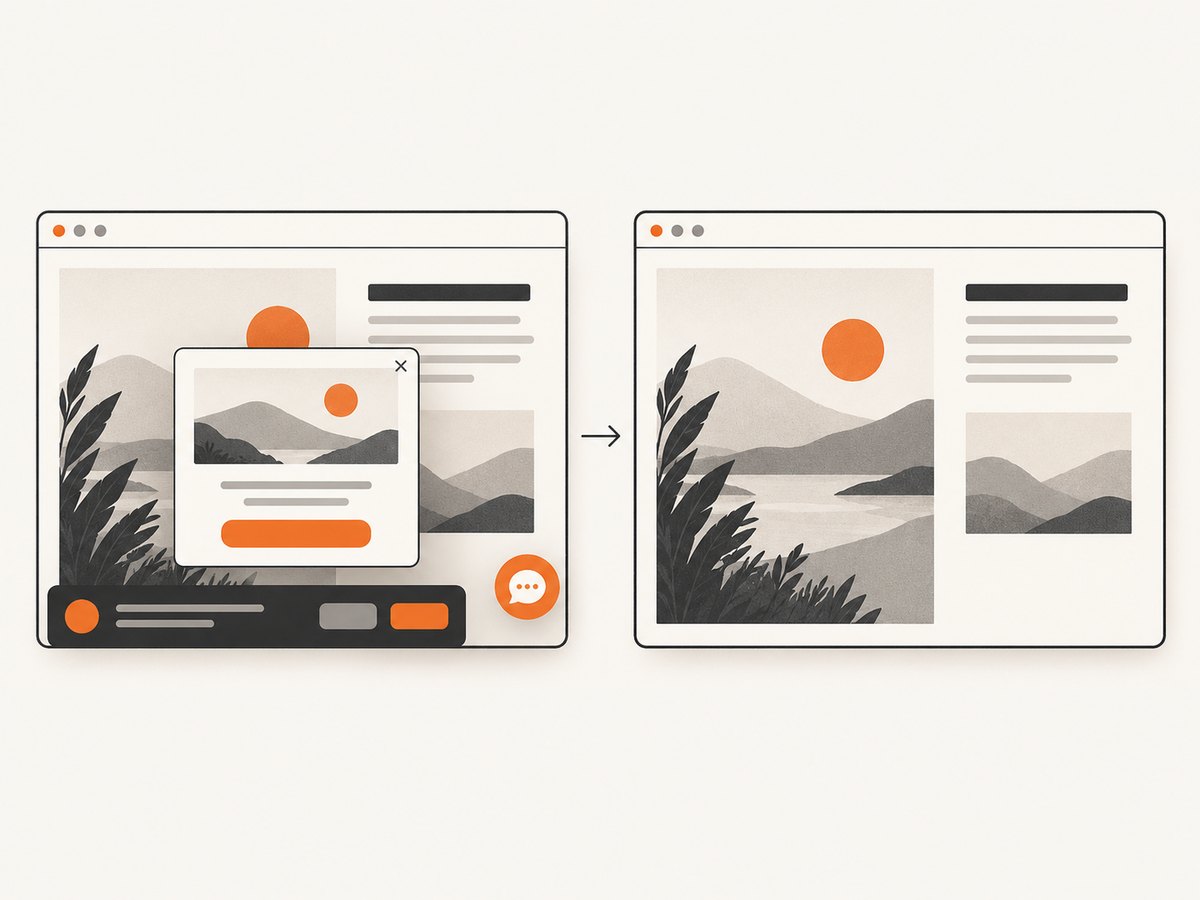
Read the ScreenshotNeo API documentation for request options. It can accept consent banners and remove known consent platforms, newsletter popups, and chat widgets before capture; each step can be turned off. Bot checks, blank pages, timeouts, failed loads, and cache hits are not billed, and response headers identify the page verdict and billing status. Its MCP server offers take_screenshot, get_page_info, and capture_pdf for Claude, Cursor, and other MCP clients. The free plan includes 1,000 screenshots a month with no card; paid plans start at $5 for 3,000 shots. These features are useful for website capture workflows, not for solving the captured content.
Sign up for 1,000 free screenshots a month with no card.
FAQ
Can an AI screenshot solver read a question in a PDF?
Some tools describe PDF support, but it is not universal. Check the specific extension’s current documentation and confirm that the browser PDF viewer is supported.
Does a screenshot solver always show its work?
No. Response formats vary by provider. Check whether it offers worked steps, and verify those steps rather than relying on a final answer alone.
Can I use one during an exam?
Only if the exam and school rules allow it. A technical ability to capture a screen does not grant permission to use an AI tool.
Does ScreenshotNeo solve screenshot questions?
No. ScreenshotNeo captures websites as images or PDFs and provides developer tools for capture. It is not an AI homework solver.


