How to Add Image and PDF Attachment Automations in Airtable
Build Airtable automations that email images, create PDFs, generate durable links, and process attachment fields with scripts.
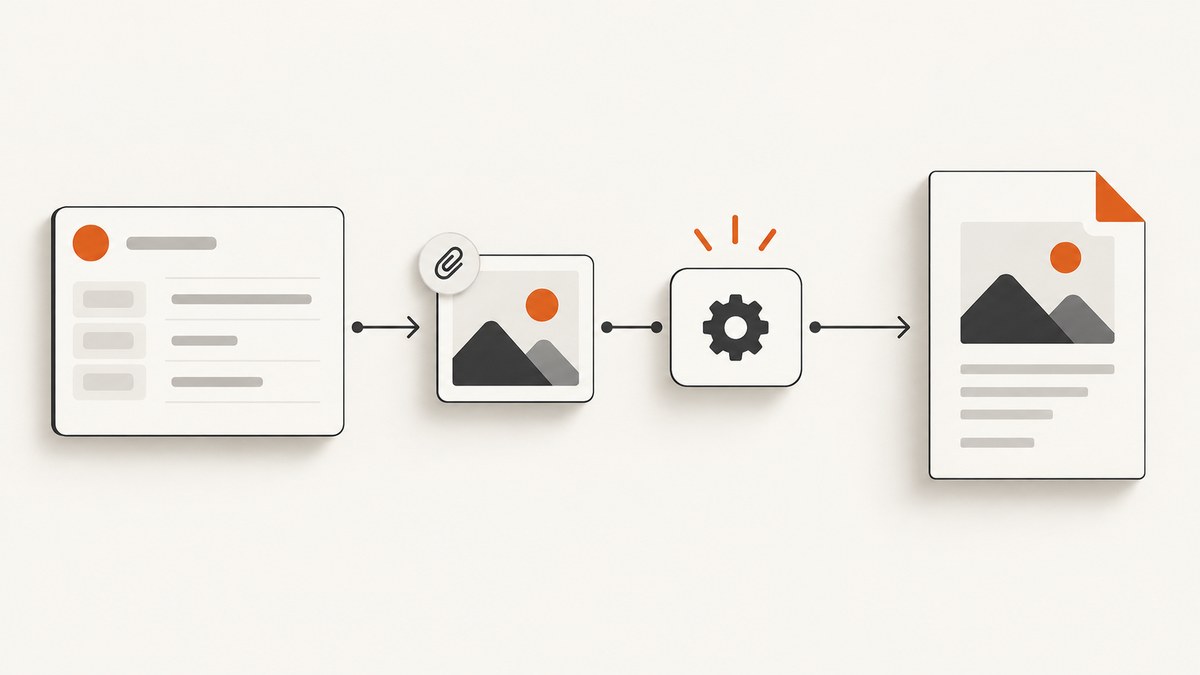
Short answer: create an Attachment field in your Airtable table, make an automation with the trigger that matches your event, add the action for the outcome you need, test every step with a representative record, and then turn the automation on. Airtable does not backfill records that already matched a condition when you enable a new automation.
This guide covers the common cases: emailing an image or PDF as a file, displaying an image inline, creating a reusable download, generating a PDF from record data, and running custom code. It also explains attachment URL lifetime, script limits, failure diagnosis, and when a screenshot service such as ScreenshotNeo is a better fit.
1. Prepare the Airtable base
Create the attachment field first
Open the target table and add a field with type Attachment. Airtable stores images, PDFs, videos, and other files on its servers. Use this field for source files, generated documents, or both. Give separate roles separate fields, such as Source image and Generated PDF, so later actions are unambiguous.
Airtable’s attachment documentation lists a maximum individual attachment size of 5 GB. The same article shows base storage ceilings of 1 GB on Free, 20 GB on Team, 100 GB on Business, and 1,000 GB on Enterprise Scale (figures shown in its August 25, 2026 update). Check the current limits before designing a high-volume workflow: Airtable attachment fields.
Decide what starts the automation
Airtable describes an automation as a trigger followed by one or more actions. Typical triggers include:
- When a record is created.
- When a record is updated.
- When a record matches conditions.
- When a form is submitted.
- At a scheduled time.
- When a webhook is received.
- When a record enters a view.
Choose the narrowest trigger that represents the business event. For example, use “record matches conditions” with Status = Ready and Source image is not empty instead of running on every edit.
2. Build and test the automation
- Go to Automations and select Create automation.
- Choose the trigger and its table, view, or conditions.
- Use Test on the trigger and select a representative record.
- Add an action, insert values from the trigger or previous actions, and test it.
- Repeat for each action, inspect the returned values, and only then switch the automation on.
Existing records that already satisfy a new condition do not run automatically when the automation is enabled. To test one, make it stop meeting the condition and then meet it again, or create a new test record. See Airtable’s automation guide.
3. Email an image or PDF as a file attachment
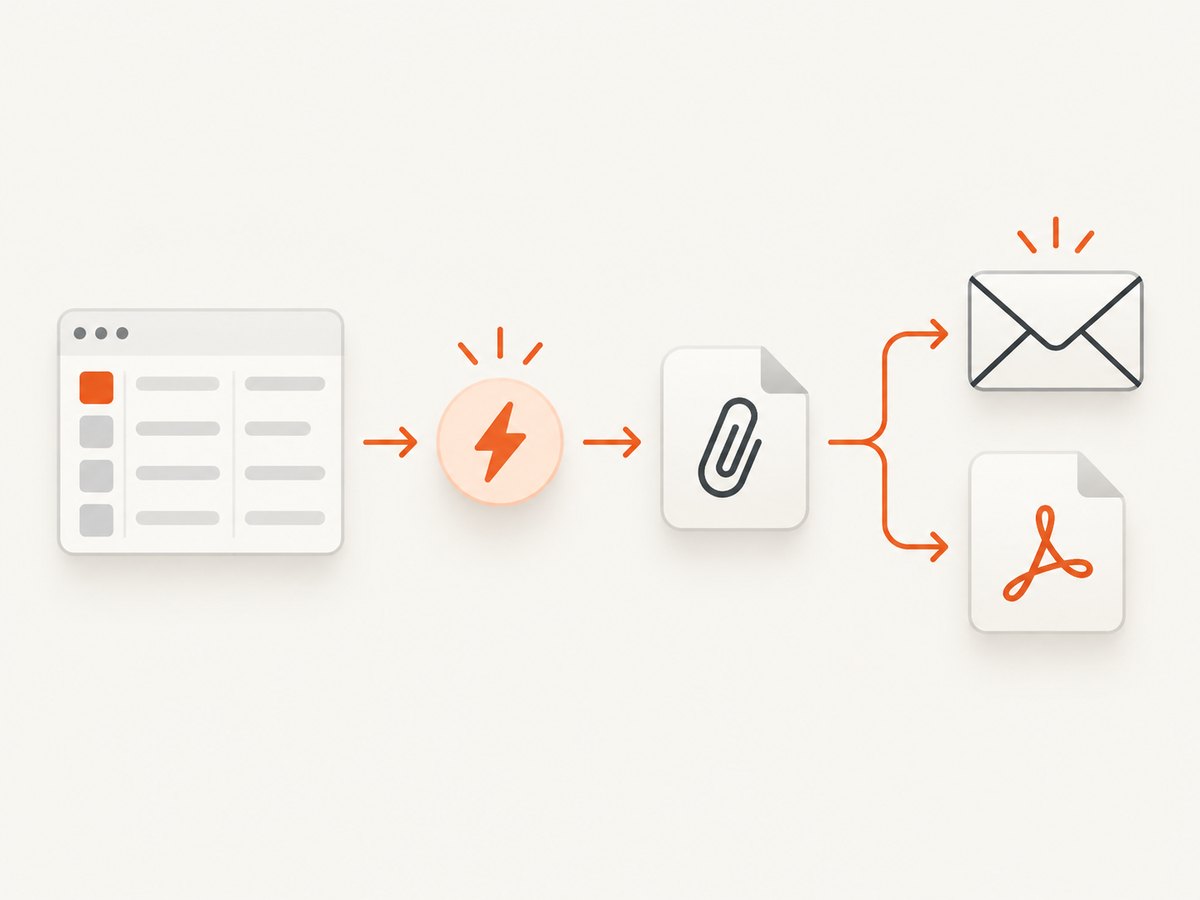
For a file attachment, use the Send email action. In its Attachments section, insert the token for your Attachment field. Airtable sends the file itself, so the recipient can download it without opening the base (subject to the email provider’s size limits).
Recommended setup
- Trigger when the record is ready, for example
Status = Approved. - Add Send email.
- Set the recipient from an email field or enter a fixed address for internal testing.
- Write a useful subject that includes a record identifier.
- Insert
Source filesin Attachments. - Test with a small image and a small PDF before using production files.
If the attachment field contains multiple files, the action can include all of them. If you need only one file, keep a separate single-file field or use a script to select the desired attachment before the email action.
A secure attachment token used in the email body is different from a file attachment. Airtable says inline image tokens render as expiring links rather than permanent image links: Send email action documentation.
4. Display an image inline in an email
Inline rendering is appropriate for a newsletter preview, proof image, or thumbnail. Do not treat an Airtable secure attachment URL as permanent. Airtable’s secure URL can expire after a few hours.
For a durable inline image, put an image hosted at a stable public URL into a URL field, then insert that URL in the email body. An HTML email can use an image tag such as:
<img src='https://cdn.example.com/proof/record-123.png' alt='Proof image' style='max-width:100%;height:auto;'>The host must permit the recipient’s email client to fetch the image. If recipients are Airtable collaborators and a short-lived link is acceptable, you can insert the attachment token, but explain that it may stop rendering later.
5. Share a download link safely
Airtable exposes two important URL behaviors:
| URL type | Who can use it | Lifetime | Use it for |
|---|---|---|---|
| Viewer URL | Airtable collaborators | Does not expire unless the record or attachment is removed | Internal base users |
| Download URL | Anyone with the link | Expires after a few hours | Short-lived transfers |
Never save an expiring download URL as if it were a permanent public asset. If a customer must access the file later, copy it to storage you control or use an integration that stores its own copy. An automation can write a temporary URL into a text field for immediate use, but add an expiration note or a follow-up process that refreshes it.
6. Generate a PDF from record fields
When the PDF is created from fields rather than an existing attachment, use a document generation service. Airtable documents the Formstack Documents extension: map Airtable fields to a Formstack template, generate a PDF or Word document, and save the result into an Attachment field. A Formstack account and API key are required. Review current Formstack terms separately; Airtable’s documentation establishes the workflow, not pricing or endorsement.
Typical document workflow
- Add fields such as customer name, address, line items, totals, and approval date.
- Create a matching template in Formstack Documents.
- Install the extension and authenticate with the required API key.
- Map Airtable fields to template fields.
- Choose PDF output and the destination Attachment field.
- Trigger the process when the record reaches a state such as
Approved. - Test with a record containing long text, missing optional fields, and multiple line items.
Keep the generated file in a separate field from source uploads. That makes retries and auditing easier.
7. Use Run a script for custom attachment processing
Use Run a script when native actions cannot transform the file, call an API, choose one attachment from many, or write output variables for later actions. Configure input variables from the trigger or previous actions. The script can expose output variables that a later Update record action consumes.
A minimal Airtable scripting pattern looks like this:
let config = input.config();
let recordId = config.recordId;
let table = base.getTable('Projects');
let record = await table.selectRecordAsync(recordId);

let files = record.getCellValue('Source files') || [];
let firstFile = files[0];

output.set('fileUrl', firstFile ? firstFile.url : null);
output.set('fileName', firstFile ? firstFile.filename : null);
Pass the script outputs into a later action instead of hard-coding record IDs. Keep scripts bounded. Airtable’s documentation lists limits including 12 seconds for the scripting API, 30 seconds for fetch, 512 MB memory, 50 fetch requests, and 30 selectRecords queries. It also notes that the overall script timeout has temporarily been adjusted to 120 seconds for observation and testing, so treat that value as changeable: Run a script documentation.
8. Add screenshots or PDFs from web pages
If your automation needs a visual snapshot of a URL rather than a file already in Airtable, you can run your own browser automation with Playwright or Selenium, upload the resulting file to Airtable, and then continue with the email or document workflow. That approach gives control over browser actions but requires a browser runtime, dependency updates, wait conditions, storage, and failure handling.

Or skip the browser setup
ScreenshotNeo provides a GET endpoint that returns a PNG, JPEG, WebP, or PDF. It can accept cookie and consent banners before capture and remove more than 60 known consent platforms, newsletter popups, and chat widgets; each cleanup step can be disabled. Only clean shots are billed: bot checks, CAPTCHAs, blank pages, timeouts, failed loads, and cache hits cost nothing, and response headers identify the verdict and billing state.
See the ScreenshotNeo API documentation. cURL:
curl -G 'https://api.screenshotneo.com/v1/shot' -d access_key=YOUR_API_KEY --data-urlencode url=https://stripe.com -o shot.webpPython:
import requests
r = requests.get('https://api.screenshotneo.com/v1/shot', params={'access_key': 'YOUR_API_KEY', 'url': 'https://stripe.com'}, timeout=90)
open('shot.webp', 'wb').write(r.content)
Node.js:
const q = new URLSearchParams({ access_key: 'YOUR_API_KEY', url: 'https://stripe.com' });
const res = await fetch(`https://api.screenshotneo.com/v1/shot?${q}`);
Download the response in your worker, upload it to the Airtable Attachment field, and update the record with the resulting file metadata. ScreenshotNeo supports full-page capture with lazy images loaded, CSS selector element capture, dark mode, device presets, arbitrary viewports, retina scale, PDF paper sizes and margins, custom CSS and JavaScript, clicks, selector or network-idle waits, request blocking, headers, cookies, user agents, authorization, timezone, geolocation, transparent backgrounds, resizing, caching with a chosen TTL, signed links, asynchronous jobs with signed webhooks, bulk capture of 100 URLs per call, a usage API, and an OpenAPI specification.
It also has an MCP server with take_screenshot, get_page_info, and capture_pdf tools for Claude, Cursor, and other MCP clients. The Free plan includes 1,000 shots per month with no card; paid plans start at $5 for 3,000 shots. Create a free ScreenshotNeo account.
9. Troubleshooting checklist
The automation never runs
- Cause: the record already met the condition before the automation was enabled. Fix: change it so the condition becomes false, then true again, or create a new record.
- Cause: the trigger is watching the wrong table, view, or field. Fix: retest the trigger and inspect the selected record.
- Cause: a required attachment is empty. Fix: add an “attachment is not empty” condition.
The email arrives without a file
- Confirm the Attachment field token is in the action’s Attachments section, not only in the message body.
- Test with one small file and check whether the source field contains a valid attachment object.
- Check the recipient mail service’s maximum message size.
The inline image stops working
The URL was probably an expiring Airtable download URL. Use a public, durable host for inline images or send the file as an attachment. Airtable viewer URLs require collaborator access.
An upload-by-URL action returns 403 or “Couldn’t upload. Try adding again”
Airtable notes that a blocked upload domain can cause a 403. Download the file in your own process and upload the bytes, or use Airtable’s direct attachment upload API. Also check redirects, authentication, and whether the source URL has already expired.
The script times out
Reduce the number of records selected, avoid serial network calls, cache reusable data, and keep fetch and query counts below documented limits. Move large jobs to an external worker and let Airtable record the job status.
The PDF has missing fields
Retest after changing the source record, confirm every template mapping, and provide explicit fallback values for optional fields. Check line-item and long-text formatting with representative data.
10. Performance, reliability, and cost planning
- Trigger volume: add precise conditions so edits do not generate duplicate emails or documents.
- Idempotency: store a processing status, source revision, or generated-file ID and stop repeats when the same input is seen again.
- Retries: make failures visible in a status field and retry only transient network errors. Do not blindly resend emails.
- File size: compress large images before emailing and verify attachment and base storage ceilings.
- URL lifetime: copy files you must retain to durable storage; refresh temporary Airtable download links when needed.
- Browser capture: use explicit selector or network-idle waits for dynamic pages and block unnecessary resources when speed matters.
- Screenshot cost: ScreenshotNeo bills only clean shots; cache hits and failed or unusable captures are not billed. Select a TTL that matches how often a page changes.
- Plan selection: ScreenshotNeo offers 1,000 free shots monthly, then $5 for 3,000, $15 for 15,000, $39 for 60,000, $99 for 250,000, and $249 for 1,000,000; yearly billing provides two months free and all features are included on every plan.
FAQ
Can Airtable automatically process attachments already in every existing record?
No. Enabling an automation does not backfill records that already met its trigger conditions. Re-enter the condition or use a scheduled process that identifies pending records.
Are Airtable attachment links permanent?
Download links available to anyone expire after a few hours. Viewer URLs are intended for collaborators and remain available while the record and attachment exist.
Should I store generated PDFs in the same attachment field as source images?
Usually no. Separate fields make it clear which file is input, which is output, and which version should be emailed.
When should I use a script instead of native actions?
Use a script for selection, transformation, external API calls, or output values that later actions need. Keep it short and within Airtable’s documented limits.
Can an AI agent create the screenshot used by an Airtable workflow?
Yes. ScreenshotNeo’s MCP server exposes screenshot, page-info, and PDF tools to MCP clients such as Claude and Cursor. The resulting file can then be uploaded to Airtable by your integration.