How to Set Up an Alert When a Webpage Changes
Set up a webpage change alert by choosing what to monitor, where checks run, how often they run, and how you’ll be notified.
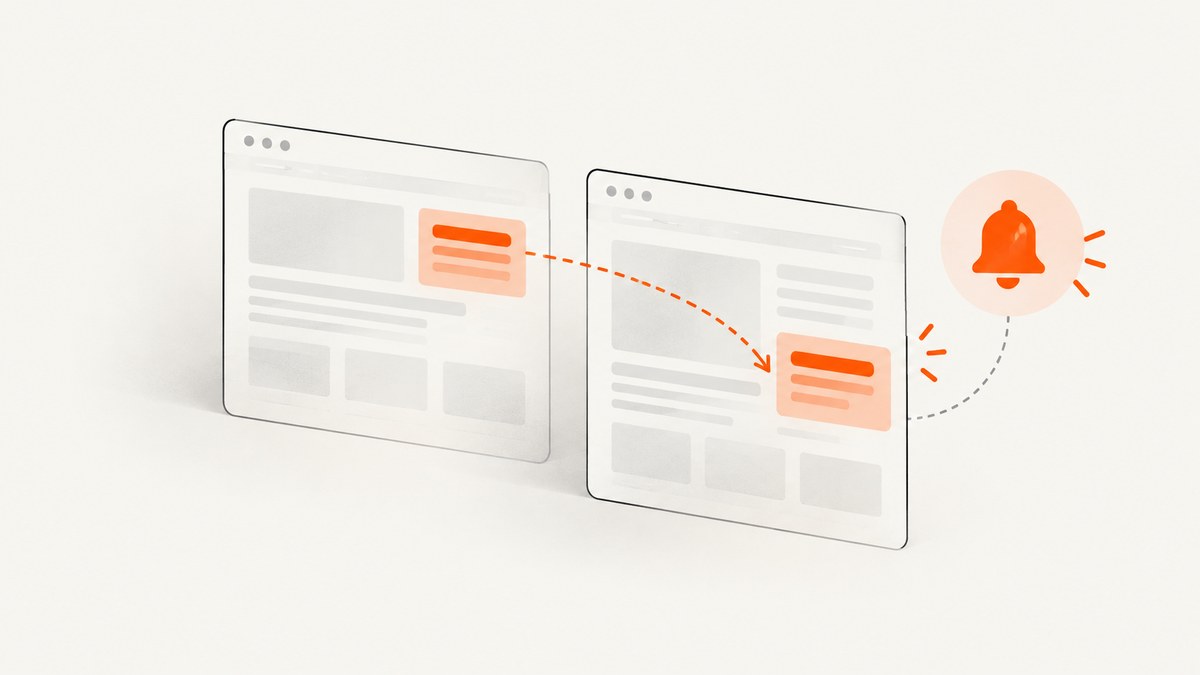
To get an alert when a webpage changes, create a monitor for its URL, choose whether to watch the whole page or a specific part, set a checking schedule, and select a notification channel. When an alert arrives, compare the old and new versions to decide whether the change matters. Choose local monitoring if you are happy to leave the browser or app running; choose cloud monitoring if checks should continue while your device is off.
This guide covers visual website monitors and browser extensions, plus a developer workflow for checking a page yourself. The right setup depends on what change matters, how reliably checks need to run, and where you want notifications delivered.
1. Decide what counts as a change
Before setting up a monitor, write down the information you want to catch. Examples include a product becoming available, a price changing, a new notice appearing, or a particular paragraph being updated. A clear target helps you choose the right monitoring scope and reduce alerts caused by irrelevant page updates.
- Whole page: use this when any visible change could matter or you are not sure where the information will appear.
- Selected area or element: use this when a specific section matters and navigation, recommendations, or other page content changes frequently.
- Feed: if the page offers an RSS feed and your tool supports it, a feed can be a useful alternative for published updates.
Visualping documents whole-page and specific-element monitoring. Distill’s extension supports whole-page and selected-element monitoring, and its documentation also describes monitoring an RSS feed when the page supports one. Targeting an area can make unrelated page changes less relevant, but it does not guarantee that every false alert will disappear.
2. Choose local or cloud checks
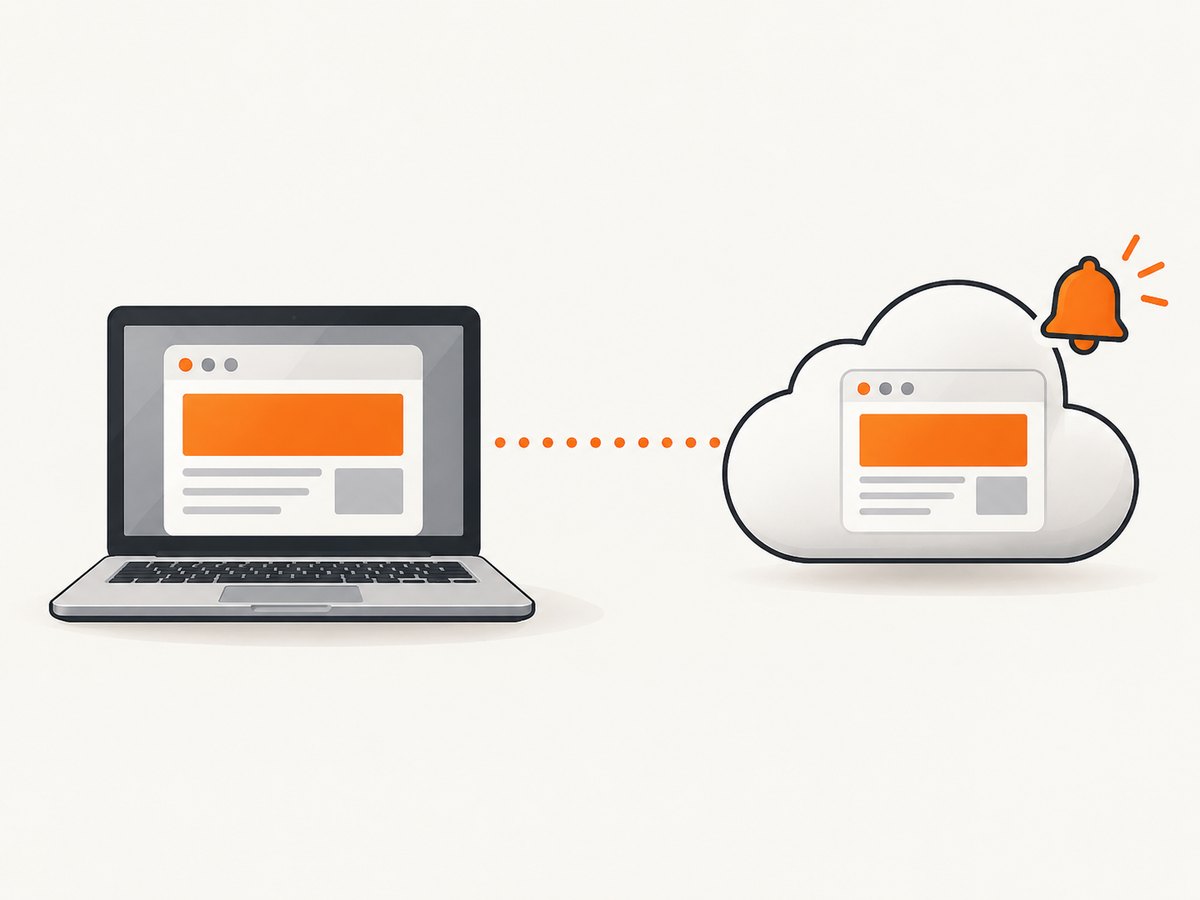
The main practical difference is whether checks depend on your device being on.
| Approach | Where checks run | Device requirement | Good fit when |
|---|---|---|---|
| Local | Your device, through an app or browser extension | The browser or app needs to stay open for checks | You want checks tied to your own browser and can keep it running |
| Cloud | The service provider’s servers | Your computer can be off | You need monitoring to continue without your device running |
Distill describes both local and cloud monitoring. Visualping also distinguishes cloud checks, which continue when the browser or computer is off, from local extension checks that run on the device. These are vendor-described capabilities; check each service’s current plan details before relying on a specific option.
3. Set up a webpage change monitor
The exact controls vary by service, but the setup usually follows the same sequence:
- Choose a monitoring service or extension. Decide whether you need cloud checks, local checks, or both. Visualping is one hosted option; Distill offers a browser extension as well as cloud monitoring.
- Add the page URL. Use the specific page that contains the information, rather than a general homepage where possible. Make sure the page is publicly accessible or that the service supports the authentication it requires.
- Select the monitoring scope. Start with the whole page if you are unsure. Select the relevant region or element if other parts change often and the tool provides that option.
- Set the schedule. Choose a check frequency appropriate to how quickly you need to know. Check the service’s current limits and plan terms; the research sources do not establish a universal interval or price.
- Choose criteria or filters, if available. Some services let you describe or filter for changes. Use criteria to focus on meaningful changes, then review alerts until you know whether the monitor is too broad or too narrow.
- Pick an alert channel. Email is enabled by default in Visualping’s documented setup. Distill lists email, SMS, mobile push, and integrations; availability can depend on subscription.
- Save the monitor and review its first result. Confirm that the captured page or selected area contains the information you intended to watch. A monitor that misses the target is unlikely to produce useful alerts.
Visualping’s setup guide documents selecting the page, check frequency, and criteria. Its help material describes added and removed content and before-and-after comparisons. Distill also documents criteria and conditions. Treat the first alert as a chance to tune the scope rather than proof that every detected change is important.
4. Review alerts instead of treating every difference as important
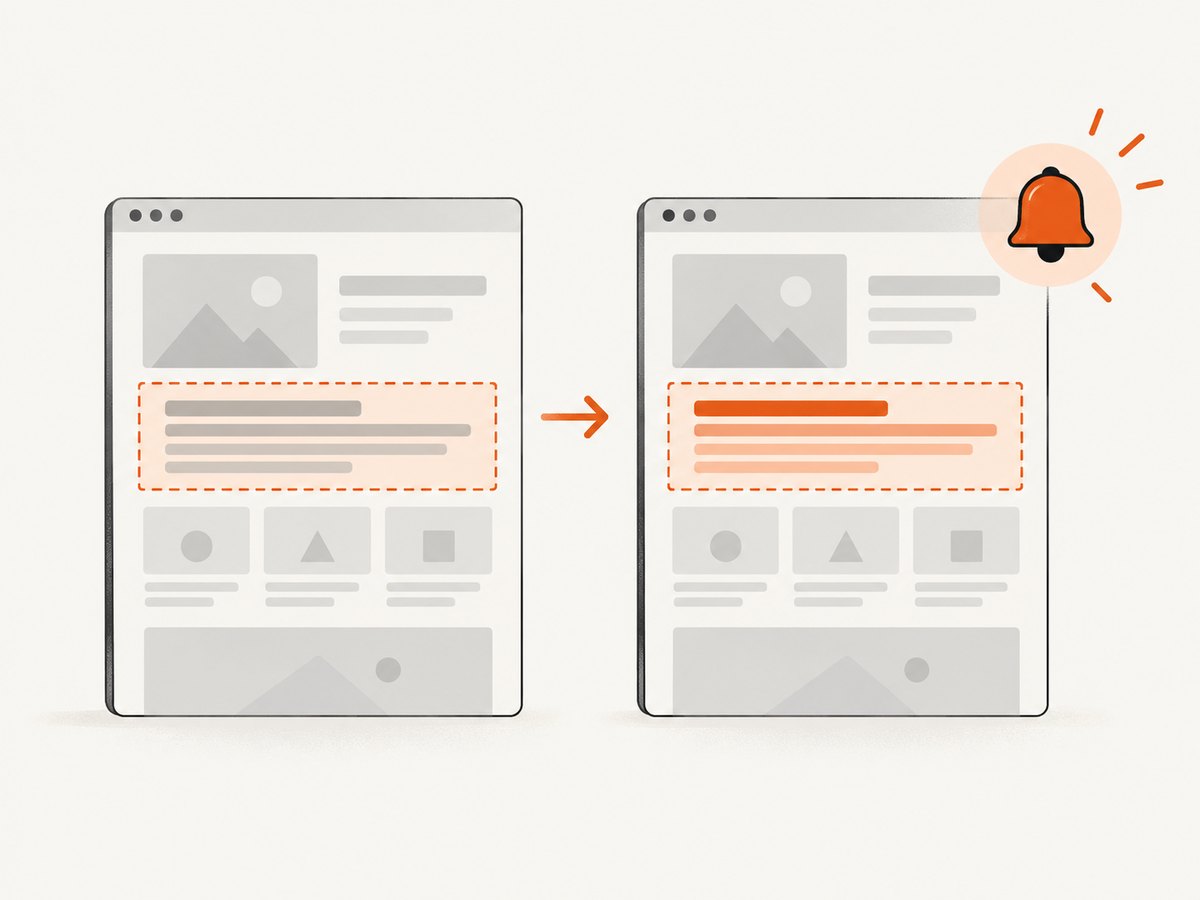
A webpage can change for reasons that do not matter to your goal: rotating recommendations, timestamps, advertisements, or content elsewhere on the page. When a notification arrives, open the comparison and ask:
- Did the relevant text or element change?
- Was the difference caused by a layout, timestamp, or other incidental update?
- Does the monitor need a narrower selected area or different criteria?
- Did a page redesign move the information being tracked?
Keep the monitor broad enough to catch the change you care about. Over-filtering can hide useful edits; monitoring the entire page can create noise. Adjust the scope based on actual comparisons.
5. A developer’s DIY option: poll and compare page content
If you control the page or can fetch it consistently, a small script can periodically retrieve its HTML, extract the relevant text, and compare it with the previous check. The following Python example uses only the standard library. It checks once when run, stores a SHA-256 fingerprint, and prints an alert message when the extracted content changes. Schedule it with your operating system’s scheduler if you want repeated checks.
#!/usr/bin/env python3
import hashlib
import json
import re
import urllib.request
from html.parser import HTMLParser
from pathlib import Path

URL = "https://example.com/announcements"
STATE_FILE = Path("page-monitor-state.json")

class TextExtractor(HTMLParser):
    def __init__(self):
        super().__init__()
        self.parts = []
        self.hidden_depth = 0

    def handle_starttag(self, tag, attrs):
        if tag in {"script", "style", "noscript"}:
            self.hidden_depth += 1

    def handle_endtag(self, tag):
        if tag in {"script", "style", "noscript"} and self.hidden_depth:
            self.hidden_depth -= 1

    def handle_data(self, data):
        if not self.hidden_depth:
            text = " ".join(data.split())
            if text:
                self.parts.append(text)

def fetch_text(url):
    request = urllib.request.Request(
        url,
        headers={"User-Agent": "PageChangeMonitor/1.0"},
    )
    with urllib.request.urlopen(request, timeout=30) as response:
        html = response.read().decode(response.headers.get_content_charset() or "utf-8", errors="replace")
    parser = TextExtractor()
    parser.feed(html)
    return " ".join(parser.parts)

def main():
    text = fetch_text(URL)
    digest = hashlib.sha256(text.encode("utf-8")).hexdigest()
    previous = json.loads(STATE_FILE.read_text()) if STATE_FILE.exists() else None
    if previous is None:
        print("Initialized monitor; no previous version to compare.")
    elif previous.get("digest") != digest:
        print(f"ALERT: page text changed: {URL}")
    else:
        print("No text change detected.")
    STATE_FILE.write_text(json.dumps({"url": URL, "digest": digest}, indent=2))

if __name__ == "__main__":
    main()
Save it as monitor.py, change URL, and run python3 monitor.py. The first run creates a baseline. Later runs compare against that baseline. This sample reports that a difference exists; it does not preserve a human-readable before-and-after diff or send email. Add a notification mechanism only after deciding where alerts should go and how credentials will be stored.
What the script does and does not catch
This is a basic polling example, not a full browser. It reads the server response as delivered to the script. If the relevant content is rendered only after JavaScript runs, the fetched HTML may not contain it. In that case use a browser-based monitor, a supported page API or feed, or a browser automation setup that renders the page. The script also treats any extracted text change as significant, so dynamic content can create noisy alerts.
The local state file is a single baseline. Keep it writable and protect it if the monitored page contains information you do not want exposed. If two copies run at once, they can overwrite each other’s state. For reliable scheduled use, make sure only one run is active, record errors, and decide what should happen when a fetch fails: a failed request should normally be reported as a monitoring problem, not as a page change.
cURL, Python requests, and Node.js for a one-time fetch
These examples fetch page HTML; they do not themselves schedule recurring checks or compare versions. They are useful building blocks if you want to put the request inside your own monitor.
curl --fail --location --max-time 30 \
  --user-agent "PageChangeMonitor/1.0" \
  "https://example.com/announcements" \
  --output page.html
import requests
url = "https://example.com/announcements"
response = requests.get(
url,
headers={"User-Agent": "PageChangeMonitor/1.0"},
timeout=30,
)
response.raise_for_status()
html = response.text
print(html[:500])const url = 'https://example.com/announcements';
const res = await fetch(url, {
headers: { 'User-Agent': 'PageChangeMonitor/1.0' },
signal: AbortSignal.timeout(30_000),
});
if (!res.ok) throw new Error(`HTTP ${res.status}`);
const html = await res.text();
console.log(html.slice(0, 500));Respect the website’s access rules and avoid checking more often than necessary. A 200 response only confirms that a response was returned; it does not establish that the expected content rendered or that a meaningful change occurred.
6. Troubleshooting common problems
| Symptom | Likely cause | What to try |
|---|---|---|
| No alerts arrive | The notification channel is not configured, a local monitor is not running, or the page has not changed under the selected criteria. | Check the monitor’s status and notification settings. For local checks, keep the app or browser open. Review the latest captured version. |
| Too many alerts | The whole page includes frequently changing content unrelated to your goal. | Monitor a selected element or area where supported. Review criteria and avoid focusing on dynamic sections that are not relevant. |
| An important change was missed | The monitored area does not include the content, a redesign moved it, or the page renders content with JavaScript. | Inspect the captured result, reselect the area, or use a browser-capable monitor when the content is rendered dynamically. |
| The local monitor stops checking | The device, browser, or extension is closed or asleep. | Use cloud monitoring if checks must continue while the device is off, or ensure the local app remains available. |
| The DIY request fails | Network error, timeout, access restriction, or server response error. | Check the URL and connectivity, use a reasonable timeout, inspect the HTTP status, and report the failure separately from a content-change alert. |
| The DIY script reports changes constantly | Page text includes rotating or personalized content, or the extraction is too broad. | Extract only the relevant section, normalize volatile values where appropriate, and compare a stable representation. |
| The DIY script never sees the target text | The page may add the content in the browser after the initial HTML response. | Use a browser-rendered monitor or a supported structured source such as a feed when available. |
7. Performance, reliability, and cost considerations
Polling frequency is a trade-off: more frequent checks can notice changes sooner but create more requests and may encounter service limits or access controls. The reviewed setup documentation does not establish one ideal interval for every page. Choose a schedule based on how time-sensitive the information is, then confirm the monitor’s current limits and plan terms.
For reliability, distinguish three outcomes in your own process: a successful check with no relevant difference, a successful check with a difference, and a failed check. A timeout or blocked request is not evidence that the webpage changed. Keep enough history to investigate alerts, and periodically verify that the selected area still contains the intended content.
Costs and alert channels vary by provider and subscription. The cited research does not establish current prices, so review each vendor’s current plan details before relying on a particular checking frequency or notification channel. Local monitoring may avoid dependence on a hosted checking schedule, but it relies on your device and app being available.
8. Or skip the browser setup
If your developer workflow needs a rendered screenshot for visual review, [ScreenshotNeo](https://screenshotneo.com) is a website screenshot API and MCP server. It is not a continuous webpage-change alert service; use it to capture a page when you want a visual snapshot. One GET request returns an image or PDF. See the [ScreenshotNeo API documentation](https://screenshotneo.com/docs/) for request options.
curl -G "https://api.screenshotneo.com/v1/shot" -d access_key=YOUR_API_KEY --data-urlencode url=https://example.com -o shot.webpimport requests
r = requests.get(
"https://api.screenshotneo.com/v1/shot",
params={"access_key": "YOUR_API_KEY", "url": "https://example.com"},
timeout=90,
)
open("shot.webp", "wb").write(r.content)const q = new URLSearchParams({ access_key: 'YOUR_API_KEY', url: 'https://example.com' });
const res = await fetch(`https://api.screenshotneo.com/v1/shot?${q}`);
if (!res.ok) throw new Error(`HTTP ${res.status}`);
const bytes = new Uint8Array(await res.arrayBuffer());
await Bun.write('shot.webp', bytes);Replace the example URL and provide your API key. ScreenshotNeo removes cookie banners, newsletter popups, and chat widgets before capture; bot checks, blank pages, and failed loads are never billed. Its MCP server lets AI agents take screenshots. The free plan includes 1,000 screenshots a month with no card, and paid plans start at $5 for 3,000.
Sign up free for 1,000 screenshots a month, with no card required.
FAQ
Can I get an alert without installing anything?
Yes, a hosted monitoring service can run checks in the cloud. Confirm that its plan supports the schedule and notification channel you need.
Will a webpage monitor tell me whether a change is important?
It can identify or present a difference, but you still need to review whether that difference affects what you care about.
Should I monitor the whole page or one element?
Choose the whole page when any change may matter. Choose a specific area when unrelated sections change frequently and your service supports element selection.
Can a screenshot API notify me automatically when a site changes?
A screenshot API captures a page; a recurring monitor must schedule captures or checks and compare results. Check the product’s documented features before assuming it provides alerts.


