How to Align HTML Pages to Paper Size for wkhtmltopdf
Set wkhtmltopdf page size, orientation, margins, and CSS safely for PDFs that match A4, Letter, Legal, or custom paper.
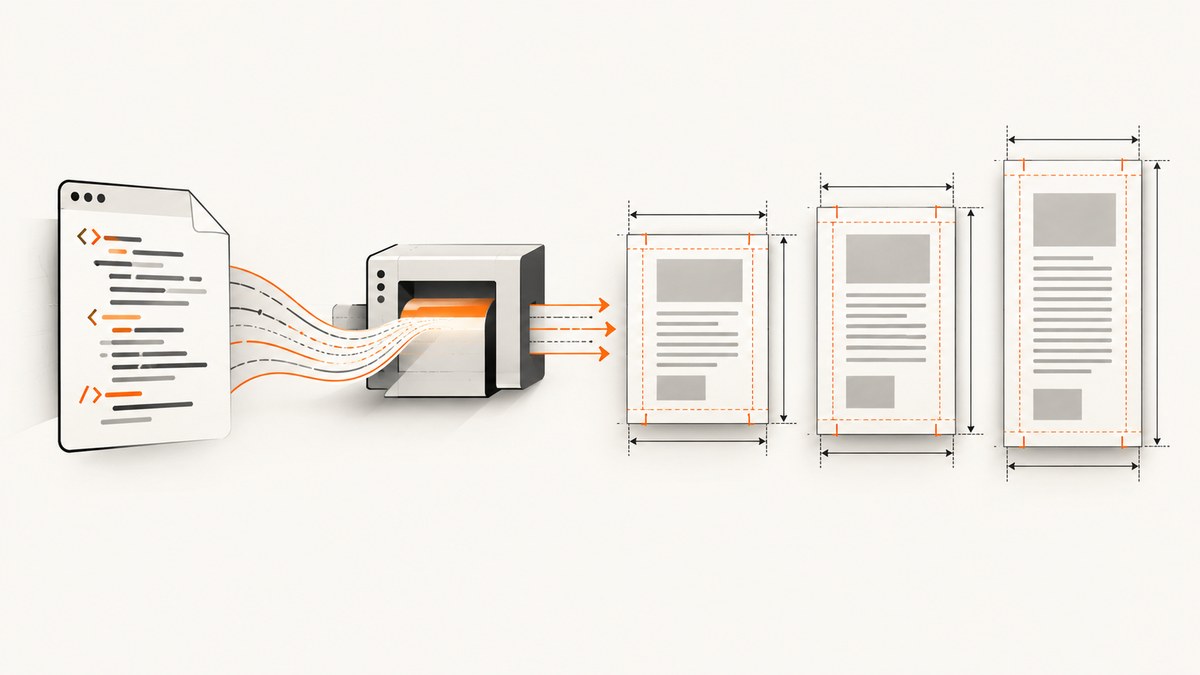
To align an HTML document to a physical paper size in wkhtmltopdf, set the PDF geometry explicitly: choose a named paper size or provide custom width and height, select portrait or landscape orientation, and define all four margins. Then make the HTML layout fit inside the resulting printable area. A reliable command-line baseline is:
wkhtmltopdf \
  --page-size A4 \
  --orientation Portrait \
  --margin-top 12mm \
  --margin-right 12mm \
  --margin-bottom 12mm \
  --margin-left 12mm \
  input.html output.pdf
The wkhtmltopdf project manual documents A4 as the default rendered page size, but relying on a default makes output less reproducible. Specify the required size in automation, CI jobs, and production services. The same manual documents named sizes such as A3, Letter, and Legal, along with custom page dimensions. Read the wkhtmltopdf usage documentation.
1. Understand paper geometry before changing CSS
There are two separate alignment problems:
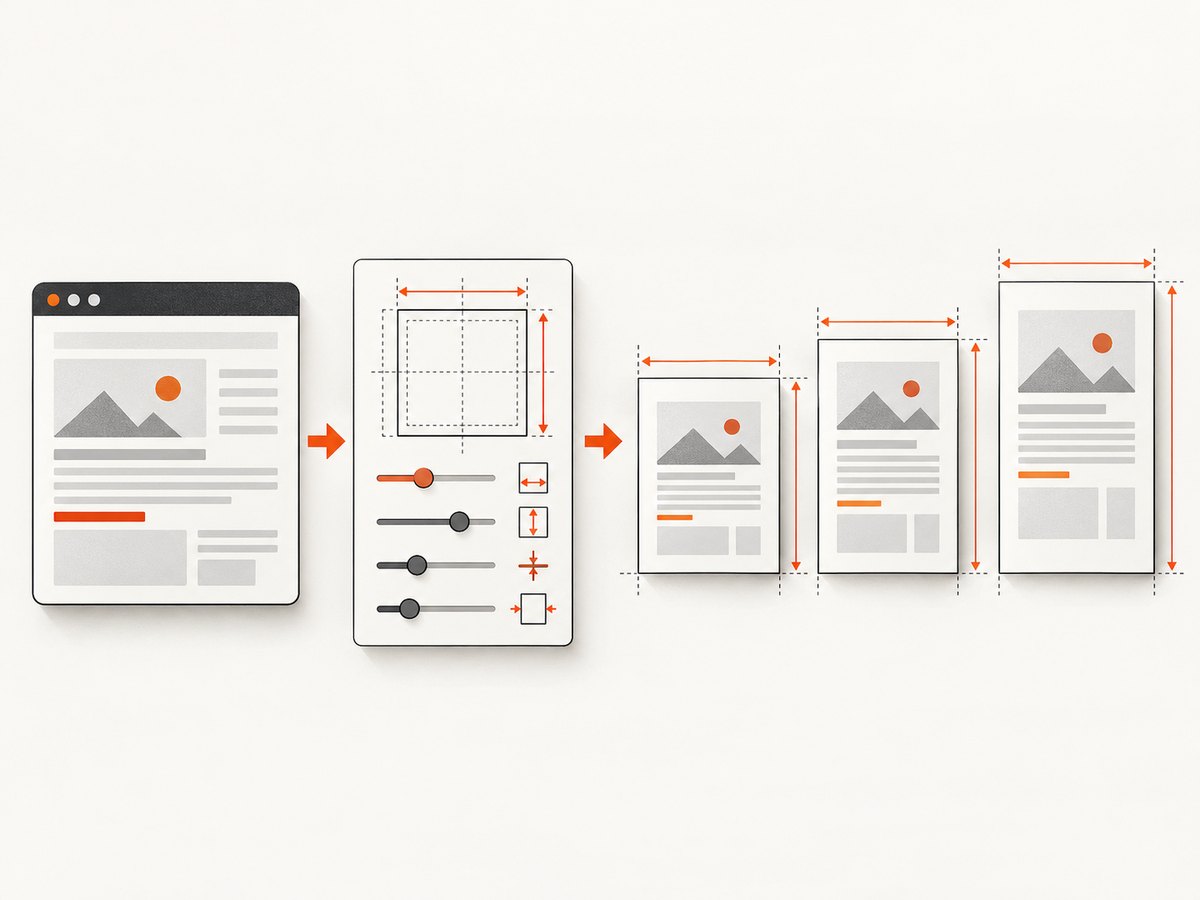
- Sheet geometry: the physical width, height, orientation, and margins of each PDF page.
- Content geometry: the widths, heights, positioning, wrapping, and overflow behavior of the HTML placed inside that page.
A correct A4 setting does not guarantee that a fixed-width table, absolutely positioned panel, or wide image will fit. Conversely, changing CSS width cannot change the PDF sheet unless the renderer’s page settings also change.
| Requirement | wkhtmltopdf setting | Typical use |
|---|---|---|
| Named paper | --page-size A4 |
Invoices, reports, letters |
| Custom paper | --page-width and --page-height |
Labels, tickets, forms |
| Direction | --orientation Portrait|Landscape |
Portrait documents or wide tables |
| Printable area | --margin-top/right/bottom/left |
Printer-safe spacing and binding |
2. Choose a named paper size
Use --page-size when your target is a standard format. The option accepts named sizes documented by the project, including A3, A4, Letter, and Legal. The manual identifies A4 as the default and states that the option can change it to other standard sizes.
# A4 portrait
wkhtmltopdf --page-size A4 input.html a4.pdf

# US Letter portrait
wkhtmltopdf --page-size Letter input.html letter.pdf

# Legal landscape
wkhtmltopdf \
  --page-size Legal \
  --orientation Landscape \
  input.html legal-landscape.pdf
Use the exact spelling supported by the installed build. If a deployment has multiple wkhtmltopdf versions, pin the binary and record its version in your build metadata so the same geometry is used everywhere.
3. Set custom width and height
For a nonstandard sheet, replace --page-size with --page-width and --page-height. Values can include units such as millimeters. For example, this uses A4-sized dimensions explicitly:
wkhtmltopdf \
  --page-width 210mm \
  --page-height 297mm \
  --margin-top 12mm \
  --margin-right 12mm \
  --margin-bottom 12mm \
  --margin-left 12mm \
  input.html custom-a4.pdf
Custom dimensions are useful for receipts, labels, and narrow forms. Ensure width and height match the intended orientation. Swapping them changes the sheet from portrait proportions to landscape proportions.
4. Select portrait or landscape
The CLI manual documents portrait as the default orientation. Set it explicitly when reproducibility matters:
wkhtmltopdf --page-size A4 --orientation Portrait input.html portrait.pdf
wkhtmltopdf --page-size A4 --orientation Landscape input.html landscape.pdf
Choose landscape when the document’s usable content is wider than it is tall, such as a financial table. Do not solve a wide layout by shrinking every font first; changing orientation usually preserves readability better.
5. Define all four margins
Margins are independent. They reduce the usable content rectangle inside the selected sheet:
wkhtmltopdf \
  --page-size A4 \
  --margin-top 15mm \
  --margin-right 15mm \
  --margin-bottom 18mm \
  --margin-left 20mm \
  input.html report.pdf
Use larger left margins for binding, a larger bottom margin for footers, or equal margins for centered reports. If content looks shifted, check each margin rather than changing the page size.
For repeatable documents, keep geometry in one shell script:
#!/usr/bin/env sh
set -eu

wkhtmltopdf \
  --page-size "${PAGE_SIZE:-A4}" \
  --orientation "${ORIENTATION:-Portrait}" \
  --margin-top "${MARGIN_TOP:-12mm}" \
  --margin-right "${MARGIN_RIGHT:-12mm}" \
  --margin-bottom "${MARGIN_BOTTOM:-12mm}" \
  --margin-left "${MARGIN_LEFT:-12mm}" \
  "$1" "$2"
6. Make HTML fit the printable area
After setting paper geometry, inspect the HTML itself. Common causes of clipping include a fixed pixel width larger than the page, long unbroken strings, tables that cannot wrap, and absolutely positioned elements extending beyond the body.
<style>
  * { box-sizing: border-box; }
  html, body { margin: 0; padding: 0; }
  body { font-family: Arial, sans-serif; font-size: 11pt; }
  .page-content { width: 100%; max-width: 100%; }
  table { width: 100%; border-collapse: collapse; }
  th, td { overflow-wrap: anywhere; }
  img { max-width: 100%; height: auto; }
</style>
Use the CSS pixel width that corresponds to the available area when a design requires a fixed layout. Remember that the available width is the sheet width minus left and right margins. A4 is approximately 210mm wide, so 12mm margins leave approximately 186mm for content.
Prevent page breaks inside important blocks
.invoice-line-items,
.signature-block,
figure {
  page-break-inside: avoid;
}

h2, h3 {
  page-break-after: avoid;
}
These rules are hints to the renderer. Very tall elements can still be split when they cannot fit on one page.
7. Use CSS @page carefully
CSS can express page dimensions, orientation, and margins:
<style>
  @page {
    size: A4 portrait;
    margin: 12mm;
  }
</style>
MDN documents @page as the CSS mechanism for printed page settings, while also noting that support varies by feature and browser generation. wkhtmltopdf builds can differ because they use a specific Qt rendering stack. The reviewed wkhtmltopdf sources document CLI geometry, but they do not establish a universal precedence rule between CSS @page declarations and command-line options.
For predictable output, configure the required geometry with wkhtmltopdf options and test CSS @page rules against the exact binary and Qt build you deploy. If CSS and CLI settings disagree, remove the ambiguity by making them match or by keeping geometry in the CLI.
8. A complete reproducible example
Create invoice.html:
<!doctype html>
<html>
<head>
  <meta charset="utf-8">
  <style>
    @page { size: A4 portrait; margin: 12mm; }
    * { box-sizing: border-box; }
    body { margin: 0; font: 11pt Arial, sans-serif; color: #222; }
    header { display: flex; justify-content: space-between; margin-bottom: 16mm; }
    h1 { margin: 0; font-size: 22pt; }
    table { width: 100%; border-collapse: collapse; page-break-inside: avoid; }
    th, td { padding: 6px; border-bottom: 1px solid #ccc; text-align: left; }
    .total { margin-top: 12mm; text-align: right; font-size: 14pt; }
  </style>
</head>
<body>
  <header><h1>Invoice</h1><div>INV-1001</div></header>
  <table>
    <tr><th>Description</th><th>Quantity</th><th>Amount</th></tr>
    <tr><td>Consulting</td><td>10</td><td>$1,000</td></tr>
  </table>
  <div class="total">Total: $1,000</div>
</body>
</html>
Render it with explicit CLI settings:
wkhtmltopdf \
  --page-size A4 \
  --orientation Portrait \
  --margin-top 12mm \
  --margin-right 12mm \
  --margin-bottom 12mm \
  --margin-left 12mm \
  invoice.html invoice.pdf
9. Diagnose clipping, shifting, and unexpected page breaks
| Symptom | Likely cause | Fix |
|---|---|---|
| Content is cut off on the right | Fixed width exceeds printable width | Reduce width, use max-width:100%, or choose landscape |
| Everything is too close to an edge | Margins are too small or missing | Set all four margin options explicitly |
| Pages are unexpectedly horizontal | Landscape selected or width and height swapped | Set --orientation Portrait and verify custom dimensions |
| Header or table splits badly | Large block crosses a page boundary | Use page-break-inside: avoid and reduce block height |
| CSS page size appears ignored | Build-specific CSS support or CLI/CSS conflict | Set geometry in CLI and validate the installed version |
| Text wraps differently between machines | Different fonts, Qt builds, or wkhtmltopdf versions | Pin the binary and fonts; compare generated PDFs |
| Blank output | Invalid input path, inaccessible assets, or renderer error | Use absolute paths, inspect stderr, and verify assets independently |
10. Reliability and performance practices
- Pin the renderer: record the wkhtmltopdf version and patched-Qt build. Rendering behavior can vary between builds.
- Keep assets reachable: use local absolute paths or URLs that the rendering environment can access. Missing fonts and images change layout.
- Reduce unnecessary work: compress oversized images, remove unused scripts, and avoid loading content that is not printed.
- Use deterministic inputs: freeze data, fonts, locale, and timezone when PDFs are compared in CI.
- Check the generated artifact: inspect page count, dimensions, clipping, and overflow instead of assuming a successful process exit means correct alignment.
Paper size affects layout but does not define a printer’s nonprintable area. If a physical printer clips output, increase margins for that printer even when the PDF dimensions are correct.
11. When an API is easier than maintaining a browser setup
wkhtmltopdf is useful when you control the rendering machine and need a local command. A hosted screenshot and PDF API can remove browser installation, patch management, and capture orchestration from your application.
Or skip the browser setup
ScreenshotNeo provides a website screenshot API and MCP server. One GET request returns PNG, JPEG, WebP, or PDF output. Its PDF options include paper size, margins, landscape mode, and page ranges. The API also supports full-page capture, custom CSS and JavaScript, waiting for a selector or network idle, custom headers and cookies, blocking resource types, caching, async jobs, bulk capture, and signed links. See the ScreenshotNeo documentation for parameter details.
curl -G "https://api.screenshotneo.com/v1/shot" -d access_key=YOUR_API_KEY --data-urlencode url=https://stripe.com -o shot.webpimport requests
r = requests.get("https://api.screenshotneo.com/v1/shot", params={"access_key": "YOUR_API_KEY", "url": "https://stripe.com"}, timeout=90)
open("shot.webp", "wb").write(r.content)const q = new URLSearchParams({ access_key: 'YOUR_API_KEY', url: 'https://stripe.com' });
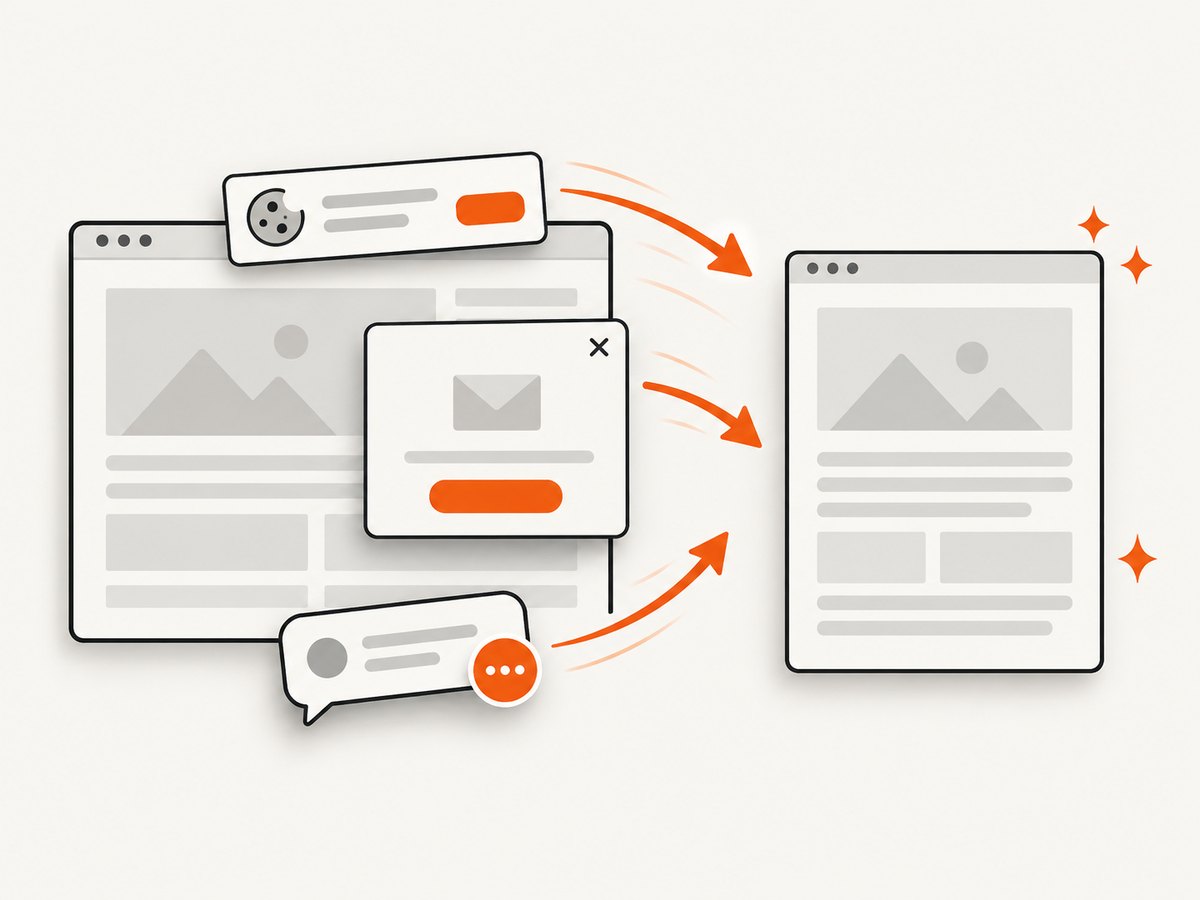
const res = await fetch(`https://api.screenshotneo.com/v1/shot?${q}`);Cookie banners, newsletter popups, and chat widgets are removed before the shot, with each cleanup step configurable. Bot checks, blank pages, timeouts, failed loads, and cache hits are not billed; response headers identify the page verdict and whether the request was billed. An MCP server lets Claude, Cursor, and other MCP clients call take_screenshot, get_page_info, and capture_pdf. The Free plan includes 1,000 screenshots each month with no card. Paid plans start at $5 for 3,000 shots; yearly billing gives two months free, and every feature is available on every plan. Create a free ScreenshotNeo account.
12. Cost and format decisions
For local wkhtmltopdf, costs come from the machine, storage, maintenance, and engineering time rather than a per-render API charge. A hosted API introduces usage pricing but can reduce operational work. Compare the total cost of keeping a renderer patched, handling retries, cleaning pages, and diagnosing failed captures with the API plan that matches your volume.
Choose PDF when recipients need a paper-like document with selectable text and predictable page boundaries. Choose PNG, JPEG, or WebP when you need a visual preview, thumbnail, or browser image. If you need both, generate each from the same URL and keep the paper geometry explicit for the PDF path.
FAQ
What is wkhtmltopdf’s default paper size?
The project manual identifies A4 as the default rendered page size. Set --page-size explicitly when the format matters.
Can I use inches instead of millimeters?
Use the units accepted by your wkhtmltopdf build and keep them consistent. Millimeters make metric paper dimensions straightforward; verify custom units in the installed manual.
Should I use CSS @page or command-line options?
Use command-line geometry for predictable deployment, then test any CSS @page rules against the exact wkhtmltopdf build because compatibility and precedence can vary.
Why does a correct paper size still produce a clipped table?
The table likely exceeds the printable content width, has unbreakable text, or uses fixed positioning. Inspect CSS widths and both horizontal margins.
How do I align a wide report?
Try landscape orientation first, then adjust margins and table widths. Shrinking type should be the last change because it reduces readability.


