How to Align Images in jsPDF
Align images in jsPDF by calculating their x and y coordinates from the page or content box. Learn centering, sizing, margins, and common fixes.
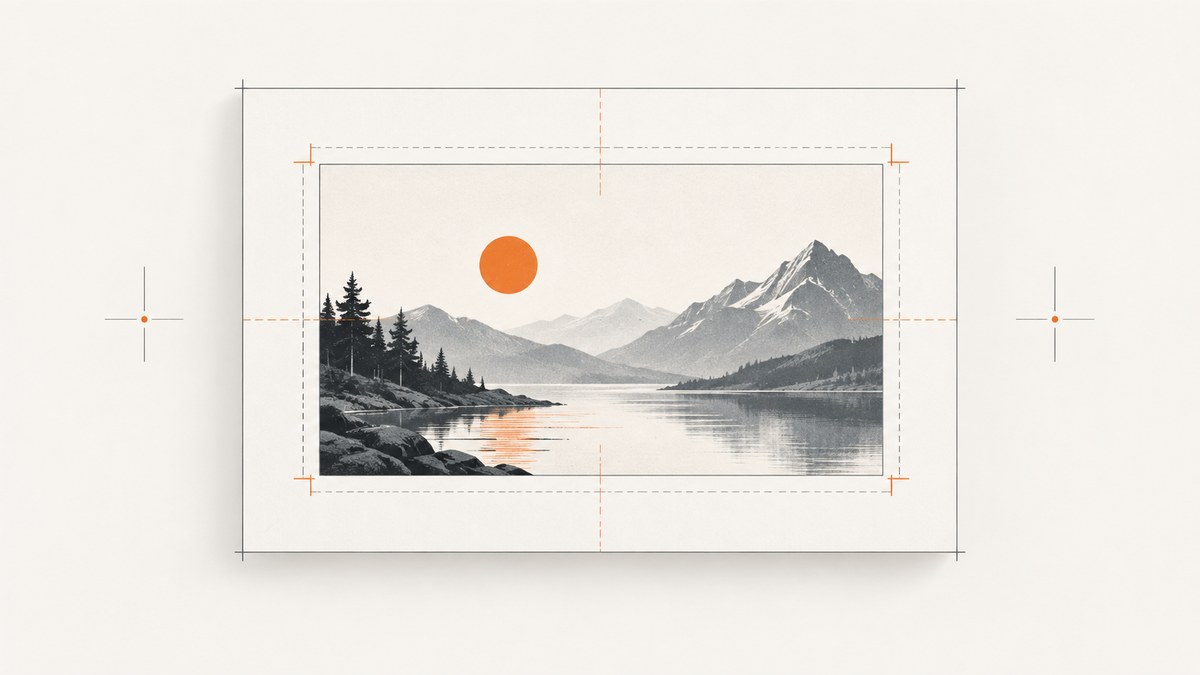
To align an image in jsPDF, calculate its x and y coordinates and pass those, along with the target width and height, to doc.addImage(). For horizontal centering in a box, use x = left + (boxWidth - imageWidth) / 2. For right alignment, use x = left + boxWidth - imageWidth. The inspected jsPDF API declaration exposes position and size arguments, not a named image alignment option.
This approach works for page margins, columns, cards, logos, and image boxes. The key is to use one consistent unit, decide whether the image should fit or crop, and calculate the target dimensions before its position. The examples below use browser JavaScript and the jsPDF package.
1. Choose units and define the layout
jsPDF’s default base unit is millimeters, and its default page format is A4. The constructor also supports points, centimeters, inches, pixels, picas, em, and ex. Coordinates, margins, and image dimensions should all use the document’s configured unit. See the jsPDF constructor documentation.
For example, create an A4 document in millimeters and set a 15 mm margin:
import { jsPDF } from 'jspdf';

const doc = new jsPDF({
  orientation: 'portrait',
  unit: 'mm',
  format: 'a4'
});

const pageWidth = doc.internal.pageSize.getWidth();
const pageHeight = doc.internal.pageSize.getHeight();
const margin = 15;
const contentWidth = pageWidth - 2 * margin;
Use the dimensions returned for the actual document instead of hard-coding A4 measurements. That keeps layout calculations valid when you change page size or orientation. Verify that the page-size method is present in the jsPDF version installed in your project; APIs can evolve.
2. Align to the page or a content box
Let left be the left edge of a box, top its top edge, and boxWidth and boxHeight its dimensions. The image’s target width and height are imageWidth and imageHeight.
| Alignment | Coordinate calculation |
|---|---|
| Left | x = left |
| Horizontal center | x = left + (boxWidth - imageWidth) / 2 |
| Right | x = left + boxWidth - imageWidth |
| Vertical center | y = top + (boxHeight - imageHeight) / 2 |
| Vertical bottom | y = top + boxHeight - imageHeight |
For page-level centering within symmetric margins, the available content width is pageWidth - 2 * margin. The following runnable browser example loads a PNG, preserves its aspect ratio, centers it in that content area, and saves the PDF:
import { jsPDF } from 'jspdf';

const imageData = 'data:image/png;base64,PASTE_BASE64_IMAGE_DATA_HERE';
const doc = new jsPDF({ unit: 'mm', format: 'a4' });
const pageWidth = doc.internal.pageSize.getWidth();
const margin = 15;
const imageWidth = 80;
// Replace with the source image's pixel dimensions.
const sourceWidth = 1200;
const sourceHeight = 750;
const imageHeight = imageWidth * sourceHeight / sourceWidth;
const contentWidth = pageWidth - 2 * margin;
const x = margin + (contentWidth - imageWidth) / 2;
const y = 40;

doc.addImage(imageData, 'PNG', x, y, imageWidth, imageHeight);
doc.save('aligned-image.pdf');
Replace the placeholder with a valid data URL. If you already have a data URL from a file input or another image-loading flow, use it directly. The official jsPDF basic example shows explicit image placement and also demonstrates alias reuse and rotation.
Center an image in a specific box
When the target is a card, column, or reserved region rather than the whole page, center relative to that box’s origin. A helper makes the intention explicit:
function placeCentered(doc, imageData, format, box, imageSize) {
  const x = box.left + (box.width - imageSize.width) / 2;
  const y = box.top + (box.height - imageSize.height) / 2;
  doc.addImage(
    imageData,
    format,
    x,
    y,
    imageSize.width,
    imageSize.height
  );
  return { x, y, width: imageSize.width, height: imageSize.height };
}

const box = { left: 15, top: 35, width: 180, height: 100 };
const imageSize = { width: 80, height: 50 };
placeCentered(doc, imageData, 'PNG', box, imageSize);
The helper assumes the image already fits the box. If it does not, first calculate a fit size as described below. For right alignment, replace the horizontal centering calculation with box.left + box.width - imageSize.width. For bottom alignment, use box.top + box.height - imageSize.height.
3. Preserve proportions and choose a fit
addImage takes both target width and height. Passing unrelated values stretches or squashes the source. Given source dimensions iw by ih, derive one target dimension from the other: targetHeight = targetWidth * ih / iw. The API takes explicit dimensions; it does not provide an automatic contain or cover mode in the inspected declaration. A jsPDF issue discussion also treats aspect ratio as a sizing concern, rather than an API guarantee.
For a contain fit, scale the image until it fits inside the box while preserving all of it:
function containSize(sourceWidth, sourceHeight, boxWidth, boxHeight) {
  const scale = Math.min(boxWidth / sourceWidth, boxHeight / sourceHeight);
  return {
    width: sourceWidth * scale,
    height: sourceHeight * scale
  };
}

const fitted = containSize(1200, 750, 100, 70);
const x = 15 + (100 - fitted.width) / 2;
const y = 35 + (70 - fitted.height) / 2;
doc.addImage(imageData, 'PNG', x, y, fitted.width, fitted.height);
For a cover fit, use Math.max(boxWidth / sourceWidth, boxHeight / sourceHeight). That fills the box but makes the scaled image exceed one or both box edges. The excess must be cropped deliberately, for example by cropping the source before adding it. Do not assume that passing the larger dimensions will clip the image to your intended content box.
4. Build a reusable alignment helper
A single helper can handle left, center, and right placement, plus top, center, and bottom placement. It positions the image rectangle; it does not inspect visible pixels or crop the asset.
function addImageAligned(doc, imageData, format, options) {
  const {
    left,
    top,
    boxWidth,
    boxHeight,
    imageWidth,
    imageHeight,
    horizontal = 'left',
    vertical = 'top'
  } = options;

  const horizontalOffsets = {
    left: 0,
    center: (boxWidth - imageWidth) / 2,
    right: boxWidth - imageWidth
  };
  const verticalOffsets = {
    top: 0,
    center: (boxHeight - imageHeight) / 2,
    bottom: boxHeight - imageHeight
  };

  if (!(horizontal in horizontalOffsets)) {
    throw new Error('horizontal must be left, center, or right');
  }
  if (!(vertical in verticalOffsets)) {
    throw new Error('vertical must be top, center, or bottom');
  }

  const x = left + horizontalOffsets[horizontal];
  const y = top + verticalOffsets[vertical];
  doc.addImage(imageData, format, x, y, imageWidth, imageHeight);
  return { x, y, width: imageWidth, height: imageHeight };
}

addImageAligned(doc, imageData, 'PNG', {
  left: 15,
  top: 35,
  boxWidth: 180,
  boxHeight: 100,
  imageWidth: 80,
  imageHeight: 50,
  horizontal: 'center',
  vertical: 'center'
});
If the image is larger than the box, an offset may be negative. That is mathematically consistent with centering, but it does not perform clipping. Decide whether to resize, crop the source, or allow it to extend outside the box.
5. Align with margins, columns, and other elements
Respect asymmetric margins
For left and right margins that differ, the usable width is pageWidth - leftMargin - rightMargin. Center relative to the usable area, not the sheet:
const leftMargin = 20;
const rightMargin = 30;
const contentWidth = pageWidth - leftMargin - rightMargin;
const x = leftMargin + (contentWidth - imageWidth) / 2;
doc.addImage(imageData, 'PNG', x, 40, imageWidth, imageHeight);
Place images in columns
For a grid or two-column layout, calculate each column’s left edge, then reuse the same box alignment formula. For equal columns with a gap:
const gap = 10;
const columnWidth = (contentWidth - gap) / 2;
const firstColumnLeft = margin;
const secondColumnLeft = margin + columnWidth + gap;
const xInFirst = firstColumnLeft + (columnWidth - imageWidth) / 2;
const xInSecond = secondColumnLeft + (columnWidth - imageWidth) / 2;
For multi-page documents, repeat the calculation after each doc.addPage(); pages can have different formats or orientations. Use the current page’s dimensions each time if the layout can vary.
Align beside or below text
jsPDF’s image placement uses explicit coordinates. For a layout alongside text, decide the text block’s bounding box first, then derive the image box from its edge and gap. For example, if a text column ends at textRight, a right-side image can begin at textRight + gap. This is a layout calculation in your application; addImage does not automatically align an image to a text baseline or another element.
6. Rotation, transparent padding, and visual alignment
A PNG can contain transparent pixels around the artwork. jsPDF positions the file’s rectangular image dimensions, including that transparent padding. So the rectangle can be centered correctly while the visible logo or object appears off-center. Trim the source asset’s transparent border or compensate for the padding in your layout calculation.
The method declaration includes an optional rotation value. Rotation changes the visual bounds: the original width and height may no longer describe the rotated footprint. If precise alignment matters, calculate the rotated bounding box or rotate and crop the source image before placing it. The jsPDF TypeScript declarations describe the current method parameters, including rotation; check the declaration for your installed version.
7. Troubleshooting alignment problems
| Symptom | Likely cause | Fix |
|---|---|---|
| Image is shifted despite a correct formula | Coordinates and dimensions use different units | Use the constructor’s base unit for margins, positions, and target dimensions. Convert source pixels to a target size in that unit. |
| Image looks stretched | Width and height were chosen independently | Derive one dimension from the source aspect ratio, or calculate a contain size. |
| Image rectangle is centered but artwork is not | Transparent padding surrounds visible pixels | Trim the padding or offset based on the visible artwork bounds. |
| Image crosses a margin or box edge | The target dimensions exceed the available area, or a cover fit was used without cropping | Contain the image, crop the source intentionally, or change the box. Positioning alone does not clip it. |
| Alignment differs after rotation | The rotated visual bounds differ from the unrotated width and height | Account for the rotated bounding box or rotate and crop the source before placement. |
| Image appears at the wrong page location | The assumed page size or orientation does not match the actual document | Read the current page dimensions and recompute the content box after changing page format or orientation. |
| Image is missing or malformed | Input data, format, or encoding does not match the actual asset | Pass valid image data and the appropriate supported format; inspect the saved PDF with the actual asset and installed jsPDF version. |
When the coordinates look right in code but the PDF still looks wrong, inspect the generated PDF at its real page size with the actual image. A mathematical check only verifies the rectangle you calculated; it cannot detect transparent borders, unexpected source dimensions, or visual weight in the asset.
8. Performance, reliability, and cost
For a PDF assembled locally with jsPDF, alignment itself is a few arithmetic operations. Document size and generation time are more likely to be affected by image dimensions, image encoding, and how many images are embedded. Resize images to a reasonable target before embedding if the source is much larger than its displayed size. Reuse identical assets where suitable; the jsPDF example demonstrates the alias parameter for image reuse. The exact savings depend on the document and asset, so measure your output rather than assuming a fixed reduction.
For reliable layouts, keep a single layout configuration for margins and boxes, calculate sizes from the source aspect ratio, and validate output across the page formats and assets your application supports. Be careful with unusually large images and repeated assets: they can increase memory use and PDF size. There is no per-image alignment charge in the coordinate calculation itself; any costs in a larger application depend on how you obtain, process, and deliver assets.
9. Or skip the browser setup
If you need a screenshot of a live webpage to place in a PDF, capturing it in a browser introduces a separate setup step. ScreenshotNeo is a website screenshot API and MCP server from ScreenshotNeo. Make one GET request with the page URL, then add the returned image to your PDF. See the ScreenshotNeo API documentation for parameters and response details.
curl -G "https://api.screenshotneo.com/v1/shot" -d access_key=YOUR_API_KEY --data-urlencode url=https://stripe.com -o shot.webpimport requests
r = requests.get(
"https://api.screenshotneo.com/v1/shot",
params={"access_key": "YOUR_API_KEY", "url": "https://stripe.com"},
timeout=90
)
open("shot.webp", "wb").write(r.content)const q = new URLSearchParams({ access_key: 'YOUR_API_KEY', url: 'https://stripe.com' });
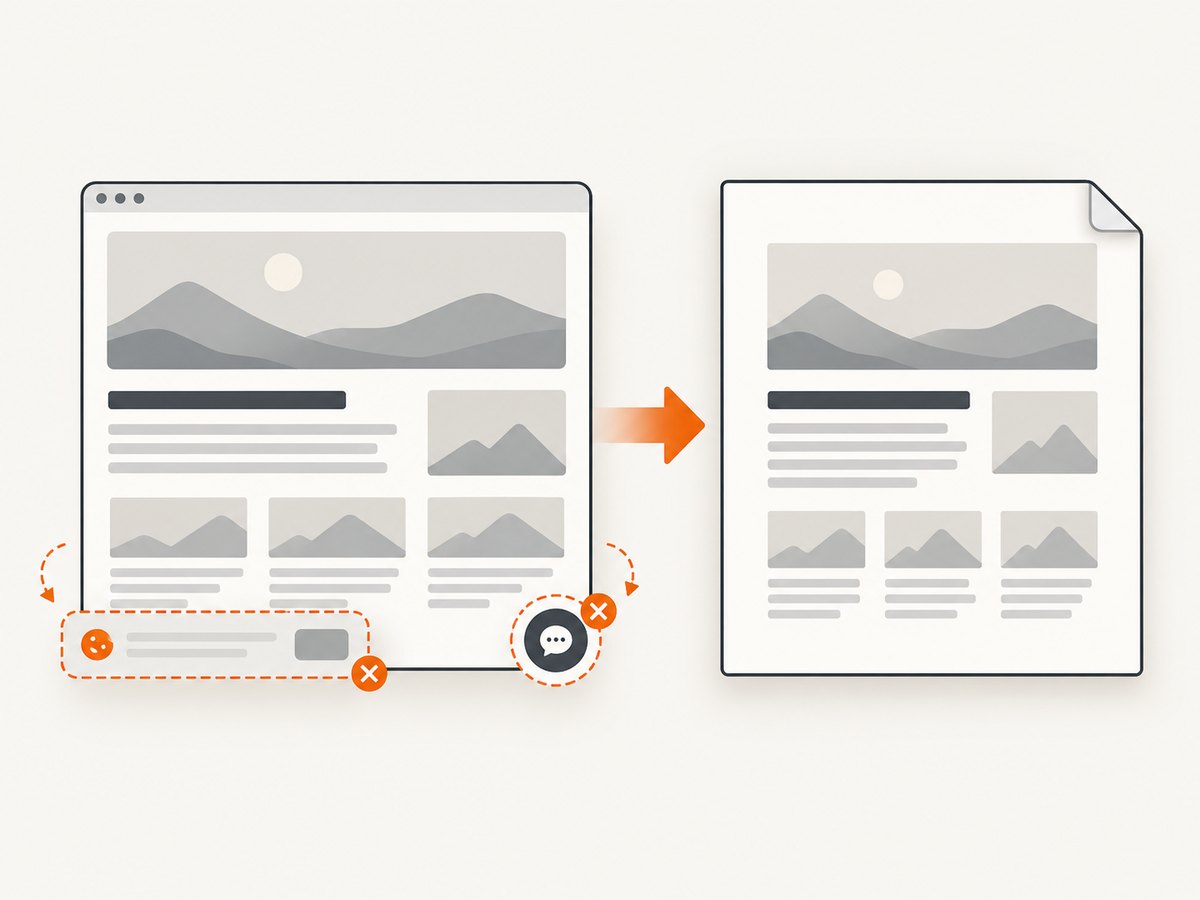
const res = await fetch(`https://api.screenshotneo.com/v1/shot?${q}`);These snippets retrieve a screenshot; check the response before treating its body as a valid image, and use the appropriate format and dimensions when adding it to jsPDF. ScreenshotNeo accepts cookie or consent banners like a visitor and removes more than 60 known consent platforms, newsletter popups, and chat widgets before capture; each step can be turned off. Bot checks or CAPTCHAs, blank pages, timeouts, failed loads, and cache hits cost nothing, and responses identify the page verdict and billing status. Its MCP server provides take_screenshot, get_page_info, and capture_pdf for AI agents. The free plan includes 1,000 screenshots per month with no card; paid plans start at $5 for 3,000. Every feature is on every plan. Sign up for 1,000 free screenshots a month, no card required.
10. Frequently asked questions
Does jsPDF have an image alignment option?
The inspected method signature takes image data, format, x/y position, width, and height, followed by optional values. It does not show a named center or right alignment option. Calculate the coordinates before calling addImage.
How do I center an image on the whole page?
Use the page width and height, then subtract the target image dimensions and divide the remaining space by two on each axis. If the design has margins, center within the content area instead.
Can I align by the image’s visible pixels?
The placement rectangle follows the asset dimensions, including transparent pixels. Trim transparent borders or calculate a visual offset if the artwork itself must line up.
Can I use pixels for coordinates?
Yes, if the document is configured with pixels as its base unit. Keep all relevant layout values in that unit, or explicitly convert them before positioning.


