How to Add Screenshots Between Steps in an Allure Report
Place a screenshot exactly between Allure steps with attachment-only steps, framework examples, troubleshooting, and a browser-free ScreenshotNeo option.
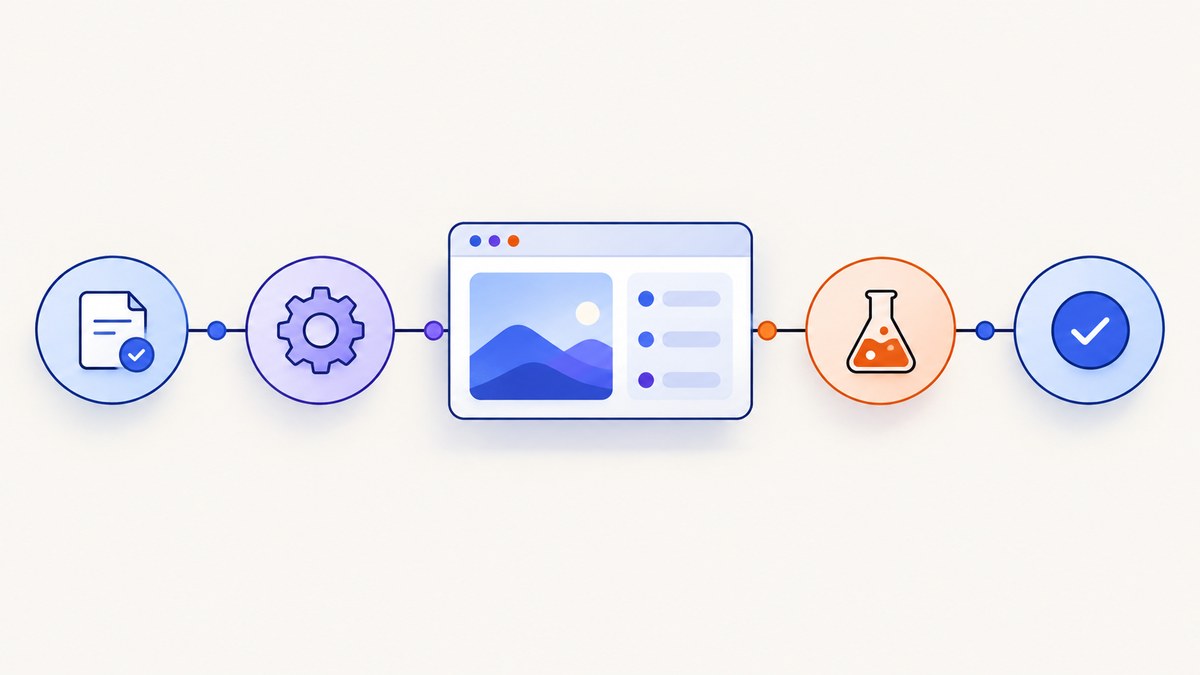
Direct answer: In Allure Report 2, create a dedicated step that contains exactly one screenshot attachment. Give the step and attachment the same name, and execute it immediately after the action whose result you want to show. Allure simplifies this attachment-only step visually while keeping the image in its chronological position among the surrounding steps. The pattern is:
- Run the action, such as submitting a form.
- Capture the page at that moment.
- Attach the image inside a named screenshot step.
- Continue with the next assertion or action.
If the desired report order is “Submit form → screenshot → Verify confirmation,” the screenshot call must run between the submit and verification calls. The exact capture API depends on your test framework; the Allure placement rule is the same.
How Allure orders a screenshot
Allure models test steps as intervals. Attachments belong to a step or to the overall test result. An attachment added inside a named step can express where it belongs in the execution timeline. Allure’s documented attachment-only pattern uses a step with no sub-steps and one attachment whose name matches the step. The report then shows the attachment in that location instead of displaying an otherwise empty wrapper step. See the official Allure steps documentation.
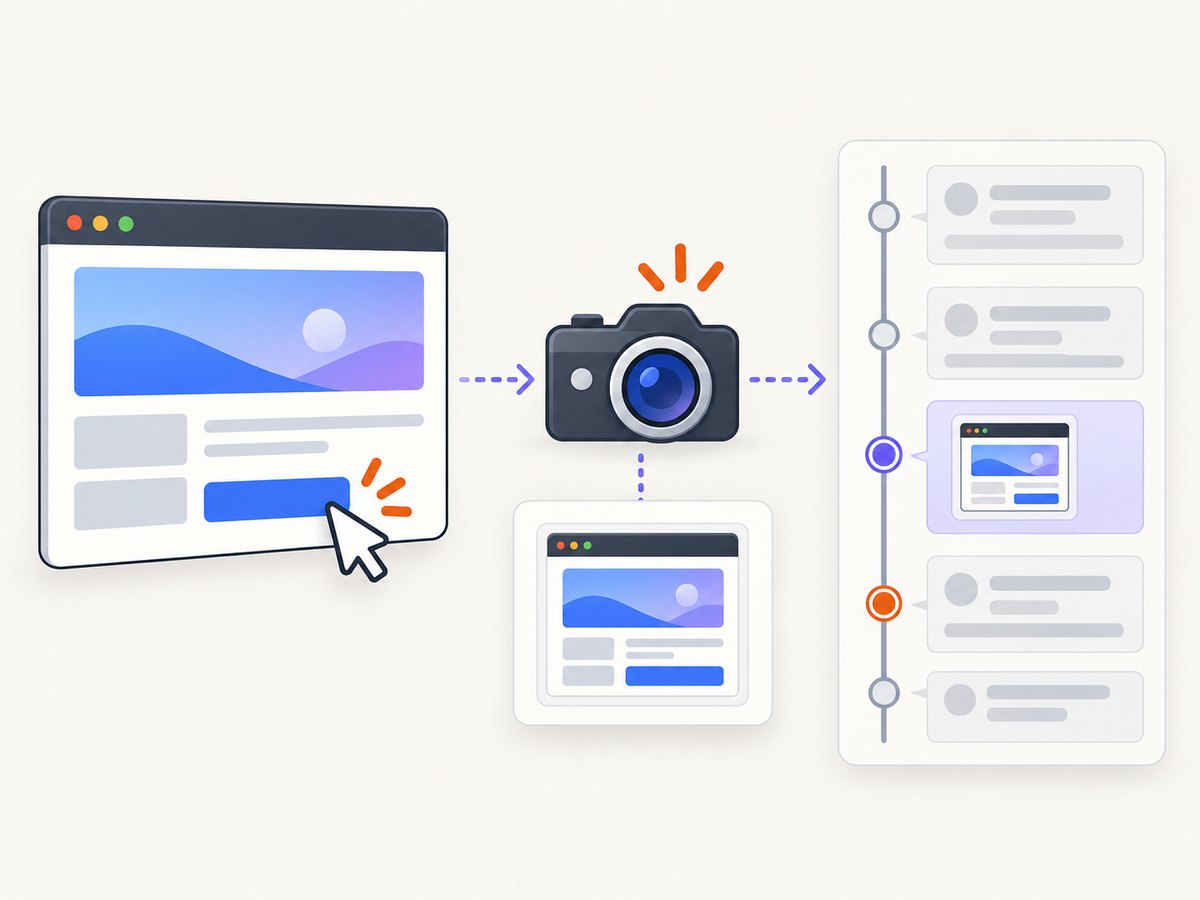
Use a label that explains the state, not merely “screenshot.” “Screenshot after form submission” tells a reader why the image exists and makes a failure report easier to scan. Keep the capture close to the action that produced the state; later navigation can make the image misleading.
Minimal Java pattern
The official Java example uses an Allure step and an input stream. Replace the placeholder with bytes from Selenium, Playwright, Selenide, or your browser integration.
Allure.step("Visit the website", () -> {
    // browser navigation code
});

Allure.step("Screenshot of the main page", () -> {
    InputStream screenshot = /* obtain screenshot bytes */;
    Allure.attachment("Screenshot of the main page", screenshot);
});

// Continue with later test steps
The matching names are intentional. A screenshot step should contain only the attachment when you want Allure’s simplified visual treatment. If you add assertions, clicks, or nested steps inside it, it becomes a normal step and may be rendered differently.
Pytest and Playwright
Playwright returns screenshot bytes directly, so you can attach them without creating an intermediate file. The Allure Pytest integration accepts an attachment name and a PNG media type:
import allure
from playwright.sync_api import Page


def test_checkout_confirmation(page: Page):
    page.goto("https://example.test/checkout")
    page.get_by_label("Email").fill("dev@example.test")
    page.get_by_role("button", name="Submit").click()

    with allure.step("Screenshot after form submission"):
        png_bytes = page.screenshot(full_page=True)
        allure.attach(
            png_bytes,
            name="Screenshot after form submission",
            attachment_type=allure.attachment_type.PNG,
        )

    with allure.step("Verify confirmation"):
        assert page.get_by_text("Confirmation").is_visible()
The capture executes after the click and before the assertion, so the report shows the image in that position. Use allure.attach.file() when a file already exists:
with allure.step("Screenshot after form submission"):
    allure.attach.file(
        "artifacts/confirmation.png",
        name="Screenshot after form submission",
        attachment_type=allure.attachment_type.PNG,
    )
Prefer fresh bytes when possible. Writing and immediately rereading a file introduces filesystem timing and path problems that direct attachment avoids. Use full_page=True only when the entire document is useful; viewport captures are smaller and usually render faster.
Pytest step context and failures
If the page action raises before the screenshot step starts, no image is produced. For failure evidence, add a separate fixture or failure hook, but do not attach the same image both from that hook and from the explicit screenshot step unless duplicate entries are intentional. Keep the named step for the business-relevant checkpoint and the hook for unexpected exceptions.
Playwright with JavaScript or TypeScript
Allure’s Playwright integration supports Allure attachment APIs. Playwright’s test.step() also gives you a clear execution boundary; put the attachment call inside that boundary.
import { test, expect } from '@playwright/test';
import * as allure from 'allure-js-commons';

test('checkout confirmation', async ({ page }) => {
  await page.goto('https://example.test/checkout');
  await page.getByLabel('Email').fill('dev@example.test');
  await page.getByRole('button', { name: 'Submit' }).click();

  await test.step('Screenshot after form submission', async () => {
    const png = await page.screenshot({ fullPage: true });
    await allure.attachment(
      'Screenshot after form submission',
      png,
      'image/png'
    );
  });

  await test.step('Verify confirmation', async () => {
    await expect(page.getByText('Confirmation')).toBeVisible();
  });
});
Some projects use allure.attachmentPath() or Playwright’s testInfo.attach() instead. The important details are that the call runs inside the intended step, the content type is an image type such as image/png, and the file extension matches the bytes when you attach a path. Check the integration version installed in your project against the official Allure Playwright guide.
Playwright with Java
With the Allure Playwright Java AspectJ agent, a page.screenshot() call can be intercepted and recorded as a step with an image attachment. The configuration key is allure.playwright.screenshots.attach, and the documented default is true. This is convenient when the generated step name and placement are sufficient.
# allure.properties
allure.playwright.screenshots.attach=true
For deliberate naming, use the integration’s helper inside the desired step:
Allure.step("Submit form", () -> {
    page.getByRole("button", new Page.GetByRoleOptions().setName("Submit")).click();
});

Allure.step("Screenshot after form submission", () -> {
    AllurePlaywright.attachScreenshot("Screenshot after form submission", page);
});

Allure.step("Verify confirmation", () -> {
    assertThat(page.getByText("Confirmation").isVisible()).isTrue();
});
Use either automatic screenshot-step attachment or the manual helper for a given capture. Enabling both for the same screenshot commonly creates duplicates. The Allure Playwright Java documentation describes both routes and their configuration.
Choosing the right image and capture point
| Decision | Recommendation |
|---|---|
| Image type | Use PNG for lossless UI text and diagrams; JPEG is acceptable for photographic content. Declare the media type explicitly. |
| Viewport or full page | Use viewport screenshots for the state immediately visible to a user. Use full page for long forms, documentation, or layout regressions. |
| Step label | Describe the state and timing, for example “Screenshot before payment confirmation.” |
| Attachment scope | Attach inside the named step when chronological placement matters. Test-level attachments are useful evidence but do not express the same between-step intent. |
| Wait condition | Wait for the resulting UI state, not an arbitrary sleep. For example, wait for a confirmation heading before capturing it. |
Animations, lazy images, and transient toast messages can make captures nondeterministic. Disable animations with test CSS where appropriate, wait for the decisive selector, and capture after the page has settled. Record the state that proves the step’s outcome; a screenshot taken before the network response cannot prove a successful submission.
Common errors and fixes
The screenshot appears at the wrong level
Cause: The attachment was added to the test result or outside the intended step context. Fix: Move the capture and attachment calls inside the step that should contain the image. Confirm that the framework’s step API is active for the current thread or async context.
Duplicate screenshot entries
Cause: Automatic screenshot interception and a manual helper both attach the same capture. Fix: Choose one path for that image. In Playwright Java, review allure.playwright.screenshots.attach and remove the redundant manual call or turn off automatic attachment when you need custom names.
The image downloads but does not preview
Cause: An unrecognized media type, mismatched extension, or corrupt bytes. Fix: Pass image/png (or the integration’s PNG enum) for PNG bytes and use a matching .png extension for file attachments. Allure supports previewing recognized image attachments; see the attachments reference.
The file is empty or missing
Cause: The path is relative to a different working directory, the browser has not finished writing, or the file was cleaned up before Allure read it. Fix: Attach screenshot bytes directly, use an absolute or test-managed artifact path, and keep the file until report generation completes.
The screenshot captures the previous state
Cause: The click returned before the UI update or the test captured during an animation. Fix: Wait for a specific post-action selector, response, or URL, then capture. Avoid fixed delays unless no deterministic signal exists.
The report order changes between runs
Cause: Parallel tests, asynchronous tasks, or screenshots launched without awaiting completion. Fix: Await the screenshot promise, keep each attachment in its step context, and do not share mutable page or Allure lifecycle objects between parallel tests.
Reliability, performance, and storage
- Capture only useful checkpoints. A screenshot after every locator call increases report size and slows artifact handling. Capture after state-changing actions, before irreversible actions, and when diagnosing a known visual risk.
- Prefer bytes over temporary files. This removes file naming collisions and immediate-read races. If files are required, generate unique paths per test and clean them after report generation.
- Control page length. Full-page images can be large. Use viewport shots for routine checkpoints and full-page shots for layout evidence.
- Keep names stable. Stable labels make history and failure comparison easier. Put dynamic IDs in test metadata rather than in every attachment name.
- Protect sensitive data. Mask passwords, tokens, payment details, and personal data before capture. A screenshot is an artifact that may be copied with the rest of the report.
- Separate evidence from debugging. A failure hook can collect extra diagnostics, while explicit attachment-only steps document the intended business flow.

Or skip the browser setup
When you need a rendered image for a URL rather than a screenshot tied to a live test step, ScreenshotNeo provides a single GET request that returns PNG, JPEG, WebP, or PDF. Its cleaner capture flow accepts consent banners and removes more than 60 known consent platforms, newsletter popups, and chat widgets before the shot; each cleanup step can be disabled. Bot checks, blank pages, timeouts, failed loads, and cache hits are not billed, and the response identifies the result with X-Page-Verdict and X-Billed headers. An MCP server also lets Claude, Cursor, and other MCP clients call take_screenshot, get_page_info, and capture_pdf.
See the ScreenshotNeo API documentation for all options. These examples save the returned image; adapt the URL to the page you need:
cURL
curl -G "https://api.screenshotneo.com/v1/shot" \\
  -d access_key=YOUR_API_KEY \\
  --data-urlencode url=https://stripe.com \\
  -o shot.webp
Python
import requests

r = requests.get(
    "https://api.screenshotneo.com/v1/shot",
    params={"access_key": "YOUR_API_KEY", "url": "https://stripe.com"},
    timeout=90,
)
r.raise_for_status()
open("shot.webp", "wb").write(r.content)
Node.js
const q = new URLSearchParams({
  access_key: 'YOUR_API_KEY',
  url: 'https://stripe.com'
});
const res = await fetch(`https://api.screenshotneo.com/v1/shot?${q}`);
if (!res.ok) throw new Error(`Screenshot failed: ${res.status}`);
const bytes = Buffer.from(await res.arrayBuffer());
require('fs').writeFileSync('shot.webp', bytes);
For Allure evidence, call ScreenshotNeo inside the same named step as any other attachment, then attach the response bytes with the correct image media type. Use your browser integration for state that exists only after test actions; use the API for repeatable URL captures, PDFs, bulk jobs, custom headers, cookies, user agents, waits, selectors, dark mode, device presets, full-page lazy-image loading, caching, and other documented options.
ScreenshotNeo includes 1,000 screenshots per month free with no card. Paid plans start at $5 for 3,000 shots, and every feature is available on every plan. Create a free ScreenshotNeo account.
FAQ
Can I attach more than one image in the screenshot step?
You can, but the attachment-only presentation is intended for exactly one attachment. Put additional evidence in separate named steps or attach it to the surrounding diagnostic step.
Should the screenshot step be marked passed or failed?
Let the surrounding test determine success. The screenshot step records evidence; assertions about the page belong in the action or verification step.
Can I use JPEG?
Yes, when your integration and Allure report support it. Declare the JPEG media type and use a matching file extension. PNG is usually clearer for text-heavy interfaces.
Why does a screenshot appear only after the test finishes?
An attachment may be written when the test result is finalized, but its step position comes from the lifecycle event where you created it. Ensure the call executes and is awaited inside the intended step.
Where should I check version-specific behavior?
Check the Allure documentation for your installed adapter and reporter version, especially for Playwright Java automatic screenshots and JavaScript attachment APIs. Integration names and defaults can change between releases.


