How to Enable Dark Mode on Amazon’s Website
Amazon has no consistent native dark-mode switch. Learn what Chrome, Android, Silk, and extensions can change—and why Amazon may stay white.

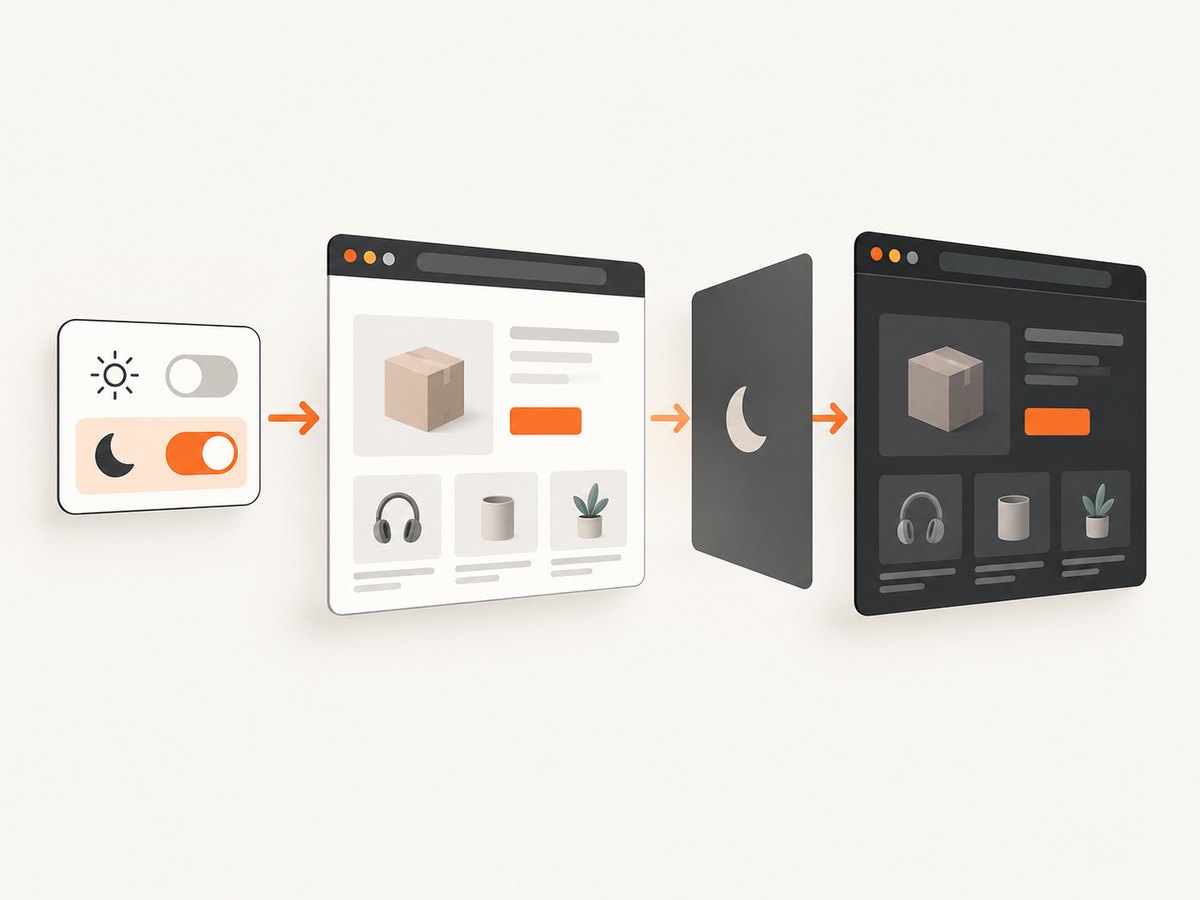
Short answer: Amazon’s regular website does not have a consistently documented native dark-mode switch. Start with your browser or device theme. If Amazon’s page stays white, use a reputable dark-mode extension that targets website content.
Browser chrome, the Amazon page itself, and Amazon’s individual apps are separate layers. Turning Chrome or Silk dark can change menus and toolbars without recoloring Amazon.com.
1. Turn on dark mode in desktop Chrome
Chrome’s built-in setting is the safest first step because it is reversible and requires no extension.
- Open a new Chrome tab.
- Click Customize Chrome in the bottom-right corner. In some Chrome versions, open the side panel and choose the same customization control.
- Under Appearance, choose Dark. Choose Device if Chrome should follow your operating system’s theme.
- Open or refresh Amazon.
Google documents that this setting makes Chrome’s homepage, toolbar, settings, and some other pages dark; it does not force every website to recolor itself. See Chrome’s dark-mode instructions.
If Amazon is still white on desktop
- Confirm that Chrome itself is dark by opening a new tab and checking the toolbar and New Tab page.
- Hard-refresh Amazon with
Ctrl+Shift+Ron Windows/Linux orCmd+Shift+Ron macOS. - Try an incognito window to rule out a conflicting extension.
- Use a site-specific dark-mode extension if you need Amazon page content, not just browser controls, recolored.
2. Enable dark theme in Chrome on Android
- Open Chrome on your Android phone or tablet.
- Tap More (the three-dot menu), then Settings.
- Tap Theme.
- Choose Dark or System default. Choose Light to return to the normal appearance.
- Return to Amazon and refresh the page.
Android Chrome’s theme can darken Chrome’s interface while leaving Amazon’s page unchanged. Page-level support varies by site and page component. Google’s reference is Browse in dark mode or dark theme on Android.
3. Use Amazon Silk on a Fire tablet
Silk has a Dark Theme for tabs and menu screens:
- Open Silk.
- Open the browser menu and choose Settings.
- Switch between Dark Theme and Light Theme.
- Reload Amazon.
Amazon explicitly warns: “The background color of the web pages you visit won’t change.” Silk’s controls can therefore be dark while Amazon’s page remains light. See Amazon’s Silk Browser Basics.
4. Make Amazon pages dark with an extension
When Chrome’s or Silk’s built-in theme changes only browser controls, a content-recoloring extension is the practical workaround. The Chrome Web Store listing for Amazon Dark Mode says it targets desktop Amazon browsing and can switch the theme with one click.
- Open the extension’s Chrome Web Store listing.
- Check the publisher name, requested permissions, privacy disclosure, ratings, and recent reviews.
- Select Add to Chrome and approve the permissions you understand.
- Open Amazon, click the extension icon, and enable its dark mode.
- Test search results, product pages, checkout, account pages, and image galleries. If a page becomes unreadable, disable the extension for that site.
Extensions can break after Amazon changes its markup. Keep one extension enabled at a time while troubleshooting, and remove extensions you no longer use.
5. Which option should you use?
| Option | What becomes dark | Setup | Trade-offs |
|---|---|---|---|
| Desktop Chrome theme | Chrome interface and supported pages | Built in | Amazon content may remain light |
| Android Chrome theme | Chrome interface and supported pages | Built in | Amazon page support varies |
| Silk Dark Theme | Tabs and menus | Built in | Visited web-page backgrounds do not change |
| Amazon-focused extension | Amazon page content | Install and grant permissions | Third-party privacy, compatibility, and maintenance concerns |
| Device-level dark mode | Operating system and apps that follow it | System settings | Amazon’s website may ignore the setting |
6. Troubleshooting: Amazon is still white
Chrome is dark, but Amazon is light
This is expected when the site does not provide page-level dark-mode styles. Use a page-recoloring extension or keep Amazon light for that session.
Only some Amazon pages are dark
Amazon uses different interfaces for search, product detail, checkout, account settings, and regional domains. An extension may support one surface better than another. Test the exact page you use.
Text, product images, or buttons look wrong
Disable the extension temporarily, reload, then try its per-site exclusions or a less aggressive rendering mode. Product photos may be intentionally left unchanged to preserve color accuracy.
The setting keeps switching back
Check whether Chrome is set to Device or System default. Changing the operating system theme, battery-saver behavior, or a managed browser policy can change the result.
Amazon’s app is dark but the website is not
Apps and browser pages can have separate theme systems. A dark device setting does not guarantee that Amazon.com will follow it.
An extension requests broad permissions
Read its privacy disclosure and permissions before installing. If the access is broader than the feature requires, choose another extension or rely on the browser theme.
7. Capture a dark Amazon page for documentation
If you need a repeatable screenshot for a bug report, visual regression check, or documentation page, set the dark theme in the browser context used for capture and verify the result at the target Amazon URL. A screenshot service can remove the local browser setup.

Or skip the browser setup
ScreenshotNeo is a website screenshot API and MCP server. It can capture PNG, JPEG, WebP, or PDF from one GET request. Use the API documentation for all options, including dark mode, viewport and device presets, retina scale, custom CSS and JavaScript, waits, cookies, headers, geolocation, caching, signed links, asynchronous jobs, and bulk capture.
For an Amazon page, request dark mode with the dark_mode parameter:
curl -G "https://api.screenshotneo.com/v1/shot" \
  -d access_key=YOUR_API_KEY \
  --data-urlencode url=https://www.amazon.com \
  -d dark_mode=true \
  -o amazon-dark.webp
import requests
r = requests.get(
"https://api.screenshotneo.com/v1/shot",
params={
"access_key": "YOUR_API_KEY",
"url": "https://www.amazon.com",
"dark_mode": "true",
},
timeout=90,
)
r.raise_for_status()
open("amazon-dark.webp", "wb").write(r.content)const q = new URLSearchParams({
access_key: 'YOUR_API_KEY',
url: 'https://www.amazon.com',
dark_mode: 'true'
});
const res = await fetch(`https://api.screenshotneo.com/v1/shot?${q}`);
if (!res.ok) throw new Error(`Screenshot failed: ${res.status}`);
const buffer = Buffer.from(await res.arrayBuffer());
await Bun.write('amazon-dark.webp', buffer);ScreenshotNeo accepts cookie and consent banners like a visitor, then removes more than 60 known consent platforms, newsletter popups, and chat widgets before capture; each step can be turned off. Bot checks, blank pages, timeouts, failed loads, and cache hits are not billed, and the response identifies the result with X-Page-Verdict and X-Billed headers. Its MCP server provides take_screenshot, get_page_info, and capture_pdf for Claude, Cursor, and other MCP clients.
The Free plan includes 1,000 screenshots per month with no card. Paid plans start at $5 for 3,000 shots; every feature is included on every plan. Create a free ScreenshotNeo account.
8. Performance, privacy, and reliability notes
- Performance: Browser themes are immediate. Extensions add page-processing work and may need a reload. Screenshot capture time depends on page load, waits, lazy images, and network conditions.
- Reliability: A browser setting is easiest to reverse. Extensions depend on Amazon’s changing markup. For automated captures, use explicit waits, a fixed viewport, and a cache TTL when appropriate.
- Privacy: Review extension permissions before installation. For API captures, send only the cookies, headers, and authorization data required for the page.
- Cost: ScreenshotNeo bills only clean shots; failed loads, bot checks, blank pages, timeouts, and cache hits cost nothing. The usage API and response headers help reconcile usage.
FAQ
Does Amazon have dark mode on desktop?
There is no consistently documented native dark-mode switch for Amazon’s regular website in the researched material. Chrome’s theme or a third-party extension are the practical options.
How do I make Amazon black on Chrome?
Set Chrome to Customize Chrome → Appearance → Dark. If Amazon’s content stays white, install a reputable extension that recolors Amazon pages.
Will dark mode change product photos?
It may leave product images unchanged so their colors remain accurate. Results depend on the browser or extension.
Can I use dark mode only on Amazon?
Yes. Use an Amazon-focused extension or a general dark-mode extension with a site-specific rule, and leave Chrome’s global theme unchanged.
How do I turn it off?
Return Chrome, Android Chrome, or Silk to Light, or disable/remove the extension. Refresh Amazon after changing the setting.


