Analyzing Website Fonts with Screenshots
Learn how to identify the font a website actually renders, inspect screenshots, handle fallbacks, and automate clean captures for analysis.

To identify a website font reliably, first determine whether you can access the live page. If you can, select the exact text in browser developer tools and inspect the rendered font information. The CSS font-family declaration is only a preference list: the browser may use a fallback. If you have only a screenshot, crop a clear text sample and use image-based font matching to produce candidates, then compare those candidates with the visible letterforms. A screenshot can suggest a typeface, but it cannot prove which CSS rule or font file created the pixels.
What a screenshot can and cannot tell you
A screenshot records one rendering at one moment, at one viewport, in one browser and operating-system font environment. It preserves the appearance of glyphs, spacing, antialiasing and line wrapping. It does not preserve the DOM, computed styles, font loading state, network requests or the identity of the font file.
That distinction matters because a page can declare a stack such as Inter, Arial, sans-serif while rendering Arial if Inter failed to load or lacked a required glyph. Paul Irish describes font stacks as “more of a suggestion than a demand” in Chrome for Developers’ explanation of rendered-font inspection (Chrome DevTools: What font is that?). Treat a visual match as a candidate until you can confirm the live page’s rendered face.
Method 1: inspect the font on a live website
1. Select the exact text run
Open the page in a desktop browser, right-click the text and choose Inspect. Select the smallest element that contains the text you want to identify. A heading, navigation label and button may each use different families or weights. Record the URL, browser version, element, text, size, style and weight.
2. Read rendered-font information
In Chrome DevTools, inspect the typography or rendered-font details associated with the selected element. The panel reports the typeface used by Chrome’s text-rendering layer and can expose fallback behavior. Panel names and locations change, so use the DevTools search if your version places the information elsewhere. The key result is the face actually used for the selected glyphs, not merely the first name in the stylesheet.
3. Check computed CSS
In the Computed or Styles pane, record font-family, font-size, font-weight, font-style, font-stretch, line-height and any variable-font axes. The declaration explains what the page requested. Compare it with rendered-font output to detect fallback.
4. Trace the stylesheet and font resources
Follow the rule’s stylesheet link. DevTools’ Sources panel lets you inspect loaded stylesheets and other resources (Sources panel overview). Search for @font-face, the family name and the file URL. A loaded WOFF2 file proves that the resource arrived, but not that this text used it; pair resource inspection with rendered-font inspection.
5. Recheck after fonts finish loading
Reload with the Network panel open and watch font requests. Inspect the same text after the page settles. Google documents browser-dependent loading behavior: some browsers can show blank space while a web font loads, while Firefox may show a default face and then re-render it (Google Fonts technical considerations). Capture timing can therefore change what a screenshot shows.
6. Check glyph and script coverage
A family can contain separate files for Latin, Cyrillic, Arabic or other subsets. Weight and style may map to different files. Inspect the exact character range, especially punctuation, numerals and accented letters. Google recommends specifying a generic fallback such as serif or sans-serif and requesting the styles, weights and subsets you need (Google Fonts API guide).
Method 2: identify a font from a screenshot
1. Prepare a useful crop
- Crop one text style, such as a heading or wordmark, instead of an entire page.
- Keep the text horizontal and include several distinctive letters.
- Use the highest-resolution source available. Avoid heavy JPEG compression, blur and screenshots scaled down from a retina display.
- Do not mix bold and regular text, icons and body copy in one crop.
These steps improve the evidence available to a matcher, but no universal accuracy guarantee follows from image quality alone.
2. Run image-based matching
A Chrome Web Store listing for WhatFont – Font Finder advertises selecting a screen region and sending it to Adobe Fonts or WhatTheFont (extension listing). Treat the returned names as candidates. The listing is a feature claim, not an independent accuracy benchmark, privacy assessment or guarantee of continued availability.
3. Compare candidates by letterform
Compare the candidate with the crop at the same approximate size. Check lowercase a and g forms, the shape of R, Q and e, numeral construction, terminals, punctuation, x-height, width and spacing. A close family can still differ in weight, optical size, variable axes or platform rasterization.
4. Confirm against stronger evidence
If the page becomes accessible, inspect the rendered font. Search the site’s CSS, design-system documentation or brand guidelines. For a logo, look for custom lettering or modified outlines; a matcher may return a similar font even when no catalogued font was used.
Live inspection versus screenshot matching
| Question | Live-page inspection | Screenshot matching |
|---|---|---|
| Evidence | Computed styles and rendered browser data | Pixels and visible glyph shapes |
| Can establish | The face rendered for the inspected text in that browser | Likely visual candidates |
| Requires | Page access and developer tools | A sufficiently clear image |
| Main confounders | Fallbacks, loading state, subsets and browser differences | Compression, scaling, stylization and custom lettering |
Use both when possible: screenshot matching narrows the search, while rendered-font inspection establishes what the browser actually used.
Capture a clean screenshot for font analysis
If you need a repeatable input for comparison, capture the page after it reaches a stable state. Wait for the target selector or network idle, use a consistent viewport and device scale, and capture the same element each time. Full-page captures can reveal typography at multiple breakpoints, while an element capture isolates one style.
Record the capture URL, viewport, timestamp, browser or rendering service, dark-mode setting, device scale, and whether custom CSS or JavaScript was applied. Keep the original image because resizing or recompression can hide details in terminals and counters.
Or skip the browser setup
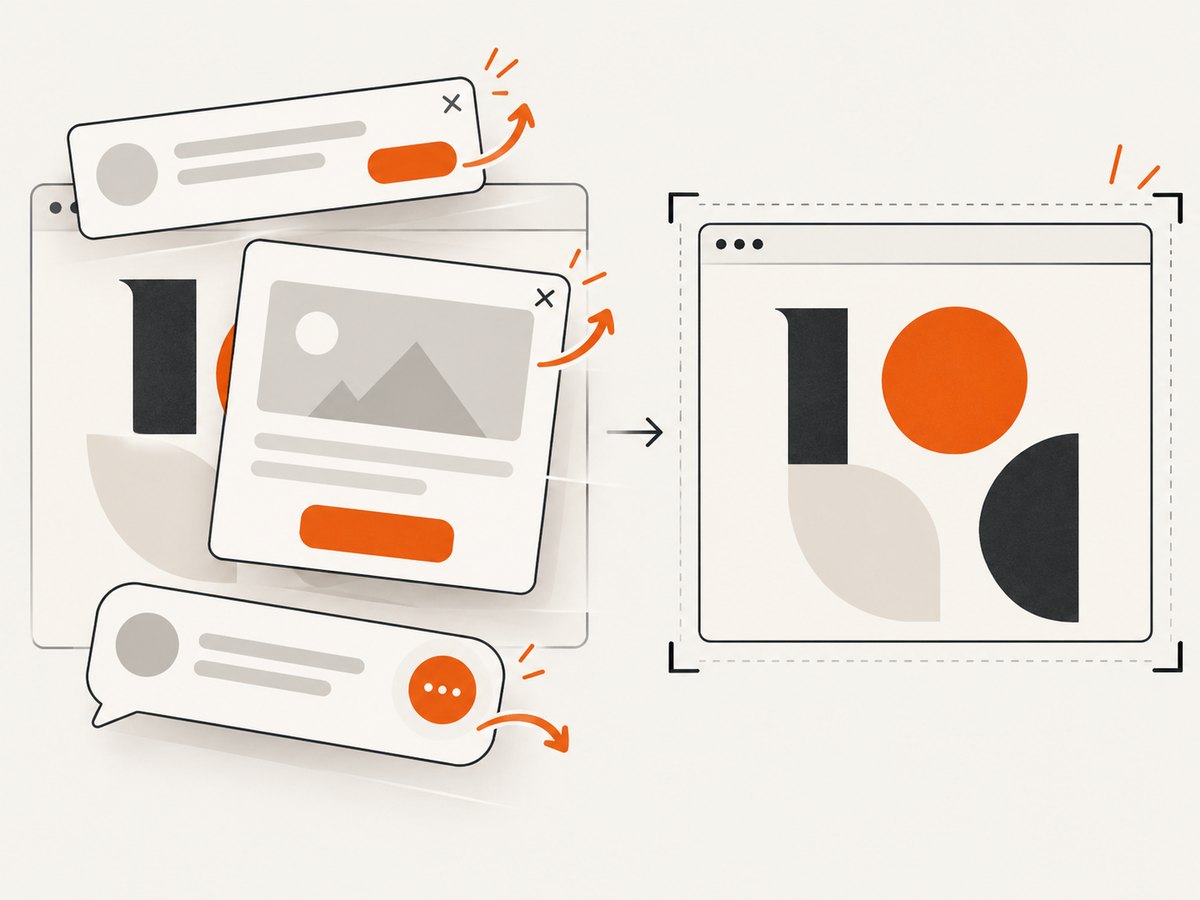
ScreenshotNeo provides a website screenshot API and MCP server. One GET request returns PNG, JPEG, WebP or PDF. It can accept cookie or consent banners before capture and remove more than 60 known consent platforms, newsletter popups and chat widgets, with each cleanup step configurable. This is useful when overlays would cover the text sample you need to analyze.
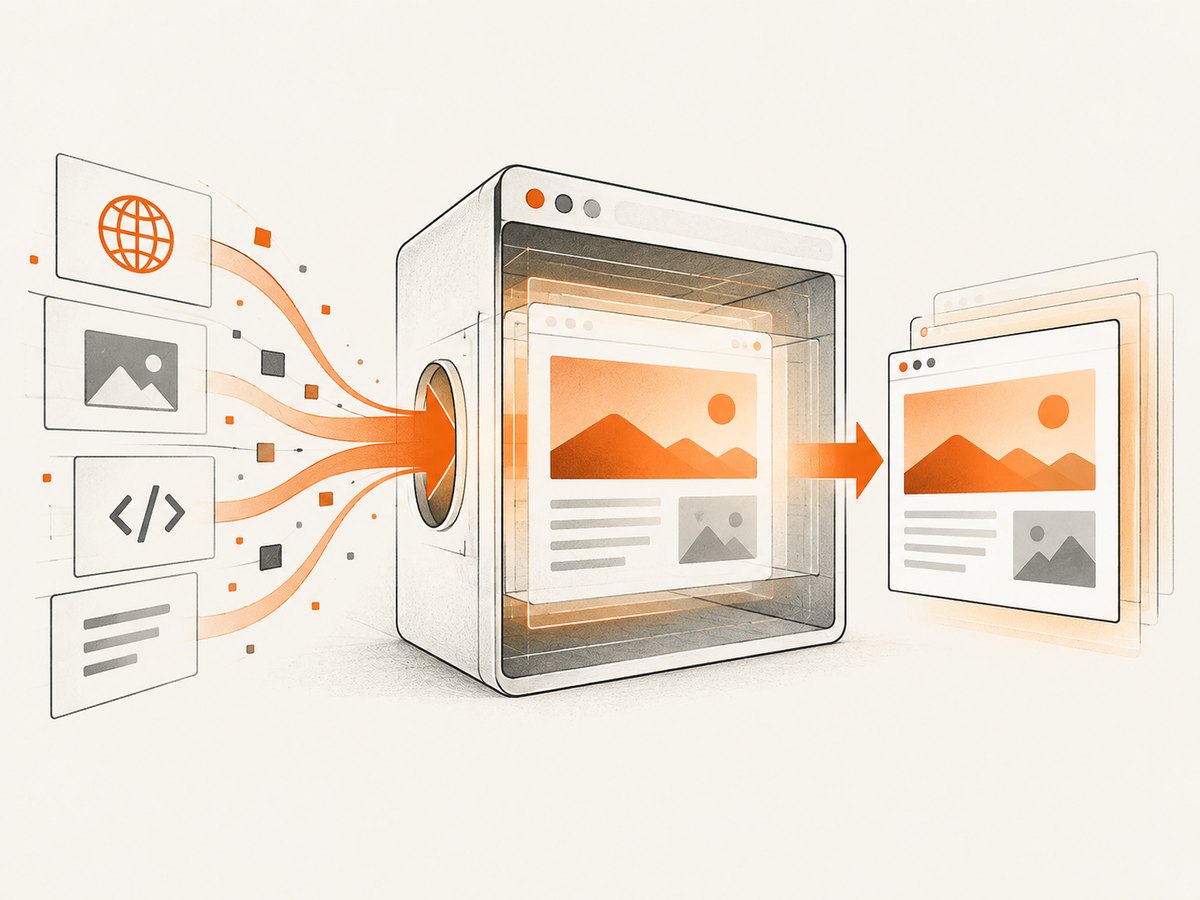
Only clean shots are billed. Bot checks or CAPTCHAs, blank pages, timeouts, failed loads and cache hits cost nothing, and response headers identify the page verdict and whether the request was billed. Its MCP server exposes take_screenshot, get_page_info and capture_pdf for Claude, Cursor and other MCP clients.
See the ScreenshotNeo API documentation for the complete option list. The same API supports full-page capture with lazy images loaded, CSS-selector element capture, dark mode, 12 device presets or custom viewports, retina scale, custom CSS and JavaScript, click-before-capture actions, hide selectors, waits, request and resource blocking, headers, cookies, user agents, Authorization, timezone, geolocation, transparent backgrounds, resizing, cache TTLs, signed links, asynchronous jobs with signed webhooks, bulk capture of up to 100 URLs per call, usage data and an OpenAPI specification.
cURL
curl -G "https://api.screenshotneo.com/v1/shot" \
  -d access_key=YOUR_API_KEY \
  --data-urlencode url=https://stripe.com \
  -o shot.webp
Python
import requests

r = requests.get(
    "https://api.screenshotneo.com/v1/shot",
    params={"access_key": "YOUR_API_KEY", "url": "https://stripe.com"},
    timeout=90,
)
r.raise_for_status()
open("shot.webp", "wb").write(r.content)
Node.js
const q = new URLSearchParams({
  access_key: 'YOUR_API_KEY',
  url: 'https://stripe.com'
});
const res = await fetch(`https://api.screenshotneo.com/v1/shot?${q}`);
if (!res.ok) throw new Error(`HTTP ${res.status}`);
const image = Buffer.from(await res.arrayBuffer());
await import('node:fs/promises').then(fs => fs.writeFile('shot.webp', image));
Replace the example URL with the page you are analyzing. For font work, choose a viewport that keeps the target text at native size, use retina scale when small glyph details matter, and hide fixed chat or consent elements if you do not use the cleanup options.
There is a free plan with 1,000 screenshots per month and no card. Paid plans start at $5 for 3,000 shots; yearly billing gives two months free. Every feature is available on every plan. Create a free ScreenshotNeo account and capture your first samples.
Troubleshooting
The CSS family does not match the rendered family
Cause: the preferred face failed to load, lacks the required glyph or was misspelled. Fix: inspect rendered-font details, check the font request status and verify the exact weight and script subset.
The screenshot shows a fallback font
Cause: capture occurred before web-font loading completed. Fix: wait for the target font request, a selector that appears after hydration, or network idle; then capture again. Compare screenshots from more than one timing if the page uses delayed font loading.
The matcher returns unrelated fonts
Cause: the crop is small, compressed, angled, mixed-style or contains custom lettering. Fix: crop a larger horizontal word with repeated distinctive glyphs, remove surrounding graphics and treat all results as candidates.
The page is covered by a popup
Cause: consent, newsletter or chat UI loaded after navigation. Fix: accept or remove the overlay in a browser, hide its selector, click the dismissal control, or use ScreenshotNeo cleanup options before capture.
The capture is blank or times out
Cause: bot protection, a failed resource, JavaScript errors or a page that never reaches the expected state. Fix: test the URL in a normal browser, increase the wait, capture a smaller element, inspect response headers and retry with a stable viewport. ScreenshotNeo labels bot checks, blank pages, timeouts and failed loads in its response and does not bill those failed captures.
Text looks different across machines
Cause: browser, operating system, device scale, font smoothing or font-loading state differs. Fix: compare rendered-font identity separately from pixel-level appearance and record the environment with each sample.
Performance, reliability and cost notes
- Element captures are smaller and faster to review than full-page images when one text style is the target.
- Full-page captures are useful for discovering typography changes between responsive breakpoints.
- Waiting for a selector is usually more deterministic than an arbitrary short delay; network idle can be appropriate for pages that load fonts and images asynchronously.
- Cache stable URLs when repeated analysis does not require fresh pixels. Choose a TTL that matches the page’s update frequency.
- For many URLs, bulk capture can process up to 100 URLs per call. Use asynchronous jobs and signed webhooks when your worker should not hold an HTTP connection open.
- Inspect
X-Page-VerdictandX-Billedso your accounting distinguishes clean captures, cache hits and failures.
FAQ
Can a screenshot prove the exact font?
No. It can provide visual evidence and candidate names. A live rendered-font inspection is stronger evidence for the inspected browser and text run.
Why can two elements on one page use different fonts?
They may have different CSS rules, weights, scripts or component styles. Inspect each element separately.
Is a loaded WOFF2 file proof that the heading uses it?
No. The file may be unused, may serve another weight or may lack the glyphs in your heading. Pair resource inspection with rendered-font data.
Should I identify a logo with the same workflow?
Use image matching only as a starting point. Logos often use custom lettering, altered outlines or a font that is not indexed.
How do I make captures comparable?
Keep the URL, viewport, device scale, color scheme, wait condition, browser or rendering service and timestamp consistent, and preserve the original files.


