LinkedIn Open to Work Image
Learn what LinkedIn’s Open to Work photo frame means, who can see it, how to add or remove it, and how to choose the right privacy setting.
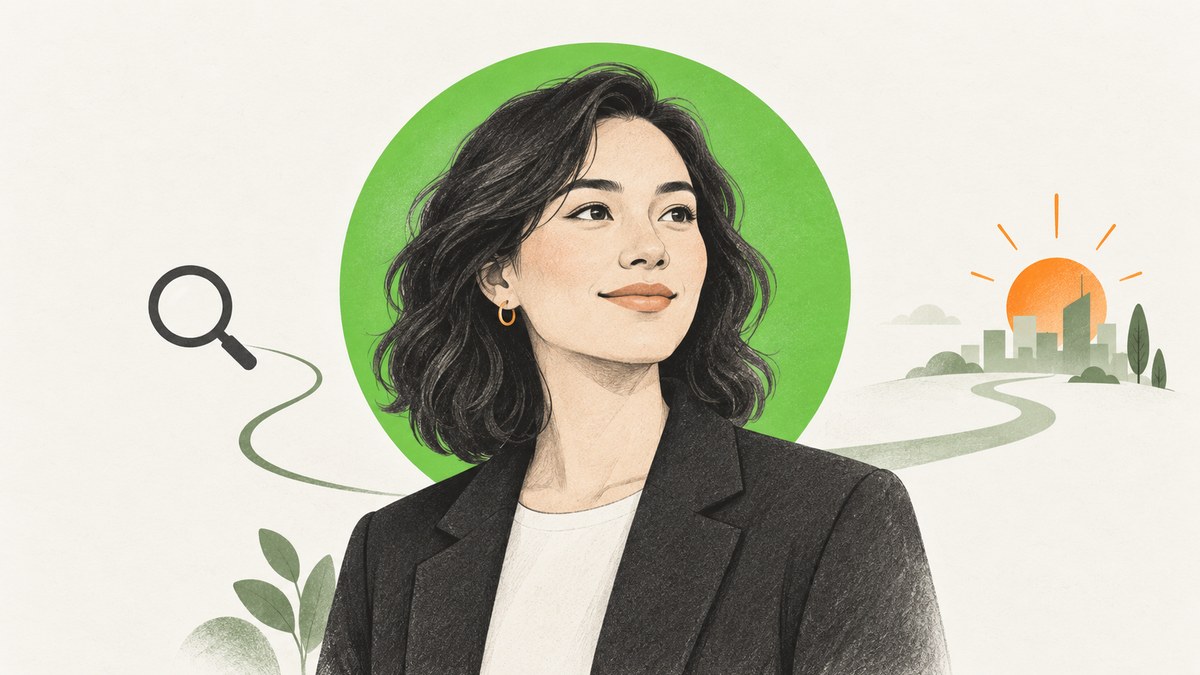
LinkedIn’s Open to Work image is a built-in frame added to your profile photo when you share your job-seeking status with all LinkedIn members. You do not download a separate image or replace your headshot with a banner. Choose the audience in LinkedIn’s Open to Work settings, then LinkedIn applies or removes the frame for you.
The key decision is privacy. All LinkedIn Members adds the visible frame and includes people at your current company. Recruiters only avoids the public frame, but LinkedIn says it cannot guarantee complete privacy. Visible only to you keeps the preference private and uses it to tailor recommendations.
What the Open to Work image is
Open to Work is a LinkedIn profile feature for sharing job-search preferences. It can include desired job titles, locations, start date and employment types. The photo frame is the visual signal LinkedIn adds when you select the all-members visibility option.
LinkedIn’s Help documentation explains the feature and its audience controls: LinkedIn Help.
Who can see the frame?
| Visibility setting | Who receives the signal | Does the photo frame appear? | Privacy considerations |
|---|---|---|---|
| All LinkedIn Members | Anyone on LinkedIn, including recruiters and people at your current company | Yes | This is a public job-search signal |
| Recruiters only | People using LinkedIn Recruiter | No public frame | LinkedIn takes steps to reduce exposure to recruiters at your current company, but does not guarantee complete privacy |
| Visible only to you | Only you | No | Your preferences influence recommendations without a visible signal |
Will my employer see my Open to Work frame?
If you select All LinkedIn Members, people at your current company can see it. If you select Recruiters only, the public frame is removed. LinkedIn says it takes steps to prevent Recruiter users at your current company from seeing your shared career interests based on the current employer listed on your profile, but it explicitly says complete privacy cannot be guaranteed.
How to add the Open to Work image on desktop
- Open your LinkedIn profile.
- Select Open to.
- Choose Finding a new job.
- Enter your job titles, preferred locations, start date and employment types.
- Choose who can see that you are open to work.
- Save the settings.
Selecting All LinkedIn Members applies the Open to Work frame to your profile photo.
How to add or manage it on mobile
- Open the LinkedIn app and view your profile.
- Use the Open to option and select Finding a new job.
- Complete or edit your job-search preferences.
- Choose the visibility audience.
- Save.
LinkedIn’s mobile interface can change, but the same audience choices and privacy behavior apply.
How to remove or change the frame
Edit Open to Work
Open the Open to Work box on your profile, edit the preferences or visibility setting, and save. Switching away from All LinkedIn Members removes the public frame.
Remove the feature entirely
Use the Open to Work box’s delete or remove control. LinkedIn also provides profile-photo frame controls. Depending on your current setup, those controls can remove Open to Work, switch sharing to recruiter-only, or remove the frame and jobs showcased on your profile.
Choose the right underlying profile photo
The frame is separate from the image you upload. Your profile photo should still clearly represent you. LinkedIn’s photo policy may remove images that are only words or phrases, company logos, animals, landscapes or another person’s likeness.
- Use a recent, high-resolution photo that looks like you now.
- Keep only yourself in the frame.
- Choose a simple, nondistracting background.
- Use soft natural light when possible.
- Keep your face large enough to recognize at small sizes.
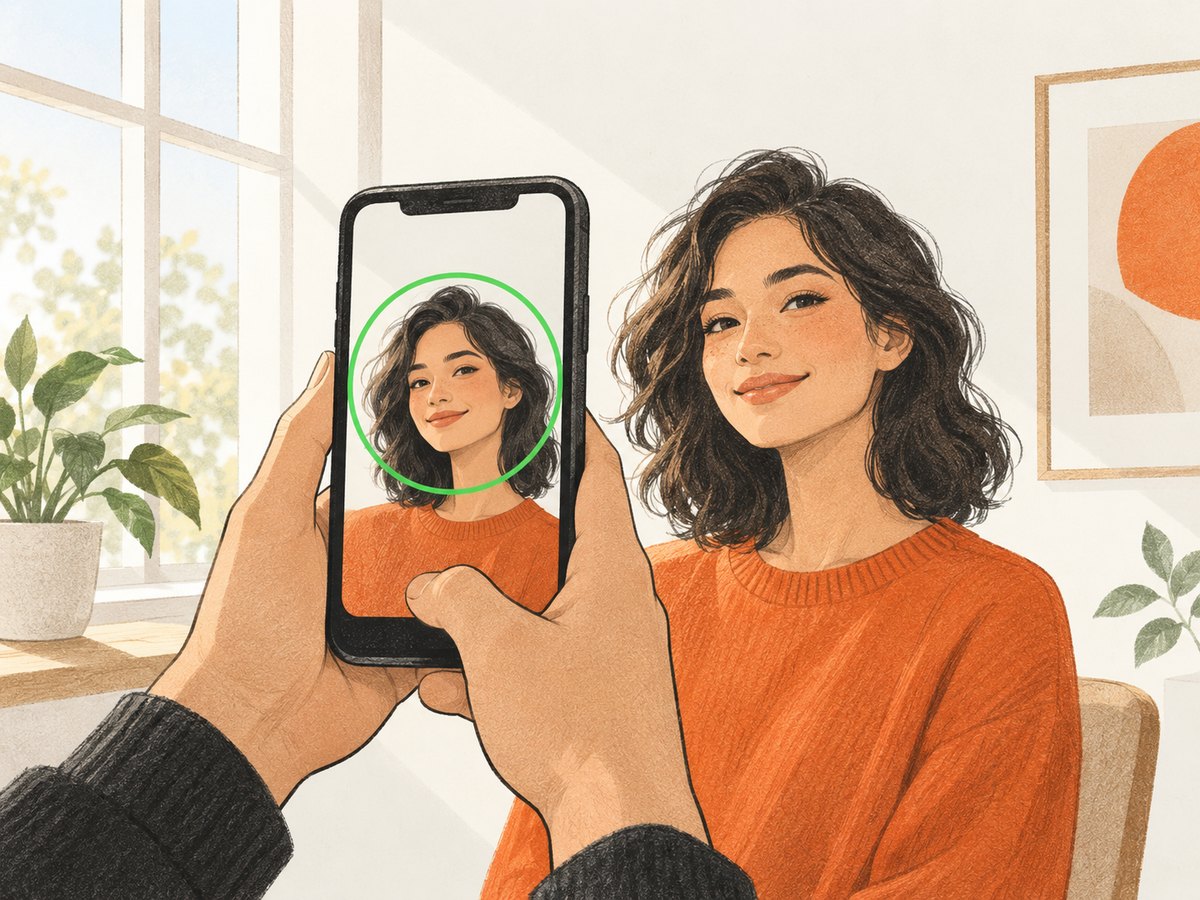
A smartphone and window light can be enough. A professional headshot is optional, not a LinkedIn requirement. A ring light or phone holder can help with a self-shot, but equipment is not required. LinkedIn’s profile-photo guidance is available through its Help Center.
DIY method: make a recognizable photo without a designer
- Clean the phone camera lens.
- Stand facing a window or use soft, indirect light.
- Place the phone at eye level and use a timer.
- Take several versions with a neutral background.
- Crop to a square while keeping your head and shoulders visible.
- Upload the photo to LinkedIn.
- Enable Open to Work and select the audience that matches your privacy needs.
Do not bake “Open to Work” text into the photo. Use LinkedIn’s native frame so the image remains a normal profile photo and the visibility setting controls the signal.
Or skip the browser setup
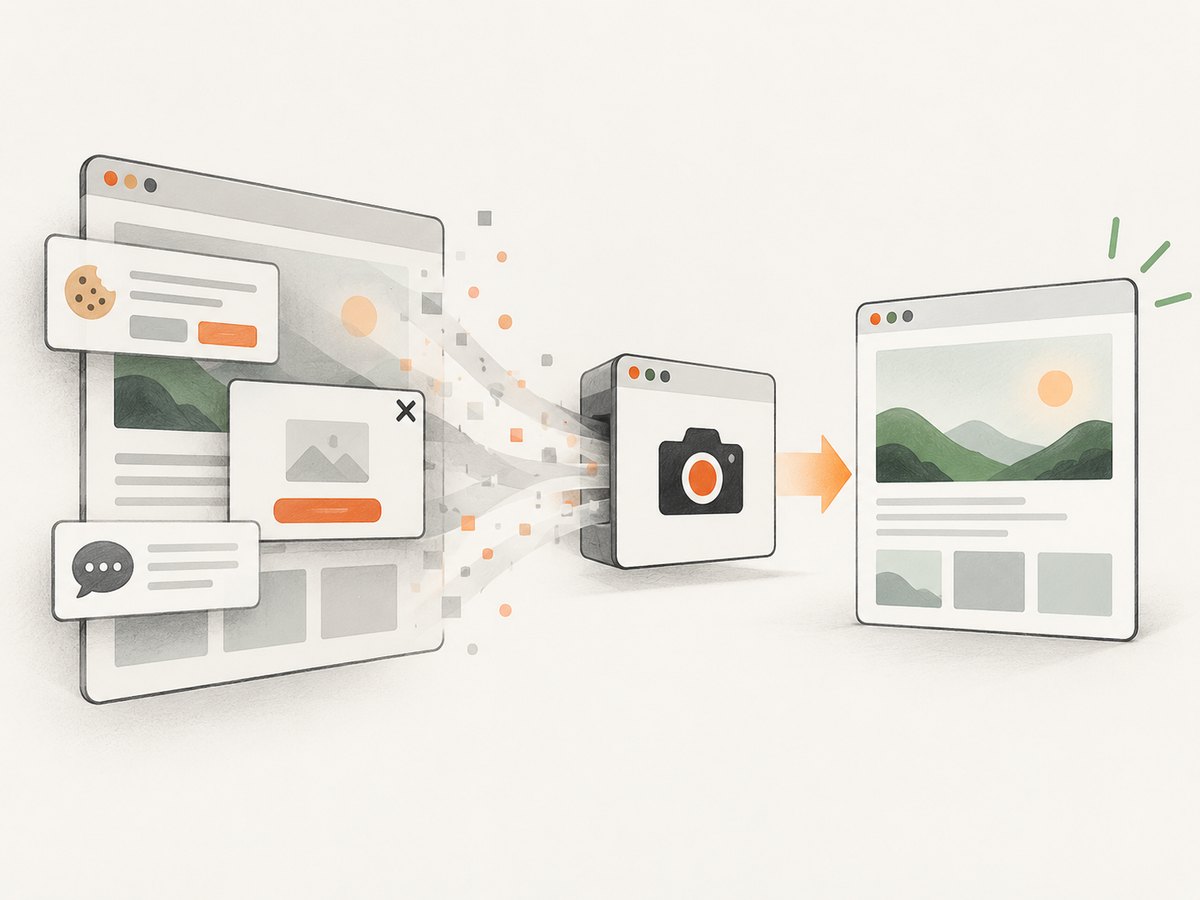
If you need a clean screenshot of a public profile preview, documentation page or portfolio page that accompanies your LinkedIn search, ScreenshotNeo can capture it with one request. Its consent handling removes known cookie banners, newsletter popups and chat widgets before capture. Bot checks, blank pages, failed loads, timeouts and cache hits are not billed, and the response identifies the page verdict and billing status.
See the ScreenshotNeo API documentation for all options.
cURL
curl -G "https://api.screenshotneo.com/v1/shot" \
  -d access_key=YOUR_API_KEY \
  --data-urlencode url=https://www.linkedin.com/in/your-profile \
  -o profile.webp
Python
import requests

r = requests.get(
    "https://api.screenshotneo.com/v1/shot",
    params={
        "access_key": "YOUR_API_KEY",
        "url": "https://www.linkedin.com/in/your-profile",
    },
    timeout=90,
)
r.raise_for_status()
open("profile.webp", "wb").write(r.content)
Node.js
const q = new URLSearchParams({
  access_key: 'YOUR_API_KEY',
  url: 'https://www.linkedin.com/in/your-profile'
});

const res = await fetch(`https://api.screenshotneo.com/v1/shot?${q}`);
if (!res.ok) throw new Error(`Screenshot failed: ${res.status}`);
const body = Buffer.from(await res.arrayBuffer());
await import('node:fs/promises').then(fs => fs.writeFile('profile.webp', body));
LinkedIn pages that require authentication may need cookies or headers, and access can depend on LinkedIn’s own controls. ScreenshotNeo supports custom headers, cookies, user agents, authorization, waits, CSS selectors, custom JavaScript and other capture options when a public page needs extra setup.
ScreenshotNeo also provides an MCP server with take_screenshot, get_page_info and capture_pdf tools for Claude, Cursor and other MCP clients. There are 1,000 free screenshots each month with no card; paid plans start at $5 for 3,000 screenshots. Create a free ScreenshotNeo account.
Troubleshooting
| Problem | Likely cause | Fix |
|---|---|---|
| The green frame is missing | Visibility is set to Recruiters only or Visible only to you | Edit Open to Work and select All LinkedIn Members if you want the public frame |
| People at work can see it | All LinkedIn Members includes your current company | Switch to Recruiters only or Visible only to you; remember recruiter-only privacy is not guaranteed |
| The frame remains after changing settings | Profile changes have not refreshed | Reopen the profile, refresh the app or browser, and verify the Open to Work box and photo-frame controls |
| LinkedIn rejects the photo | The image does not reflect your likeness or is a logo, text graphic, animal, landscape or another person | Upload a current photo of yourself that follows LinkedIn’s profile-photo policy |
| The screenshot request returns an error | Invalid API key, malformed URL or a page that cannot be fetched | Check the key, URL encoding and response status; use supported headers or cookies for pages that require them |
| The screenshot is blank or blocked | The page returned a bot check, failed load or empty response | Inspect the response verdict headers, add an appropriate wait or authentication context, and retry only when the page is available |
Performance, reliability and cost notes
- For manual LinkedIn updates, the fastest path is to keep one current square headshot and change only the Open to Work audience setting.
- For automated page captures, use a specific public URL, set a reasonable timeout, and avoid capturing more often than your workflow needs.
- ScreenshotNeo supports caching with a TTL you choose, async jobs with signed webhooks, bulk capture of up to 100 URLs per call, image resizing and usage reporting.
- Only clean shots are billed. Bot checks, blank pages, timeouts, failed loads and cache hits cost nothing, and each response includes
X-Page-VerdictandX-Billedheaders. - Plans include Free: 1,000 shots/month; Starter: $5 for 3,000; Growth: $15 for 15,000; Pro: $39 for 60,000; Scale: $99 for 250,000; Business: $249 for 1,000,000. Yearly billing gives two months free, and every feature is available on every plan.
FAQ
Is the Open to Work frame a separate LinkedIn image?
No. It is a visual treatment LinkedIn applies to your existing profile photo when you share Open to Work with all members.
Does the frame prove that I am actively applying?
No. It signals the visibility choice you made. It does not document applications or guarantee recruiter contact.
Can I use a logo or text graphic instead?
LinkedIn’s profile-photo policy expects the image to reflect your likeness. Use the native frame with a normal photo of yourself.
Is a professional photographer required?
No. LinkedIn says a smartphone photo can work. Good light, a clear face and a simple background matter more than paid equipment.
Does Recruiters only guarantee that my employer will never know?
No. LinkedIn says it takes steps to prevent exposure through Recruiter, but it cannot guarantee complete privacy.
Can I remove the frame without deleting my job preferences?
Yes. Change the visibility setting or use the profile-photo frame controls. Deleting the entire Open to Work feature is a separate action.