Why Android Says an App Does Not Allow Screenshots
Android usually blocks screenshots because the app marks its window as secure. Learn what the warning means and the approved ways to save content.

Short answer: Android usually shows “This app does not allow screenshots” because the app has marked its current window as secure with FLAG_SECURE. Android then prevents that window from appearing in screenshots and on non-secure displays such as casting targets. The warning normally means the app is enforcing a security policy, not that your phone’s screenshot function is broken.
Banking apps, password managers, login screens, purchase flows, confidential account pages and DRM-sensitive media commonly use this protection. There is no universal Android setting that safely overrides an app’s secure-window decision. The reliable approach is to use the app’s own export, download, share, print or receipt feature, or ask the service provider for an approved copy.
What the warning means
Android defines FLAG_SECURE as a window flag that treats the content as secure. A secure window is kept out of screenshots and out of non-secure displays, including many casting and mirroring paths. The operating system applies the rule to the window the app is showing, so one screen can be protected while another screen in the same app remains capturable.
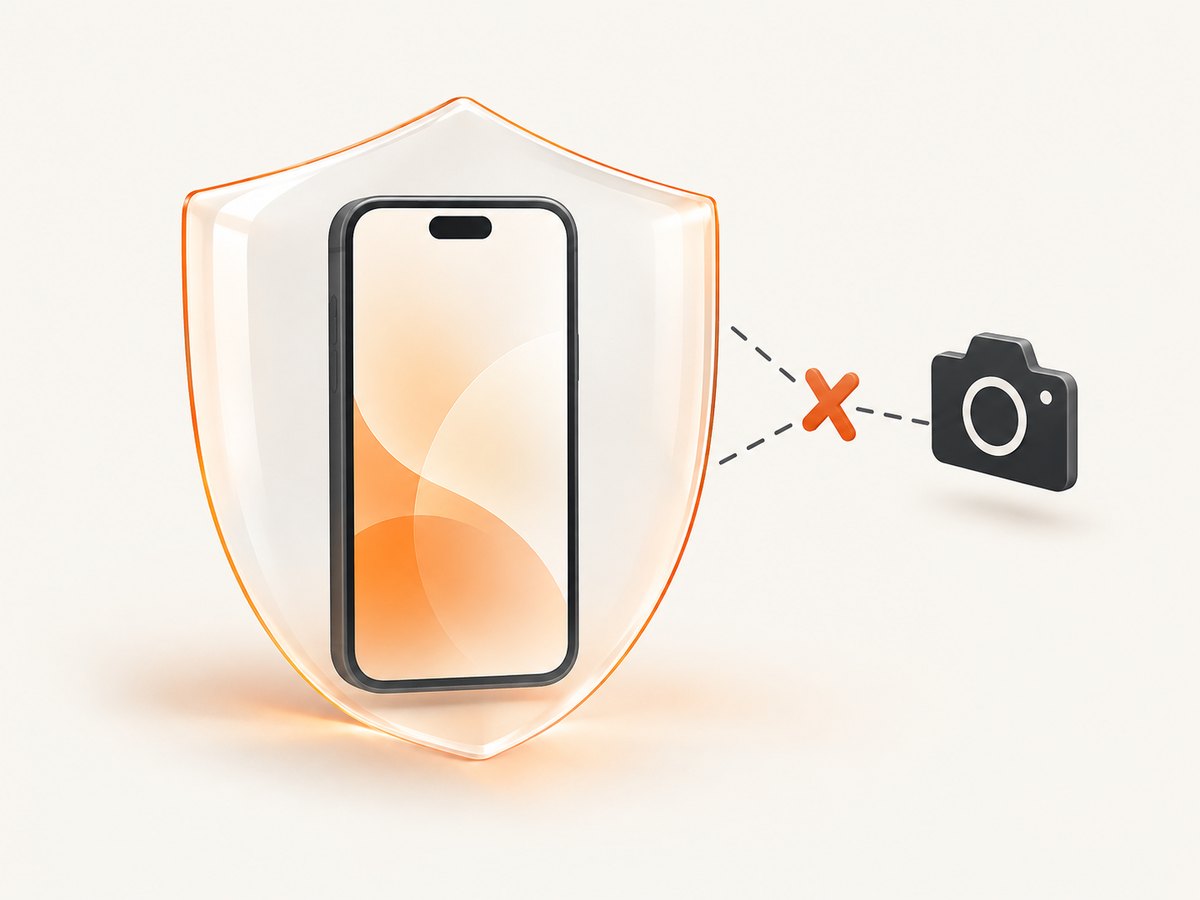
The Android Developers fraud-prevention guidance describes the flag as preventing screenshots and display on non-secure outputs. The WindowManager.LayoutParams API reference gives the corresponding platform definition. These are app-level instructions to Android’s window manager; they are not a preference in the screenshot toolbar.
This explains why you may be able to capture your home screen, browser and messaging apps while a bank, password manager or streaming app refuses the same gesture. The screenshot button is working. The protected window is declining to provide pixels to the capture path.
Why an app blocks screenshots
Protecting credentials and account data
Apps can contain passwords, one-time codes, recovery keys, card numbers, account balances and personal records. A screenshot is easy to copy, synchronize to cloud storage or expose in a notification and photo index. Blocking the capture reduces the number of places that sensitive information can persist.
Protecting a transaction
Payment and purchase screens may contain order details, addresses, discount codes or authentication steps. An app owner can protect the whole activity while a payment is in progress, then provide an official receipt or order-history export after completion.
Protecting licensed media
Video, books and other DRM-sensitive content can be covered by the same mechanism. The intent is to stop the protected surface appearing in screenshots, screen recordings or non-secure displays.
Preventing non-secure display output
FLAG_SECURE is broader than the screenshot button. Android also uses it to keep a window off projectors, wireless casting targets and other displays that the system cannot treat as secure. A failed screenshot and a blank or hidden mirrored view can therefore have the same cause.
Is your phone broken?
If screenshots work in ordinary apps but fail only in one app or on one screen, the pattern strongly indicates an app policy. Try a harmless screen in the same app, such as its settings or help page. If that screen captures successfully while an account or payment page does not, the app is applying protection selectively.
If screenshots fail everywhere, restart the phone and test a second ordinary app. A work profile or device administrator can also impose device-specific restrictions. Those causes are separate from the app’s FLAG_SECURE choice and need to be investigated through your employer’s device-management policy or the phone manufacturer’s support channels.
How to save content from a blocked app
Use the following order. It preserves the app’s security model and gives you the best copy of the information.
- Look for an official export. Check menus labelled Download, Export, Save, Receipt, Statement, Print, Share or View PDF. Receipts and statements usually preserve more useful metadata than a screenshot.
- Move to a non-sensitive view. Some apps protect only the page containing credentials or payment data. A summary page, transaction list or public article may be capturable.
- Use the app’s share flow. A share action may generate a redacted image, PDF or text representation specifically designed for sending.
- Use a web account if the provider offers one. The website may provide an approved download even when the native app protects its window.
- Ask the provider for a copy. Support can often issue a receipt, statement or document through an approved channel.
When comparing these options, consider four things: whether the app officially supports the method, whether sensitive data remains protected, whether it works on your Android version and device, and whether it preserves the resolution and metadata you need. Prefer the app’s own export or receipt feature whenever it exists.
Can a screenshot app, recorder or mirror bypass it?
Do not assume that a third-party screenshot utility, screen recorder or mirroring tool will bypass the restriction. Android’s secure-surface model is specifically intended to keep protected content out of screenshots and non-secure displays. Capture behavior varies by device, Android release and the path used by the tool. A method that appears to work on one phone may produce a black frame, an omitted region or no output on another.
Tools that claim to defeat the protection may also violate an app’s terms, expose credentials or create an unapproved copy of private information. For legitimate records, an export, receipt or support-issued document is safer and usually clearer.
Screenshot detection is different from screenshot blocking
Android 14 introduced a privacy-preserving screenshot-detection API. It lets an app receive a callback when the user takes a screenshot. Detection tells the app that a capture occurred; it does not itself prevent the capture.
To keep an activity out of screenshots, Android still directs developers to set FLAG_SECURE on the activity window. The two features can be used together: an app may block a sensitive screen and detect captures on another screen for audit or user education. More details are available in the Android 14 screenshot-detection documentation.
For Android developers: enabling the protection
If you maintain an Android app and need to protect an activity, set the secure flag on that activity’s window. In Kotlin:
override fun onCreate(savedInstanceState: Bundle?) {
    super.onCreate(savedInstanceState)
    window.setFlags(
        WindowManager.LayoutParams.FLAG_SECURE,
        WindowManager.LayoutParams.FLAG_SECURE
    )
    setContentView(R.layout.activity_sensitive)
}
In Java:
@Override
protected void onCreate(Bundle savedInstanceState) {
    super.onCreate(savedInstanceState);
    getWindow().setFlags(
        WindowManager.LayoutParams.FLAG_SECURE,
        WindowManager.LayoutParams.FLAG_SECURE
    );
    setContentView(R.layout.activity_sensitive);
}
Apply the flag only where the product’s threat model requires it. A full-app policy can make support, accessibility workflows and legitimate record keeping harder. If only credentials or payment details are sensitive, protect the relevant activity or screen and provide an intentional export path for the resulting record.
Reliability and version details
Secure-window behavior is device- and capture-method-dependent. Android’s fraud-prevention documentation notes that on Android 11 (API 30) and lower, FLAG_SECURE was able to help on around 70% of devices reliably. The same guidance cautions that the approach is not reliable against every overlay attack or screen-recording situation.
That qualification does not create a supported bypass for users. It means developers should treat the flag as one layer in a broader security design, and users should expect different results across phone models, Android versions and capture paths. A black recording, missing secure region or failed cast can all be manifestations of the same policy.
Troubleshooting checklist
| Symptom | Likely cause | What to do |
|---|---|---|
| Only one app refuses screenshots | The app’s window is marked secure. | Use its export, share, print or receipt feature. |
| Only one screen in the app is blocked | The app protects a sensitive activity or fragment. | Move to a summary or non-sensitive screen, or request an approved copy. |
| A screen recording has a black area | The recorded window is secure. | Use an official media download or viewing option. |
| Casting shows a blank or hidden view | Secure content is excluded from non-secure displays. | Use a supported secure-display workflow or the app’s export. |
| Screenshots fail in every app | Possible device policy, work profile issue or temporary system fault. | Restart, test another ordinary app, then check device-management settings. |
| A downloaded image is lower quality than the screen | The app generated a preview rather than a source document. | Request the original PDF, statement or export from the provider. |

Or skip the browser setup
If what you need is a screenshot of a public website rather than a protected Android app screen, ScreenshotNeo provides a website screenshot API. It cannot and should not override an Android app’s secure window. It is useful when the source is a URL that you control or are authorized to capture.
One GET request returns a PNG, JPEG, WebP or PDF. The API accepts options for full-page capture with lazy images loaded, a CSS element selector, dark mode, device presets or custom viewports, retina scale, custom CSS and JavaScript, clicks, waits, blocked resources, headers, cookies, user agents, authorization, timezone, geolocation, transparent backgrounds, resizing, caching, signed links, asynchronous jobs, webhooks, bulk capture and usage reporting. See the ScreenshotNeo documentation for parameter details.
cURL
curl -G "https://api.screenshotneo.com/v1/shot" \
  -d access_key=YOUR_API_KEY \
  --data-urlencode url=https://stripe.com \
  -o shot.webp
Python
import requests

r = requests.get(
    "https://api.screenshotneo.com/v1/shot",
    params={"access_key": "YOUR_API_KEY", "url": "https://stripe.com"},
    timeout=90,
)
r.raise_for_status()
open("shot.webp", "wb").write(r.content)
Node.js
const q = new URLSearchParams({
  access_key: 'YOUR_API_KEY',
  url: 'https://stripe.com'
});
const res = await fetch(`https://api.screenshotneo.com/v1/shot?${q}`);
if (!res.ok) throw new Error(`Screenshot failed: ${res.status}`);
const fs = await import('node:fs/promises');
await fs.writeFile('shot.webp', Buffer.from(await res.arrayBuffer()));
ScreenshotNeo removes cookie and consent banners, newsletter popups and chat widgets before capture. Bot checks, blank pages, timeouts, failed loads and cache hits are not billed; the response identifies the result with X-Page-Verdict and X-Billed headers. Its MCP server exposes take_screenshot, get_page_info and capture_pdf tools for Claude, Cursor and other MCP clients.
There are 1,000 free screenshots each month with no card. Paid plans start at $5 for 3,000 shots, and every feature is available on every plan. Create a free ScreenshotNeo account to try a URL capture.
Performance, reliability and cost considerations
For an Android app, the fastest reliable path is usually the provider’s own export because it avoids pixel capture altogether. A generated PDF or statement can also retain searchable text and transaction metadata. Screenshot quality depends on the app’s output path, not just your phone’s display resolution.
For website captures, reduce unnecessary work by selecting an element instead of a full page when you only need one component, use a sensible wait condition rather than a long fixed delay, and enable caching when the page can tolerate a chosen TTL. Block ads, trackers or unneeded resource types when they are irrelevant to the image. For recurring jobs, asynchronous capture, signed webhooks and bulk requests can reduce client-side waiting and request overhead.
Keep credentials out of public URLs where possible. Use custom headers, cookies or authorization options for pages you are allowed to access, and use signed links for public image tags. Check the verdict and billing headers so your application can distinguish a clean billed shot from a blocked, blank, failed or cached response.
FAQ
Can I turn off screenshot blocking in Android settings?
There is no general, supported Android switch that overrides an app’s secure-window decision. Use the app’s approved export or request a copy.
Why can I screenshot the app’s home page but not a payment page?
The app can apply FLAG_SECURE to only the sensitive activity or window.
Does Android 14 screenshot detection allow screenshots?
No. Detection notifies an app after a screenshot event. Prevention still uses a secure window.
Will ScreenshotNeo capture a blocked Android app?
No. ScreenshotNeo captures authorized web URLs. It does not bypass Android secure windows or capture protected mobile-app surfaces.
What should I provide to support when I need a record?
Include the transaction or document identifier and ask for an official receipt, statement, PDF or redacted export. That usually preserves more useful information than a screen image.


