How to Capture an Android Emulator Screenshot with Selenium in Python
Capture an Android emulator screen from Python with Appium, UiAutomator2, and Selenium’s screenshot API, with setup, code, errors, and alternatives.
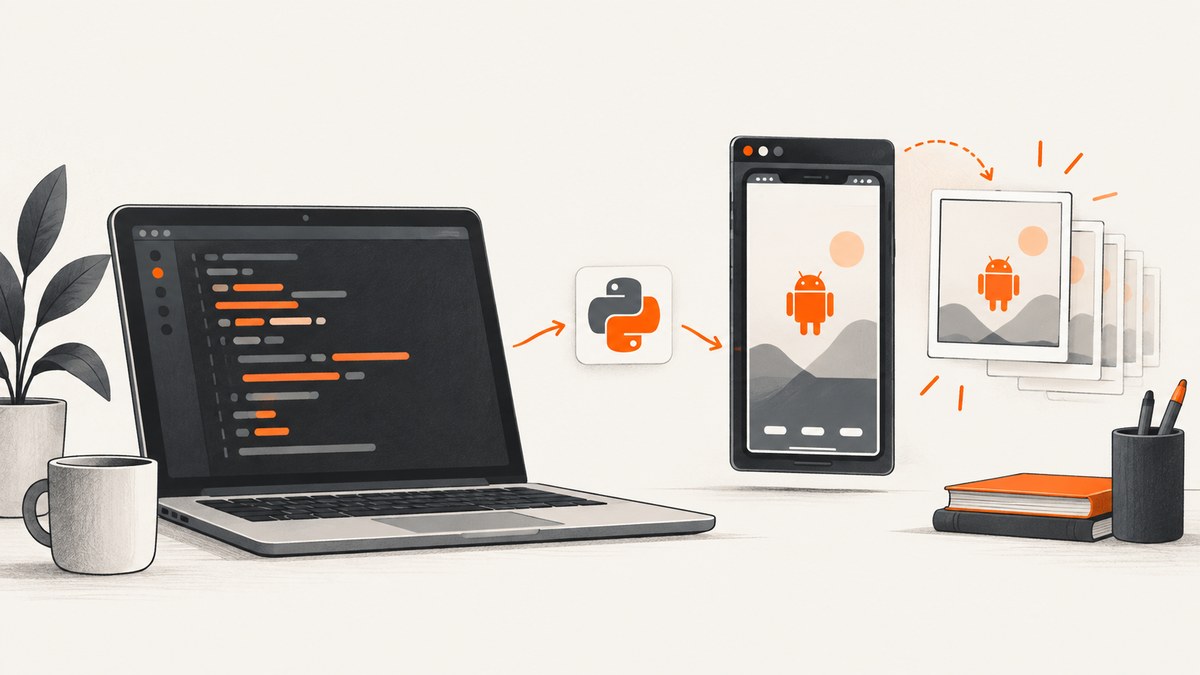
To capture an Android emulator screenshot with Selenium in Python, create an Appium session using the UiAutomator2 driver, wait until the intended app screen is visible, then call Selenium’s WebDriver screenshot method:
ok = driver.save_screenshot('screenshot.png')
if not ok:
    raise IOError('Could not write screenshot.png')
Selenium saves the current WebDriver-controlled window as a PNG and returns a Boolean result. Appium supplies the Android automation session; for a native app, UiAutomator2 captures the device viewport. This does not automatically capture the host desktop, emulator borders, or other windows.
What you need
- Python and a virtual environment.
- The Android SDK, platform tools, and an Android emulator image.
- A Java JDK and the environment variables required by your installed Appium UiAutomator2 driver.
- Appium Server and the Appium UiAutomator2 driver.
- The Selenium and Appium Python client packages.
- An Android Virtual Device (AVD), either already running or available for Appium to launch.
UiAutomator2 requirements change with driver releases. Check the documentation for the exact versions installed in your environment before troubleshooting version errors.
Install the Python clients
python -m venv .venv
source .venv/bin/activate
python -m pip install --upgrade pip
python -m pip install selenium Appium-Python-Client
On Windows PowerShell, activate the environment with .venv\\Scripts\\Activate.ps1. Start Appium separately, normally on http://127.0.0.1:4723, and make sure the emulator is visible to adb.
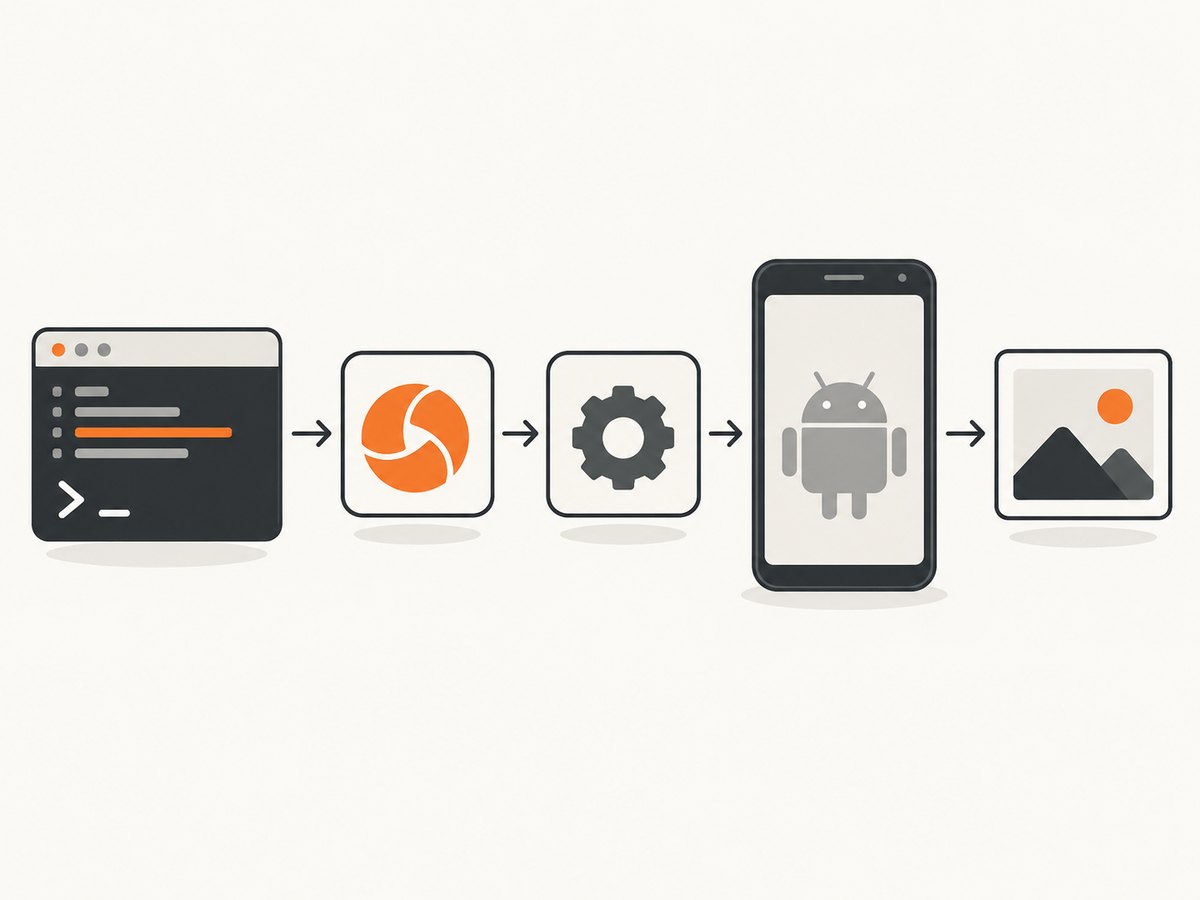
Capture a native Android app screen
Set the package and launchable activity for the app installed on the emulator. The following script starts an AVD by name when Appium needs to launch it, opens the app, saves a PNG, and always quits the session.
from appium import webdriver
from appium.options.android import UiAutomator2Options

options = UiAutomator2Options()
options.platform_name = 'Android'
options.automation_name = 'UiAutomator2'
options.avd = 'YOUR_AVD_NAME'
options.app_package = 'your.app.package'
options.app_activity = 'your.app.Activity'

# Start Appium Server separately before running this script.
driver = webdriver.Remote(
    command_executor='http://127.0.0.1:4723',
    options=options,
)
try:
    # Perform navigation or interaction here if needed.
    ok = driver.save_screenshot('screenshot.png')
    if not ok:
        raise IOError('Screenshot could not be written')
finally:
    driver.quit()
Replace every placeholder. The activity may need a fully qualified name, and some apps require additional capabilities such as an app path, an app wait activity, or a no-reset setting. Use the capability names supported by your installed Appium client and driver.
Save bytes or Base64 instead of a file
png_bytes = driver.get_screenshot_as_png()
with open('screenshot.png', 'wb') as image_file:
    image_file.write(png_bytes)

png_base64 = driver.get_screenshot_as_base64()
Use bytes when another service uploads the image directly. Base64 is useful in JSON or test reports, but it increases the representation size compared with binary PNG data.
Capture Chrome running in the emulator
For a web page in Android Chrome, use the browser context instead of an installed native app. Leave the app capability empty and set browserName to Chrome. Chrome must be installed on the emulator, and its version must be compatible with the ChromeDriver used by Appium.
from appium import webdriver
from appium.options.android import UiAutomator2Options

options = UiAutomator2Options()
options.platform_name = 'Android'
options.automation_name = 'UiAutomator2'
options.avd = 'YOUR_AVD_NAME'
options.browser_name = 'Chrome'

# Start Appium Server separately.
driver = webdriver.Remote(
    command_executor='http://127.0.0.1:4723',
    options=options,
)
try:
    driver.get('https://example.com')
    ok = driver.save_screenshot('chrome-emulator.png')
    if not ok:
        raise IOError('Screenshot could not be written')
finally:
    driver.quit()
This captures the WebDriver-controlled Chrome viewport. It is different from a host screenshot of the emulator application window.
Make the capture deterministic
Wait for a visible state
Do not capture immediately after starting an app if its content loads asynchronously. Wait for a meaningful element or state before calling the screenshot method.
from selenium.webdriver.common.by import By
from selenium.webdriver.support.ui import WebDriverWait

wait = WebDriverWait(driver, 30)
wait.until(lambda d: d.find_element(By.ID, 'content').is_displayed())
ok = driver.save_screenshot('ready.png')
if not ok:
    raise IOError('Screenshot could not be written')
Use a locator that represents the final screen, not a transient spinner. For a native app, the resource ID and accessibility label must match the app under test.
Set the emulator state before capture
- Use a fixed AVD and screen orientation.
- Set the same locale, timezone, and system theme for every run.
- Dismiss first-run dialogs and permission prompts deliberately.
- Wait for animations, network content, and image loading to finish.
- Use test data that does not change between runs.
Selenium’s screenshot command captures the current state; it does not freeze animations or make remote content deterministic.
Viewport screenshot versus host desktop screenshot
| Goal | Use | Result |
|---|---|---|
| Capture the app or browser screen during Android automation | Appium UiAutomator2 session and Selenium WebDriver screenshot | The native Android or browser viewport controlled by the session |
| Capture emulator borders, window chrome, or the whole computer desktop | A desktop or host operating-system capture utility | The emulator application window or desktop; this is outside Selenium’s current-window screenshot API |
Common errors and fixes
| Error or symptom | Likely cause | Fix |
|---|---|---|
| Connection refused at port 4723 | Appium Server is not running or is listening on another address. | Start Appium, verify its port, and use the matching command_executor URL. |
| Could not find a connected device | The emulator is stopped, still booting, or not visible to ADB. | Start the AVD, wait for Android to finish booting, then check adb devices. |
| UiAutomator2 driver missing | The Appium driver was not installed for the Appium server. | Install the UiAutomator2 driver version required by your Appium release. |
| Appium cannot launch the AVD | The AVD name is wrong or the Android SDK and emulator paths are unavailable. | List AVDs, copy the exact name into options.avd, and verify SDK environment variables. |
| Invalid or missing package/activity | The app identity does not match the installed build. | Confirm the package and launchable activity for that APK and build variant. |
| Chrome session fails to start | Chrome is absent or incompatible with ChromeDriver. | Install Chrome in the emulator and align ChromeDriver with the installed Chrome version. |
save_screenshot returns False |
The destination cannot be written or the driver failed to produce the image. | Use an existing writable directory, check permissions and disk space, and raise an error when the Boolean is false. |
| Blank or black screenshot | The app is not ready, the wrong context is active, rendering failed, or the app protects its content. | Wait for the target view, verify the active app/context, inspect logs, and check whether Android FLAG_SECURE blocks screenshots. |
| Screenshot shows a loading screen | The capture ran before asynchronous work completed. | Wait for a stable element or explicit app-ready condition instead of adding an arbitrary short sleep. |
| Screenshot is the wrong orientation or size | The emulator orientation or device profile changed. | Set orientation and use a fixed AVD profile before the capture. |
Reliability and performance guidance
- Reuse one driver session for a related sequence of screenshots when isolation is not required; starting an emulator and session is usually more expensive than writing the PNG.
- For parallel jobs, give each worker its own emulator or carefully isolated device and output path.
- Write files with unique names so concurrent tests cannot overwrite one another.
- Keep explicit session and wait timeouts. A screenshot call cannot succeed if the app session has already died.
- Collect Appium, Android, and test logs alongside failed images so a blank result can be diagnosed.
- PNG is lossless and convenient for pixel comparisons, but can be large. Convert after capture only if your test or publishing workflow permits a lossy format.
- Retry a failed session at the orchestration layer after collecting the first failure. Repeated retries can hide deterministic app or capability errors.
Selenium’s screenshot API reports whether it wrote the requested file, but it does not validate that the pixels represent the intended application state. Your test should validate readiness separately.
Security and app restrictions
Android apps can set FLAG_SECURE to prevent screenshots of protected content. In that case, changing the output path or Selenium call will not bypass the restriction. Use a test build or an approved test strategy that exposes non-sensitive content when screenshot assertions are required.

Do not place real credentials, tokens, or private user data in screenshots that leave the test environment. Treat captured files and Base64 strings as test artifacts with the same access controls as logs.
Or skip the browser setup
If your target is a public web page rather than the native Android emulator viewport, ScreenshotNeo provides a one-call website screenshot API. It is not a replacement for Appium when you must capture an installed Android app, but it removes the browser and emulator setup for web captures. See the ScreenshotNeo documentation for request options.
curl -G 'https://api.screenshotneo.com/v1/shot' -d access_key=YOUR_API_KEY --data-urlencode url=https://stripe.com -o shot.webpimport requests
r = requests.get('https://api.screenshotneo.com/v1/shot', params={'access_key': 'YOUR_API_KEY', 'url': 'https://stripe.com'}, timeout=90)
r.raise_for_status()
open('shot.webp', 'wb').write(r.content)const q = new URLSearchParams({ access_key: 'YOUR_API_KEY', url: 'https://stripe.com' });
const res = await fetch(`https://api.screenshotneo.com/v1/shot?${q}`);Before capture, ScreenshotNeo accepts cookie and consent banners and removes more than 60 known consent platforms, newsletter popups, and chat widgets; each step can be turned off. Bot checks, blank pages, timeouts, failed loads, and cache hits are not billed, and the response identifies the page verdict and billing status in X-Page-Verdict and X-Billed headers. Its MCP server lets Claude, Cursor, and other MCP clients use take_screenshot, get_page_info, and capture_pdf. The Free plan includes 1,000 screenshots per month with no card; paid plans start at $5 for 3,000.
Create a free ScreenshotNeo account to capture web pages without configuring an emulator.
FAQ
Does Selenium capture the entire Android emulator window?
No. The WebDriver screenshot represents the current native or browser viewport controlled by Appium. Capturing emulator borders or the host desktop requires a separate desktop capture tool.
Can I use Selenium without Appium?
Not for a native Android app. Selenium controls WebDriver sessions; Appium provides the Android automation session and UiAutomator2 driver.
What file format does save_screenshot create?
The documented Selenium method saves a PNG file. Use the byte or Base64 methods when your pipeline needs an in-memory representation.
Why does a screenshot work manually but fail in CI?
CI often differs in AVD availability, boot timing, display configuration, package versions, permissions, and writable paths. Log the device state and wait for an explicit ready condition before capture.
Can ScreenshotNeo capture my installed Android app?
No. ScreenshotNeo captures websites through its API. Use Appium for a native app running inside an Android emulator.


