How to Take Android Screenshots with ADB
Capture Android screenshots from a terminal with ADB, save them directly to your computer, automate them, and fix common errors.
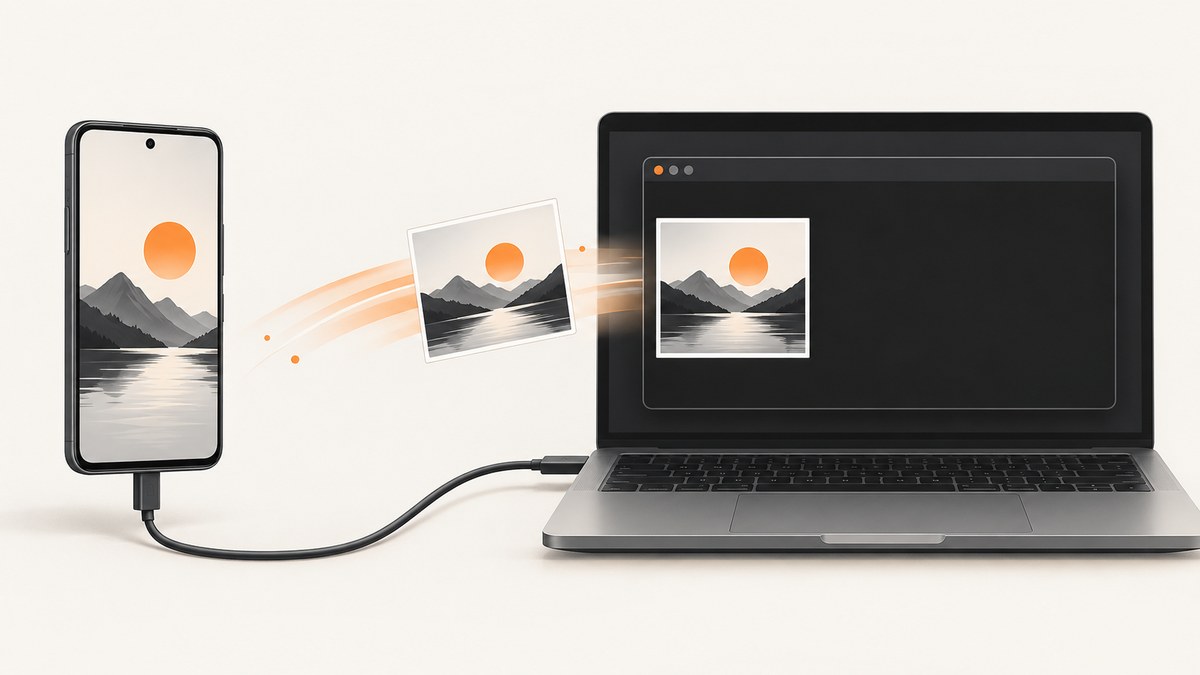
Use adb exec-out screencap -p > screen.png to capture the Android display directly to your computer. This streams a PNG from the device, so you do not need to create and then download an intermediate file.
ADB (Android Debug Bridge) communicates with an Android device from your development computer. The screencap shell utility captures the current device display. Android Developers documents both the device-file workflow and the direct streaming workflow. See the official ADB screencap documentation.
Prerequisites
- Install the Android SDK Platform-Tools, which provides
adb. - Enable Developer options and USB debugging on the Android device.
- Use a USB cable that supports data. Charge-only cables cannot carry ADB traffic.
- Unlock the device and accept the RSA debugging-authorisation prompt when Android shows it.
Verify that ADB can see the device:
adb devicesA connected and authorised device appears with a serial number and the state device. If it says unauthorized, unlock the phone and accept the prompt, then run the command again.
Method 1: Save directly to your computer
This is the simplest option for a local PNG:
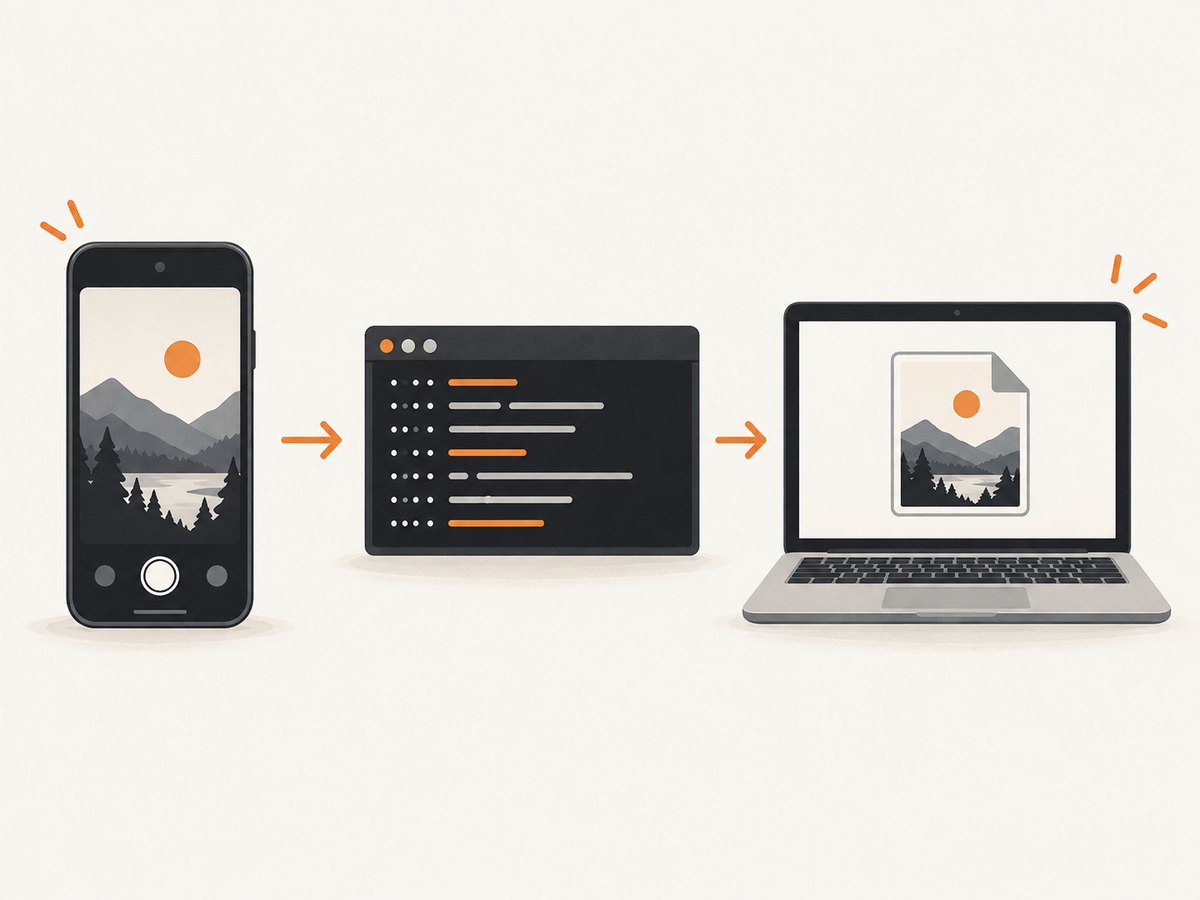
adb exec-out screencap -p > screen.pngexec-out runs a command on the device and preserves its binary output for the host. The -p option asks screencap for PNG output. The redirection operator writes that stream to screen.png in your current computer directory.
Choose a different local filename
adb exec-out screencap -p > checkout-home.pngCapture from a specific device
When more than one device or emulator is connected, list serial numbers and pass one with -s:
adb devices -l
adb -s emulator-5554 exec-out screencap -p > emulator.png
adb -s R58M123456A exec-out screencap -p > phone.png
Use a shell script
#!/usr/bin/env bash
set -euo pipefail

serial="${1:-}"
out="${2:-screen.png}"

if [[ -n "$serial" ]]; then
  adb -s "$serial" exec-out screencap -p > "$out"
else
  adb exec-out screencap -p > "$out"
fi

if [[ ! -s "$out" ]]; then
  echo "Screenshot file is empty: $out" >&2
  exit 1
fi

echo "Saved $out"
Save it as capture.sh, make it executable with chmod +x capture.sh, and run ./capture.sh or ./capture.sh SERIAL result.png.
Method 2: Capture on the device, then pull the file
Use this workflow when you need a device-side copy or want to separate capture from transfer:
adb shell screencap /sdcard/screen.png
adb pull /sdcard/screen.png ./screen.png
The first command writes the image to a path that the ADB shell can normally access. The second copies it to your computer. You can choose another writable path:
adb shell screencap /sdcard/test-runs/home.png
adb pull /sdcard/test-runs/home.png ./home.png
Remove temporary files after pulling them:
adb shell rm /sdcard/screen.png| Workflow | Best for | Host output | Intermediate file |
|---|---|---|---|
exec-out screencap -p |
Fast, simple local capture and scripts | Written directly to your computer | No |
shell screencap + pull |
Keeping a device copy or transferring later | Copied after capture | Yes, on the device |
Useful ADB capture variations
Capture an emulator
adb -e exec-out screencap -p > emulator.png-e selects the only running emulator. Use -d to select a physical USB device when that distinction is useful:
adb -d exec-out screencap -p > usb-device.pngCapture over Wi-Fi
After pairing or connecting the device with Android’s wireless debugging tools, the same screencap command works over the network:
adb connect DEVICE_IP:PORT
adb devices
adb -s DEVICE_IP:PORT exec-out screencap -p > wifi.png
Wireless capture depends on the device and Android version being configured for wireless debugging and on both computers being able to reach the device.
Capture repeatedly for a test run
for i in 1 2 3 4 5; do
  adb exec-out screencap -p > "screen-$i.png"
  sleep 1
done
For deterministic results, wait until the app reaches the intended state before each capture. A screenshot records the current display; ADB does not wait for a page, animation, or network request to finish.
Complete examples in common languages
Python
from pathlib import Path
import subprocess

output = Path("screen.png")
result = subprocess.run(
    ["adb", "exec-out", "screencap", "-p"],
    check=True,
    stdout=subprocess.PIPE,
    stderr=subprocess.PIPE,
)
output.write_bytes(result.stdout)
if not output.stat().st_size:
    raise RuntimeError("ADB returned an empty screenshot")
print(f"Saved {output}")
Node.js
import { execFile } from "node:child_process";
import { promisify } from "node:util";
import { writeFile } from "node:fs/promises";

const execFileAsync = promisify(execFile);
const { stdout } = await execFileAsync("adb", ["exec-out", "screencap", "-p"], {
  encoding: "buffer",
  maxBuffer: 50 * 1024 * 1024,
});
await writeFile("screen.png", stdout);
console.log("Saved screen.png");
PowerShell
adb exec-out screencap -p > screen.png
if ((Get-Item screen.png).Length -eq 0) { throw "Empty screenshot" }
Controlling what gets captured
screencap captures the display as rendered by Android. Prepare the device before running it:
- Navigate to the required screen with manual actions, UI tests, or
adb shell input. - Dismiss transient dialogs and wait for animations or loading indicators to settle.
- Set the desired orientation and brightness if those affect your comparison.
- Run the capture command.
ADB can send basic input events, for example:
adb shell input tap 540 1200
adb shell input swipe 500 1600 500 500 500
adb shell input keyevent KEYCODE_HOME
Coordinates depend on the device resolution and orientation. For repeatable UI testing, use a test framework to locate elements rather than hard-coded coordinates where possible.
File format and integrity checks
Use -p with exec-out for a PNG stream. Do not run the binary stream through text-processing commands, line-ending conversion, or shell pipelines that alter bytes.
Check that the result is a real PNG:
file screen.png
xxd -l 8 screen.png
A valid PNG begins with the signature bytes 89 50 4e 47 0d 0a 1a 0a. The file command should identify it as a PNG image.
Troubleshooting
| Symptom | Cause | Fix |
|---|---|---|
adb: command not found |
Platform-Tools is not installed or is not on PATH. |
Install Android SDK Platform-Tools and add its directory to PATH, or run the absolute path to adb. |
| No devices listed | USB debugging is disabled, the cable is charge-only, drivers are missing, or the ADB server needs restarting. | Enable USB debugging, try a data cable and port, install the platform-specific USB driver when required, then run adb kill-server followed by adb start-server. |
unauthorized |
The phone has not approved this computer. | Unlock the phone, accept the RSA prompt, and retry adb devices. Revoke USB debugging authorisations in Developer options if the prompt will not reappear. |
more than one device/emulator |
ADB cannot choose a target. | Pass the serial with adb -s SERIAL ..., or use -e for an emulator and -d for a USB device. |
| Empty or corrupted PNG | Binary output was altered, stderr was mixed into stdout, or the command was run through a text shell pipeline. | Use exactly adb exec-out screencap -p > screen.png. Keep diagnostics on stderr and validate with file or the PNG signature. |
Permission denied with the two-step method |
The destination path is not writable by the shell. | Use a documented shared path such as /sdcard/screen.png, then pull it. Avoid protected app directories. |
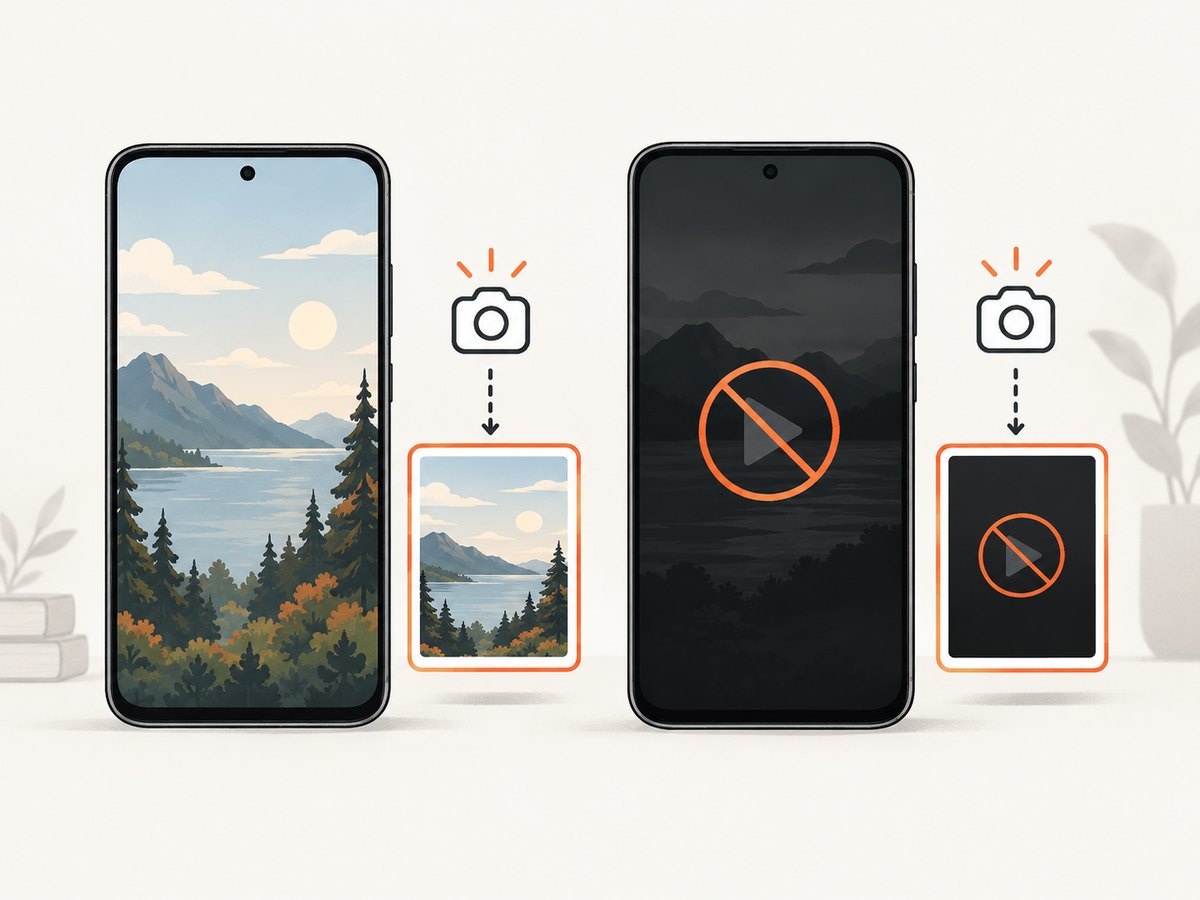
| Black, blank, or missing content | The app surface may be protected by DRM or Android secure-window flags. | Capture a permitted screen, disable secure content in a development build when appropriate, or use the app’s test output. ADB does not guarantee capture of protected surfaces. |
| Screenshot shows the wrong state | The UI was still animating, loading, or changing orientation. | Add an explicit wait in your test, wait for a stable UI condition, then capture. A fixed sleep alone can be fragile on slower devices. |
Performance, reliability, and cost
- Speed: Direct streaming avoids the extra device-file write and pull step, so it is usually the simplest path for one-off or repeated host captures. Actual time depends on device load, transport, and image dimensions.
- Reliability: Select a serial when multiple targets are connected, check the exit status, reject empty files, and retain stderr for diagnostics.
- Storage: The two-step method leaves temporary files on the device until you remove them. Direct streaming leaves no screenshot file on the device.
- Cost: ADB itself does not charge per screenshot. Your costs are the development computer, device, USB or network setup, and any test infrastructure.
- Security: USB debugging grants a trusted computer significant access to the device. Disable it when it is not needed and avoid authorising unknown computers.
Or skip the browser setup
ADB is for screenshots of an Android device display. If you need screenshots of web pages for documentation, monitoring, visual tests, or an automation pipeline, ScreenshotNeo provides a website screenshot API and MCP server. One request returns a PNG, JPEG, WebP, or PDF. The API can remove cookie banners, newsletter popups, and chat widgets before capture; bot checks, blank pages, failed loads, timeouts, and cache hits are not billed. Its MCP server lets Claude, Cursor, and other MCP clients call take_screenshot, get_page_info, and capture_pdf.
See the ScreenshotNeo API documentation for all options.
curl -G "https://api.screenshotneo.com/v1/shot" -d access_key=YOUR_API_KEY --data-urlencode url=https://stripe.com -o shot.webpimport requests
r = requests.get("https://api.screenshotneo.com/v1/shot", params={"access_key": "YOUR_API_KEY", "url": "https://stripe.com"}, timeout=90)
open("shot.webp", "wb").write(r.content)const q = new URLSearchParams({ access_key: 'YOUR_API_KEY', url: 'https://stripe.com' });
const res = await fetch(`https://api.screenshotneo.com/v1/shot?${q}`);Every plan includes the features: 1,000 screenshots per month are free with no card, and paid plans start at $5 for 3,000 screenshots. Create a free ScreenshotNeo account.
FAQ
Where does ADB save the screenshot?
With exec-out, shell redirection saves it in the current directory on your computer. With shell screencap, it is saved to the device path you provide until you run adb pull.
Can I save JPEG instead of PNG?
The documented screencap -p workflow produces PNG output. Convert the resulting PNG with an image tool if your pipeline requires JPEG or WebP.
Does this capture the whole scrollable app?
No. It captures the current display. Capturing a long page requires scrolling and taking multiple images, or using an app or test tool that supports full-content export.
Why is my screenshot rotated?
The image follows the device’s current display orientation. Set the orientation before capture and wait for rotation to finish.
Can ADB capture DRM video?
Protected or DRM-controlled surfaces may intentionally appear black or be excluded. The official documentation does not promise universal capture of every app surface.


