How to Convert an Android ScrollView’s Full Content to a Bitmap
Render a ScrollView’s complete off-screen content into a Bitmap with Kotlin, avoid deprecated drawing caches, and handle memory, tiling, and fidelity.
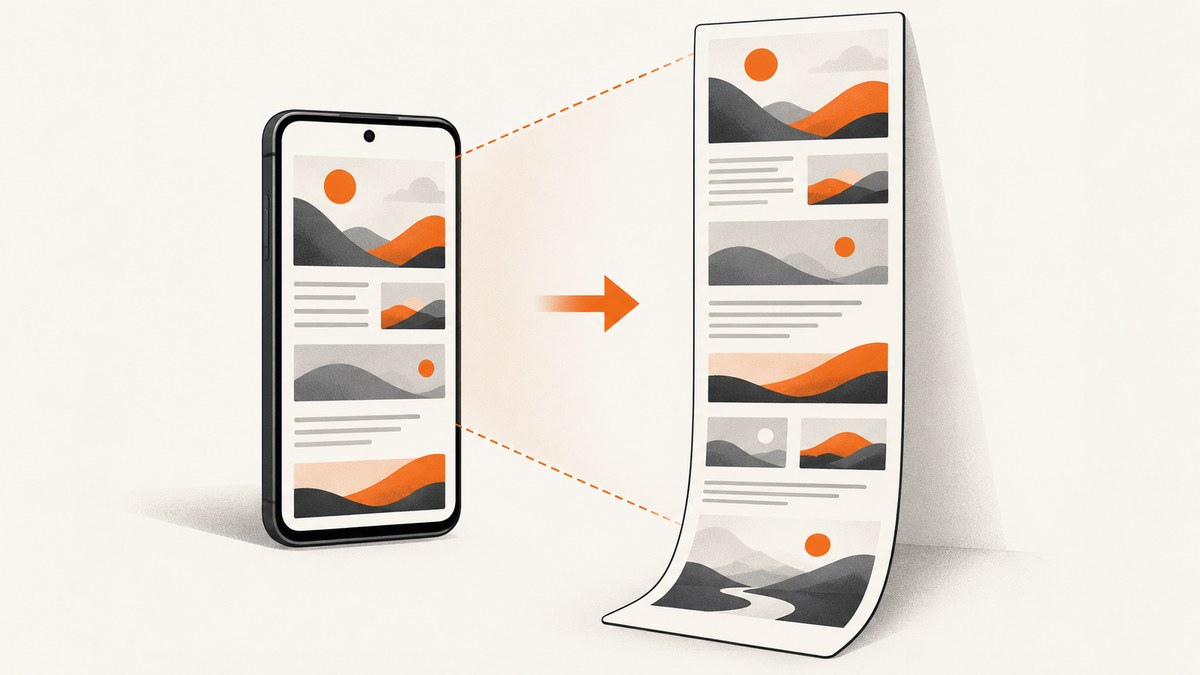
Render the ScrollView’s direct content child into a software-backed Bitmap after layout finishes. Drawing the child instead of the ScrollView viewport captures content that is currently off-screen.
fun captureFullScrollView(scrollView: ScrollView, onReady: (Bitmap) -> Unit) {
    scrollView.post {
        require(scrollView.childCount == 1) {
            "ScrollView must have one direct child"
        }

        val content = scrollView.getChildAt(0)
        val width = content.width
        val height = content.height
        require(width > 0 && height > 0) {
            "Scroll content is not laid out"
        }

        val bitmap = Bitmap.createBitmap(
            width,
            height,
            Bitmap.Config.ARGB_8888
        )
        val canvas = Canvas(bitmap)
        content.draw(canvas)
        onReady(bitmap)
    }
}
Android’s ScrollView contract requires a completed layout before calling draw(Canvas). A ScrollView also expects one direct child, which is the document you want to render. Bitmap.createBitmap supplies a mutable pixel buffer and the Canvas sends the child’s drawing commands into it.
1. Understand what is being captured
A ScrollView has two different sizes:
- Viewport: the part visible on screen.
- Content: the direct child’s full laid-out width and height, including off-screen rows.
scrollView.draw(canvas) generally represents the viewport and its clipping behavior. For a full document bitmap, draw scrollView.getChildAt(0) into a bitmap sized to that child.
This method does not automatically include the ScrollView’s padding, scrollbars, fading edges, or a decorative frame around the viewport. Those are viewport concerns. Add them separately if your output needs them.
2. Complete Kotlin implementation
The following helper validates the ScrollView structure, waits for layout, renders on a background dispatcher, and returns the bitmap on the main thread.
import android.graphics.Bitmap
import android.graphics.Canvas
import android.view.View
import android.widget.ScrollView
import androidx.lifecycle.lifecycleScope
import kotlinx.coroutines.Dispatchers
import kotlinx.coroutines.launch
import kotlinx.coroutines.withContext

fun captureFullScrollViewAsync(
    scrollView: ScrollView,
    onSuccess: (Bitmap) -> Unit,
    onError: (Throwable) -> Unit
) {
    scrollView.post {
        try {
            require(scrollView.childCount == 1) {
                "ScrollView must have exactly one direct child"
            }

            val content = scrollView.getChildAt(0)
            val width = content.width
            val height = content.height
            require(width > 0 && height > 0) {
                "Content has no laid-out size; wait for layout"
            }

            // ARGB_8888 uses four bytes per pixel and supports transparency.
            val bitmap = Bitmap.createBitmap(
                width,
                height,
                Bitmap.Config.ARGB_8888
            )

            lifecycleScope.launch(Dispatchers.Default) {
                try {
                    // View drawing must be coordinated with the view lifecycle.
                    // This example performs the draw immediately after post(); for
                    // complex views, keep capture on the UI thread and move only
                    // compression/file I/O to Dispatchers.IO.
                    val result = withContext(Dispatchers.Main.immediate) {
                        Canvas(bitmap).also { canvas ->
                            content.draw(canvas)
                        }
                        bitmap
                    }
                    onSuccess(result)
                } catch (t: Throwable) {
                    onError(t)
                }
            }
        } catch (t: Throwable) {
            onError(t)
        }
    }
}

// Typical Activity usage:
captureFullScrollViewAsync(
    scrollView = binding.articleScroll,
    onSuccess = { bitmap ->
        // Display, encode, or save bitmap here.
    },
    onError = { error ->
        // Report an invalid layout or allocation failure.
    }
)
For a simple synchronous helper, keep the drawing operation inside scrollView.post { ... }. The important ordering is: inflate views, apply data, complete measurement and layout, then allocate and draw.
Wait for a known layout
If the content is populated asynchronously, posting once may be too early. Use a one-shot layout listener after the final data has been applied:
fun captureAfterLayout(
    scrollView: ScrollView,
    onReady: (Bitmap) -> Unit
) {
    scrollView.viewTreeObserver.addOnGlobalLayoutListener(
        object : android.view.ViewTreeObserver.OnGlobalLayoutListener {
            override fun onGlobalLayout() {
                scrollView.viewTreeObserver.removeOnGlobalLayoutListener(this)

                val content = scrollView.getChildAt(0)
                    ?: error("ScrollView has no content child")
                require(content.width > 0 && content.height > 0)

                val bitmap = Bitmap.createBitmap(
                    content.width,
                    content.height,
                    Bitmap.Config.ARGB_8888
                )
                content.draw(Canvas(bitmap))
                onReady(bitmap)
            }
        }
    )
}
When measured bounds differ from the origin
Most ScrollView children draw from (0, 0). If the child has a non-zero left or top position, translate the Canvas so its drawing bounds map to the bitmap origin:
val left = content.left
val top = content.top
val width = content.width
val height = content.height
val bitmap = Bitmap.createBitmap(width, height, Bitmap.Config.ARGB_8888)
val canvas = Canvas(bitmap)
canvas.translate(-left.toFloat(), -top.toFloat())
content.draw(canvas)
3. Backgrounds, transparency, and visual details
A newly allocated bitmap is transparent until a view paints its pixels. If the layout relies on a window background or theme background outside the child, paint the desired color explicitly:
val bitmap = Bitmap.createBitmap(width, height, Bitmap.Config.ARGB_8888)
val canvas = Canvas(bitmap)
canvas.drawColor(android.graphics.Color.WHITE)
content.draw(canvas)
Keep the bitmap transparent when you need compositing. Set a background on the content view when the background is part of the document itself.
Text, images, and ordinary custom View drawing are rendered through View.draw(Canvas). Hardware-only effects can differ in a software bitmap. Real-time shadows, outline clipping, and custom GPU operations may need a software-compatible drawing path. If fidelity to the visible window is the requirement, use a window screenshot method instead.
4. Bitmap size, memory, and large documents
ARGB_8888 requires approximately four bytes per pixel. A 1,080 × 20,000 capture therefore needs about 82 MiB for the pixel buffer before temporary allocations, decoded images, and compression buffers. Check dimensions before allocating:
val bytesPerPixel = 4L
val estimatedBytes = width.toLong() * height.toLong() * bytesPerPixel
val maxBytes = 128L * 1024L * 1024L
require(estimatedBytes <= maxBytes) {
    "Capture is too large: approximately $estimatedBytes bytes"
}
Release references after encoding or saving, and avoid keeping the original view hierarchy, bitmap, and compressed byte array longer than necessary. Perform PNG or JPEG compression and file I/O away from the main thread. JPEG is smaller for photographic content but does not preserve transparency; PNG preserves transparency and sharp text.
Tile very tall content
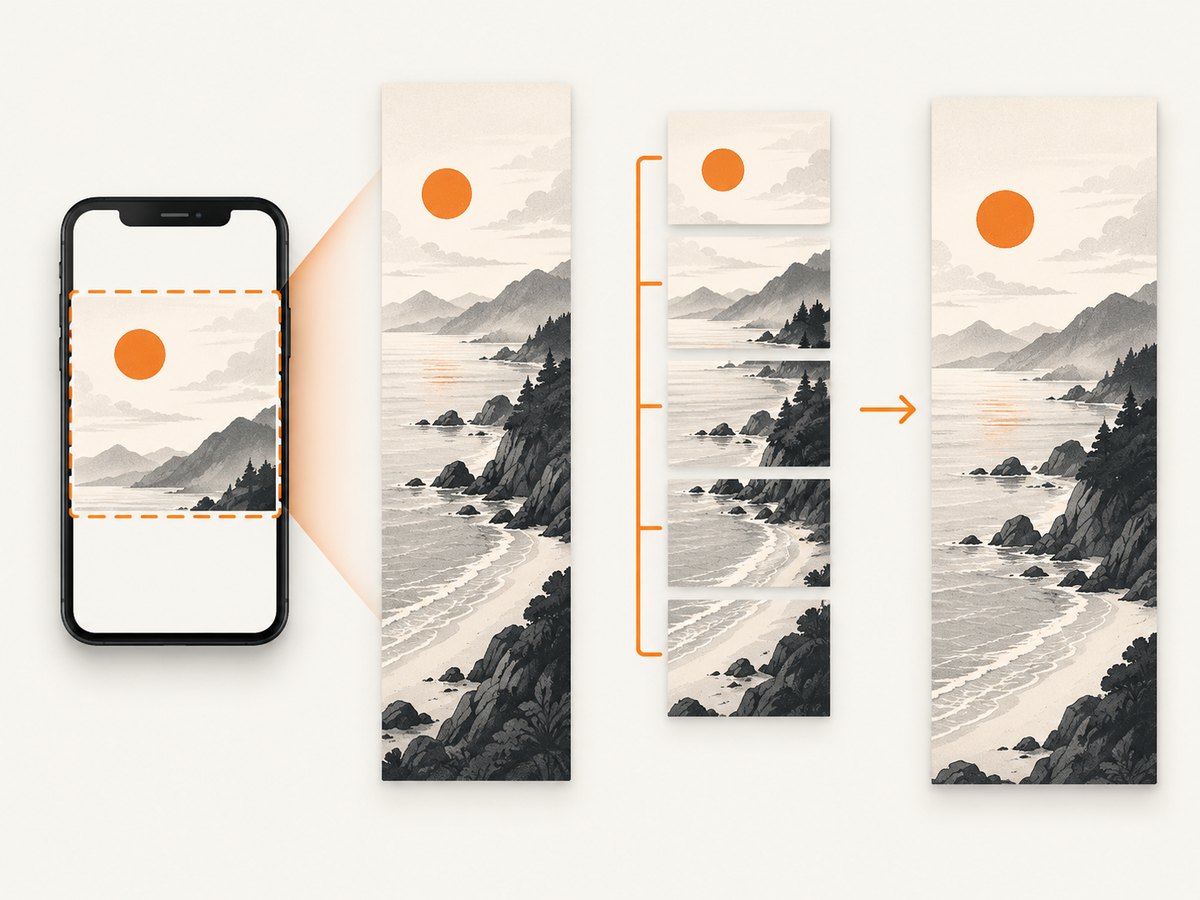
If one bitmap is too large, render vertical slices and write them as separate images or pages. Each tile uses a bounded allocation:
fun renderTile(
    content: View,
    y: Int,
    tileHeight: Int
): Bitmap {
    val height = minOf(tileHeight, content.height - y)
    require(height > 0)

    val tile = Bitmap.createBitmap(
        content.width,
        height,
        Bitmap.Config.ARGB_8888
    )
    val canvas = Canvas(tile)
    canvas.translate(0f, -y.toFloat())
    content.draw(canvas)
    return tile
}
Use a tile height that fits your device’s memory budget. If you need one final image, combine tiles incrementally into a destination format that can handle the total size, or keep the tiles as pages.
5. Why getDrawingCache() is the wrong solution
The old drawing-cache approach is deprecated and was designed around a view’s cached, usually visible rendering. It does not reliably produce the full off-screen ScrollView document and can be affected by hardware acceleration. A Bitmap-backed Canvas is the explicit software snapshot path recommended by Android’s View documentation:
- Allocate a software bitmap with the exact content dimensions.
- Create a Canvas backed by that bitmap.
- Call
content.draw(canvas).
6. PixelCopy versus drawing the content child
| Requirement | Use | Reason |
|---|---|---|
| Entire ScrollView document, including off-screen height | Bitmap + content.draw(canvas) |
Renders the laid-out child at its full size. |
| Exact visible window or Surface pixels | PixelCopy |
Copies pixels from a window or Surface. |
| Very tall output | Tiled child rendering | Controls peak memory. |
| GPU-only visual effects | Window capture or a compatible rendering path | Software Canvas may not reproduce every hardware operation. |
PixelCopy is useful for UI feedback and testing screenshots of visible window or Surface content. It does not make an off-screen child taller than the window, so it is not a substitute for rendering the full child.
7. Troubleshooting
Only the visible area appears
Cause: The code draws the ScrollView or window, which is clipped to the viewport.
Fix: Allocate using scrollView.getChildAt(0).width and height, then draw that child.
childCount is zero or greater than one
Cause: The hierarchy has not been inflated yet, or multiple direct children were added.
Fix: Put all document views inside one container such as a vertical LinearLayout or ConstraintLayout, and capture after inflation.
Width or height is zero
Cause: Measurement and layout have not completed, or asynchronous content changed the layout.
Fix: Populate the content first and use post or a one-shot layout listener.
The output has a transparent or unexpected background
Cause: No view painted those pixels; a theme or window background is not automatically part of the child bitmap.
Fix: Set a child background or call canvas.drawColor(...) before drawing.
OutOfMemoryError occurs
Cause: Width × height × four bytes exceeds the available heap, often alongside large decoded images.
Fix: Check the estimated allocation, reduce capture scale, release duplicate buffers, or render tiles.
Shadows or custom graphics look different
Cause: The software Canvas path does not implement a hardware-only operation identically.
Fix: Provide a software-compatible drawing implementation or capture the visible window with PixelCopy when full off-screen content is not required.
Images are missing
Cause: Image loading has not completed when the capture starts.
Fix: Wait for image callbacks or your image library’s completion signal, then wait for a final layout pass before drawing.
8. Or skip the browser setup
If the source is a public web page rather than an Android view, ScreenshotNeo returns a screenshot or PDF with one request. Its capture pipeline accepts cookie banners and removes more than 60 known consent platforms, newsletter popups, and chat widgets before the shot. Bot checks, blank pages, failed loads, timeouts, and cache hits are not billed, and response headers identify the page verdict and billing result.
See the ScreenshotNeo API documentation for all capture options.
cURL
curl -G "https://api.screenshotneo.com/v1/shot" -d access_key=YOUR_API_KEY --data-urlencode url=https://developer.android.com/reference/android/widget/ScrollView -o shot.webpPython
import requests
r = requests.get("https://api.screenshotneo.com/v1/shot", params={"access_key": "YOUR_API_KEY", "url": "https://developer.android.com/reference/android/widget/ScrollView"}, timeout=90)
open("shot.webp", "wb").write(r.content)
Node.js
const q = new URLSearchParams({ access_key: 'YOUR_API_KEY', url: 'https://developer.android.com/reference/android/widget/ScrollView' });
const res = await fetch(`https://api.screenshotneo.com/v1/shot?${q}`);
ScreenshotNeo also provides an MCP server so Claude, Cursor, and other MCP clients can use take_screenshot, get_page_info, and capture_pdf. It offers 1,000 screenshots per month free with no card; paid plans start at $5 for 3,000. Create a free ScreenshotNeo account.
9. Practical checklist
- Use one direct content child.
- Wait until data, images, measurement, and layout are complete.
- Allocate a software
ARGB_8888bitmap from the child’s dimensions. - Draw the child, not the clipped ScrollView viewport.
- Translate the Canvas if the child’s origin is non-zero.
- Paint a background explicitly when transparency is not wanted.
- Estimate memory before allocation.
- Tile large documents and move compression or file I/O off the UI thread.
- Use PixelCopy only when the visible window or Surface is the target.
10. FAQ
Can this capture content below the current scroll position?
Yes. The direct child is drawn at its full laid-out height, independent of the current ScrollView offset.
Should I use Bitmap.Config.HARDWARE?
No. Hardware bitmaps are immutable and expensive to read back on the CPU. Use a software configuration such as ARGB_8888 for this Canvas capture path.
Does this include the ScrollView’s scrollbar?
No. The helper intentionally captures the document child. Compose scrollbars, viewport padding, or a frame separately if they belong in the final image.
Can I save the result as a PDF?
Yes, but PDF pagination is a separate layout problem. Render the child in pages or tiles and place each bitmap on a PDF canvas rather than allocating one extremely tall page.
Will animations be captured consistently?
No guarantee exists for an animated view. Pause or synchronize animations before capture if deterministic output matters.


