How to Add AndroidDriver Screenshots to ExtentReports
Capture AndroidDriver screenshots on failure and attach them to ExtentReports with reliable Java patterns, file and Base64 options, and troubleshooting.

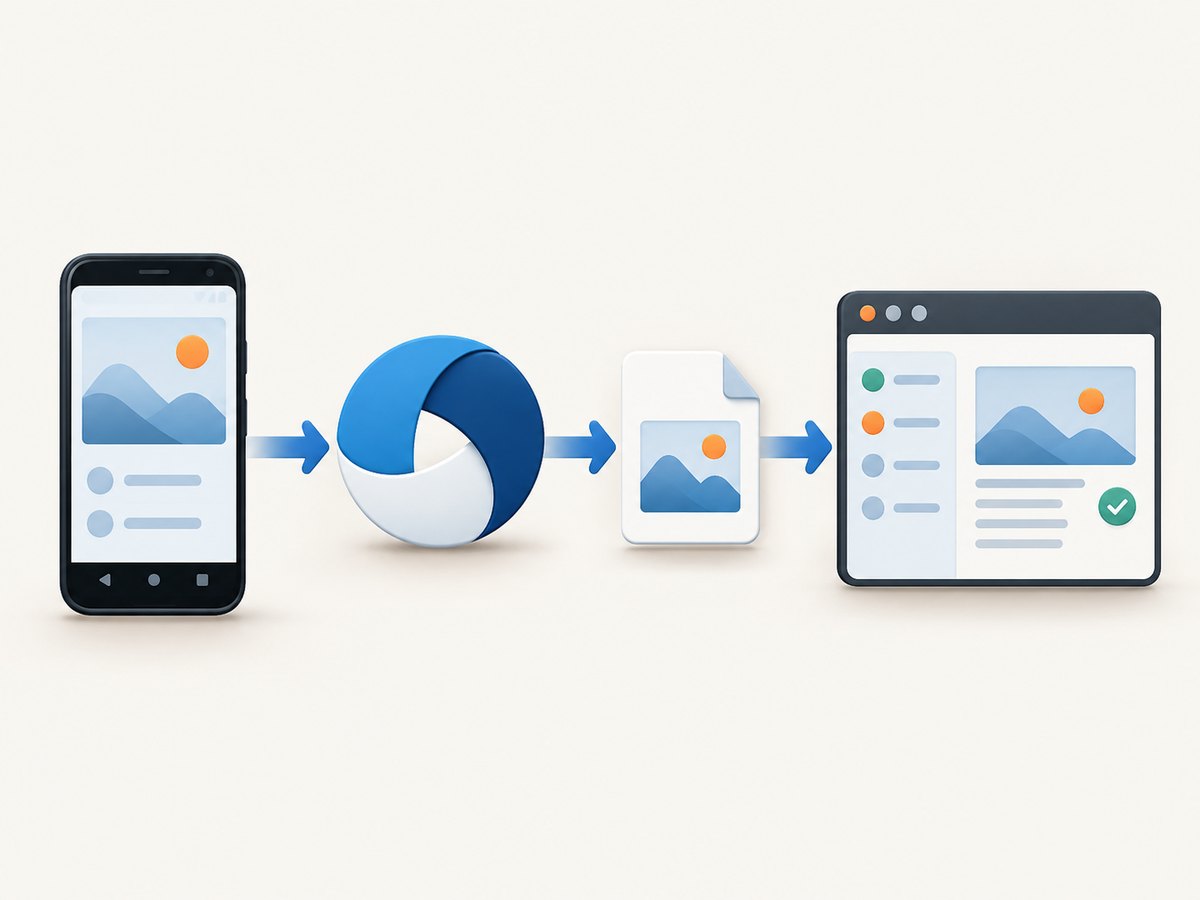
Direct answer: capture the Android screen before the Appium session ends, save the returned bytes to a stable file, and attach that file to the ExtentReports test. The dependable Java sequence is getScreenshotAs(OutputType.BYTES), Files.write(...), then MediaEntityBuilder.createScreenCaptureFromPath(...). Use a copied file when the report and images should remain separate; use Base64 when you want the report to carry the image data itself.
What the AndroidDriver screenshot command captures
Appium exposes screenshots through Selenium’s TakesScreenshot contract. In a native Android session, the command captures the device viewport. In a web context, it captures the current browser window. Android security settings can prevent capture; an application using FLAG_SECURE may return an error or an unusable image.
AndroidDriver implements TakesScreenshot. If your variable is already declared as AndroidDriver<?>, you can call getScreenshotAs directly. Casting to TakesScreenshot is useful when a helper should also accept other WebDriver implementations.
Complete Java example: attach a failure screenshot
The following example creates an ExtentReports 5 Spark report, writes a PNG into a predictable artifact directory, and attaches it when the test fails. Replace the driver setup with the capabilities and server URL used by your test framework.
import com.aventstack.extentreports.ExtentReports;
import com.aventstack.extentreports.ExtentTest;
import com.aventstack.extentreports.MediaEntityBuilder;
import com.aventstack.extentreports.reporter.ExtentSparkReporter;
import io.appium.java_client.android.AndroidDriver;
import org.openqa.selenium.OutputType;
import org.openqa.selenium.TakesScreenshot;

import java.io.IOException;
import java.nio.file.Files;
import java.nio.file.Path;

public final class AndroidExtentScreenshots {
    private static Path saveScreenshot(
            AndroidDriver<?> driver, Path directory, String name) throws IOException {
        Files.createDirectories(directory);
        Path destination = directory.resolve(name + ".png");
        byte[] png = ((TakesScreenshot) driver).getScreenshotAs(OutputType.BYTES);
        Files.write(destination, png);
        return destination;
    }

    public static void main(String[] args) throws Exception {
        ExtentReports extent = new ExtentReports();
        ExtentSparkReporter spark =
                new ExtentSparkReporter("target/extent/Spark.html");
        extent.attachReporter(spark);

        ExtentTest test = extent.createTest("Android checkout");
        AndroidDriver<?> driver = null; // create your Appium session here

        try {
            // Perform test steps with driver.
            test.pass("Checkout completed");
        } catch (Exception failure) {
            try {
                Path screenshot = saveScreenshot(
                        driver,
                        Path.of("target/extent/screenshots"),
                        "checkout-failure");
                test.fail("Checkout failed", MediaEntityBuilder
                        .createScreenCaptureFromPath(screenshot.toString())
                        .build());
            } catch (Exception captureFailure) {
                // Keep the original test failure visible if capture also fails.
                test.fail("Checkout failed; screenshot capture failed: "
                        + captureFailure.getMessage());
            }
            throw failure;
        } finally {
            if (driver != null) {
                driver.quit();
            }
            extent.flush();
        }
    }
}
The file returned by Selenium’s OutputType.FILE is temporary. Copy it to your own artifact directory if it must survive the command or be retained by CI. The byte approach above gives you control over the destination name and avoids depending on a temporary-file lifetime.
Attach a screenshot to a log entry
A test-level attachment and a log-level attachment use the same media builder. Log-level media is useful when a test has several checkpoints.
Path shot = saveScreenshot(driver,
        Path.of("target/extent/screenshots"),
        "cart-after-payment");

test.info("Cart after payment", MediaEntityBuilder
        .createScreenCaptureFromPath(shot.toString())
        .build());
You can also attach to pass, fail, or a generic log call. Keep the path relative to the generated report when the report will be moved as a directory or served from CI artifacts.
File, bytes, or Base64?
| 形式 | Java value | Use it when | Trade-off |
|---|---|---|---|
| Copied file | OutputType.FILE or bytes written to disk |
Images need independent retention, large suites produce many artifacts, or another tool consumes PNG files. | The report must resolve the path, and the image directory must travel with the report. |
| Bytes | OutputType.BYTES |
You want an explicit filename, directory, or post-processing step. | You must write the bytes yourself. |
| Base64 | OutputType.BASE64 |
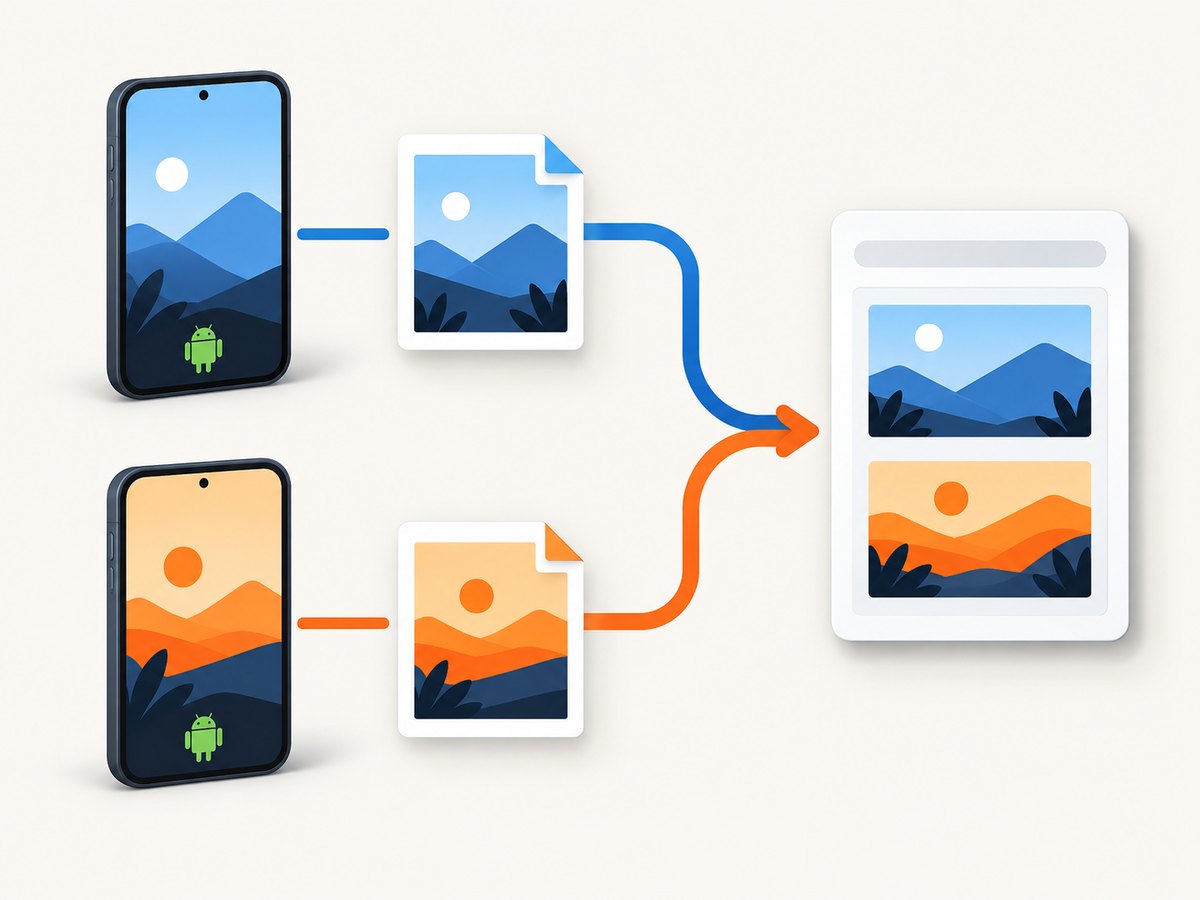
A self-contained report is more important than HTML size. | Embedding increases report payload size as screenshots accumulate. |
String base64 = ((TakesScreenshot) driver)
        .getScreenshotAs(OutputType.BASE64);
test.fail("Failure", MediaEntityBuilder
        .createScreenCaptureFromBase64String(base64)
        .build());
Base64 is convenient for a single compact report or a report copied without a companion folder. Separate files are usually easier to archive, deduplicate, inspect, and serve for a large parallel run.
Capture screenshots in JUnit or TestNG failure hooks
JUnit 5 extension pattern
In JUnit 5, a TestWatcher can capture after a failure, provided the driver is still alive. Store the driver in a test instance or an extension-managed context, then call the same helper from testFailed.
class ScreenshotWatcher implements org.junit.jupiter.api.extension.TestWatcher {
    private final AndroidDriver<?> driver;
    private final ExtentTest test;

    ScreenshotWatcher(AndroidDriver<?> driver, ExtentTest test) {
        this.driver = driver;
        this.test = test;
    }

    @Override
    public void testFailed(
            org.junit.jupiter.api.extension.ExtensionContext context,
            Throwable cause) {
        try {
            String id = context.getUniqueId().replaceAll("[^A-Za-z0-9.-]", "_");
            Path shot = AndroidExtentScreenshots.saveScreenshot(
                    driver, Path.of("target/extent/screenshots"), id);
            test.fail(cause.getMessage(), MediaEntityBuilder
                    .createScreenCaptureFromPath(shot.toString()).build());
        } catch (Exception captureFailure) {
            test.fail("Could not capture failure screenshot: "
                    + captureFailure.getMessage());
        }
    }
}
For TestNG, put the same capture logic in an @AfterMethod that receives ITestResult, and check result.getStatus() == ITestResult.FAILURE. Run the hook before the method that quits the driver.
Reliable naming and parallel execution
- Include the test method, class, device or emulator identifier, and a timestamp or UUID.
- Sanitize names so slashes, spaces, and characters rejected by the operating system do not create unexpected paths.
- Use one screenshot directory per worker when your CI system runs tests concurrently.
- Never let two devices write
failure.pngat the same time.
String safe = (className + "-" + methodName + "-" + deviceName)
        .replaceAll("[^A-Za-z0-9._-]", "_");
Path shot = saveScreenshot(driver,
        Path.of("target/extent/screenshots", deviceName),
        safe + "-" + System.nanoTime());
Lifecycle rules that prevent lost screenshots
- Capture while the Appium session is connected.
- Write or attach the image before calling
quit(). - Call
extent.flush()after all test logging. Without the flush, the final HTML and media references may not be written. - Archive the report and its screenshot directory as one artifact if you use file paths.
- If the report is moved, preserve the relative relationship between
Spark.htmland the screenshot folder.
Common errors and fixes
| Symptom | Likely cause | Fix |
|---|---|---|
WebDriverException during capture |
The session is disconnected, the command is unsupported, or the device rejected capture. | Capture before teardown, verify the session, and catch the exception so the original test failure remains visible. |
UnsupportedOperationException |
The active driver or context does not implement screenshots. | Check the driver type and context; use a driver implementing TakesScreenshot. |
| Black, blank, or blocked image | The app uses Android FLAG_SECURE or the protected surface disallows capture. |
Remove the security flag in a test build when appropriate, or accept that the surface cannot be captured. |
| Report shows a broken image | The path is relative to the wrong directory, or the PNG was not archived. | Use a known report directory, create the destination first, and archive both report and image folder. |
| Screenshot is missing from the final report | flush() was skipped or called before logging finished. |
Flush once in the final lifecycle block after all tests and attachments. |
| Files overwrite each other | Parallel workers use the same filename. | Add a unique test, device, worker, or UUID component. |
| Original assertion is hidden | Screenshot capture threw a second exception. | Wrap capture in its own try/catch, log the capture error, then rethrow the original failure. |
Performance, reliability, and storage considerations
Each screenshot is an Appium command and a file or Base64 payload. Capture only at useful boundaries: failures, state transitions, and a small number of diagnostic checkpoints. Capturing every step increases device traffic, report size, and artifact upload time. PNG preserves text and UI edges; if your pipeline converts images, keep the original until the report is generated.
For long-running suites, create directories once, use deterministic names, and clean old artifacts outside the test process. In a flaky test, a screenshot is evidence, not a synchronization mechanism: wait for the expected element or state before capturing so the image represents the failure you are diagnosing.
Keep ExtentReports, Selenium, and the Appium Java client on compatible versions. ExtentReports 4 and 5 share the media-builder idea but differ in reporter setup and imports, so verify the example against the versions pinned in your build.
Or skip the browser setup
If the thing you need is a screenshot of a web page for a report, documentation job, or monitoring workflow, ScreenshotNeo provides a single HTTP request. Its clean-shot pipeline accepts cookie and consent banners, then removes more than 60 known consent platforms, newsletter popups, and chat widgets before capture. Bot checks, blank pages, timeouts, failed loads, and cache hits are not billed, and each response identifies the result with X-Page-Verdict and X-Billed headers.
See the ScreenshotNeo API documentation for all 63 options, including full-page capture, CSS element selection, dark mode, device presets, retina scale, custom CSS and JavaScript, waits, request blocking, cookies, headers, authentication, timezone, geolocation, transparent backgrounds, resizing, caching, signed links, asynchronous jobs, webhooks, bulk capture, and usage reporting.
cURL
curl -G "https://api.screenshotneo.com/v1/shot" \
  -d access_key=YOUR_API_KEY \
  --data-urlencode url=https://stripe.com \
  -o shot.webp
Python
import requests

r = requests.get(
    "https://api.screenshotneo.com/v1/shot",
    params={"access_key": "YOUR_API_KEY", "url": "https://stripe.com"},
    timeout=90,
)
r.raise_for_status()
open("shot.webp", "wb").write(r.content)
Node.js
const q = new URLSearchParams({
  access_key: 'YOUR_API_KEY',
  url: 'https://stripe.com'
});
const res = await fetch(`https://api.screenshotneo.com/v1/shot?${q}`);
if (!res.ok) throw new Error(`Screenshot failed: ${res.status}`);
require('fs').writeFileSync('shot.webp', Buffer.from(await res.arrayBuffer()));
ScreenshotNeo also offers an MCP server with take_screenshot, get_page_info, and capture_pdf for Claude, Cursor, and other MCP clients. One thousand screenshots per month are free with no card; paid plans start at $5 for 3,000. Create a free ScreenshotNeo account.
FAQ
Should I cast AndroidDriver to TakesScreenshot?
No, a variable typed as AndroidDriver already exposes the method. Cast when you want a reusable helper that accepts any compatible WebDriver.
Can ExtentReports embed a screenshot automatically?
No. You must attach a path or Base64 media object to the test or log entry.
Why does the screenshot work manually but fail in CI?
Check device permissions, protected surfaces, session lifetime, destination permissions, and whether the CI artifact step includes the screenshot directory.
When should I use Base64?
Use it when a self-contained report is more valuable than a smaller report and separate image artifacts.
Can I capture after driver.quit()?
No. The screenshot command requires a live Appium session, so capture and attach before teardown.


