How to Generate and Download a PDF of a Dynamic Angular Page
Learn how to generate a PDF from rendered Angular data using browser print, html2canvas, jsPDF, server rendering, and ScreenshotNeo.

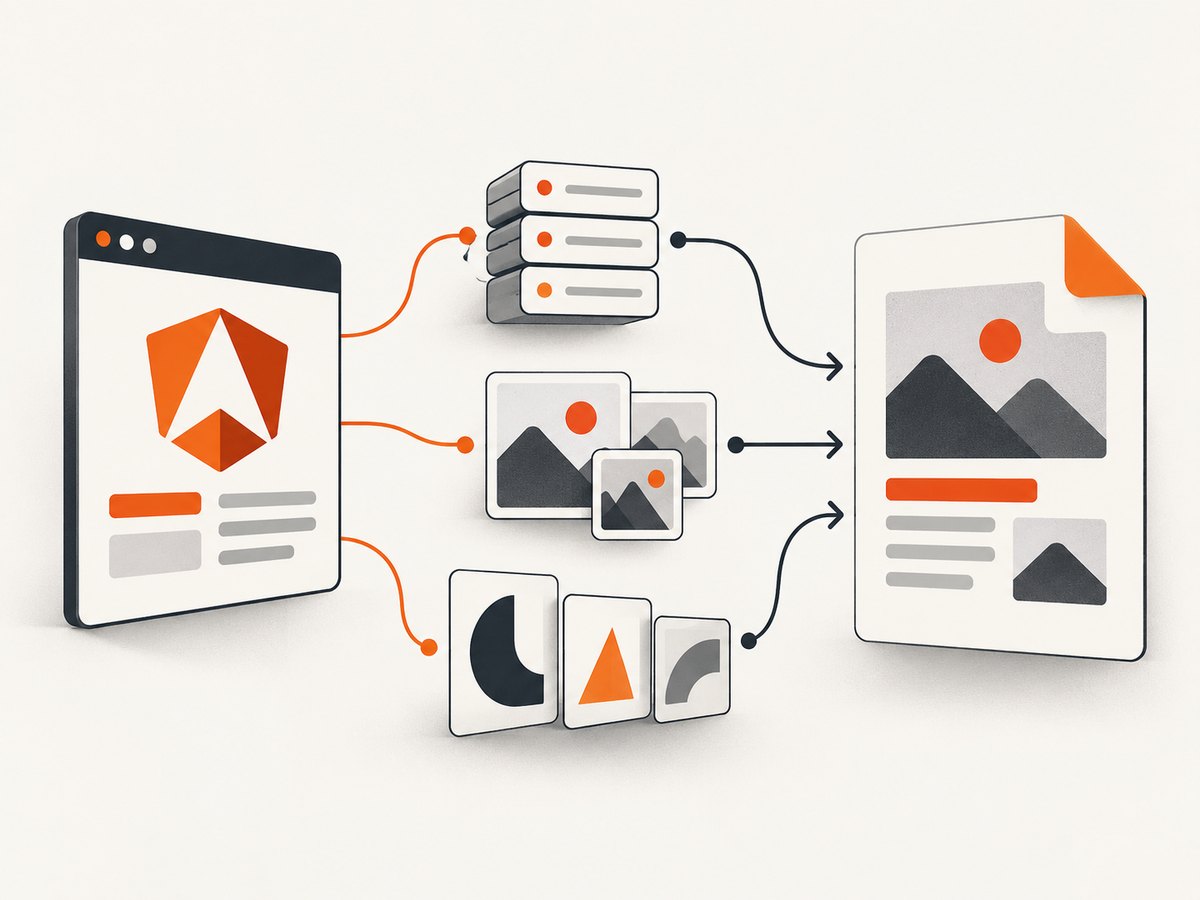
Short answer: render the Angular data first, wait until the export region and its asynchronous content are ready, then use either the browser’s print flow or a DOM capture pipeline. Browser printing usually gives better print CSS and pagination control. A client-side html2canvas plus PDF library flow is useful when a button inside the app must capture one rendered element. For server-side documents, render the page on a server and generate the PDF in a separate PDF-capable pipeline.
Keep the export region separate from navigation and controls. Angular bindings update the rendered view as component data changes, so capturing before the final request, images, fonts, or charts are ready produces incomplete output.
1. Choose the PDF generation route
| Route | Use it when | Main trade-offs |
|---|---|---|
| Browser print and Save as PDF | The page can be made print-friendly and a user can complete the browser print flow. | Pagination, headers, margins, and save behavior depend on the browser environment. |
| DOM capture plus PDF library | You need an in-app button that captures one rendered Angular element. | html2canvas reconstructs supported DOM and CSS; it is not a literal browser screenshot. Cross-origin images, iframes, fonts, and unsupported CSS can change the result. |
| Server rendering and PDF generation | The document must be produced without a user’s browser, or the application needs server-controlled data and delivery. | You must design authentication, data access, layout, privacy, deployment, and the PDF renderer separately. Angular SSR itself is not a PDF generator. |
2. Prepare a dedicated export region
Put only the document content inside a dedicated element. Keep buttons, menus, loading indicators, and application navigation outside it.
<button type="button" (click)="downloadPdf()" [disabled]="exporting">
  {{ exporting ? 'Preparing PDF…' : 'Download PDF' }}
</button>

<section #pdfContent class="invoice" aria-label="Invoice document">
  <h1>{{ invoice.title }}</h1>
  <p>Customer: {{ invoice.customerName }}</p>

  <table>
    <tr *ngFor="let line of invoice.lines">
      <td>{{ line.description }}</td>
      <td>{{ line.amount | currency }}</td>
    </tr>
  </table>
</section>
Use normal Angular bindings for dynamic values. Do not generate Angular templates from user-supplied strings or compile them at runtime; that bypasses Angular’s built-in protections.
3. Route A: browser print and Save as PDF
This is the simplest option when users can start the browser print flow themselves. Add print-only CSS so controls disappear and the document has predictable page breaks.
@media print {
  .no-print,
  nav,
  button {
    display: none !important;
  }

  .print-document {
    display: block;
  }

  .avoid-break {
    break-inside: avoid;
    page-break-inside: avoid;
  }

  h1, h2 {
    break-after: avoid;
    page-break-after: avoid;
  }
}

@media screen {
  .print-document {
    max-width: 900px;
    margin: 0 auto;
  }
}
import { Component } from '@angular/core';
@Component({
selector: 'app-invoice',
templateUrl: './invoice.component.html',
styleUrls: ['./invoice.component.css']
})
export class InvoiceComponent {
printPdf(): void {
window.print();
}
}Before calling window.print(), make sure the invoice request has completed and any loading state is gone. Tell users to select their browser’s PDF destination in the print dialog. This route preserves print CSS better than a canvas reconstruction, but the exact print dialog and save options vary by browser and operating system.
4. Route B: capture a rendered Angular element with html2canvas and jsPDF
This route captures one element after Angular has rendered it, converts the result into an image, and places that image into a PDF. The capture library reconstructs a canvas from DOM information and only supports the CSS features it understands.
Install the packages
npm install html2canvas jspdfAngular component
import {
  AfterViewInit,
  Component,
  ElementRef,
  ViewChild
} from '@angular/core';
import html2canvas from 'html2canvas';
import { jsPDF } from 'jspdf';

@Component({
  selector: 'app-report',
  templateUrl: './report.component.html',
  styleUrls: ['./report.component.css']
})
export class ReportComponent implements AfterViewInit {
  @ViewChild('pdfContent') pdfContent!: ElementRef<HTMLElement>;

  exporting = false;
  report: { title: string; rows: Array<{ label: string; value: string }> } | null = null;

  async ngAfterViewInit(): Promise<void> {
    // Load the report before enabling the export action in a real application.
    // This hook is also a useful place to wait for view-only initialization.
  }

  async downloadPdf(): Promise<void> {
    if (!this.pdfContent?.nativeElement || !this.report) {
      return;
    }

    this.exporting = true;

    try {
      await document.fonts?.ready;
      await this.waitForImages(this.pdfContent.nativeElement);
      await new Promise(requestAnimationFrame);

      const canvas = await html2canvas(this.pdfContent.nativeElement, {
        scale: Math.min(window.devicePixelRatio || 1, 2),
        backgroundColor: '#ffffff',
        useCORS: true
      });

      const image = canvas.toDataURL('image/png');
      const pdf = new jsPDF({
        orientation: canvas.width > canvas.height ? 'landscape' : 'portrait',
        unit: 'mm',
        format: 'a4'
      });

      const pageWidth = pdf.internal.pageSize.getWidth();
      const pageHeight = pdf.internal.pageSize.getHeight();
      const margin = 10;
      const contentWidth = pageWidth - margin * 2;
      const contentHeight = canvas.height * contentWidth / canvas.width;

      let remaining = contentHeight;
      let offset = 0;

      while (remaining > 0) {
        if (offset > 0) {
          pdf.addPage();
        }

        pdf.addImage(image, 'PNG', margin, margin - offset, contentWidth, contentHeight);
        offset += pageHeight - margin * 2;
        remaining -= pageHeight - margin * 2;
      }

      pdf.save('angular-report.pdf');
    } finally {
      this.exporting = false;
    }
  }

  private async waitForImages(root: HTMLElement): Promise<void> {
    const images = Array.from(root.querySelectorAll('img'));
    await Promise.all(images.map((image) => {
      if (image.complete) {
        return Promise.resolve();
      }

      return new Promise<void>((resolve) => {
        image.addEventListener('load', () => resolve(), { once: true });
        image.addEventListener('error', () => resolve(), { once: true });
      });
    }));
  }
}
The pagination loop above treats the captured element as one tall image. It is suitable for simple reports, but text may be split at arbitrary points. For invoices, statements, and long documents, test page breaks and consider creating page-sized Angular sections before capture.
Make asynchronous readiness explicit
async loadReport(): Promise<void> {
  this.exporting = true;
  try {
    this.report = await this.reportService.getReport().toPromise();
    await new Promise(requestAnimationFrame);
  } finally {
    this.exporting = false;
  }
}
The exact readiness mechanism depends on your application. A request completion callback, a signal, an observable, or a component state flag can all work. The important rule is to capture after the export data is present, images have loaded, fonts are available, and charts have finished drawing.
Cross-origin resources
Browser security controls cross-origin images, resources, and iframes. html2canvas cannot bypass those rules, and it cannot read the document inside a cross-origin iframe. Host assets on the same origin, configure the asset server to permit the required cross-origin requests, or replace inaccessible content with an export-safe representation.
5. Server-side rendering and PDF generation
Use a server route when PDFs must be generated on demand, delivered by email, archived, or produced without a user’s browser. Angular supports server-side rendering per request, but you still need a separate PDF-capable renderer or document-generation pipeline.
- Authenticate the request and authorize access to the specific record.
- Fetch the data on the server or pass a tightly scoped document payload to the renderer.
- Render a trusted export template with deterministic fonts, images, and styles.
- Wait for data and assets to settle before generating the PDF.
- Return the PDF as a download or store it with an access-controlled identifier.
Server rendering is not automatically more accurate. Compare the output against the browser version, especially for charts, user-specific data, responsive layouts, and authentication-dependent assets.
6. Configuration checklist
- Export region: capture only the intended document element.
- Data readiness: wait for HTTP requests, observable emissions, signals, and computed totals.
- Images: wait for image loads and verify cross-origin policy.
- Fonts: wait for
document.fonts.readywhere supported. - Charts: wait for the chart library’s render completion event.
- Pagination: test long tables, page breaks, headings, and repeated headers.
- Background: choose an explicit background color when transparent content would reduce contrast.
- Viewport: set a predictable width for responsive layouts before capture.
- Security: keep templates trusted and put user data into bindings.
- File names: generate safe names from record IDs or validated labels.
7. Troubleshooting
| Problem | Likely cause | Fix |
|---|---|---|
| PDF contains old or empty values | Capture ran before Angular data binding finished. | Trigger export after the data request and a render pass; disable the button while loading. |
| Images are missing | The image had not loaded, or the asset is cross-origin. | Wait for image load events and configure same-origin or permitted cross-origin delivery. |
| An iframe is blank | The iframe document is cross-origin. | Export the iframe’s source document separately or provide an export endpoint on the same origin. |
| Styles do not match the page | The DOM reconstruction does not support a CSS feature. | Simplify export CSS, use print rendering, or move generation to a server renderer. |
| Text is blurry | The canvas resolution is too low. | Increase capture scale within memory limits and test on large documents. |
| Browser tab freezes | A very large DOM creates a large canvas on the main thread. | Capture smaller sections, reduce scale, paginate before capture, or use server generation. |
| Pages split in awkward places | A single tall image has no semantic page-break knowledge. | Create page-sized sections, use print CSS, or use a PDF renderer with pagination controls. |
| PDF downloads before content appears | Loading state was not part of the export readiness condition. | Make the export action depend on the same completion state as the document. |
| User data appears in the wrong template | Runtime template generation was used. | Keep template structure static and insert values through Angular bindings. |
8. Performance, reliability, and cost
Client-side canvas generation consumes browser memory and main-thread time in proportion to the export region’s pixel area. Retina-scale captures look sharper but cost more memory. For long reports, split the document or use a server workflow. Cache stable images and avoid rendering hidden, unrelated page content.
For reliability, make exports repeatable: freeze the document data used for a job, use stable fonts and asset URLs, record the document version, and surface a clear error when a required resource fails. Test slow network conditions, empty datasets, large tables, missing images, different viewport widths, and authenticated pages.
Browser printing has no separate API charge, but it depends on the user’s environment. A server renderer adds infrastructure and operational cost. A hosted screenshot or PDF API can move browser setup and scaling outside your application; check the provider’s billing rules for failed, cached, or blocked pages.
9. Or skip the browser setup
ScreenshotNeo is a website screenshot API and MCP server. One GET request can return a PNG, JPEG, WebP, or PDF. It accepts consent banners like a visitor and removes more than 60 known consent platforms, newsletter popups, and chat widgets before capture; each step can be turned off. Bot checks, blank pages, timeouts, failed loads, and cache hits cost nothing, and the response identifies the result with X-Page-Verdict and X-Billed headers. Its MCP server provides take_screenshot, get_page_info, and capture_pdf tools for Claude, Cursor, and other MCP clients.

For the full parameter list and PDF options, see the ScreenshotNeo API documentation.
cURL
curl -G "https://api.screenshotneo.com/v1/shot" \
  -d access_key=YOUR_API_KEY \
  --data-urlencode url=https://example.com/dynamic-angular-page \
  -o page.pdf
Python
import requests

r = requests.get(
    "https://api.screenshotneo.com/v1/shot",
    params={
        "access_key": "YOUR_API_KEY",
        "url": "https://example.com/dynamic-angular-page",
    },
    timeout=90,
)
r.raise_for_status()
open("page.pdf", "wb").write(r.content)
Node.js
const q = new URLSearchParams({
  access_key: 'YOUR_API_KEY',
  url: 'https://example.com/dynamic-angular-page'
});

const res = await fetch(`https://api.screenshotneo.com/v1/shot?${q}`);
if (!res.ok) throw new Error(`ScreenshotNeo request failed: ${res.status}`);

const body = Buffer.from(await res.arrayBuffer());
await import('node:fs/promises').then((fs) => fs.writeFile('page.pdf', body));
Use the documented PDF output option for your request and choose the paper size, margins, landscape mode, page ranges, waits, cookies, custom headers, user agent, timezone, geolocation, custom CSS, JavaScript, hidden selectors, request blocking, caching, or signed links that your page needs. Bulk capture supports up to 100 URLs per call, and asynchronous jobs can deliver signed webhooks.
Create a free ScreenshotNeo account for 1,000 screenshots each month with no card. Paid plans start at $5 for 3,000 shots.
10. FAQ
Should I use browser print or html2canvas?
Use browser print when print CSS and pagination matter most. Use html2canvas when an in-app action must capture a specific rendered element and image-like output is acceptable.
Can html2canvas capture a third-party iframe?
No. Browser same-origin rules prevent access to a cross-origin iframe document.
Why does my PDF show data from before the latest request?
The capture started before the asynchronous data and Angular view update completed. Tie the export action to an explicit ready state and wait for one render pass.
Is Angular SSR the same as PDF generation?
No. SSR renders Angular HTML on a server. A separate PDF-capable renderer or document pipeline must turn that rendered output into a PDF.
Can I safely put user-entered HTML into a dynamically compiled Angular template?
No. Keep the template trusted and bind user data as values. Runtime template compilation can circumvent Angular’s built-in protections.


