How to Run Angular CLI Karma Tests with Headless Chrome in Docker
Run Angular CLI Karma tests with Headless Chrome in Docker. Check the runner, provide a browser binary, and diagnose common CI failures.
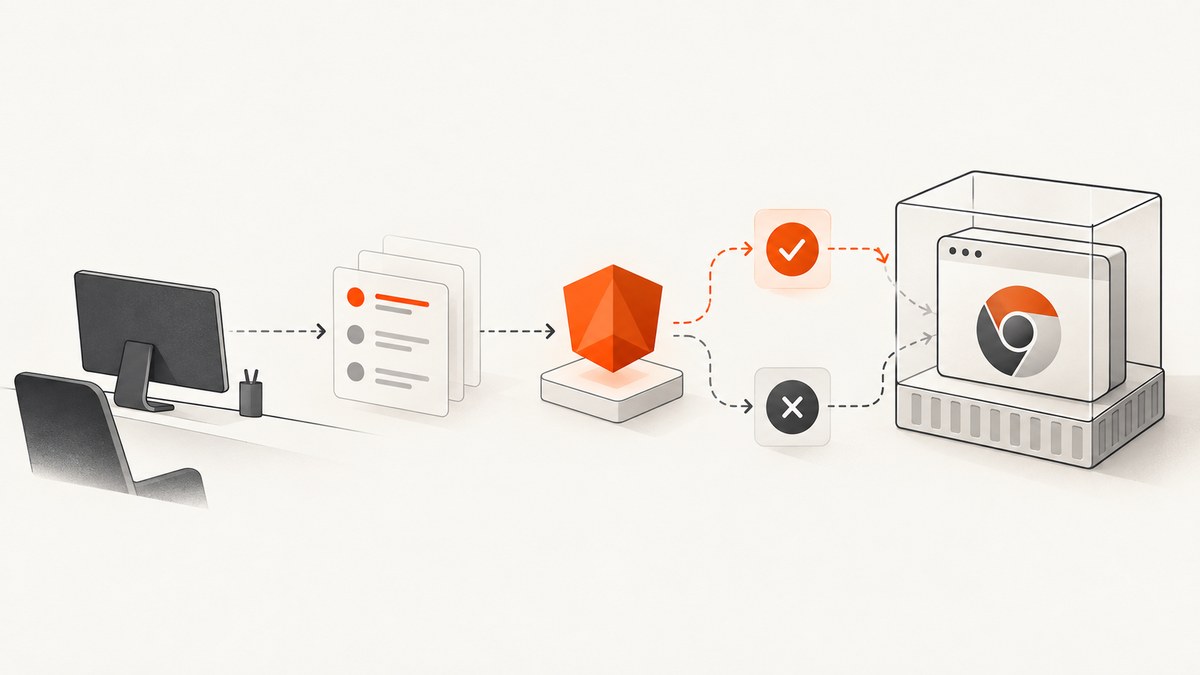
To run Angular CLI Karma tests in Docker, first confirm the workspace uses Karma and that the container has a discoverable Chrome or Chromium executable. From the workspace root, the documented CI command is ng test --no-watch --no-progress --browsers=ChromeHeadless. The exact image and browser installation depend on your Angular and Node versions, base image, package manager, and browser provisioning method, so avoid treating any one Dockerfile as universal.
This guide separates the four pieces that commonly get conflated: Angular’s test target, the Karma browser launcher, the browser binary in the image, and Docker’s runtime limits. Angular supports Karma, but new projects currently default to Vitest. Check the project configuration before applying a Karma recipe. See Angular’s Karma and Jasmine guide and the current ng test reference.
1. Confirm the workspace uses Karma
Open angular.json and find the test target for the application or library you intend to run. Confirm that it is configured for Karma, and use the builder and option shape already present in that workspace. Angular’s current Karma guide shows runner: "karma" in its unit-test target configuration; older Angular workspaces may use a different builder or structure. Don’t paste a current configuration fragment into an older project without checking its CLI version.
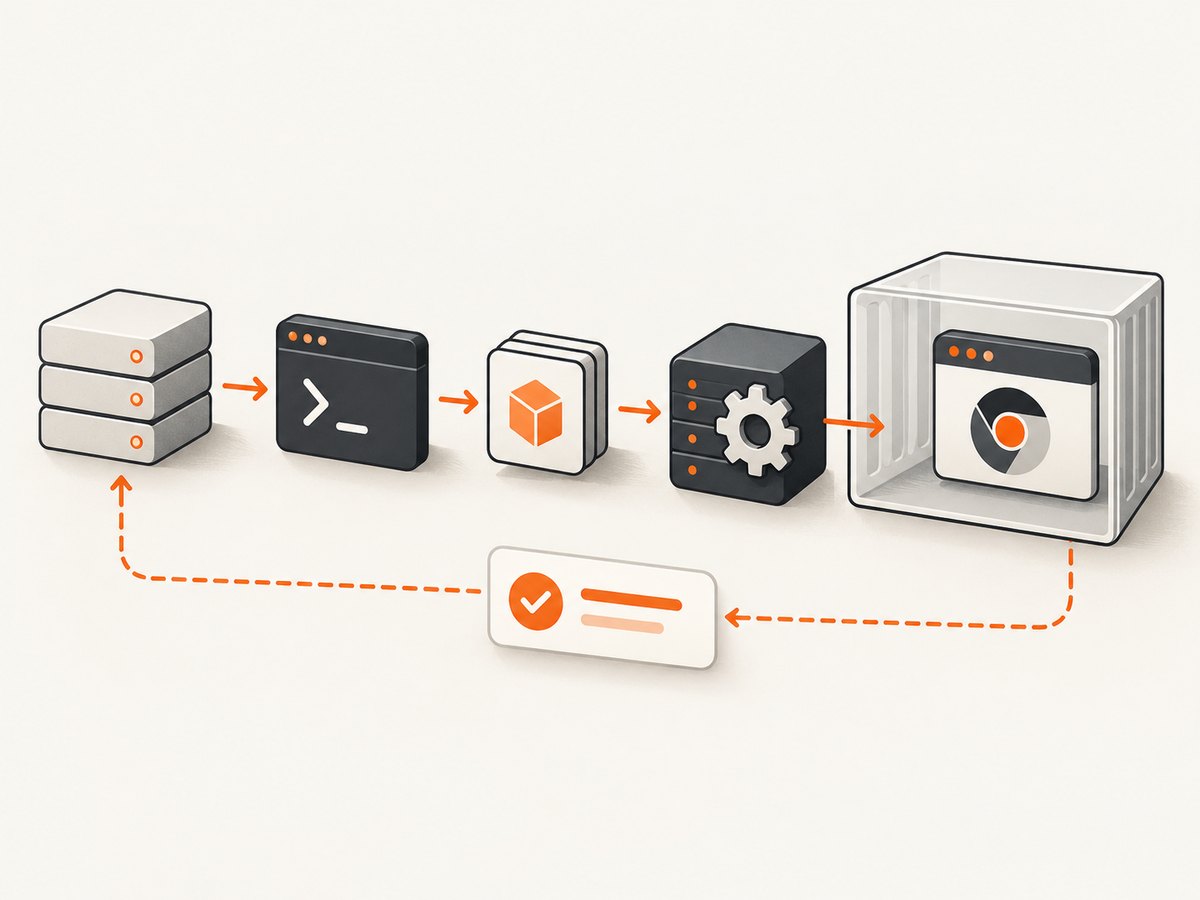
ng version
Then inspect the relevant projects.<project-name>.architect.test or equivalent target in angular.json. The current CLI reference lists Karma and Vitest as runner choices. If this target uses Vitest, the Karma browser flags below don’t apply as written. If you have multiple projects, identify which target you need to run; without a project argument, the CLI may run all workspace projects.
2. Install dependencies and a browser in the image
The container needs the project’s dependencies from its lockfile and a Chrome or Chromium executable that Karma can launch. There are two common provisioning strategies:
| Approach | What to manage | Choose it when |
|---|---|---|
| Install system Chrome or Chromium | Package source, browser version, OS compatibility, and executable path | Your base image and package process support a system browser you can maintain |
| Use Puppeteer to install Chromium | Puppeteer version, downloaded browser version, install step, and cache or build behavior | You want the project’s browser provisioning to be managed through its JavaScript dependency workflow |
Karma’s Chrome launcher supports Chrome and Chromium, including ChromeHeadless and ChromiumHeadless. Its documentation describes Puppeteer as one way to install Chromium for CI. Neither strategy is universally best: compare executable discovery, version pinning and updates, image size and build time, and compatibility with your project’s base image. See the Karma Chrome launcher documentation.
A reliable image recipe should make these decisions explicit. Start from a base image compatible with the project’s Node version, copy the package manifests and lockfile, install locked dependencies, and provision a browser using the chosen strategy. Then copy the remaining source and run the test command. The following is a build outline, not a complete Dockerfile: the dossier does not establish a universal base image or system-browser install command.
# Outline only: choose a base image compatible with this workspace's Node version.
FROM your-pinned-node-base
WORKDIR /workspace

# Install the browser using your chosen, maintained provisioning method.
# For example: install a pinned system browser, or install the project's
# pinned Puppeteer dependency and its Chromium as part of the build.

COPY package.json package-lock.json ./
RUN npm ci
COPY . .
CMD ["npx", "ng", "test", "--no-watch", "--no-progress", "--browsers=ChromeHeadless"]
Replace the placeholder base and browser steps with choices that match your project. If the workspace uses another package manager, use its lockfile and frozen or immutable install command. Keep the browser provisioning step repeatable and review how it updates; a moving browser download can change independently of application dependencies.
3. Run the non-interactive CI command
Angular documents this Karma CI command:
ng test --no-watch --no-progress --browsers=ChromeHeadless
--no-watch makes the test process exit instead of waiting for file changes. --no-progress avoids progress output in CI logs. --browsers=ChromeHeadless asks Karma to launch the headless Chrome launcher. Run it from the workspace root, or use the project argument for a specific project.
# Run the configured test target(s) from the workspace root.
npx ng test --no-watch --no-progress --browsers=ChromeHeadless

# Run one workspace project when the workspace has multiple projects.
npx ng test my-project --no-watch --no-progress --browsers=ChromeHeadless
Use the browser name that matches your launcher and installed executable. If you have Chromium and configure a custom launcher for it, use ChromiumHeadless or the custom launcher name. Don’t change the browser flag and assume that alone installs or locates a binary.
4. Make the launcher find the browser
If the browser is not on a discoverable path, configure the launcher to use its actual path. Karma supports custom launchers and browser choices; consult the launcher documentation and match its configuration syntax to the Karma version in the project. One environment-variable pattern often used to expose a binary is shown below, but the value must be the path that exists in your image:
# Set this in the container environment to the real browser executable path.
CHROME_BIN=/path/to/chrome
Verify the executable from inside the built image, not just on the host. Confirm the file exists, is executable, and can start under the container’s libraries and user permissions. The browser name in the Karma command, launcher configuration, and actual installed browser need to agree.
5. Handle sandbox and shared-memory flags carefully
Chrome’s --no-sandbox flag is sometimes used with headless mode, but Chrome DevTools explicitly says it is “not recommended.” Treat it as a security tradeoff, not a default CI setting. Only add it if the chosen container setup requires it, and isolate that job appropriately. Don’t add broad flags such as --disable-web-security simply because custom launcher flags are available.
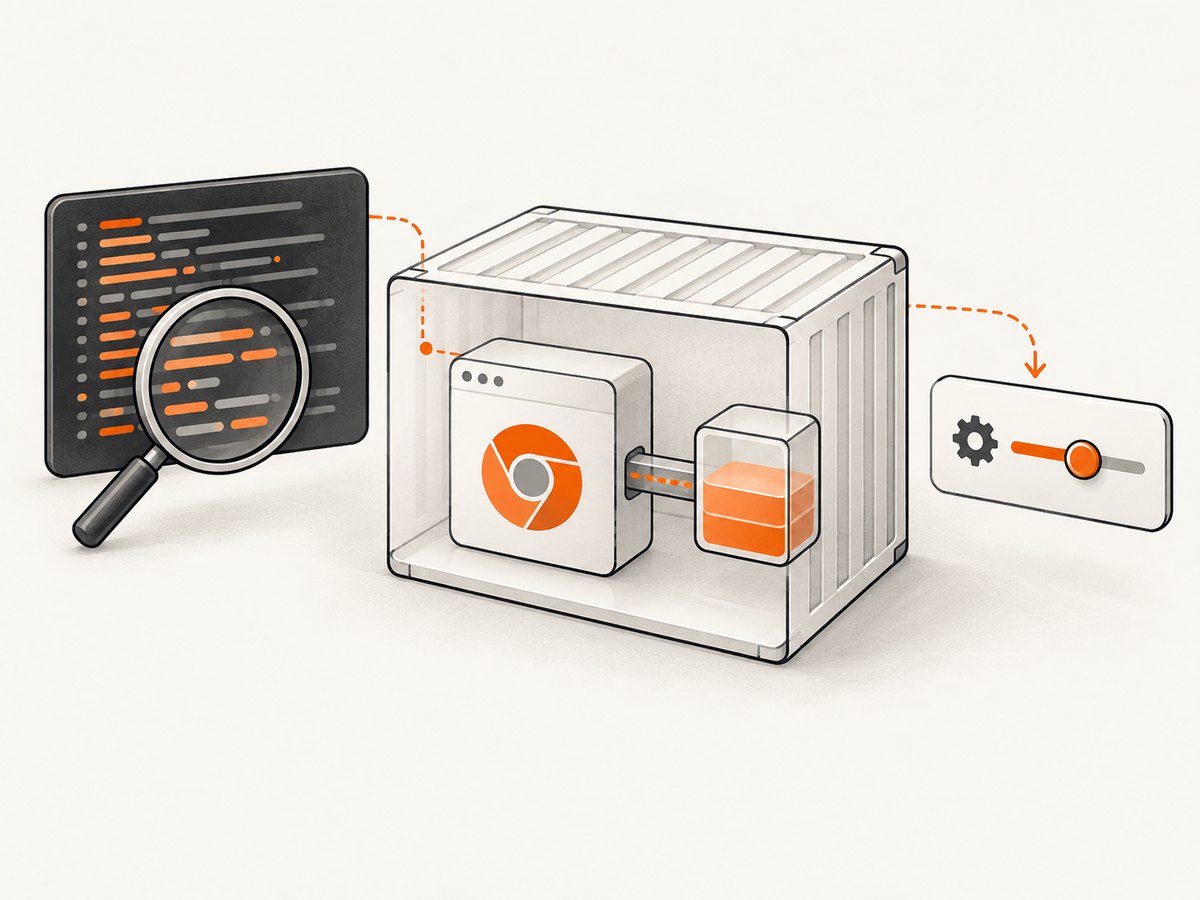
If Chrome crashes, disconnects, or fails under load, inspect container memory limits, shared-memory availability, and browser logs before adding flags. Docker’s --shm-size setting can increase the container’s /dev/shm allocation. Chrome DevTools lists --disable-dev-shm-usage as a flag used in some constrained environments. These are alternatives to evaluate from observed behavior and runtime constraints, not a universal pair of required options.
# Example runtime adjustment: choose a size appropriate to your CI limits.
docker run --shm-size=1g your-test-image
The example size is illustrative, not a recommended minimum. Check the CI provider’s container limits and actual failure logs, then change one relevant setting at a time so the effect is clear.
6. Debug failures in the container
When a local run passes but CI fails, reproduce the command in the same image and inspect the browser process and Karma output. Angular’s Karma guide recommends opening the browser and using Chrome DevTools to inspect a test and set a breakpoint. In a container, use an interactive reproduction when possible, or retain the browser and test logs your CI environment permits.
| Symptom | Likely cause | What to check or change |
|---|---|---|
| Karma reports no Chrome binary or cannot launch Chrome | Browser missing, path not discoverable, or launcher name does not match setup | Check that the browser exists inside the image, is executable, and that the launcher uses its real path. Confirm the browser option matches the launcher. |
| Chrome starts, then disconnects or crashes | Container memory or shared-memory pressure, incompatible browser environment, or browser process failure | Inspect container limits and logs. If evidence points to shared memory, evaluate Docker’s --shm-size or Chrome’s --disable-dev-shm-usage one at a time. |
| Sandbox-related launch error | The browser’s sandbox requirements conflict with the container’s execution setup | Review the container runtime and user configuration first. Treat --no-sandbox as a security tradeoff, add it only if needed, and isolate the job. |
| Command hangs after tests finish | Watch mode is still active | For CI, include --no-watch. |
| Noisy or confusing CI progress output | Progress display is enabled in the test command | For CI, include --no-progress. |
| Wrong tests run or no intended project is selected | Workspace has multiple projects or the selected test target differs | Inspect angular.json and pass the intended project name to ng test. |
| Karma flags are rejected or ignored | The project uses Vitest or a different Angular CLI generation and test target | Verify the runner and target configuration before applying Karma-specific options. |
7. Keep builds reliable and costs predictable
Pin the Node base image and maintain browser provisioning alongside the project’s dependency lockfile. A predictable build depends on explicitly managing both the JavaScript packages and browser version. Review browser updates deliberately, since an image that updates its browser independently can introduce changes that are hard to distinguish from application changes.
For performance, separate dependency installation from frequently changing source where your build process permits it, so the package-install layer can be reused. Keep the image limited to the browser and dependencies required for testing. Browser installation affects image build time and size; measure those costs in your own CI rather than assuming one provisioning path is faster. If test runs fail intermittently under parallel load, inspect resource limits and browser logs before increasing concurrency.
Reliability also depends on matching the project’s Angular, Node, Karma, launcher, and browser versions. The cited documentation does not define a universal compatibility matrix, Docker base image, package installation command, or CI provider configuration. Use the project’s existing supported versions and the selected image’s documentation to settle those details.
8. Choose the right screenshot method for the job
Headless Chrome in Docker is appropriate when the task is running your Angular test suite: Karma drives a browser against the application’s tests, and the process reports results to CI. If the separate task is capturing screenshots of websites through an API, you can provision and operate that browser yourself, or use a screenshot service.
Or skip the browser setup
For website screenshots, ScreenshotNeo is a website screenshot API and MCP server. Its one-call API returns PNG, JPEG, WebP, or PDF output; see the API documentation.
curl -G "https://api.screenshotneo.com/v1/shot" -d access_key=YOUR_API_KEY --data-urlencode url=https://stripe.com -o shot.webpimport requests
r = requests.get(
"https://api.screenshotneo.com/v1/shot",
params={"access_key": "YOUR_API_KEY", "url": "https://stripe.com"},
timeout=90,
)
open("shot.webp", "wb").write(r.content)
const q = new URLSearchParams({ access_key: 'YOUR_API_KEY', url: 'https://stripe.com' });
const res = await fetch(`https://api.screenshotneo.com/v1/shot?${q}`);
Cookie banners, popups, and chat widgets are removed before the shot. Bot checks, blank pages, and failed loads are never billed, and response headers say which result occurred. An MCP server lets AI agents use take_screenshot, get_page_info, and capture_pdf. The free plan includes 1,000 screenshots a month with no card; paid plans start at $5 for 3,000.
Sign up for 1,000 free screenshots a month, with no card required.
FAQ
Does this run Angular tests inside Chrome?
Yes. Karma launches the configured browser, runs the test bundle, and reports results. The browser is the test environment; this setup is not a general-purpose website screenshot job.
Can a Docker container use Chromium instead?
Yes. Karma’s launcher supports Chromium and a headless Chromium option. Make sure the installed executable and launcher configuration are aligned.
Should I switch a new Angular project to Karma?
Choose based on your project’s test requirements and existing configuration. Angular currently defaults new projects to Vitest while continuing to support Karma, so verify the workspace runner before following this guide.
Which shared-memory fix should I use?
Use logs and container limits to diagnose the failure first. Increasing Docker shared memory and using Chrome’s shared-memory flag address constrained environments in different ways; the evidence from your runtime should guide the choice.


