Animated Screenshot Tool: Free Online Animated Screen Capture
Record a short screen interaction as a GIF, choose a browser or desktop workflow, and learn when an API is the better fit.
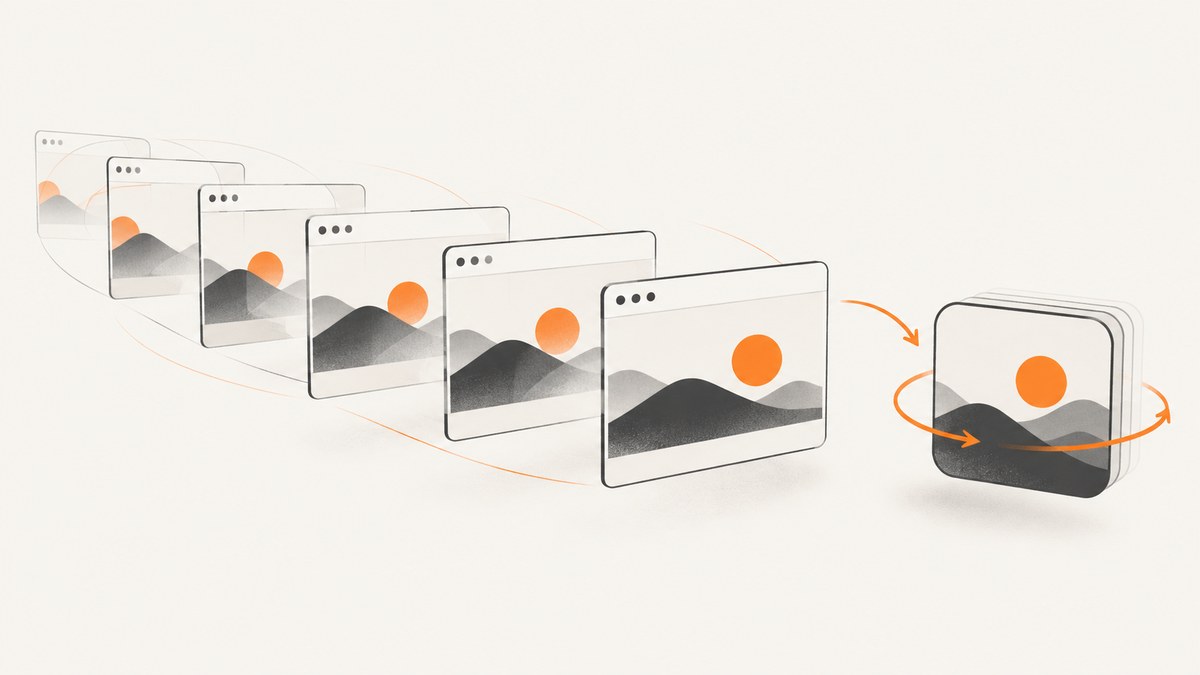
An animated screenshot is a short screen recording exported as an animation, commonly a GIF. For a quick browser demo, use a browser-based recorder; for a selected desktop region, editing, or more export controls, use desktop software. If you need repeatable screenshots of webpages in an automated workflow, use an API instead: an API captures page states, while a screen recorder captures motion over time.
The right animated screenshot tool depends on what you need to record. A browser extension may be fast for a tab, but it may not capture other windows. A desktop recorder can capture a region or window, but requires installation and setup. For a bug report or tutorial, prepare the interaction first, record only the useful few seconds, preview it, trim it if the tool supports editing, and export the format your destination accepts.
1. Choose the capture method
| Method | Best for | Check before recording |
|---|---|---|
| Browser-based recorder | A quick recording of a browser tab or page | Supported browser, tab-only limits, permission prompt, duration and frame rate |
| Desktop recorder/editor | A window or screen region, trimming and export choices | Supported operating system, capture boundaries, available formats and editor workflow |
| Video production software | Controlled browser scenes, longer recordings or audio/video production | Scene setup, dimensions, frame rate and how you will convert or export the result |
| Screenshot API | Automated, repeatable captures of webpage states | Whether you need still images or PDFs rather than an animation of interaction |
Browser capture can be quick and local, but capabilities vary by tool. ScreenGif’s project page describes Chrome and Safari extensions and a macOS app, local recording, 10 fps, and a maximum 10-second recording; these are the project’s claims, not independently verified measurements. RecordToGif describes tab-only capture, editing, GIF/APNG/WebM export, and zero uploads. Check the current project pages for availability and behavior before relying on those details.
For installed software, ScreenToGif’s project documentation describes a built-in editor with GIF, video, project-file and separate-image export. OBS is a free, open-source desktop video recording and streaming tool for Windows, macOS and Linux. Its Browser Source can load a URL or local page and lets you configure dimensions and frame rate. That makes OBS useful when you want a controlled browser scene, but it involves more setup than a one-click GIF recorder. The OBS documentation lists 800 by 600 as a Browser Source default and uses 30 fps in an example; neither number is a universal recommendation.
2. Record a clean animated screenshot
- Define the point of the clip. Write down the one interaction the viewer needs to see: a menu opening, a form error appearing, or a short sequence of steps. If the sequence is hard to explain in one sentence, split it into clips.
- Prepare the page. Open the correct account or test page, close unrelated tabs and dialogs, and put the browser at the required size. Use sample data if the clip will be shared. Keep credentials, personal details and private messages out of the capture area.
- Choose the boundary. Select a browser tab for an in-browser workflow. Use desktop software if you need a specific window or rectangular area, or if the interaction crosses apps. Confirm what the tool will capture before granting screen or tab access.
- Rehearse once. Move the pointer to its starting place, reset the page, and perform the interaction at a steady pace. Avoid unnecessary pauses and repeated clicks.
- Record the shortest useful sequence. Start just before the action and stop after its result is visible. Short clips are easier to review and share; the suitable duration depends on the tool’s limits and the viewer’s task.
- Preview and trim. Check that the first frame gives enough context, the key action is legible, and the ending shows the outcome. Remove accidental cursor movement or idle frames if the editor allows it.
- Export and inspect. Choose GIF when the destination needs an inline looping animation. If the tool offers video or another animation format and the destination supports it, choose based on the required playback and editing workflow. Reopen the exported file to catch blank frames, an incorrect crop or a loop that ends too early.

3. Pick format and capture settings
The source material reviewed supports GIF as a common target and notes that some tools offer video or other animation formats. It does not establish a universal file-size or quality advantage for one format. Use the destination’s requirements and inspect the exported result rather than assuming a format will be smaller or clearer.
- Capture area: Tab-only capture is suitable when the whole story is in one page. Region or window capture helps focus attention and avoid unrelated desktop content. Full-screen capture can expose notifications and private information.
- Frame rate: A higher rate can make fast pointer movement appear smoother, but may create more frames to process. A lower rate may suit a slow interface demonstration. Use the tool’s controls and review the motion at normal playback speed.
- Duration: Respect the selected tool’s limit. ScreenGif states a maximum of 10 seconds; other tools may differ. If a workflow is longer, break it into steps or use a video workflow.
- Dimensions and scale: Capture only as large as needed for the target page or report. Check that labels remain readable after display at the expected size.
- Pointer and audio: Decide whether the cursor clarifies the action. Audio is unnecessary for many looping bug reports; video tools can be more appropriate when narration or sound matters.
- Loop and timing: Check whether the exported animation loops and whether the final state remains visible long enough to understand. Trim dead time while preserving the result.
4. Troubleshoot common problems
| Problem | Likely cause | What to do |
|---|---|---|
| Capture permission is denied | The browser or operating system has not granted tab, window or screen access | Reopen the recorder’s capture chooser and grant access to the intended source. Check system privacy settings if the prompt does not appear. |
| The recording is blank or shows the wrong thing | The wrong tab or window was selected, the page was not ready, or the capture boundary excludes the content | Stop, select the intended source, wait for the page to render, and verify the visible region before recording again. |
| The clip stops early | The selected tool has a duration cap or the recording was stopped accidentally | Check the tool’s stated limit. Split the interaction into shorter clips or use a workflow that supports the required duration. |
| Motion looks choppy | The frame rate is low for the speed of the interaction, or the machine is busy | Slow down the interaction, close resource-heavy tabs, or adjust the frame rate if the recorder exposes that option. |
| Text is hard to read | The capture area is too large, the browser zoom is low, or the exported image is displayed smaller | Zoom in, crop around the relevant content, increase capture dimensions if supported, and inspect at the destination’s display size. |
| Export is not accepted | The destination does not support the chosen format, or the file was not finalized | Confirm the destination’s accepted formats, export again, and reopen the file locally before attaching it. |
| Private information appears | Notifications, account data or unrelated windows were inside the capture boundary | Stop sharing, prepare a clean page with sample data, disable notifications, and recapture. Review every frame before sending. |
5. Privacy, reliability and performance
“Local recording” and “no upload” are vendor statements where a tool makes them; they are not guarantees established here by independent testing. Read the selected tool’s current privacy information and understand whether processing happens in the browser, in an installed app, or on a service. Treat screen sharing as sensitive: a tab capture can include private page content, while a desktop capture can reveal notifications and other windows.
Reliability improves when you rehearse the interaction, wait for the page to settle, avoid background work that competes for resources, and confirm the captured source. Keep an unedited source or project file if you expect to revise the clip and the tool supports it. Before attaching an animation to a bug report, verify that another person can open it and understand the relevant sequence without additional explanation.
Performance depends on the capture tool, device, page complexity, dimensions and frame rate. There is no supported benchmark here for comparing file size or speed across tools. Keep the clip focused, capture only the needed area, and use the shortest duration that preserves the evidence. If GIF export becomes awkward for longer content, consider whether a video is more suitable and whether the receiving system accepts it.
6. Tools and when to use them
Browser options: ScreenGif describes browser extensions and a macOS app, with a 10 fps and 10-second cap; RecordToGif describes tab-only capture and GIF, APNG or WebM export. Those details are their own product claims and may change. Confirm current platform support, permissions, privacy statements and export limits on the projects’ official pages.
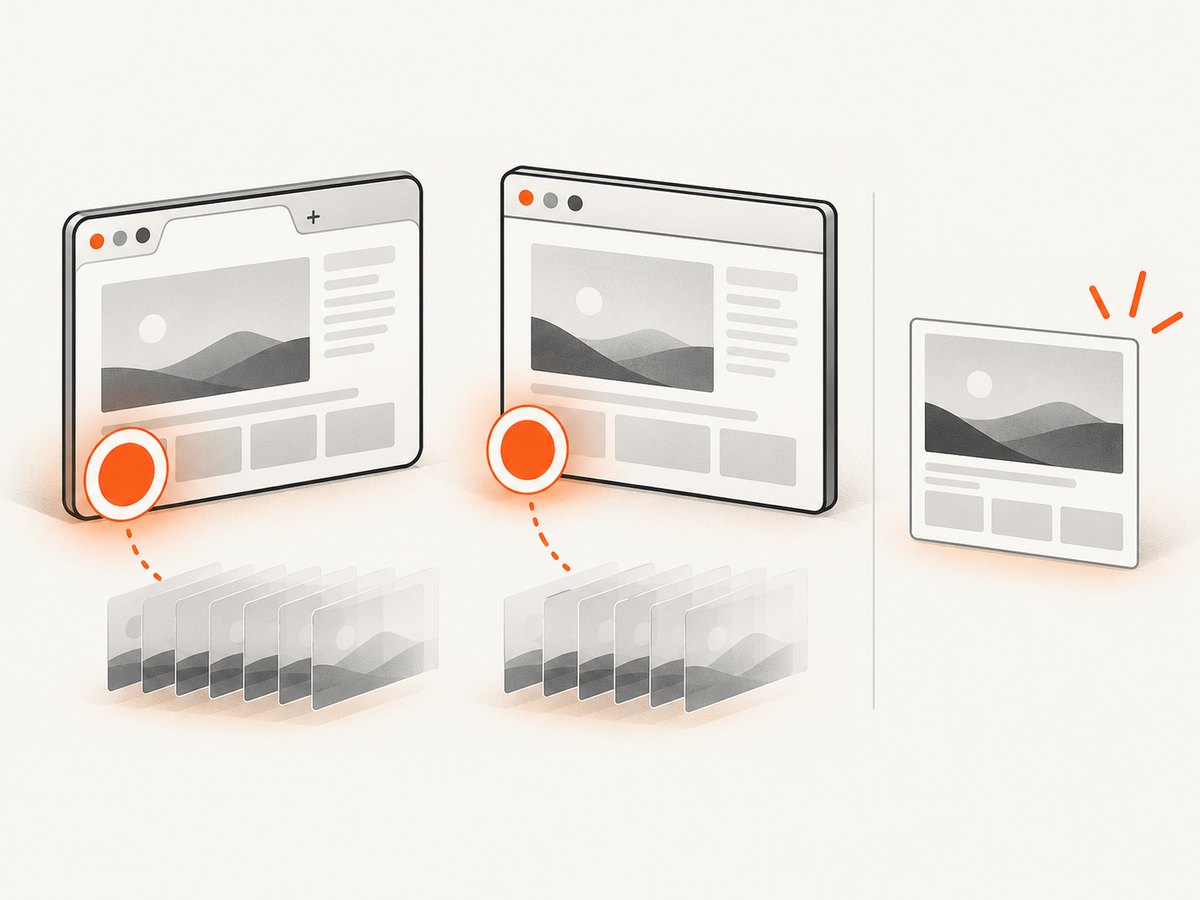
Desktop editing: ScreenToGif is an option when you want to record and then edit, with its documentation describing GIF, video, project and image-sequence outputs. The cited wiki documentation is from 2018, so check current compatibility and feature details. LICEcap is another lead for recording a chosen desktop area to GIF or LCF; its cited listing is a software directory entry, so verify current details with the project before depending on it.
Production scenes: OBS is useful if you need a configurable browser scene, video production controls or audio/video capture. It is more involved than a simple animated screenshot recorder. Its Browser Source documentation describes loading a URL or local file and setting dimensions and frame rate.
Automated webpage capture: Screenshot APIs solve a different task: capturing webpage images or documents repeatably from code. For that job, ScreenshotNeo is the first API to consider here: it removes cookie banners, popups and chat widgets before capture, bills only clean shots, and its paid plans start at $5 for 3,000 shots. This does not create an animation of a live interaction; use a recorder when motion is the deliverable.
7. Or skip the browser setup
When the goal is an automated webpage screenshot rather than a moving screen recording, ScreenshotNeo accepts one GET request for a URL and returns an image or PDF. See the ScreenshotNeo API docs for parameters and options.
curl -G "https://api.screenshotneo.com/v1/shot" -d access_key=YOUR_API_KEY --data-urlencode url=https://stripe.com -o shot.webpimport requests
r = requests.get("https://api.screenshotneo.com/v1/shot", params={"access_key": "YOUR_API_KEY", "url": "https://stripe.com"}, timeout=90)
open("shot.webp", "wb").write(r.content)const q = new URLSearchParams({ access_key: 'YOUR_API_KEY', url: 'https://stripe.com' });
const res = await fetch(`https://api.screenshotneo.com/v1/shot?${q}`);- Cookie banners, newsletter popups and chat widgets are removed before the shot; each step can be turned off.
- Bot checks, blank pages, failed loads, timeouts and cache hits are never billed; response headers report the page verdict and billing status.
- An MCP server lets AI agents, including Claude, Cursor and other MCP clients, take screenshots.
- 1,000 screenshots a month are free with no card; paid plans start at $5 for 3,000. Every feature is available on every plan.
Sign up free for 1,000 screenshots a month, with no card required.
8. FAQ
Is an animated screenshot the same as a screenshot?
No. A still screenshot shows one moment; an animated screenshot records a short sequence, often exported as a GIF.
Do I need a webcam, microphone or capture card?
No. Those can support optional production tasks, but a basic screen animation needs a capture workflow in a browser or desktop tool.
Can an API make an animated screen recording?
A webpage screenshot API captures page output on request; it is suited to repeatable automated still captures, not recording a person’s live interaction over time.
What should I attach to a bug report?
Use the shortest clip that shows the setup, action and result. Review it for readability and private information, then include a sentence identifying the expected and actual behavior.
Research and source notes
Tool capabilities and limits below are attributed to project or vendor documentation, not independent tests: OBS Project and its Browser Source documentation; ScreenToGif documentation; ScreenGif and RecordToGif project pages as summarized in the research dossier; and ScreenshotMAX, whose page advertises animated screenshot exports and up to 100 free API requests but also describes plan restrictions. These commercial terms may change. No essential physical device is required for the core task.