How to Answer Questions About Your Screen with AI
Share a screen, select a region, or upload a screenshot so an AI assistant can answer focused questions about what you see. Here are the current workflows, privacy checks, and limits.
To ask an AI about something visible on your computer, give it visual context: share a screen or app with an assistant that supports live vision, select a screen region, or upload a screenshot if the service supports it. Then ask a focused question about the visible item. The exact controls, eligible accounts, platforms, and data handling depend on the service.
For a live screen workflow, current documented options include Google’s app for Windows and Microsoft Copilot Vision. If you only need help with a web page, a screenshot can be easier to capture and share than a live desktop session. This guide covers both approaches, how to ask useful questions, what to check before sharing, and how to troubleshoot common problems.
1. Choose how to give the AI visual context
Pick the least broad input that gives the assistant enough context:
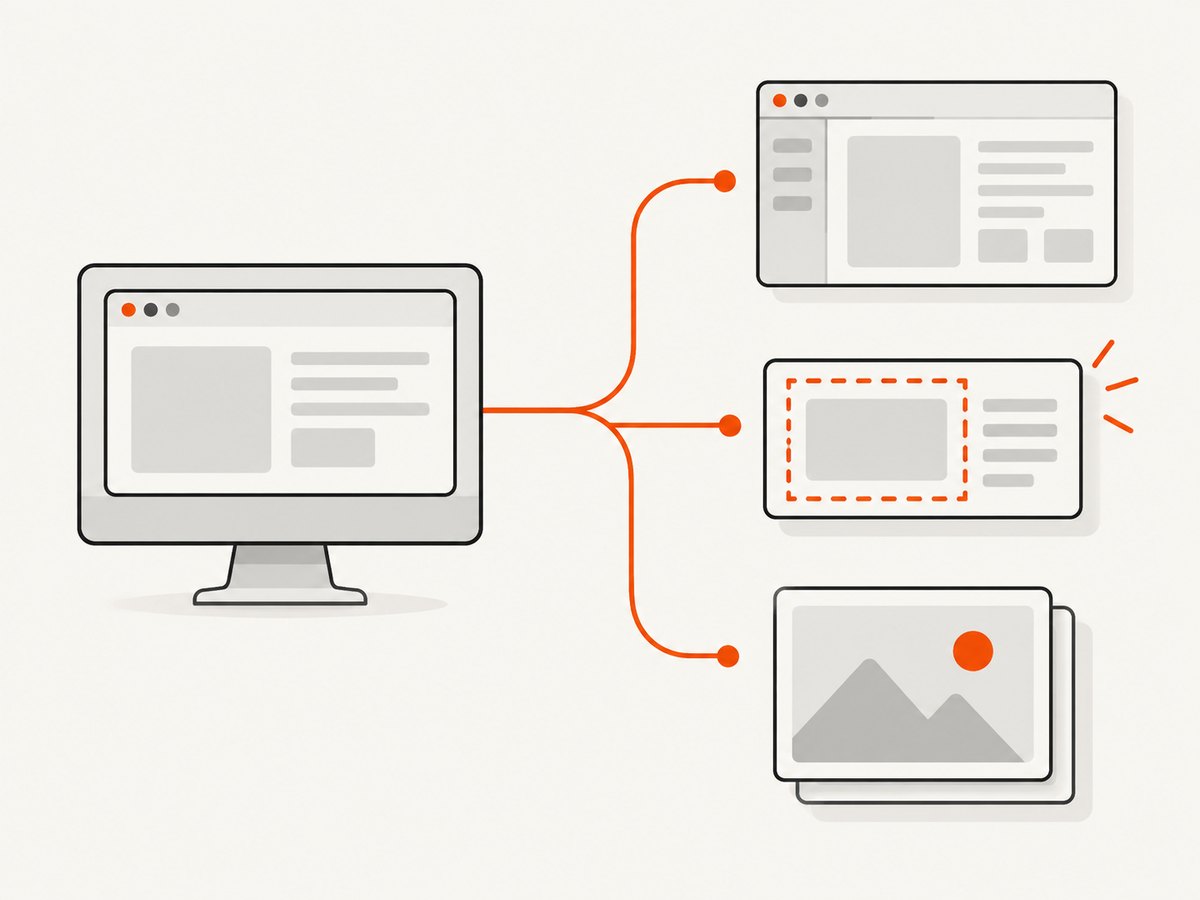
- Live screen or app sharing: Useful for follow-up questions while you navigate. It is available only in supported services and accounts.
- Selected region: Useful for a chart, dialog, error, or paragraph. It sends less surrounding information when the tool supports region selection.
- Screenshot upload: Useful when live sharing is unavailable, or when you want to preserve a particular moment. Upload capability varies by assistant.
- Camera view: Some assistants document camera-based visual help. Use it for physical devices or objects, and check the service’s current instructions.
A selected image or screenshot is not the same as continuous live context: the assistant may not see what changes afterward unless you share again or provide another image.
2. Share a screen with Google’s Windows app
Google’s help documentation describes a desktop app for Windows 10 or later. Its screen-sharing workflow lets you choose a screen, window, or app, type a question, and ask follow-ups. Availability of AI Mode can vary by account, country, and language. See Google Search Help for current steps and availability.
- Open the Google app for desktop and choose Share screen.
- Select the screen, window, or app that contains the item you want to discuss.
- Type a specific question, such as: “Explain the warning in this dialog and tell me what I should check before continuing.”
- Ask a follow-up if needed. Refer to the exact chart, field, message, or visual detail.
- Stop sharing when you are done.
For a more focused question, Google’s help page also describes Google Lens: select a portion of the screen to ask about the image, translate text, or copy the selection. That sends the selected portion for the Lens query; it is not continuous screen sharing.
3. Share a screen with Microsoft Copilot Vision
Microsoft’s consumer Copilot Vision workflow is voice-based. The current support page says Vision requires a Microsoft 365 Personal, Family, or Premium subscription, and that eligibility can depend on region and account. On Windows, the documented flow is to start a voice conversation, choose Share screen, select a screen or app, and ask questions aloud. The page says up to two apps can be shared at a time. Check Microsoft’s current Copilot Vision instructions for supported platforms and availability.
- Start a voice conversation in Copilot.
- Select Share screen and choose the relevant screen or app.
- Ask a concrete question aloud. For example: “Summarize this chart and point out anything that looks unusual.”
- Ask follow-ups while the relevant content is visible.
- End the Vision session when finished.
Microsoft also documents Vision in Edge and access through the Copilot mobile app, with rollout and availability that may vary. Its separate Microsoft 365 Vision experience is work-focused: supported experiences can ground answers in Microsoft 365 work data such as documents, email, meetings, and prior discussions. Check current organization settings and account eligibility before relying on it.
4. Ask a question the assistant can answer
Point to the relevant part of the screen and state what kind of help you want. A useful prompt often includes the visible object, the task, and any decision you need to make.
| Goal | Example question |
|---|---|
| Understand an error | “Explain this error message in plain language. What should I check before retrying?” |
| Read a chart | “Summarize this chart and point out anything that looks unusual. Tell me which labels you used.” |
| Review dense text | “Summarize the selected paragraph in three points, then define the technical terms.” |
| Turn feedback into actions | “Convert the visible feedback into a short checklist, keeping the original priorities.” |
| Troubleshoot a device | “Describe the warning shown here and list safe checks I can do before changing settings.” |
Ask the assistant to identify what it is looking at when precision matters. If it names the wrong chart, window, label, or value, correct that context before asking it to draw a conclusion. Treat answers as suggestions: confirm important technical, financial, safety, or work decisions against the original source.
5. Protect private information before sharing
A shared screen can reveal messages, names, account details, notifications, or confidential work. Before starting:
- Close unrelated windows and silence notifications if they might appear.
- Share only the necessary app or select only the relevant region when possible.
- Review what is visible, including browser tabs and sidebars, before starting a session.
- Stop sharing when the question is answered.
- Follow employer or school rules before sharing work material.
Read the service’s current privacy information for the specific workflow you plan to use. Microsoft says Copilot Vision is active only after a user starts a session and stops observing shared content when the session ends. Its current consumer support page says Vision session data may be temporarily retained for up to 47 hours to support user-submitted feedback, and that a conversation transcript is saved in chat history and can be deleted by the user. These are statements in Microsoft’s product documentation, not an independent privacy audit. See the current Vision support page.
Google says its desktop app builds a local index for local files and apps without sending that index to Google’s servers. Its help page separately says only the selected screen portion is sent to Google for a Lens query. Those details apply to the documented functions; they should not be generalized to every Google product or every screen-sharing mode. See Google’s help page. For ChatGPT privacy settings, workspace controls, and retention options, consult the OpenAI Privacy Center; available controls depend on plan, region, account, and workspace.
6. Understand what screen vision can and cannot do
Visual context helps an assistant discuss what appears on screen, but it does not guarantee that the assistant has understood every detail or can operate the computer. Microsoft’s current consumer Copilot Vision page says Vision does not click, enter text, or scroll for the user. Its Microsoft 365 explanation also documents limits: it cannot directly manipulate screen items, cannot read videos or animated GIFs, and may use the wrong content if the user switches windows too quickly while asking. It says the feature has no long-term recall of visual input from previous sessions. Capabilities can change, so check the relevant consumer support page and work-focused explanation.
If you need the AI to click, type, or complete a task, look for a separately documented computer-use or automation capability. Do not infer permission to act from a screen-sharing feature.
7. Use a screenshot for a web page
If your question is about a website, capturing the page and sharing the resulting image can be more direct than sharing your entire desktop. You can use a browser’s screenshot capability or automate a browser with a tool such as Playwright, then upload the image to an assistant that accepts images. A screenshot is a snapshot: dynamic content, menus, and interactions may not be represented unless you capture them in the desired state.
When the screenshot is for a web page you are building or debugging, check the viewport size, device scale, and whether the relevant content loads after scrolling. For a long page, a full-page capture may include content below the fold. If the site uses lazy-loaded images, scroll through it before capturing or use a capture tool that loads lazy images.
Example: capture a page with Playwright in JavaScript
Install Playwright and its Chromium browser, save this as capture.mjs, and run it with Node.js. It writes a full-page PNG to disk. The public example page can be replaced with a URL you are permitted to capture.
import { chromium } from 'playwright';

const browser = await chromium.launch({ headless: true });
const page = await browser.newPage({ viewport: { width: 1440, height: 900 } });
try {
  await page.goto('https://example.com', {
    waitUntil: 'networkidle',
    timeout: 30000
  });
  await page.screenshot({ path: 'page.png', fullPage: true });
} finally {
  await browser.close();
}
For sites with long-running analytics or live connections, networkidle may never occur. In that case, wait for a meaningful selector or use a short delay after navigation instead of waiting for every network request to stop.
Equivalent capture examples in Python and cURL
Install the Playwright package and browser for Python, then run this script to save a full-page screenshot:
from pathlib import Path
from playwright.async_api import async_playwright

async def main():
    async with async_playwright() as p:
        browser = await p.chromium.launch()
        page = await browser.new_page(viewport={"width": 1440, "height": 900})
        try:
            await page.goto("https://example.com", wait_until="networkidle", timeout=30000)
            await page.screenshot(path="page.png", full_page=True)
        finally:
            await browser.close()

import asyncio
asyncio.run(main())
There is no standard cURL command that renders a page as a screenshot: cURL fetches HTTP responses, while a browser engine is needed to lay out and paint a web page. You can use cURL to send an existing screenshot to an image endpoint only if that service documents such an upload workflow. Do not treat an HTML response saved by cURL as a visual capture.
8. Or skip the browser setup
ScreenshotNeo is a website screenshot API and MCP server for developers. For a quick web-page capture, make one GET request; the endpoint returns an image or PDF. The examples below save a WebP capture of a page. Replace the URL with the page you want to capture and provide your API key. See the ScreenshotNeo API documentation for request options and response details.
cURL
curl -G "https://api.screenshotneo.com/v1/shot" -d access_key=YOUR_API_KEY --data-urlencode url=https://stripe.com -o shot.webpPython
import requests
r = requests.get("https://api.screenshotneo.com/v1/shot", params={"access_key": "YOUR_API_KEY", "url": "https://stripe.com"}, timeout=90)
open("shot.webp", "wb").write(r.content)
Node.js
const q = new URLSearchParams({ access_key: 'YOUR_API_KEY', url: 'https://stripe.com' });
const res = await fetch(`https://api.screenshotneo.com/v1/shot?${q}`);
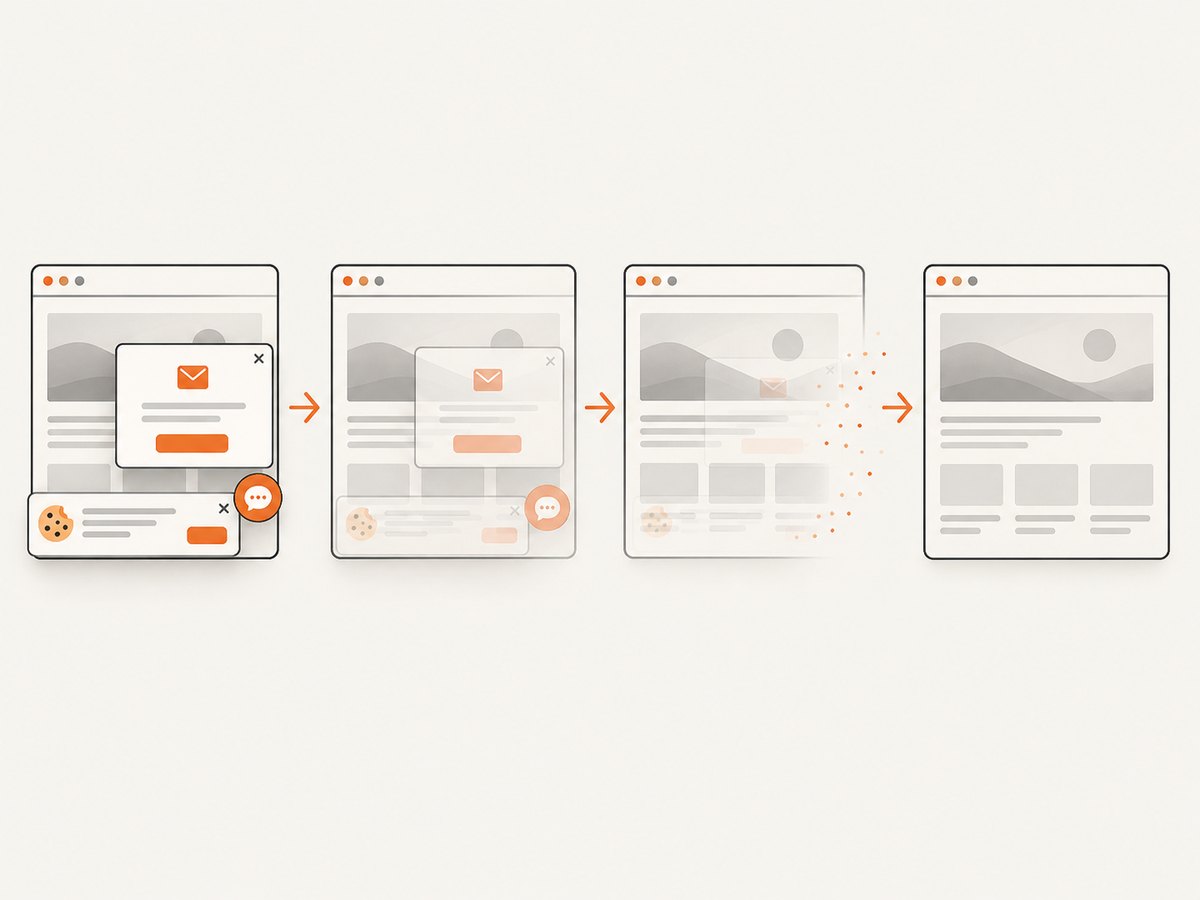
ScreenshotNeo removes known cookie and consent banners, newsletter popups, and chat widgets before capture; each cleanup step can be turned off. Only clean shots are billed: bot checks or CAPTCHAs, blank pages, timeouts, failed loads, and cache hits are not billed, and response headers report the page verdict and billing status. Its MCP server offers take_screenshot, get_page_info, and capture_pdf for AI agents, including Claude, Cursor, and other MCP clients. The free plan includes 1,000 screenshots per month with no card; paid plans start at $5 for 3,000.
Sign up for ScreenshotNeo’s free 1,000 screenshots a month, with no card required.
9. Troubleshoot common problems
| Problem | Likely cause | What to try |
|---|---|---|
| The screen-share control is missing | The feature is not available for the platform, account, region, or rollout cohort, or the app needs updating. | Check the service’s current support page and account eligibility; use a selected region or screenshot upload if supported. |
| The assistant sees the wrong window | The wrong app was shared, or the screen changed before the assistant interpreted it. | Reselect the intended app, keep it visible while asking, and name the window or on-screen item in your prompt. |
| The answer misses small text | The capture is low resolution, the text is too small, or too much screen context is included. | Zoom in, capture a tighter region, or provide a higher-resolution screenshot. Ask the assistant to quote the relevant label before interpreting it. |
| The AI gives a confident but incorrect interpretation | Visual recognition can miss labels, chart scales, or context. | Ask what evidence it used, compare the answer with the source, and verify consequential decisions independently. |
| Sharing or upload is blocked | Operating-system permissions, browser permissions, or workplace controls may prevent access. | Review screen-capture permissions and organization policy. Do not try to bypass a work or school restriction. |
| Playwright waits until timeout | The page keeps network connections open, so networkidle never happens. |
Wait for a specific selector or use a bounded delay after the page’s main content appears. |
| A web screenshot is blank or incomplete | Navigation failed, content needs scrolling or interaction, or the page is still rendering. | Check the URL and page errors, wait for a visible content selector, scroll to trigger lazy loading, and capture again. |
10. Performance, reliability, and cost
- Keep the visual input focused: A selected region is quicker to review and exposes less unrelated information than a whole desktop. Use live sharing when follow-up context matters.
- Allow time for rendering: Web fonts, images, client-side content, and lazy loading can appear after the initial HTML response. Wait for the actual content rather than assuming navigation completion means the page is ready.
- Plan for changing availability: Account eligibility, platform support, and feature rollouts can change. Check official support pages before building a workflow around a consumer feature.
- Verify important interpretations: The reviewed official sources do not provide a numerical accuracy rate. Do not assume that screen vision is reliable enough for unsupervised decisions.
- Check the applicable plan: Screen-sharing assistants can have account or subscription requirements. For ScreenshotNeo, the stated plans are Free (1,000 shots/month), Starter ($5 for 3,000), Growth ($15 for 15,000), Pro ($39 for 60,000), Scale ($99 for 250,000), and Business ($249 for 1,000,000); yearly billing gives two months free, and every feature is on every plan. See the documentation for capture configuration.
11. Frequently asked questions
Can I ask ChatGPT what is on my computer screen?
Use a screen-sharing, image-upload, or selected-image workflow only where the current ChatGPT app and your account document that capability. Platform and workspace controls vary; check the OpenAI Privacy Center for privacy controls, but do not treat it as documentation of screen-sharing availability.
Can the AI see my screen without me starting a session?
Do not assume so. Microsoft’s current Copilot Vision documentation says its Vision feature is user-initiated and active after the user starts a session. Check the terms for whichever service you use.
Can a screen-sharing assistant operate my computer?
Screen vision alone does not imply computer control. Microsoft’s consumer Copilot Vision documentation says it does not click, type, or scroll for you. Check for separate, explicit computer-use functionality if you need actions.
What if I only want help with one small part of the screen?
Use a supported region-selection feature, such as Google’s documented Lens selection, or capture and upload a crop if your assistant accepts images.
Does a screenshot include the page after I scroll?
A screenshot captures a particular state. For a full-page web capture, use a browser or capture API that supports full-page screenshots, and make sure lazy-loaded content has been loaded first.


