How to Make Screenshots for App Store Connect
Create, size, export, and upload App Store Connect screenshots correctly for every Apple platform, with manual and automated workflows.
Direct answer: Create one to ten flattened JPEG, JPG, or PNG screenshots for each App Store Connect display class and language. Use the exact pixel dimensions in Apple’s current screenshot specification, remove transparency, and upload the files in Apps → your app → app version → language → App Previews and Screenshots. Apple can scale a highest-resolution screenshot down to smaller supported displays when the interface is the same.
What App Store Connect accepts
Apple’s rules apply to the final exported image, regardless of whether you capture it on a device, simulator, design tool, or automated rendering system.
| Requirement | Rule |
|---|---|
| Number of screenshots | One to ten screenshots for each supported display size and language |
| File types | .jpeg, .jpg, or .png |
| Transparency | No alpha channel or transparent pixels |
| Dimensions | Use Apple’s current dimensions for the platform, display class, and orientation |
| Ordering | The upload order becomes the product-page sequence |
App previews are optional. You can provide up to three previews for each supported device size and language. Apple documents supported video containers and codecs, and processing can take up to 24 hours.
Choose the platform, display class, and orientation
- Identify the binary you are submitting: iPhone, iPad, Mac, Apple TV, Apple Vision Pro, or Apple Watch.
- Choose portrait, landscape, or both according to the actual interface. Do not rotate a portrait design into a landscape file.
- Open Apple’s current screenshot-specification table and copy the exact dimensions for every required class. Older size charts become stale when Apple adds devices.
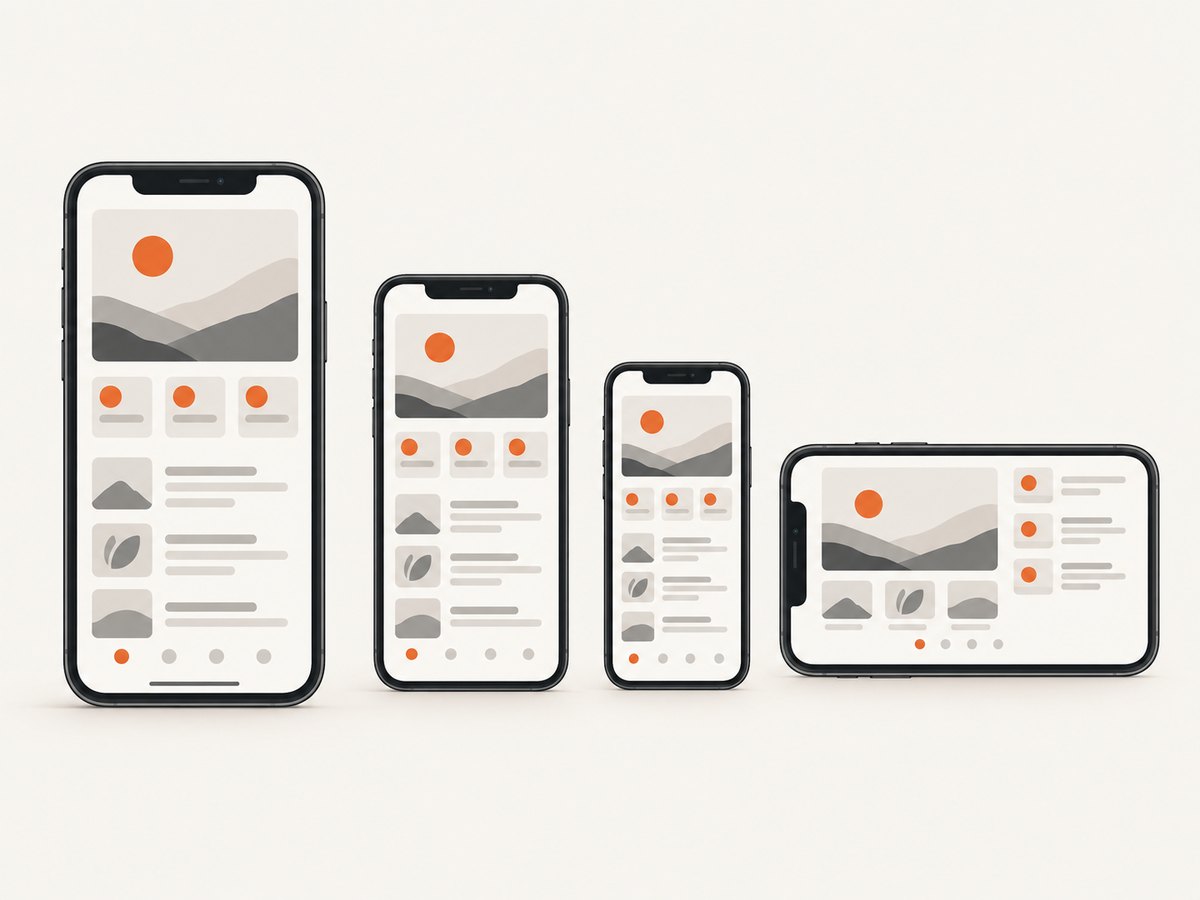
- When the UI is identical across sizes and localizations, start with the highest-resolution screenshots Apple requires. App Store Connect automatically scales them down to smaller supported displays.
Current iPhone examples
| Display class | Portrait examples | Landscape examples |
|---|---|---|
| 6.9-inch | 1260 × 2736; 1290 × 2796 | 2736 × 1260; 2796 × 1290 |
| 6.5-inch | 1284 × 2778; 1242 × 2688 | 2778 × 1284; 2688 × 1242 |
| 6.3-inch | 1179 × 2556; 1206 × 2622 | 2556 × 1179; 2622 × 1206 |
These are examples from Apple’s table, not a replacement for checking the complete current matrix. iPad, Mac, TV, Vision Pro, and Watch use different dimensions.
Plan the screenshot story
App Store Connect shows screenshots in sequence, so treat the set as a short product explanation:
- Lead with value: show the result a user wants immediately.
- Show the core workflow: use the next frames to explain the primary action from start to finish.
- Show differentiation: reserve later frames for features that distinguish your app.
- Keep state understandable: use realistic but non-sensitive data, readable text, and a consistent account state.
- Localize the sequence: preserve the same narrative order in every language so reviewers and users can compare sets.
Capture the app in a supported device or simulator, or render screens from your design system. The official submission constraint concerns the exported image’s format, dimensions, orientation, and transparency.
Export files that pass validation
Manual checklist
- There are between one and ten files in the set.
- Every file ends in
.jpeg,.jpg, or.png. - Pixel dimensions match an accepted Apple display class exactly.
- Orientation matches the dimensions.
- No file contains an alpha channel or transparent background.
- Images do not expose real customer or account information.
- The strongest frame is first and the sequence is identical across localizations.
Command-line inspection
ImageMagick can help you inspect exports before uploading. Replace the filename with each screenshot:
identify -format '%f: %wx%h %[channels]\n' screenshot-01.pngFor a non-transparent RGB export, the channels should not include alpha. If your design tool exports transparency, place the artwork on an opaque background and export again. Do not stretch an image to a guessed size; render the screen at the target dimensions so text and controls remain sharp.
Upload screenshots in App Store Connect
- Sign in to App Store Connect and open Apps.
- Select the app and open the version for the platform you are submitting.
- Choose the language.
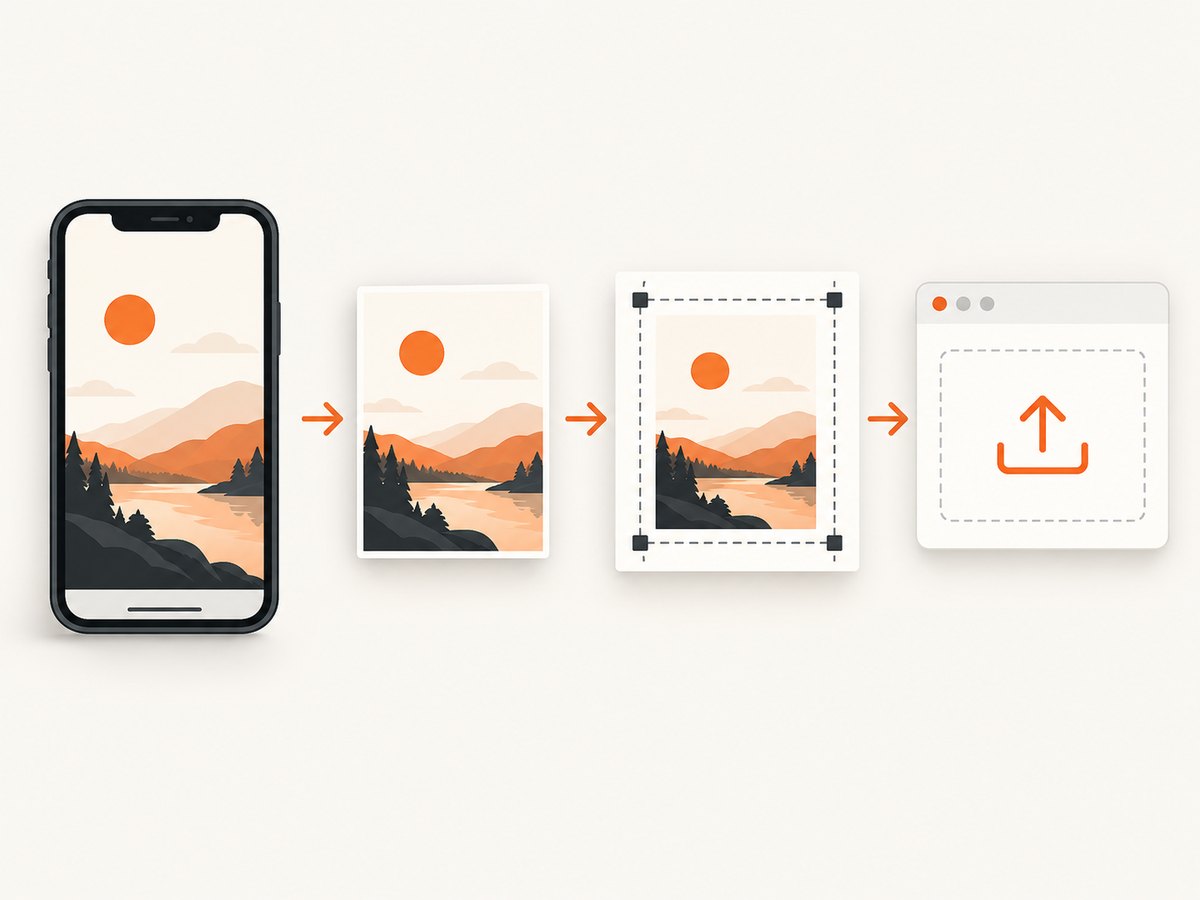
- Drag screenshots into the device-size wells in App Previews and Screenshots.
- Review the order, then save the version.
- Open View All Sizes in Media Manager when you need another device size, iMessage or watchOS assets, or an additional localized set.
Uploading is available in the app-version states Apple lists, including Prepare for Submission and certain rejection states. If submission reports missing assets, return to Media Manager and check every required display target and locale.
App previews: optional video assets
An app preview is a short product video displayed before screenshots when present. You may provide up to three previews per supported device size and language. Apple accepts documented MOV, M4V, and MP4 combinations with supported codecs. Select a poster frame and allow processing time; Apple says processing may take up to 24 hours. A screenshot-only submission is valid when you do not need previews.
Automate high-volume submissions with the App Store Connect API
Automation is useful when you publish many apps, locales, or display targets. Apple models screenshots as assets in a set associated with a locale and display target. The documented lifecycle is:
- Create or identify the screenshot set for the locale and display target.
- Reserve an asset slot.
- Upload the file, using multiple parts when Apple’s upload instructions require them.
- Commit the upload.
- Poll or verify processing status before treating the asset as ready.
Keep the reservation, upload, commit, and verification steps separate in your job state. Retry transient uploads with bounded backoff, but do not create a second asset when the first reservation is still processing. Apple warns that missing required assets can produce an error at submission time, so your pipeline should compare the generated matrix with the required display targets before submitting.
Automation data to store
| Field | Why it matters |
|---|---|
| App and version identifiers | Prevents uploading to the wrong release |
| Locale | Maps the file to the correct language set |
| Display target | Determines the required dimensions |
| Orientation | Prevents portrait/landscape mismatches |
| Reservation and upload state | Makes retries safe and observable |
| Checksum and source revision | Lets you detect changed or corrupted files |
Performance, reliability, and cost
- Render once, reuse carefully: A highest-resolution source can cover smaller classes when Apple’s scaling rule applies. Generate separate assets when the layout actually changes.
- Validate before upload: Local dimension and alpha checks avoid slow upload failures and reduce repeated processing.
- Use deterministic fixtures: Seed demo accounts and fixed dates so localized sets remain visually consistent.
- Keep source files: Store the original render, exported file, checksum, locale, and target class together so a rejected asset can be reproduced.
- Budget API work: Apple’s API requires reservation, upload, commit, and verification calls. Queue jobs by app and locale, and persist state so a process restart does not duplicate reservations.
- There is no Apple requirement to buy a screenshot tool: A device, simulator, or design/rendering workflow is sufficient if the resulting files meet Apple’s rules.
Or skip the browser setup
For web pages used in your launch materials, documentation, or marketing workflow, ScreenshotNeo returns a screenshot or PDF from one GET request. It is not a replacement for capturing your native app UI for App Store Connect, but it can remove browser setup from the surrounding web-asset work.
See the ScreenshotNeo API documentation for all options. Basic request:
curl -G "https://api.screenshotneo.com/v1/shot" -d access_key=YOUR_API_KEY --data-urlencode url=https://stripe.com -o shot.webpimport requests
r = requests.get("https://api.screenshotneo.com/v1/shot", params={"access_key": "YOUR_API_KEY", "url": "https://stripe.com"}, timeout=90)
open("shot.webp", "wb").write(r.content)const q = new URLSearchParams({ access_key: 'YOUR_API_KEY', url: 'https://stripe.com' });
const res = await fetch(`https://api.screenshotneo.com/v1/shot?${q}`);- Cookie banners, newsletter popups, and chat widgets are removed before the shot.
- Bot checks, blank pages, failed loads, timeouts, and cache hits are not billed; response headers identify the page verdict and billing result.
- An MCP server lets Claude, Cursor, and other MCP clients use
take_screenshot,get_page_info, andcapture_pdf. - 1,000 screenshots each month are free with no card; paid plans start at $5 for 3,000 shots.
Create a free ScreenshotNeo account.
Troubleshooting
| Problem | Cause | Fix |
|---|---|---|
| Invalid screenshot dimensions | The file uses an old chart or a different display class. | Check Apple’s current specification and render at the exact listed pixels. |
| Upload rejects the file | Unsupported extension, malformed image, or alpha channel. | Export a valid JPEG, JPG, or opaque PNG and inspect the channels locally. |
| Screenshot appears in the wrong slot | The asset was uploaded to another locale or platform version. | Confirm app, version, language, and display target before uploading. |
| Required-assets error at submission | A required display class or locale has no processed asset. | Review every required target in Media Manager and wait for processing to finish. |
| Text is blurry | A small screenshot was enlarged or compressed repeatedly. | Capture or render at the highest required resolution, then export once. |
| Preview remains processing | Apple is still transcoding the video. | Wait for processing, verify the documented container and codec, and check the poster frame. |
| Automated upload duplicates assets | A retry forgot the previous reservation state. | Persist reservation IDs and resume upload, commit, or verification instead of creating a new slot. |
FAQ
Do I need screenshots for every iPhone and iPad size?
You need the required assets for the platform and display classes Apple lists for your app. When the interface is the same, Apple says a highest-resolution screenshot can scale down to smaller supported displays.
Can screenshots contain transparency?
No. Apple accepts JPEG, JPG, and PNG files without alpha channels or transparent pixels.
Are app previews mandatory?
No. App previews are optional; screenshots alone can complete the media section.
How many screenshots can one set contain?
One to ten screenshots per supported display size and language.
When should I automate uploads?
Automation pays off when you manage many locales, apps, or display targets. For a single release, manual drag-and-drop is usually simpler.
Does Apple resize screenshots automatically?
Yes, when the UI is the same across sizes and localizations and you provide the highest-resolution screenshots required. Always verify the current specification for required targets.


