App Screenshots for the App Store
Apple App Store screenshot sizes, minimums, formats, device rules, upload steps, and a repeatable workflow for iPhone and iPad assets.
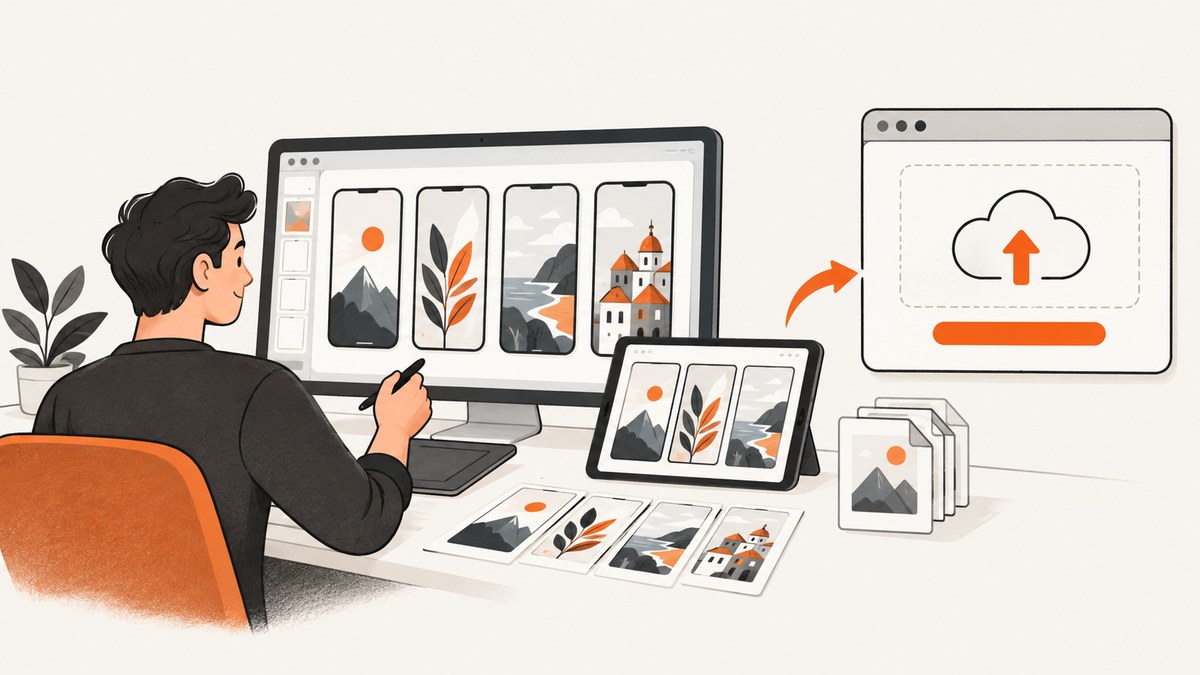
App Store screenshots are still image files uploaded to App Store Connect. Apple accepts one to ten screenshots per supported screenshot set in JPEG, JPG, or PNG format, without transparency or an alpha channel. The exact pixel dimensions depend on the platform, display-size group, device generation, and orientation, so there is no single universal App Store screenshot size.
Apple’s September 2026 release notes introduced a dated minimum submission set: one iPhone screenshot for the 6.5-inch or 6.9-inch group and one 13-inch iPad screenshot. That minimum is different from the complete list of accepted dimensions and from the optional screenshots you may add for other devices, localizations, or marketing coverage.
1. The short answer: what screenshots do you need?
For a current submission, prepare these baseline assets:
- iPhone: at least one screenshot for the 6.5-inch or 6.9-inch screenshot group.
- iPad: at least one screenshot for the 13-inch screenshot group.
- File type: JPEG, JPG, or PNG.
- Transparency: not allowed; remove the alpha channel before upload.
- Count: one to ten screenshots in each supported screenshot set.
You can provide additional screenshots for other device groups, orientations, languages, and custom product-page assets. Apple may scale a suitable larger screenshot down to some smaller display groups when you do not supply a separate accepted-size image. The fallback mapping changes by device group, so verify the current table before exporting a final batch.
Use Apple’s screenshot specifications as the authority for the dimensions that apply to your app and the devices you support.
2. Accepted dimensions by platform
Apple’s specification lists dimensions by platform, display-size group, and orientation. The examples below show why exporting one image and assuming it works everywhere is risky.
| Platform/group | Example portrait dimensions | Orientation note | Use |
|---|---|---|---|
| iPhone 6.9-inch groups | 1260 × 2736, 1290 × 2796, or 1320 × 2868 | Landscape dimensions are the corresponding rotated values. | Current large iPhone submission coverage. |
| iPad 13-inch groups | 2064 × 2752 or 2048 × 2732 | Landscape dimensions are the corresponding rotated values. | Current large iPad submission coverage. |
| Other iPhone groups | Varies by display group and generation. | Portrait and landscape are separate orientations. | Optional or required coverage depending on the app record. |
| Other iPad groups | Varies by display group and generation. | Check the current table instead of deriving a value. | Optional or custom-size coverage. |
| Mac, Apple TV, Apple Watch, and visionOS | Platform-specific values in Apple’s live table. | Some platforms have their own orientation and display rules. | Required only when the platform is supported. |
The numbers in the first two rows are examples from Apple’s current table, not universal export settings. Device specifications and accepted groups change; check the live reference immediately before release.
Keep three concepts separate:
- Submission minimum: the dated September 2026 minimum of one 6.5-inch or 6.9-inch iPhone image and one 13-inch iPad image.
- Accepted dimensions: every size Apple will accept for each platform and display group.
- Optional assets: extra screenshots for additional devices, languages, orientations, or custom product pages.
3. File format, transparency, and image preparation
Apple accepts .jpeg, .jpg, and .png screenshots. The upload guide states that each set can contain a minimum of one and a maximum of ten images. PNG is useful for crisp interface text, while JPEG can reduce file size for photographic content. Whichever format you choose, export an opaque image.
- Flatten layers and remove the alpha channel.
- Do not use transparent backgrounds, even if the design tool shows a checkerboard behind the device.
- Export at the exact pixel dimensions listed for the target device group.
- Keep text inside safe margins so it remains readable when Apple scales an image.
- Use the same orientation consistently within a localized screenshot sequence.
- Open the exported files and inspect them at 100% before uploading.
If your app interface is identical across device sizes and localizations, Apple recommends supplying the highest-resolution screenshots required and allowing them to scale down. Use Media Manager when a particular device size or localization needs a custom set.
4. How many screenshots should you create?
Apple allows one to ten screenshots per supported set. The minimum gets an app through the basic requirement, but a sequence of carefully chosen screens usually explains the product better.
- Lead with the screen that communicates the app’s primary job immediately.
- Show the main workflow from start to finish.
- Include a feature that differentiates the app from alternatives.
- Use the final positions for settings, integrations, or supporting features.
Keep the order and story consistent across iPhone and iPad. If a feature does not exist on a platform, do not reuse a misleading screenshot; create a platform-specific set or omit that feature.
5. Uploading screenshots in App Store Connect
Apple’s upload guide describes the workflow:
- Open App Store Connect and select your app.
- Open the platform section of the app record.
- Choose the version or product-page area where the media belongs.
- Drag the files into the matching device-size slot, or use Media Manager for a custom size or localization.
- Review the order, orientation, and language before saving.
Screenshots can be uploaded while the app is in Prepare for Submission, Invalid Binary, Rejected, Metadata Rejected, or Developer Rejected status. After approval, Apple says that changing screenshots requires creating a new app version.
When the UI is shared across devices, start with the highest-resolution accepted set and let Apple scale it where supported. Create separate sets when a layout, feature, or localization genuinely differs.
6. A repeatable do-it-yourself capture workflow
For deterministic assets, capture directly from the simulator or a connected device, then validate the output dimensions before uploading.
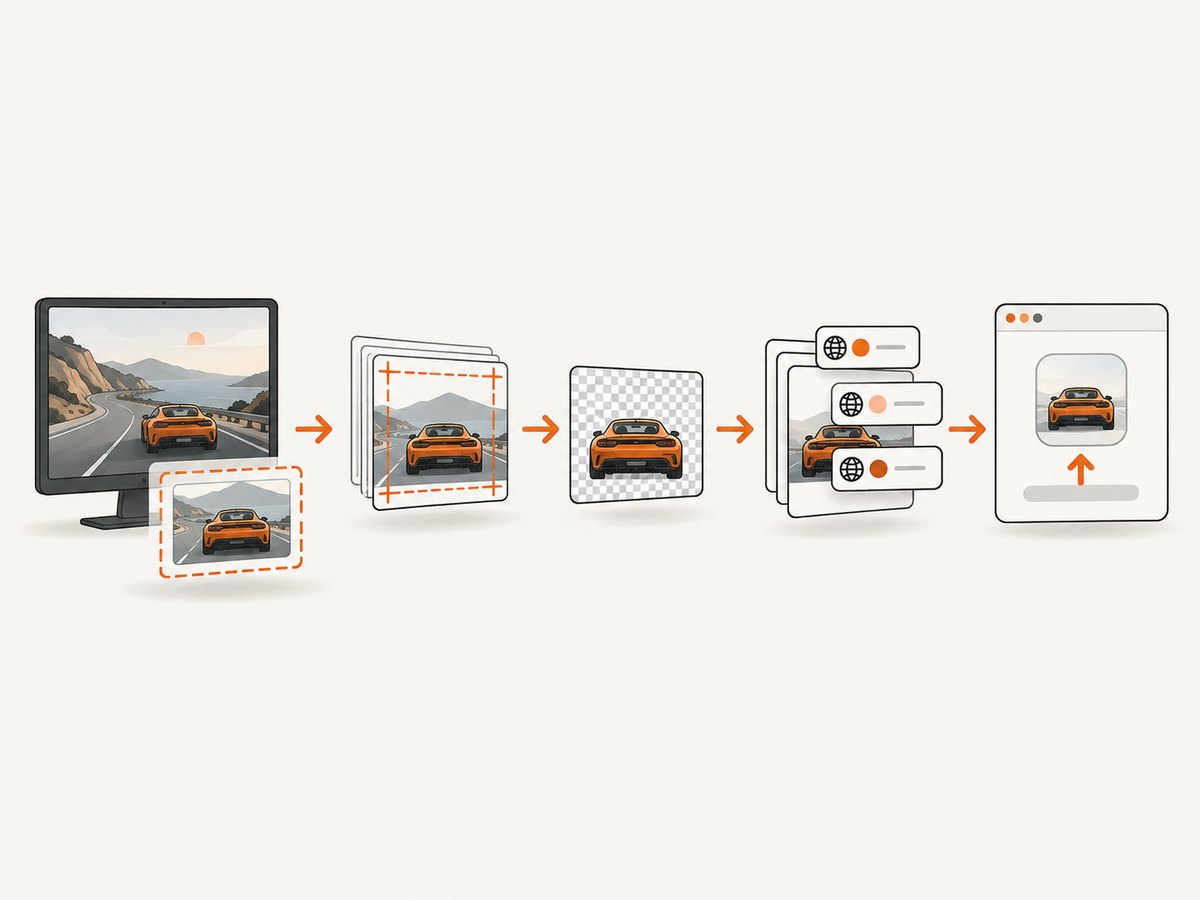
Capture from an iOS simulator
# List available simulators
xcrun simctl list devices available

# Boot a simulator by its UUID
xcrun simctl boot YOUR_DEVICE_UUID

# Install your debug or release build
xcrun simctl install booted /path/to/MyApp.app

# Launch the app
xcrun simctl launch booted com.example.myapp

# Capture a PNG screenshot
xcrun simctl io booted screenshot app-iphone.png

# Shut down the simulator when finished
xcrun simctl shutdown YOUR_DEVICE_UUID
Choose a simulator whose display group matches the App Store slot you are preparing. Do not crop a screenshot to a guessed aspect ratio: cropping can remove required pixels or create a dimension Apple rejects.
Inspect dimensions and remove alpha
# ImageMagick example
identify app-iphone.png
magick app-iphone.png -alpha remove -alpha off app-iphone-opaque.png
Use your design tool or an image-processing utility to add captions, device frames, or backgrounds after capture. Export the final file at the exact accepted dimensions, then verify that no alpha channel remains.
Build a batch checklist
- Record the platform, display group, orientation, and localization for every file.
- Use a predictable filename such as
ios-en-us-iphone-6-9-portrait-01.png. - Check that each sequence contains one to ten files.
- Compare every file against Apple’s current dimensions table.
- Open the upload screen and confirm that each file appears in the intended slot.
7. Or skip the browser setup
If your source material is a web build, documentation page, marketing page, or hosted prototype, ScreenshotNeo can create the image without maintaining a browser, simulator, or screenshot script. Its API accepts one GET request and returns PNG, JPEG, WebP, or PDF. The API documentation is at screenshotneo.com/docs/.
curl -G "https://api.screenshotneo.com/v1/shot" -d access_key=YOUR_API_KEY --data-urlencode url=https://stripe.com -o shot.webpimport requests
r = requests.get("https://api.screenshotneo.com/v1/shot", params={"access_key": "YOUR_API_KEY", "url": "https://stripe.com"}, timeout=90)
open("shot.webp", "wb").write(r.content)const q = new URLSearchParams({ access_key: 'YOUR_API_KEY', url: 'https://stripe.com' });
const res = await fetch(`https://api.screenshotneo.com/v1/shot?${q}`);For App Store artwork, set the viewport and output options to match the target device group, then post-process or resize only when the resulting pixels still match Apple’s accepted dimensions. ScreenshotNeo supports full-page captures, CSS-selector element captures, custom CSS and JavaScript, device presets, arbitrary viewports, retina scale, dark mode, hidden selectors, click actions, wait conditions, blocked resource types, custom headers and cookies, timezone and geolocation, transparent backgrounds, image resizing, and caching with a TTL you choose.
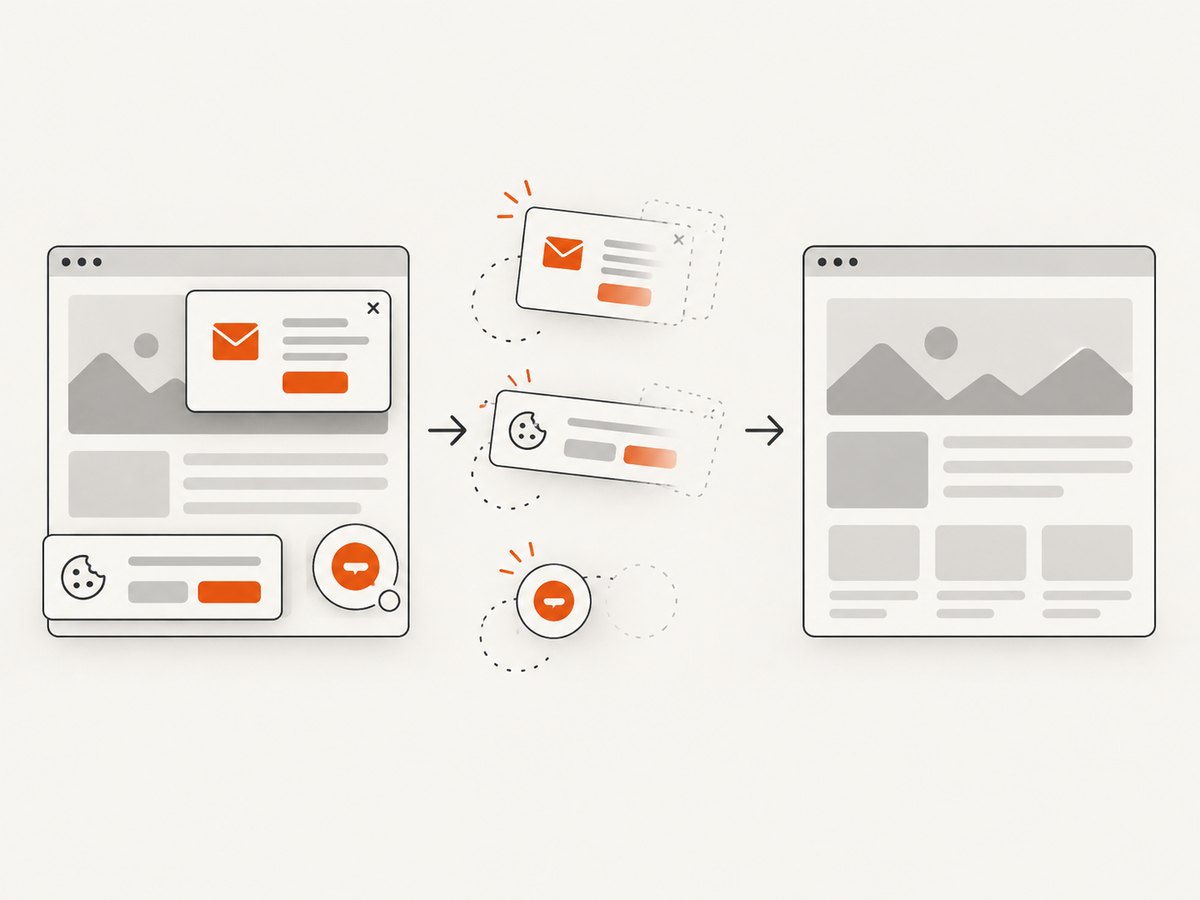
Cookie banners, newsletter popups, and chat widgets are removed before the shot. Bot checks, blank pages, failed loads, timeouts, and cache hits are not billed; response headers identify the page verdict and whether the request was billed. ScreenshotNeo also provides an MCP server with take_screenshot, get_page_info, and capture_pdf tools for Claude, Cursor, and other MCP clients.
The Free plan includes 1,000 shots per month with no card. Paid plans start at $5 for 3,000 shots; yearly billing gives two months free. Create a free ScreenshotNeo account to try the workflow.
8. Troubleshooting common upload and capture errors
| Problem | Likely cause | Fix |
|---|---|---|
| “Invalid dimensions” | The file does not match the selected device group or orientation. | Read the current Apple table, select the correct slot, and export exact pixel dimensions. |
| Transparency or alpha warning | A PNG contains an alpha channel. | Flatten the image and export an opaque PNG or JPEG. |
| Screenshot appears in the wrong language | The asset was uploaded to the wrong localization. | Use Media Manager and verify the language before saving. |
| Only one device slot is available | You are viewing the minimum current submission coverage. | Supply the 6.5-inch or 6.9-inch iPhone and 13-inch iPad assets, then add other sets as needed. |
| Simulator image is blurry | The simulator scale or export resolution is too low. | Capture from a simulator matching the target display group and inspect at 100%. |
| Web capture includes a cookie banner | The page rendered the consent UI before capture. | Use ScreenshotNeo’s consent-cleanup behavior or hide the banner with a selector/custom script. |
| ScreenshotNeo returns a bot-check or blank-page verdict | The target blocked automation or failed to render. | Inspect X-Page-Verdict and X-Billed, then adjust headers, user agent, waits, or authentication. These failed outcomes are not billed. |
9. Performance, reliability, and cost notes
Capture only the device groups and localizations you will actually submit. This reduces review work and makes it easier to spot a bad export. For repeated web captures, use a cache TTL when the source page changes infrequently. Use async jobs and signed webhooks for larger batches, and bulk capture for up to 100 URLs per call.
Keep the original simulator captures and the final flattened exports in version control or release storage. A new app version can require a new screenshot upload after approval, so reproducible source files prevent last-minute recreation.
ScreenshotNeo bills only clean shots. Cache hits, bot checks, blank pages, timeouts, and failed loads cost nothing, and the response headers report the verdict and billing state. Plans include every feature: Free 1,000 shots/month, Starter $5 for 3,000, Growth $15 for 15,000, Pro $39 for 60,000, Scale $99 for 250,000, and Business $249 for 1,000,000.
10. Screenshots versus app previews
App previews are optional videos, not still screenshots. Apple allows up to three previews per supported device size and language. The preview specification sets a duration of 15 to 30 seconds and a maximum file size of 500 MB. Apple’s upload workflow discusses using a Mac, video-editing software, and a compatible Apple device. Those requirements apply to preview production, not to still screenshot files.
Keep preview planning separate from screenshot export: screenshots explain the product at a glance, while previews demonstrate motion and interaction.
11. FAQ
Can I use one screenshot size for every iPhone?
No. Apple lists multiple accepted dimensions by display group and generation. Apple may scale a suitable larger image for some smaller groups, but the mapping is device-specific.
Do I need iPad screenshots if my app runs on iPad?
Apple’s September 2026 minimum includes one 13-inch iPad screenshot. Add other iPad groups when your distribution or layout requires them.
Are screenshots required for every language?
Provide localized sets when the screenshots contain language-specific text. Media Manager supports separate localization assets.
Can screenshots contain transparent backgrounds?
No. Apple prohibits transparency and alpha channels for screenshot uploads.
How many screenshots can I upload?
One to ten screenshots per supported screenshot set.
Can I update screenshots after approval?
Yes, but Apple’s upload guide says you must create a new app version to update screenshots after approval.


