How to Fix Appium’s Start Point Is Not Within Screen Bounds Error
Diagnose Appium’s “start point is not within screen bounds” error by checking viewport geometry, action origins, element visibility, and driver logs.
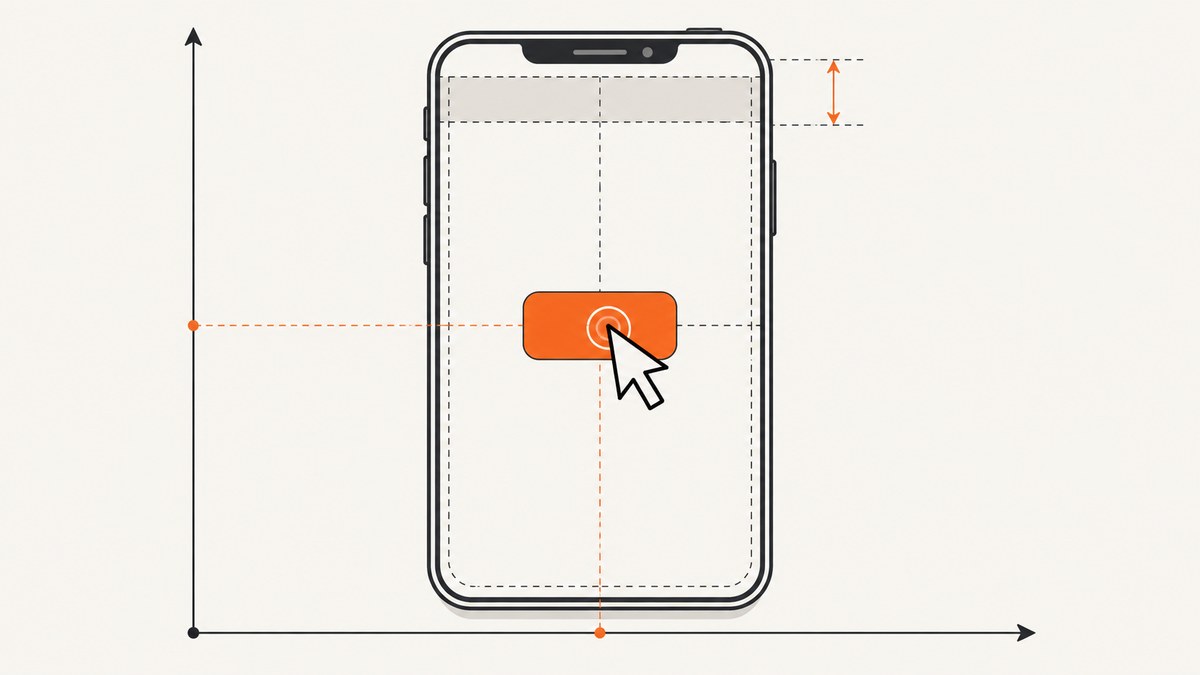
Direct answer: Appium is being asked to start a pointer action at a coordinate that is outside the active viewport, or the test is mixing coordinate systems. Capture a fresh screenshot, read the session’s current viewport dimensions, log the pointer action’s x, y, and origin, then verify that the target element is visible and its center is inside that viewport. On iOS, account for the XCUITest viewport’s possible top offset instead of treating full-screen and viewport coordinates as identical.
The exact message “start point is not within screen bounds” is not enough to identify one universal Appium defect. The reliable fix depends on the platform, driver, command, coordinates, and viewport reported by the failing session.
1. Collect the facts from the failing session
- Save the complete Appium server log, including the failing command payload.
- Record the platform, Appium version, automation driver and driver version.
- Capture a screenshot immediately before the action.
- Read the current window or viewport size from the same session.
- Log the target element’s location, size, visibility, and calculated center.
Do not apply a fixed offset until these values agree. A stale screenshot, a changed layout, or a different coordinate origin can make a seemingly valid point invalid.
2. Understand viewport coordinates and action origins
The W3C Actions API sends pointer moves with x, y, and an origin. Appium documents three useful origins: viewport, pointer, and an element reference. The same numbers can describe different physical points when the origin changes. See the Appium action type definitions and the W3C actions command.
| Origin | Meaning | Typical mistake |
|---|---|---|
viewport |
x and y are measured from the active viewport. |
Using full-device coordinates that include a status bar or navigation area. |
pointer |
The move is relative to the current pointer position. | Passing an absolute screen point as if it were a relative delta. |
| Element reference | The move is relative to an element’s origin. | Combining element-relative values with viewport-relative values. |
For a viewport of width W and height H, a viewport-relative point should satisfy 0 ≤ x < W and 0 ≤ y < H. Also check the driver’s edge behavior: a point exactly on the reported width or height is outside the valid range.
Python: print the geometry before tapping
from appium import webdriver
from appium.options.android import UiAutomator2Options

# Create your driver using the capabilities required by your test.
options = UiAutomator2Options()
options.platform_name = "Android"
options.automation_name = "UiAutomator2"
options.device_name = "Android"
driver = webdriver.Remote("http://127.0.0.1:4723", options=options)

size = driver.get_window_size()
print("window size:", size)
print("screenshot bytes:", len(driver.get_screenshot_as_png()))

element = driver.find_element("accessibility id", "Continue")
rect = element.rect
center_x = rect["x"] + rect["width"] / 2
center_y = rect["y"] + rect["height"] / 2
print("element rect:", rect)
print("element center:", center_x, center_y)
print("center in window:", 0 <= center_x < size["width"] and 0 <= center_y < size["height"])
3. Fix element clicks first
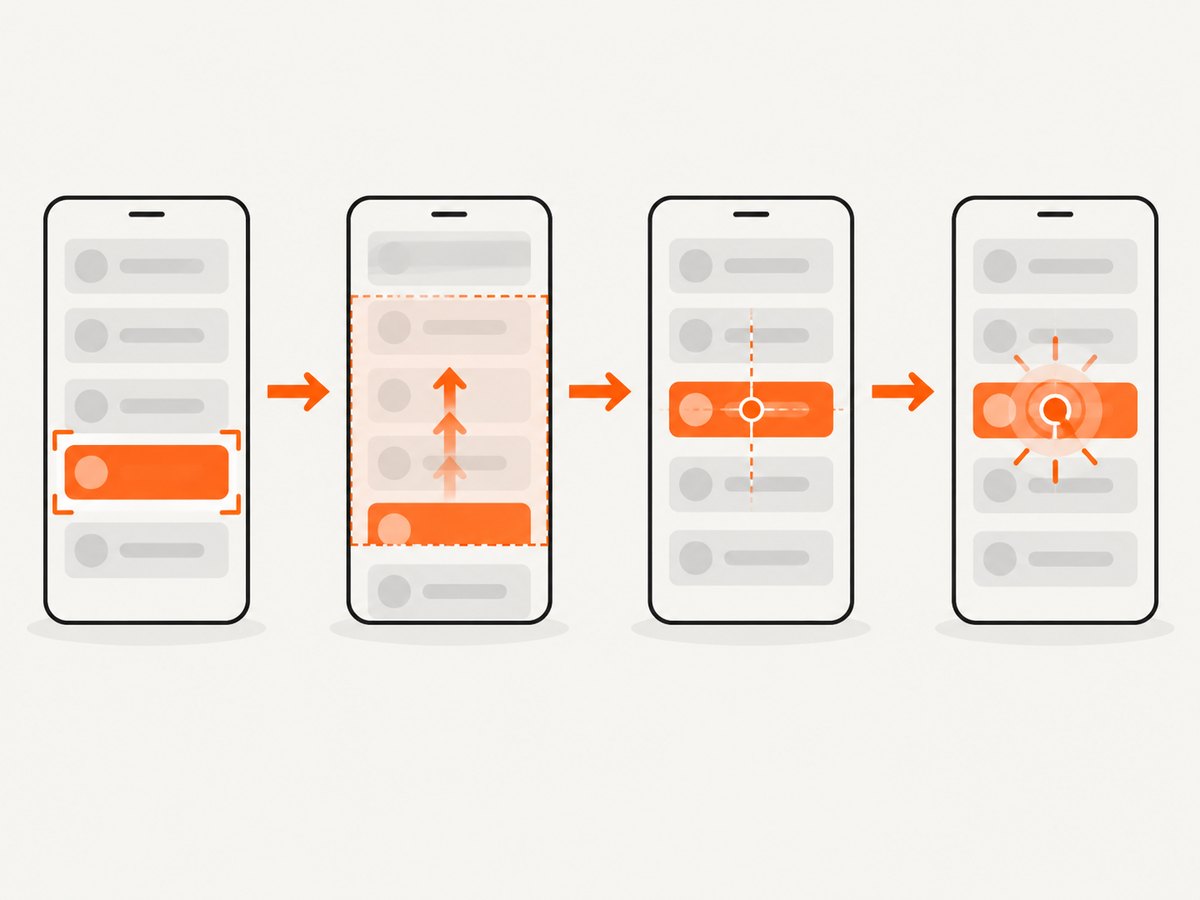
When the target is a real element, prefer an element-based click. Appium performs the click at the element’s center. An element outside the viewport may produce an element-not-interactable error, and some drivers require you to scroll it into view first. Reacquire the element after scrolling because its rectangle can change after layout updates.
from selenium.webdriver.support.ui import WebDriverWait
from selenium.webdriver.support import expected_conditions as EC

wait = WebDriverWait(driver, 20)
element = wait.until(EC.presence_of_element_located(("accessibility id", "Continue")))

driver.execute_script("mobile: scroll", {
    "element": element,
    "direction": "down"
})

element = wait.until(EC.element_to_be_clickable(("accessibility id", "Continue")))
element.click()
If the element is present but covered by a popup, moving or hiding the popup is the real fix. If the page is still animating, wait for a stable state before reading the rectangle.
4. Use W3C actions safely for coordinate taps
Coordinate actions are useful for canvas controls, map points, games, and targets that do not expose a usable element. Make the origin explicit and validate the point before dispatching the action.
from selenium.webdriver.common.actions.action_builder import ActionBuilder
from selenium.webdriver.common.actions.pointer_input import PointerInput

size = driver.get_window_size()
x, y = 120, 300
if not (0 <= x < size["width"] and 0 <= y < size["height"]):
    raise ValueError(f"Point ({x}, {y}) is outside viewport {size}")

finger = PointerInput("touch", "finger")
actions = ActionBuilder(driver, mouse=finger)
actions.pointer_action.move_to_location(x, y)
actions.pointer_action.pointer_down()
actions.pointer_action.pointer_up()
actions.perform()
For a swipe, keep the first move inside the viewport and use a relative pointer origin only when you intentionally want a delta:
from selenium.webdriver.common.actions.action_builder import ActionBuilder
from selenium.webdriver.common.actions.pointer_input import PointerInput

size = driver.get_window_size()
start_x = size["width"] // 2
start_y = int(size["height"] * 0.75)
end_y = int(size["height"] * 0.25)

finger = PointerInput("touch", "finger")
actions = ActionBuilder(driver, mouse=finger)
actions.pointer_action.move_to_location(start_x, start_y)
actions.pointer_action.pointer_down()
actions.pointer_action.move_to_location(start_x, end_y)
actions.pointer_action.pointer_up()
actions.perform()
5. Account for iOS XCUITest viewport offsets
On iOS, XCUITest can report a viewport that is smaller than the full device screen. When a status bar is present, the documented viewport rectangle can have a non-zero top offset. Compare the current viewport rectangle and screenshot with the coordinate system used by your action. Do not subtract or add a guessed status-bar height; use the values reported by the active session.
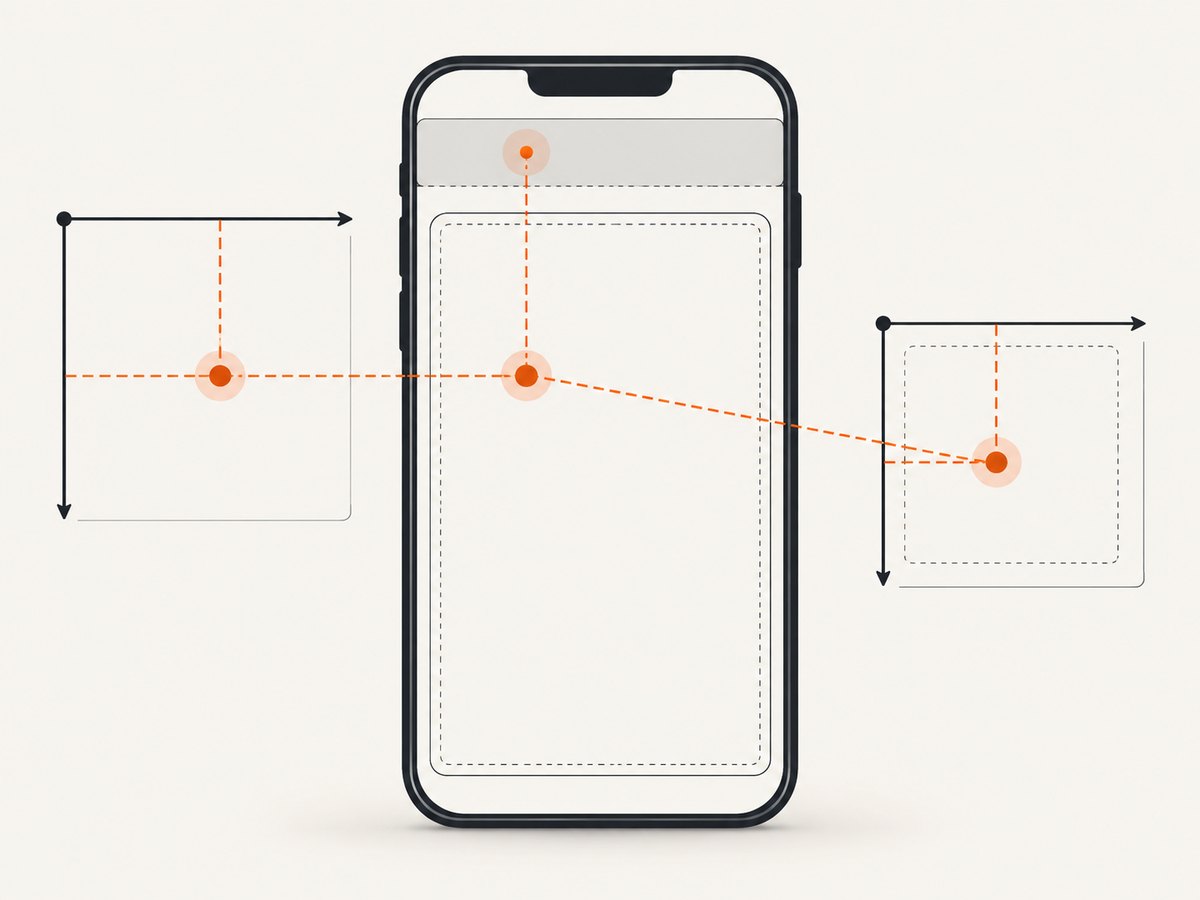
If an element’s full-screen coordinate is (x, y) but the viewport begins at top, the viewport-relative value may need to be calculated from the viewport rectangle. Confirm the result visually and in the driver log before changing the test.
iOS-specific fallback
An Appium maintainer suggested W3C actions or the XCUITest mobile: tap command as a workaround for a particular historical iOS click issue. Treat that as a platform-specific lead, not a general solution for every bounds error. Preserve the original action payload and compare both approaches on the same device and driver version.
6. Fresh screenshots expose stale geometry
Take the screenshot immediately before the action, not several steps earlier. A screenshot shows what the native viewport or web window displays at that moment. Compare it with the target rectangle and viewport dimensions. If the target moved between lookup and click, add a short, condition-based wait and reacquire the element instead of reusing old coordinates.
from pathlib import Path

Path("before-tap.png").write_bytes(driver.get_screenshot_as_png())
print("saved before-tap.png")
7. Troubleshooting checklist
| Symptom | Likely cause | Fix |
|---|---|---|
| Failure occurs on a W3C pointer move | Point is outside the viewport or origin is wrong. | Log x, y, and origin; validate against the current viewport. |
| Element click fails after navigation | Element reference or rectangle is stale. | Wait for the new screen and find the element again. |
| Only iOS fails | Full-screen and viewport coordinates differ, often because of a top status-bar offset. | Read the XCUITest viewport rectangle and map coordinates to it. |
| Tap lands on the wrong control | Layout changed, keyboard appeared, or a modal covered the target. | Capture a fresh screenshot, dismiss overlays, and recalculate the center. |
| Swipe fails at the first action | Start point is outside the active window. | Choose a start point strictly inside the reported width and height. |
| Coordinates work on one device only | Hard-coded pixels do not scale across viewport sizes or density. | Calculate points as percentages of the current viewport or use an element locator. |
| Changing an offset fixes one run but breaks another | The offset is compensating for an unknown coordinate-system mismatch. | Remove the guess and identify the actual origin, viewport, and status-bar values. |
8. Reliability and performance practices
- Prefer accessibility IDs, resource IDs, or stable semantic locators over fixed pixels.
- Wait for a target to be visible and clickable, then reacquire it immediately before the action.
- Keep screenshots and geometry logs for failed runs so the exact state can be replayed.
- Use one coordinate convention per helper function and name it in the function signature.
- For repeated gestures, calculate points from the current viewport instead of assuming a single device resolution.
- Keep waits tied to observable conditions. Long unconditional sleeps slow suites and still do not guarantee a stable layout.
9. Or skip the browser setup
If your goal is to inspect a web page or attach a screenshot to a debugging report, ScreenshotNeo can capture it with one request. It accepts the consent banner like a visitor and removes more than 60 known consent platforms, newsletter popups, and chat widgets before the shot. Bot checks, blank pages, failed loads, timeouts, and cache hits are not billed, and the response identifies the result with X-Page-Verdict and X-Billed headers. Its MCP server also lets Claude, Cursor, and other MCP clients call take_screenshot, get_page_info, and capture_pdf.
See the ScreenshotNeo API documentation for options and response details.
cURL
curl -G "https://api.screenshotneo.com/v1/shot" -d access_key=YOUR_API_KEY --data-urlencode url=https://stripe.com -o shot.webpPython
import requests
r = requests.get("https://api.screenshotneo.com/v1/shot", params={"access_key": "YOUR_API_KEY", "url": "https://stripe.com"}, timeout=90)
open("shot.webp", "wb").write(r.content)
Node.js
const q = new URLSearchParams({ access_key: 'YOUR_API_KEY', url: 'https://stripe.com' });
const res = await fetch(`https://api.screenshotneo.com/v1/shot?${q}`);
There is a free plan with 1,000 screenshots per month and no card. Paid plans start at $5 for 3,000 shots. Create a free ScreenshotNeo account.
10. FAQ
Is this always an Appium bug?
No. The reviewed evidence does not establish one universal cause. The message most safely points to an out-of-viewport point or a coordinate-system mismatch, but the exact driver log is required.
Should I add a fixed status-bar offset?
Only after reading the current viewport rectangle and confirming the offset with a screenshot. A fixed value can fail on another device, orientation, or system-bar configuration.
Are W3C actions more reliable than element clicks?
Neither is universally more reliable. Element clicks use the element center and benefit from stable locators; W3C actions are appropriate when you intentionally control coordinates. Choose based on target stability, visibility, origin, and driver support.
What information should I include when reporting the failure?
Include the full error, platform, Appium and driver versions, failed command and payload, viewport dimensions, target rectangle, screenshot, and whether the action used an element, viewport, or pointer origin.


