Appium Visual Regression Testing
Build reliable Appium visual regression tests with baselines, image comparison, diff review, troubleshooting, and a no-browser ScreenshotNeo option.
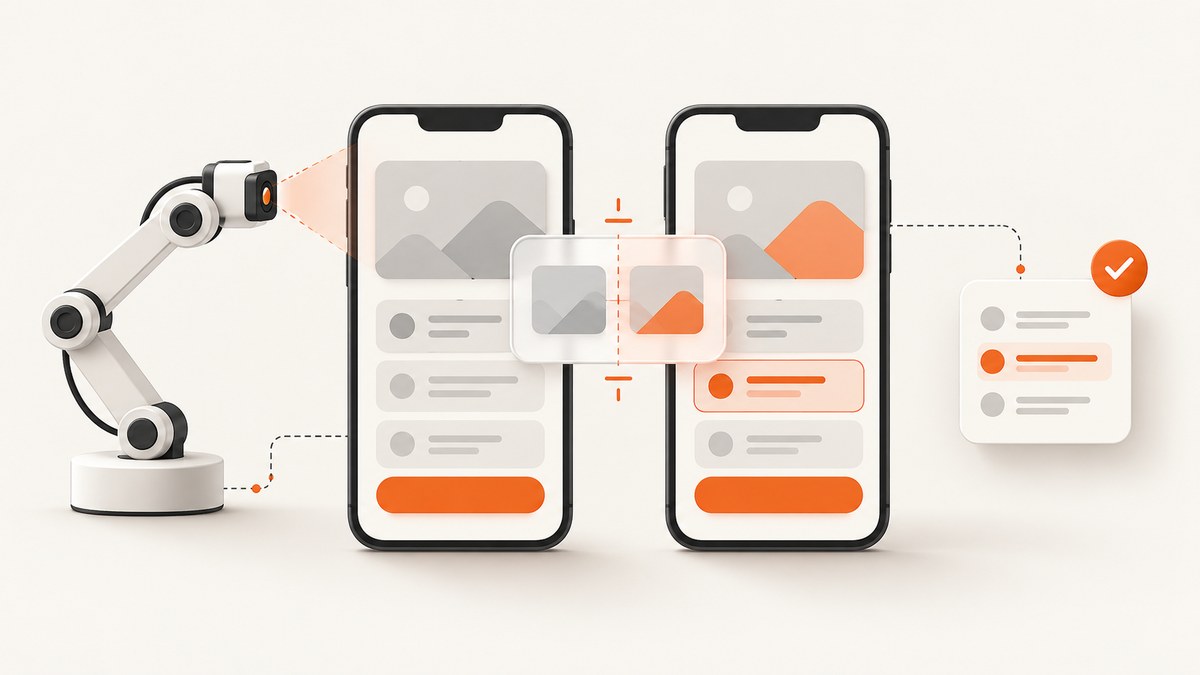
Appium visual regression testing means capturing an app screen in a known state, comparing that capture with an approved reference image, and reviewing meaningful differences. The reliable workflow is:
- Control the device, OS, viewport, theme, locale, and app state.
- Capture a screenshot after the screen is stable.
- Compare it with a baseline of the same dimensions.
- Save a diff image and review every failure before updating the baseline.
Appium’s optional Images plugin adds image matching and comparison capabilities. Install it with:
appium plugin install imagesThe plugin supports several related operations, and choosing the right one matters. Similarity scoring compares two like-sized images. Feature matching handles visual features that may move, rotate, or scale. Template occurrence searches for a smaller image inside a larger screenshot. Image-based element location finds a target image on the current screen; that can support interaction, but it is not a whole-screen regression assertion.
This guide shows a complete baseline-and-diff workflow, explains where the Images plugin fits, and covers device noise, thresholds, CI, failures, performance, and cost.
1. Choose the comparison operation
| Goal | Use | Important condition |
|---|---|---|
| Detect a changed screen | Similarity scoring | Images should have matching dimensions and capture conditions. |
| Find a logo or icon despite scale or rotation | Feature matching | Tune matching settings for the target device and artwork. |
| Find a small image in a larger screenshot | Template occurrence lookup | Scaling, rotation, and theme changes can reduce matches. |
| Locate an image-based control | Image-based element location | This validates or drives an interaction; it does not prove the whole screen is correct. |
Do not treat one score as a complete verdict. A small score change can be a harmless timestamp, while a visually important button move can be easy to miss in a global metric. Keep the comparison visualization or pixel diff as an artifact for review.
2. Prepare deterministic Appium sessions
Pixel comparisons are only useful when the inputs are comparable. Pin as many of these as your test environment allows:
- Device model, screen dimensions, pixel density, and orientation.
- OS version and Appium driver version.
- App build, feature flags, data fixtures, and logged-in account state.
- Light or dark theme, font scale, locale, timezone, and accessibility settings.
- Network responses, images, ads, animations, and remote content.
- Keyboard visibility and system permission dialogs.
Wait for a stable state before capturing. A fixed delay is easy to understand but can be slow. Waiting for a known element is usually more precise; waiting for network idle is useful when your driver and application expose a reliable signal. Disable or mask clocks, rotating banners, random avatars, map tiles, and other expected variation. If a region must remain dynamic, exclude it from the comparison or assert it separately.
3. Create and review a baseline
Store reference images in version control or an artifact store with metadata describing the device, OS, app version, and test state. A baseline update should be a reviewed change. Never overwrite a reference automatically after a failed build: that turns a real regression into an accepted image.
A practical directory layout is:
visual-tests/
  baselines/
    checkout-ios-17-iphone-15.png
  actual/
  diffs/
  metadata/
    checkout-ios-17-iphone-15.json
Capture the first approved image manually or from a reviewed CI run. Name it from the test state rather than a timestamp so later runs resolve to the same reference.
4. Runnable Python example: Appium capture and pixel diff
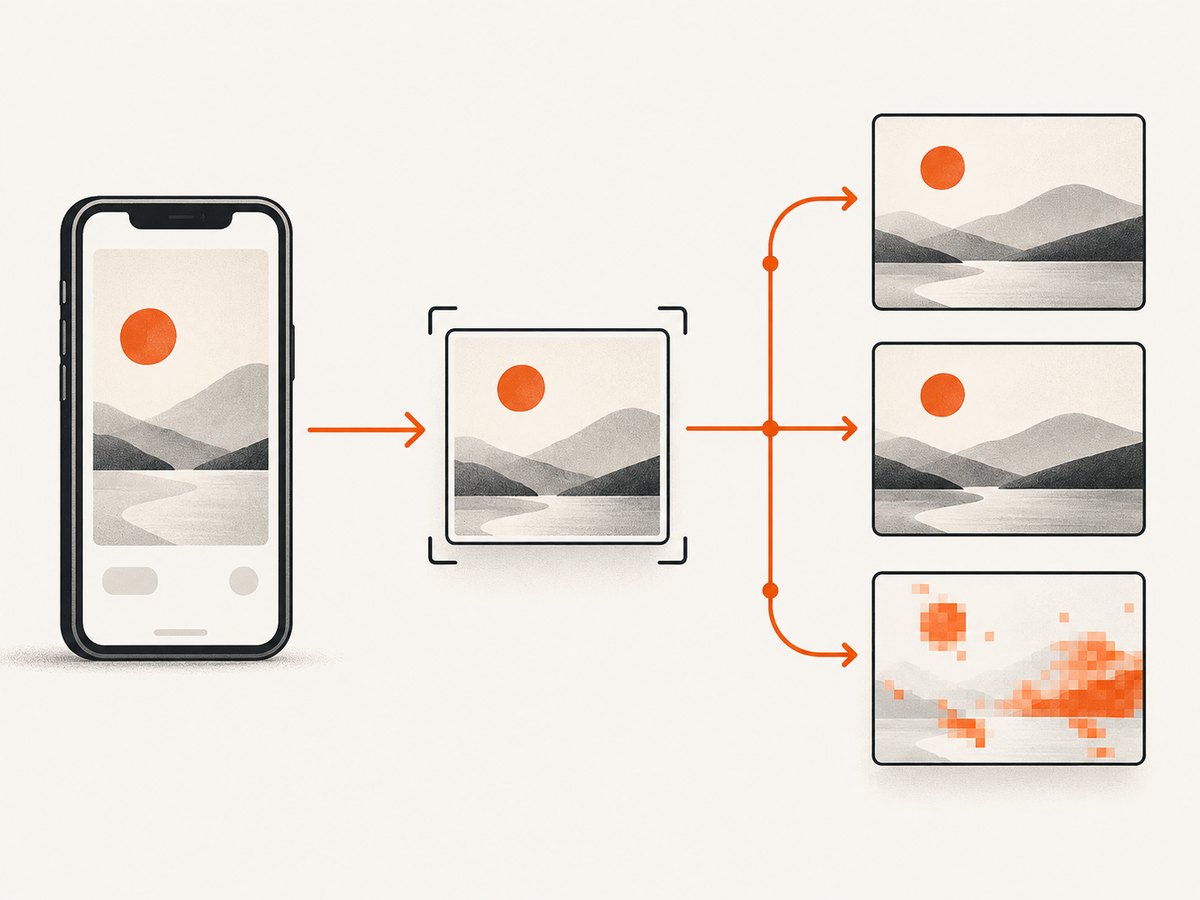
The following example uses the Appium Python client to open an Android session, navigate to a screen, save a screenshot, and compare it with a baseline using Pillow. It is intentionally independent of a provider-specific comparison endpoint, so the diff behavior is visible and reproducible.
from pathlib import Path
from io import BytesIO
import json
import os

from appium import webdriver
from appium.options.android import UiAutomator2Options
from PIL import Image, ImageChops, ImageEnhance

BASELINE = Path("visual-tests/baselines/checkout-android.png")
ACTUAL = Path("visual-tests/actual/checkout-android.png")
DIFF = Path("visual-tests/diffs/checkout-android.png")
THRESHOLD = 0.015  # fraction of pixels that may differ

options = UiAutomator2Options()
options.platform_name = "Android"
options.automation_name = "UiAutomator2"
options.device_name = os.environ.get("ANDROID_DEVICE", "Android")
options.app = os.environ["APP_PATH"]
options.new_command_timeout = 120

driver = webdriver.Remote(
    os.environ.get("APPIUM_SERVER", "http://127.0.0.1:4723"),
    options=options,
)

try:
    # Replace this with actions that reach the stable screen under test.
    driver.find_element("accessibility id", "Checkout").click()
    driver.find_element("accessibility id", "Order summary")

    ACTUAL.parent.mkdir(parents=True, exist_ok=True)
    DIFF.parent.mkdir(parents=True, exist_ok=True)
    driver.get_screenshot_as_file(str(ACTUAL))

    current = Image.open(ACTUAL).convert("RGBA")
    if not BASELINE.exists():
        BASELINE.parent.mkdir(parents=True, exist_ok=True)
        current.save(BASELINE)
        raise SystemExit("Baseline created; review it and rerun the test")

    baseline = Image.open(BASELINE).convert("RGBA")
    if current.size != baseline.size:
        raise AssertionError(
            f"Image dimensions differ: actual={current.size}, baseline={baseline.size}"
        )

    raw_diff = ImageChops.difference(current, baseline)
    # Make small changes visible in the saved artifact.
    visible_diff = ImageEnhance.Brightness(raw_diff).enhance(4.0)
    visible_diff.save(DIFF)

    changed = 0
    total = current.width * current.height
    for pixel in raw_diff.getdata():
        if max(pixel[:3]) > 8:
            changed += 1

    ratio = changed / total
    metadata = {
        "actual": str(ACTUAL),
        "baseline": str(BASELINE),
        "diff": str(DIFF),
        "changed_pixel_ratio": ratio,
        "threshold": THRESHOLD,
        "size": current.size,
    }
    Path("visual-tests/metadata/checkout-android.json").parent.mkdir(
        parents=True, exist_ok=True
    )
    Path("visual-tests/metadata/checkout-android.json").write_text(
        json.dumps(metadata, indent=2)
    )

    if ratio > THRESHOLD:
        raise AssertionError(
            f"Visual regression: {ratio:.3%} of pixels changed; see {DIFF}"
        )
finally:
    driver.quit()
Install the dependencies with:
python -m pip install Appium-Python-Client PillowRun Appium with the Images plugin enabled when you need its matching and comparison commands:
appium --use-plugins=imagesConsult the Appium plugin documentation for the current plugin command syntax and comparison examples. Keep the comparison implementation aligned with the Appium and driver versions used by your CI image.
5. JavaScript and command-line capture patterns
If your tests use WebdriverIO or another JavaScript client, the essential sequence is the same: establish the session, perform deterministic actions, wait for a stable element, call the client’s screenshot method, and retain the file as a CI artifact. A minimal WebdriverIO-style pattern is:
const fs = require('node:fs/promises');

await $('~Checkout').click();
await $('~Order summary').waitForDisplayed();
await browser.saveScreenshot('./visual-tests/actual/checkout-android.png');

// Compare this file with the approved baseline in your image-diff step.
Keep image comparison in a separate step when possible. That lets the Appium test report navigation failures separately from visual failures and lets reviewers download the actual, baseline, and diff files together.
6. Similarity thresholds and matching settings
A threshold is a policy decision, not a universal constant. Start with a strict setting on a stable screen, inspect false positives, and then adjust based on known rendering noise. A global threshold can hide a small but important control change; consider region-specific assertions for high-risk UI.
Sauce Labs documents an imageMatchThreshold default of 0.4, fixImageTemplateScale defaulting to false, and defaultImageTemplateScale of 1.0 for its hosted image-plugin integration. Those are provider-specific defaults, not recommended values for every Appium installation. Sauce Labs also documents enabling imagesPlugin: true in sauce:options and support for real-device sessions rather than emulators or simulators in that service.
When a match fails, inspect the visualization before changing the threshold. If the entire image shifted by one pixel, fix the capture conditions. If only a clock changes, mask or freeze the clock. If a design change is intentional, update the baseline in a pull request with the diff attached.
7. CI workflow and artifact policy
- Build the exact app artifact under test.
- Start Appium and the selected driver or device session.
- Reset application data or restore a known fixture.
- Run the test and save actual screenshots.
- Compare against immutable baselines.
- Upload baseline, actual, diff, logs, device information, and metadata on every failure.
- Require review before merging a baseline update.
Run visual checks on a small, stable smoke set for every change and a broader matrix on a schedule or before release. Parallel devices improve coverage but increase storage and maintenance. Keep baseline names unique by platform, OS, device, orientation, theme, and locale.
8. Troubleshooting common failures
| Symptom | Likely cause | Fix |
|---|---|---|
| Images have different dimensions | Different device, orientation, density, or screenshot mode. | Pin the device and orientation; record dimensions and reject mismatched baselines. |
| Everything differs after an OS update | System fonts, status bars, rendering, or navigation changed. | Create a new baseline set for that OS and keep the old set for supported releases. |
| Large diff around a banner | Remote content, animation, ad, or rotating promotion. | Stub the response, wait for a stable state, hide the region, or assert it separately. |
| Template matching stopped working | Scale, rotation, theme, or density changed. | Use a device-specific template, tune scale settings, or switch to feature matching. |
| Screenshot is blank | Capture occurred before rendering, app crashed, or a bot/permission screen appeared. | Wait for a known element, capture logs, verify app state, and fail the test before comparison. |
| Flaky one-pixel changes | Antialiasing, animation, timing, or fractional layout. | Disable animations, wait for idle, use a small pixel tolerance, and document the policy. |
| Images plugin command is unavailable | Plugin was not installed or Appium was not started with it enabled. | Run appium plugin install images, then start Appium with the plugin enabled. |
| Hosted test cannot use the plugin | Provider support or device restrictions differ from local Appium. | Check that provider’s current documentation; Sauce Labs documents real-device support and an explicit opt-in. |
9. Performance, reliability, and cost
Screenshot capture is usually cheaper than rerunning a full test suite, but storing every image can become expensive in large matrices. Save artifacts on failure and retain a limited sample of passing images unless audit requirements demand more. Compress PNGs only when the comparison tool supports it without changing pixels; avoid JPEG for regression inputs because compression creates noise.
Reduce flakiness before relaxing thresholds. Deterministic fixtures, pinned devices, disabled animations, stable network data, and explicit waits produce more trustworthy results than a permissive score. For parallel execution, isolate each session’s app data and write artifacts to unique paths.
Appium itself is software; the reviewed sources do not establish a universal device-cloud price, speed benchmark, or defect-detection rate. Verify current Appium, driver, provider, and managed-service terms before committing to a commercial workflow.
10. Or skip the browser setup
If your requirement is a clean image of a web page for a report, dashboard, or AI workflow rather than an on-device native-app assertion, ScreenshotNeo provides a single screenshot API request. See the ScreenshotNeo documentation for the full option list.
curl -G "https://api.screenshotneo.com/v1/shot" -d access_key=YOUR_API_KEY --data-urlencode url=https://stripe.com -o shot.webpimport requests
r = requests.get("https://api.screenshotneo.com/v1/shot", params={"access_key": "YOUR_API_KEY", "url": "https://stripe.com"}, timeout=90)
open("shot.webp", "wb").write(r.content)const q = new URLSearchParams({ access_key: 'YOUR_API_KEY', url: 'https://stripe.com' });
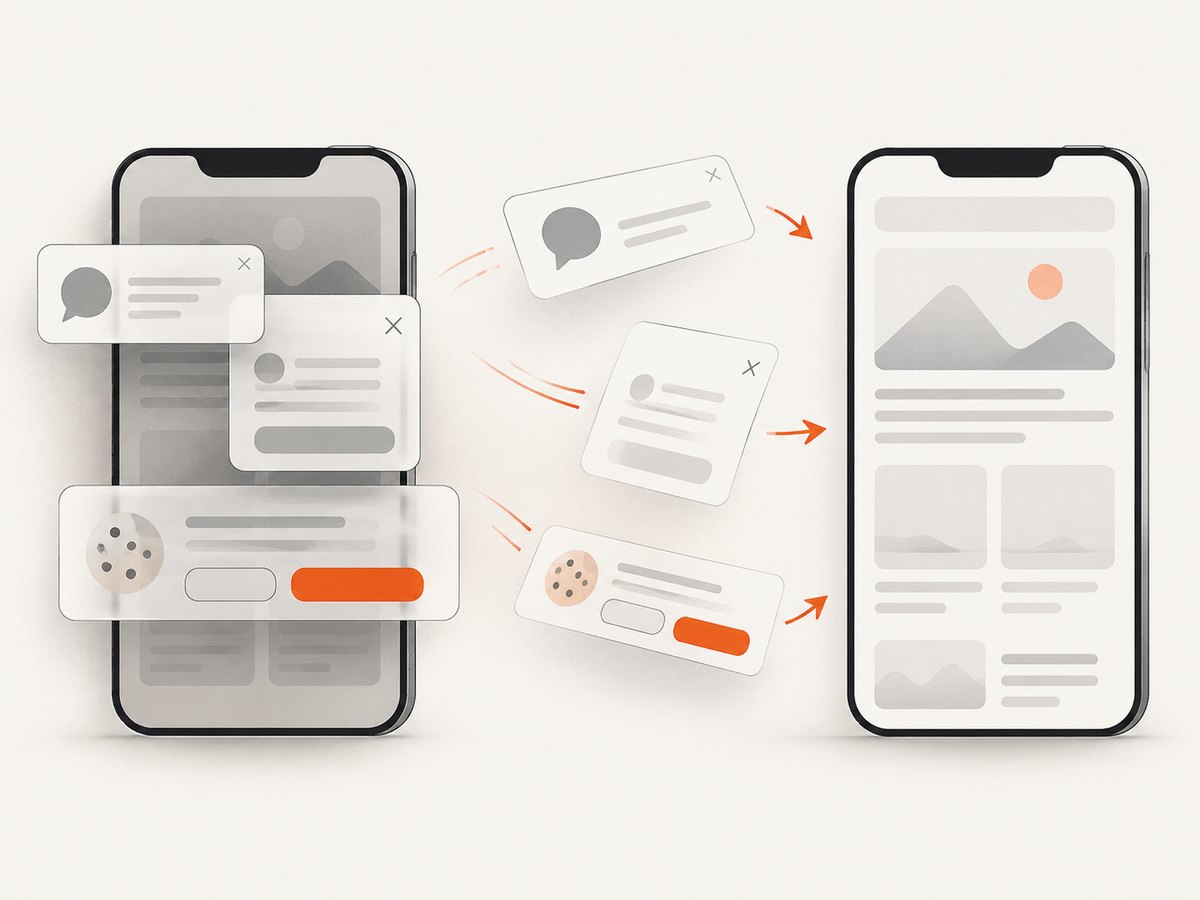
const res = await fetch(`https://api.screenshotneo.com/v1/shot?${q}`);ScreenshotNeo removes cookie and consent banners, newsletter popups, and chat widgets before capture. Bot checks, blank pages, failed loads, timeouts, and cache hits are not billed, and response headers identify the page verdict and whether the shot was billed. It also offers an MCP server with take_screenshot, get_page_info, and capture_pdf for Claude, Cursor, and other MCP clients. The free plan includes 1,000 screenshots per month with no card; paid plans start at $5 for 3,000 shots. Create a free ScreenshotNeo account.
11. FAQ
Should every screen have a baseline?
Baseline screens that represent important user journeys and high-risk layouts first. Add coverage when a screen changes frequently or has caused regressions.
Can I compare screenshots from different devices?
Use separate baselines per device and OS. Cross-device comparisons mix rendering differences with application changes.
Is a similarity score enough for a release gate?
No. Use the score to flag candidates, then inspect the diff and preserve artifacts for review.
When should I use template matching?
Use it when you need to find a smaller image inside a larger screenshot. Use whole-screen similarity for a complete screen state.
Can visual tests replace functional assertions?
No. Keep semantic assertions for behavior and accessibility, and use visual checks for appearance and layout.


