How to Apply CSS Styles to Playwright Screenshots
Use screenshot-time CSS, an injected stylesheet, or Playwright Test’s stylePath to hide volatile elements and make captures more repeatable.
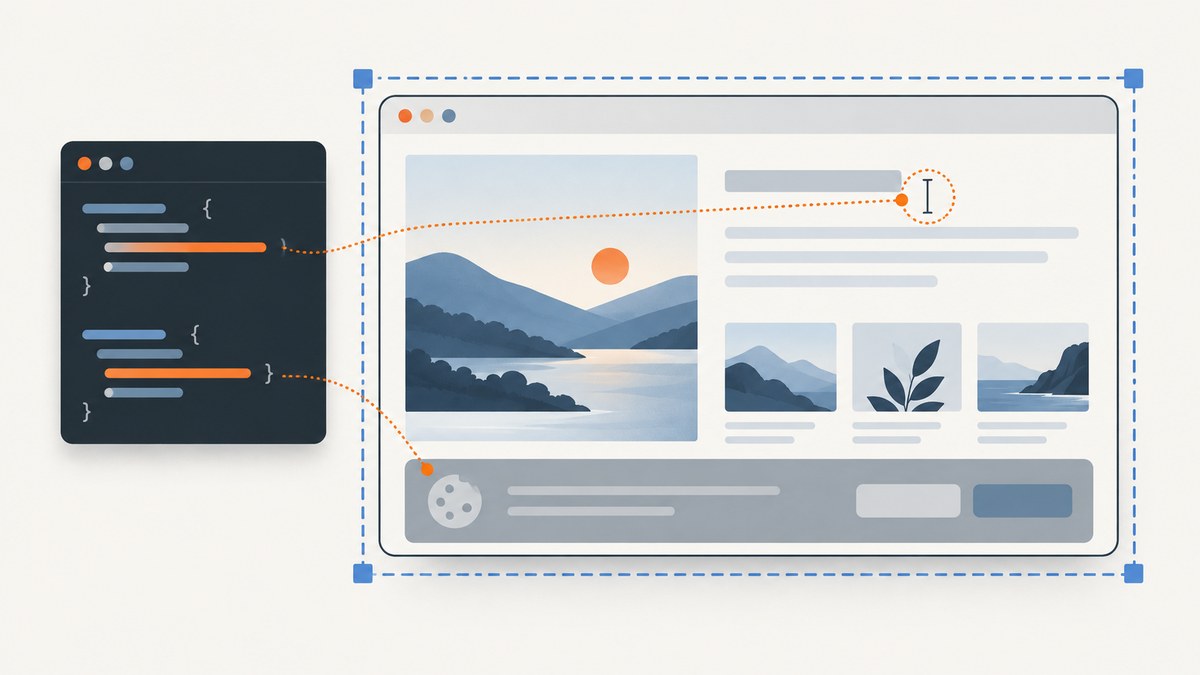
To apply CSS to a one-off Playwright screenshot, pass stylesheet text in page.screenshot({ style }). If your CSS lives in a file and should be inserted into the page before capture, use page.addStyleTag({ path }). For a Playwright Test visual assertion, use stylePath with expect(page).toHaveScreenshot(). These options were added in Playwright v1.41; update an older dependency if it rejects them. See the official Page API, PageAssertions API, and visual comparison guide.
1. Choose the right CSS method
| Workflow | Use | What it does |
|---|---|---|
| One direct screenshot | page.screenshot({ style }) |
Applies CSS text while making that screenshot. |
| Page flow or reusable stylesheet | page.addStyleTag() |
Inserts style content or links a stylesheet into the page before capture. |
| Visual regression assertion | toHaveScreenshot({ stylePath }) |
Applies a stylesheet when the Playwright Test runner captures the comparison image. |
Use the narrowest method that matches the goal. Screenshot-time CSS is convenient for a capture-only adjustment. An inserted style tag is useful when you want the page to reflect the stylesheet during subsequent page actions too. stylePath belongs to Playwright Test assertions; it is not a replacement for the direct Page API.
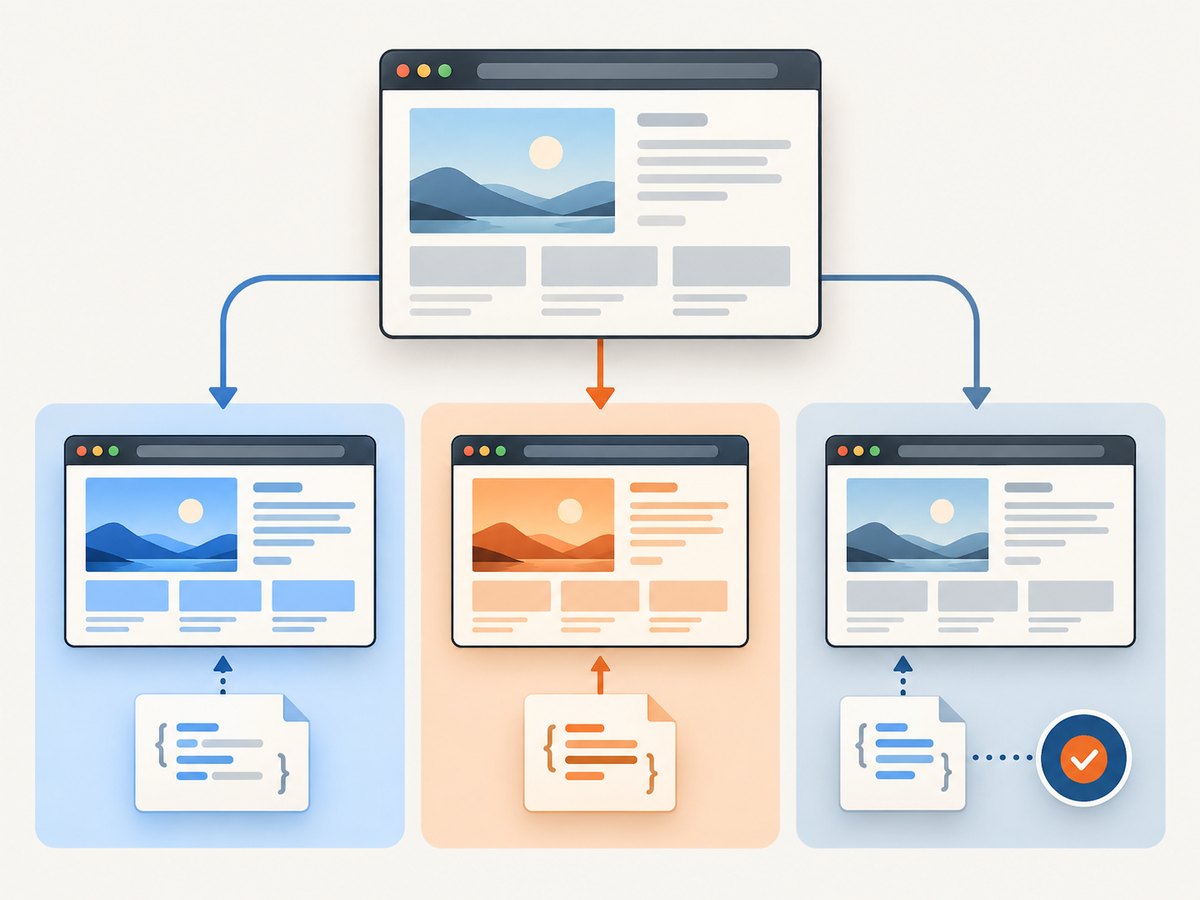
2. Apply CSS to a direct screenshot
Install Playwright in a Node project, then save this as capture.mjs. Run it with node capture.mjs. If you use Playwright’s bundled Chromium, install the browser for the project as described in the official installation documentation.
import { chromium } from 'playwright';

const browser = await chromium.launch();
const page = await browser.newPage({ viewport: { width: 1440, height: 1000 } });

try {
  await page.goto('https://example.com', { waitUntil: 'networkidle' });
  await page.screenshot({
    path: 'page.png',
    fullPage: true,
    style: `
      .cookie-banner,
      .newsletter-modal,
      .live-chat-widget {
        display: none !important;
      }
      .timestamp {
        visibility: hidden !important;
      }
    `,
  });
} finally {
  await browser.close();
}
The CSS is ordinary page CSS. Use stable selectors from the target application where possible. display: none removes a component and its layout space; visibility: hidden hides it while retaining its layout footprint. The !important declaration can override site rules with higher specificity, but keep selectors scoped so the capture stylesheet does not mask a real defect.
When to hide, mask, or restyle
- Hide a timestamp, rotating ad, or consent overlay when its presence is irrelevant to the visual check.
- Restyle a page when a consistent theme or test-only layout is intentional; for example, apply a fixed background color.
- Mask sensitive or unpredictable content in a visual assertion if you want its area covered by a solid box. A mask is not CSS styling; it changes the assertion screenshot and is easier to spot than silently hiding content.
await page.screenshot({
  path: 'dark-preview.png',
  style: `
    html { color-scheme: dark !important; }
    body { background: #111 !important; color: #eee !important; }
  `,
});
A CSS override cannot guarantee every component responds correctly to an artificial theme. Components that render into canvas, use inline styles, or depend on application state may need a product-level theme setting or a deliberate test setup.
3. Add a stylesheet before capture
For a stylesheet stored in your project, add it to the page and then capture. The path is resolved from the process’s current working directory, so use an absolute path when your script can run from different directories.
import { chromium } from 'playwright';
import path from 'node:path';
import { fileURLToPath } from 'node:url';

const here = path.dirname(fileURLToPath(import.meta.url));
const browser = await chromium.launch();
const page = await browser.newPage();

try {
  await page.goto('https://example.com');
  await page.addStyleTag({ path: path.join(here, 'screenshot.css') });
  await page.screenshot({ path: 'page.png', fullPage: true });
} finally {
  await browser.close();
}
Example screenshot.css:
.cookie-banner,
.chat-launcher,
[data-volatile="true"] {
  display: none !important;
}

/* Keep layout space when text changes between runs. */
.live-counter {
  visibility: hidden !important;
}
page.addStyleTag can add CSS from content, a path, or a URL. For content, pass { content: '...' }. For a URL, pass { url: 'https://…' }. A locally controlled file is generally more predictable in automated runs than a remote stylesheet whose contents or availability can change.
4. Use CSS with Playwright Test screenshot assertions
For snapshot testing, put the style file beside the test and provide its path through stylePath. This example is a Playwright Test test file:
import { test, expect } from '@playwright/test';
import path from 'node:path';

 test('home page visual baseline', async ({ page }) => {
  await page.goto('https://example.com');
  await expect(page).toHaveScreenshot({
    stylePath: path.join(__dirname, 'screenshot.css'),
    fullPage: true,
    animations: 'disabled',
    caret: 'hide',
    scale: 'css',
  });
});
Remove the leading space before test if your formatter requires it; it is valid JavaScript whitespace. The assertion is provided by the Playwright Test runner, not by the standalone Playwright library alone. On its first run, the visual guide says Playwright generates a reference image; later runs compare against that expectation.
The assertion stylesheet is documented as piercing Shadow DOM and applying to inner frames. This is useful when dynamic content lives inside a component or frame, but broad selectors can hide changes you meant to detect. Keep the rules specific and review the resulting diff when updating a baseline.
Apply a shared assertion stylesheet
If several assertions need the same capture rules, configure expect.toHaveScreenshot.stylePath in your Playwright configuration, or keep passing the path at the assertion that needs it. A per-assertion path makes the special handling explicit; shared configuration reduces repetition. Confirm the exact configuration shape against the docs for your installed Playwright release.
5. Make screenshots repeatable
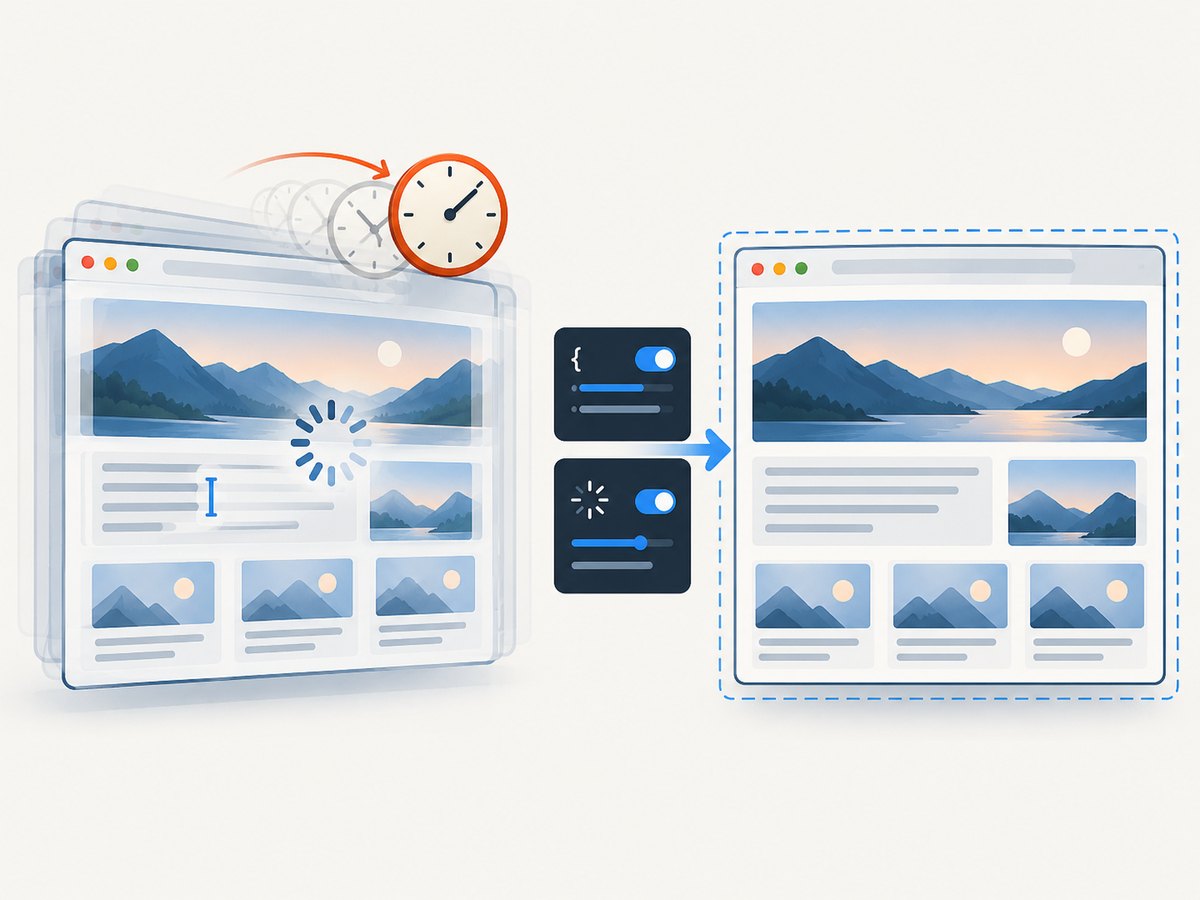
CSS stabilizes only the parts it targets. Reliable visual comparisons also need a controlled browser environment and deliberate screenshot options. The defaults differ: direct page.screenshot() allows animations by default, while toHaveScreenshot() disables them. The assertion waits for two consecutive screenshots to match before comparing the final image to its expectation.
| Control | Effect | When to set it |
|---|---|---|
animations: 'disabled' |
Finite animations fast-forward to completion; infinite animations are canceled at their initial state for the capture, then resumed afterward. | Visual assertions where animation frames should not change the image. |
animations: 'allow' |
Leaves animations running. | When the animated state itself is what you need to capture. |
caret: 'hide' |
Hides the text caret; this is the default for assertions. | Usually leave hidden for repeatable text input screenshots. |
fullPage: true |
Captures the full scrollable page rather than only the viewport. | Long-page documentation, marketing pages, or full-layout checks. |
clip |
Limits the captured rectangle by x/y/width/height. | When only one region matters. |
scale: 'css' |
One output pixel per CSS pixel. | Smaller, more comparable images; this is the assertion default. |
scale: 'device' |
Uses device pixels; high-DPI images can be substantially larger. | When pixel density is part of the requirement. |
omitBackground: true |
Allows transparent screenshots; does not apply to JPEG. | When compositing output over another background. |
Set the viewport before navigating, use deterministic test data, and wait for a meaningful page condition rather than adding arbitrary sleeps. If external content changes independently, hide or mask only that region. Use consistent browser and operating-system environments for baselines because screenshot comparisons are sensitive to rendering differences.
6. Troubleshooting CSS screenshot problems
| Symptom | Likely cause | Fix |
|---|---|---|
style or stylePath is rejected as unknown |
Installed Playwright predates the v1.41 option. | Check the installed package version and update Playwright, or use addStyleTag as a compatible page-level alternative. |
| CSS file is not found | Relative path resolved from a different working directory. | Build an absolute path from the test file or script location; check spelling and case. |
| Element remains visible | Selector does not match, iframe boundary differs, or site styles override the declaration. | Inspect the actual DOM, use a specific selector and add !important where needed. Assertion stylePath reaches inner frames and Shadow DOM as documented. |
| Screenshot changes between runs | Animations, timestamps, random data, delayed requests, or changing test data. | Disable animations for assertions; hide only volatile elements; make data and readiness conditions deterministic. |
| CSS appears to alter normal test behavior | addStyleTag adds a stylesheet to the page flow. |
Use screenshot-time style for one capture, or apply/remove the page stylesheet around the capture. |
| Screenshot is unexpectedly huge | fullPage is enabled or device-pixel scaling is used on a high-DPI context. |
Capture the viewport or a clip, and choose scale: 'css' when device pixels are unnecessary. |
| Large image diff despite matching CSS | Viewport, fonts, browser, device scale, or application state differs from the baseline. | Align the capture environment and verify page content before changing diff thresholds. |
| Assertion times out waiting to stabilize | Two consecutive captures keep differing or the assertion timeout is too short for the page. | Remove the source of volatility, wait for the relevant content to settle, then set a suitable assertion timeout if needed. |
7. Performance, reliability, and cost
CSS text in page.screenshot avoids maintaining a separate capture file for a small rule set. A stylesheet file is easier to reuse and review as rules grow. Neither approach eliminates the cost of loading and rendering the page; screenshots still depend on navigation, assets, browser resources, and full-page dimensions. Large full-page captures and device-scale output produce more pixels to encode and store, so capture only the region and resolution your workflow needs.
For reliability, keep capture styles version-controlled alongside tests, prefer stable app selectors, and use explicit readiness checks for content that loads asynchronously. Avoid hiding whole page regions merely to make a test pass: this may conceal a genuine visual regression. Use assertion tolerances only after identifying expected rendering noise; they are not a substitute for deterministic inputs.
Local Playwright has no per-screenshot service fee, but your workflow still uses compute, browser installation, storage, and CI time. For externally hosted captures, compare the time spent maintaining browser infrastructure with the API’s pricing and features. Do not infer a service’s billing behavior from a successful HTTP response; check its documented terms.
Or skip the browser setup
If you need a clean screenshot of a public page rather than a locally controlled browser test, ScreenshotNeo is a website screenshot API and MCP server. One GET request returns an image or PDF. Its capture flow accepts cookie and consent banners like a visitor and removes 60+ known consent platforms, newsletter popups, and chat widgets; each of those steps can be turned off. Bot checks/CAPTCHAs, blank pages, timeouts, failed loads, and cache hits are not billed, and responses report page verdict and billing headers. AI agents can call its MCP tools, including take_screenshot, get_page_info, and capture_pdf. Plans include 1,000 free shots per month with no card, then paid plans start at $5 for 3,000. It is not a substitute for app-controlled visual regression tests that need your local test state.
See the ScreenshotNeo API documentation for parameters. This cURL request saves a WebP screenshot:
curl -G "https://api.screenshotneo.com/v1/shot" \
  -d access_key=YOUR_API_KEY \
  --data-urlencode url=https://stripe.com \
  -o shot.webp
Sign up for 1,000 free screenshots a month with no card.
FAQ
Can I apply styles to only one screenshot?
Yes. Pass CSS text to that call’s page.screenshot({ style }). It applies during the screenshot operation.
Can I use a stylesheet file for a screenshot assertion?
Yes. Use stylePath with expect(page).toHaveScreenshot() in Playwright Test.
Does screenshot CSS work through Shadow DOM?
The assertion API documents that stylePath pierces Shadow DOM and applies to inner frames. For direct screenshots, use the Page API behavior and your page’s actual selector boundaries.
Why did my CSS change the page outside the screenshot?
addStyleTag inserts a stylesheet into the page. Choose the screenshot-time style option when the override should apply only while capturing.
Do screenshots use CSS pixels or device pixels?
Choose scale: 'css' for one output pixel per CSS pixel or scale: 'device' for device-pixel output. The assertion default is CSS scale.


